

Configure third-party identity
This guide is for Google Security Operations administrators who want to authenticate their workforce (users and groups) on Google SecOps by using a third-party identity provider (IdP). This process is possible by leveraging Google Cloud Workforce Identity Federation.
Workforce Identity Federation supports any IdP that uses Security Assertion Markup Language (SAML 2.0) or OpenID Connect (OIDC), such as Okta, Microsoft Entra ID, and Microsoft Active Directory Federation Services (AD FS).
This document describes the high-level steps to set up authentication through a SAML-based IdP by using Workforce Identity Federation.
- Plan for your required resources. Decide on your workforce identity pool and provider details, and identify user attributes and groups needed to configure access to features in Google SecOps.
- Configure the third-party IdP application. Create an IdP SAML application to integrate with Workforce Identity Federation and Google SecOps.
- Configure Workforce Identity Federation. Configure your workforce identity pool and provider, and grant Google Cloud Identity and Access Management (IAM) roles to IdP groups and users.
- Configure single sign-on (SSO) using the newly created provider.
After completing these steps, you can sign in to Google SecOps with your identity provider and manage user access through feature role-based access control (RBAC) using IAM.
Common use cases
Google SecOps requires using Workforce Identity Federation as the SSO broker for a varied set of use cases.
Comply with strict security standards
- Objective: Meet strict regulatory standards for system and cloud access.
- Value: Helps conform to FedRAMP High (or higher) compliance requirements by securely brokering SSO.
Manage enterprise access control
- Objective: Control feature and data access centrally across the organization.
- Value: Enables enterprise-level RBAC in Google SecOps by using IAM.
Automate API programmatic access
- Objective: Provide self-service methods to securely interact with the Chronicle APIs.
- Value: Reduces manual administrative overhead by letting customers manage their credentials programmatically.
Key terminology
- Workforce pool: A globally unique Google Cloud resource defined at the organization level that grants your workforce access to Google SecOps.
- Workforce provider: A sub-resource of the workforce identity pool that stores configuration details for a single external IdP.
- Attribute mapping: The process of translating assertion attributes provided by your IdP into Google Cloud attributes by using Common Expression Language (CEL).
- Assertion Consumer Service (ACS) URL: A specific URL (sometimes referred to as a single sign-on URL depending on the provider) used to configure a SAML application to communicate with Google SecOps.
- Entity ID: A globally unique identifier URL that identifies a specific application or service, such as Google SecOps, and configures the SAML application within your IdP.
Process overview
Google SecOps supports Service Provider Initiated (SP-initiated) SAML SSO for users. With this capability, users navigate directly to Google SecOps. Google SecOps issues a request through IAM Workforce Identity Federation to the third-party IdP.
After the IdP authenticates the user identity, the user is returned to Google SecOps with an authentication assertion. Google Cloud Workforce Identity Federation acts as an intermediary in the authentication flow.
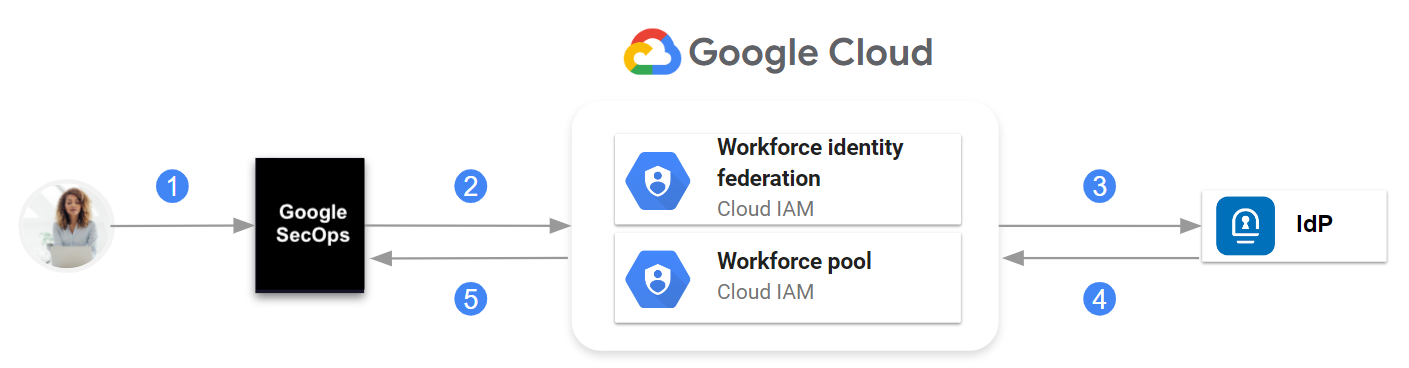
Communication between Google SecOps, IAM Workforce Identity Federation, and IdP
At a high level, the communication is as follows:
- The user navigates to Google SecOps.
- Google SecOps looks up IdP information in the Google Cloud workforce identity pool.
- A request is sent to the IdP.
- The SAML assertion is sent to the Google Cloud workforce identity pool.
- If authentication is successful, Google SecOps receives only the SAML attributes defined when you configured the workforce provider in the workforce identity pool.
Google SecOps administrators create groups in their identity provider, configure the SAML application to pass group membership information in the assertion, and associate users and groups to Google SecOps predefined roles in IAM or to custom roles that they created.
Before you begin
- Familiarize yourself with Cloud Shell,
the
gcloudcommand, and the Google Cloud console. - Configure a Google Cloud project for Google SecOps to set up a project that binds to Google SecOps.
- Review Google Cloud Workforce Identity Federation.
- Make sure you have the permissions to perform the steps in this document. For information about required permissions for each phase of the onboarding process, see Required roles.
Plan the implementation
This section describes the decisions you must make and information you define before performing the steps in this document.
Define the workforce identity pool and workforce provider
To set up authentication through an IdP, you need to configure Workforce Identity Federation as an intermediary in the authentication flow. Before you configure Workforce Identity Federation, define the following Google Cloud resources:
- Workforce pool: A workforce identity pool grants your workforce (such as employees) access to Google SecOps.
- Workforce provider: A sub-resource of the workforce identity pool that stores details about a single IdP.
The relationship between workforce identity pool, workforce providers, and a Google SecOps instance, identified by a single customer subdomain, is as follows:
- A workforce identity pool is defined at the organization level.
- Each Google SecOps instance has a workforce identity pool configured and associated with it.
- A workforce identity pool can have multiple workforce providers.
Each workforce provider integrates a third-party IdP with the workforce identity pool.
The workforce identity pool must be dedicated to Google SecOps. You can't share the pool that is created for Google SecOps for other purposes.
You must have the workforce identity pool in the same Google Cloud organization that contains the project bound to Google SecOps.
Following are the guidelines for defining the values for the key identifiers of the workforce pool and the workforce provider:
- Workforce pool ID (
WORKFORCE_POOL_ID): define a value that indicates the scope or purpose of the workforce identity pool. The value must meet the following requirements:- Must be globally unique.
- Must use only lowercase characters [a-z], digit [0-9], and dashes [-].
- Must begin with a lowercase character [a-z].
- Must end with either a lowercase character [a-z] or digit [0-9].
- Can be between 4 to 61 characters in length.
- Workforce pool display name (
WORKFORCE_POOL_DISPLAY_NAME): define a user-friendly name. for the workforce identity pool. - Workforce pool description (
WORKFORCE_POOL_DESCRIPTION): define a detailed description of the workforce identity pool. - Workforce provider ID (
WORKFORCE_PROVIDER_ID): define a value that indicates the IdP it represents. The value must meet the following requirements:- Must use only lowercase characters [a-z], digit [0-9], and dash [-].
- Can be between 4 to 32 characters in length.
- Workforce provider display name (
WORKFORCE_PROVIDER_DISPLAY_NAME): define a user-friendly name for the workforce provider. It must be fewer than 32 characters long. - Workforce provider description (
WORKFORCE_PROVIDER_DESCRIPTION): define a detailed description of the workforce provider.
Define user attributes and groups in the IdP
Before creating the SAML application in the IdP, identify the user attributes and groups needed to configure access to features in Google SecOps. The typical user attributes include the following:
- Subject
- First name
- Last name
- Display name
You need the information about user groups and attributes during the following phases of this process:
When configuring the SAML application, you create the groups defined during planning. You configure the IdP SAML application to pass group memberships in the assertion.
When you create the workforce provider, you map assertion attributes and groups to Google Cloud attributes. This information is sent in the assertion claim as part of a user's identity.
Configure the IdP application
This section describes only the specific configuration needed in an IdP SAML application to integrate with Google Cloud Workforce Identity Federation and Google SecOps. Consult your IdP documentation for detailed steps.
Create groups in your IdP, if not already created.
As a best practice, use groups rather than individual user accounts for managing access to your Google SecOps instance. Google recommends creating groups in your IdP that correspond directly to the default Google SecOps roles.
Refer to the following example:
Google SecOps role IdP group (Suggested) Chronicle API Admin chronicle_secops_admins Chronicle API Editor chronicle_secops_editor Chronicle API Viewer chronicle_secops_viewer Create a new SAML application in your IdP.
Configure the application with the following:
Specify the Assertion Consumer Service (ACS) URL, which is also referred to as a single sign-on URL depending on the service provider.
https://auth.backstory.chronicle.security/signin-callback/locations/global/workforcePools/WORKFORCE_POOL_ID/providers/WORKFORCE_PROVIDER_IDReplace the following:
WORKFORCE_POOL_ID: the identifier you defined for the workforce identity pool.WORKFORCE_PROVIDER_ID: the identifier you defined for the workforce provider.
For value descriptions, see Define the workforce identity pool and workforce provider.
Specify the following Entity ID (also called, SP Entity ID).
https://iam.googleapis.com/locations/global/workforcePools/WORKFORCE_POOL_ID/providers/WORKFORCE_PROVIDER_IDConfigure the name identifier in your IdP to ensure that the
NameIDfield is returned in the SAML response.You can set this to a value that supports your organization policies, such as email address or username. Consult your IdP documentation for information about configuring this value. For more information about this requirement, see Troubleshoot workforce identity federation.
Add the attribute statements that let you pass user information from the IdP to your application integrations. You defined the attributes when you planned the IdP implementation.
For example, the following table lists the user attribute statements that you can add in the commonly used IdPs, such as Okta, Microsoft AD FS, or Entra ID:
Attribute name Okta value (Expression) AD FS / Entra ID (Source attribute) subjectuser.emailuser.mailoruser.userprincipalnameemailaddressuser.emailuser.mailfirst_nameuser.firstNameuser.givennamelast_nameuser.lastNameuser.surnamedisplay_nameuser.displayNameuser.displaynameIf you're configuring an Okta IdP application, ensure you select Unspecified as the format when adding the attributes. Leave the namespace blank when using Microsoft AD FS or Entra ID as your IdP.
Optionally, add the group attributes, such as
groups, in the IdP application.Assign the appropriate groups and users to the application within your IdP.
These groups and users will be authorized to access Google SecOps.
Download the application metadata XML file.
In the next section, you use this metadata file when configuring your workforce identity provider. If you use Google Cloud CLI, you need to upload this file from your local system to your Google Cloud home directory using Cloud Shell.
Configure Workforce Identity Federation
This section describes only the specific steps needed to configure Workforce Identity Federation with the IdP SAML application that you created in the previous section. For more information about managing workforce identity pools, see Manage workforce identity pool providers
Set the billing and quota project
Open the Google Cloud console as the user with the required permissions on the Google SecOps-bound project. You identified or created this user earlier. See the Before you begin section.
Launch a Cloud Shell session.
Set the Google Cloud project that is billed and charged quota for operations performed using the gcloud CLI. Use the following
gcloudcommand as an example:gcloud config set billing/quota_project PROJECT_IDReplace
PROJECT_IDwith the project ID of the Google SecOps-bound project you created in Configure a Google Cloud project for Google SecOps. For a description of fields that identify a project, see Creating and managing projects.For information about quotas, see the following documents:
If you encounter an error, see Troubleshoot quota errors.
Create and configure a workforce identity pool
You can configure a workforce identity pool to integrate with an external identity provider (IdP) or with Google Workspace or Cloud Identity.
Console
To create the workforce identity pool, do the following:
In the Google Cloud console, go to the Workforce Identity Pools page:
Select the organization for your workforce identity pool. Workforce identity pools are available across all projects and folders in an organization.
Click Create pool and do the following:
In the Name field, enter the display name of the pool. The pool ID is automatically derived from the name as you type, and it is displayed under the Name field. You can update the pool ID by clicking Edit next to the pool ID.
Optional: In Description, enter a description of the pool.
Click Next.
The workforce identity pool's session duration defaults to one hour. This duration determines the validity of Google Cloud access tokens, Google Cloud Workforce Identity Federation console, and gcloud CLI sign-in sessions. You can update the pool to set a custom session duration between 15 minutes and 12 hours.
gcloud
Create a workforce identity pool.
Use the following
gcloudcommand as an example:gcloud iam workforce-pools create WORKFORCE_POOL_ID\ --location="global" \ --organization=ORGANIZATION_ID \ --description="WORKFORCE_POOL_DESCRIPTION" \ --display-name="WORKFORCE_POOL_DISPLAY_NAME" \ --session-duration=SESSION_DURATIONReplace the following:
WORKFORCE_POOL_ID: the value that you defined for the workforce identity pool ID.ORGANIZATION_ID: the numeric organization ID.WORKFORCE_POOL_DESCRIPTION: an optional description of the workforce identity pool.WORKFORCE_POOL_DISPLAY_NAME: an optional user-friendly name for the workforce identity pool.SESSION_DURATION: an optional value for the session duration, expressed as a number appended withs—for example,3600s. This duration determines the validity of Google Cloud access tokens, Google Cloud Workforce Identity Federation console, and gcloud CLI sign-in sessions. You can update the pool to set a custom session duration between 15 minutes and 12 hours.
To use Google Workspace or Cloud Identity to sign in to Google SecOps, add the
--allowed-services domain=backstory.chronicle.securityand--disable-programmatic-signinflags to the command.gcloud iam workforce-pools create WORKFORCE_POOL_ID\ --location="global" \ --organization="ORGANIZATION_ID" \ --description="WORKFORCE_POOL_DESCRIPTION" \ --display-name="WORKFORCE_POOL_DISPLAY_NAME" \ --session-duration=SESSION_DURATION \ --allowed-services domain=backstory.chronicle.security \ --disable-programmatic-signinThis command creates a workforce identity pool that does not support signing in to Google Cloud. To enable sign-in functionality, you need to use the appropriate flags for each scenario.
If prompted to enable the Chronicle API, enter
Yes.
Create a workforce identity pool provider
A workforce identity pool provider describes a relationship between your Google Cloud organization and your IdP.
Console
To configure the workforce identity pool provider, do the following:
In the Google Cloud console, go to the Workforce Identity Pools page:
In the Workforce Identity Pools table, select the pool for which you want to create the provider.
In the Providers section, click Add Provider.
In Select a Provider vendor, select your IdP.
If your IdP isn't listed, select Generic Identity Provider.
In Select an authentication protocol, select SAML.
In the Create a provider section, do the following:
In Name, enter a name for the provider.
Optional: In Description, enter a description for the provider.
In IDP metadata file (XML), select the metadata XML file that you generated earlier in this guide.
Make sure Enable provider is on.
Click Continue.
In the Share your provider information section, copy the URLs. In your IdP, configure the first URL as the entity ID, which identifies your application to IdP. Configure the other URL as the redirect URI, which informs your IdP where to send the assertion token after logging in.
Click Continue.
In the Configure provider section, do the following:
In Attribute mapping, enter the mappings in the respective boxes. For example:
Google X (where X is a number) SAML X (where X is a number) google.subjectassertion.subjectgoogle.groupsassertion.attributes.groupsgoogle.display_nameassertion.attributes.display_name[0]attribute.first_nameassertion.attributes.first_name[0]attribute.last_nameassertion.attributes.last_name[0]attribute.user_emailassertion.attributes.emailaddress[0]Optional: If you selected Microsoft Entra ID as your IdP, you can increase the number of groups by doing the following:
- Select Use Extra Attributes.
- In the Extra Attributes Issuer URI field, enter the issuer URL.
- In the Extra Attributes Client ID field, enter the client ID.
- In the Extra Attributes Client Secret field, enter the client secret.
- In the Extra Attributes Type list, select an attribute type for extra attributes.
- In the Extra Attributes Filter field, enter a filter expression that is used when querying the Microsoft Graph API for groups.
Optional: To add an attribute condition, click Add condition and enter a CEL expression representing an attribute condition. For example, to limit the
ipaddrattribute to a certain IP range, you can set the conditionassertion.attributes.ipaddr.startsWith('98.11.12.'). This example condition ensures that only users with an IP address that starts with98.11.12.can sign in using this workforce provider.To turn on detailed audit logging, in Detailed logging, click the Enable attribute value audit logging toggle.
To create the provider, click Submit.
gcloud
To configure the workforce identity pool provider:
Upload the SAML application metadata file to your Cloud Shell home directory by clicking More >. Files can only be uploaded to your home directory. For more options to transfer files between Cloud Shell and your local workstation, see Upload and download files and folders from Cloud Shell.
Make a note of the directory path where you uploaded the SAML application metadata XML file in Cloud Shell. You will need this path in the next step.
Create a workforce identity pool provider and specify the IdP details.
Use the following
gcloudcommand as an example:gcloud iam workforce-pools providers create-saml WORKFORCE_PROVIDER_ID \ --workforce-pool="WORKFORCE_POOL_ID" \ --location="global" \ --display-name="WORKFORCE_PROVIDER_DISPLAY_NAME" \ --description="WORKFORCE_PROVIDER_DESCRIPTION" \ --idp-metadata-path=PATH_TO_METADATA_XML \ --attribute-mapping="ATTRIBUTE_MAPPINGS"Review Plan the implementation for value descriptions.
Replace the following:
WORKFORCE_PROVIDER_ID: the value you defined for the workforce provider ID.WORKFORCE_POOL_ID: the value you defined for the workforce identity pool ID.WORKFORCE_PROVIDER_DISPLAY_NAME: an optional user-friendly name for the workforce provider. It must be less than 32 characters long.WORKFORCE_PROVIDER_DESCRIPTION: an optional description of the workforce provider.PATH_TO_METADATA_XML: the Cloud Shell directory location of the application metadata XML file that you uploaded using Cloud Shell, for example:/path/to/sso_metadata.xml.ATTRIBUTE_MAPPINGS: definition of how to map assertion attributes to Google Cloud attributes. Common Expression Language is used to interpret these mapping. For example:google.subject=assertion.subject,google.display_name=assertion.attributes.name[0],google.groups=assertion.attributes.groups
The previous example maps the following attributes:
assertion.subjecttogoogle.subject. This is a minimum requirement.assertion.attributes.name[0]togoogle.display_name.assertion.attributes.groupsto thegoogle.groupsattribute.
If you are performing this configuration for Google Security Operations, which includes Google Security Operations SIEM and Google SecOps SOAR, you must also map the following attributes required by Google SecOps SOAR:
attribute.first_nameattribute.last_nameattribute.user_emailgoogle.groupsgoogle.display_name
So, the complete mapping is as follows:
google.subject=assertion.subject,google.groups=assertion.attributes.groups,attribute.first_name=assertion.attributes.first_name[0],attribute.last_name=assertion.attributes.last_name[0],attribute.user_email=assertion.attributes.emailaddress[0],google.display_name=assertion.attributes.display_name[0]For more information, see Provisioning and mapping users for Google SecOps SOAR.
By default, Google SecOps reads group information from the following case-insensitive assertion attribute names:
_assertion.attributes.groups_,_assertion.attributes.idpGroup_, and_assertion.attributes.memberOf_.When configuring the SAML application to pass group membership information in the assertion, set the group attribute name to either
_group_,_idpGroup_, or_memberOf_.In the example command, you can replace
assertion.attributes.groupswith eitherassertion.attributes.idpGrouporassertion.attributes.memberOf, which represents the name of the group attribute you configured in the IdP SAML application and that contains group membership information in the assertion.The following example maps multiple groups to the
google.groupsattribute:google.groups="(has(assertion.attributes.idpGroup) ? assertion.attributes.idpGroup : []) + (has(assertion.attributes.groups) ? assertion.attributes.groups : []) + (has(assertion.attributes.memberof) ? assertion.attributes.memberof : [])"The following example maps the group
http://schemas.xmlsoap.org/ws/2005/05/identity/claims/groupcontaining special characters togoogle.groups:google.groups="assertion.attributes['http://schemas.xmlsoap.org/ws/2005/05/identity/claims/group']"For more information about mapping attributes, see Attribute Mappings.
Grant a role to enable sign in to Google SecOps
The following steps describe how to grant a specific role using IAM so that groups and users in your workforce identity pool can sign in to Google SecOps. Perform the configuration using the Google SecOps-bound Google Cloud project you created earlier.
Console
In the Google Cloud console, go to the IAM page.
Select the Google SecOps-bound Google Cloud project.
On the View by principals tab, click Grant Access.
In the Add principals section, enter a principal identifier in the New principals field.
For example:
To add all identities managed using the workforce identity pool and workforce provider you created previously, enter the following:
principalSet://iam.googleapis.com/locations/global/workforcePools/WORKFORCE_POOL_IDTo add a specific group as a principal, enter the following:
principalSet://iam.googleapis.com/locations/global/workforcePools/WORKFORCE_POOL_ID/group/GROUP_ID
Replace the following:
WORKFORCE_POOL_ID: the value you defined for the workforce identity pool ID.GROUP_ID: a group in the mappedgoogle.groupsclaim. You must have this group created in your IdP.
In the Assign roles section, select or search for an applicable Chronicle API role, such as Chronicle API Viewer (
roles/chronicle.viewer).Click Save.
Repeat steps 3 through 5 for every principal that you want to grant roles.
gcloud
Grant the Chronicle API Viewer (
roles/chronicle.viewer) role to users or groups that should have access to the Google SecOps application.- The following example grants the Chronicle API Viewer role to identities managed using the workforce identity pool and workforce provider you created previously.
gcloud projects add-iam-policy-binding PROJECT_ID \
  --role roles/chronicle.viewer \
  --member "principalSet://iam.googleapis.com/locations/global/workforcePools/WORKFORCE_POOL_ID/*"
Replace the following:
PROJECT_ID: with the project ID of the Google SecOps-bound project you configured in Configure a Google Cloud project for Google SecOps. For a description of fields that identify a project, see Creating and managing projects.WORKFORCE_POOL_ID: the value you defined for the workforce identity pool ID.To grant the Chronicle API Viewer role to a specific group, run the following command:
gcloud projects add-iam-policy-binding PROJECT_ID \
  --role roles/chronicle.viewer \
  --member "principalSet://iam.googleapis.com/locations/global/workforcePools/WORKFORCE_POOL_ID/group/GROUP_ID"
Replace
GROUP_ID: a group in the mappedgoogle.groupsclaim. You must have this group created in your IdP.Configure additional IAM policies to meet your organization's requirements.
Required: To complete authentication and enable user access to the Google SecOps platform, you need to configure user access from the SOAR side of the Google SecOps. For more information, see Map users in the Google SecOps platform.
Repeat the previous steps to grant other roles.
Configure SSO to your Google SecOps instance
The final task of integrating your third-party IdP with Google SecOps is configuring the SSO. After completing this step, users will be able to sign in to Google SecOps by using their IdP credentials.
Following are the steps to configure SSO:
- In the Google Cloud console, navigate to the Security > Google SecOps page.
- Click the Single Sign-On tab and then select Workforce Identity Federation.
- From the list of available providers, select the Workforce Identity Federation provider you created in Create a workforce identity pool provider.
- Click Save.
Manage the Workforce Identity Federation configuration
This section explains how to update your provider settings and verify that user access levels are configured correctly.
Verify or configure Google SecOps feature access control
If you configured Workforce Identity Federation with attributes or groups mapped
to the google.groups attribute, this information is passed to Google SecOps
so that you can configure RBAC to Google SecOps features.
If the Google SecOps instance has an existing RBAC configuration, verify that the original configuration works as expected.
If you have not previously configured access control, see Configure feature access control using IAM for information about controlling access to features.
Modify the Workforce Identity Federation configuration
If you need to update the workforce identity pool or workforce provider, see Manage workforce identity pool providers for information about updating the configuration.
The Key management section in Create a SAML workforce pool provider describes how to update IdP signing keys, and then update the workforce provider configuration with the latest application metadata XML file.
Console
To update a specific workforce pool:
Go to the Workforce Identity Pools page:
In the table, select the pool.
Update the pool parameters.
Click Save Pool.
To update a provider:
Go to the Workforce Identity Pools page:
In the table, select the pool for which you want to update the provider.
In the Providers table, click Edit.
Update the provider details.
To save the updated provider details, click Save.
gcloud
The following is an example gcloud command that updates the workforce provider configuration:
gcloud iam workforce-pools providers update-saml WORKFORCE_PROVIDER_ID \
  --workforce-pool=WORKFORCE_POOL_ID \
  --location="global" \
  --display-name="WORKFORCE_PROVIDER_DISPLAY_NAME" \
  --description="WORKFORCE_PROVIDER_DESCRIPTION" \
  --idp-metadata-path=PATH_TO_METADATA_XML \
  --attribute-mapping="ATTRIBUTE_MAPPINGS"
Replace the following:
WORKFORCE_PROVIDER_ID: the value you defined for the workforce provider ID.WORKFORCE_POOL_ID: the value you defined for the workforce identity pool ID.WORKFORCE_PROVIDER_DISPLAY_NAME: a user-friendly name for the workforce provider. The value must be less than 32 characters.WORKFORCE_PROVIDER_DESCRIPTION: the description of the workforce provider.PATH_TO_METADATA_XML: the location of the updated application metadata XML file, for example:/path/to/sso_metadata_updated.xml.ATTRIBUTE_MAPPINGS: the mapped assertion attributes to Google Cloud attributes. For example:
google.subject=assertion.subject,google.display_name=assertion.attributes.name[0],google.groups=assertion.attributes.memberOf
Troubleshoot issues with configuration
If you encounter errors during this process, review Troubleshoot workforce identity federation to resolve common issues. The following section provides information about common problems encountered when performing the steps in this document.
If you still encounter issues, contact your Google SecOps representative and provide your Chrome Network Logs File.
Command not found
When creating a workforce identity pool provider and specifying the IdP details, you get the following error:
Error: bash: --attribute-mapping=google.subject=assertion.subject,
google.display_name=assertion.attributes.name[0],
google.groups=assertion.attributes.groups: command not found
Check that the PATH_TO_METADATA_XML is the location where you uploaded the
SAML application metadata XML file to your Cloud Shell home directory.
The caller does not have permission
When running the command gcloud projects add-iam-policy-binding to grant roles to users or groups, you get the following error:
ERROR: (gcloud.organizations.add-iam-policy-binding) User [ ] does not have
permission to access organizations instance [538073083963:getIamPolicy]
(or it may not exist): The caller does not have permission
Check that you have the required permissions. For more information, see Required roles.
Verification failure: missing session ID in the request
When attempting to authenticate, you get the following error in the browser:
Verification failure: missing session ID in request
Check that the ACS and Entity ID base URLs are correct. For more information, see Configure the IdP application.
Debug JWT larger than 4KB
If you encounter issues with Google SecOps sign in, make sure your JSON Web Tokens (JWTs) don't exceed the 4KB limit for Google SecOps. If a user receives an error stating "Authentication JWT larger than 4KB. Reduce the group membership data sent from the IdP to resolve this error.", follow these troubleshooting steps:
- Debug your token: You can debug your token on the provider details page inside Workforce Identity Federation (by navigating to Workforce Identity Federation > Workforce Pools > [your pool] > [your provider] and clicking Debug IdP Token). To use this feature, you must first add the Google Cloud URL to the redirect URLs of your identity provider. This applies to both SAML and OIDC protocols. For more information, see Troubleshooting Workforce Identity Federation.
Filter groups claims: If your identity provider sends many groups unrelated to Google SecOps, filter the groups claim at your provider level. Configuring your external provider to send only the minimal set of groups required for Google SecOps reduces the size of the JWT and avoids authentication errors.
- Example (Microsoft Entra ID): You can use Microsoft Entra Group Filtering to send only a minimal set of relevant groups. In your Entra Enterprise Application under Single sign-on, edit the Groups claim to apply a filter (for example, using a Prefix match) so that only required groups are sent to Google SecOps. For more information, see Microsoft Entra Group Filtering.
What's next
After completing the steps in this document, perform the following:
Perform steps to Link a Google SecOps instance to Google Cloud services.
If you have not yet set up audit logging, continue with enabling Google SecOps audit logging.
If you are configuring for Google Security Operations, perform additional steps in Provision, authenticate, and map users in Google Security Operations.
To configure access to features, perform additional steps in Configure feature access control using IAM and Google SecOps permissions in IAM.
Need more help? Get answers from Community members and Google SecOps professionals.