

Manage data processing pipelines
This document helps security engineers set up and manage data processing pipelines in Google SecOps to filter events, transform fields, or redact sensitive values before ingestion. This feature provides robust, pre-parsing control over the data ingestion process. By following the recommended methods in this guide, you can optimize data compatibility, reduce costs, and protect sensitive information within Google SecOps.
Data processing simplifies log management through the following core actions:
- Filter: Reduce noise and costs by ingesting only relevant events.
- Transform: Modify data formats, parse fields, and enrich logs for better usability.
- Redact: Protect sensitive information by masking or removing sensitive values before storage.
The following diagram illustrates how your data flows into Google SecOps and how the system processes that data:
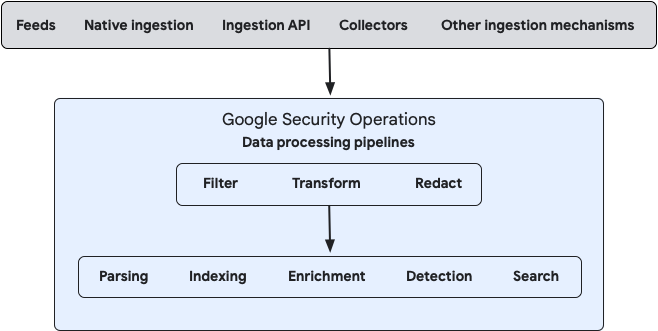
You can configure data processing for both on-premises and cloud data streams using either the Bindplane management console or by using the public Google SecOps Data Pipeline APIs directly.
Common use cases
Example use cases for data processing include the following:
- Remove empty key-value pairs from raw logs.
- Redact sensitive data.
- Add ingestion labels from raw log content.
- In multi-instance environments, apply ingestion labels to direct-ingestion log data to identify the source stream instance (such as Google Cloud Workspace).
- Filter Palo Alto Cortex data by field values.
- Reduce SentinelOne data by category.
- Extract host information from feeds and direct-ingestion logs and map it to the
ingestion_sourcefield for Cloud Monitoring.
Key terminology
Data processing uses the following elements:
- Streams: A specific flow of data, defined by log type and ingestion source (like a feed or API), that serves as the input to a data processing pipeline.
- Processor node: A component within a pipeline that contains one or more processors, such as filter, transform, or redact actions. These processors manipulate data sequentially as it passes through the node.
- Destination: The endpoint of the data processing pipeline, typically the Google SecOps instance where processed data is sent for final ingestion and analysis.
Before you begin
Before you begin setting up data processing pipelines, review the following requirements:
- Parser and UDM impact: Data processing pipelines modify raw log data before it reaches Google SecOps parsers. These modifications can affect how parsers interpret logs and convert them into the Unified Data Model (UDM) format. Before activating a pipeline for a feed or log type, verify that your filtering, transformation, or redaction rules don't unintentionally alter data in a way that prevents parsers from generating correct UDM events.
- API support: Data processing is supported for push-based streams by calling the Chronicle API. Filters configured in the Data Processing Manager (DPM) are applied after data has been received by the Chronicle Ingestion API. Consequently, these filters don't prevent customers from hitting Ingestion API quotas and limits, such as importPushLog API limits, because these limits are evaluated before DPM filtering occurs. To effectively manage and stay within Ingestion API limits, customers should implement filtering at the data source itself rather than relying on DPM filters.
- Data visibility: Data ingested from forwarders and Bindplane is tagged with a distinct
collectorIDfrom direct ingestion streams. To support full log visibility, you must either select all ingestion methods when querying data sources or explicitly reference the relevantcollectorIDwhen interacting with the API. Bindplane console setup: If you plan to use the Bindplane console for setup and management, complete the following steps:
In the Google SecOps console, grant one of the following roles to the user or service account which you will use to configure the Bindplane integration:
A custom role with the following permissions:
chronicle.logProcessingPipelines.associateStreamschronicle.logProcessingPipelines.createchronicle.logProcessingPipelines.deletechronicle.logProcessingPipelines.dissociateStreamschronicle.logProcessingPipelines.fetchAssociatedPipelinechronicle.logProcessingPipelines.fetchSampleLogsByStreamschronicle.logProcessingPipelines.getchronicle.logProcessingPipelines.listchronicle.logProcessingPipelines.testPipelinechronicle.logProcessingPipelines.updatechronicle.logTypes.getchronicle.logTypes.listchronicle.feeds.getchronicle.feeds.listchronicle.logs.listchronicle.parsers.list: This permission is required only if you use Bindplane's Validate SecOps Parser action.chronicle.parsers.runParser: This permission is required only if you use Bindplane's Validate SecOps Parser action.
We recommend using a custom role with the specified required permissions.
For more information, see Create and manage custom roles and Configure feature access control using IAM.
The predefined Chronicle API Admin
roles/chronicle.adminrole.For details, see Assign the Project IAM Admin role in a dedicated project.
Install the Bindplane Server console. For SaaS or on-premises, see Install the Bindplane Server console. Ensure that you install the latest version of Bindplane (or Bindplane version 1.96.4 or later).
In the Bindplane console, connect a Google SecOps destination instance to your Bindplane project. For details, see Connect to a Google SecOps instance.
Connect to a Google SecOps instance
Before you begin, confirm that you have the Bindplane project administrator permissions to access the Project Integrations page.
The Google SecOps instance serves as the destination for your data output.
To connect to a Google SecOps instance using the Bindplane Server console, do the following:
- In the Bindplane Server console, click Menu and select Project Settings.
- On the Project Settings page, go to the Integrations card and click Connect to Google SecOps to open the Edit Integration window.
Enter the details for the Google SecOps destination instance.
This instance ingests the processed data (output from your data processing), as follows:Field Description Region Region of your Google SecOps instance.
To find the instance in the Google Cloud console, go to Security > Detections and Controls > Google Security Operations > Instance details.Customer ID Customer ID of your Google SecOps instance.
In the Google SecOps console, go to SIEM Settings > Profile > Organization details.Google Cloud project number Google Cloud project number of your Google SecOps instance.
To find the project number in the Google SecOps console, go to SIEM Settings > Profile > Organization details.Credentials Service Account credentials are the JSON value required to authenticate and access the Google SecOps Data Pipeline APIs. Get this JSON value from the Google Service Account credential file.
The Service Account must be located in the same Google Cloud project as your Google SecOps instance and requires either the Chronicle API Admin role (roles/chronicle.admin) privileges or a custom role with the required permissions (see Prerequisites).
For information about how to create a Service Account and download the JSON file, see Create and delete Service Account keys.
Alternatively, Bindplane Cloud deployments support Workload Identity Federation (WIF) for authentication. WIF is not supported in self-hosted Bindplane deployments. For more information, see Connect the Google SecOps Integration with WIF Auth.Click Connect. If your connection details are correct and you successfully connect to Google SecOps, you can expect the following:
- A connection to the Google SecOps instance opens.
- The first time you connect, the SecOps Pipelines tab appears in the Bindplane console.
- The Bindplane console displays any processed data you previously set up for this instance using the API. The system converts some processors you configured using the API into Bindplane processors, and displays others in their raw OpenTelemetry Transformation Language (OTTL) format. You can use the Bindplane console to edit pipelines and processors previously set up using the API.
After you successfully create a connection to a Google SecOps instance, you are ready to set up data processing.
Set up data processing using the Bindplane console
This section describes how to provision and deploy a new log processing pipeline in Google SecOps using the Bindplane console. You can also use the Bindplane console to manage pipelines previously set up using the API.
Create a new Google SecOps pipeline
A Google SecOps pipeline is a container for you to configure one data processing container. To create a new Google SecOps pipeline container, do the following:
- In the Bindplane console, click the SecOps Pipelines tab to open the SecOps Pipelines page.
- Click Create SecOps Pipeline.
Enter a SecOps Pipeline name and Description.
Click Create. You can see the new pipeline container on the SecOps Pipelines page.
Configure the data processing container streams and processors within this container.
Configure a data processing container
A data processing container defines the streams to be ingested and the processors to be applied before the data reaches the Destination.
Configure the streams and processor nodes on the pipeline configuration card.
To configure a data processing container, do the following:
- If you haven't already, create a new Google SecOps pipeline.
- In the Bindplane console, click the SecOps Pipelines tab to open the SecOps Pipelines page.
- Select the Google SecOps pipeline where you want to configure the new data processing container.
On the Pipeline configuration card:
- Add a stream.
- Configure the processor node. To add a processor using the Bindplane console, see Configure processors for details.
Once these configurations are complete, see Roll out data processing to begin processing the data.
Add a stream
To add a stream, do the following:
- In the Pipeline configuration card, click add Add Stream to open the Add Stream window.
In the Add Stream window, enter details for these fields:
Field Description Log type Select the log type of the data to ingest. For example, CrowdStrike Falcon (CS_EDR).
Note: A warning Warning icon indicates that the log type is already configured in another stream (either in this pipeline or another pipeline in your Google SecOps instance).
To use an unavailable log type, you must first delete it from the other stream configuration.
For instructions on how to find the stream configuration where the log type is configured, see Filter SecOps pipeline configurations.Ingestion method Select the ingestion method to use to ingest the data for the selected log type. These ingestion methods were previously defined for your Google SecOps instance.
You must select one of the following options:
- All Ingestion Methods: Includes all ingestion methods for the selected log type. When you select this option, it prevents you from adding subsequent streams that use specific ingestion methods for that same log type. Exception: You can select other unconfigured specific ingestion methods for this log type in other streams.
- Specific ingestion method, such as
Cloud Native Ingestion,Feed,Ingestion API, orWorkspace Ingestion.
Feed If you select Feedas the ingestion method, a subsequent field appears with a list of available feed names (pre-configured in your Google SecOps instance) for the selected log type. You must select the relevant feed to complete the configuration. To view and manage your available feeds, go to SIEM Settings > Feeds table.- All Ingestion Methods: Includes all ingestion methods for the selected log type. When you select this option, it prevents you from adding subsequent streams that use specific ingestion methods for that same log type. Exception: You can select other unconfigured specific ingestion methods for this log type in other streams.
Click Add Stream to save the new stream.The new data stream immediately appears on the Pipeline configuration card. The stream is automatically connected to the processor node and the Google SecOps Destination.
Filter SecOps pipeline configurations
The search bar on the SecOps Pipelines page lets you filter and locate your Google SecOps pipelines (data processing containers) based on multiple configuration elements. You can filter pipelines by searching for specific criteria, such as log type, ingestion method, or feed name.
Use the following syntax to filter:
logType:valueingestionMethod:valuefeed:value
For example, to identify stream configurations that contain a specific log type, in the search bar, enter logtype: and select the log type from the resulting list.
Configure processors
A data processing container has one processor node, which holds one or more processors. Each processor manipulates the stream data sequentially:
- The first processor processes the raw stream data.
- The resulting output from the first processor immediately becomes the input for the next processor in the sequence.
- This sequence continues for all subsequent processors, in the exact order they appear in the Processors pane, with the output of one becoming the input of the next.
- Configure the processor node by adding, removing, or changing the sequence of one or more processors.
The following table lists the processors:
| Processor type | Capability |
|---|---|
| Filter | Filter by condition |
| Filter | Filter by HTTP status |
| Filter | Filter by metric name |
| Filter | Filter by regex |
| Filter | Filter by severity |
| Redaction | Redact sensitive data |
| Transform | Add fields |
| Transform | Coalesce |
| Transform | Concat |
| Transform | Copy field |
| Transform | Delete fields |
| Transform | Marshal |
| Transform | Move field |
| Transform | Parse CSV |
| Transform | Parse JSON |
| Transform | Parse key value |
| Transform | Parse severity fields |
| Transform | Parse timestamp |
| Transform | Parse with regex |
| Transform | Parse XML |
| Transform | Rename fields |
| Transform | Rewrite timestamp |
| Transform | Split |
| Transform | Transform |
Add a processor
To add a processor, follow these steps:
In the Pipeline configuration card, click the Processor node to open the Edit Processors window. The Edit Processors window is divided in these panes, arranged by data flow:
- Input (or source data): Recent incoming stream log data (before processing)
- Configuration (or processor list): Processors and their configurations
- Output (or results): Recent outgoing result log data (after processing)
If the pipeline was previously rolled out, the system shows the recent incoming log data (before processing) and the recent outgoing log data (after processing) in the panes.
Click Add Processor to display the processor list. For your convenience, the processor list is grouped by processor type. To organize the list and add your own bundles, select one or more processors and click Add new Processor bundles.
In the processor list, select a Processor to add.
Configure the processor as required.
Click Save to save the processor configuration in the Processor node.
The system immediately tests the new configuration by processing a fresh sample of the incoming stream data (from the Input pane) and displays the resulting outgoing data in the Output pane.
Roll out data processing pipeline
Once the stream and processor configurations are complete, you must roll out the pipeline to begin processing data:
- Click Start rollout. This immediately activates the data processing and lets Google's infrastructure begin processing data according to your configuration. If the rollout is successful, the data processing container's version number is incremented and displayed next to the container's
name.
Set up data processing using API methods
As an alternative to the Bindplane console, you can use the Google SecOps data pipeline methods to manage your processed data. These data pipeline methods include creating, updating, deleting, and listing pipelines, and associating feeds and log types with pipelines.
To use the examples in this section, do the following:
- Replace the customer-specific parameters (for example, URLs and feed IDs) with parameters that suit your own environment.
- Insert your own authentication. In this section, the bearer tokens are redacted with
******.
List all pipelines in a specific Google SecOps instance
The following command lists all pipelines that exist in a specific Google SecOps instance:
curl --location 'https://abc.def.googleapis.com/v123/'\
'projects/projectabc-byop/locations/us/'\
'instances/aaaa1aa1-111a-11a1-1111-11111a1aa1aa/'\
'logProcessingPipelines' \
--header 'Authorization: Bearer ******'
Create a basic pipeline with one processor
To create a basic pipeline with a single transform processor that upserts the value for a custom ingestion label, and associate three sources with it, do the following:
Run the following command:
curl --location 'https://abc.def.googleapis.com/v123/projects/projectabc-byop/locations/us/instances/aaaa1aa1-111a-11a1-1111-11111a1aa1aa/logProcessingPipelines' \
--header 'Content-Type: application/json' \
--header 'Authorization: Bearer ******' \
--data '{
    "displayName": "Example Pipeline",
    "description": "My description",
    "processors": [
        {
            "transformProcessor": {
                "statements": [
                    "set(attributes[\"labels.myLabel.value\"], \"myValue\")"
                ]
            }
        }
    ]
}'
From the response, copy the value of the
namefield.Run the following command to associate three streams (log type, log type with collector ID, and feed) with the pipeline. Use the value of the
namefield as the{pipelineName}value.curl --location 'https://abc.def.googleapis.com/v123/{pipelineName}:associateStreams' \ --header 'Content-Type: application/json' \ --header 'Authorization: Bearer ******' \ --data '{ "streams": [ { "logType": "MICROSOFT_SENTINEL" }, { "logType": "A10_LOAD_BALANCER", "collectorId": "dddddddd-dddd-dddd-dddd-dddddddddddd" }, { "feed": "1a1a1a1a-1a1a-1a1a-1a1a-1a1a1a1a1a1a" } ] }'
Create a pipeline with three processors
A pipeline uses the following processors:
- Filter: Filters out logs that match a condition based on the ingestion labels.
- Transform: Upserts the namespace value.
- Redaction: Redacts email addresses and social security numbers from log data based on custom regex patterns.
To create a pipeline and associate three sources with it, do the following:
Run the following command:
curl --location 'https://abc.def.googleapis.com/v123/projects/projectabc-byop/locations/us/instances/aaaa1aa1-111a-11a1-1111-11111a1aa1aa/logProcessingPipelines' \
--header 'Content-Type: application/json' \
--header 'Authorization: Bearer ******' \
--data-raw '{
    "displayName": "My Pipeline 2",
    "description": "My description 2",
    "processors": [
        {
            "filterProcessor": {
                "logConditions": [
                    "attributes[\"labels.log_source.value\"] == \"myLogSourceToFilterOut\""
                ]
            }
        },
        {
            "transformProcessor": {
                "statements": [
                    "set(attributes[\"environment_namespace\"], \"myValue\")"
                ]
            }
        },
        {
            "redactProcessor": {
                "blockedValues": [
                    "\\b\\d{3}[- ]\\d{2}[- ]\\d{4}\\b",
                    "\\b[a-zA-Z0-9._/\\+\\-—|]+@[A-Za-z0-9\\-—|]+\\.[a-zA-Z|]{2,6}\\b"
                ],
                "allowAllKeys": true
            }
        }
    ]
}'
From the response, copy the value of the
namefield.Run the following command to associate three streams (log type, log type with collector ID, and feed) with the pipeline. Use the value of the
namefield as the{pipelineName}value.curl --location 'https://abc.def.googleapis.com/v123/{pipelineName}:associateStreams' \ --header 'Content-Type: application/json' \ --header 'Authorization: Bearer ******' \ --data '{ "streams": [ { "logType": "MICROSOFT_SENTINEL" }, { "logType": "A10_LOAD_BALANCER", "collectorId": "dddddddd-dddd-dddd-dddd-dddddddddddd" }, { "feed": "1a1a1a1a-1a1a-1a1a-1a1a-1a1a1a1a1a1a" } ] }'
Troubleshooting
This section outlines performance expectations and provides self-service fixes for common issues.
Latency and limits
If you configure an agent using the Ingestion API, you might experience longer acknowledgment times for low-volume Google SecOps pipelines.
Latency averages can rise from 700 ms up to 2 seconds. Increase timeout periods and memory as needed. Acknowledgment time drops when data throughput exceeds 4 MB.
Validation and testing
You can view data processing details from the Google SecOps console:
View all data processing configurations
- In the Google SecOps console, go to SIEM Settings > Data Processing where you can view all of your configured pipelines.
- In the Incoming Data Pipelines search bar, search for any pipeline you built. You can search by elements, such as pipeline name or components. The search results display the pipeline's processors and a summary of its configuration.
- From the pipeline summary, you can do any of the following actions:
- Review the processor configurations.
- Copy configuration details.
- Click Open in Bindplane to access and manage the pipeline directly within the Bindplane console.
View configured feeds
To view configured feeds in your system, do the following:
- In the Google SecOps console, go to SIEM Settings > Feeds. The Feeds page shows all the feeds that you configured in your system.
- Hold the pointer over each row to display the ⋮ More menu, where you can view feed details, edit, disable, or delete the feed.
- Click View Details to view the details window.
- Click Open in Bindplane to open the stream configuration for that feed in the Bindplane console.
View data processing details for available log types
To view data processing details on the Available Log Types page, where you can view all available log types, do the following:
- In the Google SecOps console, go to SIEM Settings > Available Log Types. The main page displays all your log types.
- Hold the pointer over each feed row to display the more_vert More menu. This menu lets you view, edit, disable, or delete feed details.
- Click View Data Processing to view the feed's configuration.
- Click Open in Bindplane to open the processor configuration for that processor in the Bindplane console.
Need more help? Get answers from Community members and Google SecOps professionals.