

Manage MSSP migration
This document details Stage 1 of migrating the infrastructure of SOAR standalone instance of a managed security service provider (MSSP) to Google Cloud.
After completing Stage 1, the MSSP should proceed with Stage 2 in the SOAR migration overview, because it is the same for all customers: MSSPs and non-MSSPs.
Step 1: Google Cloud project identification and setup
The partner needs to identify a Google Cloud project to migrate the SOAR instance to according to the licenses, as follows:
If the partner has an ingest license (SIEM / unified SecOps) for their tenants, they can choose to use the Google Cloud project of the primary SIEM to host the primary SOAR. Alternatively, they can create a separate Google Cloud project to keep the SIEM and SOAR separate.
If the partner has employee-based licenses for their tenants, they need to create a separate Google Cloud project to host SOAR, keeping SIEM and SOAR separate.
The partner can also use a Google Cloud project that might have been set up to access Chronicle Support but doesn't yet have a Google SecOps tenant.
Step 2: Enable Chronicle API in the customer Google Cloud project
Step 3: Set up Google Cloud authentication to access SOAR
The partner needs to set up Google Cloud authentication to access SOAR.
If the partner has a single IdP, they can choose to configure Cloud Identity (Google managed accounts) or Workforce Identity Federation. These are described as Option 1 and Option 2 respectively in the SOAR migration overview document.
If the partner has multiple IdPs, they need to complete the following steps to configure Workforce Identity Federation:
- For each frontend path in SOAR, the partner needs to set up an external IdP through Workforce Identity Federation for each frontend path.
- The partner needs to create one workforce pool for each IdP, and configure the mappings between the workforce pool provider and third-party IdP. Repeat this for each frontend path.
- Grant the required roles in IAM to the onboarding SME and all SOAR users by following the instructions in step 3 of Option 2: Configure Workforce Identity Federation Auth in Google Cloud.
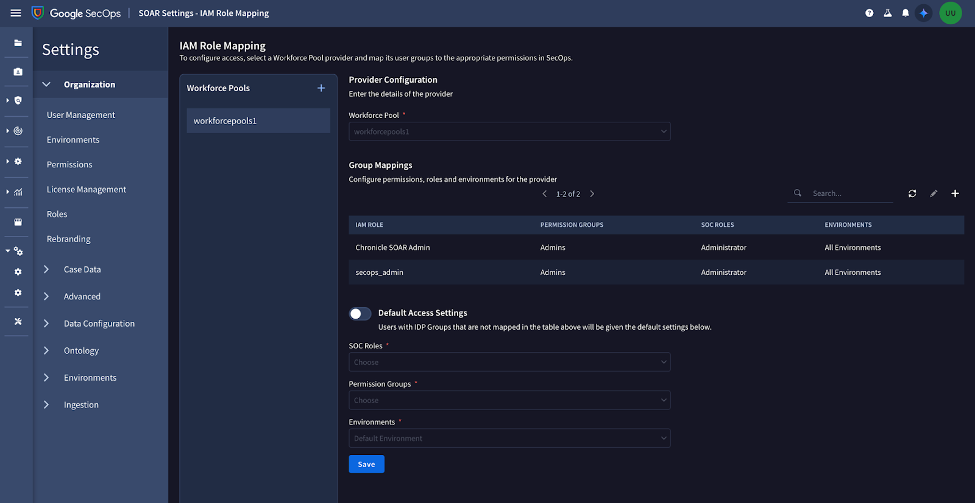
Update the IdP groups mapping in the new Group Mapping page in SOAR for each workforce pool and IdP.
- Click Add to the right of Workforce Pools.
- Add the name of the workforce pool that you have configured in Workforce Identity Federation.
Do the following to add your IdP groups to the Group Mapping table.
- Click Add to the right.
- Add the group name from your IdP.
- Choose the necessary access to SOAR permission groups, environments, and SOC roles.
- Click Save.
- Make sure that you have also added the Admin IdP group with Admin permissions for permission groups, SOC roles, and Select All Environments.
Repeat steps a–c for other workforce pools.
If you have any existing IdP group mappings in the External Authentication page, don't modify them, because they are still needed for you to authenticate to SOAR until the migration.
After you have completed the previous steps, click Add. Each time a user signs in to the platform, they are automatically added to the Settings > Organization > User Management page.
Step 4: Migration-date confirmation
Provide the Google Cloud project ID in the Google form in the in-product notification, and confirm the migration date and time slot before you submit the form.
If the MSSP has multiple frontend paths, complete the Google form to add details on the workforce pool ID, provider ID, and frontend path for each provider.

Step 5: Invitation email
Accept the invitation email to the Get Google Security Operations page and complete the setup. Make sure your region information is accurate, as shared in the invitation email.
Step 6: Setup validation
To validate your setup, we recommend that you follow the instructions in the SOAR migration pre-validation guide.
Step 7: Migration
Google will perform the migration. During the migration, you will experience a downtime in SOAR services for two hours.
After the migration completes, we will send an email along with a new URL to access the SOAR platform.
Coordinate with your partner representative during and after the migration to ensure you are not facing any issues after migration.
What's Next
- SOAR migration overview
- Migrate SOAR endpoints to the Chronicle API
- Migrate remote agents authentication infrastructure
- Frequently asked questions
Need more help? Get answers from Community members and Google SecOps professionals.