

Migrate SOAR permissions to IAM
This document guides both Google Security Operations unified customers and SOAR standalone users who need to migrate their environment from existing SOAR permission groups to Google Cloud Identity and Access Management (IAM) for access control. For a video walkthrough of this procedure, see SOAR IAM Migration video
The Google Cloud console verification process automates the transition from SOAR permissions to Google Cloud IAM by doing the following key steps:
- Reads existing permissions configurations, including custom permission groups and user assignments.
- Generates custom IAM roles that replicate the existing permissions groups.
- Maps existing users and groups to newly created IAM roles to make sure all access privileges are retained.
- Creates IAM policies to bind users and groups to their assigned roles.
Before you begin
Before starting the migration, confirm the following requirements are met:
If you are a Google SecOps unified customer, make sure you are using Cloud IAM to manage roles and permissions for the SIEM side of the platform. For more information, see Migrate legacy RBAC to feature RBAC.
Make sure you are using the same identity (email or account) for both Google Cloud console and SOAR.
IdP group mapping: If you are using Workforce Identity Federation for authentication, verify that all users are mapped to Identity Provider (IdP) groups in the Group Mapping page. For information on IdP group mapping, see Map users in the platform. The migration tool uses these mappings to create a script that binds user mails or groups to IAM principals.
Email group mapping If you are using Cloud Identity for authentication, verify that that all users are mapped to email groups in the Group Mapping page. For information on email mapping, see Map users in the platform using Cloud Identity. The migration tool uses these mappings to create a script that binds user mails or groups to IAM principals.
Optional: SOAR API key. If you don't have SOAR permissions to map the current user in the Group Mappings page, you can ask a SOAR administrator to provide a SOAR API key and use that to generate the scripts instead.
The SOAR admin should carry out the steps in the following procedure:
- In the Google SecOps platform, go to SOAR Settings > Advanced > Permission Groups (API Keys).
- Create a Permission Group making sure that the Settings module and the options under Settings are all checked.
- Go to SOAR Settings > Advanced > API Keys.
- Add a new API key making sure to select the Permission Group that you created.
- Copy the generated API key.
Permissions: Confirm you have the necessary permissions:
After the migration, if there are unresolved issues, click Disable IAM to revert the migration from Permission Groups to IAM roles. The newly created IAM roles and bindings won't be deleted.
For a complete list of permissions needed for each role, see Required IAM permissions.
There are two ways to migrate SOAR permissions:
Migrate SOAR permissions using Google Cloud CLI
To migrate your SOAR permissions to Google Cloud IAM, follow these steps:
- In the Google Cloud console, go to Google SecOps administration settings.
- Click the SOAR IAM Migration tab.
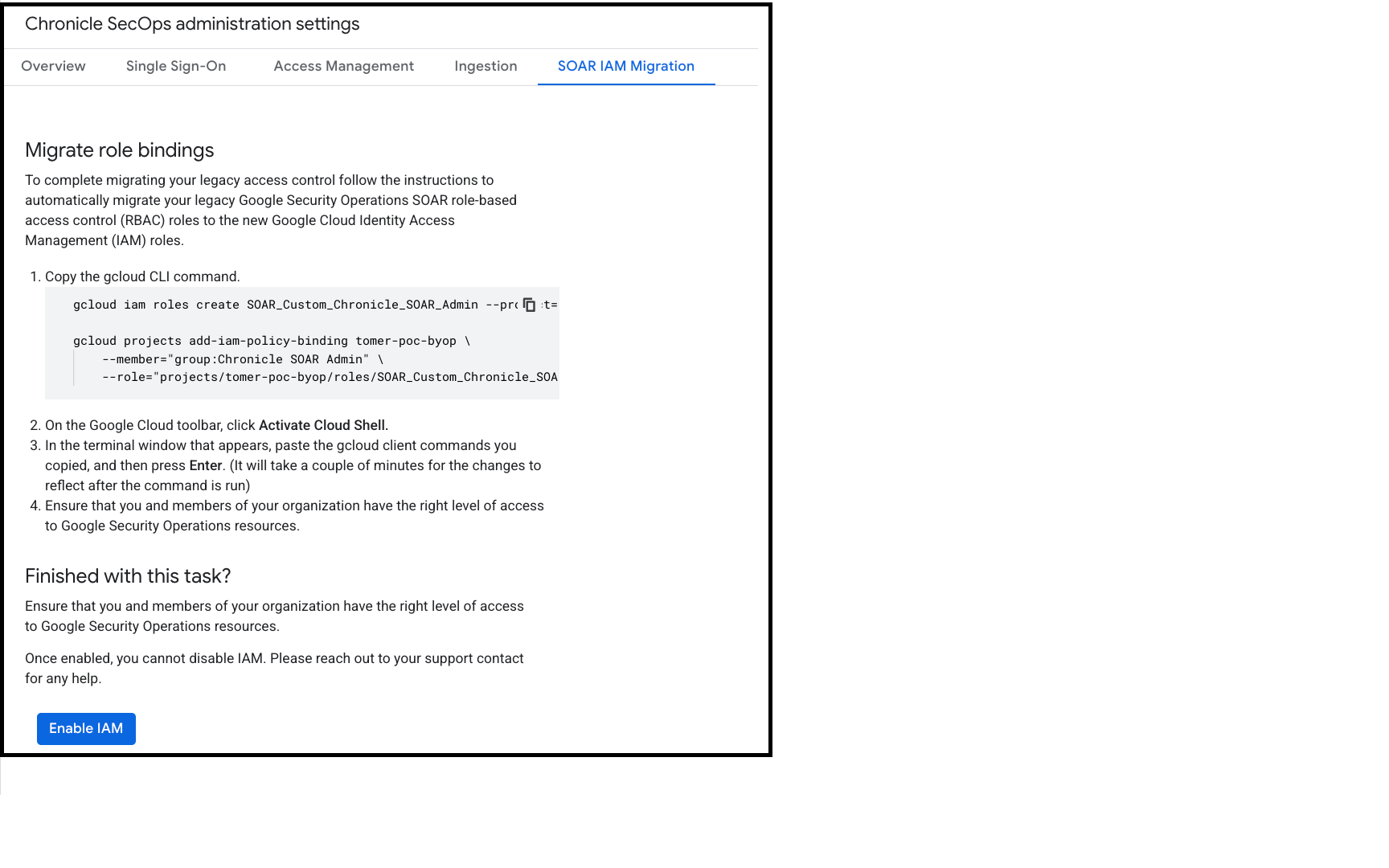
- In the Migrate role bindings section, copy the Google Cloud CLI commands. When given the option to specify a new condition, select 2. None. .
- On the Google Cloud toolbar, click Activate Cloud Shell.
- In the terminal window, paste the Google Cloud CLI commands and press Enter.
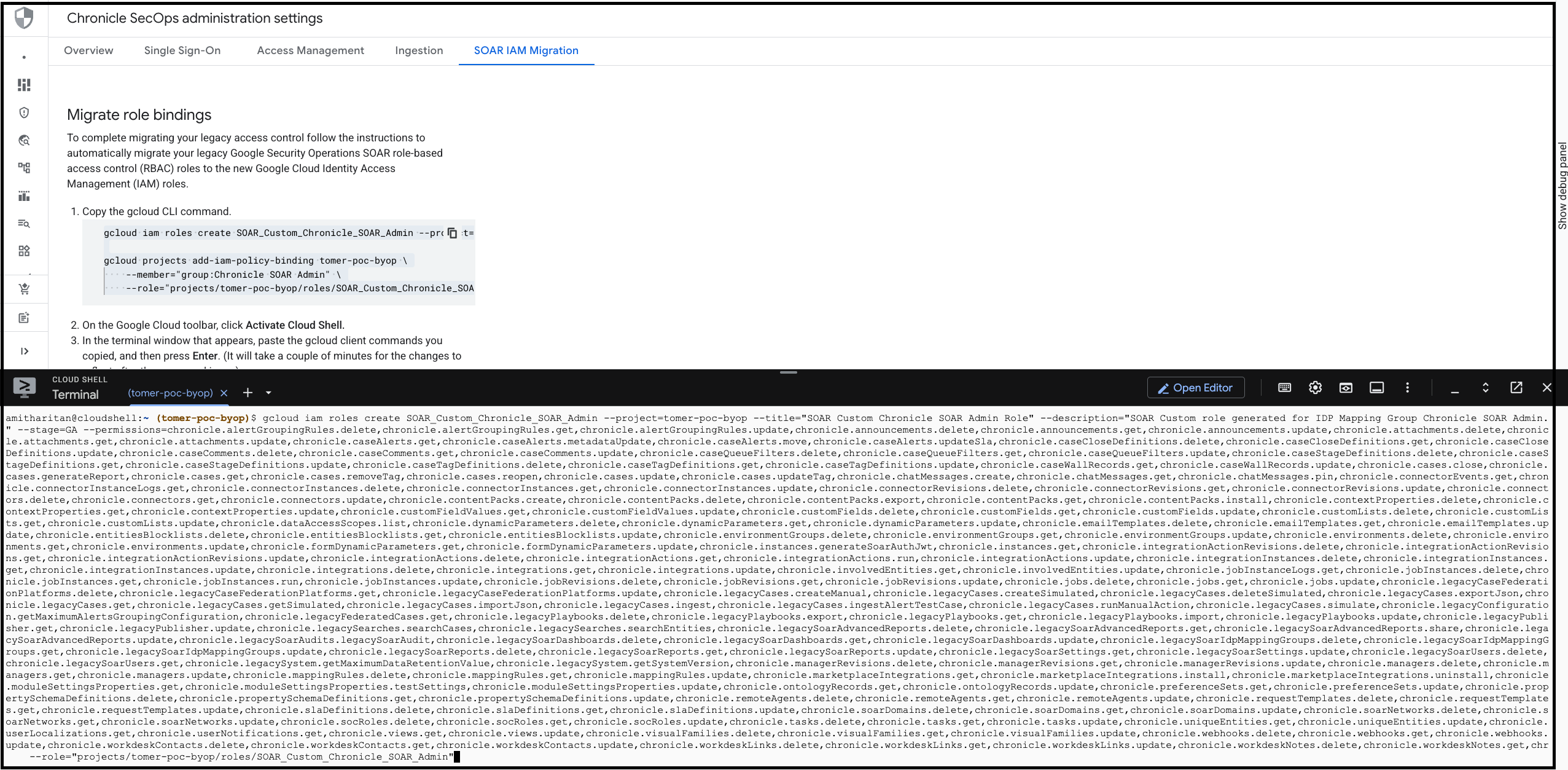
- Make sure the scripts are executed successfully.
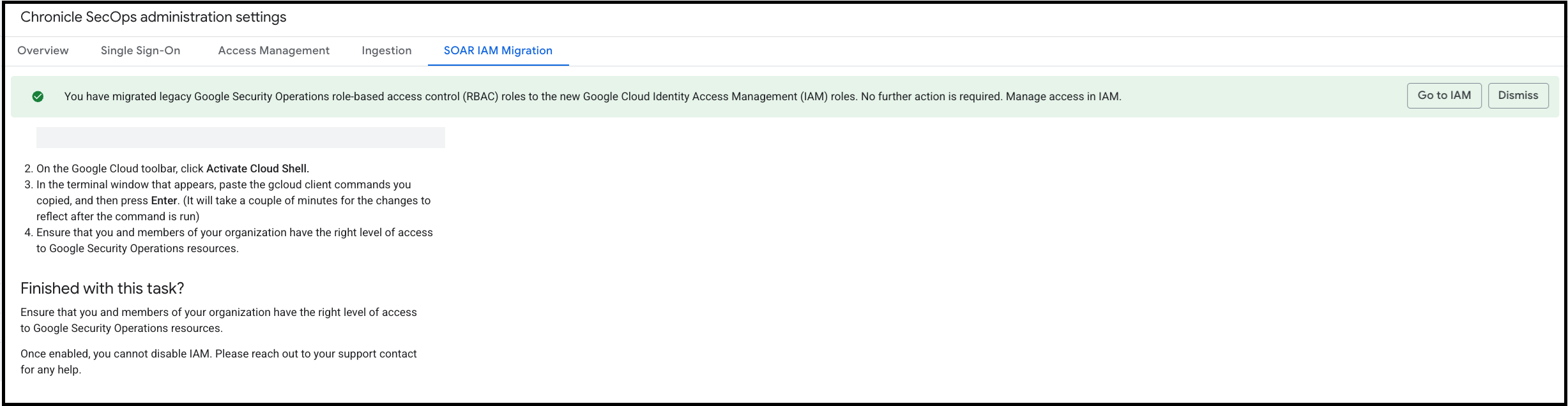
- Return to the Google Cloud console, and in the Finished with this task section,
click Enable IAM.
Migrate SOAR permissions using Terraform
To migrate your SOAR permissions to Google Cloud IAM using terraform, follow these steps:
- In the Google Cloud console, go to Google SecOps administration settings.
- Click the SOAR IAM Migration tab.
- In the Migrate role bindings section, copy the Google Cloud CLI commands.
- Go to your Terraform repository and map the Google Cloud CLI commands to their corresponding Terraform equivalents. The following table maps Google Cloud CLI create custom role command with Terraform commands.
| gcloud Flag | Terraform Argument | Notes |
|---|---|---|
ROLE_ID (Positional) |
role_id |
In Terraform, don't include the
projects/PROJECT_ID/roles/
prefix. Only use the ID string (for example, myCustomRole). |
--project |
project |
The ID of the project where the custom role is defined. |
--title |
title |
A human-readable title for the role. |
--description |
description |
A summary of the role's purpose and permissions. |
--permissions |
permissions |
gcloud accepts a comma-separated string. Terraform
requires a list of strings: ["perm.a", "perm.b"]. |
--stage |
stage |
Valid values: ALPHA, BETA, GA,
DEPRECATED, DISABLED, EAP. |
Google Cloud CLI mapping to Terraform example
Google Cloud CLI command:
gcloud iam roles create SOAR_Custom_managedUser_google.com --project="{customer project}"
--title="SOAR Custom managedUser Role"
--description="SOAR Custom role generated for IDP Mapping Group ManagedUser"
--stage=GA
--permissions=chronicle.cases.get
Terraform command:
resource "google_project_iam_custom_role" "{terraform_name}" {
  role_id     = "SOAR_Custom_managedUser_google.com"
  title       = "SOAR Custom managedUser Role"
  project     = "{customer project}"
  stage       = "GA"
  permissions = [
    #This is an example!
    "chronicle.cases.get"
  ]
}
IAM Policy Bindings (Assign Roles)
When you use Google Cloud CLI projects add-iam-policy-binding, you grant a specific role to a specific member (user, service account, or group). The following table maps Google Cloud CLI commands with Terraform commands. Map the commands in order to assign IAM roles.
| gcloud Flag | Terraform Argument | Notes |
|---|---|---|
PROJECT_ID (Positional) |
project |
The ID of the target project. |
--member |
member |
The principal identity (for example, user:email,
serviceAccount:email, group:email). |
--role |
role |
The role ID. Use the full path for custom roles
(projects/ID/roles/NAME) and the short name for
standard roles
(roles/NAME). |
Assigning role example
Google Cloud CLI command:
gcloud projects add-iam-policy-binding
 {customer project}
--member="user:alice@example.com"
--role="projects/{customer project}/roles/SOAR_Custom_managedUser_google.com"
Terraform command:
resource "google_project_iam_member" "{terraform_name}" {
  project = "{customer project}"
  role    = "projects/{customer project}/roles/SOAR_Custom_managedUser_google.com"
  member  = "user:alice@example.com"
}
Post migration
After you have switched to using IAM permissions, each curl command that you use to call an API must be sent either with a mapped service account (mapped in IDP mapping groups) or with a user who has logged in to the platform at least once.
FAQ
- For a detailed list on issues and best practices, see FAQ on IAM role migration.