


כדי להשתמש ב-Apigee hybrid, צריך להפעיל את ממשקי ה-API הבאים לפרויקט במסוף Google Cloud:
- Apigee API: מספק תקשורת בין הפרויקט שלכם לבין שירותים היברידיים אחרים ולבין Google Cloud APIs.
- Apigee Connect API: מספק תקשורת בין מישור הניהול של Apigee לבין שירות MART במישור זמן הריצה.
- Cloud Pub/Sub API: נדרש כדי שהמכסה תפעל.
- Cloud Resource Manager API: משמש את Hybrid לאימות חשבונות שירות.
- Compute Engine API: משמש לניהול אשכולות (אשכולות מבוססי GKE בלבד).
- Kubernetes Engine API: צריך להפעיל את ה-API הזה אם מתכננים להשתמש ב-Google Kubernetes Engine (GKE) או ב-GKE on-prem (ב-Anthos) להתקנת זמן הריצה ההיברידי.
מפעילים את ממשקי ה-API הנדרשים בפרויקט ב-Google Cloud:
אפשר להפעיל את ממשקי ה-API באמצעות ה-CLI או ממשק המשתמש של מסוף Google Cloud.
ממשק המשתמש של Google Cloud
כדי להפעיל את ממשקי ה-API באמצעות ממשק המשתמש, פועלים לפי השלבים הבאים:
- פותחים את Google Cloud console API Library ומתחברים באמצעות החשבון שיצרתם בשלב 1: יצירת חשבון Google Cloud.
- בוחרים את הפרויקט שיצרתם בשלב 2: יצירת פרויקט ב-Google Cloud.
- מפעילים את Apigee API באופן הבא:
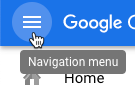
- אם הדף API Library לא מופיע, בוחרים באפשרות APIs & Services > Library מתפריט הניווט.
- מוודאים שבחרתם בפרויקט הנכון.

- בתצוגה API Library (ספריית ה-API), מחפשים את Apigee.
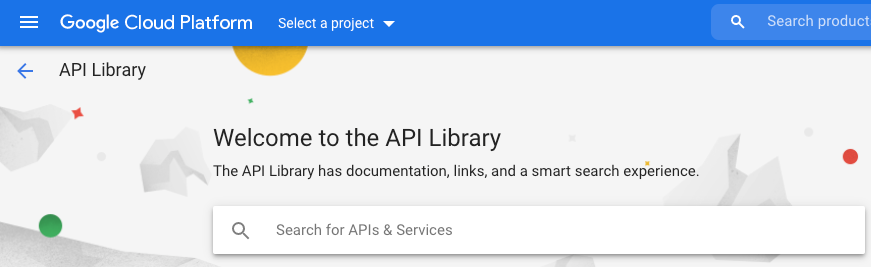
ב-Google Cloud מוצגת רשימה של ממשקי API שתואמים ל-Apigee
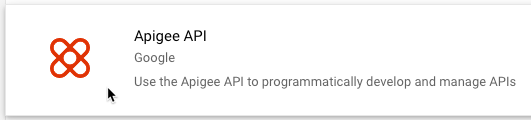
- מחפשים את השירות Apigee API ולוחצים עליו.
- בתצוגת Apigee API, לוחצים על Enable.
מערכת Google Cloud מפעילה את Apigee API בפרויקט שלכם ב-Google Cloud. חוזרים על השלבים האלה כדי להפעיל עוד ממשקי API.
- אם הדף API Library לא מופיע, בוחרים באפשרות APIs & Services > Library מתפריט הניווט.
- מפעילים את Apigee Connect API.
- מפעילים את Cloud Pub/Sub API.
- מפעילים את Cloud Resource Manager API.
- (אשכולות מבוססי GKE בלבד) מפעילים את Google Kubernetes Engine API.
- (אשכולות מבוססי GKE ומבוססי OpenShift בלבד) מפעילים את Compute Engine API.
- (אשכולות מבוססי OpenShift בלבד) מפעילים את ממשקי ה-API האלה:
- Google Cloud APIs
- Cloud DNS API
- API של ניהול זהויות והרשאות גישה (IAM)
- IAM Service Account Credentials API
- Service Management API
- Service Usage API
- Google Cloud Storage API בפורמט JSON
- Cloud Storage
- כדי לוודא שהפעלתם את ממשקי ה-API, בוחרים באפשרות APIs & Services > Dashboard. ממשקי ה-API שזה עתה הוספתם מוצגים ברשימת ממשקי ה-API המופעלים.
CLI של gcloud
כדי להפעיל את ממשקי ה-API באמצעות ה-CLI, מבצעים את השלבים הבאים:
- פותחים חלון טרמינל במכשיר שבו משתמשים לניהול Apigee.
- כדי לוודא ש-
gcloudמותקן במעטפת המקומית, מריצים את הפקודה הבאה: הכליgcloudמספק את ממשק שורת הפקודה העיקרי ל-Cloud.gcloud -hאם
gcloudלא מותקן, צריך להתקין את Cloud SDK. -
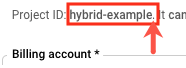
מוודאים שהמשתנה
PROJECT_IDמוגדר עם מזהה הפרויקט בענן שיצרתם בשלב 2: יצירת פרויקט ב-Google Cloud:echo $PROJECT_ID
אם הוא לא מוגדר, מגדירים את משתנה הסביבה
PROJECT_IDבאמצעות הפקודה הבאה:export PROJECT_ID=your_project_id
- בוחרים את הכרטיסייה של ההתקנה הרצויה כדי לראות את הפקודה להפעלת ממשקי ה-API:
GKE
אם אתם מריצים את האשכולות ב-Google Cloud (GKE), מפעילים את ממשקי ה-API באמצעות הפקודה הבאה:
gcloud services enable \
    apigee.googleapis.com \
    apigeeconnect.googleapis.com \
    cloudresourcemanager.googleapis.com \
    compute.googleapis.com \
    container.googleapis.com \
    pubsub.googleapis.com --project $PROJECT_ID
OpenShift
אם אתם מריצים את האשכולות ב-OpenShift, מפעילים את ממשקי ה-API באמצעות הפקודה הבאה:
gcloud services enable \
    apigee.googleapis.com \
    apigeeconnect.googleapis.com \
    cloudapis.googleapis.com \
    cloudresourcemanager.googleapis.com \
    compute.googleapis.com \
    dns.googleapis.com \
    iam.googleapis.com \
    iamcredentials.googleapis.com \
    pubsub.googleapis.com  --project $PROJECT_ID
    servicemanagement.googleapis.com \
    serviceusage.googleapis.com \
    storage-api.googleapis.com \
    storage-component.googleapis.com  --project $PROJECT_ID
פלטפורמות אחרות
מפעילים את ממשקי ה-API באמצעות הפקודה הבאה אם מריצים את האשכולות בפלטפורמת Kubernetes אחרת,כמו
- GKE On-Prem
- Anthos בשרת פיזי
- AKS
- GKE ב-AWS
- EKS
gcloud services enable \ apigee.googleapis.com \ apigeeconnect.googleapis.com \ cloudresourcemanager.googleapis.com \ pubsub.googleapis.com --project $PROJECT_ID -
מריצים את הפקודה הבאה כדי לוודא שכל ממשקי ה-API מופעלים:
gcloud services list --project $PROJECT_ID
הפלט צריך לכלול את כל ממשקי ה-API שהפעלתם, כמו בדוגמה הזו:
NAME                                 TITLE
apigee.googleapis.com                Apigee API
apigeeconnect.googleapis.com         Apigee Connect API
bigquery.googleapis.com              BigQuery API
bigquery.googleapis.com              BigQuery API
bigquerystorage.googleapis.com       BigQuery Storage API
cloudapis.googleapis.com             Google Cloud APIs
clouddebugger.googleapis.com         Cloud Debugger API
cloudresourcemanager.googleapis.com  Cloud Resource Manager API
cloudtrace.googleapis.com            Cloud Trace API
compute.googleapis.com               Compute Engine API
container.googleapis.com             Kubernetes Engine API
containeranalysis.googleapis.com     Container Analysis API
containerregistry.googleapis.com     Container Registry API
datastore.googleapis.com             Cloud Datastore API
iam.googleapis.com                   Identity and Access Management (IAM) API
iamcredentials.googleapis.com        IAM Service Account Credentials API
logging.googleapis.com               Cloud Logging API
monitoring.googleapis.com            Cloud Monitoring API
oslogin.googleapis.com               Cloud OS Login API
pubsub.googleapis.com                Cloud Pub/Sub API
servicemanagement.googleapis.com     Service Management API
serviceusage.googleapis.com          Service Usage API
sql-component.googleapis.com         Cloud SQL
storage-api.googleapis.com           Google Cloud Storage JSON API
storage-component.googleapis.com     Cloud Storage
מידע נוסף על הפעלת ממשקי API במסוף Google Cloud זמין במאמר הפעלת API בפרויקט בענן של Google Cloud במסמכי Cloud.
1 2 3 (הבא) שלב 4: יצירת ארגון 5