

This page applies to Apigee and Apigee hybrid.
View
Apigee Edge documentation.

The Offline Debug tool lets you view and analyze "offline" debug sessions that were previously downloaded in the Debug view in the Proxy Editor. A saved debug session is essentially a "recording" of a debug session, and can be useful for cases where troubleshooting and further analysis is required. The UI for the Offline Debug tool is similar to the Debug view in the Proxy Editor.
To learn about the Debug Tool UI and on downloading debug sessions, see Using Debug.
To view downloaded debug data using Offline Debug:
-
In the Google Cloud console, go to the Apigee > Proxy development > Offline Debug page.
-
The Offline Debug view displays:

To load data into the Offline Debug view, click Open Debug Session, select a previously downloaded offline debug session file in JSON format, and then click Open.
The Apigee UI loads the debug file's data and displays all of the transactions in the list in the Transactions panel.

- Click the row for the transaction in the Transactions panel
to display the transaction in the Transaction Map.
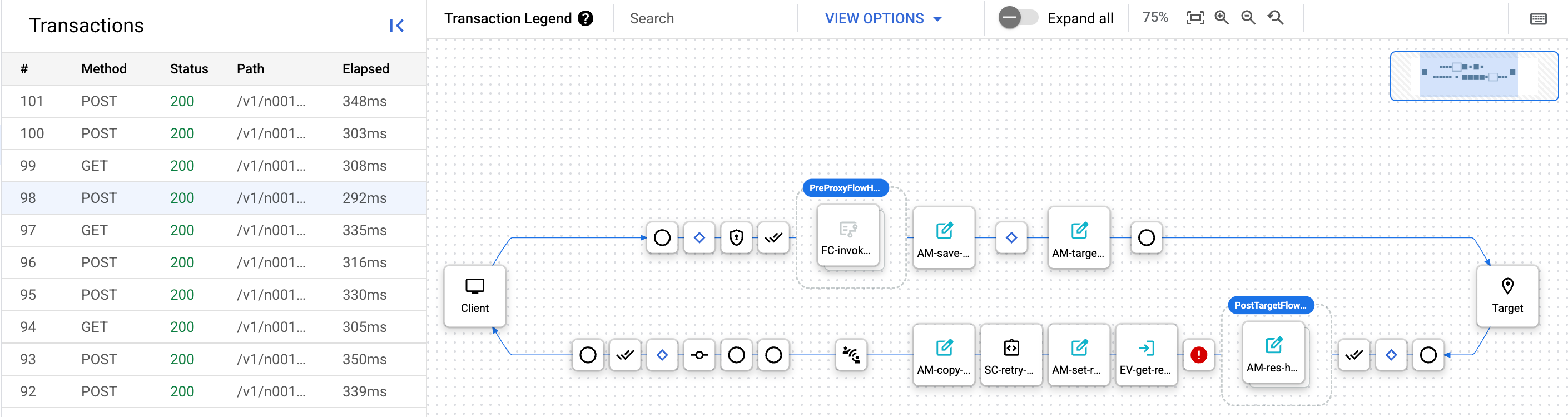
From here, you can explore the debug session just as you would for a newly-created debug session. See Creating a debug session for more information.