

This page applies to Apigee and Apigee hybrid.
View
Apigee Edge documentation.

This page describes how to use Apigee API products to control access to MCP tools. Whether you use the Apigee MCP Discovery Proxy or proxy traffic to your own MCP server, you can authenticate MCP clients, apply per-tool quotas, and filter tool visibility based on API product configuration.
MCP servers use a single endpoint (for example, /mcp) for all tool
invocations. Unlike REST APIs where operations are distinguished by URL path and HTTP
method, MCP embeds the operation in the JSON-RPC request body. Apigee uses the
ParsePayload policy to extract these operations so that standard API management
policies—authentication, quota enforcement, and tool filtering—can be applied
on a per-tool basis.
Overview
To manage MCP tool access with API products, you complete the following steps:
- Add the ParsePayload policy to extract the MCP tool name from the request body.
- Configure an API product with MCP tool operations and per-tool quotas.
- Register a developer app to obtain client credentials.
- Add authentication policies (API key or OAuth 2.0) to verify client credentials against the API product.
- Add a Quota policy to enforce per-tool rate limits.
- Test tool filtering to confirm that
tools/listresponses are filtered based on the API product configuration.
Add the ParsePayload policy
The ParsePayload policy parses the JSON-RPC request body and extracts the MCP
operation, such as tools/call/get_weather or tools/list. The
extracted operation is stored in a flow variable prefixed with the policy name (for
example, parsepayload.ParsePayload-MCP.operation), which downstream policies
use for authentication and quota enforcement.
Add the following ParsePayload policy to the request PreFlow of your MCP proxy:
<ParsePayload name="ParsePayload-MCP">
    <DisplayName>Parse MCP Payload</DisplayName>
    <Source>request</Source>
    <PayloadType>JSON-RPC-2.0</PayloadType>
    <Protocol>MCP</Protocol>
</ParsePayload>
Where:
<Source>: The message to parse. Defaults torequest.<PayloadType>: The payload format. Must beJSON-RPC-2.0.<Protocol>: The protocol to use for parsing. Must beMCPfor MCP servers.
After execution, the policy populates flow variables prefixed with the policy
instance name, following the pattern
parsepayload.policyName.suffix.
For a policy named ParsePayload-MCP, the following variables are set:
| Flow variable | Description | Example value |
|---|---|---|
parsepayload.ParsePayload-MCP.operation |
The derived operation name used for API product matching and quota enforcement. | tools/call/get_weather |
parsepayload.ParsePayload-MCP.json-rpc.request.method |
The JSON-RPC method field from the request. |
tools/call |
parsepayload.ParsePayload-MCP.json-rpc.request.id |
The JSON-RPC id field from the request. |
1 |
parsepayload.ParsePayload-MCP.json-rpc.request.params.name |
The params.name field from the request. |
get_weather |
Configure an API product with MCP tool operations
An API product defines which MCP tools a client application can access and the quota
limits for each tool. You configure MCP tool operations using the
payloadOperationGroup field in the API product definition.
Each entry in payloadOperationGroup.operationConfigs specifies:
- The API proxy that serves the MCP tools (
apiSource). - One or more tool operations (for example,
tools/call/get_stock_price,tools/list). - An optional quota for that set of operations.
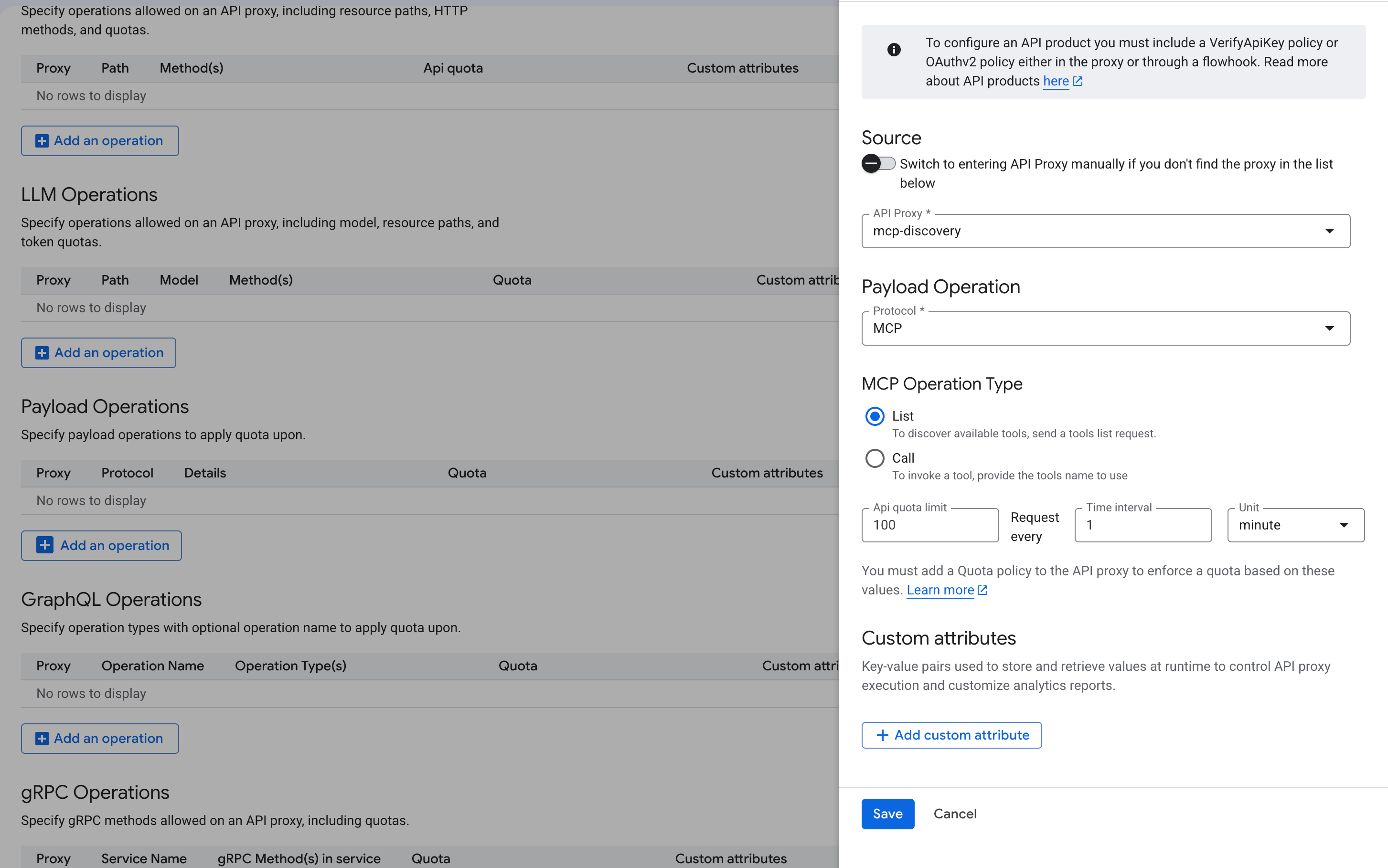
Use the following API call to create an API product with MCP tool operations:
curl -X POST \
  "https://apigee.googleapis.com/v1/organizations/ORG_NAME/apiproducts" \
  -H "Authorization: Bearer $(gcloud auth print-access-token)" \
  -H "Content-Type: application/json" \
  -d '{
    "name": "PRODUCT_NAME",
    "displayName": "PRODUCT_DISPLAY_NAME",
    "approvalType": "auto",
    "payloadOperationGroup": {
      "operationConfigs": [
        {
          "apiSource": "MCP_PROXY_NAME",
          "operations": [
            { "operation": "tools/call/get_stock_price" },
            { "operation": "tools/call/get_company_news" }
          ],
          "quota": {
            "limit": "100",
            "interval": "1",
            "timeUnit": "minute"
          }
        },
        {
          "apiSource": "MCP_PROXY_NAME",
          "operations": [
            { "operation": "tools/list" }
          ],
          "quota": {
            "limit": "300",
            "interval": "1",
            "timeUnit": "minute"
          }
        }
      ]
    }
  }'
Where:
ORG_NAMEis the name of your Apigee organization.PRODUCT_NAMEis the internal name of the API product.PRODUCT_DISPLAY_NAMEis the display name of the API product.MCP_PROXY_NAMEis the name of the API proxy that routes traffic to your MCP server. This can be an Apigee MCP Discovery Proxy or a proxy with your own MCP server as the backend.
Configure per-tool quotas
You can configure different quotas for individual tools. For example, the following
configuration limits get_stock_price to 300 calls per minute but restricts
get_company_news to only 3 calls per minute:
{
  "payloadOperationGroup": {
    "operationConfigs": [
      {
        "apiSource": "MCP_PROXY_NAME",
        "operations": [
          { "operation": "tools/call/get_stock_price" }
        ],
        "quota": { "limit": "300", "interval": "1", "timeUnit": "minute" }
      },
      {
        "apiSource": "MCP_PROXY_NAME",
        "operations": [
          { "operation": "tools/call/get_company_news" }
        ],
        "quota": { "limit": "3", "interval": "1", "timeUnit": "minute" }
      },
      {
        "apiSource": "MCP_PROXY_NAME",
        "operations": [
          { "operation": "tools/list" }
        ],
        "quota": { "limit": "300", "interval": "1", "timeUnit": "minute" }
      }
    ]
  }
}
You can create multiple API products with different tool subsets to offer tiered access.
For example, a Basic product might include only tools/call/get_stock_price,
while a Premium product includes all available tools with higher quotas. Each
developer app is associated with one or more API products, so different clients
automatically get access to different sets of tools with independent rate limits.
Register a developer app
To obtain an API key or OAuth credentials for testing, register a developer and create a developer app associated with the API product you created in the previous step.
- Register an app developer in your Apigee organization.
- Create a developer app and associate it with your API product.
- Obtain the consumer key (API key) from the app credentials. Use this key in the authentication examples that follow.
Add authentication policies
After adding the ParsePayload policy, add an authentication policy to verify that the client is authorized to use the requested MCP tool. Apigee matches the extracted operation against the operations defined in the client’s API product.
If the requested tool is not listed in the client’s API product, Apigee
returns a 401 Unauthorized error.
Option 1: API key authentication
Use the VerifyAPIKey policy to authenticate clients using an API key. Add this policy to the request PreFlow after the ParsePayload policy:
<VerifyAPIKey name="VerifyAPIKey-1">
    <DisplayName>Verify API Key</DisplayName>
    <APIKey ref="request.queryparam.apikey"/>
</VerifyAPIKey>
The client passes the API key as a query parameter when calling the MCP proxy:
curl -X POST "https://RUNTIME_HOSTNAME/mcp?apikey=API_KEY" \
  -H "Content-Type: application/json" \
  -d '{
    "jsonrpc": "2.0",
    "method": "tools/call",
    "params": { "name": "get_stock_price", "arguments": { "ticker": "GOOGL" } },
    "id": 1
  }'
You can also configure the policy to read the API key from a header:
<VerifyAPIKey name="VerifyAPIKey-1">
    <DisplayName>Verify API Key</DisplayName>
    <APIKey ref="request.header.x-api-key"/>
</VerifyAPIKey>
Option 2: OAuth 2.0 authentication
Use the OAuthV2 policy with the VerifyAccessToken operation to
authenticate clients using OAuth 2.0 access tokens. Add this policy to the request
PreFlow after the ParsePayload policy:
<OAuthV2 name="OAuthV2-VerifyAccessToken">
    <DisplayName>Verify OAuth Access Token</DisplayName>
    <Operation>VerifyAccessToken</Operation>
</OAuthV2>
The client passes the access token in the Authorization header:
curl -X POST "https://RUNTIME_HOSTNAME/mcp" \
  -H "Content-Type: application/json" \
  -H "Authorization: Bearer ACCESS_TOKEN" \
  -d '{
    "jsonrpc": "2.0",
    "method": "tools/call",
    "params": { "name": "get_stock_price", "arguments": { "ticker": "GOOGL" } },
    "id": 1
  }'
For more information about configuring OAuth 2.0 in Apigee, see Getting started with OAuth2.
Add a Quota policy
Add a Quota policy to enforce the per-tool rate limits defined in the API product.
The policy uses UseQuotaConfigInAPIProduct to automatically apply the quota
configuration from the matched API product operation.
Add the following Quota policy to the request PreFlow after the authentication policy:
<Quota name="Quota-PerToolLimit">
    <DisplayName>Per-Tool Quota</DisplayName>
    <UseQuotaConfigInAPIProduct stepName="AUTH_POLICY_STEP_NAME"/>
    <Distributed>true</Distributed>
</Quota>
Where AUTH_POLICY_STEP_NAME is the value of the name
attribute in the authentication policy XML element (either VerifyAPIKey-1 or
OAuthV2-VerifyAccessToken in the examples on this page). This must match
the policy name attribute, not the <DisplayName>.
With this configuration, each tool operation is rate-limited independently according to
the quota defined in the API product. For example, if
tools/call/get_stock_price has a quota of 300 per minute and
tools/call/get_company_news has a quota of 3 per minute, each limit is
enforced separately even though both tools are accessed through the same proxy.
Complete proxy configuration
The following example shows the complete request PreFlow configuration for an MCP proxy with ParsePayload, API key authentication, and per-tool quota enforcement:
<ProxyEndpoint name="default">
    <PreFlow>
        <Request>
            <Step>
                <Name>ParsePayload-MCP</Name>
            </Step>
            <Step>
                <Name>VerifyAPIKey-1</Name>
            </Step>
            <Step>
                <Name>Quota-PerToolLimit</Name>
            </Step>
        </Request>
    </PreFlow>
    <HTTPProxyConnection>
        <BasePath>/mcp</BasePath>
    </HTTPProxyConnection>
    <RouteRule name="default">
        <TargetEndpoint>default</TargetEndpoint>
    </RouteRule>
</ProxyEndpoint>
Tool filtering
When a client sends a tools/list request through an MCP proxy with API key
or OAuth authentication, Apigee automatically filters the response to include
only the tools that are registered in the client’s API product.
For example, if a client’s API product includes the operations
tools/call/get_stock_price and tools/call/get_company_news, a
tools/list response from the MCP server will be filtered to return only
get_stock_price and get_company_news, even if the MCP server
exposes additional tools.
This filtering happens by default when the following configuration is in place. No dedicated filtering policy is required:
- The request PreFlow includes the ParsePayload and an authentication policy (VerifyAPIKey or OAuthV2).
- The API product includes
tools/listin thepayloadOperationGroup. - The API product specifies the tool operations (for example,
tools/call/get_stock_price) that the client is allowed to access.
To test tool filtering, send a tools/list request with the client’s API
key:
curl -X POST "https://RUNTIME_HOSTNAME/mcp?apikey=API_KEY" \
  -H "Content-Type: application/json" \
  -d '{
    "jsonrpc": "2.0",
    "method": "tools/list",
    "id": 1
  }'
If the API product includes tools/call/get_stock_price and
tools/call/get_company_news, the filtered response looks similar to the
following, even if the MCP server exposes additional tools:
{
  "jsonrpc": "2.0",
  "result": {
    "tools": [
      {
        "name": "get_stock_price",
        "description": "Get the current stock price for a given ticker symbol.",
        "inputSchema": {
          "type": "object",
          "properties": {
            "ticker": { "type": "string", "description": "Stock ticker symbol" }
          },
          "required": ["ticker"]
        }
      },
      {
        "name": "get_company_news",
        "description": "Get recent news articles for a company.",
        "inputSchema": {
          "type": "object",
          "properties": {
            "company": { "type": "string", "description": "Company name" }
          },
          "required": ["company"]
        }
      }
    ]
  },
  "id": 1
}
Tools that are not listed in the API product (for example, delete_account
or admin_reset) are automatically removed from the response.
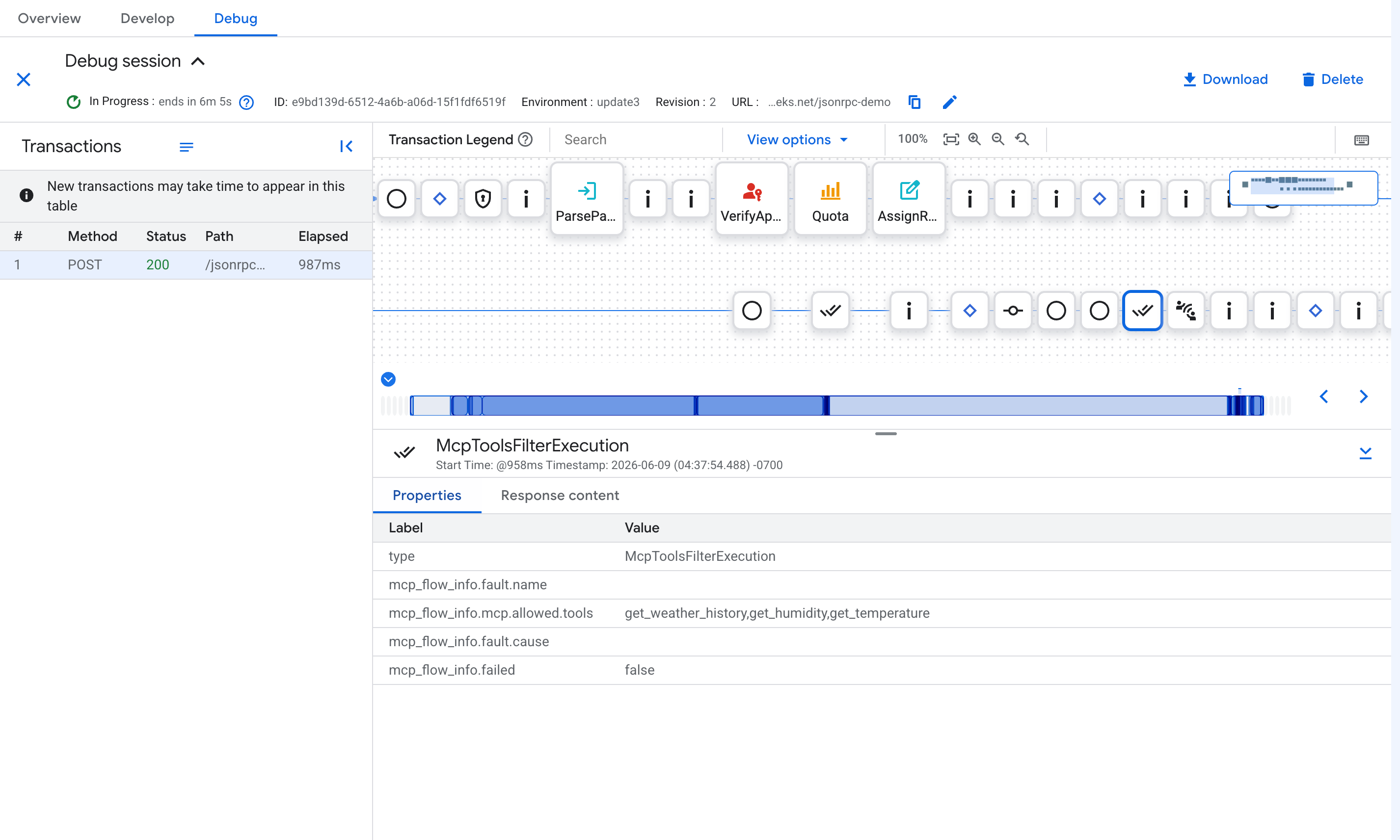
The following debug session shows the McpToolsFilterExecution step in the
response flow, with the mcp_flow_info.mcp.allowed.tools property listing the
tools allowed by the API product:
Use conditional flows for per-tool logic
Use conditional flows when you need per-tool logic beyond what API product quotas
provide, such as applying tool-specific SpikeArrest rates, routing to different backends,
or adding request transformations for specific tools. Conditional flows use the
parsepayload.policyName.operation flow variable to match on the
extracted MCP operation.
For a ParsePayload policy named ParsePayload-MCP:
<Flows>
    <Flow name="ListTools">
        <Condition>(parsepayload.ParsePayload-MCP.operation = "tools/list")</Condition>
        <Request/>
    </Flow>
    <Flow name="GetStockPrice">
        <Condition>(parsepayload.ParsePayload-MCP.operation = "tools/call/get_stock_price")</Condition>
        <Request>
            <Step>
                <Name>SpikeArrest-StockPrice</Name>
            </Step>
        </Request>
    </Flow>
    <Flow name="GetCompanyNews">
        <Condition>(parsepayload.ParsePayload-MCP.operation = "tools/call/get_company_news")</Condition>
        <Request>
            <Step>
                <Name>SpikeArrest-CompanyNews</Name>
            </Step>
        </Request>
    </Flow>
</Flows>
Debug the proxy configuration
Use the Apigee Debug tool to verify that the ParsePayload policy is correctly extracting the MCP operation and that authentication and quota policies are working as expected.
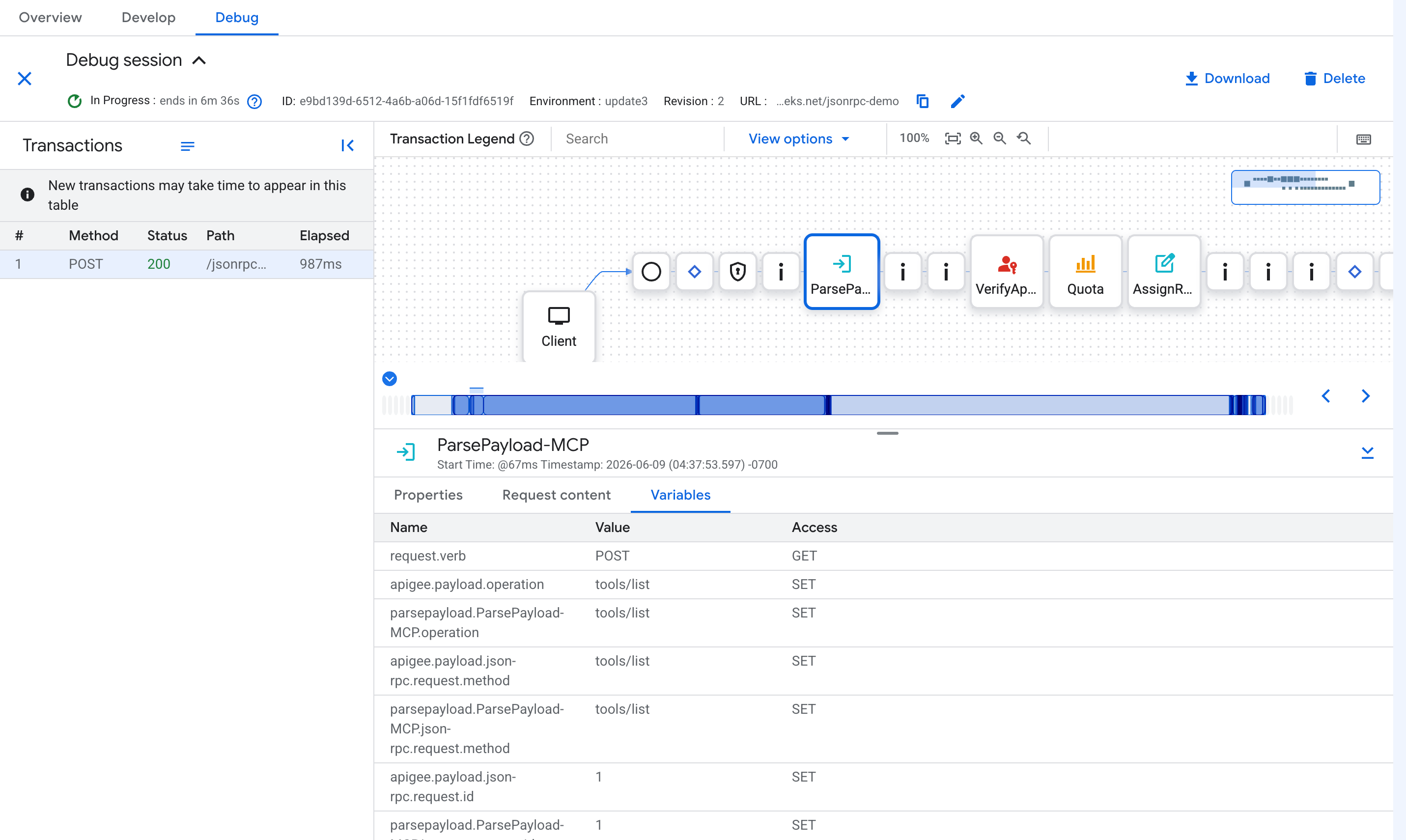
In the debug session, check for the following flow variables after the ParsePayload policy
step (where ParsePayload-MCP is the policy name):
parsepayload.ParsePayload-MCP.operation: Should contain the full operation name (for example,tools/call/get_stock_price).parsepayload.ParsePayload-MCP.json-rpc.request.method: Should contain the JSON-RPC method (for example,tools/call).
Limitations
- The ParsePayload policy supports only
JSON-RPC-2.0as the payload type. - API product tool operations support only
tools/callandtools/listmethods. Tool filtering fortools/listresponses only applies totools/calloperations configured in the API product. - The ParsePayload policy parses the full request body. Apigee enforces a default
request body size limit of 10 MB, configurable up to 30 MB using the
request.payload.parse.limitproperty. For details, see Endpoint properties reference. - The ParsePayload policy with MCP protocol parses only JSON-RPC request payloads
(containing
methodandparamsfields). MCP response payloads are not parsed. - Tool filtering for
tools/listresponses requires the ParsePayload and authentication policies in the request PreFlow.
What's next
- Learn more about MCP in Apigee in MCP in Apigee overview.
- Get started with MCP proxies in Get started with Apigee and MCP.
- Learn about API products and managing API products.
- Learn about rate limiting in Apigee.
- Learn about API keys and OAuth 2.0 authentication.