

Manage asset namespaces
When you search for an asset in Google Security Operations, for example using an IP address or a hostname, you are able to see all the activity associated with that asset. Sometimes there are multiple assets associated with the same IP address or hostname (for example, from overlapping RFC 1918 IP address assignments on different network segments).
The asset namespacing feature lets you classify categories of assets sharing a common network environment, or namespace, and then conduct searches for those assets within the Google SecOps user interface based on their namespace. For example, you could create namespaces for cloud networks, corp versus prod segmentation, merger and acquisition networks, and so on.
Create and assign namespace to data
All assets have a namespace that is either automatically defined or manually configured. If no namespace is provided in the logs, a default namespace is associated with the assets which is labeled untagged in the Google SecOps UI. Logs ingested into Google SecOps before namespace support are implicitly labeled as part of the default or untagged namespace.
You can configure namespaces using the following:
- Linux version of the Google SecOps Forwarder.
- Some of the normalization parsers (for example, for Google Cloud) can automatically populate namespace (for Google Cloud, based on project and VPC identifiers).
- Chronicle Ingestion API.
- Google SecOps Feeds Management.
Namespaces in the Google SecOps UI
You see the namespace attached to your assets throughout the Google SecOps UI, especially whenever there is a list of assets, including the following:
- SIEM Search
- Alerts & IOCs and the Alert view
- Rule Detections view and Curated Detections
Any asset not associated with a custom namespace is assigned to the default untagged namespace. However, the default namespace isn't displayed in lists.
Search by namespace in SIEM Search
In SIEM Search, you can filter for assets within a specific namespace by
including namespace UDM fields in your query, such as principal.namespace,
target.namespace, src.namespace, or observer.namespace. For example:
principal.hostname = "workstation-1" and principal.namespace = "CORPORATE"
View namespaces on the Overview and Results tabs
When you search for an asset, IP address, domain, or file hash in SIEM Search, namespaces are shown anywhere an asset is referenced, except for the default or untagged namespace:
- Overview tab: The Entities list, Entity summary panel, Associated Entities panel, Prevalence of Assets panel, and the Entity context panel display the namespace associated with each asset. If an asset indicator such as an IP address or hostname exists in multiple namespaces, you can select the specific namespace-scoped asset entity from the Entities list to view its summary and activity.
- Results tab: You can view and filter by namespace fields in the Aggregations panel, add namespace columns to the Events table, or inspect the namespace of an asset in the Event Viewer on the Event Fields and Entities tabs.
Ingestion labels
To further narrow your search, you can use ingestion labels to set up separate feeds. For a full list of supported ingestion labels, see Supported default parsers.
Examples: three ways to add a namespace to logs
The following examples illustrate three different ways you can add a namespace to the logs you ingest to your Google SecOps account.
Assign a namespace using the Google SecOps Forwarder
You can configure a namespace by adding it to the Google SecOps Forwarder configuration file as a forwarder specific namespace, or a collector specific namespace. The following example forwarder configuration illustrates both types:
metadata:
  namespace: FORWARDER
collectors:
- syslog:
      common:
        metadata:
          namespace: CORPORATE
        batch_n_bytes: 1048576
        batch_n_seconds: 10
        data_hint: null
        data_type: NIX_SYSTEM
        enabled: true
      tcp_address: 0.0.0.0:30000
      connection_timeout_sec: 60
- syslog:
      common:
        batch_n_bytes: 1048576
        batch_n_seconds: 10
        data_hint: null
        data_type: WINEVTLOG
        enabled: true
      tcp_address: 0.0.0.0:30001
      connection_timeout_sec: 60
As shown in this example, the logs originating from WINEVTLOG include the namespace tag FORWARDER. The logs originating from NIX_SYSTEM include the namespace tag CORPORATE.
This sets an overall namespace to the log collector. If your environment contains a mix of logs that belong to multiple namespaces and you are unable to segment these machines (or this is by design), Google recommends creating multiple collectors for the same log source that is filtering the logs to their respective namespace using regular expressions.
Assign a namespace using the Ingestion API
You can also configure a namespace when you send your logs through the unstructuredlogentries endpoint within the Chronicle ingestion API as shown in the following example:
{
  "customer_id": "c8c65bfa-5f2c-42d4-9189-64bb7b939f2c",
  "log_type": "BIND_DNS",
  "namespace": "FORWARDER"
  "entries": [
    {
      "log_text": "26-Feb-2019 13:35:02.187 client 10.120.20.32#4238: query: altostrat.com IN A + (203.0.113.102)",
      "ts_epoch_microseconds": 1551188102187000
    },
    {
      "log_text": "26-Feb-2019 13:37:04.523 client 10.50.100.33#1116: query: examplepetstore.com IN A + (203.0.113.102)",
      "ts_rfc3339": "2019-26-02T13:37:04.523-08:00"
    },
    {
      "log_text": "26-Feb-2019 13:39:01.115 client 10.1.2.3#3333: query: www.example.com IN A + (203.0.113.102)"
    },
  ]
}
In this example, the namespace is a body parameter of the API POST call. Logs from BIND\_DNS forward their log data with the FORWARDER namespace tag.
Assign a namespace using Google SecOps Feeds Management
As stated in the Feed management user guide, Google SecOps Feeds Management lets you to set up and manage various log streams within your Google SecOps tenant.
In the following example, Office 365 Logs will be ingested with the FORWARDER namespace tag:
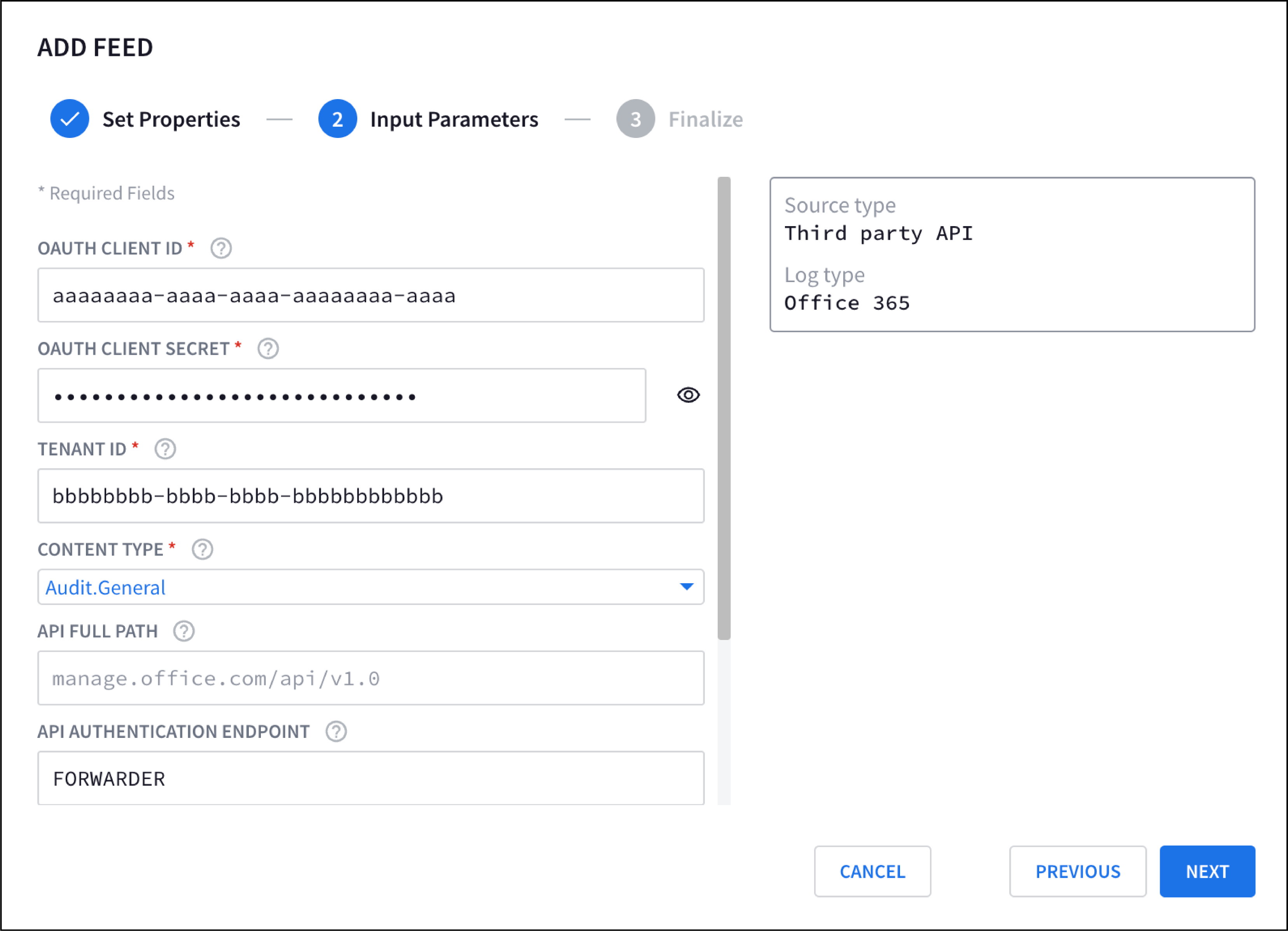
Figure 1: Feed Management configuration with the FORWARDER namespace tag
Need more help? Get answers from Community members and Google SecOps professionals.