

Collect Corelight Sensor logs
Parser Version: 17.0
This document describes how you can collect Corelight Sensor logs by configuring the Corelight Sensor and a Google Security Operations forwarder. This document also lists the supported log types generated by the Corelight Sensor and supported Corelight versions.
For more information, see Data ingestion to Google Security Operations.
Before you begin
- Verify the version of Corelight Sensor. The Corelight Google SecOps parser was designed for version 27.13 and earlier. Later versions of the Corelight Sensor might have additional logs that the parser won't recognize, and those logs might receive limited or no field parsing. However, the log content will still be available in the raw log format in Google SecOps.
- Ensure that all systems in the deployment architecture are configured with the UTC time zone.
- Ensure that you have the credentials for the Corelight documentation.
Deployment and Log Ingestion Methods
The following deployment architecture diagram illustrates how a Corelight Sensor is set up to send logs to Google Security Operations using two different ingestion architectures. It's important to note that each customer deployment may vary from this representation and could be more complex.
An ingestion label identifies the parser which normalizes raw log data
to structured UDM format. The information in this document applies to the parser
with the CORELIGHT ingestion label.
Ingesting Logs into Google SecOps using Corelight Exporters
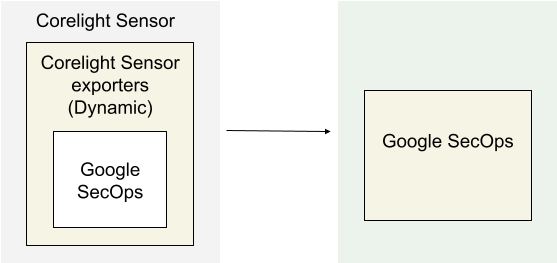
The architecture diagram shows the following components:
Corelight Sensor: The system running the Corelight Sensor .
Corelight Sensor exporters: The Corelight Sensor exporter collects log data from the Sensor, and forwards it to Google Security Operations.
Google Security Operations: Google Security Operations retains and analyzes the logs from Corelight Sensor.
Configure the Google SecOps exporter in Corelight
Use the Sensor or Fleet Manager web interface to configure the Google SecOps exporter. This configuration uses the API credentials from your Google SecOps instance to establish the secure connection.
Log in to the Fleet Manager or Sensor web interface of Corelight Sensor as an administrator.
Navigate to the exporter configuration area:
- Fleet Manager: Navigate to Policies, select a policy, and click the Export tab.
- Standalone Sensor: Navigate to Configuration | Export | Export Configuration.
In the Create Exporter section, click Google SecOps.
Configure the following input parameters:
- Name*: A unique name for this exporter instance (for example, SecOps).
- Google SecOps Customer ID*: Your unique customer identifier provided by Google.
- Google SecOps Namespace: The logical namespace for your Sensor logs in Google SecOps.
- Credentials*: The Google SecOps Service Account Credentials (JSON). (Paste the full JSON content).
- Google SecOps Labels: User-configured labels to identify the data domain.
- Region*: The GCP region name used by Google SecOps.
- Batch Max Events: The maximum batch size.
- Batch Timeout Seconds: The maximum age of a batch.
- Proxy URL: The network proxy URL, if required.
- Exporter Log Filter: Select a filter to apply to this exporter instance.
- Log Type Filter: Include or exclude specific log files by name.
- Exclude: Removes specified logs. New log types (for example, from packages) will still be exported.
- Include: Exports only the specified logs. New log types will NOT be exported unless manually added.
Click Done.
Click Apply Changes.
Ingesting Logs into Google SecOps Using a Forwarder
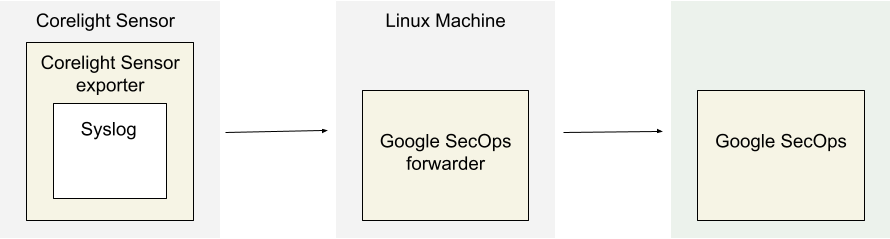
The architecture diagram shows the following components:
Corelight Sensor: The system running the Corelight Sensor .
Corelight Sensor exporter: The Corelight Sensor exporter collects log data from the Sensor, and forwards it to the Google Security Operations forwarder.
Google Security Operations forwarder: The Google Security Operations forwarder is a lightweight software component, deployed in the customer's network, that supports syslog. The Google Security Operations forwarder forwards the logs to Google Security Operations.
Google Security Operations: Google Security Operations retains and analyzes the logs from Corelight Sensor.
Configure the Google Security Operations forwarder
To configure the Google Security Operations forwarder, do the following:
Set up a Google Security Operations forwarder. See Install and configure the forwarder on Linux.
Configure the Google Security Operations forwarder to send logs to Google Security Operations.
  collectors:
    - syslog:
        common:
          enabled: true
          data_type:  CORELIGHT
          data_hint:
          batch_n_seconds: 10
          batch_n_bytes: 1048576
        tcp_address: <Chronicle forwarder listening IP:Port>
        tcp_buffer_size: 524288
        udp_address: <Chronicle forwarder listening IP:Port>
        connection_timeout_sec: 60
Configure the Corelight Sensor exporter
- Log into Corelight Sensor as an administrator.
- Select the Export tab.
- Find and enable EXPORT TO SYSLOG option.
- Under EXPORT TO SYSLOG, configure the following fields:
- SYSLOG SERVER: Specify the IP address and port of the Google Security Operations forwarder syslog listener.
- Navigate to Advanced Settings > SYSLOG FORMAT, and change the setting to Legacy.
- Click Apply Changes.
Supported Corelight log types
The Corelight parser supports the following log types generated by Corelight Sensor.
Log Type
- conn
- conn_long
- conn_red
- dce_rpc
- dns
- dns_red
- files
- files_red
- http
- http2
- http_red
- intel
- irc
- notice
- rdp
- sip
- smb_files
- smb_mapping
- smtp
- smtp_links
- ssh
- ssl
- ssl_red
- suricata_corelight
- bacnet
- cip
- corelight_burst
- corelight_overall_capture_loss
- corelight_profiling
- datared
- dga
- dhcp
- dnp3
- dpd
- encrypted_dns
- enip
- enip_debug
- enip_list_identity
- etc_viz
- ftp
- generic_dns_tunnels
- generic_icmp_tunnels
- icmp_specific_tunnels
- ipsec
- iso_cotp
- kerberos
- known_certs
- known_devices
- known_domains
- known_hosts
- known_names
- known_remotes
- known_services
- known_users
- ldap
- ldap_search
- local_subnets
- local_subnets_dj
- local_subnets_graphs
- log4shell
- modbus
- mqtt_connect
- mqtt_publish
- mqtt_subscribe
- mysql
- napatech_shunting
- ntlm
- ntp
- pe
- profinet
- profinet_dce_rpc
- profinet_debug
- radius
- reporter
- rfb
- s7comm
- smartpcap
- snmp
- socks
- software
- specific_dns_tunnels
- stepping
- stun
- stun_nat
- suricata_eve
- suricata_stats
- syslog
- tds
- tds_rpc
- tds_sql_batch
- traceroute
- tunnel
- unknown-smartpcap
- vpn
- weird
- weird_red
- wireguard
- x509
- x509_red
- conn_agg
- dns_agg
- files_agg
- http_agg
- ssl_agg
- weird_agg
- analyzer
- anomaly
- ssdp
- telnet
- websocket
- first_seen
Field mapping reference
This section explains how the Google Security Operations parser maps Corelight fields to Google Security Operations Unified Data Model (UDM) fields.
Field mapping reference: CORELIGHT - Common Fields
The following table lists common fields of the CORELIGHT log and their corresponding UDM fields.
| Log field | UDM mapping | Logic |
|---|---|---|
metadata.vendor_name |
The metadata.vendor_name UDM field is set to Corelight. |
|
_path (string) |
metadata.product_event_type |
|
_system_name (string) |
observer.hostname |
|
ts (time) |
metadata.event_timestamp |
|
uid (string) |
about.labels [uid], network.session_id |
|
id.orig_h (string - addr) |
principal.ip |
|
id.orig_p (integer - port) |
principal.port |
|
id.resp_h (string - addr) |
target.ip |
|
id.resp_p (integer - port) |
target.port |
|
_write_ts | metadata.collected_timestamp |
|
id.vlan (integer - int) |
additional.fields [id_vlan] |
|
id.vlan_inner (integer - int) |
additional.fields [id_vlan_inner] |
|
id.orig_ep_cid (string) |
additional.fields [id_orig_ep_cid] |
|
id.orig_ep_source (string) |
additional.fields [id_orig_ep_source] |
|
id.orig_ep_status (string) |
additional.fields [id_orig_ep_status] |
|
id.orig_ep_uid (string) |
additional.fields [id_orig_ep_uid] |
|
id.resp_ep_cid (string) |
additional.fields [id_resp_ep_cid] |
|
id.resp_ep_source (string) |
additional.fields [id_resp_ep_source] |
|
id.resp_ep_status (string) |
additional.fields [id_resp_ep_status] |
|
id.resp_ep_uid (string) |
additional.fields [id_resp_ep_uid] |
|
uids (array[string] - vector of string) |
additional.fields [uid] |
|
count (integer - int) |
additional.fields [count] |
|
ts_last |
additional.fields [ts_last] |
Field mapping reference: CORELIGHT - conn, conn_red, conn_long, conn_agg
The following table lists the log fields of the conn, conn_red, conn_long, conn_agg log type and their corresponding UDM fields.
| Log field | UDM mapping | Logic |
|---|---|---|
metadata.event_type |
The metadata.event_type UDM field is set to NETWORK_CONNECTION. |
|
metadata.product_name |
The metadata.product_name UDM field is set to Zeek. |
|
proto (string - enum) |
network.ip_protocol |
|
service (string) |
network.application_protocol |
|
duration (number - interval) |
network.session_duration |
|
orig_bytes (integer - count) |
network.sent_bytes |
|
resp_bytes (integer - count) |
network.received_bytes |
|
conn_state (string) |
metadata.description |
If the conn_state log field value is equal to S0, then the metadata.description UDM field is set to S0: Connection attempt seen, no reply.Else, if the conn_state log field value is equal to S1, then the metadata.description UDM field is set to S1: Connection established, not terminated.Else, if the conn_state log field value is equal to S2, then the metadata.description UDM field is set to S2: Connection established and close attempt by originator seen (but no reply from responder).Else, if the conn_state log field value is equal to S3, then the metadata.description UDM field is set to S3: Connection established and close attempt by responder seen (but no reply from originator).Else, if the conn_state log field value is equal to SF, then the metadata.description UDM field is set to SF: Normal SYN/FIN completion.Else, if the conn_state log field value is equal to REJ, then the metadata.description UDM field is set to REJ: Connection attempt rejected.Else, if the conn_state log field value is equal to RSTO, then the metadata.description UDM field is set to RSTO: Connection established, originator aborted (sent a RST).Else, if the conn_state log field value is equal to RSTOS0, then the metadata.description UDM field is set to RSTOS0: Originator sent a SYN followed by a RST, we never saw a SYN-ACK from the responder.Else, if the conn_state log field value is equal to RSTOSH, then the metadata.description UDM field is set to RSTOSH: Responder sent a SYN ACK followed by a RST, we never saw a SYN from the (purported) originator.Else, if the conn_state log field value is equal to RSTR, then the metadata.description UDM field is set to RSTR: Established, responder aborted.Else, if the conn_state log field value is equal to SH, then the metadata.description UDM field is set to SH: Originator sent a SYN followed by a FIN, we never saw a SYN ACK from the responder (hence the connection was "half" open).Else, if the conn_state log field value is equal to SHR, then the metadata.description UDM field is set to SHR: Responder sent a SYN ACK followed by a FIN, we never saw a SYN from the originator.Else, if the conn_state log field value is equal to OTH, then the metadata.description UDM field is set to OTH: No SYN seen, just midstream traffic (a partial connection that was not later closed). |
local_orig (boolean - bool) |
about.labels [local_orig] |
|
local_resp (boolean - bool) |
about.labels [local_resp] |
|
missed_bytes (integer - count) |
about.labels [missed_bytes] |
|
history (string) |
about.labels [history] |
|
orig_pkts (integer - count) |
network.sent_packets |
|
orig_ip_bytes (integer - count) |
principal.labels [orig_ip_bytes] |
|
resp_pkts (integer - count) |
network.received_packets |
|
resp_ip_bytes (integer - count) |
target.labels [resp_ip_bytes] |
|
tunnel_parents (array[string] - set[string]) |
intermediary.labels [tunnel_parent] |
|
orig_cc (string) |
principal.ip_geo_artifact.location.country_or_region |
|
resp_cc (string) |
target.ip_geo_artifact.location.country_or_region |
|
suri_ids (array[string] - set[string]) |
security_result.rule_id |
|
spcap.url (string) |
security_result.url_back_to_product |
|
spcap.rule (integer - count) |
security_result.rule_labels [spcap_rule] |
|
spcap.trigger (string) |
security_result.detection_fields [spcap_trigger] |
|
app (array[string] - vector of string) |
about.application |
|
corelight_shunted (boolean - bool) |
about.labels [corelight_shunted] |
|
orig_shunted_pkts (integer - count) |
principal.labels [orig_shunted_pkts] |
|
orig_shunted_bytes (integer - count) |
principal.labels [orig_shunted_bytes] |
|
resp_shunted_pkts (integer - count) |
target.labels [resp_shunted_pkts] |
|
resp_shunted_bytes (integer - count) |
target.labels [resp_shunted_bytes] |
|
orig_l2_addr (string) |
principal.mac |
|
resp_l2_addr (string) |
target.mac |
|
id_orig_h_n.src (string) |
principal.labels [id_orig_h_n_src] |
|
id_orig_h_n.vals (array[string] - set[string]) |
principal.labels [id_orig_h_n_val] |
|
id_resp_h_n.src (string) |
target.labels [id_resp_h_n_src] |
|
id_resp_h_n.vals (array[string] - set[string]) |
target.labels [id_resp_h_n_val] |
|
vlan (integer - int) |
intermediary.labels [vlan] |
|
inner_vlan (integer - int) |
intermediary.labels [inner_vlan] |
|
community_id (string) |
network.community_id |
|
security_result.severity |
The security_result.severity UDM field is set to INFORMATIONAL. |
|
service (string) |
about.labels [service] |
|
orig_ep_cid (string) |
additional.fields [orig_ep_cid] |
|
orig_ep_source (string) |
additional.fields [orig_ep_source] |
|
orig_ep_status (string) |
additional.fields [orig_ep_status] |
|
orig_ep_uid (string) |
additional.fields [orig_ep_uid] |
|
resp_ep_cid (string) |
additional.fields [resp_ep_cid] |
|
resp_ep_source (string) |
additional.fields [resp_ep_source] |
|
resp_ep_status (string) |
additional.fields [resp_ep_status] |
|
resp_ep_uid (string) |
additional.fields [resp_ep_uid] |
|
id_orig_h_n |
principal.ip |
|
id_resp_h_n |
target.ip |
|
netskope_site_ids |
additional.fields[netskope_site_ids] |
Iterate through log field netskope_site_ids, then netskope_site_id_%{index} log field is mapped to the additional.fields.key UDM field and netskope_site_id log field is mapped to the additional.fields.value UDM field. |
netskope_user_ids |
additional.fields[netskope_user_ids] |
Iterate through log field netskope_user_ids, then netskope_user_id_%{index} log field is mapped to the additional.fields.key UDM field and netskope_user_id log field is mapped to the additional.fields.value UDM field. |
write_ts |
additional.fields[write_ts] |
|
spcap.urls (array[string] - vector of string) |
security_result.url_back_to_product |
Iterate through log field spcap.urls, then spcap.urls log field is mapped to the security_result.url_back_to_product UDM field. |
community_ids (array[string] - vector of string) |
network.community_id |
Iterate through log field community_ids, thenif index is equal to 0 then, community_id log field is mapped to the network.community_id UDM field. Else, community_id_%{index} log field is mapped to the additional.fields.key UDM field and community_id log field is mapped to the additional.fields.value UDM field. |
capture_metadata.vpc.version |
about.resource.attribute.labels[vpc_version] |
|
capture_metadata.vpc.vpc_id |
about.resource.product_object_id |
|
about.resource.resource_type |
If capture_metadata.vpc.vpc_id is present, then about.resource.resource_type UDM field is set to VPC_NETWORK. |
|
capture_source |
about.resource.attribute.labels[capture_source] |
|
orig_inst.az |
principal.location.name |
|
orig_inst.id |
principal.resource.product_object_id |
|
orig_inst.name |
principal.resource.name |
|
orig_inst.org_id |
principal.resource.attribute.labels[org_id] |
|
orig_inst.sg_ids |
principal.resource.attribute.labels[sg_id] |
|
orig_inst.subnet_id |
principal.resource.attribute.labels[subnet_id] |
|
orig_inst.vpc_id |
principal.resource.attribute.labels[vpc_id] |
|
principal.resource.resource_type |
If orig_inst.vpc_id is present, then principal.resource.resource_type UDM field is set to VPC_NETWORK. |
|
orig_inst.profile |
principal.resource.attribute.labels[profile] |
|
resp_inst.az |
target.location.name |
|
resp_inst.id |
target.resource.product_object_id |
|
resp_inst.name |
target.resource.name |
|
resp_inst.org_id |
target.resource.attribute.labels[org_id] |
|
resp_inst.sg_ids |
target.resource.attribute.labels[sg_id] |
|
resp_inst.subnet_id |
target.resource.attribute.labels[subnet_id] |
|
resp_inst.vpc_id |
target.resource.attribute.labels[vpc_id] |
|
target.resource.resource_type |
If resp_inst.vpc_id is present, then target.resource.resource_type UDM field is set to VPC_NETWORK. |
|
resp_inst.profile |
target.resource.attribute.labels[profile] |
|
local_orig and local_resp |
additional.fields[direction] |
If the local_orig log field value is equal to true and local_resp log field value is equal to true, then the additional.fields[direction] UDM field is set to internal.Else, if the local_orig log field value is equal to true and local_resp log field value is equal to false, then the additional.fields[direction] UDM field is set to outbound.Else, if the local_orig log field value is equal to false and local_resp log field value is equal to false, then the additional.fields[direction] UDM field is set to external.Else, if the local_orig log field value is equal to false and local_resp log field value is equal to true, then the additional.fields[direction] UDM field is set to inbound. |
Field mapping reference: CORELIGHT - dce_rpc
The following table lists the log fields of the dce_rpc log type and their corresponding UDM fields.
| Log field | UDM mapping | Logic |
|---|---|---|
metadata.event_type |
The metadata.event_type UDM field is set to NETWORK_CONNECTION. |
|
metadata.product_name |
The metadata.product_name UDM field is set to Zeek. |
|
rtt (number - interval) |
network.session_duration |
|
named_pipe (string) |
intermediary.resource.name |
|
intermediary.resource.resource_type |
If the named_pipe log field value is not empty, then the intermediary.resource.resource_type UDM field is set to PIPE. |
|
endpoint (string) |
target.labels [endpoint] |
|
operation (string) |
target.labels [operation] |
|
network.application_protocol |
The network.application_protocol UDM field is set to DCERPC. |
|
security_result.severity |
The security_result.severity UDM field is set to INFORMATIONAL. |
|
operation, endpoint, named_pipe (string) |
metadata.description |
The metadata.description UDM field is set with operation, endpoint, named_pipe log fields as "operation operation on endpoint using named pipe named_pipe". |
network.ip_protocol |
The network.ip_protocol UDM field is set to TCP. |
Field mapping reference: CORELIGHT - dns, dns_red, dns_agg
The following table lists the log fields of the dns, dns_red, dns_agg log type and their corresponding UDM fields.
| Log field | UDM mapping | Logic |
|---|---|---|
metadata.product_name |
The metadata.product_name UDM field is set to Zeek. |
|
metadata.event_type |
The metadata.event_type UDM field is set to NETWORK_DNS. |
|
network.application_protocol |
The network.application_protocol UDM field is set to DNS. |
|
proto (string - enum) |
network.ip_protocol |
|
trans_id (integer - count) |
network.dns.id |
|
rtt (number - interval) |
network.session_duration |
|
query (string) |
network.dns.questions.name |
|
qclass (integer - count) |
network.dns.questions.class |
|
qclass_name (string) |
about.labels [qclass_name] |
|
qtype (integer - count) |
network.dns.questions.type |
|
qtype_name (string) |
about.labels [qtype_name] |
|
rcode (integer - count) |
network.dns.response_code |
|
rcode (integer - count) |
network.dns.response |
If the rcode log field value is not empty, then the network.dns.response UDM field is set to true. |
rcode_name (string) |
about.labels [rcode_name] |
|
AA (boolean - bool) |
network.dns.authoritative |
|
TC (boolean - bool) |
network.dns.truncated |
|
RD (boolean - bool) |
network.dns.recursion_desired |
|
RA (boolean - bool) |
network.dns.recursion_available |
|
Z (integer - count) |
about.labels [Z] |
|
answers (array[string] - vector of string) |
network.dns.answers.name |
|
TTLs (array[number] - vector of interval) |
network.dns.answers.ttl |
|
rejected (boolean - bool) |
about.labels [rejected] |
|
is_trusted_domain (string) |
about.labels [is_trusted_domain] |
|
icann_host_subdomain (string) |
about.labels [icann_host_subdomain] |
|
icann_domain (string) |
network.dns_domain |
|
icann_tld (string) |
about.labels [icann_tld] |
|
num (integer - count) |
security_result.detection_fields [num] |
Field mapping reference: CORELIGHT - http, http_red, http2, http_agg
The following table lists the log fields of the http, http_red, http2, http_agg log type and their corresponding UDM fields.
| Log field | UDM mapping | Logic |
|---|---|---|
metadata.event_type |
The metadata.event_type UDM field is set to NETWORK_HTTP. |
|
metadata.product_name |
The metadata.product_name UDM field is set to Zeek. |
|
trans_depth (integer - count) |
about.labels [trans_depth] |
|
method (string) |
network.http.method |
|
host (string) |
target.hostname |
|
uri (string) |
target.url |
|
referrer (string) |
network.http.referral_url |
|
version (string) |
network.application_protocol_version |
|
user_agent (string) |
network.http.user_agent |
|
origin (string) |
principal.hostname |
|
request_body_len (integer - count) |
network.sent_bytes |
|
response_body_len (integer - count) |
network.received_bytes |
|
status_code (integer - count) |
network.http.response_code |
|
status_msg (string) |
about.labels [status_msg] |
|
info_code (integer - count) |
about.labels [info_code] |
|
info_msg (string) |
about.labels [info_msg] |
|
tags (array[string] - set[enum]) |
about.labels [tags] |
|
username (string) |
principal.user.user_display_name |
|
password (string) |
extensions.auth.auth_details |
|
proxied (array[string] - set[string]) |
intermediary.hostname |
|
orig_fuids (array[string] - vector of string) |
about.labels [orig_fuid] |
|
orig_filenames (array[string] - vector of string) |
src.file.names |
The orig_filenames log field is mapped to src.file.names UDM field when index value in orig_filenames is equal to 0. For every other index value, orig_filenames log field is mapped to the about.file.names.
|
orig_mime_types (array[string] - vector of string) |
src.file.mime_type |
The orig_mime_types log field is mapped to src.file.mime_type UDM field when index value in orig_mime_types is equal to 0. For every other index value, orig_mime_types log field is mapped to the about.file.mime_type.
|
resp_fuids (array[string] - vector of string) |
about.labels [resp_fuid] |
|
resp_filenames (array[string] - vector of string) |
target.file.names |
The resp_filenames log field is mapped to target.file.names UDM field when index value in resp_filenames is equal to 0. For every other index value, resp_filenames log field is mapped to the about.file.names.
|
resp_mime_types (array[string] - vector of string) |
target.file.mime_type |
The resp_mime_types log field is mapped to target.file.mime_type UDM field when index value in resp_mime_types is equal to 0. For every other index value, resp_mime_types log field is mapped to the about.file.mime_type.
|
post_body (string) |
about.labels [post_body] |
|
stream_id (integer - count) |
about.labels [stream_id] |
|
encoding (string) |
about.labels [encoding] |
|
push (boolean - bool) |
about.labels [push] |
|
versions (array[float] - vector of float) |
network.application_protocol_version |
Iterate through log field versions, thenif index is equal to 0 then, version log field is mapped to the network.application_protocol_version UDM field. Else, version_%{index} log field is mapped to the additional.fields.key UDM field and version log field is mapped to the additional.fields.value UDM field. |
user_agents (array[string] - vector of string) |
network.http.user_agent |
Iterate through log field user_agents, thenif index is equal to 0 then, user_agent log field is mapped to the network.http.user_agent UDM field. Else, user_agent_%{index} log field is mapped to the additional.fields.key UDM field and user_agent log field is mapped to the additional.fields.value UDM field. |
Field mapping reference: CORELIGHT - smtp_links
The following table lists the log fields of the smtp_links log type and their corresponding UDM fields.
| Log field | UDM mapping | Logic |
|---|---|---|
metadata.event_type |
The metadata.event_type UDM field is set to NETWORK_SMTP. |
|
metadata.product_name |
The metadata.product_name UDM field is set to Zeek. |
|
network.application_protocol |
The network.application_protocol UDM field is set to SMTP. |
|
fuid (string) |
about.labels [fuid] |
|
link (string) |
about.url |
|
domain (string) |
about.domain.name |
Field mapping reference: CORELIGHT - irc
The following table lists the log fields of the irc log type and their corresponding UDM fields.
| Log field | UDM mapping | Logic |
|---|---|---|
metadata.event_type |
The metadata.event_type UDM field is set to NETWORK_UNCATEGORIZED. |
|
metadata.product_name |
The metadata.product_name UDM field is set to Zeek. |
|
nick (string) |
principal.user.user_display_name |
|
user (string) |
principal.user.userid |
If the user log field value is less than or equal to 255, then the user log field is mapped to the principal.user.userid UDM field.Else, the user log field is mapped to the about.labels UDM field. |
command, value, addl |
principal.process.command_line |
|
dcc_file_name (string) |
src.file.names |
|
dcc_file_size (integer - count) |
src.file.size |
|
dcc_mime_type (string) |
src.file.mime_type |
|
fuid (string) |
about.labels [fuid] |
Field mapping reference: CORELIGHT - files, files_red, files_agg
The following table lists the log fields of the files, files_red, files_agg log type and their corresponding UDM fields.
| Log field | UDM mapping | Logic |
|---|---|---|
metadata.event_type |
The metadata.event_type UDM field is set to NETWORK_UNCATEGORIZED. |
|
metadata.product_name |
The metadata.product_name UDM field is set to Zeek. |
|
fuid (string) |
about.labels [fuid] |
|
tx_hosts (array[string] - set[addr]) |
principal.ip |
|
rx_hosts (array[string] - set[addr]) |
target.ip |
|
conn_uids (array[string] - set[string]) |
about.labels [conn_uid] |
|
source (string) |
about.labels [source] |
|
depth (integer - count) |
about.labels [depth] |
|
analyzers (array[string] - set[string]) |
about.labels [analyzer] |
|
mime_type (string) |
about.file.mime_type |
|
filename (string) |
about.file.names |
|
duration (number - interval) |
about.labels [duration] |
|
local_orig (boolean - bool) |
about.labels [local_orig] |
|
is_orig (boolean - bool) |
about.labels [is_orig] |
|
seen_bytes (integer - count) |
about.file.size |
|
total_bytes (integer - count) |
about.labels [total_bytes] |
|
missing_bytes (integer - count) |
about.labels [missing_bytes] |
|
overflow_bytes (integer - count) |
about.labels [overflow_bytes] |
|
timedout (boolean - bool) |
about.labels [timedout] |
|
parent_fuid (string) |
about.labels [parent_fuid] |
|
md5 (string) |
about.file.md5 |
|
sha1 (string) |
about.file.sha1 |
|
sha256 (string) |
about.file.sha256 |
|
md5 (string) |
network.tls.client.certificate.md5 |
If the source log field value is equal to ssl and the mime_type log field value is equal to application/x-x509-user-cert and the _path log field value is equal to files, then the network.tls.client.certificate.md5 UDM field is set to md5. |
sha1 (string) |
network.tls.client.certificate.sha1 |
If the source log field value is equal to ssl and the mime_type log field value is equal to application/x-x509-user-cert and the _path log field value is equal to files, then the network.tls.client.certificate.sha1 UDM field is set to sha1. |
sha256 (string) |
network.tls.client.certificate.sha256 |
If the source log field value is equal to ssl and the mime_type log field value is equal to application/x-x509-user-cert and the _path log field value is equal to files, then the network.tls.client.certificate.sha256 UDM field is set to sha256. |
md5 (string) |
network.tls.server.certificate.md5 |
If the source log field value is equal to ssl and the mime_type log field value is equal to application/x-x509-ca-cert and the _path log field value is equal to files, then the network.tls.server.certificate.md5 UDM field is set to md5. |
sha1 (string) |
network.tls.server.certificate.sha1 |
If the source log field value is equal to ssl and the mime_type log field value is equal to application/x-x509-ca-cert and the _path log field value is equal to files, then the network.tls.server.certificate.sha1 UDM field is set to sha1. |
sha256 (string) |
network.tls.server.certificate.sha256 |
If the source log field value is equal to ssl and the mime_type log field value is equal to application/x-x509-ca-cert and the _path log field value is equal to files, then the network.tls.server.certificate.sha256 UDM field is set to sha256. |
extracted (array[string] - set[string]) |
about.file.names |
|
extracted_cutoff (boolean - bool) |
about.labels [extracted_cutoff] |
|
extracted_size (integer - count) |
about.labels [extracted_size] |
|
num (integer - count) |
about.labels [num] |
|
vlan (integer - int) |
additional.fields [vlan] |
|
vlan_inner (integer - int) |
additional.fields [vlan_inner] |
|
mime_types (array[string] - vector of string) |
target.file.mime_type |
Iterate through log field mime_type, thenif index is equal to 0 then, mime_type log field is mapped to the target.file.mime_type UDM field. Else, mime_type_%{index} log field is mapped to the additional.fields.key UDM field and mime_type log field is mapped to the additional.fields.value UDM field. |
timedouts (array[boolean] - vector of bool) |
additional.fields[timedouts] |
Iterate through log field timedouts, then timedout_%{index} log field is mapped to the additional.fields.key UDM field and timedouts log field is mapped to the additional.fields.value UDM field. |
Field mapping reference: CORELIGHT - notice
The following table lists the log fields of the notice log type and their corresponding UDM fields.
| Log field | UDM mapping | Logic |
|---|---|---|
metadata.event_type |
The metadata.event_type UDM field is set to NETWORK_UNCATEGORIZED. |
|
metadata.product_name |
The metadata.product_name UDM field is set to Zeek. |
|
fuid (string) |
about.labels [fuid] |
|
file_mime_type (string) |
target.file.mime_type |
|
file_desc (string) |
about.labels [file_desc] |
|
proto (string - enum) |
network.ip_protocol |
|
note (string - enum) |
security_result.description |
|
msg (string) |
metadata.description |
|
sub (string) |
about.labels [sub] |
|
src (string - addr) |
principal.ip |
|
dst (string - addr) |
target.ip |
|
p (integer - port) |
about.port |
|
n (integer - count) |
about.labels [n] |
|
peer_descr (string) |
about.labels [peer_descr] |
|
security_result.action |
The security_result.action UDM field is set to ALLOW. |
|
actions (array[string] - set[enum]) |
security_result.action_details |
|
suppress_for (number - interval) |
about.labels [suppress_for] |
|
remote_location.country_code (string) |
about.location.country_or_region |
The about.location.country_or_region UDM field is set with remote_location.country_code, remote_location.region log fields as "remote_location.country_code: remote_location.region". |
remote_location.region (string) |
about.location.country_or_region |
The about.location.country_or_region UDM field is set with remote_location.country_code, remote_location.region log fields as "remote_location.country_code: remote_location.region". |
remote_location.city (string) |
about.location.city |
|
remote_location.latitude (number - double) |
about.location.region_coordinates.latitude |
|
remote_location.longitude (number - double) |
about.location.region_coordinates.longitude |
|
security_result.severity |
If the severity.level log field value contain one of the following values
security_result.severity UDM field is set to HIGH. Else, If severity.level log field value is equal to 2 then, the security_result.severity UDM field is set to CRITICAL. Else, If severity.level log field value is equal to 3 then, the security_result.severity UDM field is set to ERROR. Else, If severity.level log field value contain one of the following values
security_result.severity UDM field is set to INFORMATIONAL. Else, If severity.level log field value is equal to 7 then, the security_result.severity UDM field is set to LOW. Else The security_result.severity UDM field is set to UNKNOWN_SEVERITY. |
|
severity.name |
security_result.severity_details |
|
severity.level |
security_result.detection_fields [severity_level] |
|
resp_vulnerable_host.criticality (string) |
target.asset.vulnerabilities.severity |
If the resp_vulnerable_host.criticality log field value matches the regular expression pattern "(?i)Critical" or the then, the "target.asset.vulnerabilities.severity" UDM field is set to CRITICAL. Else, If resp_vulnerable_host.criticality log field value matches the regular expression pattern "(?i)High" or the then, the "target.asset.vulnerabilities.severity" UDM field is set to HIGH. Else, If resp_vulnerable_host.criticality log field value matches the regular expression pattern "(?i)Low" or the then, the "target.asset.vulnerabilities.severity" UDM field is set to LOW. Else, If resp_vulnerable_host.criticality log field value matches the regular expression pattern "(?i)Medium" or the then, the "target.asset.vulnerabilities.severity" UDM field is set to MEDIUM. Else, If resp_vulnerable_host.criticality log field value matches the regular expression pattern "(?i)Unknown_Severity" or the resp_vulnerable_host.criticality log field value is equal to "0 " then, the "target.asset.vulnerabilities.severity" UDM field is set to UNKNOWN_SEVERITY. |
resp_vulnerable_host.criticality (string) |
target.asset.vulnerabilities.severity_details |
|
resp_vulnerable_host.cve (string) |
target.asset.vulnerabilities.cve_id |
|
resp_vulnerable_host.host_uid (string) |
additional.fields [resp_vulnerable_host_uid] |
|
resp_vulnerable_host.hostname (string) |
target.asset.hostname |
|
resp_vulnerable_host.machine_domain (string) |
target.asset.network_domain |
|
resp_vulnerable_host.os_version (string) |
target.asset.platform_software.platform_version |
|
resp_vulnerable_host.source (string) |
target.asset.vulnerabilities.cve_description |
|
orig_vulnerable_host.criticality (string) |
principal.asset.vulnerabilities.severity |
If the orig_vulnerable_host.criticality log field value matches the regular expression pattern "(?i)Critical" or the then, the "principal.asset.vulnerabilities.severity" UDM field is set to CRITICAL. Else, If orig_vulnerable_host.criticality log field value matches the regular expression pattern "(?i)High" or the then, the "principal.asset.vulnerabilities.severity" UDM field is set to HIGH. Else, If orig_vulnerable_host.criticality log field value matches the regular expression pattern "(?i)Low" or the then, the "principal.asset.vulnerabilities.severity" UDM field is set to LOW. Else, If orig_vulnerable_host.criticality log field value matches the regular expression pattern "(?i)Medium" or the then, the "principal.asset.vulnerabilities.severity" UDM field is set to MEDIUM. Else, If orig_vulnerable_host.criticality log field value matches the regular expression pattern "(?i)Unknown_Severity" or the orig_vulnerable_host.criticality log field value is equal to "0 " then, the "principal.asset.vulnerabilities.severity" UDM field is set to UNKNOWN_SEVERITY. |
orig_vulnerable_host.criticality (string) |
principal.asset.vulnerabilities.severity_details |
|
orig_vulnerable_host.cve (array[string] - vector of string) |
principal.asset.vulnerabilities.cve_id |
|
orig_vulnerable_host.host_uid (string) |
additional.fields [orig_vulnerable_host_uid] |
|
orig_vulnerable_host.hostname (string) |
principal.asset.hostname |
|
orig_vulnerable_host.machine_domain (string) |
principal.asset.network_domain |
|
orig_vulnerable_host.os_version (string) |
principal.asset.platform_software.platform_version |
|
orig_vulnerable_host.source (string) |
principal.asset.vulnerabilities.cve_description |
Field mapping reference: CORELIGHT - smb_files
The following table lists the log fields of the smb_files log type and their corresponding UDM fields.
| Log field | UDM mapping | Logic |
|---|---|---|
metadata.event_type |
If the action log field value is equal to SMB::FILE_READ, then the metadata.event_type UDM field is set to FILE_READ.Else, if the action log field value is equal to SMB::FILE_WRITE, then the metadata.event_type UDM field is set to FILE_MODIFICATION.Else, if the action log field value is equal to SMB::FILE_OPEN, then the metadata.event_type UDM field is set to FILE_OPEN.Else, if the action log field value is equal to SMB::FILE_CLOSE, then the metadata.event_type UDM field is set to FILE_UNCATEGORIZED.Else, if the action log field value is equal to SMB::FILE_DELETE, then the metadata.event_type UDM field is set to FILE_DELETION.Else, if the action log field value is equal to SMB::FILE_RENAME, then the metadata.event_type UDM field is set to FILE_MOVE.Else, if the action log field value is equal to SMB::FILE_SET_ATTRIBUTE, then the metadata.event_type UDM field is set to FILE_UNCATEGORIZED.Else, the metadata.event_type UDM field is set to FILE_UNCATEGORIZED. |
|
metadata.product_name |
The metadata.product_name UDM field is set to Zeek. |
|
network.application_protocol |
The network.application_protocol UDM field is set to SMB. |
|
network.ip_protocol |
The network.ip_protocol UDM field is set to TCP. |
|
action, name |
metadata.description |
The metadata.description UDM field is set with action, name log fields as "action: action on: name". |
security_result.severity |
The security_result.severity UDM field is set to INFORMATIONAL. |
|
security_result.action |
The security_result.action UDM field is set to ALLOW. |
|
fuid (string) |
about.labels [fuid] |
|
action (string - enum) |
target.labels [action] |
|
path (string) |
target.file.full_path |
|
name (string) |
target.file.names |
|
size (integer - count) |
target.file.size |
|
prev_name (string) |
src.file.names |
|
times.modified (time) |
target.file.last_modification_time |
|
times.accessed (time) |
target.file.last_seen_time |
|
times.created (time) |
target.file.first_seen_time |
|
times.changed (time) |
target.labels [times_changed] |
|
data_offset_req (integer - count) |
target.labels [data_offset_req] |
|
data_len_req (integer - count) |
target.labels [data_len_req] |
|
data_len_rsp (integer - count) |
target.labels [data_len_rsp] |
Field mapping reference: CORELIGHT - smb_mapping
The following table lists the log fields of the smb_mapping log type and their corresponding UDM fields.
| Log field | UDM mapping | Logic |
|---|---|---|
metadata.event_type |
The metadata.event_type UDM field is set to NETWORK_CONNECTION. |
|
metadata.product_name |
The metadata.product_name UDM field is set to Zeek. |
|
network.application_protocol |
The network.application_protocol UDM field is set to SMB. |
|
network.ip_protocol |
The network.ip_protocol UDM field is set to TCP. |
|
security_result.severity |
The security_result.severity UDM field is set to INFORMATIONAL. |
|
security_result.action |
The security_result.action UDM field is set to ALLOW. |
|
path (string) |
target.resource.attribute.labels [path] |
|
service (string) |
target.application |
|
native_file_system (string) |
target.resource.attribute.labels [native_file_system] |
|
share_type (string) |
target.resource.resource_type |
If the share_type log field value is equal to DISK, then the target.resource.resource_type UDM field is set to STORAGE_OBJECT.Else, if the share_type log field value is equal to PIPE, then the target.resource.resource_type UDM field is set to PIPE.Else, the target.resource.resource_type UDM field is set to UNSPECIFIED. |
share_type (string) |
target.resource.resource_subtype |
Field mapping reference: CORELIGHT - ssl, ssl_red, ssl_agg
The following table lists the log fields of the ssl, ssl_red, ssl_agg log type and their corresponding UDM fields.
| Log field | UDM mapping | Logic |
|---|---|---|
metadata.event_type |
The metadata.event_type UDM field is set to NETWORK_CONNECTION. |
|
metadata.product_name |
The metadata.product_name UDM field is set to Zeek. |
|
network.application_protocol |
The network.application_protocol UDM field is set to HTTPS. |
|
network.ip_protocol |
The network.ip_protocol UDM field is set to TCP. |
|
security_result.severity |
The security_result.severity UDM field is set to INFORMATIONAL. |
|
security_result.action |
The security_result.action UDM field is set to ALLOW. |
|
version (string) |
network.tls.version |
|
cipher (string) |
network.tls.cipher |
|
curve (string) |
network.tls.curve |
|
server_name (string) |
network.tls.client.server_name |
|
resumed (boolean - bool) |
network.tls.resumed |
|
last_alert (string) |
security_result.description |
|
next_protocol (string) |
network.tls.next_protocol |
|
established (boolean - bool) |
network.tls.established |
|
ssl_history (string) |
about.labels [ssl_history] |
|
cert_chain_fps (array[string] - vector of string) |
target.labels [cert_chain_fps] |
|
client_cert_chain_fps (array[string] - vector of string) |
principal.labels [client_cert_chain_fps] |
|
sni_matches_cert (boolean - bool) |
about.labels [sni_matches_cert] |
|
validation_status (string) |
security_result.description |
|
ja3 (string) |
network.tls.client.ja3 |
|
ja3s (string) |
network.tls.server.ja3s |
Field mapping reference: CORELIGHT - rdp
The following table lists the log fields of the rdp log type and their corresponding UDM fields.
| Log field | UDM mapping | Logic |
|---|---|---|
metadata.event_type |
The metadata.event_type UDM field is set to NETWORK_CONNECTION. |
|
metadata.product_name |
The metadata.product_name UDM field is set to Zeek. |
|
cookie (string) |
principal.user.userid |
|
result (string) |
about.labels [result] |
|
security_protocol (string) |
target.labels [security_protocol] |
|
client_channels (array[string] - vector of string) |
intermediary.labels [client_channels] |
|
keyboard_layout (string) |
principal.labels [keyboard_layout] |
|
client_build (string) |
principal.asset.software.version |
|
client_name (string) |
principal.hostname |
|
client_dig_product_id (string) |
principal.asset.product_object_id |
|
desktop_width (integer - count) |
principal.labels [desktop_width] |
|
desktop_height (integer - count) |
principal.labels [desktop_height] |
|
requested_color_depth (string) |
principal.labels [requested_color_depth] |
|
cert_type (string) |
about.labels [cert_type] |
|
cert_count (integer - count) |
about.labels [cert_count] |
|
cert_permanent (boolean - bool) |
about.labels [cert_permanent ] |
|
encryption_level (string) |
about.labels [encryption_level] |
|
encryption_method (string) |
about.labels [encryption_method] |
|
auth_success (boolean - bool) |
security_result.action |
If the auth_success log field value is equal to true then, the security_result.action UDM field is set to ALLOW. Else, the security_result.action UDM field is set to FAIL. |
channels_joined (integer - int) |
intermediary.labels [channels_joined] |
|
inferences (array[string] - set[string]) |
about.labels [inferences] |
|
rdpeudp_uid (string) |
about.labels [rdpeudp_uid] |
|
network.ip_protocol |
The network.ip_protocol UDM field is set to TCP. |
|
rdfp_string (string) |
principal.labels [rdfp_string] |
|
rdfp_hash (string) |
principal.labels [rdfp_hash] |
|
result, security_protocol |
security_result.description |
The security_result.description UDM field is set with result, security_protocol log fields as "result connection with security protocol security_protocol". |
security_result.severity |
The security_result.severity UDM field is set to INFORMATIONAL. |
Field mapping reference: CORELIGHT - sip
The following table lists the log fields of the sip log type and their corresponding UDM fields.
| Log field | UDM mapping | Logic |
|---|---|---|
metadata.event_type |
The metadata.event_type UDM field is set to NETWORK_UNCATEGORIZED. |
|
metadata.product_name |
The metadata.product_name UDM field is set to Zeek. |
|
network.application_protocol |
The network.application_protocol UDM field is set to SIP. |
|
trans_depth (integer - count) |
about.labels [trans_depth] |
|
method (string) |
about.labels [method] |
|
uri (string) |
target.url |
|
date (string) |
about.labels [date] |
|
request_from (string) |
principal.labels [request_from] |
|
request_to (string) |
target.labels [request_to] |
|
response_from |
principal.labels [response_from] |
|
response_to (string) |
target.labels [response_to] |
|
reply_to (string) |
about.labels [reply_to] |
|
call_id (string) |
about.labels[call_id] |
|
seq (string) |
about.labels [seq] |
|
subject (string) |
about.labels [subject] |
|
request_path (array[string] - vector of string) |
about.labels [request_path] |
|
response_path (array[string] - vector of string) |
about.labels [response_path] |
|
user_agent (string) |
about.labels [user_agent] |
|
status_code (integer - count) |
about.labels [status_code] |
|
status_msg (string) |
security_result.description |
|
warning (string) |
security_result.summary |
|
request_body_len (integer - count) |
network.sent_bytes |
|
response_body_len (integer - count) |
network.received_bytes |
|
content_type (string) |
about.labels [content_type] |
Field mapping reference: CORELIGHT - intel
The following table lists the log fields of the intel log type and their corresponding UDM fields.
| Log field | UDM mapping | Logic |
|---|---|---|
metadata.event_type |
The metadata.event_type UDM field is set to SCAN_NETWORK. |
|
metadata.product_name |
The metadata.product_name UDM field is set to Zeek. |
|
seen.indicator_type (string - enum) |
entity.metadata.entity_type |
If the indicator.type log field value is equal to Intel::ADDR, then the metadata.entity_type UDM field is set to IP_ADDRESS.Else, if the indicator.type log field value is equal to Intel::SUBNET or Intel::SOFTWARE or Intel::CERT_HASH or Intel::PUBKEY_HASH, then the metadata.entity_type UDM field is set to RESOURCE.Else, if the indicator.type log field value is equal to Intel::URL, then the metadata.entity_type UDM field is set to URL.Else, if the indicator.type log field value is equal to the Intel::EMAIL or Intel::USER_NAME, then the metadata.entity_type UDM field is set to USER.Else, if the indicator.type log field value is equal to Intel::DOMAIN, then the metadata.entity_type UDM field is set to DOMAIN_NAME.Else, if the indicator.type log field value is equal to the Intel::FILE_HASH or Intel::FILE_NAME, then the metadata.entity_type UDM field is set to FILE.Else, the metadata.entity_type UDM field is set to RESOURCE. |
seen.indicator (string) |
entity.ip |
If the indicator.type log field value is equal to Intel::ADDR, then the seen.indicator log field is mapped to the entity.ip UDM field. |
seen.indicator (string) |
entity.url |
If the indicator.type log field value is equal to Intel::URL, then the seen.indicator log field is mapped to the entity.url UDM field. |
seen.indicator (string) |
entity.domain.name |
If the indicator.type log field value is equal to Intel::DOMAIN, then the seen.indicator log field is mapped to the entity.domain.name UDM field. |
seen.indicator (string) |
entity.user.email_address |
If the indicator.type log field value is equal to Intel::USER_NAME or Intel::EMAIL, then the seen.indicator log field is mapped to the entity.user.email_address UDM field. |
seen.indicator (string) |
entity.file.names |
If the indicator.type log field value is equal to Intel::FILE_HASH or Intel::FILE_NAME, then the seen.indicator log field is mapped to the entity.file.full_path UDM field. |
seen.indicator (string) |
entity.resource.name |
If the metadata.entity_type log field value is equal to RESOURCE, then the seen.indicator log field is mapped to the entity.resource.name UDM field. |
entity.resource.resource_type |
If the indicator.type log field value is equal to Intel::SUBNET, then the entity.resource.resource_name UDM field is set to VPC_NETWORK. |
|
seen.indicator_type (string - enum) |
entity.resource.resource_sub_type |
If the metadata.entity_type log field value is equal to RESOURCE, then the seen.indicator_type log field is mapped to the entity.resource.resource_sub_type UDM field. |
seen.where (string - enum) |
entity.metadata.source_labels [seen_where] |
|
matched (array[string] - set[enum]) |
entity.labels [matched] |
|
sources (array[string] - set[string]) |
entity.metadata.source_labels [source] |
|
fuid (string) |
about.labels [fuid] |
|
file_mime_type (string) |
entity.file.mime_type |
|
file_desc (string) |
metadata.threat.detection_fields [file_desc] |
|
desc (array[string] - set[string]) |
ioc.description |
The desc log field is mapped to ioc.description UDM field when index value in desc is equal to 0.
For every other index value, entity.labels.key UDM field is set to desc and desc log field is mapped to the entity.labels.value. |
url (array[string] - set[string]) |
metadata.threat.url_back_to_product |
|
confidence (array[number] - set[double]) |
ioc.confidence_score |
The confidence log field is mapped to ioc.confidence_score UDM field when index value in confidence is equal to 0.
For every other index value, entity.labels.key UDM field is set to confidence and confidence log field is mapped to the entity.labels.value. |
firstseen (array[string] - set[string]) |
ioc.active_timerange.start |
The firstseen log field is mapped to ioc.active_timerange.start UDM field when index value in firstseen is equal to 0.
For every other index value, entity.labels.key UDM field is set to firstseen and firstseen log field is mapped to the entity.labels.value. |
lastseen (array[string] - set[string]) |
ioc.active_timerange.end |
The lastseen log field is mapped to ioc.active_timerange.end UDM field when index value in lastseen is equal to 0.
For every other index value, entity.labels.key UDM field is set to lastseen and lastseen log field is mapped to the entity.labels.value. |
associated (array[string] - set[string]) |
entity.labels [associated] |
|
category (array[string] - set[string]) |
ioc.categorization |
The category log field is mapped to ioc.categorization UDM field when index value in category is equal to 0.
For every other index value, entity.labels.key UDM field is set to category and category log field is mapped to the entity.labels.value. |
campaigns (array[string] - set[string]) |
entity.labels [campaign] |
|
reports (array[string] - set[string]) |
entity.labels [report] |
|
seen.indicator (string) |
about.labels [indicator] |
|
seen.indicator_type (string - enum) |
about.labels [indicator_type] |
|
seen.where (string - enum) |
about.labels [where] |
|
sources (array[string] - set[string]) |
about.labels [sources] |
|
confidence (array[number] - set[double]) |
about.labels [confidence] |
|
category (array[string] - set[string]) |
about.labels [category] |
|
threat_score (array[number] - set[double]) |
entity.security_result.detection_fields[threat_score] |
|
verdict (array[string] - set[string]) |
entity.security_result.verdict_info.verdict_response |
Iterate through verdict,If the verdict log field value matches the regular expression pattern "(?i)Malicious" or the then, the "entity.security_result.verdict_info.verdict_response" UDM field is set to MALICIOUS. Else, If verdict log field value matches the regular expression pattern "(?i)Benign" or the then, the "entity.security_result.verdict_info.verdict_response" UDM field is set to BENIGN. Else The "entity.security_result.verdict_info.verdict_response" UDM field is set to VERDICT_RESPONSE_UNSPECIFIED. |
verdict_source (array[string] - set[string]) |
entity.security_result.verdict_info.source_provider |
Iterate through verdict_source,verdict_source log field is mapped to the entity.security_result.VerdictInfo.source_provider UDM field. |
Field mapping reference: CORELIGHT - smtp
The following table lists the log fields of the smtp log type and their corresponding UDM fields.
| Log field | UDM mapping | Logic |
|---|---|---|
metadata.event_type |
The metadata.event_type UDM field is set to NETWORK_SMTP. |
|
metadata.product_name |
The metadata.product_name UDM field is set to Zeek. |
|
network.application_protocol |
The network.application_protocol UDM field is set to SMTP. |
|
trans_depth (integer - count) |
about.labels [trans_depth] |
|
helo (string) |
network.smtp.helo |
|
mailfrom (string) |
network.smtp.mail_from |
|
rcptto (array[string] - set[string]) |
network.smtp.rcpt_to |
|
date (string) |
about.labels [date] |
|
from (string) |
network.email.from |
|
to (array[string] - set[string]) |
network.email.to |
|
cc (array[string] - set[string]) |
network.email.cc |
|
reply_to (string) |
network.email.reply_to |
|
msg_id (string) |
network.email.mail_id |
|
in_reply_to (string) |
about.labels [in_reply_to] |
|
subject (string) |
network.email.subject |
|
x_originating_ip (string - addr) |
principal.ip |
|
first_received (string) |
about.labels [first_received] |
|
second_received (string) |
about.labels [second_received] |
|
last_reply (string) |
network.smtp.server_response |
|
path (array[string] - vector of addr) |
network.smtp.message_path |
Iterate through log field path, thenif the index value is equal to 0 then, path log field is mapped to the network.smtp.message_path UDM field. Else, path log field is mapped to the intermediary.ip UDM field. |
user_agent (string) |
principal.application |
|
tls (boolean - bool) |
network.smtp.is_tls |
|
fuids (array[string] - vector of string) |
about.labels [fuid] |
|
is_webmail (boolean - bool) |
network.smtp.is_webmail |
|
urls (array[string] - set[string]) |
about.url |
|
domains (array[string] - set[string]) |
about.domain.name |
Field mapping reference: CORELIGHT - ssh
The following table lists the log fields of the ssh log type and their corresponding UDM fields.
| Log field | UDM mapping | Logic |
|---|---|---|
metadata.event_type |
The metadata.event_type UDM field is set to NETWORK_UNCATEGORIZED. |
|
metadata.product_name |
The metadata.product_name UDM field is set to Zeek. |
|
network.application_protocol |
The network.application_protocol UDM field is set to SSH. |
|
version (integer - count) |
network.application_protocol_version |
The network.application_protocol_version UDM field is set with version log field as "SSH version". |
auth_success (boolean - bool) |
security_result.action_details |
|
auth_success (boolean - bool) |
security_result.action |
If the auth_success log field value is not equal to true, then the security_result.action UDM field is set to ALLOW.Else, the security_result.action UDM field is set to BLOCK. |
auth_attempts (integer - count) |
extensions.auth.auth_details |
The extensions.auth.auth_details UDM field is set with auth_attempts log field as "auth_attempts: auth_attempts". |
direction (string - enum) |
network.direction |
If the direction log field value is equal to INBOUND, then the network.direction UDM field is set to INBOUND.Else, if the direction log field value is equal to OUTBOUND, then the network.direction UDM field is set to OUTBOUND. |
client (string) |
principal.asset.software.version |
|
server (string) |
target.asset.software.version |
|
cipher_alg (string) |
network.tls.cipher |
|
mac_alg (string) |
security_result.detection_fields [mac_alg] |
|
compression_alg (string) |
security_result.detection_fields [compression_alg] |
|
kex_alg (string) |
security_result.detection_fields [kex_alg] |
|
host_key_alg (string) |
network.tls.server.certificate.version |
|
host_key (string) |
network.tls.server.certificate.sha256 |
|
remote_location.country_code (string) |
target.location.country_or_region |
|
remote_location.region (string) |
target.location.country_or_region |
|
remote_location.city (string) |
target.location.city |
|
remote_location.latitude (number - double) |
target.location.region_coordinates.latitude |
|
remote_location.longitude (number - double) |
target.location.region_coordinates.longitude |
|
hasshVersion (string) |
about.labels [hassh_version] |
|
hassh (string) |
principal.labels [hassh] |
|
hasshServer (string) |
target.labels [hassh_server] |
|
cshka (string) |
about.labels [cshka] |
|
hasshAlgorithms (string) |
about.labels [hassh_algorithms] |
|
sshka (string) |
about.labels [sshka] |
|
hasshServerAlgorithms (string) |
about.labels [hassh_server_algorithms] |
|
inferences (array[string] - set[string]) |
security_result.summary, security_result.description, security_result.detection_fields[inferences] |
If the inferences log field value is equal to ABP, then the security_result.summary UDM field is set to Client Authentication Bypass and the security_result.description UDM field is set to A client wasn't adhering to expectations of SSH either through server exploit or by the client and server switching to a protocol other than SSH after encryption begins.If the inferences log field value is equal to AFR, then the security_result.summary UDM field is set to SSH Agent Forwarding Requested and the security_result.description UDM field is set to Agent Forwarding is requested by the Client.If the inferences log field value is equal to APWA, then the security_result.summary UDM field is set to Automated Password Authentication and the security_result.description UDM field is set to The client authenticated with an automated password tool (like sshpass).If the inferences log field value is equal to AUTO, then the security_result.summary UDM field is set to Automated Interaction and the security_result.description UDM field is set to The client is a script automated utility and not driven by a user.If the inferences log field value is equal to BAN, then the security_result.summary UDM field is set to Server Banner and the security_result.description UDM field is set to The server sent the client a pre-authentication banner, likely for legal reasons.If the inferences log field value is equal to BF, then the security_result.summary UDM field is set to Client Brute Force Guessing and the security_result.description UDM field is set to A client made a number of authentication attempts that exceeded some configured, pre-connection threshold.If the inferences log field value is equal to BFS, then the security_result.summary UDM field is set to Client Brute Force Success and the security_result.description UDM field is set to A client made a number of authentication attempts that exceeded some configured, pre-connection threshold.If the inferences log field value is equal to CTS, then the security_result.summary UDM field is set to Client Trusted Server and the security_result.description UDM field is set to The client already has an entry in its known_hosts file for this server.If the inferences log field value is equal to CUS, then the security_result.summary UDM field is set to Client Untrusted Server and the security_result.description UDM field is set to The client did not have an entry in its known_hosts file for this server.If the inferences log field value is equal to IPWA, then the security_result.summary UDM field is set to Interactive Password Authentication and the security_result.description UDM field is set to The client interactively typed their password to authenticate.If the inferences log field value is equal to KS, then the security_result.summary UDM field is set to Keystrokes and the security_result.description UDM field is set to An interactive session occurred in which the client set user-driven keystrokes to the server.If the inferences log field value is equal to LFD, then the security_result.summary UDM field is set to Large Client File Download and the security_result.description UDM field is set to A file transfer occurred in which the server sent a sequence of bytes to the client.If the inferences log field value is equal to LFU, then the security_result.summary UDM field is set to Large Client File Upload and the security_result.description UDM field is set to A file transfer occurred in which the client sent a sequence of bytes to the server. Large file are identified dynamically based on trains of MTU-sized packets.If the inferences log field value is equal to MFA, then the security_result.summary UDM field is set to Multifactor Authentication and the security_result.description UDM field is set to The server required a second form of authentication (a code) after password or public key was accepted, and the client successfully provided it.If the inferences log field value is equal to NA, then the security_result.summary UDM field is set to None Authentication and the security_result.description UDM field is set to The client successfully authenticated using the None method.If the inferences log field value is equal to NRC, then the security_result.summary UDM field is set to No Remote Command and the security_result.description UDM field is set to The -N flag was used in SSH authentication.If the inferences log field value is equal to PKA, then the security_result.summary UDM field is set to Public Key Authentication and the security_result.description UDM field is set to The client automatically authenticated using pubkey authentication.If the inferences log field value is equal to RSI, then the security_result.summary UDM field is set to Reverse SSH Initiated and the security_result.description UDM field is set to The Reverse session is initiated from the server back to the client.If the inferences log field value is equal to RSIA, then the security_result.summary UDM field is set to Reverse SSH Initiated Automated and the security_result.description UDM field is set to The inititation of the Reverse session happened very early in the packet stream, indicating automation.If the inferences log field value is equal to RSK, then the security_result.summary UDM field is set to Reverse SSH Keystrokes and the security_result.description UDM field is set to Keystrokes are detected within the Reverse tunnel.If the inferences log field value is equal to RSL, then the security_result.summary UDM field is set to Reverse SSH Logged In and the security_result.description UDM field is set to The Reverse Tunnel login has succeeded.If the inferences log field value is equal to RSP, then the security_result.summary UDM field is set to Reverse SSH Provisioned and the security_result.description UDM field is set to The client connected with -R flag, which provisions the port to be used for a Reverse Session set up at any future time.If the inferences log field value is equal to SA, then the security_result.summary UDM field is set to Authentication Scanning and the security_result.description UDM field is set to The client scanned authentication method with the server and then disconnected.If the inferences log field value is equal to SC, then the security_result.summary UDM field is set to Capabilities Scanning and the security_result.description UDM field is set to The client exchanged capabilities with the server and then disconnected.If the inferences log field value is equal to SFD, then the security_result.summary UDM field is set to Small Client File Download and the security_result.description UDM field is set to A file transfer occurred in which the server sent a sequence of bytes to the client.If the inferences log field value is equal to SFU, then the security_result.summary UDM field is set to Small Client File Upload and the security_result.description UDM field is set to A file transfer occurred in which the client sent a sequence of bytes to the server.If the inferences log field value is equal to SP, then the security_result.summary UDM field is set to Other Scanning and the security_result.description UDM field is set to A client and server didn't exchange encrypted packets but the client wasn't a version or capabilities scanner.If the inferences log field value is equal to SV, then the security_result.summary UDM field is set to Version Scanning and the security_result.description UDM field is set to A client exchanged version strings with the server and than disconnected.If the inferences log field value is equal to UA, then the security_result.summary UDM field is set to Unknown Authentication and the security_result.description UDM field is set to The authentication method is not determinated or is unknown. |
Field mapping reference: CORELIGHT - suricata_corelight
The following table lists the log fields of the suricata_corelight log type and their corresponding UDM fields.
| Log field | UDM mapping | Logic |
|---|---|---|
metadata.event_type |
The metadata.event_type UDM field is set to SCAN_NETWORK. |
|
metadata.product_name |
The metadata.product_name UDM field is set to Suricata. |
|
id.vlan (integer - count) |
intermediary.labels [id_vlan] |
|
id.vlan_inner (integer - count) |
intermediary.labels [id_vlan_inner] |
|
icmp_type (integer - count) |
about.labels [icmp_type] |
|
icmp_code (integer - count) |
about.labels [icmp_code] |
|
suri_id (string) |
metadata.product_log_id |
|
service (string) |
network.application_protocol |
|
flow_id (integer - count) |
about.labels[flow_id] |
|
tx_id (integer - count) |
about.labels [tx_id] |
|
pcap_cnt (integer - count) |
about.labels [pcap_cnt] |
|
alert.action (string) |
security_result.action_details |
|
alert.gid (integer - count) |
security_result.detection_fields [alert_gid] |
|
alert.signature_id (integer - count) |
security_result.rule_id |
|
alert.rev (integer - count) |
security_result.rule_version |
|
alert.signature (string) |
security_result.summary |
|
alert.signature (string) |
security_result.rule_name |
|
alert.category (string) |
security_result.category_details |
|
alert.severity (integer - count) |
security_result.severity_details |
|
alert.metadata (array[string] - vector of string) |
security_result.rule_labels[alert_metadata] |
|
community_id (string) |
network.community_id |
|
payload (string) |
about.labels [payload] |
|
payload (string) |
about.labels [payload_decoded] |
|
packet (string) |
about.labels [packet] |
|
packet (string) |
about.labels [packet_decoded] |
|
metadata (array[string] - vector of string) |
security_result.rule_labels[metadata] |
|
orig_cve (string) |
extensions.vulns.vulnerabilities.cve_id |
|
resp_cve (string) |
extensions.vulns.vulnerabilities.cve_id |
|
signature_severity |
security_result.severity |
If alert.rule log field value matches the grok pattern signature_severity (? then If the signature_severity extracted field value is equal to Critical then, the security_result.severity UDM field is set to CRITICAL and signature_severity extracted field is mapped to the security_result.severity_details UDM field. Else, If signature_severity extracted field value is equal to Major then, the security_result.severity UDM field is set to MEDIUM and signature_severity extracted field is mapped to the security_result.severity_details UDM field. Else, If signature_severity extracted field value is equal to Minor then, the security_result.severity UDM field is set to LOW and signature_severity extracted field is mapped to the security_result.severity_details UDM field. Else, If signature_severity extracted field value is equal to Informational then, the security_result.severity UDM field is set to INFORMATIONAL and signature_severity extracted field is mapped to the security_result.severity_details UDM field. |
orig_vulnerable_host.cve (array[string] - vector of string) |
principal.asset.vulnerabilities.cve_id |
|
orig_vulnerable_host.hostname(string) |
principal.asset.hostname |
|
orig_vulnerable_host.host_uid(string) |
about.labels [orig_vulnerable_host_uid] |
|
orig_vulnerable_host.machine_domain(string) |
principal.asset.network_domain |
|
orig_vulnerable_host.os_version(string) |
principal.asset.platform_software.platform_version |
|
orig_vulnerable_host.source(string) |
principal.asset.vulnerabilities.cve_description |
|
resp_vulnerable_host.cve(string) |
target.asset.vulnerabilities.cve_id |
|
resp_vulnerable_host.hostname(string) |
target.asset.hostname |
|
resp_vulnerable_host.host_uid(string) |
about.labels [resp_vulnerable_host_uid] |
|
resp_vulnerable_host.machine_domain(string) |
target.asset.network_domain |
|
resp_vulnerable_host.os_version(string) |
target.asset.platform_software.platform_version |
|
resp_vulnerable_host.source(string) |
target.asset.vulnerabilities.cve_description |
|
service (string) |
about.labels [service] |
|
alert.rule (string) |
security_result.description |
|
alert.references (array[string] - vector of string) |
security_result.detection_fields[alert_references] |
iterate through alert.references,alert.references log field is mapped to the security_result.detection_fields.alert_references UDM field. |
payload_printable (string) |
security_result.detection_fields[payload_printable] |
|
references (array[string] - vector of string) |
security_result.detection_fields[references] |
iterate through references,references log field is mapped to the security_result.detection_fields.references UDM field. |
orig_vulnerable_host.criticality (string) |
principal.asset.vulnerabilities.severity |
If the orig_vulnerable_host.criticality log field value matches the regular expression pattern "(?i)Critical" or the then, the "principal.asset.vulnerabilities.severity" UDM field is set to CRITICAL. Else, If orig_vulnerable_host.criticality log field value matches the regular expression pattern "(?i)High" or the then, the "principal.asset.vulnerabilities.severity" UDM field is set to HIGH. Else, If orig_vulnerable_host.criticality log field value matches the regular expression pattern "(?i)Low" or the then, the "principal.asset.vulnerabilities.severity" UDM field is set to LOW. Else, If orig_vulnerable_host.criticality log field value matches the regular expression pattern "(?i)Medium" or the then, the "principal.asset.vulnerabilities.severity" UDM field is set to MEDIUM. Else, If orig_vulnerable_host.criticality log field value matches the regular expression pattern "(?i)Unknown_Severity" or the then, the "principal.asset.vulnerabilities.severity" UDM field is set to UNKNOWN_SEVERITY. |
orig_vulnerable_host.criticality (string) |
principal.asset.vulnerabilities.severity_details |
|
resp_vulnerable_host.criticality (string) |
target.asset.vulnerabilities.severity |
If the resp_vulnerable_host.criticality log field value matches the regular expression pattern "(?i)Critical" or the then, the "target.asset.vulnerabilities.severity" UDM field is set to CRITICAL. Else, If resp_vulnerable_host.criticality log field value matches the regular expression pattern "(?i)High" or the then, the "target.asset.vulnerabilities.severity" UDM field is set to HIGH. Else, If resp_vulnerable_host.criticality log field value matches the regular expression pattern "(?i)Low" or the then, the "target.asset.vulnerabilities.severity" UDM field is set to LOW. Else, If resp_vulnerable_host.criticality log field value matches the regular expression pattern "(?i)Medium" or the then, the "target.asset.vulnerabilities.severity" UDM field is set to MEDIUM. Else, If resp_vulnerable_host.criticality log field value matches the regular expression pattern "(?i)Unknown_Severity" or the then, the "target.asset.vulnerabilities.severity" UDM field is set to UNKNOWN_SEVERITY. |
resp_vulnerable_host.criticality (string) |
target.asset.vulnerabilities.severity_details |
|
rule_content |
security_result.detection_fields[alert_rule_content] |
If alert.rule log field value matches the grok pattern %{GREEDYDATA:_}content:\\"%{GREEDYDATA:rule_content}\\" then, the rule_content extracted field is mapped to security_result.detection_fields [alert_rule_content] UDM field. |
rule_classtype |
security_result.detection_fields [alert_rule_classtype] |
If alert.rule log field value matches the grok pattern %{GREEDYDATA:_}classtype:%{DATA:rule_classtype}; then, the rule_classtype extracted field is mapped to security_result.detection_fields [alert_rule_classtype] UDM field. |
reference_url |
security_result.detection_fields[alert_rule_reference_url] |
If alert.rule log field value matches the grok pattern %{GREEDYDATA:_}reference:url,%{DATA:reference_url}; then, the reference_url extracted field is mapped to security_result.detection_fields [alert_rule_reference_url] UDM field. |
attack_target |
security_result.detection_fields[alert_rule_attack_target] |
If alert.rule log field value matches the grok pattern %{GREEDYDATA:_}metadata:%{DATA:rule_metadata}; and, The attack_target is extracted from rule_metadata using kv filter then the extracted attack_target field is mapped to security_result.detection_fields [alert_rule_attack_target] UDM field. |
created_at |
security_result.detection_fields[alert_rule_created_at] |
If alert.rule log field value matches the grok pattern %{GREEDYDATA:_}metadata:%{DATA:rule_metadata}; and, The created_at is extracted from rule_metadata using kv filter then the extracted created_at field is mapped to security_result.detection_fields [alert_rule_created_at] UDM field. |
deployment |
security_result.detection_fields[alert_rule_deployment] |
If alert.rule log field value matches the grok pattern %{GREEDYDATA:_}metadata:%{DATA:rule_metadata}; and, The deployment is extracted from rule_metadata using kv filter then the extracted deployment field is mapped to security_result.detection_fields [alert_rule_deployment] UDM field. |
performance_impact |
security_result.detection_fields[alert_rule_performance_impact] |
If alert.rule log field value matches the grok pattern %{GREEDYDATA:_}metadata:%{DATA:rule_metadata}; and, The performance_impact is extracted from rule_metadata using kv filter then the extracted performance_impact field is mapped to security_result.detection_fields [alert_rule_performance_impact] UDM field. |
updated_at |
security_result.detection_fields[alert_rule_updated_at] |
If alert.rule log field value matches the grok pattern %{GREEDYDATA:_}metadata:%{DATA:rule_metadata}; and, The updated_at is extracted from rule_metadata using kv filter then the extracted updated_at field is mapped to security_result.detection_fields [alert_rule_updated_at] UDM field. |
uri |
target.url |
If the payload_printable log field is not empty then, If payload_printable log field value matches the grok pattern %{WORD:http_method} %{NOTSPACE:uri} HTTP/%{NOTSPACE:proto_version} then, the uri extracted field is mapped to target.url UDM field.Else If the payload log field is not empty then, If payload log field value matches the grok pattern %{WORD:http_method} %{NOTSPACE:uri} HTTP/%{NOTSPACE:proto_version} then, the uri extracted field is mapped to target.url UDM field. |
http_method |
network.http.method |
If the payload_printable log field is not empty then, If payload_printable log field value matches the grok pattern %{WORD:http_method} %{NOTSPACE:uri} HTTP/%{NOTSPACE:proto_version} then, the http_method extracted field is mapped to network.http.method UDM field.Else If the payload log field is not empty then, If payload log field value matches the grok pattern %{WORD:http_method} %{NOTSPACE:uri} HTTP/%{NOTSPACE:proto_version} then, the http_method extracted field is mapped to network.http.method UDM field. |
proto_version |
network.application_protocol_version |
If the payload_printable log field is not empty then, If payload_printable log field value matches the grok pattern %{WORD:http_method} %{NOTSPACE:uri} HTTP/%{NOTSPACE:proto_version} then, the proto_version extracted field is mapped to network.application_protocol_version UDM field.Else If the payload log field is not empty then, If payload log field value matches the grok pattern %{WORD:http_method} %{NOTSPACE:uri} HTTP/%{NOTSPACE:proto_version} then, the proto_version extracted field is mapped to network.application_protocol_version UDM field. |
user_agent |
target.http.useragent |
If the payload_printable log field is not empty then, If payload_printable log field value matches the grok pattern ^User-Agent: %{GREEDYDATA:user_agent} then, the user_agent extracted field is mapped to target.http.useragent UDM field.Else If the payload log field is not empty then, If payload log field value matches the grok pattern ^User-Agent: %{GREEDYDATA:user_agent} then, the user_agent extracted field is mapped to target.http.useragent UDM field. |
hostname |
target.hostname |
If the payload_printable log field is not empty then, If payload_printable log field value matches the grok pattern ^Host: %{IPORHOST:hostname} then, the hostname extracted field is mapped to target.hostname UDM field.Else If the payload log field is not empty then, If payload log field value matches the grok pattern ^Host: %{IPORHOST:hostname} then, the hostname extracted field is mapped to target.hostname UDM field. |
meta (array[string] - vector of string) |
additional.fields [meta] |
Field mapping reference: CORELIGHT - bacnet
The following table lists the log fields of the bacnet log type and their corresponding UDM fields.
| Log field | UDM mapping | Logic |
|---|---|---|
metadata.event_type |
The metadata.event_type UDM field is set to NETWORK_UNCATEGORIZED. |
|
metadata.product_name |
The metadata.product_name UDM field is set to Zeek. |
|
bvlc_function (string) |
about.labels [bvlc_function] |
|
bvlc_len (integer - count) |
about.labels [bvlc_len] |
|
apdu_type (string) |
about.labels [apdu_type] |
|
service_choice (string) |
about.labels [service_choice] |
|
data (array[string] - vector of string) |
about.labels [data] |
|
| invoke_id (integer - count) | additional.fields [invoke_id] | |
| is_orig (boolean - bool) | additional.fields [is_orig] | |
| pdu_service (string) | additional.fields [pdu_service] | |
| pdu_type (string) | additional.fields [pdu_type] | |
| result_code (string) | additional.fields [result_code] |
Field mapping reference: CORELIGHT - cip
The following table lists the log fields of the cip log type and their corresponding UDM fields.
| Log field | UDM mapping | Logic |
|---|---|---|
metadata.event_type |
The metadata.event_type UDM field is set to NETWORK_UNCATEGORIZED. |
|
metadata.product_name |
The metadata.product_name UDM field is set to Zeek. |
|
service (string) |
about.labels [service] |
|
status (string) |
about.labels [status] |
|
tags (string) |
about.labels [tag] |
|
| attribute_id (string) | additional.fields [attribute_id] | |
| cip_extended_status (string) | additional.fields [cip_extended_status] | |
| cip_extended_status_code (string) | additional.fields [cip_extended_status_code] | |
| cip_sequence_count (integer - count) | additional.fields [cip_sequence_count] | |
| cip_service (string) | additional.fields [cip_service] | |
| cip_service_code (string) | additional.fields [cip_service_code] | |
| cip_status (string) | security_result.description | |
| cip_status_code (string) | additional.fields [cip_status_code] | |
| class_id (string) | additional.fields [class_id] | |
| class_name (string) | additional.fields [class_name] | |
| direction (string) | network.direction | If the direction log field value is equal to INBOUND, then the network.direction UDM field is set to INBOUND.Else, if the direction log field value is equal to OUTBOUND, then the network.direction UDM field is set to OUTBOUNDElse, direction log field is mapped to the additional.fields.key UDM field and direction log field is mapped to the additional.fields.value UDM field. |
| instance_id (string) | additional.fields [instance_id] | |
| is_orig (boolean - bool) | additional.fields [is_orig] |
Field mapping reference: CORELIGHT - corelight_burst
The following table lists the log fields of the corelight_burst log type and their corresponding UDM fields.
| Log field | UDM mapping | Logic |
|---|---|---|
metadata.event_type |
The metadata.event_type UDM field is set to SCAN_NETWORK. |
|
metadata.product_name |
The metadata.product_name UDM field is set to Zeek. |
|
proto (string - enum) |
network.ip_protocol |
|
orig_size (integer - count) |
network.sent_bytes |
|
resp_size (integer - count) |
network.received_bytes |
|
mbps (number - double) |
about.labels [mbps] |
|
age_of_conn (number - interval) |
about.labels [age_of_conn] |
Field mapping reference: CORELIGHT - corelight_overall_capture_loss
The following table lists the log fields of the corelight_overall_capture_loss log type and their corresponding UDM fields.
| Log field | UDM mapping | Logic |
|---|---|---|
metadata.event_type |
The metadata.event_type UDM field is set to GENERIC_EVENT. |
|
metadata.product_name |
The metadata.product_name UDM field is set to Zeek. |
|
gaps (number - double) |
security_result.detection_fields [gaps] |
|
acks (number - double) |
security_result.detection_fields [acks] |
|
percent_lost (number - double) |
security_result.detection_fields [percent_lost] |
|
metadata.description |
The metadata.description UDM field is set with _system_name, percent_lost, ts. log fields as "node _system_name experienced percent_lost% packet loss at ts.". |
Field mapping reference: CORELIGHT - corelight_profiling
The following table lists the log fields of the corelight_profiling log type and their corresponding UDM fields.
| Log field | UDM mapping | Logic |
|---|---|---|
metadata.event_type |
The metadata.event_type UDM field is set to SCAN_NETWORK. |
|
metadata.product_name |
The metadata.product_name UDM field is set to Zeek. |
|
node (string) |
principal.hostname |
|
prof.core_stack (string) |
about.labels [prof_core_stack] |
|
prof.script_stack (string) |
about.labels [prof_script_stack] |
|
prof.sched_wait_ns (integer - count) |
about.labels [prof_sched_wait_ns] |
Field mapping reference: CORELIGHT - datared
The following table lists the log fields of the datared log type and their corresponding UDM fields.
| Log field | UDM mapping | Logic |
|---|---|---|
metadata.event_type |
The metadata.event_type UDM field is set to GENERIC_EVENT. |
|
metadata.product_name |
The metadata.product_name UDM field is set to Zeek. |
|
conn_red (integer - count) |
about.labels [conn_red] |
|
conn_total (integer - count) |
about.labels [conn_total] |
|
dns_red (integer - count) |
about.labels [dns_red] |
|
dns_total (integer - count) |
about.labels [dns_total] |
|
dns_coal_miss (integer - count) |
about.labels [dns_coal_miss] |
|
files_red (integer - count) |
about.labels [files_red] |
|
files_total (integer - count) |
about.labels [files_total] |
|
files_coal_miss (integer - count) |
about.labels [files_coal_miss] |
|
http_red (integer - count) |
about.labels [http_red] |
|
http_total (integer - count) |
about.labels [http_total] |
|
ssl_red (integer - count) |
about.labels [ssl_red] |
|
ssl_total (integer - count) |
about.labels [ssl_total] |
|
ssl_coal_miss (integer - count) |
about.labels [ssl_coal_miss] |
|
weird_red (integer - count) |
about.labels [weird_red] |
|
weird_total (integer - count) |
about.labels [weird_total] |
|
x509_red (integer - count) |
about.labels [x509_red] |
|
x509_total (integer - count) |
about.labels [x509_total] |
|
x509_coal_miss (integer - count) |
about.labels [x509_coal_miss] |
Field mapping reference: CORELIGHT - dhcp
The following table lists the log fields of the dhcp log type and their corresponding UDM fields.
| Log field | UDM mapping | Logic |
|---|---|---|
metadata.event_type |
The metadata.event_type UDM field is set to NETWORK_DHCP. |
|
metadata.product_name |
The metadata.product_name UDM field is set to Zeek. |
|
network.application_protocol |
The network.application_protocol UDM field is set to DHCP. |
|
uids (array[string] - set[string]) |
about.labels [uid] |
|
client_addr (string - addr) |
network.dhcp.ciaddr |
|
server_addr (string - addr) |
network.dhcp.siaddr |
|
mac (string) |
network.dhcp.chaddr |
|
host_name (string) |
network.dhcp.client_hostname |
|
client_fqdn (string) |
principal.domain.name |
|
domain (string) |
target.domain.name |
|
requested_addr (string - addr) |
network.dhcp.requested_address |
|
assigned_addr (string - addr) |
network.dhcp.yiaddr |
|
lease_time (number - interval) |
network.dhcp.lease_time_seconds |
|
client_message (string) |
security_result.description |
|
server_message (string) |
security_result.description |
|
msg_types (array[string] - vector of string) |
network.dhcp.type |
The msg_types log field is mapped to network.dhcp.type UDM field when index value in msg_types is equal to 0.
For every other index value, about.labels.key UDM field is set to msg_types and msg_types log field is mapped to the about.labels.value. |
duration (number - interval) |
about.labels [duration] |
Field mapping reference: CORELIGHT - dga
The following table lists the log fields of the dga log type and their corresponding UDM fields.
| Log field | UDM mapping | Logic |
|---|---|---|
metadata.event_type |
The metadata.event_type UDM field is set to NETWORK_DNS. |
|
metadata.product_name |
The metadata.product_name UDM field is set to Zeek. |
|
network.application_protocol |
The network.application_protocol UDM field is set to DNS. |
|
query (string) |
network.dns.questions.name |
|
family (string) |
about.labels [family] |
|
qtype_name (string) |
about.labels [qtype_name] |
|
rcode (integer - count) |
network.dns.response_code |
|
is_collision_heavy (boolean - bool) |
security_result.detection_fields [is_collision_heavy] |
|
ruse (boolean - bool) |
about.labels [ruse] |
Field mapping reference: CORELIGHT - dnp3
The following table lists the log fields of the dnp3 log type and their corresponding UDM fields.
| Log field | UDM mapping | Logic |
|---|---|---|
metadata.event_type |
The metadata.event_type UDM field is set to NETWORK_UNCATEGORIZED. |
|
metadata.product_name |
The metadata.product_name UDM field is set to Zeek. |
|
fc_request (string) |
about.labels [fc_request] |
|
fc_reply (string) |
about.labels [fc_reply] |
|
iin (integer - count) |
about.labels [iin] |
Field mapping reference: CORELIGHT - iso_cotp
The following table lists the log fields of the iso_cotp log type and their corresponding UDM fields.
| Log field | UDM mapping | Logic |
|---|---|---|
metadata.event_type |
The metadata.event_type UDM field is set to NETWORK_UNCATEGORIZED. |
|
metadata.product_name |
The metadata.product_name UDM field is set to Zeek. |
|
pdu_type (string) |
about.labels [pdu_type] |
Field mapping reference: CORELIGHT - kerberos
The following table lists the log fields of the kerberos log type and their corresponding UDM fields.
| Log field | UDM mapping | Logic |
|---|---|---|
metadata.event_type |
The metadata.event_type UDM field is set to NETWORK_UNCATEGORIZED. |
|
metadata.product_name |
The metadata.product_name UDM field is set to Zeek. |
|
network.application_protocol |
The network.application_protocol UDM field is set to KRB5. |
|
request_type (string) |
extensions.auth.auth_details |
|
client (string) |
principal.hostname |
|
service (string) |
target.application |
|
success (boolean - bool) |
security_result.action |
If the success log field value is equal to true, then the security_result.action UDM field is set to ALLOW.Else, the security_result.action UDM field is set to FAIL. |
error_msg (string) |
security_result.description |
|
from (time) |
about.labels [from] |
|
till (time) |
about.labels [till] |
|
cipher (string) |
about.labels [cipher] |
|
forwardable (boolean - bool) |
about.labels [forwardable] |
|
renewable (boolean - bool) |
about.labels [renewable] |
|
client_cert_subject (string) |
about.labels [client_cert_subject] |
|
client_cert_fuid (string) |
about.labels [client_cert_fuid] |
|
server_cert_subject (string) |
about.labels [server_cert_subject] |
|
server_cert_fuid (string) |
about.labels [server_cert_fuid] |
Field mapping reference: CORELIGHT - ldap
The following table lists the log fields of the ldap log type and their corresponding UDM fields.
| Log field | UDM mapping | Logic |
|---|---|---|
metadata.event_type |
The metadata.event_type UDM field is set to NETWORK_UNCATEGORIZED. |
|
metadata.product_name |
The metadata.product_name UDM field is set to Zeek. |
|
network.application_protocol |
The network.application_protocol UDM field is set to LDAP. |
|
proto (string) |
about.labels [proto] |
|
message_id (integer - int) |
about.labels [message_id] |
|
version (integer - int) |
network.application_protocol_version |
|
opcode (array[string] - set[string]) |
security_result.detection_fields [opcode] |
|
result (array[string] - set[string]) |
security_result.detection_fields [result], security_result.action |
Iterate through log field result, thenif the result log field value contain one of the following values
result log field is mapped to the security_result.action UDM field. |
diagnostic_message (array[string] - vector of string) |
security_result.description |
|
object (array[string] - vector of string) |
target.resource.name, about.labels [object] |
Iterate through log field object, thenif the index value is equal to 0 then, object log field is mapped to the target.resource.name UDM field. Else, the about.labels.key UDM field is set to object and %{object} log field is mapped to the about.labels.value UDM field. |
argument (array[string] - vector of string) |
about.labels [argument] |
Field mapping reference: CORELIGHT - ldap_search
The following table lists the log fields of the ldap_search log type and their corresponding UDM fields.
| Log field | UDM mapping | Logic |
|---|---|---|
metadata.event_type |
The metadata.event_type UDM field is set to NETWORK_UNCATEGORIZED. |
|
metadata.product_name |
The metadata.product_name UDM field is set to Zeek. |
|
network.application_protocol |
The network.application_protocol UDM field is set to LDAP. |
|
proto (string) |
about.labels [proto] |
|
message_id (integer - int) |
about.labels [message_id] |
|
scope (array[string] - set[string]) |
about.labels [scope] |
|
deref (array[string] - set[string]) |
about.labels [deref] |
|
base_object (array[string] - vector of string) |
about.labels [base_object] |
|
result_count (integer - count) |
security_result.detection_fields [result_count] |
|
result (array[string] - set[string]) |
security_result.detection_fields [result] |
|
diagnostic_message (array[string] - vector of string) |
security_result.description |
|
filter (string) |
about.labels [filter] |
|
attributes (array[string] - vector of string) |
about.labels [attributes] |
Field mapping reference: CORELIGHT - local_subnets
The following table lists the log fields of the local_subnets log type and their corresponding UDM fields.
| Log field | UDM mapping | Logic |
|---|---|---|
metadata.event_type |
The metadata.event_type UDM field is set to GENERIC_EVENT. |
|
metadata.product_name |
The metadata.product_name UDM field is set to Zeek. |
|
round (integer - count) |
about.labels [round] |
|
ip_version (integer - count) |
about.labels [ip_version] |
|
subnets (array[string] - set[subnet]) |
about.labels [subnet] |
|
component_ids (array[integer] - set[count]) |
about.labels [component_id] |
|
size_of_component (integer - count) |
about.labels [size_of_component] |
|
bipartite (boolean - bool) |
about.labels [bipartite] |
|
inferred_site (boolean - bool) |
about.labels [inferred_site] |
|
other_ips (array[string] - set[addr]) |
about.ip |
Field mapping reference: CORELIGHT - local_subnets_dj
The following table lists the log fields of the local_subnets_dj log type and their corresponding UDM fields.
| Log field | UDM mapping | Logic |
|---|---|---|
metadata.event_type |
The metadata.event_type UDM field is set to GENERIC_EVENT. |
|
metadata.product_name |
The metadata.product_name UDM field is set to Zeek. |
|
ip_version (integer - count) |
about.labels [ip_version] |
|
v (string - addr) |
about.ip |
|
side (string) |
about.labels [side] |
|
component_id (integer - count) |
additional.fields [component_id] |
|
round (integer - count) |
additional.fields [round] |
Field mapping reference: CORELIGHT - local_subnets_graphs
The following table lists the log fields of the local_subnets_graphs log type and their corresponding UDM fields.
| Log field | UDM mapping | Logic |
|---|---|---|
metadata.event_type |
The metadata.event_type UDM field is set to GENERIC_EVENT. |
|
metadata.product_name |
The metadata.product_name UDM field is set to Zeek. |
|
ip_version (integer - count) |
about.labels [ip_version] |
|
v1 (string - addr) |
about.ip |
|
v2 (string - addr) |
about.ip |
Field mapping reference: CORELIGHT - syslog
The following table lists the log fields of the syslog log type and their corresponding UDM fields.
| Log field | UDM mapping | Logic |
|---|---|---|
metadata.product_name |
The metadata.product_name UDM field is set to Zeek. |
|
metadata.event_type |
The metadata.event_type UDM field is set to STATUS_UPDATE. |
|
proto (string - enum) |
network.ip_protocol |
|
facility (string) |
about.labels [facility] |
|
severity (string) |
security_result.severity, security_result.severity_details |
If the severity log field value contain one of the following values
severity log field is mapped to the security_result.severity UDM field. |
message (string) |
metadata.description |
Field mapping reference: CORELIGHT - tds
The following table lists the log fields of the tds log type and their corresponding UDM fields.
| Log field | UDM mapping | Logic |
|---|---|---|
metadata.product_name |
The metadata.product_name UDM field is set to Zeek. |
|
metadata.event_type |
The metadata.event_type UDM field is set to NETWORK_UNCATEGORIZED. |
|
command (string) |
principal.process.command_line |
Field mapping reference: CORELIGHT - tds_rpc
The following table lists the log fields of the tds_rpc log type and their corresponding UDM fields.
| Log field | UDM mapping | Logic |
|---|---|---|
metadata.product_name |
The metadata.product_name UDM field is set to Zeek. |
|
metadata.event_type |
The metadata.event_type UDM field is set to NETWORK_UNCATEGORIZED. |
|
procedure_name (string) |
about.labels [procedure_name] |
|
parameters (array[string] - vector of string) |
about.labels [parameter] |
Field mapping reference: CORELIGHT - tds_sql_batch
The following table lists the log fields of the tds_sql_batch log type and their corresponding UDM fields.
| Log field | UDM mapping | Logic |
|---|---|---|
metadata.product_name |
The metadata.product_name UDM field is set to Zeek. |
|
metadata.event_type |
The metadata.event_type UDM field is set to STATUS_UPDATE. |
|
target.resource.resource_type |
The target.resource.resource_type UDM field is set to DATABASE. |
|
header_type (string) |
target.resource.attribute.labels [header_type] |
|
query (string) |
target.resource.attribute.labels [query] |
Field mapping reference: CORELIGHT - traceroute
The following table lists the log fields of the traceroute log type and their corresponding UDM fields.
| Log field | UDM mapping | Logic |
|---|---|---|
metadata.product_name |
The metadata.product_name UDM field is set to Zeek. |
|
metadata.event_type |
The metadata.event_type UDM field is set to NETWORK_UNCATEGORIZED. |
|
src (string - addr) |
principal.ip |
|
dst (string - addr) |
target.ip |
|
proto (string) |
network.ip_protocol |
Field mapping reference: CORELIGHT - tunnel
The following table lists the log fields of the tunnel log type and their corresponding UDM fields.
| Log field | UDM mapping | Logic |
|---|---|---|
metadata.product_name |
The metadata.product_name UDM field is set to Zeek. |
|
metadata.event_type |
The metadata.event_type UDM field is set to NETWORK_CONNECTION. |
|
tunnel_type (string - enum) |
intermediary.labels [tunnel_type] |
|
action (string - enum) |
security_result.action_details |
|
security_result.description |
The security_result.description UDM field is set with action, tunnel_type log fields as "action action on tunnel type tunnel_type". |
Field mapping reference: CORELIGHT - weird, weird_red, weird_agg
The following table lists the log fields of the weird, weird_red, weird_agg log type and their corresponding UDM fields.
| Log field | UDM mapping | Logic |
|---|---|---|
metadata.product_name |
The metadata.product_name UDM field is set to Zeek. |
|
metadata.event_type |
The metadata.event_type UDM field is set to NETWORK_UNCATEGORIZED. |
|
name (string) |
metadata.product_event_type |
|
addl (string) |
metadata.description |
|
notice (boolean - bool) |
about.labels [notice] |
|
source (string) |
metadata.product_name |
|
peer (string) |
observer.hostname |
Field mapping reference: CORELIGHT - wireguard
The following table lists the log fields of the wireguard log type and their corresponding UDM fields.
| Log field | UDM mapping | Logic |
|---|---|---|
metadata.product_name |
The metadata.product_name UDM field is set to Zeek. |
|
metadata.event_type |
The metadata.event_type UDM field is set to NETWORK_CONNECTION. |
|
established (boolean - bool) |
about.labels [established] |
|
initiations (integer - count) |
about.labels [initiations] |
|
responses (integer - count) |
about.labels [responses] |
Field mapping reference: CORELIGHT - vpn
The following table lists the log fields of the vpn log type and their corresponding UDM fields.
| Log field | UDM mapping | Logic |
|---|---|---|
metadata.event_type |
The metadata.event_type UDM field is set to NETWORK_CONNECTION. |
|
metadata.product_name |
The metadata.product_name UDM field is set to Zeek. |
|
proto (string - enum) |
network.ip_protocol |
|
vpn_type (string - enum) |
about.labels [vpn_type] |
|
service (string) |
target.application |
|
inferences (array[string] - set[string]) |
metadata.description, about.labels [inference] |
Iterate through log field inferences, thenif the index value is equal to 0 then, inferences log field is mapped to the metadata.description UDM field. |
server_name (string) |
network.tls.client.server_name |
|
client_info (string) |
network.http.user_agent |
|
duration (number - interval) |
network.session_duration |
|
orig_bytes (integer - count) |
network.sent_bytes |
|
resp_bytes (integer - count) |
network.received_bytes |
|
orig_cc (string) |
principal.location.country_or_region |
|
orig_region (string) |
principal.location.country_or_region |
|
orig_city (string) |
principal.location.city |
|
resp_cc (string) |
target.location.country_or_region |
|
resp_region (string) |
target.location.country_or_region |
|
resp_city (string) |
target.location.city |
|
subject (string) |
network.tls.client.certificate.subject |
|
issuer (string) |
network.tls.client.certificate.issuer |
|
ja3 (string) |
network.tls.client.ja3 |
|
ja3s (string) |
network.tls.server.ja3s |
Field mapping reference: CORELIGHT - x509, x509_red
The following table lists the log fields of the x509, x509_red log type and their corresponding UDM fields.
| Log field | UDM mapping | Logic |
|---|---|---|
metadata.event_type |
The metadata.event_type UDM field is set to GENERIC_EVENT. |
|
metadata.product_name |
The metadata.product_name UDM field is set to Zeek. |
|
fingerprint (string) |
about.domain.last_https_certificate.thumbprint |
|
certificate.version (integer - count) |
about.domain.last_https_certificate.version |
|
certificate.serial (string) |
about.domain.last_https_certificate.serial_number |
|
certificate.subject (string) |
about.domain.last_https_certificate.subject |
|
certificate.issuer (string) |
about.domain.last_https_certificate.issuer |
If certificate.issuer log field value matches the grok pattern CN=%{GREEDYDATA:common_name},OU=%{GREEDYDATA:organizational_unit},O=%{GREEDYDATA:organization},C=%{DATA:country}$ then the extracted common_name, organizational_unit, organization and country fields are mapped to about.domain.last_https_certificate.issuer.common_name, about.domain.last_https_certificate.issuer.organizational_unit, about.domain.last_https_certificate.issuer.organization, and about.domain.last_https_certificate.issuer.country_name UDM fields respectively. |
certificate.not_valid_before (time) |
about.domain.last_https_certificate.validity.issue_time |
|
certificate.not_valid_after (time) |
about.domain.last_https_certificate.validity.expiry_time |
|
certificate.key_alg (string) |
about.labels [public_key_algorithm] |
|
certificate.sig_alg (string) |
about.domain.last_https_certificate.signature_algorithm |
|
certificate.key_type (string) |
about.domain.last_https_certificate.public_key.algorithm |
|
certificate.key_length (integer - count) |
about.domain.last_https_certificate.public_key.rsa.key_size |
|
certificate.exponent (string) |
about.domain.last_https_certificate.public_key.rsa.exponent |
|
certificate.curve (string) |
about.domain.last_https_certificate.ec.oid |
|
san.dns (array[string] - vector of string) |
about.domain.last_https_certificate.extension.subject_alternative_name |
|
san.uri (array[string] - vector of string) |
about.url |
|
san.email (array[string] - vector of string) |
about.labels [san_email] |
|
san.ip (array[string] - vector of addr) |
about.ip |
|
basic_constraints.ca (boolean - bool) |
about.domain.last_https_certificate.extension.ca |
|
basic_constraints.path_len (integer - count) |
about.labels [basic_constraints_path_len] |
|
host_cert (boolean - bool) |
about.labels [host_cert] |
|
client_cert (boolean - bool) |
about.labels [client_cert] |
|
vlan (integer - int) |
additional.fields [vlan] |
|
vlan_inner (integer - int) |
additional.fields [vlan_inner] |
Field mapping reference: CORELIGHT - unknown-smartpcap
The following table lists the log fields of the unknown-smartpcap log type and their corresponding UDM fields.
| Log field | UDM mapping | Logic |
|---|---|---|
metadata.event_type |
The metadata.event_type UDM field is set to GENERIC_EVENT. |
|
metadata.product_name |
The metadata.product_name UDM field is set to Smartpcap. |
|
tid (string) |
about.labels [tid] |
|
pkts (integer - count) |
about.labels [pkts] |
|
url (string) |
security_result.url_back_to_product |
Field mapping reference: CORELIGHT - mysql
The following table lists the log fields of the mysql log type and their corresponding UDM fields.
| Log field | UDM mapping | Logic |
|---|---|---|
metadata.event_type |
The metadata.event_type UDM field is set to USER_RESOURCE_ACCESS. |
|
metadata.product_name |
The metadata.product_name UDM field is set to Zeek. |
|
cmd (string) |
target.resource.attribute.labels [cmd] |
|
arg (string) |
principal.process.command_line |
|
success (boolean - bool) |
target.resource.attribute.labels [success] |
|
rows (integer - count) |
target.resource.attribute.labels [rows] |
|
response (string) |
target.resource.attribute.labels [response] |
|
target.resource.resource_type |
The target.resource.resource_type UDM field is set to DATABASE. |
Field mapping reference: CORELIGHT - napatech_shunting
The following table lists the log fields of the napatech_shunting log type and their corresponding UDM fields.
| Log field | UDM mapping | Logic |
|---|---|---|
metadata.event_type |
The metadata.event_type UDM field is set to GENERIC_EVENT. |
|
metadata.product_name |
The metadata.product_name UDM field is set to Zeek. |
|
peer (string) |
about.labels [peer] |
|
terminated_flows (integer - count) |
about.labels [terminated_flows] |
|
shunted_flows (integer - count) |
security_result.detection_fields [shunted_flows] |
Field mapping reference: CORELIGHT - ntlm
The following table lists the log fields of the ntlm log type and their corresponding UDM fields.
| Log field | UDM mapping | Logic |
|---|---|---|
metadata.event_type |
The metadata.event_type UDM field is set to USER_LOGIN. |
|
metadata.product_name |
The metadata.product_name UDM field is set to Zeek. |
|
username (string) |
target.user.userid |
|
hostname (string) |
principal.hostname |
|
domainname (string) |
principal.domain.name |
|
server_nb_computer_name (string) |
target.hostname |
|
server_dns_computer_name (string) |
target.domain.name |
|
server_tree_name (string) |
target.labels [server_tree_name] |
|
success (boolean - bool) |
extensions.auth.auth_details |
If the success log field value is equal to true, then the extensions.auth.auth_details UDM field is set to Authentication successful.Else, the extensions.auth.auth_details UDM field is set to Authentication failed. |
Field mapping reference: CORELIGHT - pe
The following table lists the log fields of the pe log type and their corresponding UDM fields.
| Log field | UDM mapping | Logic |
|---|---|---|
metadata.event_type |
The metadata.event_type UDM field is set to GENERIC_EVENT. |
|
metadata.product_name |
The metadata.product_name UDM field is set to Zeek. |
|
id (string) |
about.labels [id] |
|
machine (string) |
target.labels [machine] |
|
compile_ts (time) |
target.file.pe_file.section |
|
os (string) |
target.platform |
If the os log field value is equal to windows, then the target.platform UDM field is set to WINDOWS.Else, if is equal to linux, then the target.platform UDM field is set to LINUX.Else, if the os log field value is equal to mac or the |
subsystem (string) |
target.application |
|
is_exe (boolean - bool) |
about.file.file_type |
If the is_exe log field value is equal to true, then the about.file.file_type UDM field is set to FILE_TYPE_PE_EXE. |
is_64bit (boolean - bool) |
about.labels [is_64bit] |
|
uses_aslr (boolean - bool) |
about.labels [uses_aslr] |
|
uses_dep (boolean - bool) |
about.labels [uses_dep] |
|
uses_code_integrity (boolean - bool) |
about.labels [uses_code_integrity] |
|
uses_seh (boolean - bool) |
about.labels [uses_seh ] |
|
has_import_table (boolean - bool) |
about.labels [has_import_table] |
|
has_export_table (boolean - bool) |
about.labels [has_export_table] |
|
has_cert_table (boolean - bool) |
about.labels [has_cert_table] |
|
has_debug_data (boolean - bool) |
about.labels [has_debug_data] |
|
section_names (array[string] - vector of string) |
target.file.pe_file.section |
Iterate through log field section_names, then section_names log field is mapped to the target.file.pe_file.section UDM field. |
Field mapping reference: CORELIGHT - ntp
The following table lists the log fields of the ntp log type and their corresponding UDM fields.
| Log field | UDM mapping | Logic |
|---|---|---|
metadata.event_type |
The metadata.event_type UDM field is set to NETWORK_UNCATEGORIZED. |
|
metadata.product_name |
The metadata.product_name UDM field is set to Zeek. |
|
network.application_protocol |
The network.application_protocol UDM field is set to NTP. |
|
network.ip_protocol |
The network.ip_protocol UDM field is set to UDP. |
|
version (integer - count) |
network.application_protocol_version |
|
mode (integer - count) |
about.labels [mode] |
|
stratum (integer - count) |
about.labels [stratum] |
|
poll (number - interval) |
about.labels [poll] |
|
precision (number - interval) |
about.labels [precision] |
|
root_delay (number - interval) |
about.labels [root_delay] |
|
root_disp (number - interval) |
about.labels [root_disp] |
|
ref_id (string) |
target.ip |
If the ref_idlog field value is matched with regex of IP, then the ref_idlog field is mapped to the target.ip UDM field.
Else, the ref_idlog field is mapped to the target.labels UDM field. |
ref_id (string) |
target.labels [ref_id] |
If the ref_idlog field value is matched with regex of IP, then the ref_idlog field is mapped to the target.ip UDM field.
Else, the ref_idlog field is mapped to the target.labels UDM field. |
ref_time (time) |
about.labels [ref_time] |
|
org_time (time) |
about.labels [org_time] |
|
rec_time (time) |
about.labels [rec_time] |
|
xmt_time (time) |
about.labels [rec_time] |
|
num_exts (integer - count) |
about.labels [num_exts] |
Field mapping reference: CORELIGHT - radius
The following table lists the log fields of the radius log type and their corresponding UDM fields.
| Log field | UDM mapping | Logic |
|---|---|---|
metadata.event_type |
The metadata.event_type UDM field is set to USER_LOGIN. |
|
metadata.product_name |
The metadata.product_name UDM field is set to Zeek. |
|
username (string) |
target.user.userid |
|
mac (string) |
principal.mac |
|
framed_addr (string - addr) |
intermediary.ip |
|
tunnel_client (string) |
intermediary.ip |
If the tunnel_client log field value is matched with regex of IP, then the tunnel_client log field is mapped to the intermediary.ip UDM field.Else, the tunnel_client log field is mapped to the intermediary.domain.name UDM field. |
tunnel_client (string) |
intermediary.domain.name |
If the tunnel_client log field value is matched with regex of IP, then the tunnel_client log field is mapped to the intermediary.ip UDM field.Else, the tunnel_client log field is mapped to the intermediary.domain.name UDM field. |
connect_info (string) |
about.labels [connect_info] |
|
reply_msg (string) |
extensions.auth.auth_details |
|
result (string) |
security_result.action |
If the result log field value is equal to true then, the security_result.action UDM field is set to ALLOW. Else, the security_result.action UDM field is set to FAIL. |
ttl (number - interval) |
network.session_duration |
Field mapping reference: CORELIGHT - reporter
The following table lists the log fields of the reporter log type and their corresponding UDM fields.
| Log field | UDM mapping | Logic |
|---|---|---|
metadata.event_type |
The metadata.event_type UDM field is set to GENERIC_EVENT. |
|
metadata.product_name |
The metadata.product_name UDM field is set to Zeek. |
|
level (string - enum) |
security_result.severity |
If the level log field value is equal to CRITICAL or ERROR or HIGH or INFORMATIONAL or LOW or MEDIUM, then the level log field is mapped to the security_result.severity UDM field. |
level (string - enum) |
security_result.severity_details |
|
message (string) |
security_result.description |
|
location (string) |
about.labels [location] |
Field mapping reference: CORELIGHT - log4shell
The following table lists the log fields of the log4shell log type and their corresponding UDM fields.
| Log field | UDM mapping | Logic |
|---|---|---|
metadata.event_type |
The metadata.event_type UDM field is set to SCAN_HOST. |
|
metadata.product_name |
The metadata.product_name UDM field is set to Zeek. |
|
extensions.vulns.vulnerabilities.cve_id |
The extensions.vulns.vulnerabilities.cve_id UDM field is set to CVE-2021-44228. |
|
http_uri (string) |
about.labels [http_uri] |
|
uri (string) |
target.url |
|
stem (string) |
target.labels [stem] |
|
target_host (string) |
target.hostname |
|
target_port (string) |
target.port |
|
method (string) |
network.http.method |
|
is_orig (boolean - bool) |
about.labels [is_orig] |
|
name (string) |
about.labels.key |
|
value (string) |
about.labels.value |
|
matched_name (boolean - bool) |
about.labels [matched_name] |
|
matched_value (boolean - bool) |
about.labels [matched_value] |
Field mapping reference: CORELIGHT - modbus
The following table lists the log fields of the modbus log type and their corresponding UDM fields.
| Log field | UDM mapping | Logic |
|---|---|---|
metadata.event_type |
The metadata.event_type UDM field is set to NETWORK_UNCATEGORIZED. |
|
metadata.product_name |
The metadata.product_name UDM field is set to Zeek. |
|
network.application_protocol |
The network.application_protocol UDM field is set to MODBUS. |
|
func (string) |
about.labels [func] |
|
exception (string) |
security_result.description |
|
pdu_type (string) |
additional.fields [pdu_type] |
|
tid (integer - count) |
additional.fields [tid] |
|
unit (integer - count) |
additional.fields [unit] |
Field mapping reference: CORELIGHT - mqtt_connect
The following table lists the log fields of the mqtt_connect log type and their corresponding UDM fields.
| Log field | UDM mapping | Logic |
|---|---|---|
metadata.event_type |
The metadata.event_type UDM field is set to NETWORK_CONNECTION. |
|
metadata.product_name |
The metadata.product_name UDM field is set to Zeek. |
|
network.application_protocol |
The network.application_protocol UDM field is set to MQTT. |
|
proto_name (string) |
about.labels [proto_name] |
|
proto_version (string) |
network.application_protocol_version |
|
client_id (string) |
principal.labels [client_id] |
|
connect_status (string) |
security_result.description |
|
will_topic (string) |
target.resource.name |
|
will_payload (string) |
about.labels [will_payload] |
Field mapping reference: CORELIGHT - mqtt_publish
The following table lists the log fields of the mqtt_publish log type and their corresponding UDM fields.
| Log field | UDM mapping | Logic |
|---|---|---|
metadata.event_type |
The metadata.event_type UDM field is set to NETWORK_UNCATEGORIZED. |
|
metadata.product_name |
The metadata.product_name UDM field is set to Zeek. |
|
network.application_protocol |
The network.application_protocol UDM field is set to MQTT. |
|
from_client (boolean - bool) |
about.labels [from_client] |
|
retain (boolean - bool) |
target.labels [retain] |
|
qos (string) |
about.labels [qos] |
|
status (string) |
security_result.description |
|
topic (string) |
target.resource.name |
|
payload (string) |
about.labels [payload] |
|
payload_len (integer - count) |
about.labels [payload_len] |
Field mapping reference: CORELIGHT - mqtt_subscribe
The following table lists the log fields of the mqtt_subscribe log type and their corresponding UDM fields.
| Log field | UDM mapping | Logic |
|---|---|---|
metadata.event_type |
The metadata.event_type UDM field is set to NETWORK_UNCATEGORIZED. |
|
metadata.product_name |
The metadata.product_name UDM field is set to Zeek. |
|
network.application_protocol |
The network.application_protocol UDM field is set to MQTT. |
|
action (string - enum) |
security_result.action_details |
|
topics (array[string] - vector of string) |
target.resource.name |
Iterate through log field topics, thenif the index value is equal to 0 then, topics log field is mapped to the target.resource.name UDM field. Else, the about.labels.key UDM field is set to topics and %{topics} log field is mapped to the about.labels.value UDM field. |
qos_levels (array[integer] - vector of count) |
about.labels [qos_levels] |
|
granted_qos_level (integer - count) |
about.labels [granted_qos_level] |
|
ack (boolean - bool) |
security_result.action, security_result.detection_fields [ack] |
If the ack log field value is equal to true then, the security_result.action UDM field is set to ALLOW. Else, if the ack log field value is equal to false then, the security_result.action UDM field is set to BLOCK. Else, the security_result.detection_fields.key UDM field is set to ack and ack log field is mapped to the security_result.detection_fields.value UDM field. |
Field mapping reference: CORELIGHT - dpd
The following table lists the log fields of the dpd log type and their corresponding UDM fields.
| Log field | UDM mapping | Logic |
|---|---|---|
metadata.event_type |
The metadata.event_type UDM field is set to NETWORK_UNCATEGORIZED. |
|
metadata.product_name |
The metadata.product_name UDM field is set to Zeek. |
|
proto (string - enum) |
network.ip_protocol |
|
analyzer (string) |
about.labels [analyzer] |
|
failure_reason (string) |
about.labels [failure_reason] |
Field mapping reference: CORELIGHT - encrypted_dns
The following table lists the log fields of the encrypted_dns log type and their corresponding UDM fields.
| Log field | UDM mapping | Logic |
|---|---|---|
metadata.event_type |
The metadata.event_type UDM field is set to GENERIC_EVENT. |
|
metadata.product_name |
The metadata.product_name UDM field is set to Zeek. |
|
network.application_protocol |
The network.application_protocol UDM field is set to DNS. |
|
resp_h (string - addr) |
target.ip |
|
cert.cn (string) |
about.labels [cert_cn] |
|
cert.sans (array[string] - set[string]) |
about.labels [cert_sans] |
|
sni (string) |
network.tls.client.server_name |
|
match (string) |
about.labels [match] |
Field mapping reference: CORELIGHT - enip
The following table lists the log fields of the enip log type and their corresponding UDM fields.
| Log field | UDM mapping | Logic |
|---|---|---|
metadata.event_type |
The metadata.event_type UDM field is set to NETWORK_UNCATEGORIZED. |
|
metadata.product_name |
The metadata.product_name UDM field is set to Zeek. |
|
command (string) |
principal.process.command_line |
|
length (integer - count) |
about.labels [length] |
|
session_handle (string) |
about.labels[session_handle] |
|
status (string) |
about.labels [status] |
|
sender_context (string) |
about.labels [sender_context] |
|
options (string) |
about.labels [options] |
|
enip_command (string) |
additional.fields [enip_command] |
|
enip_command_code (string) |
additional.fields [enip_command_code] |
|
enip_status (string) |
additional.fields [enip_status] |
|
is_orig (boolean - bool) |
additional.fields [is_orig] |
Field mapping reference: CORELIGHT - enip_debug
The following table lists the log fields of the enip_debug log type and their corresponding UDM fields.
| Log field | UDM mapping | Logic |
|---|---|---|
metadata.event_type |
The metadata.event_type UDM field is set to STATUS_UPDATE. |
|
metadata.product_name |
The metadata.product_name UDM field is set to Zeek. |
|
raw_data (string) |
about.labels [raw_data] |
Field mapping reference: CORELIGHT - enip_list_identity
The following table lists the log fields of the enip_list_identity log type and their corresponding UDM fields.
| Log field | UDM mapping | Logic |
|---|---|---|
metadata.event_type |
The metadata.event_type UDM field is set to NETWORK_UNCATEGORIZED. |
|
metadata.product_name |
The metadata.product_name UDM field is set to Zeek. |
|
device_type (string) |
target.asset.attribute.labels [device_type] |
|
vendor (string) |
target.asset.hardware.manufacturer |
|
product_name (string) |
target.asset.attribute.labels [product_name] |
|
serial_number (string) |
target.asset.asset_id |
The target.asset.asset_id UDM field is set with serial_number log fields as "CORELIGHT: serial_number". |
product_code (integer - count) |
target.asset.attribute.labels [product_code] |
|
revision (number - double) |
target.asset.attribute.labels [revision] |
|
status (string) |
about.labels [status] |
|
state (string) |
target.asset.attribute.labels [state] |
|
device_ip (string - addr) |
target.asset.ip |
Field mapping reference: CORELIGHT - etc_viz
The following table lists the log fields of the etc_viz log type and their corresponding UDM fields.
| Log field | UDM mapping | Logic |
|---|---|---|
metadata.event_type |
The metadata.event_type UDM field is set to GENERIC_EVENT. |
|
metadata.product_name |
The metadata.product_name UDM field is set to Zeek. |
|
server_a (string - addr) |
target.ip |
|
server_p (integer - port) |
target.port |
|
service (array[string] - set[string]) |
target.application |
The service log field is mapped to target.application UDM field when index value in service is equal to 0.
For every other index value, target.labels.key UDM field is set to service and service log field is mapped to the target.labels.value. |
viz_stat (string) |
about.labels [viz_stat] |
|
c2s_viz.size (integer - count) |
network.sent_bytes |
|
c2s_viz.enc_dev (number - double) |
about.labels [c2s_viz_enc_dev] |
|
c2s_viz.enc_frac (number - double) |
about.labels [c2s_viz_enc_frac] |
|
c2s_viz.pdu1_enc (boolean - bool) |
about.labels [c2s_viz_pdu1_enc] |
|
c2s_viz.clr_frac (number - double) |
about.labels [c2s_viz_clr_frac] |
|
c2s_viz.clr_ex (string) |
about.labels [c2s_viz_clr_ex] |
|
s2c_viz.size (integer - count) |
network.received_bytes |
|
s2c_viz.enc_dev (number - double) |
about.labels [s2c_viz_enc_dev] |
|
s2c_viz.enc_frac (number - double) |
about.labels [s2c_viz_enc_frac] |
|
s2c_viz.pdu1_enc (boolean - bool) |
about.labels [s2c_viz_pdu1_enc] |
|
s2c_viz.clr_frac (number - double) |
about.labels [s2c_viz_clr_frac] |
|
s2c_viz.clr_ex (string) |
about.labels [s2c_viz_clr_ex] |
Field mapping reference: CORELIGHT - ftp
The following table lists the log fields of the ftp log type and their corresponding UDM fields.
| Log field | UDM mapping | Logic |
|---|---|---|
metadata.event_type |
The metadata.event_type UDM field is set to NETWORK_FTP. |
|
metadata.product_name |
The metadata.product_name UDM field is set to Zeek. |
|
user (string) |
principal.user.user_display_name |
|
password (string) |
extensions.auth.auth_details |
|
command (string), arg (string) |
network.ftp.command |
The network.ftp.command UDM field is set with command, arg log fields as "command arg". |
mime_type (string) |
target.file.mime_type |
|
file_size (integer - count) |
target.file.size |
|
reply_code (integer - count) |
about.labels [reply_code] |
|
reply_msg (string) |
about.labels [reply_msg] |
|
data_channel.passive (boolean - bool) |
about.labels [data_channel_passive] |
|
data_channel.orig_h (string - addr) |
principal.ip |
|
data_channel.resp_h (string - addr) |
target.ip |
|
data_channel.resp_p (integer - port) |
target.labels [data_channel_resp_p] |
|
fuid (string) |
about.labels [fuid] |
Field mapping reference: CORELIGHT - generic_dns_tunnels
The following table lists the log fields of the generic_dns_tunnels log type and their corresponding UDM fields.
| Log field | UDM mapping | Logic |
|---|---|---|
metadata.event_type |
The metadata.event_type UDM field is set to NETWORK_DNS. |
|
metadata.product_name |
The metadata.product_name UDM field is set to Zeek. |
|
network.application_protocol |
The network.application_protocol UDM field is set to DNS. |
|
dns_client (string - addr) |
principal.ip |
|
domain (string) |
network.dns_domain |
|
domain (string) |
network.dns.questions.name |
|
bytes (integer - int) |
about.labels [bytes] |
|
capture_secs (number - interval) |
network.session_duration |
Field mapping reference: CORELIGHT - generic_icmp_tunnels
The following table lists the log fields of the generic_icmp_tunnels log type and their corresponding UDM fields.
| Log field | UDM mapping | Logic |
|---|---|---|
metadata.event_type |
The metadata.event_type UDM field is set to NETWORK_UNCATEGORIZED. |
|
metadata.product_name |
The metadata.product_name UDM field is set to Zeek. |
|
network.ip_protocol |
The network.ip_protocol UDM field is set to ICMP. |
|
detection (string) |
security_result.detection_fields [detection] |
|
orig (string - addr) |
principal.ip |
|
resp (string - addr) |
target.ip |
|
id (integer - count) |
about.labels [id] |
|
seq (integer - count) |
about.labels [seq] |
|
bytes (integer - count) |
about.labels [bytes] |
|
payload_len (integer - count) |
about.labels [payload_len] |
|
payload (string) |
about.labels [payload] |
Field mapping reference: CORELIGHT - icmp_specific_tunnels
The following table lists the log fields of the icmp_specific_tunnels log type and their corresponding UDM fields.
| Log field | UDM mapping | Logic |
|---|---|---|
metadata.event_type |
The metadata.event_type UDM field is set to NETWORK_UNCATEGORIZED. |
|
metadata.product_name |
The metadata.product_name UDM field is set to Zeek. |
|
network.ip_protocol |
The network.ip_protocol UDM field is set to ICMP. |
|
start_time (time) |
about.labels [start_time] |
|
duration (number - interval) |
network.session_duration |
|
tunnel (string) |
intermediary.labels [tunnel] |
|
seq (integer - count) |
about.labels [seq] |
|
icmp_id (integer - count) |
about.labels [icmp_id] |
|
payload (string) |
about.labels [payload] |
Field mapping reference: CORELIGHT - ipsec
The following table lists the log fields of the ipsec log type and their corresponding UDM fields.
| Log field | UDM mapping | Logic |
|---|---|---|
metadata.event_type |
The metadata.event_type UDM field is set to NETWORK_UNCATEGORIZED. |
|
metadata.product_name |
The metadata.product_name UDM field is set to Zeek. |
|
initiator_spi (string) |
principal.labels [initiator_spi] |
|
responder_spi (string) |
target.labels [responder_spi] |
|
maj_ver (integer - count) |
about.labels [maj_ver] |
|
min_ver (integer - count) |
about.labels [min_ver] |
|
exchange_type (integer - count) |
about.labels [exchange_type] |
|
flag_e (boolean - bool) |
about.labels [flag_e] |
|
flag_c (boolean - bool) |
about.labels [flag_c] |
|
flag_a (boolean - bool) |
about.labels [flag_a] |
|
flag_i (boolean - bool) |
about.labels [flag_i] |
|
flag_v (boolean - bool) |
about.labels [flag_v] |
|
flag_r (boolean - bool) |
about.labels [flag_r] |
|
message_id (integer - count) |
about.labels [message_id] |
|
vendor_ids (array[string] - vector of string) |
about.labels [vendor_id] |
|
notify_messages (array[string] - vector of string) |
about.labels [notify_message] |
|
transforms (array[string] - vector of string) |
about.labels [transform] |
|
ke_dh_groups (array[integer] - vector of count) |
about.labels [ke_dh_group] |
|
proposals (array[integer] - vector of count) |
about.labels [proposal] |
|
protocol_id (integer - count) |
about.labels [protocol_id] |
|
certificates (array[string] - vector of string) |
about.labels [certificate] |
|
transform_attributes (array[string] - vector of string) |
about.labels [transform_attribute] |
|
length (integer - count) |
about.labels [length] |
|
hash (string) |
about.labels [hash] |
|
doi (integer - count) |
about.labels [doi] |
|
situation (string) |
about.labels [situation] |
|
is_orig (boolean - bool) |
additional.fields [is_orig] |
Field mapping reference: CORELIGHT - profinet
The following table lists the log fields of the profinet log type and their corresponding UDM fields.
| Log field | UDM mapping | Logic |
|---|---|---|
metadata.event_type |
The metadata.event_type UDM field is set to NETWORK_UNCATEGORIZED. |
|
metadata.product_name |
The metadata.product_name UDM field is set to Zeek. |
|
operation_type (string) |
about.labels [operation_type] |
|
block_version (string) |
about.labels [block_version] |
|
slot_number (integer - count) |
about.labels [slot_number] |
|
subslot_number (integer - count) |
about.labels [subslot_number] |
|
index (string) |
about.labels [index] |
Field mapping reference: CORELIGHT - profinet_dce_rpc
The following table lists the log fields of the profinet_dce_rpc log type and their corresponding UDM fields.
| Log field | UDM mapping | Logic |
|---|---|---|
metadata.event_type |
The metadata.event_type UDM field is set to NETWORK_UNCATEGORIZED. |
|
metadata.product_name |
The metadata.product_name UDM field is set to Zeek. |
|
network.application_protocol |
The network.application_protocol UDM field is set to DCERPC. |
|
version (integer - count) |
about.labels [version] |
|
packet_type (integer - count) |
about.labels [packet_type] |
|
object_uuid (string) |
about.labels [object_uuid] |
|
interface_uuid (string) |
about.labels [interface_uuid] |
|
activity_uuid (string) |
about.labels [activity_uuid] |
|
server_boot_time (integer - count) |
about.labels [server_boot_time] |
|
operation (string) |
about.labels [operation] |
Field mapping reference: CORELIGHT - profinet_debug
The following table lists the log fields of the profinet_debug log type and their corresponding UDM fields.
| Log field | UDM mapping | Logic |
|---|---|---|
metadata.event_type |
The metadata.event_type UDM field is set to NETWORK_UNCATEGORIZED. |
|
metadata.product_name |
The metadata.product_name UDM field is set to Zeek. |
|
raw_data (string) |
about.labels [raw_data] |
Field mapping reference: CORELIGHT - rfb
The following table lists the log fields of the rfb log type and their corresponding UDM fields.
| Log field | UDM mapping | Logic |
|---|---|---|
metadata.event_type |
The metadata.event_type UDM field is set to NETWORK_UNCATEGORIZED. |
|
metadata.product_name |
The metadata.product_name UDM field is set to Zeek. |
|
client_major_version (string) |
principal.labels [client_major_version] |
|
client_minor_version (string) |
principal.labels [client_minor_version] |
|
server_major_version (string) |
target.labels [server_major_version] |
|
server_minor_version (string) |
target.labels [server_minor_version] |
|
authentication_method (string) |
extension.auth.mechanism |
If the authentication_method log field value is equal to VNC, then the extension.auth.mechanism UDM field is set to REMOTE_INTERACTIVE.Else, the extensions.auth.mechanism UDM field is set to MECHANISM_OTHER. |
authentication_method (string) |
extension.auth.auth_details |
|
auth (boolean - bool) |
security_result.action |
If the auth log field value is equal to true, then the security_result.action UDM field is set to ALLOW.Else, the security_result.action UDM field is set to FAIL. |
share_flag (boolean - bool) |
about.labels [share_flag] |
|
desktop_name (string) |
principal.labels [desktop_name] |
|
width (integer - count) |
principal.labels [width] |
|
height (integer - count) |
principal.labels [height] |
Field mapping reference: CORELIGHT - known_certs
The following table lists the log fields of the known_certs log type and their corresponding UDM fields.
| Log field | UDM mapping | Logic |
|---|---|---|
metadata.product_name |
The metadata.product_name UDM field is set to Zeek. |
|
metadata.entity_type |
The metadata.entity_type UDM field is set to RESOURCE. |
|
entity.resource.resource_subtype |
The entity.resource.resource_subtype UDM field is set to CERTIFICATE. |
|
ts (time) |
metadata.interval.start_time |
|
duration (number - interval) |
entity.labels [duration] |
|
kuid (string) |
entity.labels [kuid] |
|
host_ip (string - addr) |
entity.ip |
|
hash (string) |
entity.resource.attribute.labels [hash] |
|
port (integer - port) |
entity.port |
|
protocol (string - enum) |
entity.labels [protocol] |
|
serial (string) |
entity.resource.attribute.labels [serial] |
|
subject (string) |
entity.resource.attribute.labels [subject] |
|
issuer_subject (string) |
entity.resource.attribute.labels [issuer_subject] |
|
num_conns (integer - count) |
metadata.threat.detection_fields [num_conns] |
|
annotations (array[string] - vector of string) |
metadata.threat.detection_fields [annotations] |
|
last_active_session (string) |
entity.labels [last_active_session] |
|
last_active_interval (number - interval) |
entity.labels [last_active_interval] |
|
host_inner_vlan (integer - int) |
additional.fields [host_inner_vlan] |
|
host_vlan (integer - int) |
additional.fields [host_vlan] |
|
long_conns (integer - count) |
metadata.threat.detection_fields [long_conns] |
|
port_num (integer - port) |
entity.port |
Field mapping reference: CORELIGHT - known_devices
The following table lists the log fields of the known_devices log type and their corresponding UDM fields.
| Log field | UDM mapping | Logic |
|---|---|---|
metadata.product_name |
The metadata.product_name UDM field is set to Zeek. |
|
metadata.entity_type |
The metadata.entity_type UDM field is set to RESOURCE. |
|
ts (time) |
metadata.interval.start_time |
|
ts (time) |
entity.asset.first_seen_time |
|
duration (number - interval) |
entity.labels [duration] |
|
kuid (string) |
entity.labels [kuid] |
|
host_ip (string - addr) |
entity.asset.ip |
|
mac (string) |
entity.asset.mac |
|
vendor_mac (string) |
entity.asset.hardware.manufacturer |
|
protocols (array[string] - set[string]) |
entity.network.application_protocol |
|
num_conns (integer - count) |
metadata.threat.detection_fields [num_conns] |
|
annotations (array[string] - vector of string) |
metadata.threat.detection_fields [annotations] |
|
last_active_session (string) |
entity.labels [last_active_session] |
|
last_active_interval (number - interval) |
entity.labels [last_active_interval] |
|
host_inner_vlan (integer - int) |
additional.fields [host_inner_vlan] |
|
host_vlan (integer - int) |
additional.fields [host_vlan] |
|
long_conns (integer - count) |
metadata.threat.detection_fields [long_conns] |
Field mapping reference: CORELIGHT - known_domains
The following table lists the log fields of the known_domains log type and their corresponding UDM fields.
| Log field | UDM mapping | Logic |
|---|---|---|
metadata.product_name |
The metadata.product_name UDM field is set to Zeek. |
|
metadata.entity_type |
The metadata.entity_type UDM field is set to DOMAIN_NAME. |
|
ts (time) |
metadata.interval.start_time |
|
ts (time) |
entity.domain.first_seen_time |
|
duration (number - interval) |
entity.labels [duration] |
|
kuid (string) |
entity.labels [kuid] |
|
host_ip (string - addr) |
entity.ip |
|
domain (string) |
entity.domain.name |
|
protocols (array[string] - set[string]) |
entity.network.application_protocol |
|
num_conns (integer - count) |
metadata.threat.detection_fields [num_conns] |
|
annotations (array[string] - vector of string) |
metadata.threat.detection_fields [annotations] |
|
last_active_session (string) |
entity.labels [last_active_session] |
|
last_active_interval (number - interval) |
entity.labels [last_active_interval] |
|
host_inner_vlan (integer - int) |
additional.fields [host_inner_vlan] |
|
host_vlan (integer - int) |
additional.fields [host_vlan] |
|
long_conns (integer - count) |
metadata.threat.detection_fields [long_conns] |
Field mapping reference: CORELIGHT - known_hosts
The following table lists the log fields of the known_hosts log type and their corresponding UDM fields.
| Log field | UDM mapping | Logic |
|---|---|---|
metadata.product_name |
The metadata.product_name UDM field is set to Zeek. |
|
metadata.entity_type |
The metadata.entity_type UDM field is set to IP_ADDRESS. |
|
ts (time) |
metadata.interval.start_time |
|
duration (number - interval) |
entity.labels [duration] |
|
kuid (string) |
entity.labels [kuid] |
|
host_ip (string - addr) |
entity.ip |
|
conns_opened (integer - count) |
metadata.threat.detection_fields [conns_opened] |
|
conns_closed (integer - count) |
metadata.threat.detection_fields [conns_closed] |
|
conns_pending (integer - count) |
metadata.threat.detection_fields [conns_pending] |
|
long_conns (integer - count) |
metadata.threat.detection_fields [long_conns] |
|
annotations (array[string] - vector of string) |
metadata.threat.detection_fields [annotations] |
|
last_active_session (string) |
entity.labels [last_active_session] |
|
last_active_interval (number - interval) |
entity.labels [last_active_interval] |
|
ep.cid (string) |
additional.fields [ep_cid] |
|
ep.criticality (string) |
entity.security_result.detection_fields[ep_criticality] |
|
ep.desc (string) |
metadata.description |
|
ep.os_version (string) |
entity.platform_version |
|
ep.source (string) |
additional.fields [ep_source] |
|
ep.status (string) |
additional.fields [ep_status] |
|
ep.uid (string) |
additional.fields [ep_uid] |
|
host_inner_vlan (integer - int) |
additional.fields [host_inner_vlan] |
|
host_vlan (integer - int) |
additional.fields [host_vlan] |
Field mapping reference: CORELIGHT - known_names
The following table lists the log fields of the known_names log type and their corresponding UDM fields.
| Log field | UDM mapping | Logic |
|---|---|---|
metadata.product_name |
The metadata.product_name UDM field is set to Zeek. |
|
metadata.entity_type |
The metadata.entity_type UDM field is set to RESOURCE. |
|
ts (time) |
metadata.interval.start_time |
|
duration (number - interval) |
entity.labels [duration] |
|
kuid (string) |
entity.labels [kuid] |
|
host_ip (string - addr) |
entity.ip |
|
hostname (string) |
entity.hostname |
|
protocols (array[string] - set[string]) |
entity.labels [protocol] |
|
num_conns (integer - count) |
metadata.threat.detection_fields [num_conns] |
|
annotations (array[string] - vector of string) |
metadata.threat.detection_fields [annotations] |
|
last_active_session (string) |
entity.labels [last_active_session] |
|
last_active_interval (number - interval) |
entity.labels [last_active_interval] |
|
host_inner_vlan (integer - int) |
additional.fields [host_inner_vlan] |
|
host_vlan (integer - int) |
additional.fields [host_vlan] |
|
long_conns (integer - count) |
metadata.threat.detection_fields [long_conns] |
Field mapping reference: CORELIGHT - known_remotes
The following table lists the log fields of the known_remotes log type and their corresponding UDM fields.
| Log field | UDM mapping | Logic |
|---|---|---|
metadata.product_name |
The metadata.product_name UDM field is set to Zeek. |
|
metadata.entity_type |
The metadata.entity_type UDM field is set to IP_ADDRESS. |
|
ts (time) |
metadata.interval.start_time |
|
duration (number - interval) |
entity.labels [duration] |
|
kuid (string) |
entity.labels [kuid] |
|
host_ip (string - addr) |
entity.ip |
|
num_conns (integer - count) |
metadata.threat.detection_fields [num_conns] |
|
annotations (array[string] - vector of string) |
metadata.threat.detection_fields [annotations] |
|
host_inner_vlan (integer - int) |
additional.fields [host_inner_vlan] |
|
host_vlan (integer - int) |
additional.fields [host_vlan] |
|
long_conns (integer - count) |
metadata.threat.detection_fields [long_conns] |
Field mapping reference: CORELIGHT - known_services
The following table lists the log fields of the known_services log type and their corresponding UDM fields.
| Log field | UDM mapping | Logic |
|---|---|---|
metadata.product_name |
The metadata.product_name UDM field is set to Zeek. |
|
metadata.entity_type |
The metadata.entity_type UDM field is set to RESOURCE. |
|
ts (time) |
metadata.interval.start_time |
|
duration (number - interval) |
entity.labels [duration] |
|
kuid (string) |
entity.labels [kuid] |
|
host_ip (string - addr) |
entity.ip |
|
port (integer - port) |
entity.port |
|
protocol (string - enum) |
entity.network.application_protocol |
|
service (array[string] - vector of string) |
entity.labels [service] |
|
software (array[string] - set[string]) |
entity.asset.software.name |
|
app (array[string] - set[string]) |
entity.application |
The app log field is mapped to entity.application UDM field when index value in app is equal to 0.
For every other index value, entity.labels.key UDM field is set to app and app log field is mapped to the entity.labels.value. |
num_conns (integer - count) |
metadata.threat.detection_fields [num_conns] |
|
annotations (array[string] - vector of string) |
metadata.threat.detection_fields [annotations] |
|
last_active_session (string) |
entity.labels [last_active_session] |
|
last_active_interval (number - interval) |
entity.labels [last_active_interval] |
|
host_inner_vlan (integer - int) |
additional.fields [host_inner_vlan] |
|
host_vlan (integer - int) |
additional.fields [host_vlan] |
|
long_conns (integer - count) |
metadata.threat.detection_fields [long_conns] |
|
num_conns_complete (integer - count) |
entity.security_result.detection_fields[num_conns_complete] |
|
num_conns_pending (integer - int) |
entity.security_result.detection_fields[num_conns_pending] |
|
port_num (integer - port) |
entity.port |
Field mapping reference: CORELIGHT - known_users
The following table lists the log fields of the known_users log type and their corresponding UDM fields.
| Log field | UDM mapping | Logic |
|---|---|---|
metadata.product_name |
The metadata.product_name UDM field is set to Zeek. |
|
metadata.entity_type |
The metadata.entity_type UDM field is set to RESOURCE. |
|
ts (time) |
metadata.interval.start_time |
|
duration (number - interval) |
entity.labels [duration] |
|
kuid (string) |
entity.labels [kuid] |
|
host_ip (string - addr) |
entity.ip |
|
remote_ip (string - addr) |
entity.ip |
|
user (string) |
entity.user.user_display_name |
|
protocol (string) |
entity.labels [protocol] |
|
num_conns (integer - count) |
metadata.threat.detection_fields [num_conns] |
|
annotations (array[string] - vector of string) |
metadata.threat.detection_fields [annotations] |
|
last_active_session (string) |
entity.labels [last_active_session] |
|
last_active_interval (number - interval) |
entity.labels [last_active_interval] |
|
host_inner_vlan (integer - int) |
additional.fields [host_inner_vlan] |
|
host_vlan (integer - int) |
additional.fields [host_vlan] |
|
remote_inner_vlan (integer - int) |
additional.fields [remote_inner_vlan] |
|
remote_vlan (integer - int) |
additional.fields [remote_vlan] |
|
long_conns (integer - count) |
metadata.threat.detection_fields [long_conns] |
Field mapping reference: CORELIGHT - s7comm
The following table lists the log fields of the s7comm log type and their corresponding UDM fields.
| Log field | UDM mapping | Logic |
|---|---|---|
metadata.event_type |
The metadata.event_type UDM field is set to NETWORK_UNCATEGORIZED. |
|
metadata.product_name |
The metadata.product_name UDM field is set to Zeek. |
|
rosctr (string) |
about.labels [rosctr] |
|
parameter (array[string] - vector of string) |
about.labels [parameter] |
|
item_count (integer - count) |
about.labels [item_count] |
|
data_info (array[string] - vector of string) |
about.labels [data_info] |
|
error_class (string) |
additional.fields [error_class] |
|
error_code (string) |
additional.fields [error_code] |
|
function_code (string) |
additional.fields [function_code] |
|
function_name (string) |
additional.fields [function_name] |
|
is_orig (boolean - bool) |
additional.fields [is_orig] |
|
pdu_reference (integer - count) |
additional.fields [pdu_reference] |
|
rosctr_code (integer - count) |
additional.fields [rosctr_code] |
|
rosctr_name (string) |
additional.fields [rosctr_name] |
|
subfunction_code (string) |
additional.fields [subfunction_code] |
|
subfunction_name (string) |
additional.fields [subfunction_name] |
Field mapping reference: CORELIGHT - smartpcap
The following table lists the log fields of the smartpcap log type and their corresponding UDM fields.
| Log field | UDM mapping | Logic |
|---|---|---|
metadata.event_type |
The metadata.event_type UDM field is set to GENERIC_EVENT. |
|
metadata.product_name |
The metadata.product_name UDM field is set to Smartpcap. |
|
logstr (string) |
metadata.description |
Field mapping reference: CORELIGHT - snmp
The following table lists the log fields of the snmp log type and their corresponding UDM fields.
| Log field | UDM mapping | Logic |
|---|---|---|
metadata.event_type |
The metadata.event_type UDM field is set to NETWORK_UNCATEGORIZED. |
|
metadata.product_name |
The metadata.product_name UDM field is set to zeek. |
|
duration (number - interval) |
network.session_duration |
|
version (string) |
network.application_protocol_version |
|
community (string) |
about.labels [community] |
|
get_requests (integer - count) |
about.labels [get_requests] |
|
get_bulk_requests (integer - count) |
about.labels [get_bulk_requests] |
|
get_responses (integer - count) |
about.labels [get_responses] |
|
set_requests (integer - count) |
about.labels [set_requests] |
|
display_string (string) |
about.labels [display_string] |
|
up_since (time) |
target.asset.last_boot_time |
Field mapping reference: CORELIGHT - socks
The following table lists the log fields of the socks log type and their corresponding UDM fields.
| Log field | UDM mapping | Logic |
|---|---|---|
metadata.event_type |
The metadata.event_type UDM field is set to NETWORK_CONNECTION. |
|
metadata.product_name |
The metadata.product_name UDM field is set to zeek. |
|
version (integer - count) |
network.application_protocol_version |
|
user (string) |
principal.user.userid |
|
password (string) |
extensions.auth.auth_details |
|
status (string) |
about.labels [status] |
|
request.host (string - addr) |
target.ip |
|
request.name (string) |
target.hostname |
|
request_p (integer - port) |
target.labels [request_p] |
|
bound.host (string - addr) |
intermediary.ip |
|
bound.name (string) |
intermediary.hostname |
|
bound_p (integer - port) |
intermediary.port |
Field mapping reference: CORELIGHT - software
The following table lists the log fields of the software log type and their corresponding UDM fields.
| Log field | UDM mapping | Logic |
|---|---|---|
metadata.event_type |
The metadata.event_type UDM field is set to GENERIC_EVENT. |
|
metadata.product_name |
The metadata.product_name UDM field is set to zeek. |
|
host (string - addr) |
target.asset.ip |
|
host_p (integer - port) |
target.port |
|
software_type (string - enum) |
target.asset.software.description |
|
name (string) |
target.asset.software.name |
|
version.major (integer - count) |
target.asset.software.version |
|
version.minor (integer - count) |
target.asset.attribute.labels [version_minor] |
|
version.minor2 (integer - count) |
target.asset.attribute.labels [version_minor2] |
|
version.minor3 (integer - count) |
target.asset.attribute.labels [version_minor3] |
|
version.addl (string) |
target.asset.attribute.labels [version_addl] |
|
unparsed_version (string) |
target.asset.attribute.labels [unparsed_version] |
Field mapping reference: CORELIGHT - specific_dns_tunnels
The following table lists the log fields of the specific_dns_tunnels log type and their corresponding UDM fields.
| Log field | UDM mapping | Logic |
|---|---|---|
metadata.event_type |
The metadata.event_type UDM field is set to NETWORK_DNS. |
|
metadata.product_name |
The metadata.product_name UDM field is set to zeek. |
|
network.application_protocol |
The network.application_protocol UDM field is set to DNS. |
|
trans_id (integer - count) |
network.dns.id |
|
dns_client (string - addr) |
principal.ip |
|
resolver (string - addr) |
target.ip |
|
query (string) |
network.dns.questions.name |
|
program (string - enum) |
principal.application |
|
session_id (integer - count) |
about.labels[session_id] |
|
detection (string) |
security_result.description |
|
sods_id (integer - count) |
about.labels [sods_id] |
Field mapping reference: CORELIGHT - stepping
The following table lists the log fields of the stepping log type and their corresponding UDM fields.
| Log field | UDM mapping | Logic |
|---|---|---|
metadata.event_type |
The metadata.event_type UDM field is set to NETWORK_CONNECTION. |
|
metadata.product_name |
The metadata.product_name UDM field is set to zeek. |
|
dt (number - interval) |
about.labels [dt] |
|
uid1 (string) |
about.labels [uid1] |
|
uid2 (string) |
about.labels [uid2] |
|
direct (boolean - bool) |
about.labels [direct] |
|
client1_h (string - addr) |
principal.ip |
|
client1_p (integer - port) |
principal.port |
|
server1_h (string - addr) |
intermediary.ip |
|
server1_p (integer - port) |
intermediary.port |
|
client2_h (string - addr) |
intermediary.ip |
|
client2_p (integer - port) |
intermediary.port |
|
server2_h (string - addr) |
target.ip |
|
server2_p (integer - port) |
target.port |
Field mapping reference: CORELIGHT - stun
The following table lists the log fields of the stun log type and their corresponding UDM fields.
| Log field | UDM mapping | Logic |
|---|---|---|
metadata.event_type |
The metadata.event_type UDM field is set to NETWORK_CONNECTION. |
|
metadata.product_name |
The metadata.product_name UDM field is set to zeek. |
|
proto (string - enum) |
network.ip_protocol |
|
is_orig (boolean - bool) |
about.labels [is_orig] |
|
trans_id (string) |
metadata.product_log_id |
|
method (string) |
about.labels [method] |
|
class (string) |
about.labels [class] |
|
attr_types (array[string] - vector of string) |
about.labels.key |
|
attr_vals (array[string] - vector of string) |
about.labels.value |
Field mapping reference: CORELIGHT - stun_nat
The following table lists the log fields of the stun_nat log type and their corresponding UDM fields.
| Log field | UDM mapping | Logic |
|---|---|---|
metadata.event_type |
The metadata.event_type UDM field is set to NETWORK_CONNECTION. |
|
metadata.product_name |
The metadata.product_name UDM field is set to zeek. |
|
proto (string - enum) |
network.ip_protocol |
|
is_orig (boolean - bool) |
about.labels [is_orig] |
|
wan_addrs (array[string] - vector of addr) |
principal.nat_ip |
|
wan_ports (array[integer] - vector of count) |
principal.nat_port |
The wan_ports log field is mapped to principal.nat_port UDM field when index value in wan_ports is equal to 0. For every other index value, principal.labels.key UDM field is set to wan_port and wan_ports log field is mapped to the principal.labels.value.
|
lan_addrs (array[string] - vector of addr) |
principal.ip |
Field mapping reference: CORELIGHT - suricata_stats
The following table lists the log fields of the suricata_stats log type and their corresponding UDM fields.
| Log field | UDM mapping | Logic |
|---|---|---|
metadata.event_type |
The metadata.event_type UDM field is set to GENERIC_EVENT. |
|
metadata.product_name |
The metadata.product_name UDM field is set to Suricata. |
|
raw_mgmt |
about.labels [raw_mgmt] |
|
timestamp(time) |
metadata.event_timestamp |
|
event_type(string) |
about.labels [event_type] |
|
stats.uptime(integer) |
about.labels [stats_uptime] |
|
stats.napa_total.pkts(integer) |
about.labels [stats_napa_total_pkts] |
|
stats.napa_total.byte(integer) |
about.labels [stats_napa_total_byte] |
|
stats.napa_total.overflow_drop_pkts(integer) |
about.labels [stats_napa_total_overflow_drop_pkts] |
|
stats.napa_total.overflow_drop_byte(integer) |
about.labels [stats_napa_total_overflow_drop_byte] |
|
stats.napa_dispatch_host.pkts(integer) |
about.labels [stats_napa_dispatch_host_pkts] |
|
stats.napa_dispatch_host.byte(integer) |
about.labels [stats_napa_dispatch_host_byte] |
|
stats.napa_dispatch_drop.pkts(integer) |
about.labels [stats_napa_dispatch_drop_pkts] |
|
stats.napa_dispatch_drop.byte(integer) |
about.labels [stats_napa_dispatch_drop_byte] |
|
stats.decoder.pkts(integer) |
about.labels [stats_decoder_pkts] |
|
stats.decoder.bytes(integer) |
about.labels [stats_decoder_bytes] |
|
stats.decoder.invalid(integer) |
about.labels [stats_decoder_invalid] |
|
stats.decoder.ipv4(integer) |
about.labels [stats_decoder_ipv4] |
|
stats.decoder.ipv6(integer) |
about.labels [stats_decoder_ipv6] |
|
stats.decoder.ethernet(integer) |
about.labels [stats_decoder_ethernet] |
|
stats.decoder.chdlc(integer) |
about.labels [stats_decoder_chdlc] |
|
stats.decoder.raw(integer) |
about.labels [stats_decoder_raw] |
|
stats.decoder.null(integer) |
about.labels [stats_decoder_null] |
|
stats.decoder.sll(integer) |
about.labels [stats_decoder_sll] |
|
stats.decoder.tcp(integer) |
about.labels [stats_decoder_tcp] |
|
stats.decoder.udp(integer) |
about.labels [stats_decoder_udp] |
|
stats.decoder.sctp(integer) |
about.labels [stats_decoder_sctp] |
|
stats.decoder.icmpv4(integer) |
about.labels [stats_decoder_icmpv4] |
|
stats.decoder.icmpv6(integer) |
about.labels [stats_decoder_icmpv6] |
|
stats.decoder.ppp(integer) |
about.labels [stats_decoder_ppp] |
|
stats.decoder.pppoe(integer) |
about.labels [stats_decoder_pppoe] |
|
stats.decoder.geneve(integer) |
about.labels [stats_decoder_geneve] |
|
stats.decoder.gre(integer) |
about.labels [stats_decoder_gre] |
|
stats.decoder.vlan(integer) |
about.labels [stats_decoder_vlan] |
|
stats.decoder.vlan_qinq(integer) |
about.labels [stats_decoder_vlan_qinq] |
|
stats.decoder.vxlan(integer) |
about.labels [stats_decoder_vxlan] |
|
stats.decoder.vntag(integer) |
about.labels [stats_decoder_vntag] |
|
stats.decoder.ieee8021ah(integer) |
about.labels [stats_decoder_ieee8021ah] |
|
stats.decoder.teredo(integer) |
about.labels [stats_decoder_teredo] |
|
stats.decoder.ipv4_in_ipv6(integer) |
about.labels [stats_decoder_ipv4_in_ipv6] |
|
stats.decoder.ipv6_in_ipv6(integer) |
about.labels [stats_decoder_ipv6_in_ipv6] |
|
stats.decoder.mpls(integer) |
about.labels [stats_decoder_mpls] |
|
stats.decoder.avg_pkt_size(integer) |
about.labels [stats_decoder_avg_pkt_size] |
|
stats.decoder.max_pkt_size(integer) |
about.labels [stats_decoder_max_pkt_size] |
|
stats.decoder.max_mac_addrs_src(integer) |
about.labels [stats_decoder_max_mac_addrs_src] |
|
stats.decoder.max_mac_addrs_dst(integer) |
about.labels [stats_decoder_max_mac_addrs_dst] |
|
stats.decoder.erspan(integer) |
about.labels [stats_decoder_erspan] |
|
stats.decoder.event.ipv4.pkt_too_small(integer) |
about.labels [stats_decoder_event_ipv4_pkt_too_small] |
|
stats.decoder.event.ipv4.hlen_too_small(integer) |
about.labels [stats_decoder_event_ipv4_hlen_too_small] |
|
stats.decoder.event.ipv4.iplen_smaller_than_hlen(integer) |
about.labels [stats_decoder_event_ipv4_iplen_smaller_than_hlen] |
|
stats.decoder.event.ipv4.trunc_pkt(integer) |
about.labels [stats_decoder_event_ipv4_trunc_pkt] |
|
stats.decoder.event.ipv4.opt_invalid(integer) |
about.labels [stats_decoder_event_ipv4_opt_invalid] |
|
stats.decoder.event.ipv4.opt_invalid_len(integer) |
about.labels [stats_decoder_event_ipv4_opt_invalid_len] |
|
stats.decoder.event.ipv4.opt_malformed(integer) |
about.labels [stats_decoder_event_ipv4_opt_malformed] |
|
stats.decoder.event.ipv4.opt_pad_required(integer) |
about.labels [stats_decoder_event_ipv4_opt_pad_required] |
|
stats.decoder.event.ipv4.opt_eol_required(integer) |
about.labels [stats_decoder_event_ipv4_opt_eol_required] |
|
stats.decoder.event.ipv4.opt_duplicate(integer) |
about.labels [stats_decoder_event_ipv4_opt_duplicate] |
|
stats.decoder.event.ipv4.opt_unknown(integer) |
about.labels [stats_decoder_event_ipv4_opt_unknown] |
|
stats.decoder.event.ipv4.wrong_ip_version(integer) |
about.labels [stats_decoder_event_ipv4_wrong_ip_version] |
|
stats.decoder.event.ipv4.icmpv6(integer) |
about.labels [stats_decoder_event_ipv4_icmpv6] |
|
stats.decoder.event.ipv4.frag_pkt_too_large(integer) |
about.labels [stats_decoder_event_ipv4_frag_pkt_too_large] |
|
stats.decoder.event.ipv4.frag_overlap(integer) |
about.labels [stats_decoder_event_ipv4_frag_overlap] |
|
stats.decoder.event.ipv4.frag_ignored(integer) |
about.labels [stats_decoder_event_ipv4_frag_ignored] |
|
stats.decoder.event.icmpv4.pkt_too_small(integer) |
about.labels [stats_decoder_event_icmpv4_pkt_too_small] |
|
stats.decoder.event.icmpv4.unknown_type(integer) |
about.labels [stats_decoder_event_icmpv4_unknown_type] |
|
stats.decoder.event.icmpv4.unknown_code(integer) |
about.labels [stats_decoder_event_icmpv4_unknown_code] |
|
stats.decoder.event.icmpv4.ipv4_trunc_pkt(integer) |
about.labels [stats_decoder_event_icmpv4_ipv4_trunc_pkt] |
|
stats.decoder.event.icmpv4.ipv4_unknown_ver(integer) |
about.labels [stats_decoder_event_icmpv4_ipv4_unknown_ver] |
|
stats.decoder.event.icmpv6.unknown_type(integer) |
about.labels [stats_decoder_event_icmpv6_unknown_type] |
|
stats.decoder.event.icmpv6.unknown_code(integer) |
about.labels [stats_decoder_event_icmpv6_unknown_code] |
|
stats.decoder.event.icmpv6.pkt_too_small(integer) |
about.labels [stats_decoder_event_icmpv6_pkt_too_small] |
|
stats.decoder.event.icmpv6.ipv6_unknown_version(integer) |
about.labels [stats_decoder_event_icmpv6_ipv6_unknown_version] |
|
stats.decoder.event.icmpv6.ipv6_trunc_pkt(integer) |
about.labels [stats_decoder_event_icmpv6_ipv6_trunc_pkt] |
|
stats.decoder.event.icmpv6.mld_message_with_invalid_hl(integer) |
about.labels [stats_decoder_event_icmpv6_mld_message_with_invalid_hl] |
|
stats.decoder.event.icmpv6.unassigned_type(integer) |
about.labels [stats_decoder_event_icmpv6_unassigned_type] |
|
stats.decoder.event.icmpv6.experimentation_type(integer) |
about.labels [stats_decoder_event_icmpv6_experimentation_type] |
|
stats.decoder.event.ipv6.pkt_too_small(integer) |
about.labels [stats_decoder_event_ipv6_pkt_too_small] |
|
stats.decoder.event.ipv6.trunc_pkt(integer) |
about.labels [stats_decoder_event_ipv6_trunc_pkt] |
|
stats.decoder.event.ipv6.trunc_exthdr(integer) |
about.labels [stats_decoder_event_ipv6_trunc_exthdr] |
|
stats.decoder.event.ipv6.exthdr_dupl_fh(integer) |
about.labels [stats_decoder_event_ipv6_exthdr_dupl_fh] |
|
stats.decoder.event.ipv6.exthdr_useless_fh(integer) |
about.labels [stats_decoder_event_ipv6_exthdr_useless_fh] |
|
stats.decoder.event.ipv6.exthdr_dupl_rh(integer) |
about.labels [stats_decoder_event_ipv6_exthdr_dupl_rh] |
|
stats.decoder.event.ipv6.exthdr_dupl_hh(integer) |
about.labels [stats_decoder_event_ipv6_exthdr_dupl_hh] |
|
stats.decoder.event.ipv6.exthdr_dupl_dh(integer) |
about.labels [stats_decoder_event_ipv6_exthdr_dupl_dh] |
|
stats.decoder.event.ipv6.exthdr_dupl_ah(integer) |
about.labels [stats_decoder_event_ipv6_exthdr_dupl_ah] |
|
stats.decoder.event.ipv6.exthdr_dupl_eh(integer) |
about.labels [stats_decoder_event_ipv6_exthdr_dupl_eh] |
|
stats.decoder.event.ipv6.exthdr_invalid_optlen(integer) |
about.labels [stats_decoder_event_ipv6_exthdr_invalid_optlen] |
|
stats.decoder.event.ipv6.wrong_ip_version(integer) |
about.labels [stats_decoder_event_ipv6_wrong_ip_version] |
|
stats.decoder.event.ipv6.exthdr_ah_res_not_null(integer) |
about.labels [stats_decoder_event_ipv6_exthdr_ah_res_not_null] |
|
stats.decoder.event.ipv6.hopopts_unknown_opt(integer) |
about.labels [stats_decoder_event_ipv6_hopopts_unknown_opt] |
|
stats.decoder.event.ipv6.hopopts_only_padding(integer) |
about.labels [stats_decoder_event_ipv6_hopopts_only_padding] |
|
stats.decoder.event.ipv6.dstopts_unknown_opt(integer) |
about.labels [stats_decoder_event_ipv6_dstopts_unknown_opt] |
|
stats.decoder.event.ipv6.dstopts_only_padding(integer) |
about.labels [stats_decoder_event_ipv6_dstopts_only_padding] |
|
stats.decoder.event.ipv6.rh_type_0(integer) |
about.labels [stats_decoder_event_ipv6_rh_type_0] |
|
stats.decoder.event.ipv6.zero_len_padn(integer) |
about.labels [stats_decoder_event_ipv6_zero_len_padn] |
|
stats.decoder.event.ipv6.fh_non_zero_reserved_field(integer) |
about.labels [stats_decoder_event_ipv6_fh_non_zero_reserved_field] |
|
stats.decoder.event.ipv6.data_after_none_header(integer) |
about.labels [stats_decoder_event_ipv6_data_after_none_header] |
|
stats.decoder.event.ipv6.unknown_next_header(integer) |
about.labels [stats_decoder_event_ipv6_unknown_next_header] |
|
stats.decoder.event.ipv6.icmpv4(integer) |
about.labels [stats_decoder_event_ipv6_icmpv4] |
|
stats.decoder.event.ipv6.frag_pkt_too_large(integer) |
about.labels [stats_decoder_event_ipv6_frag_pkt_too_large] |
|
stats.decoder.event.ipv6.frag_overlap(integer) |
about.labels [stats_decoder_event_ipv6_frag_overlap] |
|
stats.decoder.event.ipv6.frag_invalid_length(integer) |
about.labels [stats_decoder_event_ipv6_frag_invalid_length] |
|
stats.decoder.event.ipv6.frag_ignored(integer) |
about.labels [stats_decoder_event_ipv6_frag_ignored] |
|
stats.decoder.event.ipv6.ipv4_in_ipv6_too_small(integer) |
about.labels [stats_decoder_event_ipv6_ipv4_in_ipv6_too_small] |
|
stats.decoder.event.ipv6.ipv4_in_ipv6_wrong_version(integer) |
about.labels [stats_decoder_event_ipv6_ipv4_in_ipv6_wrong_version] |
|
stats.decoder.event.ipv6.ipv6_in_ipv6_too_small(integer) |
about.labels [stats_decoder_event_ipv6_ipv6_in_ipv6_too_small] |
|
stats.decoder.event.ipv6.ipv6_in_ipv6_wrong_version(integer) |
about.labels [stats_decoder_event_ipv6_ipv6_in_ipv6_wrong_version] |
|
stats.decoder.event.tcp.pkt_too_small(integer) |
about.labels [stats_decoder_event_tcp_pkt_too_small] |
|
stats.decoder.event.tcp.hlen_too_small(integer) |
about.labels [stats_decoder_event_tcp_hlen_too_small] |
|
stats.decoder.event.tcp.invalid_optlen(integer) |
about.labels [stats_decoder_event_tcp_invalid_optlen] |
|
stats.decoder.event.tcp.opt_invalid_len(integer) |
about.labels [stats_decoder_event_tcp_opt_invalid_len] |
|
stats.decoder.event.tcp.opt_duplicate(integer) |
about.labels [stats_decoder_event_tcp_opt_duplicate] |
|
stats.decoder.event.udp.pkt_too_small(integer) |
about.labels [stats_decoder_event_udp_pkt_too_small] |
|
stats.decoder.event.udp.hlen_too_small(integer) |
about.labels [stats_decoder_event_udp_hlen_too_small] |
|
stats.decoder.event.udp.hlen_invalid(integer) |
about.labels [stats_decoder_event_udp_hlen_invalid] |
|
stats.decoder.event.udp.len_invalid(integer) |
about.labels [stats_decoder_event_udp_len_invalid] |
|
stats.decoder.event.sll.pkt_too_small(integer) |
about.labels [stats_decoder_event_sll_pkt_too_small] |
|
stats.decoder.event.ethernet.pkt_too_small(integer) |
about.labels [stats_decoder_event_ethernet_pkt_too_small] |
|
stats.decoder.event.ppp.pkt_too_small(integer) |
about.labels [stats_decoder_event_ppp_pkt_too_small] |
|
stats.decoder.event.ppp.vju_pkt_too_small(integer) |
about.labels [stats_decoder_event_ppp_vju_pkt_too_small] |
|
stats.decoder.event.ppp.ip4_pkt_too_small(integer) |
about.labels [stats_decoder_event_ppp_ip4_pkt_too_small] |
|
stats.decoder.event.ppp.ip6_pkt_too_small(integer) |
about.labels [stats_decoder_event_ppp_ip6_pkt_too_small] |
|
stats.decoder.event.ppp.wrong_type(integer) |
about.labels [stats_decoder_event_ppp_wrong_type] |
|
stats.decoder.event.ppp.unsup_proto(integer) |
about.labels [stats_decoder_event_ppp_unsup_proto] |
|
stats.decoder.event.pppoe.pkt_too_small(integer) |
about.labels [stats_decoder_event_pppoe_pkt_too_small] |
|
stats.decoder.event.pppoe.wrong_code(integer) |
about.labels [stats_decoder_event_pppoe_wrong_code] |
|
stats.decoder.event.pppoe.malformed_tags(integer) |
about.labels [stats_decoder_event_pppoe_malformed_tags] |
|
stats.decoder.event.gre.pkt_too_small(integer) |
about.labels [stats_decoder_event_gre_pkt_too_small] |
|
stats.decoder.event.gre.wrong_version(integer) |
about.labels [stats_decoder_event_gre_wrong_version] |
|
stats.decoder.event.gre.version0_recur(integer) |
about.labels [stats_decoder_event_gre_version0_recur] |
|
stats.decoder.event.gre.version0_flags(integer) |
about.labels [stats_decoder_event_gre_version0_flags] |
|
stats.decoder.event.gre.version0_hdr_too_big(integer) |
about.labels [stats_decoder_event_gre_version0_hdr_too_big] |
|
stats.decoder.event.gre.version0_malformed_sre_hdr(integer) |
about.labels [stats_decoder_event_gre_version0_malformed_sre_hdr] |
|
stats.decoder.event.gre.version1_chksum(integer) |
about.labels [stats_decoder_event_gre_version1_chksum] |
|
stats.decoder.event.gre.version1_route(integer) |
about.labels [stats_decoder_event_gre_version1_route] |
|
stats.decoder.event.gre.version1_ssr(integer) |
about.labels [stats_decoder_event_gre_version1_ssr] |
|
stats.decoder.event.gre.version1_recur(integer) |
about.labels [stats_decoder_event_gre_version1_recur] |
|
stats.decoder.event.gre.version1_flags(integer) |
about.labels [stats_decoder_event_gre_version1_flags] |
|
stats.decoder.event.gre.version1_no_key(integer) |
about.labels [stats_decoder_event_gre_version1_no_key] |
|
stats.decoder.event.gre.version1_wrong_protocol(integer) |
about.labels [stats_decoder_event_gre_version1_wrong_protocol] |
|
stats.decoder.event.gre.version1_malformed_sre_hdr(integer) |
about.labels [stats_decoder_event_gre_version1_malformed_sre_hdr] |
|
stats.decoder.event.gre.version1_hdr_too_big(integer) |
about.labels [stats_decoder_event_gre_version1_hdr_too_big] |
|
stats.decoder.event.vlan.header_too_small(integer) |
about.labels [stats_decoder_event_vlan_header_too_small] |
|
stats.decoder.event.vlan.unknown_type(integer) |
about.labels [stats_decoder_event_vlan_unknown_type] |
|
stats.decoder.event.vlan.too_many_layers(integer) |
about.labels [stats_decoder_event_vlan_too_many_layers] |
|
stats.decoder.event.ieee8021ah.header_too_small(integer) |
about.labels [stats_decoder_event_ieee8021ah_header_too_small] |
|
stats.decoder.event.vntag.header_too_small(integer) |
about.labels [stats_decoder_event_vntag_header_too_small] |
|
stats.decoder.event.vntag.unknown_type(integer) |
about.labels [stats_decoder_event_vntag_unknown_type] |
|
stats.decoder.event.ipraw.invalid_ip_version(integer) |
about.labels [stats_decoder_event_ipraw_invalid_ip_version] |
|
stats.decoder.event.ltnull.pkt_too_small(integer) |
about.labels [stats_decoder_event_ltnull_pkt_too_small] |
|
stats.decoder.event.ltnull.unsupported_type(integer) |
about.labels [stats_decoder_event_ltnull_unsupported_type] |
|
stats.decoder.event.sctp.pkt_too_small(integer) |
about.labels [stats_decoder_event_sctp_pkt_too_small] |
|
stats.decoder.event.mpls.header_too_small(integer) |
about.labels [stats_decoder_event_mpls_header_too_small] |
|
stats.decoder.event.mpls.pkt_too_small(integer) |
about.labels [stats_decoder_event_mpls_pkt_too_small] |
|
stats.decoder.event.mpls.bad_label_router_alert(integer) |
about.labels [stats_decoder_event_mpls_bad_label_router_alert] |
|
stats.decoder.event.mpls.bad_label_implicit_null(integer) |
about.labels [stats_decoder_event_mpls_bad_label_implicit_null] |
|
stats.decoder.event.mpls.bad_label_reserved(integer) |
about.labels [stats_decoder_event_mpls_bad_label_reserved] |
|
stats.decoder.event.mpls.unknown_payload_type(integer) |
about.labels [stats_decoder_event_mpls_unknown_payload_type] |
|
stats.decoder.event.vxlan.unknown_payload_type(integer) |
about.labels [stats_decoder_event_vxlan_unknown_payload_type] |
|
stats.decoder.event.geneve.unknown_payload_type(integer) |
about.labels [stats_decoder_event_geneve_unknown_payload_type] |
|
stats.decoder.event.erspan.header_too_small(integer) |
about.labels [stats_decoder_event_erspan_header_too_small] |
|
stats.decoder.event.erspan.unsupported_version(integer) |
about.labels [stats_decoder_event_erspan_unsupported_version] |
|
stats.decoder.event.erspan.too_many_vlan_layers(integer) |
about.labels [stats_decoder_event_erspan_too_many_vlan_layers] |
|
stats.decoder.event.dce.pkt_too_small(integer) |
about.labels [stats_decoder_event_dce_pkt_too_small] |
|
stats.decoder.event.chdlc.pkt_too_small(integer) |
about.labels [stats_decoder_event_chdlc_pkt_too_small] |
|
stats.decoder.too_many_layers(integer) |
about.labels [stats_decoder_too_many_layers] |
|
stats.flow.memcap(integer) |
about.labels [stats_flow_memcap] |
|
stats.flow.tcp(integer) |
about.labels [stats_flow_tcp] |
|
stats.flow.udp(integer) |
about.labels [stats_flow_udp] |
|
stats.flow.icmpv4(integer) |
about.labels [stats_flow_icmpv4] |
|
stats.flow.icmpv6(integer) |
about.labels [stats_flow_icmpv6] |
|
stats.flow.tcp_reuse(integer) |
about.labels [stats_flow_tcp_reuse] |
|
stats.flow.get_used(integer) |
about.labels [stats_flow_get_used] |
|
stats.flow.get_used_eval(integer) |
about.labels [stats_flow_get_used_eval] |
|
stats.flow.get_used_eval_reject(integer) |
about.labels [stats_flow_get_used_eval_reject] |
|
stats.flow.get_used_eval_busy(integer) |
about.labels [stats_flow_get_used_eval_busy] |
|
stats.flow.get_used_failed(integer) |
about.labels [stats_flow_get_used_failed] |
|
stats.flow.wrk.spare_sync_avg(integer) |
about.labels [stats_flow_wrk_spare_sync_avg] |
|
stats.flow.wrk.spare_sync(integer) |
about.labels [stats_flow_wrk_spare_sync] |
|
stats.flow.wrk.spare_sync_incomplete(integer) |
about.labels [stats_flow_wrk_spare_sync_incomplete] |
|
stats.flow.wrk.spare_sync_empty(integer) |
about.labels [stats_flow_wrk_spare_sync_empty] |
|
stats.flow.wrk.flows_evicted_needs_work(integer) |
about.labels [stats_flow_wrk_flows_evicted_needs_work] |
|
stats.flow.wrk.flows_evicted_pkt_inject(integer) |
about.labels [stats_flow_wrk_flows_evicted_pkt_inject] |
|
stats.flow.wrk.flows_evicted(integer) |
about.labels [stats_flow_wrk_flows_evicted] |
|
stats.flow.wrk.flows_injected(integer) |
about.labels [stats_flow_wrk_flows_injected] |
|
stats.flow.mgr.full_hash_pass(integer) |
about.labels [stats_flow_mgr_full_hash_pass] |
|
stats.flow.mgr.closed_pruned(integer) |
about.labels [stats_flow_mgr_closed_pruned] |
|
stats.flow.mgr.new_pruned(integer) |
about.labels [stats_flow_mgr_new_pruned] |
|
stats.flow.mgr.est_pruned(integer) |
about.labels [stats_flow_mgr_est_pruned] |
|
stats.flow.mgr.bypassed_pruned(integer) |
about.labels [stats_flow_mgr_bypassed_pruned] |
|
stats.flow.mgr.rows_maxlen(integer) |
about.labels [stats_flow_mgr_rows_maxlen] |
|
stats.flow.mgr.flows_checked(integer) |
about.labels [stats_flow_mgr_flows_checked] |
|
stats.flow.mgr.flows_notimeout(integer) |
about.labels [stats_flow_mgr_flows_notimeout] |
|
stats.flow.mgr.flows_timeout(integer) |
about.labels [stats_flow_mgr_flows_timeout] |
|
stats.flow.mgr.flows_timeout_inuse(integer) |
about.labels [stats_flow_mgr_flows_timeout_inuse] |
|
stats.flow.mgr.flows_evicted(integer) |
about.labels [stats_flow_mgr_flows_evicted] |
|
stats.flow.mgr.flows_evicted_needs_work(integer) |
about.labels [stats_flow_mgr_flows_evicted_needs_work] |
|
stats.flow.spare(integer) |
about.labels [stats_flow_spare] |
|
stats.flow.emerg_mode_entered(integer) |
about.labels [stats_flow_emerg_mode_entered] |
|
stats.flow.emerg_mode_over(integer) |
about.labels [stats_flow_emerg_mode_over] |
|
stats.flow.memuse(integer) |
about.labels [stats_flow_memuse] |
|
stats.defrag.ipv4.fragments(integer) |
about.labels [stats_defrag_ipv4_fragments] |
|
stats.defrag.ipv4.reassembled(integer) |
about.labels [stats_defrag_ipv4_reassembled] |
|
stats.defrag.ipv4.timeouts(integer) |
about.labels [stats_defrag_ipv4_timeouts] |
|
stats.defrag.ipv6.fragments(integer) |
about.labels [stats_defrag_ipv6_fragments] |
|
stats.defrag.ipv6.reassembled(integer) |
about.labels [stats_defrag_ipv6_reassembled] |
|
stats.defrag.ipv6.timeouts(integer) |
about.labels [stats_defrag_ipv6_timeouts] |
|
stats.defrag.max_frag_hits(integer) |
about.labels [stats_defrag_max_frag_hits] |
|
stats.flow_bypassed.local_pkts(integer) |
about.labels [stats_flow_bypassed_local_pkts] |
|
stats.flow_bypassed.local_bytes(integer) |
about.labels [stats_flow_bypassed_local_bytes] |
|
stats.flow_bypassed.local_capture_pkts(integer) |
about.labels [stats_flow_bypassed_local_capture_pkts] |
|
stats.flow_bypassed.local_capture_bytes(integer) |
about.labels [stats_flow_bypassed_local_capture_bytes] |
|
stats.flow_bypassed.closed(integer) |
about.labels [stats_flow_bypassed_closed] |
|
stats.flow_bypassed.pkts(integer) |
about.labels [stats_flow_bypassed_pkts] |
|
stats.flow_bypassed.bytes(integer) |
about.labels [stats_flow_bypassed_bytes] |
|
stats.tcp.sessions(integer) |
about.labels [stats_tcp_sessions] |
|
stats.tcp.ssn_memcap_drop(integer) |
about.labels [stats_tcp_ssn_memcap_drop] |
|
stats.tcp.pseudo(integer) |
about.labels [stats_tcp_pseudo] |
|
stats.tcp.pseudo_failed(integer) |
about.labels [stats_tcp_pseudo_failed] |
|
stats.tcp.invalid_checksum(integer) |
about.labels [stats_tcp_invalid_checksum] |
|
stats.tcp.no_flow(integer) |
about.labels [stats_tcp_no_flow] |
|
stats.tcp.syn(integer) |
about.labels [stats_tcp_syn] |
|
stats.tcp.synack(integer) |
about.labels [stats_tcp_synack] |
|
stats.tcp.rst(integer) |
about.labels [stats_tcp_rst] |
|
stats.tcp.midstream_pickups(integer) |
about.labels [stats_tcp_midstream_pickups] |
|
stats.tcp.pkt_on_wrong_thread(integer) |
about.labels [stats_tcp_pkt_on_wrong_thread] |
|
stats.tcp.segment_memcap_drop(integer) |
about.labels [stats_tcp_segment_memcap_drop] |
|
stats.tcp.stream_depth_reached(integer) |
about.labels [stats_tcp_stream_depth_reached] |
|
stats.tcp.reassembly_gap(integer) |
about.labels [stats_tcp_reassembly_gap] |
|
stats.tcp.overlap(integer) |
about.labels [stats_tcp_overlap] |
|
stats.tcp.overlap_diff_data(integer) |
about.labels [stats_tcp_overlap_diff_data] |
|
stats.tcp.insert_data_normal_fail(integer) |
about.labels [stats_tcp_insert_data_normal_fail] |
|
stats.tcp.insert_data_overlap_fail(integer) |
about.labels [stats_tcp_insert_data_overlap_fail] |
|
stats.tcp.insert_list_fail(integer) |
about.labels [stats_tcp_insert_list_fail] |
|
stats.tcp.memuse(integer) |
about.labels [stats_tcp_memuse] |
|
stats.tcp.reassembly_memuse(integer) |
about.labels [stats_tcp_reassembly_memuse] |
|
stats.detect.engines.id(array) |
about.labels [stats_detect_engines_id] |
|
stats.detect.engines.last_reload(array) |
about.labels [stats_detect_engines_last_reload] |
|
stats.detect.engines.rules_loaded(array) |
about.labels [stats_detect_engines_rules_loaded] |
|
stats.detect.engines.rules_failed(array) |
about.labels [stats_detect_engines_rules_failed] |
|
stats.detect.alert(integer) |
about.labels [stats_detect_alert] |
|
stats.detect.alert_queue_overflow(integer) |
about.labels [stats_detect_alert_queue_overflow] |
|
stats.detect.alerts_suppressed(integer) |
about.labels [stats_detect_alerts_suppressed] |
|
stats.app_layer.flow.http(integer) |
about.labels [stats_app_layer_flow_http] |
|
stats.app_layer.flow.ftp(integer) |
about.labels [stats_app_layer_flow_ftp] |
|
stats.app_layer.flow.smtp(integer) |
about.labels [stats_app_layer_flow_smtp] |
|
stats.app_layer.flow.tls(integer) |
about.labels [stats_app_layer_flow_tls] |
|
stats.app_layer.flow.ssh(integer) |
about.labels [stats_app_layer_flow_ssh] |
|
stats.app_layer.flow.imap(integer) |
about.labels [stats_app_layer_flow_imap] |
|
stats.app_layer.flow.smb(integer) |
about.labels [stats_app_layer_flow_smb] |
|
stats.app_layer.flow.dcerpc_tcp(integer) |
about.labels [stats_app_layer_flow_dcerpc_tcp] |
|
stats.app_layer.flow.dns_tcp(integer) |
about.labels [stats_app_layer_flow_dns_tcp] |
|
stats.app_layer.flow.nfs_tcp(integer) |
about.labels [stats_app_layer_flow_nfs_tcp] |
|
stats.app_layer.flow.ntp(integer) |
about.labels [stats_app_layer_flow_ntp] |
|
stats.app_layer.flow.ftp-data(integer) |
about.labels [stats_app_layer_flow_ftp-data] |
|
stats.app_layer.flow.tftp(integer) |
about.labels [stats_app_layer_flow_tftp] |
|
stats.app_layer.flow.ikev2(integer) |
about.labels [stats_app_layer_flow_ikev2] |
|
stats.app_layer.flow.krb5_tcp(integer) |
about.labels [stats_app_layer_flow_krb5_tcp] |
|
stats.app_layer.flow.dhcp(integer) |
about.labels [stats_app_layer_flow_dhcp] |
|
stats.app_layer.flow.rfb(integer) |
about.labels [stats_app_layer_flow_rfb] |
|
stats.app_layer.flow.rdp(integer) |
about.labels [stats_app_layer_flow_rdp] |
|
stats.app_layer.flow.failed_tcp(integer) |
about.labels [stats_app_layer_flow_failed_tcp] |
|
stats.app_layer.flow.dcerpc_udp(integer) |
about.labels [stats_app_layer_flow_dcerpc_udp] |
|
stats.app_layer.flow.dns_udp(integer) |
about.labels [stats_app_layer_flow_dns_udp] |
|
stats.app_layer.flow.nfs_udp(integer) |
about.labels [stats_app_layer_flow_nfs_udp] |
|
stats.app_layer.flow.krb5_udp(integer) |
about.labels [stats_app_layer_flow_krb5_udp] |
|
stats.app_layer.flow.failed_udp(integer) |
about.labels [stats_app_layer_flow_failed_udp] |
|
stats.app_layer.tx.http(integer) |
about.labels [stats_app_layer_tx_http] |
|
stats.app_layer.tx.ftp(integer) |
about.labels [stats_app_layer_tx_ftp] |
|
stats.app_layer.tx.smtp(integer) |
about.labels [stats_app_layer_tx_smtp] |
|
stats.app_layer.tx.tls(integer) |
about.labels [stats_app_layer_tx_tls] |
|
stats.app_layer.tx.ssh(integer) |
about.labels [stats_app_layer_tx_ssh] |
|
stats.app_layer.tx.imap(integer) |
about.labels [stats_app_layer_tx_imap] |
|
stats.app_layer.tx.smb(integer) |
about.labels [stats_app_layer_tx_smb] |
|
stats.app_layer.tx.dcerpc_tcp(integer) |
about.labels [stats_app_layer_tx_dcerpc_tcp] |
|
stats.app_layer.tx.dns_tcp(integer) |
about.labels [stats_app_layer_tx_dns_tcp] |
|
stats.app_layer.tx.nfs_tcp(integer) |
about.labels [stats_app_layer_tx_nfs_tcp] |
|
stats.app_layer.tx.ntp(integer) |
about.labels [stats_app_layer_tx_ntp] |
|
stats.app_layer.tx.ftp-data(integer) |
about.labels [stats_app_layer_tx_ftp-data] |
|
stats.app_layer.tx.tftp(integer) |
about.labels [stats_app_layer_tx_tftp] |
|
stats.app_layer.tx.ikev2(integer) |
about.labels [stats_app_layer_tx_ikev2] |
|
stats.app_layer.tx.krb5_tcp(integer) |
about.labels [stats_app_layer_tx_krb5_tcp] |
|
stats.app_layer.tx.dhcp(integer) |
about.labels [stats_app_layer_tx_dhcp] |
|
stats.app_layer.tx.rfb(integer) |
about.labels [stats_app_layer_tx_rfb] |
|
stats.app_layer.tx.rdp(integer) |
about.labels [stats_app_layer_tx_rdp] |
|
stats.app_layer.tx.dcerpc_udp(integer) |
about.labels [stats_app_layer_tx_dcerpc_udp] |
|
stats.app_layer.tx.dns_udp(integer) |
about.labels [stats_app_layer_tx_dns_udp] |
|
stats.app_layer.tx.nfs_udp(integer) |
about.labels [stats_app_layer_tx_nfs_udp] |
|
stats.app_layer.tx.krb5_udp(integer) |
about.labels [stats_app_layer_tx_krb5_udp] |
|
stats.app_layer.expectations(integer) |
about.labels [stats_app_layer_expectations] |
|
stats.http.memuse(integer) |
about.labels [stats_http_memuse] |
|
stats.http.memcap(integer) |
about.labels [stats_http_memcap] |
|
stats.ftp.memuse(integer) |
about.labels [stats_ftp_memuse] |
|
stats.ftp.memcap(integer) |
about.labels [stats_ftp_memcap] |
Field mapping reference: CORELIGHT - logschema
The following table lists the log fields of the logschema log type and their corresponding UDM fields.
| Log field | UDM mapping | Logic |
|---|---|---|
metadata.event_type |
The metadata.event_type UDM field is set to GENERIC_EVENT. |
|
name(string) |
about.labels [name] |
|
text(string) |
about.labels [text] |
|
schema(string) |
about.labels [schema] |
|
avro(string) |
about.labels [avro] |
Field mapping reference: CORELIGHT - analyzer
The following table lists the log fields of the analyzer log type and their corresponding UDM fields.
| Log field | UDM mapping | Logic |
|---|---|---|
cause (string) |
metadata.description |
|
analyzer_kind (string) |
additional.fields[analyzer_kind] |
|
analyzer_name (string) |
additional.fields[analyzer_name] |
|
fuid (string) |
additional.fields[fuid] |
|
failure_reason (string) |
security_result.summary |
|
failure_data (string) |
security_result.description |
|
|
metadata.event_type |
The metadata.event_type UDM field is set to SCAN_UNCATEGORIZED. |
Field mapping reference: CORELIGHT - anomaly
The following table lists the log fields of the anomaly log type and their corresponding UDM fields.
| Log field | UDM mapping | Logic |
|---|---|---|
use_case (string) |
security_result.rule_name |
|
use_case_description (string) |
security_result.description |
|
entity (string) |
additional.fields[entity] |
|
original_entity (string) |
additional.fields[original_entity] |
|
entity_training_items (array[string] - vector of string) |
additional.fields[entity_training_item] |
Iterate through log field entity_training_items, then entity_training_item_%{index} log field is mapped to the additional.fields.key UDM field and entity_training_item log field is mapped to the additional.fields.value UDM field. |
item (string) |
security_result.detection_fields[item] |
|
item_score (number - double) |
security_result.detection_fields[item_score] |
|
item_assoc_entities (array[string] - vector of string) |
security_result.detection_fields[item_assoc_entities] |
Iterate through log field item_assoc_entities, then item_assoc_entities_%{index} log field is mapped to the security_result.detection_fields.key UDM field and item_assoc_entities log field is mapped to the security_result.detection_fields.value UDM field. |
item_assoc_entities_similarity (array[number] - vector of double) |
security_result.detection_fields[item_assoc_entities_similarity] |
Iterate through log field item_assoc_entities_similarity, then item_assoc_entities_similarity_%{index} log field is mapped to the security_result.detection_fields.key UDM field and item_assoc_entities_similarity log field is mapped to the security_result.detection_fields.value UDM field. |
ignorable (boolean - bool) |
security_result.detection_fields[ignorable] |
|
history_days (integer - count) |
security_result.detection_fields[history_days] |
|
history (number - interval) |
security_result.detection_fields[history] |
|
nn1_entities (array[string] - vector of string) |
additional.fields[nn1_entities] |
Iterate through log field nn1_entities, then nn1_entities_%{index} log field is mapped to the additional.fields.key UDM field and nn1_entities log field is mapped to the additional.fields.value UDM field. |
nn1_entity_similarity (number - double) |
additional.fields[nn1_entity_similarity] |
|
nn1_train_items (array[string] - vector of string) |
additional.fields[nn1_train_item] |
Iterate through log field nn1_train_items, then nn1_train_item_%{index} log field is mapped to the additional.fields.key UDM field and nn1_train_items log field is mapped to the additional.fields.value UDM field. |
nn1_pred_items (array[string] - set[string]) |
additional.fields[nn1_pred_item] |
Iterate through log field nn1_pred_items, then nn1_pred_item_%{index} log field is mapped to the additional.fields.key UDM field and nn1_pred_items log field is mapped to the additional.fields.value UDM field. |
nn2_entities (array[string] - vector of string) |
additional.fields[nn2_entities] |
Iterate through log field nn2_entities, then nn2_entities_%{index} log field is mapped to the additional.fields.key UDM field and nn2_entities log field is mapped to the additional.fields.value UDM field. |
nn2_entity_similarity (number - double) |
additional.fields[nn2_entity_similarity] |
|
nn2_train_items (array[string] - vector of string) |
additional.fields[nn2_train_item] |
Iterate through log field nn2_train_items, then nn2_train_item_%{index} log field is mapped to the additional.fields.key UDM field and nn2_train_items log field is mapped to the additional.fields.value UDM field. |
nn2_pred_items (array[string] - set[string]) |
additional.fields[nn2_pred_item] |
Iterate through log field nn2_pred_items, then nn2_pred_item_%{index} log field is mapped to the additional.fields.key UDM field and nn2_pred_items log field is mapped to the additional.fields.value UDM field. |
nn3_entities (array[string] - vector of string) |
additional.fields[nn3_entities] |
Iterate through log field nn3_entities, then nn3_entities_%{index} log field is mapped to the additional.fields.key UDM field and nn3_entities log field is mapped to the additional.fields.value UDM field. |
nn3_entity_similarity (number - double) |
additional.fields[nn3_entity_similarity] |
|
nn3_train_items (array[string] - vector of string) |
additional.fields[nn3_train_item] |
Iterate through log field nn3_train_items, then nn3_train_item_%{index} log field is mapped to the additional.fields.key UDM field and nn3_train_items log field is mapped to the additional.fields.value UDM field. |
nn3_pred_items (array[string] - set[string]) |
additional.fields[nn3_pred_item] |
Iterate through log field nn3_pred_items, then nn3_pred_item_%{index} log field is mapped to the additional.fields.key UDM field and nn3_pred_items log field is mapped to the additional.fields.value UDM field. |
nn4_entities (array[string] - vector of string) |
additional.fields[nn4_entities] |
Iterate through log field nn4_entities, then nn4_entities_%{index} log field is mapped to the additional.fields.key UDM field and nn4_entities log field is mapped to the additional.fields.value UDM field. |
nn4_entity_similarity (number - double) |
additional.fields[nn4_entity_similarity] |
|
nn4_train_items (array[string] - vector of string) |
additional.fields[nn4_train_item] |
Iterate through log field nn4_train_items, then nn4_train_item_%{index} log field is mapped to the additional.fields.key UDM field and nn4_train_items log field is mapped to the additional.fields.value UDM field. |
nn4_pred_items (array[string] - set[string]) |
additional.fields[nn4_pred_item] |
Iterate through log field nn4_pred_items, then nn4_pred_item_%{index} log field is mapped to the additional.fields.key UDM field and nn4_pred_items log field is mapped to the additional.fields.value UDM field. |
nn5_entities (array[string] - vector of string) |
additional.fields[nn5_entities] |
Iterate through log field nn5_entities, then nn5_entities_%{index} log field is mapped to the additional.fields.key UDM field and nn5_entities log field is mapped to the additional.fields.value UDM field. |
nn5_entity_similarity (number - double) |
additional.fields[nn5_entity_similarity] |
|
nn5_train_items (array[string] - vector of string) |
additional.fields[nn5_train_item] |
Iterate through log field nn5_train_items, then nn5_train_item_%{index} log field is mapped to the additional.fields.key UDM field and nn5_train_items log field is mapped to the additional.fields.value UDM field. |
nn5_pred_items (array[string] - set[string]) |
additional.fields[nn5_pred_item] |
Iterate through log field nn5_pred_items, then nn5_pred_item_%{index} log field is mapped to the additional.fields.key UDM field and nn5_pred_items log field is mapped to the additional.fields.value UDM field. |
nn6_entities (array[string] - vector of string) |
additional.fields[nn6_entities] |
Iterate through log field nn6_entities, then nn6_entities_%{index} log field is mapped to the additional.fields.key UDM field and nn6_entities log field is mapped to the additional.fields.value UDM field. |
nn6_entity_similarity (number - double) |
additional.fields[nn6_entity_similarity] |
|
nn6_train_items (array[string] - vector of string) |
additional.fields[nn6_train_item] |
Iterate through log field nn6_train_items, then nn6_train_item_%{index} log field is mapped to the additional.fields.key UDM field and nn6_train_items log field is mapped to the additional.fields.value UDM field. |
nn6_pred_items (array[string] - set[string]) |
additional.fields[nn6_pred_item] |
Iterate through log field nn6_pred_items, then nn6_pred_item_%{index} log field is mapped to the additional.fields.key UDM field and nn6_pred_items log field is mapped to the additional.fields.value UDM field. |
nn7_entities (array[string] - vector of string) |
additional.fields[nn7_entities] |
Iterate through log field nn7_entities, then nn7_entities_%{index} log field is mapped to the additional.fields.key UDM field and nn7_entities log field is mapped to the additional.fields.value UDM field. |
nn7_entity_similarity (number - double) |
additional.fields[nn7_entity_similarity] |
|
nn7_train_items (array[string] - vector of string) |
additional.fields[nn7_train_item] |
Iterate through log field nn7_train_items, then nn7_train_item_%{index} log field is mapped to the additional.fields.key UDM field and nn7_train_items log field is mapped to the additional.fields.value UDM field. |
nn7_pred_items (array[string] - set[string]) |
additional.fields[nn7_pred_item] |
Iterate through log field nn7_pred_items, then nn7_pred_item_%{index} log field is mapped to the additional.fields.key UDM field and nn7_pred_items log field is mapped to the additional.fields.value UDM field. |
nn8_entities (array[string] - vector of string) |
additional.fields[nn8_entities] |
Iterate through log field nn8_entities, then nn8_entities_%{index} log field is mapped to the additional.fields.key UDM field and nn8_entities log field is mapped to the additional.fields.value UDM field. |
nn8_entity_similarity (number - double) |
additional.fields[nn8_entity_similarity] |
|
nn8_train_items (array[string] - vector of string) |
additional.fields[nn8_train_item] |
Iterate through log field nn8_train_items, then nn8_train_item_%{index} log field is mapped to the additional.fields.key UDM field and nn8_train_items log field is mapped to the additional.fields.value UDM field. |
nn8_pred_items (array[string] - set[string]) |
additional.fields[nn8_pred_item] |
Iterate through log field nn8_pred_items, then nn8_pred_item_%{index} log field is mapped to the additional.fields.key UDM field and nn8_pred_items log field is mapped to the additional.fields.value UDM field. |
nn9_entities (array[string] - vector of string) |
additional.fields[nn9_entities] |
Iterate through log field nn9_entities, then nn9_entities_%{index} log field is mapped to the additional.fields.key UDM field and nn9_entities log field is mapped to the additional.fields.value UDM field. |
nn9_entity_similarity (number - double) |
additional.fields[nn9_entity_similarity] |
|
nn9_train_items (array[string] - vector of string) |
additional.fields[nn9_train_item] |
Iterate through log field nn9_train_items, then nn9_train_item_%{index} log field is mapped to the additional.fields.key UDM field and nn9_train_items log field is mapped to the additional.fields.value UDM field. |
nn9_pred_items (array[string] - set[string]) |
additional.fields[nn9_pred_item] |
Iterate through log field nn9_pred_items, then nn9_pred_item_%{index} log field is mapped to the additional.fields.key UDM field and nn9_pred_items log field is mapped to the additional.fields.value UDM field. |
nn10_entities (array[string] - vector of string) |
additional.fields[nn10_entities] |
Iterate through log field nn10_entities, then nn10_entities_%{index} log field is mapped to the additional.fields.key UDM field and nn10_entities log field is mapped to the additional.fields.value UDM field. |
nn10_entity_similarity (number - double) |
additional.fields[nn10_entity_similarity] |
|
nn10_train_items (array[string] - vector of string) |
additional.fields[nn10_train_item] |
Iterate through log field nn10_train_items, then nn10_train_item_%{index} log field is mapped to the additional.fields.key UDM field and nn10_train_items log field is mapped to the additional.fields.value UDM field. |
nn10_pred_items (array[string] - set[string]) |
additional.fields[nn10_pred_item] |
Iterate through log field nn10_pred_items, then nn10_pred_item_%{index} log field is mapped to the additional.fields.key UDM field and nn10_pred_items log field is mapped to the additional.fields.value UDM field. |
|
metadata.event_type |
The metadata.event_type UDM field is set to GENERIC_EVENT. |
Field mapping reference: CORELIGHT - ssdp
The following table lists the log fields of the ssdp log type and their corresponding UDM fields.
| Log field | UDM mapping | Logic |
|---|---|---|
is_orig (boolean - bool) |
additional.fields[is_orig] |
|
operation (string) |
additional.fields[operation] |
|
host (string) |
additional.fields[host] |
|
usn (string) |
additional.fields[usn] |
|
target (string) |
about.resource.name |
|
target_sub (string) |
additional.fields[target_sub] |
|
location (string) |
target.location.name |
|
user_agent (string) |
network.http.user_agent |
|
server (string) |
additional.fields[server] |
|
man (string) |
additional.fields[man] |
|
mx (string) |
additional.fields[mx] |
|
cache_control (string) |
additional.fields[cache_control] |
|
remaining_header_names (array[string] - vector of string) |
additional.fields[remaining_header_name] |
Iterate through log field remaining_header_names, then remaining_header_name_%{index} log field is mapped to the additional.fields.key UDM field and remaining_header_names log field is mapped to the additional.fields.value UDM field. |
remaining_header_values (array[string] - vector of string) |
additional.fields[remaining_header_value] |
Iterate through log field remaining_header_values, then remaining_header_value_%{index} log field is mapped to the additional.fields.key UDM field and remaining_header_values log field is mapped to the additional.fields.value UDM field. |
|
metadata.event_type |
The metadata.event_type UDM field is set to NETWORK_CONNECTION. |
Field mapping reference: CORELIGHT - telnet
The following table lists the log fields of the telnet log type and their corresponding UDM fields.
| Log field | UDM mapping | Logic |
|---|---|---|
tn3270 (boolean - bool) |
additional.fields[tn3270] |
|
tn3270e (boolean - bool) |
additional.fields[tn3270e] |
|
terminal_type (string) |
additional.fields[terminal_type] |
|
terminal_speed (string) |
additional.fields[terminal_speed] |
|
x_display_location (string) |
additional.fields[x_display_location] |
|
environ_value_names (array[string] - vector of string) |
additional.fields[environ_value_name] |
Iterate through log field environ_value_names, then environ_value_name_%{index} log field is mapped to the additional.fields.key UDM field and environ_value_names log field is mapped to the additional.fields.value UDM field. |
environ_value_values (array[string] - vector of string) |
additional.fields[environ_value_value] |
Iterate through log field environ_value_values, then environ_value_value_%{index} log field is mapped to the additional.fields.key UDM field and environ_value_values log field is mapped to the additional.fields.value UDM field. |
tn3270e_device_type_request (string) |
additional.fields[tn3270e_device_type_request] |
|
tn3270e_device_type_request_associate (string) |
additional.fields[tn3270e_device_type_request_associate] |
|
tn3270e_device_type_request_connect (string) |
additional.fields[tn3270e_device_type_request_connect] |
|
tn3270e_device_type_is (string) |
additional.fields[tn3270e_device_type_is] |
|
tn3270e_device_type_is_associate (string) |
additional.fields[tn3270e_device_type_is_associate] |
|
tn3270e_device_type_is_connect (string) |
additional.fields[tn3270e_device_type_is_connect] |
|
data (string) |
additional.fields[data] |
|
network.application_protocol |
The network.application_protocol UDM field is set to TELNET. |
|
|
metadata.event_type |
The metadata.event_type UDM field is set to NETWORK_CONNECTION. |
Field mapping reference: CORELIGHT - websocket
The following table lists the log fields of the websocket log type and their corresponding UDM fields.
| Log field | UDM mapping | Logic |
|---|---|---|
host (string) |
target.hostname |
|
uri (string) |
target.url |
|
user_agent (string) |
network.http.user_agent |
|
subprotocol (string) |
additional.fields[subprotocol] |
|
client_protocols (array[string] - vector of string) |
additional.fields[client_protocol] |
Iterate through log field client_protocols, then client_protocol_%{index} log field is mapped to the additional.fields.key UDM field and client_protocols log field is mapped to the additional.fields.value UDM field. |
server_extensions (array[string] - vector of string) |
additional.fields[server_extension] |
Iterate through log field server_extensions, then server_extension_%{index} log field is mapped to the additional.fields.key UDM field and server_extensions log field is mapped to the additional.fields.value UDM field. |
client_extensions (array[string] - vector of string) |
additional.fields[client_extensions] |
Iterate through log field client_extensions, then client_extension_%{index} log field is mapped to the additional.fields.key UDM field and client_extensions log field is mapped to the additional.fields.value UDM field. |
|
metadata.event_type |
The metadata.event_type UDM field is set to NETWORK_CONNECTION. |
Field mapping reference: CORELIGHT - first_seen
The following table lists the log fields of the first_seen log type and their corresponding UDM fields.
| Log field | UDM mapping | Logic |
|---|---|---|
use_case (string) |
security_result.rule_name |
|
use_case_description (string) |
security_result.description |
|
entity (string) |
additional.fields[entity] |
|
original_entity (string) |
additional.fields[original_entity] |
|
entity_training_items (array[string] - vector of string) |
additional.fields[entity_training_item] |
Iterate through log field entity_training_items, then entity_training_item_%{index} log field is mapped to the additional.fields.key UDM field and entity_training_item log field is mapped to the additional.fields.value UDM field. |
item (string) |
security_result.detection_fields[item] |
|
first_seen_type (string - enum AnomalyDetection::AnomalyTypes) |
security_result.detection_fields[first_seen_type] |
|
history_days (integer - count) |
security_result.detection_fields[history_days] |
|
history (number - interval) |
security_result.detection_fields[history] |
|
|
metadata.event_type |
The metadata.event_type UDM field is set to GENERIC_EVENT. |
UDM Mapping Delta
UDM Mapping Delta reference: Corelight
The following table lists delta for Default parser of Corelight.
| Log Name | Log Field | Previous UDM Mapping | Updated UDM Mapping |
|---|---|---|---|
| uid | additional.fields[uid] | network.session_id | |
| cip | direction | additional.fields[direction] | network.direction |
| cip | cip_status | additional.fields[cip_status] | security_result.description |
| etc_viz | c2s_viz.size | about.labels [c2s_viz_size] | network.sent_bytes |
| etc_viz | s2c_viz.size | about.labels [s2c_viz_size] | network.received_bytes |
| generic_dns_tunnels | capture_secs | about.labels [capture_secs] | network.session_duration |
| kerberos | request_type | principal.application | extensions.auth.auth_details |
| kerberos | error_msg | security_result.action_details | security_result.description |
| known_devices | protocols | entity.labels [protocol] | entity.network.application_protocol |
| known_domains | protocols | entity.labels [protocol] | entity.network.application_protocol |
| known_services | protocol | entity.labels [protocol] | entity.network.application_protocol |
| ldap | result | security_result.detection_fields [result] | security_result.action |
| ldap | object | about.labels [object] | target.resource.name |
| mqtt_connect | will_topic | about.labels [will_topic] | target.resource.name |
| mqtt_publish | topic | about.labels [topic] | target.resource.name |
| mqtt_subscribe | topics | about.labels [topics] | target.resource.name |
| mqtt_subscribe | ack | security_result.detection_fields [ack] | security_result.action |
| pe | compile_ts | about.labels [compile_ts] | target.file.pe_file.compilation_time |
| pe | section_names | about.labels [section_names] | target.file.pe_file.section |
| radius | reply_msg | about.labels [reply_msg] | extensions.auth.auth_details |
| radius | result | extensions.auth.auth_details | security_result.action |
| rdp | cookie | about.labels [cookie] | principal.user.userid |
| rdp | client_build | principal.labels [client_build] | principal.asset.software.version |
| rdp | client_dig_product_id | principal.labels [client_dig_product_id ] | principal.asset.product_object_id |
| rdp | auth_success | about.labels [auth_success] | security_result.action |
| smtp | helo | target.domain.name | network.smtp.helo |
| smtp | path | intermediary.ip | network.smtp.message_path |
| smtp | user_agent | about.labels [user_agent] | principal.application |
| snmp | up_since | about.labels [up_since] | target.asset.last_boot_time |
| socks | version | about.labels [version] | network.application_protocol_version |
| specific_dns_tunnels | detection | security_result.detection_fields [detection] | security_result.description |
| ssh | client | principal.application | principal.asset.software.version |
| ssh | server | target.application | target.asset.software.version |
| ssh | host_key_alg | security_result.detection_fields [host_key_alg] | network.tls.server.certificate.version |
| ssh | host_key | security_result.detection_fields [host_key] | network.tls.server.certificate.sha256 |
| ssh | inferences | security_result.summary, security_result.description | security_result.summary, security_result.description, security_result.detection_fields |
| ssl | validation_status | security_result.detection_fields [validation_status] | security_result.description |
| ssl_red | validation_status | security_result.detection_fields [validation_status] | security_result.description |
| stepping | server1_h | target.ip | intermediary.ip |
| stepping | server1_p | target.port | intermediary.port |
| stepping | client2_h | principal.ip | intermediary.ip |
| stepping | client2_p | principal.labels [client2_p] | intermediary.port |
| stepping | server2_h | target.labels [server2_h] | target.ip |
| stepping | server2_p | target.labels [server2_p] | target.port |
| suricata_corelight | alert.rev | security_result.detection_fields [alert_rev] | security_result.rule_version |
| suricata_corelight | alert.metadata | security_result.detection_fields [alert_metadata] | security_result.rule_labels |
| suricata_corelight | metadata | security_result.detection_fields [alert_metadata] | security_result.rule_labels |
| syslog | severity | about.labels [severity] | security_result.severity, security_result.severity_details |
| vpn | inferences | about.labels [inference] | metadata.description |
| vpn | client_info | principal.labels [client_info] | network.http.user_agent |
| weird | name | about.labels [name] | metadata.product_event_type |
| weird | addl | about.labels [addl] | metadata.description |
| weird | peer | about.labels [peer] | observer.hostname |
| weird | source | about.labels [source] | metadata.product_name |
| x509 | fingerprint | about.labels [fingerprint] | about.domain.last_https_certificate.thumbprint |
| x509 | certificate.version | network.tls.server.certificate.version | about.domain.last_https_certificate.version |
| x509 | certificate.serial | network.tls.server.certificate.serial | about.domain.last_https_certificate.serial_number |
| x509 | certificate.subject | network.tls.server.certificate.subject | about.domain.last_https_certificate.subject.common_name |
| x509 | certificate.issuer | network.tls.server.certificate.issuer | about.domain.last_https_certificate.issuer |
| x509 | certificate.not_valid_before | network.tls.server.certificate.not_before | about.domain.last_https_certificate.validity.issue_time |
| x509 | certificate.not_valid_after | network.tls.server.certificate.not_after | about.domain.last_https_certificate.validity.expiry_time |
| x509 | certificate.key_alg | about.labels [certificate_key_alg] | about.labels [public_key_algorithm] |
| x509 | certificate.sig_alg | about.labels [certificate_sig_alg] | about.domain.last_https_certificate.signature_algorithm |
| x509 | certificate.key_type | about.labels [certificate_key_type] | about.domain.last_https_certificate.public_key.algorithm |
| x509 | certificate.key_length | about.labels [certificate_key_length] | about.domain.last_https_certificate.public_key.rsa.key_size |
| x509 | certificate.exponent | about.labels [certificate_exponent] | about.domain.last_https_certificate.public_key.rsa.exponent |
| x509 | certificate.curve | network.tls.curve | about.domain.last_https_certificate.ec.oid |
| x509 | san.dns | about.labels [san_dns] | about.domain.last_https_certificate.extension.subject_alternative_name |
| x509 | basic_constraints.ca | about.labels [basic_constraints_ca] | about.domain.last_https_certificate.extension.ca |
| x509_red | fingerprint | about.labels [fingerprint] | about.domain.last_https_certificate.thumbprint |
| x509_red | certificate.version | network.tls.server.certificate.version | about.domain.last_https_certificate.version |
| x509_red | certificate.serial | network.tls.server.certificate.serial | about.domain.last_https_certificate.serial_number |
| x509_red | certificate.subject | network.tls.server.certificate.subject | about.domain.last_https_certificate.subject.common_name |
| x509_red | certificate.issuer | network.tls.server.certificate.issuer | about.domain.last_https_certificate.issuer |
| x509_red | certificate.not_valid_before | network.tls.server.certificate.not_before | about.domain.last_https_certificate.validity.issue_time |
| x509_red | certificate.not_valid_after | network.tls.server.certificate.not_after | about.domain.last_https_certificate.validity.expiry_time |
| x509_red | certificate.key_alg | about.labels [certificate_key_alg] | about.labels [public_key_algorithm] |
| x509_red | certificate.sig_alg | about.labels [certificate_sig_alg] | about.domain.last_https_certificate.signature_algorithm |
| x509_red | certificate.key_type | about.labels [certificate_key_type] | about.domain.last_https_certificate.public_key.algorithm |
| x509_red | certificate.key_length | about.labels [certificate_key_length] | about.domain.last_https_certificate.public_key.rsa.key_size |
| x509_red | certificate.exponent | about.labels [certificate_exponent] | about.domain.last_https_certificate.public_key.rsa.exponent |
| x509_red | certificate.curve | network.tls.curve | about.domain.last_https_certificate.ec.oid |
| x509_red | san.dns | about.labels [san_dns] | about.domain.last_https_certificate.extension.subject_alternative_name |
| x509_red | basic_constraints.ca | about.labels [basic_constraints_ca] | about.domain.last_https_certificate.extension.ca |
What's next
Change Log
View the Change Log for this parser
Need more help? Get answers from Community members and Google SecOps professionals.