


本頁面適用於 Apigee 和 Apigee Hybrid。
查看
Apigee Edge 說明文件。

本頁面說明如何使用 Apigee Discovery Proxy,將 API 做為 MCP 工具,提供給代理應用程式中的 Model Context Protocol (MCP) 用戶端。
事前準備
開始之前,請先完成下列工作:
- 登入 Google Cloud 帳戶。如果您未曾使用過 Google Cloud,歡迎 建立帳戶,親自體驗實際使用我們產品的成效。新客戶還能獲得價值 $300 美元的免費抵免額,用於執行、測試及部署工作負載。
-
In the Google Cloud console, on the project selector page, select or create a Google Cloud project.
Roles required to select or create a project
- Select a project: Selecting a project doesn't require a specific IAM role—you can select any project that you've been granted a role on.
-
Create a project: To create a project, you need the Project Creator role
(
roles/resourcemanager.projectCreator), which contains theresourcemanager.projects.createpermission. Learn how to grant roles.
-
Verify that billing is enabled for your Google Cloud project.
-
In the Google Cloud console, on the project selector page, select or create a Google Cloud project.
Roles required to select or create a project
- Select a project: Selecting a project doesn't require a specific IAM role—you can select any project that you've been granted a role on.
-
Create a project: To create a project, you need the Project Creator role
(
roles/resourcemanager.projectCreator), which contains theresourcemanager.projects.createpermission. Learn how to grant roles.
-
Verify that billing is enabled for your Google Cloud project.
- 確認您已佈建 Apigee 組織。MCP 探索 Proxy 適用於訂閱、即付即用和評估組織,以及 Apigee hybrid
1.17.0以上版本。詳情請參閱「佈建簡介」。 - 僅限 Apigee Hybrid:確認您已完成「在 Apigee Hybrid 中啟用 MCP」所述的一次性叢集啟用步驟。這包括在
overrides.yaml中將enableMcpServer: true設為頂層金鑰,並針對apigee-operator和apigee-org圖表執行helm upgrade。 - 確認 Google Cloud 專案中已佈建 Apigee API 中心執行個體。詳情請參閱「在 Google Cloud 控制台中佈建 API 中心」。如要確認 API Hub 服務是否已啟用,請查看 Google Cloud 控制台的「Hub」頁面。
- 確認 Apigee 執行個體已連結至 API 中心服務。MCP Discovery Proxy 不支援與 API 中心內的 Apigee Edge for Public Cloud 或 Apigee Edge for Private Cloud 外掛程式執行個體搭配使用。詳情請參閱「附加執行階段專案」。您可以在 Google Cloud 控制台「Settings」(設定) 頁面的「Project associations」(專案關聯) 分頁,查看執行階段專案連結狀態。
必要的角色
如要取得建立及部署 MCP Discovery Proxy 所需的權限,請要求管理員針對您用於部署 Apigee Proxy 的服務帳戶,授予 Apigee 管理員 (roles/apigee.admin) IAM 角色。如要進一步瞭解如何授予角色,請參閱「管理專案、資料夾和組織的存取權」。
啟用 API
啟用 Apigee API (如果尚未啟用)。
啟用 API 所需的角色
您必須具備 serviceusage.services.enable 權限,才能啟用 API。如果您建立了專案,可能已透過「擁有者」角色 (roles/owner) 取得這項權限。否則,您可以透過「Service Usage 管理員」角色 (roles/serviceusage.serviceUsageAdmin) 取得這項權限。瞭解如何授予角色。
設定環境變數
在包含 Apigee 執行個體的 Google Cloud 專案中,使用下列指令設定環境變數:
export PROJECT_ID=PROJECT_IDexport REGION=REGIONexport RUNTIME_HOSTNAME=RUNTIME_HOSTNAME
其中:
PROJECT_ID是 Apigee 執行個體所在專案的 ID。REGION是 Apigee 執行個體的 Google Cloud 區域。如果是 Apigee Hybrid,則是指叢集所在的區域。RUNTIME_HOSTNAME是 Apigee 執行階段的主機名稱。如果是 Apigee Hybrid,這是 Apigee 環境群組中註冊的主機名稱,由 Apigee 輸入閘道提供 (例如api.example.com)。
執行下列指令並查看輸出內容,確認環境變數設定正確:
echo $PROJECT_ID $REGION $RUNTIME_HOSTNAME
設定專案
在開發環境中設定 Google Cloud 專案:
gcloud auth logingcloud config set project $PROJECT_ID
總覽
如要使用 Apigee 將 API 公開為 MCP 工具,請使用 MCP 探索 Proxy 範本建立及部署新的 Apigee Proxy。部署 Proxy 後,您可以建立 API 產品,將 Proxy 中的 MCP API 作業綁定至 API 產品。API 作業/工具會整合至 API 中心,因此 MCP 用戶端可將其視為 API 產品,並加以探索。
下列各節說明建立及部署 MCP Discovery Proxy、建立 API 產品,以及列出可用工具的步驟:
- 建立 OpenAPI 3.0.x 規格,說明 API 作業。
- 建立 MCP 探索 Proxy。
- (選用) 為 MCP 探索 Proxy 新增安全性政策。
- 部署 MCP 探索 Proxy。
- (選用) 初始化 MCP 伺服器。
- 列出可用工具。
建立 OpenAPI 3.0.x 規格,說明 API 作業
建立及部署 MCP 探索 Proxy 前,您必須先建立 OpenAPI 3.0.x 規格,說明要公開為 MCP 工具的 API 作業。Apigee 的 MCP 支援下列 OpenAPI 版本:
- 3.0.0
- 3.0.1
- 3.0.2
- 3.0.3
本快速入門導覽課程使用 OpenAPI 3.0.x 規格範例,其中包含三項 API 作業:
GET /artists:傳回藝人清單。POST /artists:允許使用者發布新藝人。GET /artists/{username}:透過藝人的專屬使用者名稱取得相關資訊。
如要建立 OpenAPI 3.0.x 規格,請按照下列步驟操作:
- 在 API Proxy 套件的
oas目錄中建立新的mcp-quickstart-openapi.yaml檔案。 - 在檔案中新增下列內容:
# mcp-quickstart-openapi.yaml
---
openapi: 3.0.3
info:
  title: Cymbal Group Products API
  description: This is the official API for managing the artists for Cymbal Group Products.
  version: 1.0.0
servers:
  - url: https://cymbal.products.com
    description: Cymbal Group Production Server
  - url: https://internal.products.com
    description: Cymbal Group internal Server
paths:
  /artists:
    get:
      description: Returns a list of artists
      operationId: listArtists
      parameters:
        - name: limit
          in: query
          description: Limits the number of items on a page
          schema:
            type: integer
        - name: offset
          in: query
          description: Specifies the page number of the artists to be displayed
          schema:
            type: integer
      responses:
        "200":
          description: An array of artists
          content:
            application/json:
              schema:
                type: array
                items:
                  $ref: "#/components/schemas/Artist"
    post:
      summary: Create a new artist
      operationId: createArtist
      tags:
        - artists
      requestBody:
        description: The artist to create.
        required: true
        content:
          application/json:
            schema:
              $ref: "#/components/schemas/Artist"
      responses:
        "201":
          description: The newly created artist profile
          content:
            application/json:
              schema:
                $ref: "#/components/schemas/Artist"
        "400":
          description: Invalid username supplied
  /artists/{username}:
    get:
      summary: Info for a specific artist
      operationId: showArtistByUsername
      tags:
        - artists
      parameters:
        - name: username
          in: path
          required: true
          description: The username of the artist to retrieve
          schema:
            type: string
      responses:
        "200":
          description: Expected response to a valid request
          content:
            application/json:
              schema:
                $ref: "#/components/schemas/Artist"
        "404":
          description: Artist not found
components:
  securitySchemes:
    bearerAuth:
      type: http
      scheme: bearer
    oauth2:
      type: oauth2
      flows:
        authorizationCode:
          authorizationUrl: /oauth/authorize
          tokenUrl: /oauth/token
          scopes:
            artists.read: Grants read access
            artists.write: Grants write access
  schemas:
    Artist:
      type: object
      required:
        - id
      properties:
        id:
          type: string
          format: uuid
          description: Unique identifier for the artist
主機名稱比對規定
OpenAPI 規格 servers.url 欄位中的主機名稱值,必須與部署 MCP Discovery Proxy 的 Apigee 環境群組主機名稱完全一致。tools/list 和 tools/call 呼叫必須符合這項條件,才能正常運作。
下表顯示 OpenAPI 規格中的主機名稱設定,以及 Apigee 環境群組中對應的主機名稱設定:
| 元件 | 必要設定 | 範例值 | 佐證資訊 |
|---|---|---|---|
| Apigee 環境群組 | 主機名稱必須在環境群組中設定。 | cymbal.products.com、internal.products.com |
環境群組可讓您使用主機名稱,將要求轉送至一組環境。 |
| OpenAPI 規格 | OpenAPI 規格的 servers.url 欄位值,必須與部署 MCP 探索 Proxy 的 Apigee 環境群組主機名稱完全相符。 |
https://cymbal.products.com |
如果 servers.url 主機名稱與環境群組的主機名稱不符,而該環境群組對應至部署 MCP 探索 Proxy 的 Apigee 環境,則部署 Proxy 時會發生錯誤。 |
建立 MCP 探索 Proxy
您已使用 OpenAPI 3.0.x 規格定義 API 作業,現在可以使用 MCP Discovery Proxy 範本建立新的 API Proxy。
如要建立 MCP 探索 Proxy,請按照下列步驟操作:
- 前往 Google Cloud 控制台的「API proxies」(API Proxy) 頁面。
- 按一下「+ 建立」,開啟「建立 API Proxy」窗格。
- 在「Proxy template」方塊中,選取「MCP Discovery Proxy」。
- 在「Proxy 詳細資料」部分,輸入下列詳細資料:
- Proxy 名稱:Proxy 的名稱。
- 說明 (選填):Proxy 的說明。例如:
My first MCP Discovery Proxy。
- 點選「下一步」。
- 在「OpenAPI specs」(OpenAPI 規格) 區段中,使用檔案瀏覽器選取您在上一個步驟中建立的 OpenAPI 3.0.x 檔案。
- 點選「下一步」。
- 在「Deploy (optional)」部分,您可以暫時略過 Proxy 部署作業。點選「下一步」。
- 按一下 [建立]。
如要查看 Proxy 的目標和伺服器端點,請在「Revisions」(修訂版本) 表格的「Endpoint summary」(端點摘要) 欄中,按一下「View」(查看)。您選取的 Proxy 修訂版本「Revision endpoint summary」(修訂版本端點摘要) 會顯示下列資訊:
- Proxy 端點:在這個範例中,系統會顯示基本路徑為
/mcp的defaultProxy 端點。如果 Proxy 新增了其他主機名稱或環境群組,也會顯示在這裡。 - 目標端點:在本範例中,
default目標連線設為ORG_NAME.mcp.apigee.internal,其中ORG_NAME是 Apigee 組織的名稱。為確保回溯相容性,系統也支援mcp.apigee.internal目標。
(選用) 為 MCP 探索 Proxy 新增安全性政策
部署 MCP Discovery Proxy 前,您可以新增安全性政策,強制執行安全性規定。建議您使用 OAuth 權杖或 API 金鑰,保護 MCP Discovery Proxy 的存取權。
本節說明如何將 OAuthV2 政策新增至 MCP Discovery Proxy。這可確保所有傳送至 MCP Discovery Proxy 的要求都經過驗證和授權。如要改用 API 金鑰,請參閱「要求 API 金鑰來保護 API」一文,瞭解建議步驟。
如要設定權杖驗證,請在 API Proxy 流程的最開頭 (ProxyEndpoint Preflow 的開頭),放置具有 VerifyAccessToken 作業的 OAuthV2 政策。如果放在該處,系統會在進行任何其他處理之前驗證存取權杖,如果權杖遭到拒絕,Apigee 會停止處理,並向用戶端傳回錯誤。
如要新增 VerifyAccessToken 政策,請按照下列步驟操作:
- 在 Proxy 詳細資料頁面中,按一下「Develop」分頁標籤。
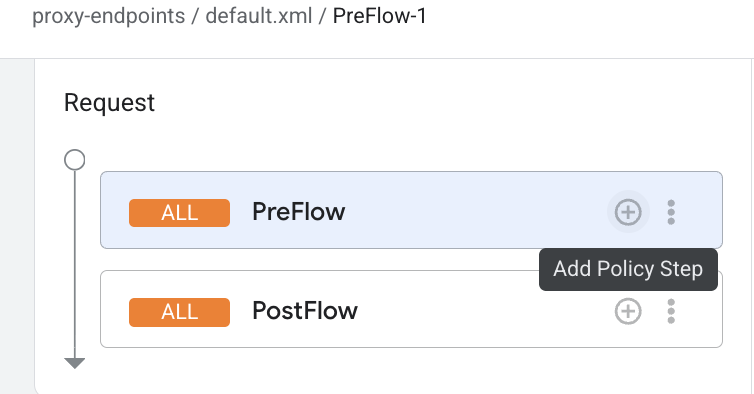
- 在「Proxy endpoints」下方,依序點選「default」和「PreFlow」。
在 Proxy 流程編輯器中,按一下 「Add policy step」(新增政策步驟)。
- 在「Add policy step」對話方塊,選取「Create new policy」。
- 在政策清單的「Security」下方,選取「OAuth v2.0」。
- 視需要變更政策名稱和顯示名稱。舉例來說,為了提高可讀性,您可以將「顯示名稱」和「名稱」都變更為 VerifyAccessToken。
- 按一下「新增」。
部署 MCP 探索 Proxy
如要部署 MCP Discovery Proxy,請按照下列步驟操作:
- 按一下「Deploy」,開啟「Deploy API proxy」窗格。
- 「Revision」欄位應設為 1。如果沒有,請按一下「1」選取。
- 在「Environment」(環境) 清單中,選取要部署 Proxy 的環境。環境必須是完整環境。
- 輸入您在先前步驟中建立的服務帳戶。
- 點選「Deploy」(部署)。
點選「Deploy」後,Apigee 就會開始部署 Proxy 並佈建下游元件。這項作業可能需要幾分鐘,期間 UI 會顯示「Provisioning」(佈建中) 部署狀態。
程序完成後,狀態會變更為「已部署」,Proxy 即可處理流量。
部署 Proxy 後,請確認 OpenAPI 規格 servers.url 欄位中的主機名稱值,與部署 MCP Discovery Proxy 的 Apigee 環境群組主機名稱完全相符。
在 API 中心探索 MCP 工具
部署 MCP Discovery Proxy 後,其 API 作業會自動擷取至 API 中心,並可做為 MCP 工具探索。
如要在 API 中心查看 MCP 工具,請按照下列步驟操作:
- 在 Google Cloud 控制台中,前往「API Hub」>「API」頁面。
- 按一下「篩選器」,依序選取「樣式」>「MCP」,然後點選「套用」。
- 部署的 MCP Proxy 應會顯示在清單中。API Hub 擷取管道會自動將 OpenAPI 規格中定義的路徑,對應至中心列出的個別 MCP 工具。
貴組織的開發人員現在可以使用 API 中心內的篩選器或語意搜尋功能,透過自然語言查詢找出相關的 MCP 工具。
初始化 MCP 伺服器
在這個步驟中,您會向 MCP 端點傳送要求,初始化 MCP 伺服器,並確認伺服器運作正常。
如要初始化及測試 MCP 伺服器,請將下列要求傳送至 MCP 端點:
curl -X POST "https://MCP_ENDPOINT_URL/mcp" \
  -H "Content-Type: application/json" \
  -d '{
        "jsonrpc": "2.0",
        "id": 1,
        "method": "initialize",
        "params": {
          "protocolVersion": "MCP_PROTOCOL_VERSION"
        }
      }' \
  -H "Authorization: Bearer TOKEN"
更改下列內容:
MCP_ENDPOINT_URL:MCP 端點基準 URI。例如:cymbal.products.com。MCP_PROTOCOL_VERSION:MCP 通訊協定版本。例如,2025-11-25。詳情請參閱 MCP 規格中的「版本協商」。- (選用)
TOKEN:OAuth 2.0 存取權杖
成功的回應會與下列內容相似:
{
"id":1,
"jsonrpc":"2.0",
"result":
  {
    "capabilities":
    {
      "tools":
      {
        "listChanged":false
      }
    },
    "protocolVersion":"2025-11-25",
    "serverInfo":
      {
        "name":"cymbal.products.com",
        "version":"1.0.0"
      }
    }
  }
列出可用的 MCP 工具
在這個步驟中,您會向 tools/list 方法傳送要求,確認 MCP 端點中可用的工具清單。
向 Apigee Proxy 的 tools/list 方法傳送要求:
curl -X POST "https://MCP_ENDPOINT_URL/mcp" \
  -H "Content-Type: application/json" \
  -H "MCP-Protocol-Version: MCP_PROTOCOL_VERSION" \
  -d '{
        "jsonrpc": "2.0",
        "id": 1,
        "method": "tools/list",
        "params": {}
      }' \
  -H "Authorization: Bearer TOKEN"
更改下列內容:
MCP_ENDPOINT_URL:MCP 端點基準 URI。例如:cymbal.products.com。MCP_PROTOCOL_VERSION:MCP 通訊協定版本。例如:2025-11-25。詳情請參閱 MCP 規格中的通訊協定版本標頭。- (選用)
TOKEN:OAuth 2.0 存取權杖
這個方法會傳回 MCP 端點支援的所有工具。成功的回應會與下列內容相似:
{
  "id": 1,
  "jsonrpc": "2.0",
  "result": {
    "tools": [
      {
        "description": "Returns a list of artists",
        "inputSchema": {
          "properties": {
            "id": {
              "description": "Unique identifier for the artist",
              "format": "uuid",
              "type": "string"
            }
          },
          "type": "object"
        },
        "name": "listArtists"
      },
      {
        "description": "Create a new artist",
        "inputSchema": {
          "properties": {
            "id": {
              "description": "Unique identifier for the artist",
              "format": "uuid",
              "type": "string"
            }
          },
          "type": "object"
        },
        "name": "createArtist"
      },
      {
        "description": "Info for a specific artist",
        "inputSchema": {
          "properties": {
            "id": {
              "description": "Unique identifier for the artist",
              "format": "uuid",
              "type": "string"
            }
          },
          "type": "object"
        },
        "name": "showArtistByUsername"
      }
    ]
  }
}
端點初始化後,開發人員和代理就能透過 API 產品找到 MCP 工具。
監控與數據分析功能
您可以使用 Apigee Analytics 監控 MCP 流量,並查看工具層級指標。Apigee Analytics 可讓您篩選指標,區分標準 API 流量和 MCP 專屬流量,並查看 tools/list 與 tools/call 要求的用量。詳情請參閱「在 Apigee 中監控及分析 MCP 流量」。
後續步驟
- 排解 Apigee 中的 MCP 部署問題。
- 在 Apigee 監控及分析 MCP 流量。
- Apigee Hybrid:請參閱「在 Apigee Hybrid 中啟用 MCP」,瞭解叢集端的啟用和設定流程。