

This page applies to Apigee and Apigee hybrid.
This page describes how to create plugin instances in API hub. A plugin instance represents a configured and active connection between API hub and a specific API data source via the associated plugin. For more information about plugin instances, see Plugin instance.
How plugin instances are created
Plugin instances are created automatically or manually depending on the plugin type and the action that you perform.
- For all Built-in Google Cloud plugins, API hub automatically creates a plugin instance during the process of attaching a runtime project to API hub. For more information, see Attach a runtime project.
- For all third-party and custom plugins, you can create a plugin instance manually from the Settings page in API hub. For more information, see Create a plugin instance.
Before you begin
- Ensure that you have the following IAM permissions:
apihub.plugininstances.createapihub.plugininstances.deleteapihub.plugininstances.getapihub.plugininstances.list
For information on granting roles to principals, see Granting, changing, and revoking access.
- For Apigee Edge Public Cloud plugins, read about Apigee Edge API hub connector integration.
- For Apigee Edge Private Cloud (OPDK) plugins, read about API hub connector integration.
- For the AWS API Gateway plugin (Preview):
- Create a dedicated AWS IAM user with read-only access to API Gateway and generate an access key for that user.
- Store the AWS Secret Access Key in Google Cloud Secret Manager, and grant the API hub service agent (P4SA) the
roles/secretmanager.secretAccessorrole on the secret.
- For the Azure API Management plugin (Preview):
- Create a dedicated Microsoft Entra service principal and assign it only the built-in API Management Service Reader role, scoped to the specific APIM service.
- Store the Azure client secret in Google Cloud Secret Manager, and grant the API hub service agent (P4SA) the
roles/secretmanager.secretAccessorrole on the secret.
Create a plugin instance
To create a plugin instance, perform the following steps:
- In the Google Cloud console, go to the API hub page.
- Click Settings from the left navigation menu to open the Settings page.
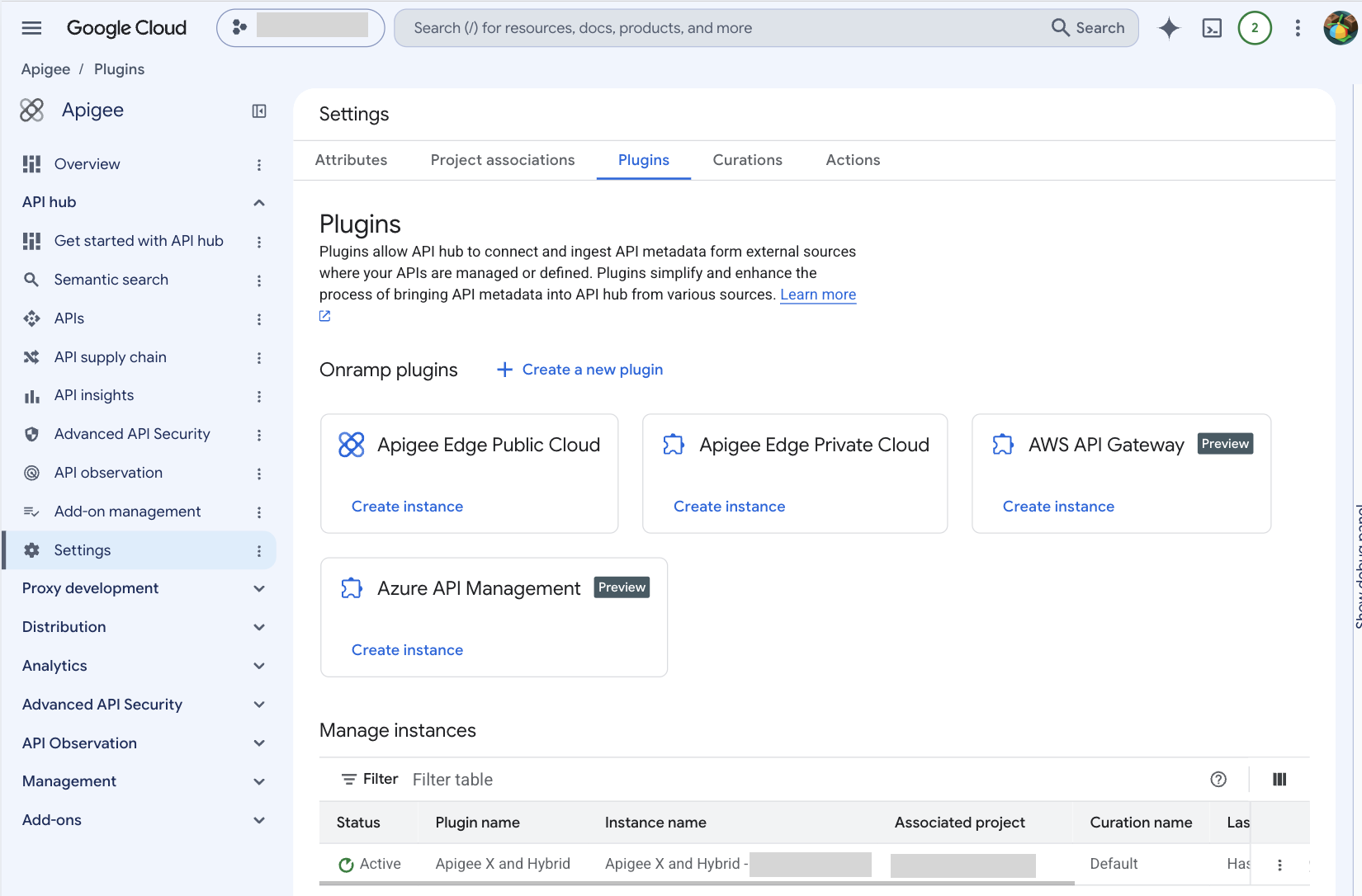
- Click the Plugins tab to view the available plugins in your project.
- Hold the pointer over the desired plugin, and then click Create instance.
- Configure the following fields in the Create a plugin instance pane. The configuration options depend on the plugin type.
Common fields (all plugin types):
- Display name: Enter a name for the plugin instance.
- Curation: Select the curation settings for the plugin instance. By default, the curation level is set to Default.
Apigee Edge Public Cloud plugin:
- Organization: Choose the Apigee Edge organization that hosts the plugin data.
Apigee Edge Private Cloud (OPDK) plugin:
- Organization: Choose the Apigee Edge organization that hosts the plugin data.
- Service account: Enter the associated service account of the source project.
AWS API Gateway plugin:
- AWS account ID: Enter the 12-digit AWS account ID that owns the API Gateway resources to sync.
- AWS region: Enter the AWS region to sync from (for example,
us-east-1). - Auth type: Select OAuth 2.0 Client Credentials. This is the only supported authentication type.
- Client ID: Enter your AWS Access Key ID.
- Client secret: Enter the Secret Manager resource name of the secret version that stores your AWS Secret Access Key (for example,
projects/PROJECT_ID/secrets/SECRET_ID/versions/1). - Schedule (sync frequency): Specify how often API hub runs the scheduled sync of API metadata from the source. Defaults to every 6 hours. Adjust the frequency for more or less frequent syncs.
Azure API Management plugin:
- Azure tenant ID: Enter the Microsoft Entra tenant ID (GUID).
- Azure subscription ID: Enter the Azure subscription ID (GUID) that contains the APIM service.
- Azure resource group name: Enter the name of the Azure resource group that contains the APIM service.
- APIM service name: Enter the name of the Azure API Management (APIM) service to sync from.
- Auth type: Select OAuth 2.0 Client Credentials. This is the only supported authentication type.
- Client ID: Enter your Microsoft Entra service principal application ID.
- Client secret: Enter the Secret Manager resource name of the secret version that stores your Azure client secret (for example,
projects/PROJECT_ID/secrets/SECRET_ID/versions/1). - Schedule (sync frequency): Specify how often API hub runs the scheduled sync of API metadata from the source. Defaults to every 6 hours. Adjust the frequency for more or less frequent syncs.
Custom plugin:
- Source project ID: Enter the unique identifier of the source project from which the plugin will import the data.
- Click Create to initiate the creation of the plugin instance.
You can view the status of the plugin instance in the Plugins tab under Manage instances. On successful creation, the status of the plugin instance is displayed as Active as shown in the following image:
What's next
- Learn more about managing plugin instances.
- Learn more about plugins.
- Learn more about curations.