

This page applies to Apigee and Apigee hybrid.
This page describes how to view security scores for multiple Apigee organizations and gateways.
Before you begin
Before you can view security scores across gateways, ensure that you have completed the following:
- Enable and configure the Apigee Advanced API Security add-on for your API hub instance. For more information, see Configure Apigee Advanced API Security for multiple Apigee organizations and gateways.
- Grant the required IAM roles and permissions to your principal account. For more information, see IAM roles and permissions.
- Optional: Create a security profile to use for filtering deployments. For more information, see Manage security profiles for multi-gateway assessments.
View security scores across gateways
The Security scores tab in the API hub Risk assessment page provides information about all the risk assessments and security scores for your Apigee organizations, environments, and gateways.
Console
To view the security scores for API deployments across different Apigee organizations, environments, and gateways, do the following:
- In the Google Cloud console, go to the API hub > Risk assessment page.
- In the Risk assessment page, click the Security scores tab.
- Click the Gateway drop-down and select a gateway for which you want to view the security scores. You can only select 1 gateway at a time.
The drop-down only lists the runtime projects that you have configured in your Advanced API Security add-on.
- Click the Security profile drop-down and select the profile which is relevant to your security assessment. For information about creating and managing security profiles, see Manage security profiles for multi-gateway assessments.
The Security scores tab displays the security score assessment details and recommendations for the selected gateway and security profile.
REST
To get the security scores of your API deployments in different gateways, make a POST request to the securityAssessmentResults:batchCompute API.
The following request returns the security scores for all resources in the selected gateway and security profile.
curl -H "Authorization: Bearer $(gcloud auth print-access-token)"
"https://apihub.googleapis.com/v1/organizations/APIGEE_ORG/securityAssessmentResults:batchCompute"
-X POST -H "Content-Type: application/json" -d '
{
  "profile": "PROFILE_ID",
  "api_hub_gateways": {
    "gateways": ["GATEWAYS"]
  },
  "include_all_resources": {}
}'
The following request returns the security scores for the selected resource in the selected gateway and security profile.
curl -H "Authorization: Bearer $(gcloud auth print-access-token)"
"https://apihub.googleapis.com/v1/organizations/APIGEE_ORG/securityAssessmentResults:batchCompute"
-X POST -H "Content-Type: application/json" -d '
{
  "profile": "PROFILE_ID",
  "api_hub_gateways": {
    "gateways": ["GATEWAYS"]
  },
  "include": {
    "resources": [
      {
        "type": "API_HUB_DEPLOYMENT",
        "name": "DEPLOYMENT_ID"
      }
    ]
  }
}'
Replace the following:
APIGEE_ORG: Name of the Apigee organization provisioned in your Google Cloud project.PROFILE_ID: The name of the security profile.GATEWAYS: The full resource names of the gateways (plugin instances) for which you want to view the security scores. You can only specify 1 gateway using the following format:projects/API_HUB_HOST_PROJECT/locations/API_HUB_LOCATION/plugins/API_HUB_PLUGIN/instances/API_HUB_INSTANCE.DEPLOYMENT_ID: The UUID of the API deployment.
Security score assessment details
The Security scores tab aggregates the assessment results for the selected gateway and security profile into three sections:
Deployments by severity
The Deployments by severity section displays the total number of API deployments in the selected gateway and security profile grouped by severity. The severity for an API deployment is a direct mapping of the score range of the deployment against the selected security profile. For example, if an API deployment has a calculated security score of 45%, it falls into the 0% - 50% range, and its severity is classified as High.
The following table shows the severity and score range mapping for the Deployments by severity section:
| Severity | Score range | Meaning |
|---|---|---|
| High | 0% - 50% | Indicates significant configuration issues or severe risk. |
| Medium | 51% - 90% | Indicates moderate compliance with the profile. |
| Low | 91% - 99% | Indicates near full compliance with the profile. |
| Minimal | 100% | Indicates full compliance with the profile. |
The following image shows the Deployments by severity section for the Security scores tab:

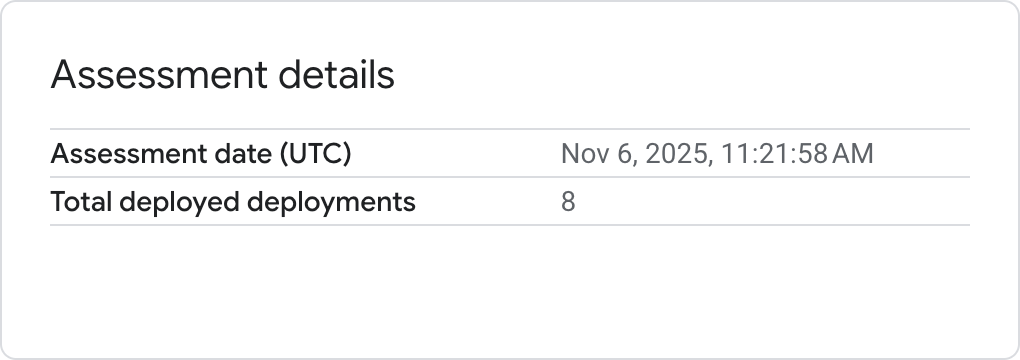
Assessment details
The Assessment details section displays the total number of API deployments that are included in the selected gateway and security profile along with the assessment date and time.
The following image shows the Assessment details section for the Security scores tab:
API deployments
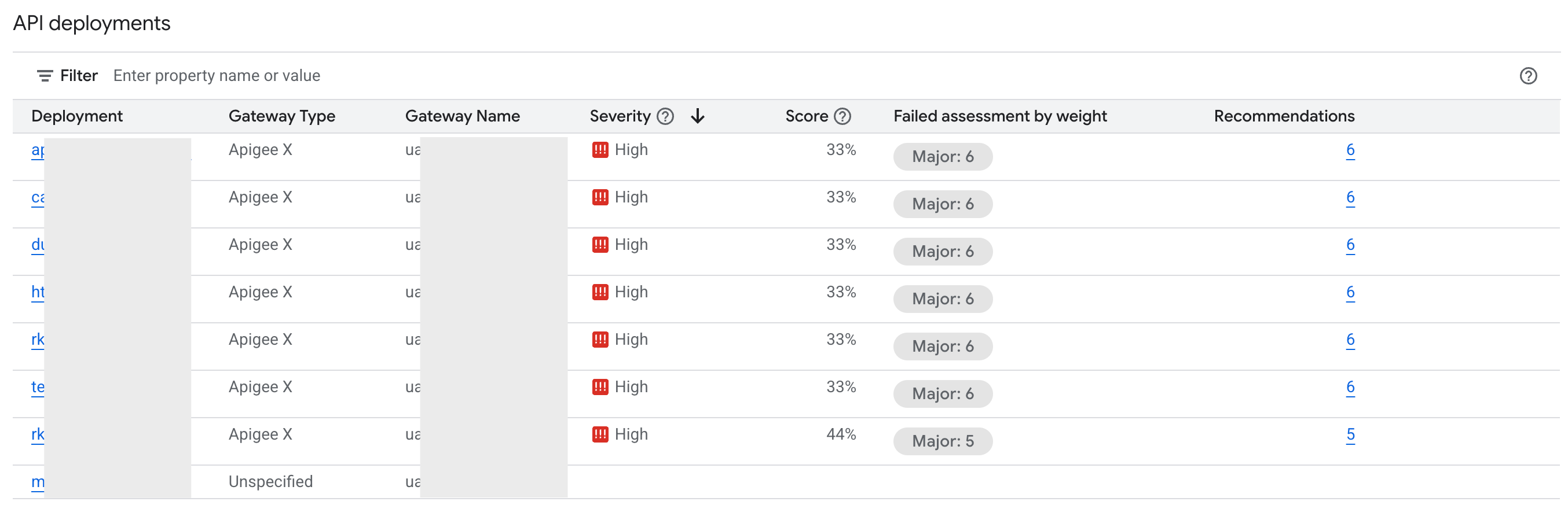
The API deployments section displays the following assessment details for each deployed API proxy in the selected gateway and security profile:
| Assessment | Description |
|---|---|
| Deployment | Represents a specific API proxy deployment. You can have multiple deployments (using the same name) for a single API proxy. API hub creates a new deployment for each new API version. |
| Gateway type | The type of gateway hosting the deployment (for example, Apigee X). |
| Gateway name | The specific instance name or ID of the gateway hosting the deployment (for example, instance_name). For Apigee gateways, the instance name corresponds to the Apigee organization name. |
| Severity | The risk level of the deployment. |
| Score | The compliance percentage of the deployment against the selected security profile. |
| Failed assessment by weight | A breakdown showing the number of assessment checks that failed, grouped by their assigned significance.
Major failures carry approximately 15 points, Moderate failures carry approximately 5 points, and Minor failures carry approximately 1 point towards the weighted score calculation. |
| Recommendations | The count of specific, actionable steps needed to fix identified security vulnerabilities and improve the score. |
The following image shows the API deployments section for the Security scores tab:
View recommendations
To view recommendations for improving your API proxy security scores, do the following:
- In the Security scores tab, go to the API deployments section.
-
For the API deployment for which you want to view the recommendations, click the count displayed under the Recommendations column.
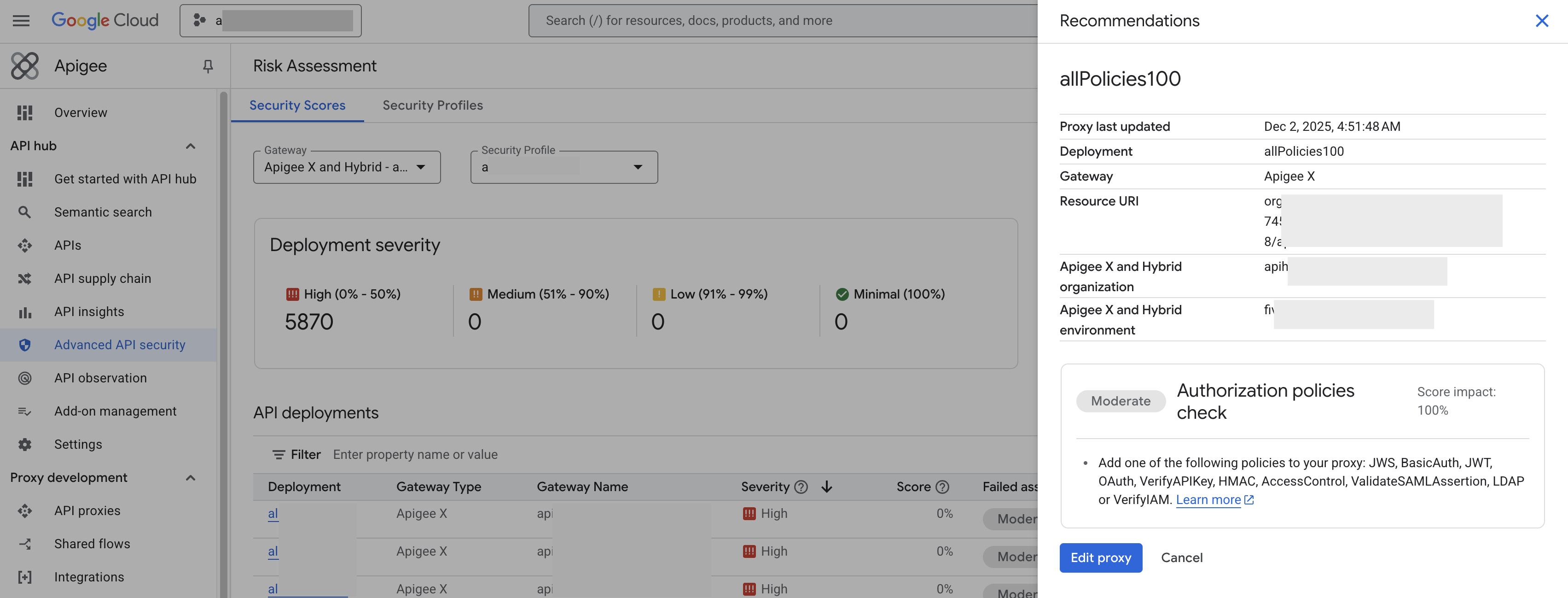
The Recommendations pane displays the specific recommendations along with the number of API proxies that are affected by the recommendation.
- Optional: Click Edit proxy to open the Apigee UI and modify the deployment (proxy) to address the security issues identified by the recommendation.
The following image shows the Recommendations pane for the Security scores tab:
Limitations
- Security scores are only generated if an environment has deployed proxies.
- The maximum number of gateways per security score calculation:
- Using the API: 3
- Using the Google Cloud console: 1
- Newly deployed proxies and newly enabled organizations and environments don't immediately show scores. See Data delays for information.
Considerations
- Security score calculations may take a few minutes to complete depending on the number of API deployments in the selected gateway and security profile.
What's next
- Learn how to manage security profiles for your multi-gateway setup.
- Learn how to view security scores for a given API across its deployments in gateways, see View security scores for APIs.
- Learn how to manage runtime projects and environments for Advanced API Security.