

This page applies to Apigee and Apigee hybrid.
View
Apigee Edge documentation.


What you'll learn
Through this tutorial, you'll learn to:
- Add a policy that affects the request and response.
- See the effects of the policy.
What you'll need
- An Apigee installation. See Overview and prerequisites.
- A working API proxy with at least one policy attached. See Build your first API proxy overview.
- An HTTP API client installed on your machine to make API calls. The tutorial examples
use
curl.
Add the SpikeArrest policy
In this tutorial, you'll add and configure the SpikeArrest policy to guard the target
service against sudden traffic spikes that can be caused by an increase in usage, buggy clients,
or malicious attacks. When the number of requests exceeds the rate limit, the API returns an
HTTP 429 error.
To add the SpikeArrest policy to an API proxy:
In the Google Cloud console, go to the Apigee > Proxy development > API Proxies page.
If you followed the Get Started tutorial, you can add it to the API proxy you created in Create an API proxy.
- Click the Develop tab.
- In the left-hand pane, click the + button in the Policies row.
In the Create policy dialog, click in the Select policy type field and scroll down to Traffic Management and select SpikeArrest.
Optionally, you can change the Name and Display name of the policy. By default, Apigee provides a short prefix for the policy name, in this case, SA-. You can add a sequence of descriptive words, separated by dashes, after the prefix. See Naming conventions.

When you are done, click Create to create the policy.
Now that you have created the Spike Arrest policy, you can add it to a step in the PreFlow.
- Select Proxy Endpoints > default > PreFlow in the
left-hand pane:

Note: You may need to expand the visual editor in the right-hand pane to see all the elements. To do so, click and drag the divider between the visual editor and the text editor down a little.
- Click the + button next to PreFlow in the Response pane
at the bottom-right of the visual editor:
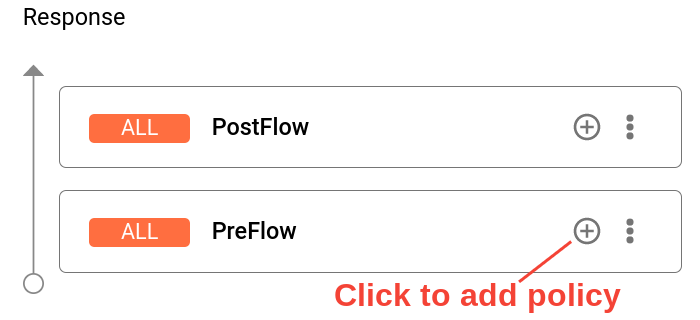
- In the Add policy step dialog, select the Spike Arrest policy.
Click Add to attach the policy.
The Spike Arrest policy is now displayed in the Response pane:
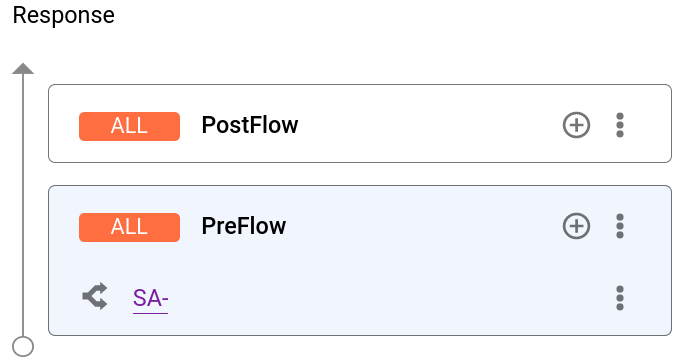
Now that you have attached the Spike Arrest policy to the PreFlow, you can try changing the code for the policy:
In the Response pane, select SA-.

- The text editor displays the XML code for the proxy, including the
Spike Arrest policy step in the Response element of the PreFlow.
<?xml version="1.0" encoding="UTF-8" standalone="yes"?> <SpikeArrest continueOnError="false" enabled="true" name="SA-"> <DisplayName>SA-</DisplayName> <Properties/> <Identifier ref="request.header.some-header-name"/> <MessageWeight ref="request.header.weight"/> <Rate>30ps</Rate> </SpikeArrest> -
In the XML for the policy, change the value of the
<Rate>element to1pm(which translates into roughly two requests allowed every 60 seconds in the cloud).You can specify the rate as an integer value per minute (
pm) or per second (ps). This is a very low limit and is used only for this tutorial to demonstrate the policy. Typically, you set it to a much higher limit.Notice that the
Ratevalue in the Property Inspector also changes to1pm. Alternatively, you can change the Rate value in the Property Inspector and it will be reflected in the XML view. - Click Save to save the current revision with your changes.