

This page applies to Apigee and Apigee hybrid.
View
Apigee Edge documentation.

Operations anomalies identifies unusual or unexpected data patterns with your APIs. Operations anomalies continually monitors and performs statistical analysis to find anomalies.
Operations anomalies automatically detects these anomaly types:
- Increase in all HTTP 4xx or 5xx errors at the organization, environment, and region level
- Increase in the total response latency for the 90th percentile (p90) at the organization, environment, and region level
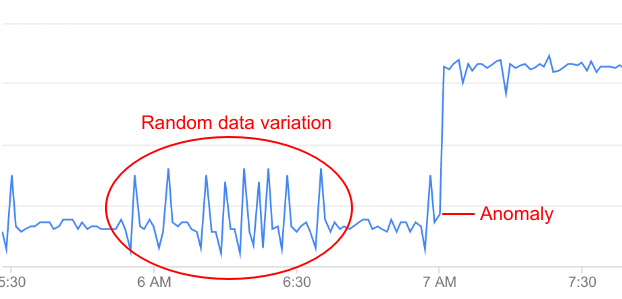
For example, in this graph of API error rate, the rate suddenly spikes at around 7 AM. Compared to the data leading up to that time, this increase is unusual enough to be classified as an anomaly.
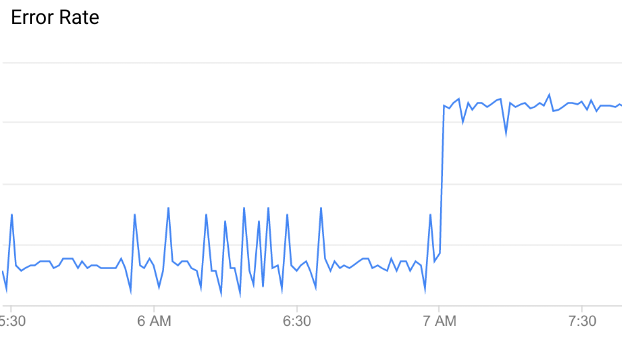
Operations anomalies can also discern variations that are less likely to indicate anomalies. For example, you can see some minor variations in error rate leading up to the anomaly, but these are not significant enough to be categorized as an anomaly.
Operations anomalies enables you to:
- View and investigate anomalies: Operations anomalies reports unusual API events (anomalies). You can drill down to find out where and when the incident occurred, and what triggered it, so you can quickly remedy the situation.
- Create anomaly alerts and set up notifications to have Apigee send you a message when an incident occurs.
Prerequisites for using operations anomalies
To use operations anomalies:
- The AAPI Ops add-on must be enabled for your organization. See Enable AAPI Ops in an organization.
- Users of operations anomalies must have the following roles:
roles/apigee.readOnlyAdminroles/logging.viewerroles/monitoring.viewer
- Users who
investigate anomalies in the dashboard
also need the
roles/logging.viewerrole.
Enable AAPI Ops in an organization
To use AAPI Ops, you must enable it in your organization. Before doing so, first obtain an OAuth 2.0 access token. You can then enable AAPI Ops using an API call that passes the access token.
View the current add-ons configuration
Before enabling AAPI Ops, check to see whether is already enabled by making the following API call:
curl "https://apigee.googleapis.com/v1/organizations/YOUR_ORG" \
  -X GET \
  -H "Content-type: application/json" \
  -H "Authorization: Bearer $TOKEN"
where YOUR_ORG is the name of your organization and $TOKEN is the
environment variable for an
OAuth access token.
This returns basic information
about your organization, which includes a section for Apigee add-ons that begins with the line:
"addonsConfig": {Check to see whether this section contains an entry that begins with
"advancedApiOpsConfig", like the following example:
"advancedApiOpsConfig": {
          "enabled": "true"
      }
If this entry is present, AAPI Ops is already enabled in the organization. If not, you need to enable it as described next.
Enable AAPI Ops
To enable AAPI Ops in the organization with the default configuration, issue a
POST request like the one shown below.
curl "https://apigee.googleapis.com/v1/organizations/ORG:setAddons" \
  -X POST \
  -H "Authorization: Bearer $TOKEN" \
  -H "Content-type: application/json" \
  -d '{
    "addonsConfig": {
      "advancedApiOpsConfig": {
          "enabled": "true"
      }
      <Current add-ons configuration>
    }
  }'
where <Current add-ons configuration> is the current add-ons
configuration. You can find the current add-ons configuration
in the response to the call to view
the current add-ons configuration. For example, if the current add-ons configuration
is
"addonsConfig": {
    "integrationConfig": {
        "enabled":"true"
     },
    "monetizationConfig": {
        "enabled":"true"
     }
  },
the command to enable AAPI Ops would be
curl "https://apigee.googleapis.com/v1/organizations/YOUR_ORG:setAddons" \
  -X POST \
  -H "Authorization: Bearer $TOKEN" \
  -H "Content-type: application/json" \
  -d '{
    "addonsConfig": {
      "advancedApiOpsConfig": {
          "enabled": "true"
      },
    "integrationConfig": {
          "enabled": "true"
      },
    "monetizationConfig": {
          "enabled": "true"
      }
    }
  }'
After you send the request, you will see a response like the following:
{
  "name": "organizations/apigee-docs-d/operations/0718a945-76e0-4393-a456-f9929603b32c",
  "metadata": {
    "@type": "type.googleapis.com/google.cloud.apigee.v1.OperationMetadata",
    "operationType": "UPDATE",
    "targetResourceName": "organizations/apigee-docs-d",
    "state": "IN_PROGRESS"
  }
}
Disable AAPI Ops in your organization
If for some reason you need to disable AAPI Ops in your organization,
you can do so by issuing a POST request, passing the add-ons
configuration in your request body, as shown below.
curl "https://apigee.googleapis.com/v1/organizations/$ORG:setAddons" \
  -X POST \
  -H "Authorization: Bearer $TOKEN" \
  -H "Content-type: application/json" \
  -d '{
    "addonsConfig": {
      "advancedApiOpsConfig": {
          "enabled": "false"
      }
     <Include current add-ons configuration>
    }
  }'
The following provides an example of the response showing that the operation is in progress:
{
  "name": "organizations/$ORG/operations/06274ffb-8940-41da-836d-781cba190437",
  "metadata": {
    "@type": "type.googleapis.com/google.cloud.apigee.v1.OperationMetadata",
    "operationType": "UPDATE",
    "targetResourceName": "organizations/$ORG",
    "state": "IN_PROGRESS"
  }
}
For more information, see the Configure organization add-ons API.
How anomaly detection works
Anomaly detection involves the following stages:
Train models
Operations anomalies works by training a model of the behavior of your API proxies from historical time-series data. There is no action required on your part to train the model. Apigee automatically creates and trains models for you from the previous six hours of API data. Therefore, Apigee requires a minimum of six hours of data on an API proxy to train the model before it can log an anomaly.
The goal of training is to improve the accuracy of the model, which can then be tested on historical data. The simplest way to test a model's accuracy is to calculate its error rate—the sum of false positives and false negatives, divided by the total number of predicted events.
Log anomaly events
At runtime, operations anomalies compares the current behavior of your API proxies with the behavior predicted by the model. Operations anomalies can then determine, with a specific confidence level, when an operational metric is exceeding the predicted value. For example, when the rate of 5xx errors exceeds the rate predicted by the model.
When Apigee detects an anomaly, it automatically logs the event in the operations anomalies dashboard. The list of events displayed in the dashboard includes all detected anomalies, as well as triggered alerts.