

This page applies to Apigee and Apigee hybrid.
View
Apigee Edge documentation.

What you'll learn
In this tutorial, you'll learn to:
- See the response message's headers and body content.
- See error messages.
What you'll need
Before you begin this tutorial, do the following:
- Ensure that
curlis installed on your machine to make API calls from the command line. - Complete the steps in Before you begin.
- Add a SpikeArrest policy to your proxy. The SpikeArrest policy is a policy that restricts the number of requests that can be sent to your API proxy. Your proxy must have at least one policy.
View message data
The Debug view in the Apigee Proxy Editor lets you view headers, variables, objects, and other details such as response time in the API proxy request and response flow. The Debug view also lets you see how a request or response changes as it is processed by an API proxy. For a more detailed description of the debug view, see Using Debug.
This page describes how to use the Debug view to see what happens when the SpikeArrest policy rate is exceeded.
To use the Debug view in the Apigee UI to see what happens when the SpikeArrest policy rate is exceeded:
-
In the Google Cloud console, go to the Proxy development > API Proxies page.
- Be sure that your organization name is selected from the project picker in the Google Cloud console pane. The organization name is the same as your Google Cloud project name.
- Click the name of the API proxy you want to debug.
- Click the Develop tab.
- Click the Policies > SpikeArrest policy.
- In the edit pane, change Rate to 1pm.
- Click Save.This will allow you to see both successful and failed (over the limit) API calls.
- Deploy the updated proxy.
- Click the Debug tab.
- Click Start debug session.
In the dialog:
- Select the Environment in which you want to run the debug session.
-
(Optional) From the Filter list, select a filter to apply to all transactions in the debug session you are creating. The default is
None (All
                  transactions)
, which includes all transactions in the debug data.For information on using filters, see Using filters in a debug session. For information about the built-in filters, see Using predefined filters.
- Click Start.
-
Call the API proxy using
curl(or with the URL in a web browser) several times until you see at least one200response and one429response in the Transactions pane.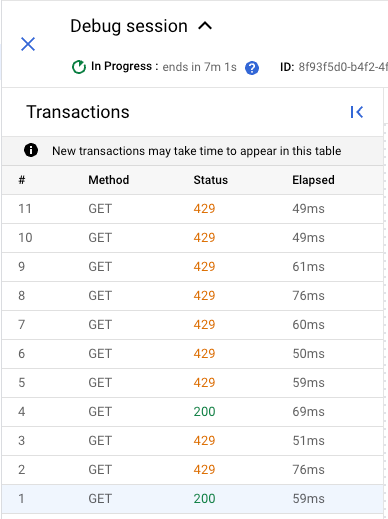
-
Click a
429transaction. In the Transaction map pane, this displays a flow diagram including a SpikeArrest policy with an error icon.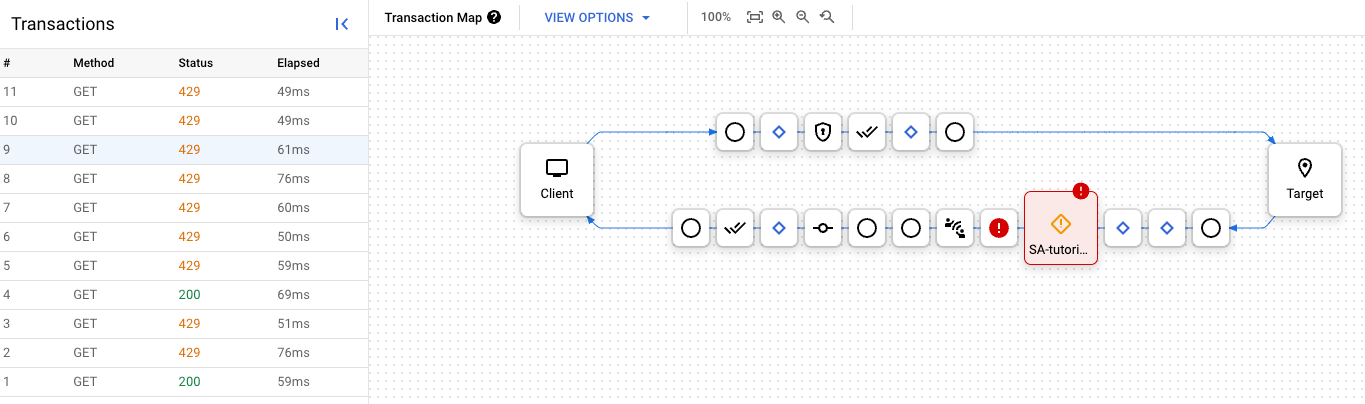
-
Click the error icon. The Error Properties pane is displayed.
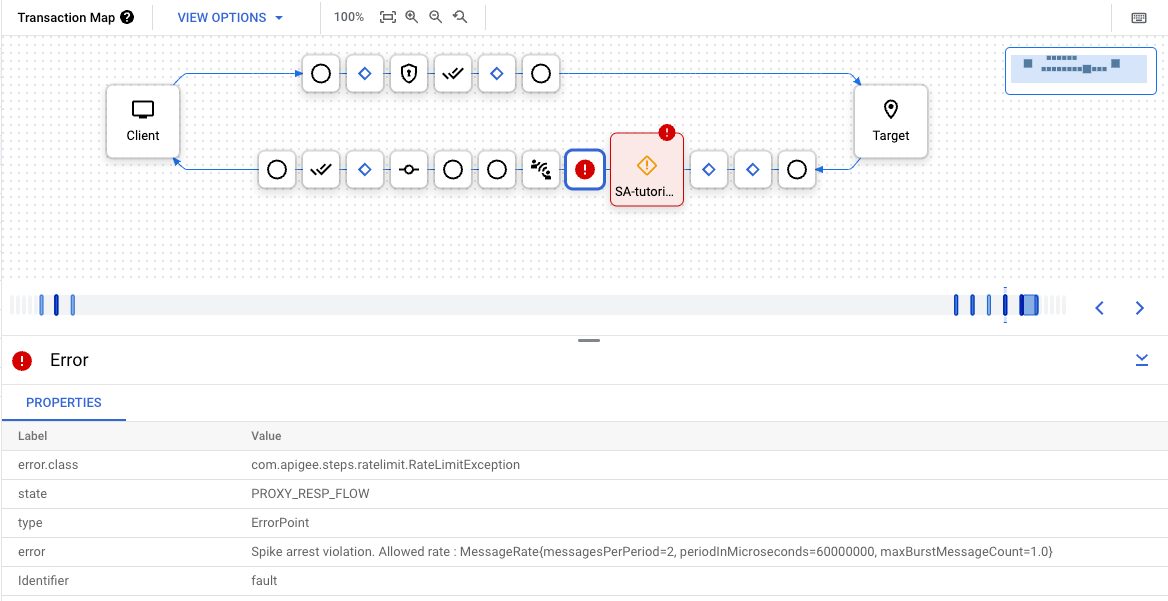
You can click the Previous and Next buttons to move between steps in the flow and see the details of each step.
To download the entire debug session as a single document, click Download Session. A debug session is deleted within 24 hours of the time it is completed, so if you want to view the session after that time, you need to download it before then.