

Review potential security issues
This document describes how to conduct searches when investigating alerts and potential security issues using Google Security Operations.
Before you begin
Google Security Operations supports the Google Chrome and Mozilla Firefox browsers. Upgrade your browser to the most current version for optimal performance and security. The latest Chrome version is available for download at https://www.google.com/chrome/. Mobile operating systems (iOS/Android) and mobile browsers are not supported.
Authentication and access
Google SecOps integrates with SSO solutions. Access to the Google SecOps platform requires valid enterprise credentials.
Launch Chrome or Firefox.
Verify you have active access to the corporate account.
Go to the following URL and replace customer_subdomain with the customer-specific identifier to access the Google SecOps application:
https://customer_subdomain.backstory.chronicle.security
Viewing Alerts and IOC Matches
In the navigation bar, select Detections > Alerts and IOCs.
Click the IOC Matches tab.
Searching for IOC matches in Domain view
The Domain column in the IOC Domain Matches tab contains a list of suspect domains. Clicking on a domain in this column opens Domain view, as shown in the following figure, providing detailed information about this domain.
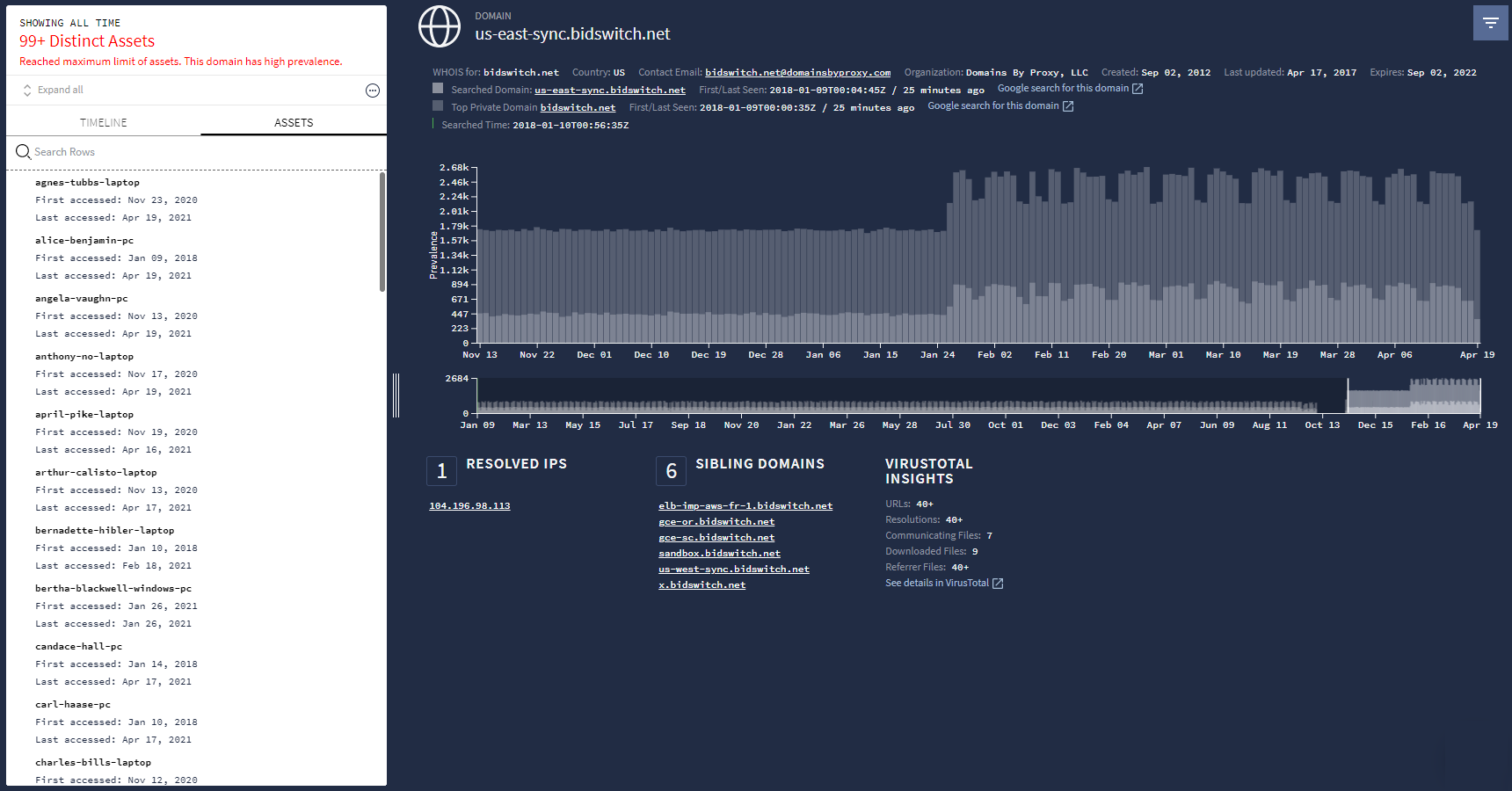 Domain view
Using the Google Security Operations Search field
Initiate a search directly from the Google Security Operations home page, as shown in the following figure.
 Google Security Operations Search field
On this page, you can enter the following search terms:
|
(for example, plato.example.com) |
|
(for example, altostrat.com) |
|
(for example, 192.168.254.15) |
|
(for example, https://new.altostrat.com) |
|
(for example, betty-decaro-pc) |
|
(for example, e0d123e5f316bef78bfdf5a888837577) |
You do not have to specify which type of search term you are entering, Google Security Operations determines it for you. The results are shown in the appropriate investigative view. For example, typing a username in the search field displays Asset view.
Searching raw logs
You have the option of searching the indexed database or searching raw logs. Searching raw logs is a more comprehensive search, but takes longer than an indexed search.
To further pinpoint your search, you can use regular expressions, make the search entry case sensitive, or select log sources. You can also select the timeline you want using the Start and End time fields.
To conduct a raw log search, complete the following steps:
Type in your search term, and then select Raw Log Scan in the dropdown menu, as shown in the following figure.
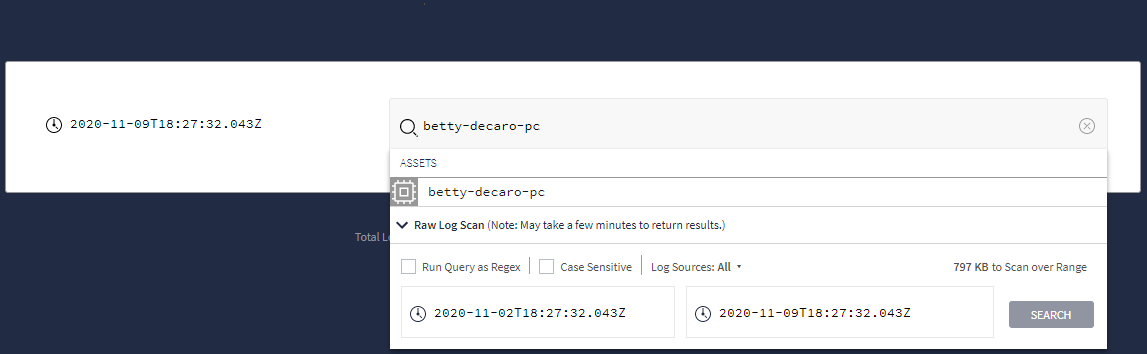 Dropdown menu showing Raw Log Scan option
After setting your raw search criteria, click the Search button.
From Raw Log Scan view, you can further analyze your log data.