

This page applies to Apigee and Apigee hybrid.
View
Apigee Edge documentation.

Enrolling in the Preview release of the audience management feature
To manage audiences, you must enroll in the Preview release of the audience management feature.
To enroll in the audience management feature:
In the Apigee in Cloud console, go to the Distribution > Portals page.
Click a portal name.
Click Audiences.
Click Enroll.
Understanding audiences
Using audiences, you can segment portal users or developer teams to control access to the following resources:
- Pages in your portal
- Published API products
The following figure shows how audiences are used to control access to a set of resources.
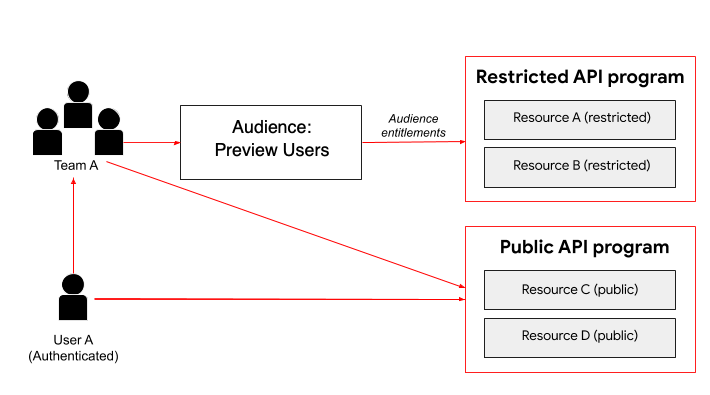
As shown in the figure, as an authenticated portal user, User A is able access the resources available through the public API program. In addition, as a member of Team A, User A inherits the entitlements from the Preview Users audience and is able to access the resources available through this restricted API program.
The following sections describe how to manage audiences and configure audience entitlements, and the audiences that are available by default.
About the default audiences
The following two audiences are defined, by default.
| Audience | Assignments |
|---|---|
| Anonymous users | All users that are not signed in to the portal. Note: This audience is not displayed in the Apigee UI as an audience. |
| Authenticated users | All users that are registered and signed in to the portal. Note: You can customize the entitlements for the authenticated users audience, but audience assignment is defined by default. |
Exploring the Audiences page
To access the Audiences page:
Display the list of portals:
In the Apigee in Cloud console, go to the Distribution > Portals page.
Click the row of the portal for which you want to view audiences.
Click Audiences.
Click the Audiences tab.
The Audiences page is displayed.
The Audiences page lets you:
- View details for all audiences, including:
- Name
- Description
- Total number of team and individual portal user assignments
- Creation date
- Add an audience
- Edit and delete an audience
You can also manage the resource entitlements for an audience when creating resources and manage the default visibility for specific portal resources.
Adding an audience
To add an audience:
- Access the Audiences page.
- Add an Audience.
- Click + Audience.
- Enter the name and description of the audience.
- Click Save.
- Manage the assignments for an audience.
Manage the assignments for an audience
When adding or editing an audience, you can manage the developer teams and individual portal users assigned.
To manage the assignments for an audience:
- Access the Audiences page.
- Click the row of the audience for which you want to manage audience assignments.
To add a team or individual portal user to an audience:
- Click Edit.
- Select members in the drop-down list.
- Click Save.
To delete an audience assignment:
Click Delete.
Managing the resource entitlements for an audience
When creating a portal page or publishing an API product, you can restrict access to the resource by assigning one or more audiences. When the visibility of that resource is set to Selected audiences, access is limited to the audiences to which the resource is assigned.
For more information, see:
When viewing and editing an audience, you can view the resource entitlements assigned.
Editing an audience
To edit an audience:
- Access the Audiences page.
- Click the row of the audience that you want to edit.
Edit the audience details.
- Click Edit.
- Edit the name, description, or members.
- Click Save.
Manage the developer teams and individual portal users assigned to an audience.
In the Content visibility entitlements section, view the resource entitlements for an audience. See Manage the resource entitlements for an audience.
Deleting an audience
To delete an audience:
- Access the Audiences page.
Delete the audience.
- Click Delete.
- Click Delete to confirm the operation.