This page applies to Apigee and Apigee hybrid.
View
Apigee Edge documentation.

In this step, you'll publish an API to the portal by performing the following steps:
Step 1: Create an API Proxy from a spec
Create an API proxy from an OpenAPI Specification that describes the API.
To create an API proxy from an OpenAPI Specification:
In the Apigee in Cloud console, go to the Proxy Development > API proxies page.
Click Create. The Create a proxy wizard opens prompting you to select the type of API proxy to create.
Click in the Proxy template box.
Click OpenAPI spec template, Reverse Proxy (most common).
Open the following file in a browser, and then save it:
https://raw.githubusercontent.com/apigee/api-platform-samples/master/default-proxies/helloworld/openapi/mocktarget3.0.yaml
In Step 1 OpenAPI Specs, click Browse.
Navigate to an OpenAPI Spec file you just downloaded, select it, and then click Open.
Click Next.
In Step 2 Proxy details, the fields are prepopulated using values from the OpenAPI Specification. Edit the Description field as follows: API proxy for hello world.
Click Next.
In Step 3 Flows, select all operations.
Click Next.
In Step 4 Deploy, select the environment to which you want to deploy.
Click OK.
Click Create.
When the proxy is deployed, the Status column in the Deployments section displays a green icon to show that the API proxy revision is deployed. You can hold the pointer over the status icon to see more information about the deployment.
Step 2: Create an API product
Create an API product that contains the API resources that you want to expose to your API consumers.
To create an API product:
In the Apigee in Cloud console, go to the Distribution > API products page.
Click Create. The Product details page is displayed. Enter the Product Details for your API product.
Field Value Name Hello World Display Name Hello World Description Simple hello world example Environment Select environment where API proxy is deployed. Access Public Automatically approve access requests Enabled Quota (leave blank) Allowed OAuth Scopes (leave blank) In the Operations section, click Add an operation to identify the operations to add to your API product.
- Under Source, select API proxy and then select Mock-Target-API from the drop-down.
- Under Operation, enter a forward slash (
/) in the Path field. Ignore the other fields.
Click Save to save the operation.
Click Save to save the product.
Step 3: Publish the API to your portal
Publish the API to your portal to enable your customers to learn about and use it.
To publish the API to your portal:
In the Apigee in Cloud console, go to the Distribution > Portals page.
Click in the My first portal row to open the portal.
Click the APIs tab.
Click + API.
For API product select Hello World.
Select Published (listed in the catalog) to publish the API to your portal.
For Display title, enter Hello World.
For Display image, click Select.
Click Assets.
Click Preview for
home-background.jpg.Click Select.
For API documentation, to auto-generate API reference documentation from a snapshot of your OpenAPI Specification:
- Select OpenAPI document.
- Click Select.
- Click the URL tab.
- Type helloworld in the Spec name field.
- Copy and paste the following URL in the URL field:
https://raw.githubusercontent.com/apigee/api-platform-samples/master/default-proxies/helloworld/openapi/mocktarget3.0.yaml
- Click Select.
Click Save.
Step 4: View the API reference documentation
To view the API reference documentation:
- In the Apigee UI, click Live Portal to view the changes in the live portal (or refresh the live portal if it is already open in another tab).
- In the live portal:
- Click APIs in the top navigation bar to the view published API.
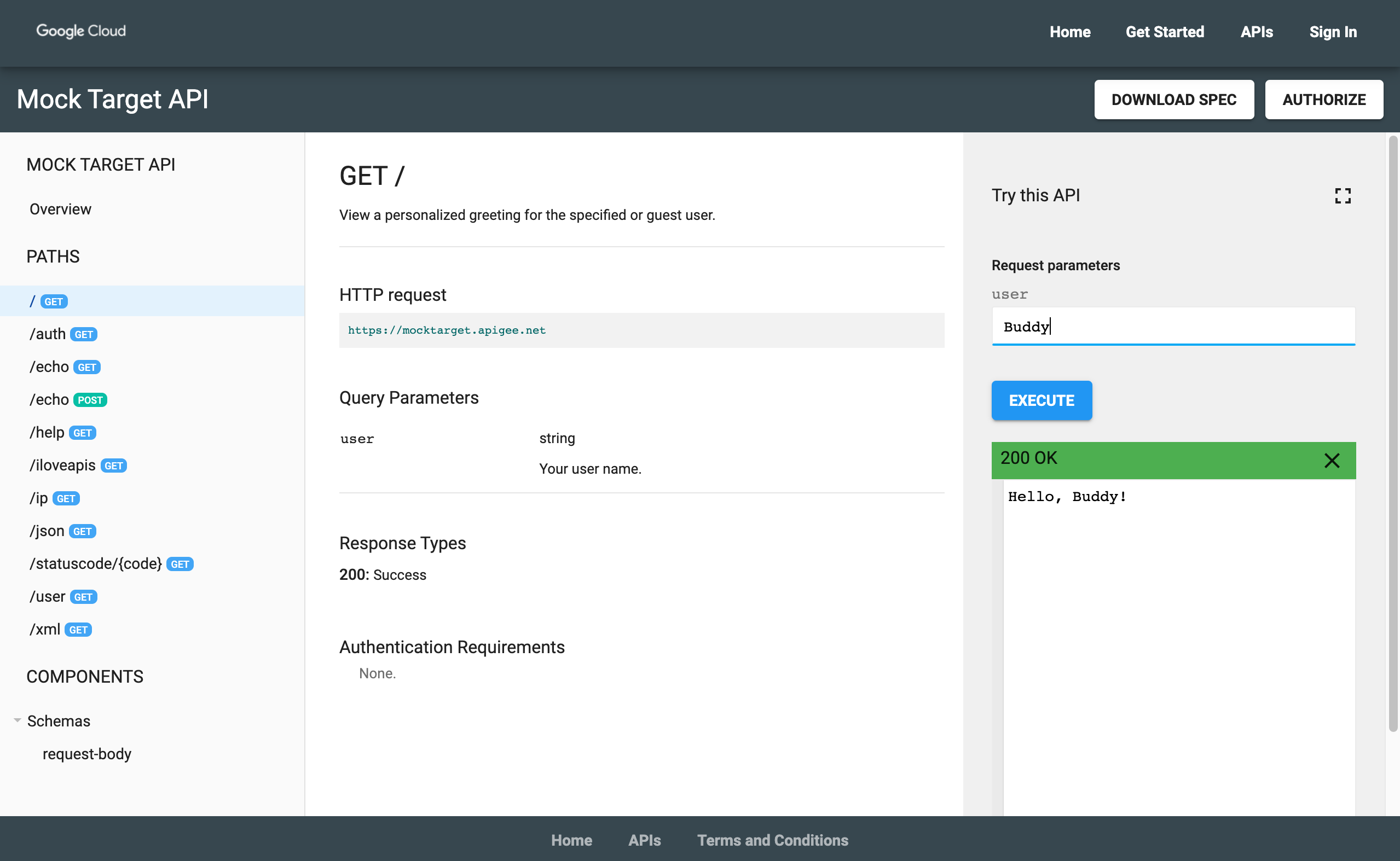
- Click the Hello World card to view the API reference documentation.
- Give your API a try!