

Run a rule against historical data
This document explains the functionality of real-time rule execution and the retrohunt feature within the Google Security Operations platform. While new rules begin monitoring incoming events immediately, a retrohunt lets you apply the same detection logic to existing historical data to identify previously undiscovered threats. These historical searches are scheduled based on available system resources, and as such, completion times may vary.
To start a retrohunt, complete the following steps:
Navigate to the Rules Dashboard.
Click the Rules option icon for a rule and select Yara-L Retrohunt.
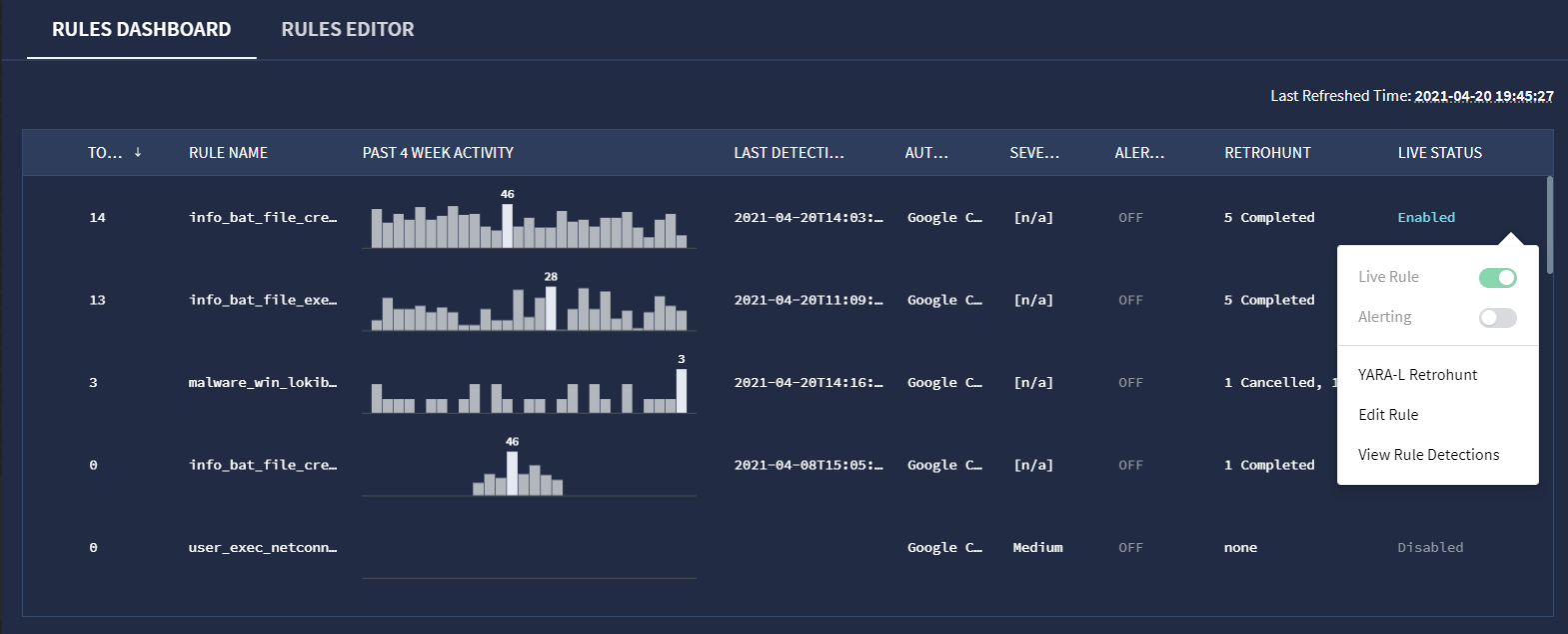 YARA-L Retrohunt option
In the YARA-L Retrohunt window, select the start and end times for your search. The default is one week. The window provides the available date and time range. For multi-event rules, the retrohunt search range must be greater than or equal to the match window size.
Click RUN.
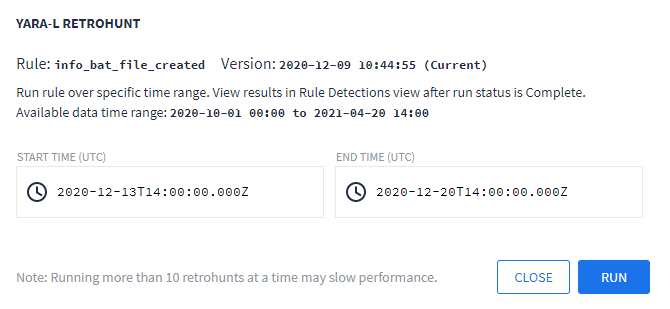
Yara-L Retrohunt dialog window
You can view the progress of the retrohunt run from the rule detections view for the rule. If you cancel a retrohunt in progress, you can still view any detections it was able to make while running.
If you have completed multiple retrohunts, you can view the results of past retrohunt runs by clicking the date range link as shown in the following figure. The results of each run are displayed in the Timeline and Detections graph in Rule Detections view.
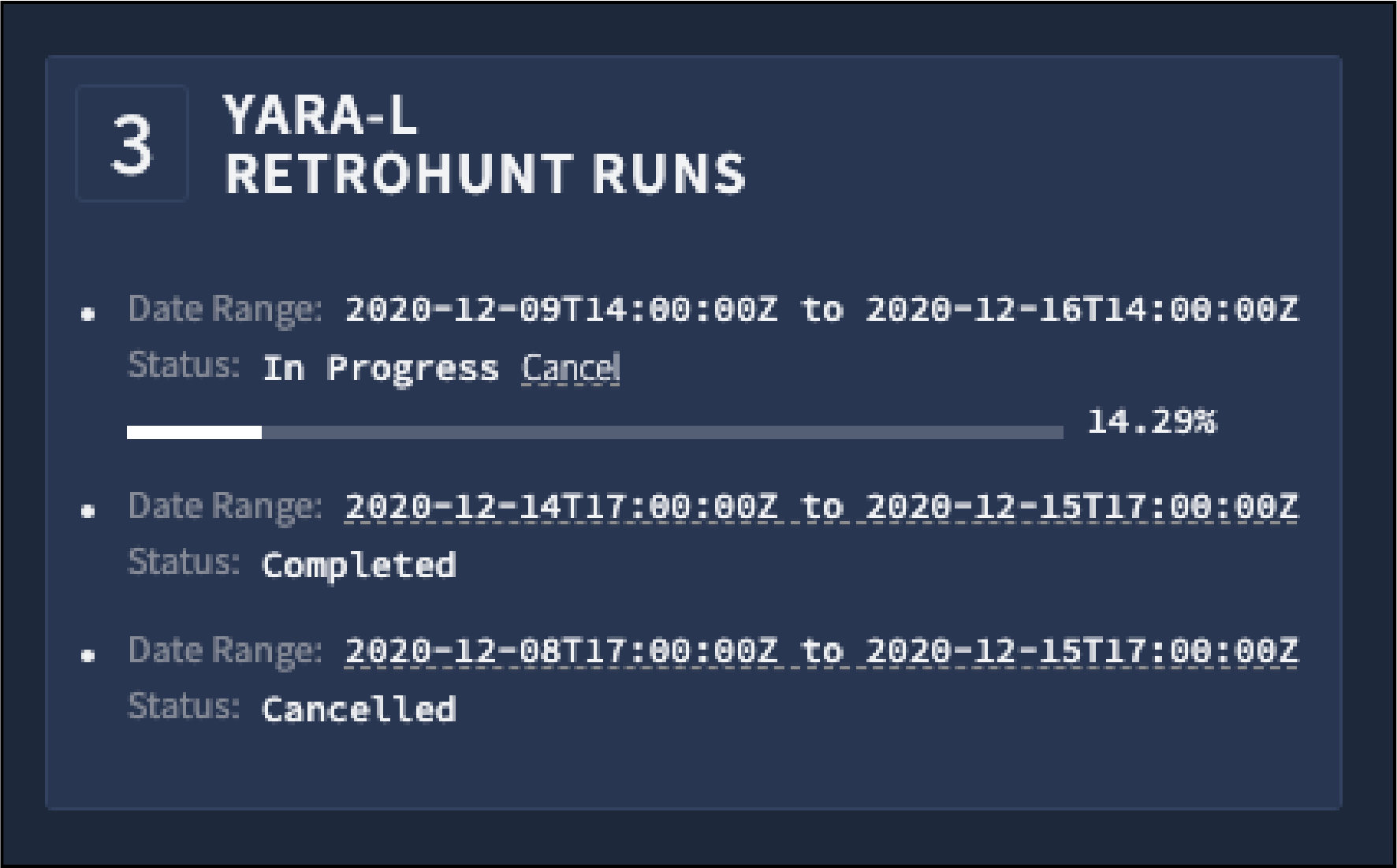
Yara-L retrohunt runs
If you use a reference list in a rule, run a retrohunt, and then remove items from that list, then you need to revise that rule to a new version to see the new results. Google SecOps doesn't delete detections from reference lists, so refreshing the rule won't update the results.
Need more help? Get answers from Community members and Google SecOps professionals.