Membuat permintaan API dan menangani respons

Dokumen ini menjelaskan cara membuat permintaan API dan menangani respons API dari Compute Engine API. Panduan ini membahas cara:

  • Membuat isi permintaan.
  • Menentukan URI resource yang diperlukan untuk permintaan.
  • Menangani respons API.
  • Menentukan apakah permintaan API berhasil.

Dokumen ini tidak membahas cara mengautentikasi ke API. Untuk mempelajari cara melakukan autentikasi ke API, baca Mengautentikasi ke Compute Engine.

Sebelum memulai

Membuat permintaan API

Compute Engine API mengharapkan permintaan API dalam format JSON. Untuk membuat permintaan API, Anda dapat membuat permintaan HTTP langsung, dengan menggunakan alat seperti curl atau httplib2, atau Anda dapat menggunakan salah satu library klien yang tersedia.

Saat Anda membuat permintaan API yang memerlukan isi permintaan, seperti permintaan POST, UPDATE, atau PATCH, isi permintaan berisi properti resource yang ingin Anda tetapkan dalam permintaan. Misalnya, perintah curl berikut membuat permintaan POST ke URI resource Instance. Permintaan tersebut akan membuat instance dengan properti yang ditentukan dalam isi permintaan. Isi permintaan ditunjukkan dengan flag -d:

curl -X POST -H "Authorization: Bearer [OAUTH_TOKEN]" -H "Content-Type: application/json" \
https://compute.googleapis.com/compute/v1/projects/PROJECT_ID/zones/ZONE/instances -d \
'{
  "disks":[
    {
      "boot":"true",
      "initializeParams":{
        "sourceImage":"https://www.googleapis.com/compute/v1/projects/debian-cloud/global/images/debian-10-buster-v20210122"
      }
    }
  ],
  "machineType":"https://www.googleapis.com/compute/v1/projects/PROJECT_ID/zones/ZONE/machineTypes/e2-standard-2",
  "name":"VM_NAME",
  "networkInterfaces":[
    {
      "accessConfigs":[
        {
          "name":"external-nat",
          "type":"ONE_TO_ONE_NAT"
        }
      ],
      "network":"https://www.googleapis.com/compute/v1/projects/PROJECT_ID/global/networks/default"
    }
  ]
}'

URI image memiliki project ID (debian-cloud) yang berbeda dengan project ID Anda karena image termasuk dalam project yang berbeda, bergantung pada jenis image. Misalnya, semua image Debian yang tersedia secara publik yang ditawarkan oleh Compute Engine dihosting di project debian-cloud.

Saat merujuk ke resource lain, gunakan URI resource yang sepenuhnya memenuhi syarat. Misalnya, properti network menggunakan URI yang sepenuhnya memenuhi syarat ke jaringan default.

Contoh permintaan API

Python

from __future__ import annotations

import re
import sys
from typing import Any
import warnings

from google.api_core.extended_operation import ExtendedOperation
from google.cloud import compute_v1


def get_image_from_family(project: str, family: str) -> compute_v1.Image:
    """
    Retrieve the newest image that is part of a given family in a project.

    Args:
        project: project ID or project number of the Cloud project you want to get image from.
        family: name of the image family you want to get image from.

    Returns:
        An Image object.
    """
    image_client = compute_v1.ImagesClient()
    # List of public operating system (OS) images: https://cloud.google.com/compute/docs/images/os-details
    newest_image = image_client.get_from_family(project=project, family=family)
    return newest_image


def disk_from_image(
    disk_type: str,
    disk_size_gb: int,
    boot: bool,
    source_image: str,
    auto_delete: bool = True,
) -> compute_v1.AttachedDisk:
    """
    Create an AttachedDisk object to be used in VM instance creation. Uses an image as the
    source for the new disk.

    Args:
         disk_type: the type of disk you want to create. This value uses the following format:
            "zones/{zone}/diskTypes/(pd-standard|pd-ssd|pd-balanced|pd-extreme)".
            For example: "zones/us-west3-b/diskTypes/pd-ssd"
        disk_size_gb: size of the new disk in gigabytes
        boot: boolean flag indicating whether this disk should be used as a boot disk of an instance
        source_image: source image to use when creating this disk. You must have read access to this disk. This can be one
            of the publicly available images or an image from one of your projects.
            This value uses the following format: "projects/{project_name}/global/images/{image_name}"
        auto_delete: boolean flag indicating whether this disk should be deleted with the VM that uses it

    Returns:
        AttachedDisk object configured to be created using the specified image.
    """
    boot_disk = compute_v1.AttachedDisk()
    initialize_params = compute_v1.AttachedDiskInitializeParams()
    initialize_params.source_image = source_image
    initialize_params.disk_size_gb = disk_size_gb
    initialize_params.disk_type = disk_type
    boot_disk.initialize_params = initialize_params
    # Remember to set auto_delete to True if you want the disk to be deleted when you delete
    # your VM instance.
    boot_disk.auto_delete = auto_delete
    boot_disk.boot = boot
    return boot_disk


def wait_for_extended_operation(
    operation: ExtendedOperation, verbose_name: str = "operation", timeout: int = 300
) -> Any:
    """
    Waits for the extended (long-running) operation to complete.

    If the operation is successful, it will return its result.
    If the operation ends with an error, an exception will be raised.
    If there were any warnings during the execution of the operation
    they will be printed to sys.stderr.

    Args:
        operation: a long-running operation you want to wait on.
        verbose_name: (optional) a more verbose name of the operation,
            used only during error and warning reporting.
        timeout: how long (in seconds) to wait for operation to finish.
            If None, wait indefinitely.

    Returns:
        Whatever the operation.result() returns.

    Raises:
        This method will raise the exception received from `operation.exception()`
        or RuntimeError if there is no exception set, but there is an `error_code`
        set for the `operation`.

        In case of an operation taking longer than `timeout` seconds to complete,
        a `concurrent.futures.TimeoutError` will be raised.
    """
    result = operation.result(timeout=timeout)

    if operation.error_code:
        print(
            f"Error during {verbose_name}: [Code: {operation.error_code}]: {operation.error_message}",
            file=sys.stderr,
            flush=True,
        )
        print(f"Operation ID: {operation.name}", file=sys.stderr, flush=True)
        raise operation.exception() or RuntimeError(operation.error_message)

    if operation.warnings:
        print(f"Warnings during {verbose_name}:\n", file=sys.stderr, flush=True)
        for warning in operation.warnings:
            print(f" - {warning.code}: {warning.message}", file=sys.stderr, flush=True)

    return result


def create_instance(
    project_id: str,
    zone: str,
    instance_name: str,
    disks: list[compute_v1.AttachedDisk],
    machine_type: str = "n1-standard-1",
    network_link: str = "global/networks/default",
    subnetwork_link: str = None,
    internal_ip: str = None,
    external_access: bool = False,
    external_ipv4: str = None,
    accelerators: list[compute_v1.AcceleratorConfig] = None,
    preemptible: bool = False,
    spot: bool = False,
    instance_termination_action: str = "STOP",
    custom_hostname: str = None,
    delete_protection: bool = False,
) -> compute_v1.Instance:
    """
    Send an instance creation request to the Compute Engine API and wait for it to complete.

    Args:
        project_id: project ID or project number of the Cloud project you want to use.
        zone: name of the zone to create the instance in. For example: "us-west3-b"
        instance_name: name of the new virtual machine (VM) instance.
        disks: a list of compute_v1.AttachedDisk objects describing the disks
            you want to attach to your new instance.
        machine_type: machine type of the VM being created. This value uses the
            following format: "zones/{zone}/machineTypes/{type_name}".
            For example: "zones/europe-west3-c/machineTypes/f1-micro"
        network_link: name of the network you want the new instance to use.
            For example: "global/networks/default" represents the network
            named "default", which is created automatically for each project.
        subnetwork_link: name of the subnetwork you want the new instance to use.
            This value uses the following format:
            "regions/{region}/subnetworks/{subnetwork_name}"
        internal_ip: internal IP address you want to assign to the new instance.
            By default, a free address from the pool of available internal IP addresses of
            used subnet will be used.
        external_access: boolean flag indicating if the instance should have an external IPv4
            address assigned.
        external_ipv4: external IPv4 address to be assigned to this instance. If you specify
            an external IP address, it must live in the same region as the zone of the instance.
            This setting requires `external_access` to be set to True to work.
        accelerators: a list of AcceleratorConfig objects describing the accelerators that will
            be attached to the new instance.
        preemptible: boolean value indicating if the new instance should be preemptible
            or not. Preemptible VMs have been deprecated and you should now use Spot VMs.
        spot: boolean value indicating if the new instance should be a Spot VM or not.
        instance_termination_action: What action should be taken once a Spot VM is terminated.
            Possible values: "STOP", "DELETE"
        custom_hostname: Custom hostname of the new VM instance.
            Custom hostnames must conform to RFC 1035 requirements for valid hostnames.
        delete_protection: boolean value indicating if the new virtual machine should be
            protected against deletion or not.
    Returns:
        Instance object.
    """
    instance_client = compute_v1.InstancesClient()

    # Use the network interface provided in the network_link argument.
    network_interface = compute_v1.NetworkInterface()
    network_interface.network = network_link
    if subnetwork_link:
        network_interface.subnetwork = subnetwork_link

    if internal_ip:
        network_interface.network_i_p = internal_ip

    if external_access:
        access = compute_v1.AccessConfig()
        access.type_ = compute_v1.AccessConfig.Type.ONE_TO_ONE_NAT.name
        access.name = "External NAT"
        access.network_tier = access.NetworkTier.PREMIUM.name
        if external_ipv4:
            access.nat_i_p = external_ipv4
        network_interface.access_configs = [access]

    # Collect information into the Instance object.
    instance = compute_v1.Instance()
    instance.network_interfaces = [network_interface]
    instance.name = instance_name
    instance.disks = disks
    if re.match(r"^zones/[a-z\d\-]+/machineTypes/[a-z\d\-]+$", machine_type):
        instance.machine_type = machine_type
    else:
        instance.machine_type = f"zones/{zone}/machineTypes/{machine_type}"

    instance.scheduling = compute_v1.Scheduling()
    if accelerators:
        instance.guest_accelerators = accelerators
        instance.scheduling.on_host_maintenance = (
            compute_v1.Scheduling.OnHostMaintenance.TERMINATE.name
        )

    if preemptible:
        # Set the preemptible setting
        warnings.warn(
            "Preemptible VMs are being replaced by Spot VMs.", DeprecationWarning
        )
        instance.scheduling = compute_v1.Scheduling()
        instance.scheduling.preemptible = True

    if spot:
        # Set the Spot VM setting
        instance.scheduling.provisioning_model = (
            compute_v1.Scheduling.ProvisioningModel.SPOT.name
        )
        instance.scheduling.instance_termination_action = instance_termination_action

    if custom_hostname is not None:
        # Set the custom hostname for the instance
        instance.hostname = custom_hostname

    if delete_protection:
        # Set the delete protection bit
        instance.deletion_protection = True

    # Prepare the request to insert an instance.
    request = compute_v1.InsertInstanceRequest()
    request.zone = zone
    request.project = project_id
    request.instance_resource = instance

    # Wait for the create operation to complete.
    print(f"Creating the {instance_name} instance in {zone}...")

    operation = instance_client.insert(request=request)

    wait_for_extended_operation(operation, "instance creation")

    print(f"Instance {instance_name} created.")
    return instance_client.get(project=project_id, zone=zone, instance=instance_name)

Java

public static Operation startInstance(Compute compute, String instanceName) throws IOException {
  System.out.println("================== Starting New Instance ==================");

  // Create VM Instance object with the required properties.
  Instance instance = new Instance();
  instance.setName(instanceName);
  instance.setMachineType(
      String.format(
          "https://www.googleapis.com/compute/v1/projects/%s/zones/%s/machineTypes/e2-standard-1",
          PROJECT_ID, ZONE_NAME));
  // Add Network Interface to be used by VM Instance.
  NetworkInterface ifc = new NetworkInterface();
  ifc.setNetwork(
      String.format(
          "https://www.googleapis.com/compute/v1/projects/%s/global/networks/default",
          PROJECT_ID));
  List<AccessConfig> configs = new ArrayList<>();
  AccessConfig config = new AccessConfig();
  config.setType(NETWORK_INTERFACE_CONFIG);
  config.setName(NETWORK_ACCESS_CONFIG);
  configs.add(config);
  ifc.setAccessConfigs(configs);
  instance.setNetworkInterfaces(Collections.singletonList(ifc));

  // Add attached Persistent Disk to be used by VM Instance.
  AttachedDisk disk = new AttachedDisk();
  disk.setBoot(true);
  disk.setAutoDelete(true);
  disk.setType("PERSISTENT");
  AttachedDiskInitializeParams params = new AttachedDiskInitializeParams();
  // Assign the Persistent Disk the same name as the VM Instance.
  params.setDiskName(instanceName);
  // Specify the source operating system machine image to be used by the VM Instance.
  params.setSourceImage(SOURCE_IMAGE_PREFIX + SOURCE_IMAGE_PATH);
  // Specify the disk type as Standard Persistent Disk
  params.setDiskType(
      String.format(
          "https://www.googleapis.com/compute/v1/projects/%s/zones/%s/diskTypes/pd-standard",
          PROJECT_ID, ZONE_NAME));
  disk.setInitializeParams(params);
  instance.setDisks(Collections.singletonList(disk));

  // Initialize the service account to be used by the VM Instance and set the API access scopes.
  ServiceAccount account = new ServiceAccount();
  account.setEmail("default");
  List<String> scopes = new ArrayList<>();
  scopes.add("https://www.googleapis.com/auth/devstorage.full_control");
  scopes.add("https://www.googleapis.com/auth/compute");
  account.setScopes(scopes);
  instance.setServiceAccounts(Collections.singletonList(account));

  // Optional - Add a startup script to be used by the VM Instance.
  Metadata meta = new Metadata();
  Metadata.Items item = new Metadata.Items();
  item.setKey("startup-script-url");
  // If you put a script called "vm-startup.sh" in this Google Cloud Storage
  // bucket, it will execute on VM startup.  This assumes you've created a
  // bucket named the same as your PROJECT_ID.
  // For info on creating buckets see:
  // https://cloud.google.com/storage/docs/cloud-console#_creatingbuckets
  item.setValue(String.format("gs://%s/vm-startup.sh", PROJECT_ID));
  meta.setItems(Collections.singletonList(item));
  instance.setMetadata(meta);

  System.out.println(instance.toPrettyString());
  Compute.Instances.Insert insert = compute.instances().insert(PROJECT_ID, ZONE_NAME, instance);
  return insert.execute();
}

Membuat URI resource

Di Compute Engine API, referensi ke resource lain Google Cloud diberikan sebagai URI yang sepenuhnya memenuhi syarat:

https://compute.googleapis.com/compute/v1/projects/PROJECT_ID/zones/ZONE/RESOURCE_TYPE/SPECIFIC_RESOURCE

Setiap kali menentukan image, jenis mesin, jaringan, atau resource lainnya, Anda harus menyediakan URI ke resource saat menggunakan API. Alat klien seperti Google Cloud CLI dan Google Cloud konsol menyembunyikan kerumitan ini dan menangani pembuatan URI resource ini untuk Anda. Namun, saat berinteraksi dengan API secara langsung, Anda harus membuat URI resource ini sendiri.

Ada URI resource yang sedikit berbeda untuk tipe resource yang berbeda. Misalnya, resource zona memiliki spesifikasi zone dalam URI:

https://compute.googleapis.com/compute/v1/projects/PROJECT_ID/zones/ZONE/machineTypes/e2-standard-2

Resource regional mengganti spesifikasi zone dengan spesifikasi region:

https://compute.googleapis.com/compute/v1/projects/PROJECT_ID/regions/REGION/addresses/ADDRESS_NAME

Demikian pula, resource global memiliki spesifikasi global:

https://compute.googleapis.com/compute/v1/projects/PROJECT_ID/global/images/VM_NAME

Compute Engine API juga menerima URI parsial karena layanan dapat menyimpulkan informasi seperti project ID. Jadi, versi parsial dari URI sebelumnya berikut ini juga dapat diterima:

zones/ZONE/machineTypes/e2-standard-2
regions/REGION/addresses/ADDRESS_NAME
project/PROJECT_ID/global/images/VM_NAME

Pada URI parsial, baik URI zona maupun URI regional menghilangkan project ID, tetapi URI image tidak. Hal ini karena image yang tersedia secara publik yang ditawarkan oleh Compute Engine dihosting di project lain, seperti debian-cloud untuk semua image Debian dan ubuntu-os-cloud untuk semua image Ubuntu. Sebelum dapat menggunakan image ini, Anda harus menyediakan project ID yang sesuai. Jika Anda menghapus project ID untuk image, Compute Engine akan mencoba menemukan image tersebut di project Anda, dan permintaan akan gagal karena image tidak ada.

Namun, jika menggunakan image kustom milik project Anda (project yang sama tempat Anda membuat resource ini), Anda dapat menghilangkan spesifikasi project saat memberikan URI image.

Menentukan properti yang diperlukan

Dokumentasi referensi Compute Engine API, yang tersedia untuk API v1 maupun beta, menjelaskan semua kemungkinan properti yang dapat Anda tetapkan untuk resource tertentu. Dokumentasi referensi ini membedakan antara properti yang dapat diubah dan properti yang tidak dapat diubah (ditandai dengan [Output Only] dalam deskripsi properti), tetapi untuk menentukan properti yang diperlukan untuk resource, Anda perlu meninjau dokumentasi yang khusus untuk tugas tersebut.

Misalnya, jika Anda membuat instance, baca dokumentasi Membuat instance dari image untuk melihat properti API yang diperlukan untuk permintaan tersebut. Jika Anda ingin membuat alamat IP eksternal statis di API, baca dokumentasi Alamat IP eksternal statis.

Memvalidasi permintaan API

Untuk memvalidasi permintaan API:

  1. Di referensi Compute Engine API, temukan metode yang dipanggil kode Anda. Misalnya, v1/compute.instances.insert.
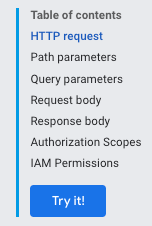
  2. Dari menu konten, klik Try It! Tindakan ini akan membuka jendela Try this API.

    Tombol Try It! pada menu konten.

  3. Di bagian Parameter permintaan, Anda tidak perlu memberikan project atau zona karena validasi tidak memerlukan pengiriman permintaan.

  4. Di bagian Isi permintaan, tempelkan permintaan Anda.

    Jendela Try this API, yang menampilkan kolom Isi permintaan untuk menunjukkan tempat menempelkan permintaan validasi.

Elemen permintaan yang salah format digarisbawahi dengan warna biru. Klik setiap bagian yang digarisbawahi untuk mengetahui informasi selengkapnya tentang masalah yang akan ditangani.

Menangani respons API

Jika Anda membuat permintaan yang mengubah data, Compute Engine akan menampilkan objek Operation yang kemudian dapat Anda polling untuk mendapatkan status operasi permintaan Anda. Resource Operation terlihat seperti ini:

{
 "kind": "compute#operation",
 "id": "7127550864823803662",
 "name": "operation-1458856416788-52ed27a803e22-1c3bd86a-9e95017b",
 "zone": "https://www.googleapis.com/compute/v1/projects/PROJECT_ID/zones/ZONE",
 "operationType": "insert",
 "targetLink": "https://www.googleapis.com/compute/v1/projects/PROJECT_ID/zones/ZONE/instances/EXAMPLE_VM",
 "targetId": "4132355614508179214",
 "status": "PENDING",
 "user": "user@example.com",
 "progress": 0,
 "insertTime": "2016-03-24T14:53:37.788-07:00",
 "selfLink": "https://www.googleapis.com/compute/v1/projects/PROJECT_ID/zones/ZONE/operations/operation-1458856416788-52ed27a803e22-1c3bd86a-9e95017b"
}

Jika permintaan asli adalah untuk mengubah resource zona–misalnya, untuk mengambil snapshot disk atau menghentikan instance–Compute Engine menampilkan objek zoneOperations. Demikian pula, resource regional dan global masing-masing menampilkan objek regionOperations atau globalOperations. Anda bisa mendapatkan status operasi dengan membuat permintaan yang menggunakan metode get atau wait untuk resource Operation tertentu dan menyediakan name operasi.

Permintaan Anda belum selesai sampai status resource Operation ditampilkan sebagai DONE. Ini mungkin butuh waktu beberapa saat tergantung pada sifat permintaan Anda. Kemudian, setelah status resource Operation ditampilkan sebagai DONE, Anda dapat memeriksa apakah operasi berhasil dan apakah ada error.

Misalnya, respons berikut menunjukkan bahwa operasi sebelumnya kini selesai, yang ditentukan oleh status DONE:

endTime: '2016-03-24T14:54:07.119-07:00'
id: '7127550864823803662'
insertTime: '2016-03-24T14:53:37.788-07:00'
kind: compute#operation
name: operation-1458856416788-52ed27a803e22-1c3bd86a-9e95017b
operationType: insert
progress: 100
selfLink: https://compute.googleapis.com/compute/v1/projects/PROJECT_ID/zones/ZONE/operations/operation-1458856416788-52ed27a803e22-1c3bd86a-9e95017b
startTime: '2016-03-24T14:53:38.397-07:00'
status: DONE
targetId: '4132355614508179214'
targetLink: https://compute.googleapis.com/compute/v1/projects/PROJECT_ID/zones/ZONE/instances/EXAMPLE_VM
user: user@example.com
zone: https://compute.googleapis.com/compute/v1/projects/PROJECT_ID/zones/ZONE

Untuk mengonfirmasi, buat permintaan get ke resource untuk memeriksa bahwa resource tersebut ada dan sedang berjalan. Contoh:

GET /compute/v1/projects/PROJECT_ID/zones/ZONE/instances/EXAMPLE_VM

{
  "cpuPlatform": "Intel Haswell",
  "creationTimestamp": "2016-03-24T14:53:37.170-07:00",
  "disks": [
    ..[snip]..
  "selfLink": "https://www.googleapis.com/compute/v1/projects/PROJECT_ID/zones/ZONE/instances/EXAMPLE_VM",
  "status": "RUNNING",
  "tags": {
    "fingerprint": "42WmSpB8rSM="
  },
  "zone": "https://www.googleapis.com/compute/v1/projects/PROJECT_ID/zones/ZONE"
}

Operasi polling

Anda dapat menulis beberapa kode untuk melakukan polling operasi secara berkala dengan permintaan get atau wait yang ditampilkan saat status operasi adalah DONE.

Dengan permintaan get, operasi akan segera ditampilkan, apa pun status operasinya. Anda perlu melakukan polling pada operasi secara berkala untuk mengetahui kapan operasi selesai.

Jika Anda membuat permintaan wait, permintaan tersebut akan ditampilkan saat operasinya adalah DONE atau jika permintaan mendekati batas waktu 2 menit. Anda dapat memilih untuk menggunakan wait atau get guna melakukan polling pada operasi, tetapi metode wait memberikan manfaat tertentu dibandingkan metode get:

  • Anda dapat menyiapkan klien agar lebih jarang melakukan polling status operasi, sehingga mengurangi penggunaan QPS Anda atas Compute Engine API.
  • Latensi rata-rata antara saat operasi selesai dan saat klien diberi tahu bahwa operasi telah selesai akan berkurang secara signifikan karena server merespons segera setelah operasi selesai.
  • Metode ini menyediakan waktu tunggu terbatas. Metode ini menunggu tidak lebih dari waktu tunggu HTTP default (2 menit), lalu menampilkan status operasi saat ini, yang mungkin berupa DONE atau masih dalam proses.

Metode wait adalah API upaya terbaik. Jika server kelebihan beban, permintaan mungkin akan ditampilkan sebelum mencapai batas waktu default, atau setelah menunggu hanya nol detik. Metode ini juga tidak dijamin hanya akan ditampilkan jika operasinya adalah DONE. Misalnya, jika permintaan mendekati batas waktu 2 menit, metode akan ditampilkan meskipun operasi belum selesai. Untuk memeriksa operasi Anda, sebaiknya gunakan metode wait atau get—dalam loop percobaan ulang dengan disela periode tidur—guna memeriksa status operasi secara berkala. Interval percobaan ulang maksimum tidak boleh melebihi periode retensi operasi minimum.

Contoh polling

Contoh berikut menggunakan metode get. Anda dapat mengganti metode get dengan metode wait:

Python

from google.cloud import compute_v1


def wait_for_operation(
    operation: compute_v1.Operation, project_id: str
) -> compute_v1.Operation:
    """
    This method waits for an operation to be completed. Calling this function
    will block until the operation is finished.

    Args:
        operation: The Operation object representing the operation you want to
            wait on.
        project_id: project ID or project number of the Cloud project you want to use.

    Returns:
        Finished Operation object.
    """
    kwargs = {"project": project_id, "operation": operation.name}
    if operation.zone:
        client = compute_v1.ZoneOperationsClient()
        # Operation.zone is a full URL address of a zone, so we need to extract just the name
        kwargs["zone"] = operation.zone.rsplit("/", maxsplit=1)[1]
    elif operation.region:
        client = compute_v1.RegionOperationsClient()
        # Operation.region is a full URL address of a region, so we need to extract just the name
        kwargs["region"] = operation.region.rsplit("/", maxsplit=1)[1]
    else:
        client = compute_v1.GlobalOperationsClient()
    return client.wait(**kwargs)

Java

/**
 * Wait until {@code operation} is completed.
 *
 * @param compute the {@code Compute} object
 * @param operation the operation returned by the original request
 * @param timeout the timeout, in millis
 * @return the error, if any, else {@code null} if there was no error
 * @throws InterruptedException if we timed out waiting for the operation to complete
 * @throws IOException if we had trouble connecting
 */
public static Operation.Error blockUntilComplete(
    Compute compute, Operation operation, long timeout) throws Exception {
  long start = System.currentTimeMillis();
  final long pollInterval = 5 * 1000;
  String zone = getLastWordFromUrl(operation.getZone()); // null for global/regional operations
  String region = getLastWordFromUrl(operation.getRegion());
  String status = operation.getStatus();
  String opId = operation.getName();
  while (operation != null && !status.equals("DONE")) {
    Thread.sleep(pollInterval);
    long elapsed = System.currentTimeMillis() - start;
    if (elapsed >= timeout) {
      throw new InterruptedException("Timed out waiting for operation to complete");
    }
    System.out.println("waiting...");
    if (zone != null) {
      Compute.ZoneOperations.Get get = compute.zoneOperations().get(PROJECT_ID, zone, opId);
      operation = get.execute();
    } else if (region != null) {
      Compute.RegionOperations.Get get = compute.regionOperations().get(PROJECT_ID, region, opId);
      operation = get.execute();
    } else {
      Compute.GlobalOperations.Get get = compute.globalOperations().get(PROJECT_ID, opId);
      operation = get.execute();
    }
    if (operation != null) {
      status = operation.getStatus();
    }
  }
  return operation == null ? null : operation.getError();
}