

Run use cases from the Content Hub
In Google Security Operations, a use case is a pre-packaged deployment unit designed to accelerate workflow implementation. Each package acts as a functional blueprint, providing the necessary assets to model, ingest, and automate security operations.
Google Security Operations provides a repository of use cases that you can deploy in your environment. These use cases are available for download from the Content Hub.
Use case components
Each use case includes the following components you need to run a complete workflow:
- A test case designed to trigger the workflow for validation.
- Mapping and modeling schemas to support data normalization.
- The underlying integration packages required for the workflow.
- Predefined connectors for external log sources or APIs.
- Playbooks that define the automated logic and response actions.
You can find all legacy use case packages in the Google SecOps Content Hub home page. Each use case lists exactly what's included and typically comes with a video that shows how to get the use case running with either mock or live data. For a more updated experience, explore the Content Packs tab.
Once everything is set up, you can run the test cases from the Cases page.
Example: Run the zero to hero use case
This example demonstrates how to run the basic phishing (zero to hero) use case from the Google SecOps Content Hub.
- Go to the Google SecOps Content Hub.
- On the Home page, click Go to legacy use cases.
- Filter for the Zero to Hero use case, and click Run Use Case.
- Click Run Use Case. Note: We recommend that you watch the embedded five-minute technical walkthrough before proceeding with the wizard.
- On the overview page, verify the specific integrations, playbooks, and test cases to bundle. Note the two provided email samples (malicious and non-malicious) available for ingestion by way of the Email Connector. Click Next when you're ready.
- On the Install Use Case items page, verify the asset list (integrations, playbooks, and simulation cases) and click Install.
- When the installation is
complete, click Next.
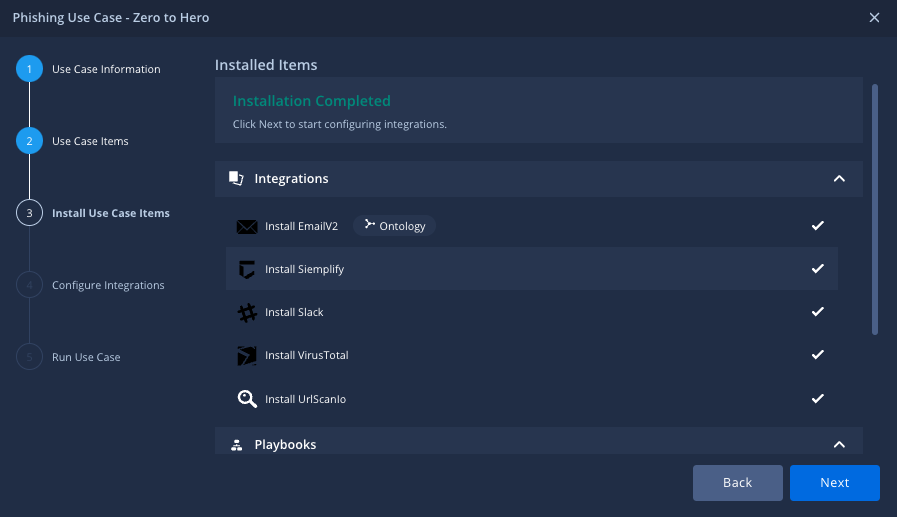
Install use case
- Make sure that you correctly define all the relevant fields and parameters to configure the integrations. When you've completed and tested the configuration, click Next.
- Select the alert for simulation and click Next to automatically simulate the case. If you don't select the alert for simulation, go to Cases in the link, click add Add, and select Simulate Cases.
-
When you see the Congratulations notification, review the
next steps, click Finish and go to the Cases page. Then, continue to the last step in this procedure.
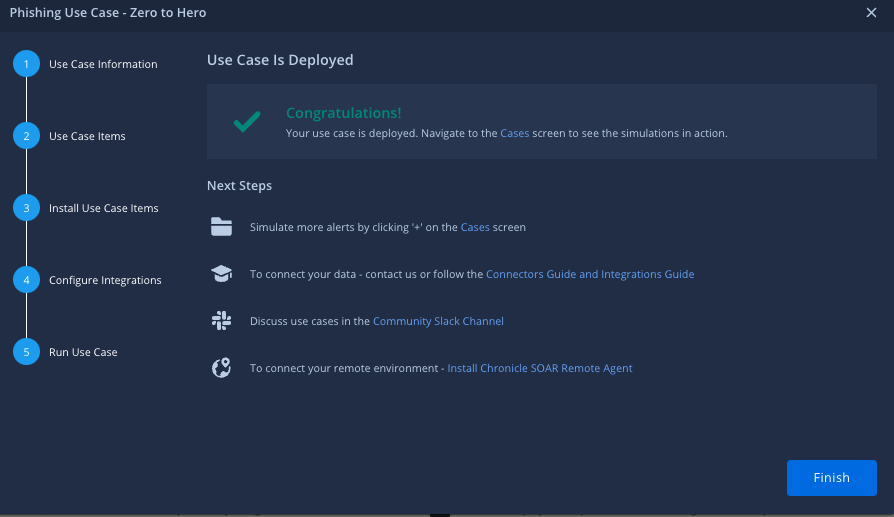
Confirmation of deployment
- Select the Zero to Hero use case and click Create.
- Select the default environment and click Simulate.
- Click Refresh. A new case is created in Google SecOps, with a playbook attached within the alert.
Need more help? Get answers from Community members and Google SecOps professionals.