


Dialogflow CX의 맞춤 페이로드를 사용하면 일반 텍스트 기반 채팅 및 상호작용을 넘어 가상 에이전트 환경을 개선할 수 있습니다. Dialogflow CX에서 맞춤 페이로드를 사용하면 맞춤 응답과 인용을 렌더링하도록 가상 에이전트를 구성할 수 있습니다.
맞춤 응답 메시지 유형
맞춤 응답을 사용하면 다음 메시지 유형을 렌더링할 수 있습니다.
텍스트
인라인 버튼
버튼이 낌
이미지
동영상
문서
복잡한 뷰 (하나 이상의 메시지 유형 조합)
맞춤 작업을 사용하면 가상 상담사가 다음 작업을 수행할 수 있습니다.
상담사에게 에스컬레이션
상담사에게 계획된 트랜스퍼
지원 세션 종료
Contact Center AI Platform (CCAI Platform) 페이로드
Dialogflow CX에서 커스텀 페이로드로 사용됩니다. 다음 예에서는 Dialogflow CX를 사용하여 webSDK의 응답 형식을 보여줍니다.
{
  "ujet": {
    "type": "text|inline_button|sticky_button|image|video|document|complex|action",
    "action": "escalation|end",
    "title": "message displayed on the top of the message",
    "escalation_reason": "by_consumer|by_virtual_agent",
    "session_variable": {
      "capture_target": "payload|end_user_response",
      "capture_key": "key",
      "payload": {
      }
    },
    "messages": [
      "Hello",
      "How can I help you?"
    ],
    "buttons": [
      {
        "title": "Button 1",
        "action": "quick_reply"
      },
      {
        "title": "Button 2",
        "action": "quick_reply"
      }
    ],
    "images": [
      {
        "url": "https://image.url",
        "text": "an alternate text for an image for when failed to load an image"
      },
      {
        "url": "https://image.url",
        "text": "an alternate text for an image"
      }
    ],
    "videos": [
      {
        "url": "https://video.url",
        "text": "an alternate text for a video for when failed to load a video"
      },
      {
        "url": "https://video.url",
        "text": "an alternate text for a video"
      }
    ],
    "documents": [
      {
        "url": "https://document.url",
        "text": "an alternate text for a document for when failed to load a document"
      },
      {
        "url": "https://document.url",
        "text": "an alternate text for a document"
      }
    ],
    "components": [
      {
        "type": "text",
        "messages": [
          "We need the information for helping you.",
          "Could you please choose the following options?"
        ]
      },
      {
        "type": "inline_button",
        "buttons": [
          {
            "title": "Button 1",
            "action": "quick_reply"
          },
          {
            "title": "Button 2",
            "action": "quick_reply"
          }
        ]
      },
      {
        "type": "image",
        "images": [
          {
            "url": "https://image.url",
            "text": "an alternate text for an image for when failed to load an image"
          },
          {
            "url": "https://image.url",
            "text": "an alternate text for an image"
          }
        ]
      }
    ]
  }
}
맞춤 페이로드의 채팅 메시지 형식
CCAI Platform SDK와 함께 사용하여 적절한 UI를 표시합니다. Dialogflow CX 맞춤 페이로드 형식과 동일하지만 루트에 'ujet' 필드가 없습니다.
자세한 내용은 다음 예를 참고하세요.
예시
다음 섹션에는 Dialogflow CX에서 사용할 수 있는 페이로드 예시가 포함되어 있습니다.
텍스트
{
  "ujet": {
    "type": "text",
    "messages": [
      "Hello",
      "How can I help you?"
    ]
  }
}
동일한 대기열로 에스컬레이션
가상 에이전트:
{
  "ujet": {
    "type": "action",
    "action": "escalation",
    "escalation_reason": "by_virtual_agent"
  }
}
최종 사용자:
{
  "ujet": {
    "type": "action",
    "action": "escalation",
    "escalation_reason": "by_consumer"
  }
}
escalation_reason 값이 대시보드에 보고됩니다.
타겟 대기열로 에스컬레이션
가상 에이전트:
{
  "ujet": {
    "type": "action",
    "action": "escalation",
    "escalation_reason": "by_virtual_agent",
    "menu_id": 100,
    "language": "ko"
  }
}
최종 사용자:
{
  "ujet": {
      "type": "action",
      "action": "escalation",
      "escalation_reason": "by_consumer",
      "menu_id": 100,
      "language": "ko"
  }
}
escalation_reason 값이 대시보드에 보고됩니다.
대화 종료
{
  "ujet": {
    "type": "action",
    "action": "end"
  }
}
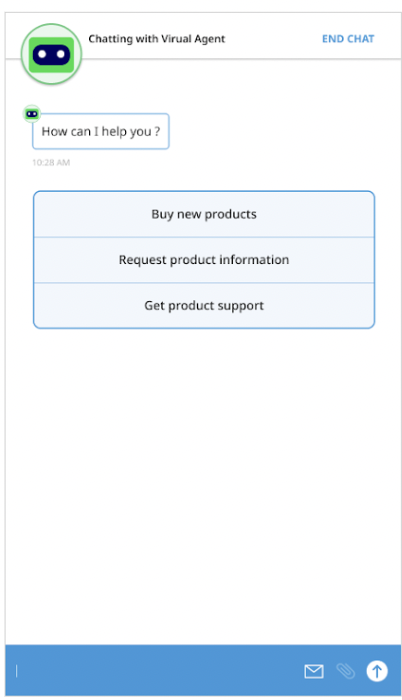
인라인 버튼
{
  "ujet": {
    "type": "inline_button",
    "title": "Select a menu",
    "buttons": [
      {
        "title": "Lorem Ipsum",
        "action": "quick_reply"
      },
      {
        "title": "Lorem Ipsum Dolor Sit Amet",
        "action": "escalation"
      }
    ]
  }
}
예시
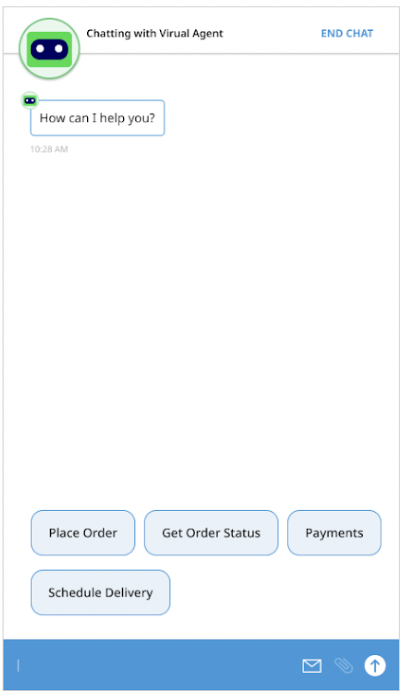
고정 버튼
{
  "ujet": {
    "type": "sticky_button",
    "title": "Select a menu",
    "buttons": [
      {
        "title": "Lorem Ipsum",
        "action": "quick_reply"
      },
      {
        "title": "Lorem Ipsum Dolor Sit Amet",
        "action": "escalation"
      }
    ]
  }
}
예시
이미지 보기
{
  "ujet": {
    "type": "image",
    "title": "Please see the following images",
    "images": [
      {
        "url": "https://image1.url",
        "text": "an alternate text for an image for when failed to load an image"
      },
      {
        "url": "https://image2.url",
        "text": "an alternate text for an image"
      }
    ]
  }
}
동영상 조회수
{
  "ujet": {
    "type": "video",
    "title": "Please see the following videos",
    "videos": [
      {
        "url": "https://video1.url",
        "text": "an alternate text for a video for when failed to load a video"
      },
      {
        "url": "https://video2.url",
        "text": "an alternate text for a video"
      }
    ]
  }
}
문서 조회
{
  "ujet": {
    "type": "document",
    "title": "Please see the following document",
    "documents": [
      {
        "url": "https://document1.url",
        "text": "an alternate text for a document for when failed to load a document"
      },
      {
        "url": "https://document2.url",
        "text": "an alternate text for a document"
      }
    ]
  }
}
복잡한 뷰
{
  "ujet": {
    "type": "complex",
    "type": "Welcome to CCAI Platform world!",
    "components": [
      {
        "type": "text",
        "messages": [
          "We need the information for helping you.",
          "Could you please choose the following options?"
        ]
      },
      {
        "type": "inline_button",
        "buttons": [
          {
            "title": "Button 1",
            "action": "quick_reply"
          },
          {
            "title": "Button 2",
            "action": "quick_reply"
          }
        ]
      },
      {
        "type": "image",
        "images": [
          {
            "url": "https://image1.url",
            "text": "an alternate text for an image for when failed to load an image"
          },
          {
            "url": "https://image2.url",
            "text": "an alternate text for an image"
          }
        ]
      }
    ]
  }
}
Dialogflow에서 맞춤 페이로드 구성
Dialogflow를 사용하여 커스텀 페이로드를 구성하는 방법에 대한 자세한 내용은 커스텀 페이로드 응답(Dialogflow ES) 또는 커스텀 페이로드(Dialogflow CX) 리소스를 참고하세요.
자세한 내용은 맞춤 페이로드 처리를 위한 맞춤 세션 변수를 참고하세요.
가상 상담사가 전화번호 또는 SIP 엔드포인트로 트랜스퍼
Dialogflow CX 맞춤 페이로드를 사용하여 음성 가상 에이전트에서 지정한 전화번호 또는 SIP 엔드포인트로 통화를 트랜스퍼할 수 있습니다. 연결에 성공하면 가상 상담사가 통화에서 삭제되고 통화가 계속됩니다. 연결에 실패하면 트랜스퍼 실패 메시지가 재생되고 가상 상담사와 통화가 계속됩니다.
가상 상담사는 내부 및 외부 통화의 작업을 트랜스퍼합니다. 가상 에이전트 트랜스퍼는 보고서에 Planned Transfers로 기록됩니다.
전화를 전화번호로 트랜스퍼하기
가상 에이전트에서 전화번호로 통화를 트랜스퍼하려면 다음 코드 샘플과 유사한 Dialogflow CX 페이로드를 사용하세요.
{
  "ujet": {
    "type": "action",
    "action": "deflection",
    "deflection_type" : "phone",
    "phone_number": "+16509424879"
  }
}
SIP 엔드포인트로 통화 트랜스퍼
선택적 울림 제한 시간과 함께 가상 에이전트에서 SIP 엔드포인트로 통화를 트랜스퍼할 수 있습니다.
벨 울림 제한 시간
벨소리 시간 초과를 구성하려면 sip_ring_timeout 필드를 추가합니다. 이렇게 하면 내부 확장 프로그램이나 통합 커뮤니케이션 (UC) 대상에 대한 통화가 연결 해제되기 전에 응답할 수 있는 충분한 시간이 주어집니다. 이 기능은 Twilio 사용자에게만 적용됩니다.
Twilio는 구성한 벨소리 울림 시간 제한에 약 5초를 추가합니다.
예
가상 상담사에서 SIP 엔드포인트로 통화를 트랜스퍼하려면 다음 코드 샘플과 유사한 Dialogflow 페이로드를 사용하세요.
{
  "ujet": {
    "type": "action",
    "action": "deflection",
    "deflection_type" : "sip",
    "sip_uri": "SIP_ENDPOINT",
    "sip_ring_timeout": SIP_RINGING_TIMEOUT
  }
}
다음을 바꿉니다.
SIP_ENDPOINT: 통화를 트랜스퍼할 SIP 엔드포인트입니다.sip:1-999-123-4567@voip-provider.example.net과 비슷하게 표시됩니다.SIP_RINGING_TIMEOUT: (선택사항) 통화가 울리다가 시간 초과되기까지의 시간(초)입니다. 유효한 값:10~600(포함) 이 범위를 벗어나는 값을 설정하면 시스템에서 기본 벨소리 제한 시간인 30초를 사용합니다. 기본값: 30초
SIP REFER 메서드를 사용하여 SIP 엔드포인트로 통화 트랜스퍼
SIP REFER 메서드를 사용하여 가상 에이전트에서 SIP 엔드포인트로 통화를 트랜스퍼하려면 다음 코드 샘플과 유사한 Dialogflow CX 페이로드를 사용하세요. SIP REFER 메서드를 사용하면 헤더 속성을 사용하여 유용한 정보를 전달할 수 있습니다.
{
    "ujet": {
       "type": "action",
       "action": "deflection",
       "deflection_type" : "sip"
       "sip_uri": "sip:1-999-123-4567@voip-provider.example.net"
       "sip_refer": true
       "sip_parameters": {
       "x-header": "value",
       "x-header": "value"
       }
    }
}
맞춤 페이로드 처리를 위한 맞춤 세션 변수
맞춤 세션 변수를 사용하여 인텐트 응답과 최종 사용자 응답에서 값을 캡처한 다음, 모든 값을 수집하여 CRM에 댓글로 업로드합니다. 자세한 내용은 커스텀 세션 변수를 위한 Dialogflow 페이로드를 참고하세요.
최종 사용자 응답에서 캡처
Flow
CCAI 플랫폼이 Dialogflow CX에 응답을 요청합니다.
Dialogflow CX는 Fulfillment를 통해 고객의 서버에 콜백할 수 있습니다.
고객의 서버는 응답에서 session_variable 필드를 채워야 합니다.
Dialogflow CX는 capture_target =
end_user_response인session_variable필드가 포함된 맞춤 페이로드와 함께 응답을 반환합니다.최종 사용자가 메시지를 보냅니다.
CCAI Platform은 이전 단계에서 전송된 최종 사용자 메시지를 보관합니다.
가상 상담사가 채팅에서 나간 경우 CCAI 플랫폼은 채팅 세션에서 캡처된 모든 세션 변수를 CRM에 댓글로 게시합니다.
맞춤 페이로드 형식
{
  "ujet": {
    "session_variable": {
      "capture_target": "end_user_response",
      "capture_key": "key"
    }
  }
}
가상 상담사가 맞춤 페이로드를 전송한 직후의 다음 최종 사용자 메시지는 'key'라는 키가 있는 세션 변수로 캡처됩니다.
인텐트 응답에서 캡처
Flow
CCAI 플랫폼이 Dialogflow CX에 응답을 요청합니다.
Dialogflow CX는 이 값을 Fulfillment를 통해 고객의 서버로 다시 호출할 수 있습니다.
고객의 서버는 응답에서
session_variable필드를 채워야 합니다.
Dialogflow CX는
capture_target = "payload"이 포함된session_variable필드를 포함하는 맞춤 페이로드와 함께 응답을 반환합니다.CCAI Platform 서버는 2단계에서
payload객체를 유지합니다.
CCAI 플랫폼은 가상 상담사가 채팅에서 나갈 때 채팅 세션에서 캡처된 모든 세션 변수를 CRM에 댓글로 게시합니다.
맞춤 페이로드 형식
{
  "ujet": {
    "session_variable": {
      "capture_target": "payload",
      "capture_type": [
        "comment",
        "agent"
      ],
      "payload": {
        "status": "STATUS",
        "order_id": "ORDER_ID",
        "personal_id": "PERSONAL_ID"
      },
        "invisible_to_agent": ["INVISIBLE_TO_AGENT"],
        "display_order_in_adapter": ["DISPLAY_ORDER_IN_ADAPTER"]
    }
  }
}
다음을 바꿉니다.
STATUS: 주문 상태ORDER_ID: 주문 IDPERSONAL_ID: 최종 사용자의 식별자입니다.INVISIBLE_TO_AGENT: 에이전트 어댑터에 표시하지 않으려는 속성의 배열입니다. 예를 들어 여기에"personal_id"값을 지정하면personal_id속성이 에이전트 어댑터에 표시되지 않습니다. 자세한 내용은 가상 상담사 세션 변수 표시를 참고하세요.DISPLAY_ORDER_IN_ADAPTER: 세션 변수가 에이전트 어댑터와 CRM 레코드에 표시되어야 하는 순서를 지정하는 속성의 배열입니다. 자세한 내용은 가상 상담사 세션 변수 표시를 참고하세요.
CRM의 맞춤 세션 변수 업로드
각 세션 변수의 경우 서버는 모든 세션 변수를 내부적으로 수집한 다음 가상 상담사가 종료되면 CRM에 업로드해야 합니다.
CRM 메시지 예
    ###########################

    Chat ID: 1
    Menu ID: 1
    Chatbot Platform: Platform Name
    Chatbot Workflow: Workflow Name
    Virtual Agent: Virtual Agent Name

    ###########################

    Intent: Intent Captured from End User Response
    Captured At: 2020-06-25 14:54:19

    Captured Variables
    request: Cancel Order

    ###########################

    Intent: Intent Captured from Payload
    Captured At: 2020-06-25 14:58:23

    Captured Variables
    status: Cancelled
    order_id: #12345

    ###########################
예시 시나리오
다음은 가상 에이전트와 최종 사용자 간에 교환되는 다양한 단계와 메시지를 보여주는 샘플 대화입니다.
1단계
가상 에이전트의 채팅 메시지
How can I help you?
(Button) Show my orders
(Button) Cancel an order
인텐트 응답 (맞춤 페이로드)
{
  "ujet": {
    "type": "inline_button",
    "title": "How can I help you?",
    "buttons": [
      {
        "title": "Show my orders",
        "action": "quick_reply"
      },
      {
        "title": "Cancel an order",
        "action": "quick_reply"
      }
    ]
  }
}
캡처된 세션 변수
없음
2단계
최종 사용자의 채팅 메시지
Click "Cancel an order" button.
캡처된 세션 변수
없음
3단계
가상 에이전트의 채팅 메시지
Can you provide the order id please
인텐트 응답 (맞춤 페이로드)
{
  "ujet": {
    "type": "text"
    "messages": [
      "Can you provide the order id please"
    ],
    "session_variable": {
       "capture_target": "end_user_response",
       "capture_key": "order_id";
    }
  }
}
캡처된 세션 변수
없음
4단계
최종 사용자의 채팅 메시지
Order id is #12345
캡처된 세션 변수
order_id: "Order ID is #12345"
5단계
가상 에이전트의 채팅 메시지
Order #12345 is cancelled.
Do you need anything else?
인텐트 응답 (맞춤 페이로드)
{
  "ujet": {
    "type": "text",
    "messages": [
      "Order #12345 is canceled.",
      "Do you need anything else?"
    ],
    "session_variable": {
      "capture_target": "payload",
      "capture_type": [
        "agent",
        "comment",
        "event"
      ],
      "payload": {
        "order_id": "#12345",
        "order_status": "cancelled"
      }
    }
  }
}
캡처된 세션 변수
order_id: "#12345",
order_status: canceled
6단계
최종 사용자의 채팅 메시지
I would like to speak with a human agent.
7단계
가상 에이전트의 채팅 메시지
Virtual Agent is left from the conversation.
{
  "ujet": {
    "type": "escalation",
    "escalation_reason": "by_consumer"
  }
}
CRM의 맞춤 세션 변수 업로드
이전 시나리오에서 CRM 티켓에 다음과 같은 댓글이 게시됩니다.
    ---------------------------------

    Chat ID: 1
    Menu ID: 1
    Chatbot Platform: Platform Name
    Chatbot Workflow: Workflow Name
    Virtual Agent: Virtual Agent Name

    --------------------------------

    Intent: Intent Captured from End User Response
    Captured At: 2020-06-25 14:54:19

    Captured Variables
    order_id: Order id is #12345.

    --------------------------------

    Intent: Intent Captured from Payload
    Captured At: 2020-06-25 14:58:23

    Captured Variables
    order_id: #12345
    order_status: canceled

    --------------------------------
콘텐츠 카드 구성
콘텐츠 카드는 카드와 같은 형식으로 간결하고 시각적으로 매력적인 콘텐츠를 표시하여 최종 사용자가 표시된 정보를 소비할 수 있도록 더 간단한 상호작용을 만듭니다. Dialogflow CX를 사용하여 콘텐츠 카드를 만들고 제목, 부제목, 본문 텍스트로 맞춤설정할 수 있습니다.
다음 예에서는 콘텐츠 카드를 사용하여 최종 사용자에게 레스토랑 옵션을 표시합니다.
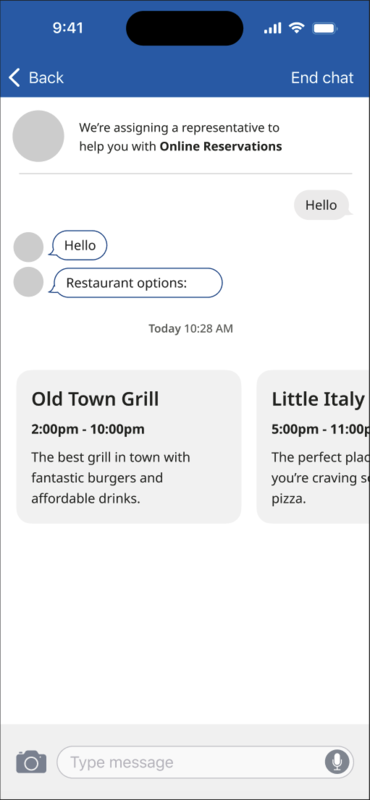
콘텐츠 카드 속성
| 속성 이름 | 설명 | 필수 | 유형 |
|---|---|---|---|
title |
카드 제목입니다. | 예 | 문자열 |
subtitle |
카드 자막입니다. | 아니요 | 문자열 |
body |
콘텐츠 카드의 설명입니다. | 예 | 문자열 |
link |
웹페이지 링크 또는 딥 링크입니다. SDK는 OS 기능을 사용하여 이를 엽니다. | 아니요 | 문자열 |
event_params |
클릭 이벤트에 관한 추가 정보가 포함된 사전입니다. SDK에서 이를 사용합니다. | 아니요 | 딕셔너리 |
Dialogflow CX 페이로드: 유효성 검사 추가 및 콘텐츠 카드 유형 허용
특정 Dialogflow CX 페이로드 유형은 챗봇 서버를 통해 최종 사용자의 메시지가 수신될 때 콘텐츠 카드를 처리합니다. 다음은 Dialogflow CX 페이로드의 예입니다.
{
  "ujet": {
    "type": "content_card",
    "cards": [
      {
        "title": "Title",
        "subtitle": "Subtitle",
        "body": "Body",
        "link": "app://page",
        "event_params": {} # for deep-link click event
      }
    ]
  }
}
CRM 채팅 기록의 콘텐츠 카드에 관한 정보
카드 제목 정보는 최종 사용자가 클릭한 카드를 추적하기 위해 로깅됩니다. 이 정보는 CRM 채팅 기록에 기록됩니다.
다음 예시에서 CRM의 채팅 메시지 기록에는 콘텐츠 카드 상호작용이 표시됩니다.
[Chat message history]
ID: 305   |   2023-07-06     PDT
--------------------------------------------------
[01:13:32     VA]     Welcome message

[01:14:35     Mobile U.]     Content Cards:
- Title 1
- Title 2
콘텐츠 카드 제목 클릭 이벤트 로깅
최종 사용자가 콘텐츠 카드의 제목을 클릭하는 시점을 로깅하려면 다음 형식을 사용하여 이벤트를 캡처하세요.
{end_user_name} clicked on the '{title}' card.
Note Title: Content Card click
Note Comment: 'John Doe' clicked on the 'See our new website' card.
최종 사용자 이벤트 API를 사용하여 콘텐츠 카드 클릭 이벤트 만들기
최종 사용자가 콘텐츠 카드의 제목을 클릭하면 클릭한 카드의 제목과 함께 지정된 URL에 POST 요청을 전송하여 이 이벤트를 기록할 수 있습니다.
API 엔드포인트: POST /api/v2/chat/:id/end_user_event
사용법: 콘텐츠 카드 클릭 이벤트를 만듭니다.
URL: /api/v2/chats/:id/end_user_event
메소드: POST
매개변수:
| 필드 | 유형 | 설명 |
|---|---|---|
event |
객체 | |
event.name |
문자열 | 콘텐츠 카드 클릭 이벤트에는 content_card_clicked를 사용합니다. |
event.payload |
객체 | |
event.payload.title |
문자열 | 클릭한 카드의 제목을 입력합니다. |
(선택사항) end_user_name |
문자열 | 최종 사용자의 이름을 입력합니다. 비워 두면 이름이 CRM에서 가져옵니다. |
요청 예시:
{
  "event": {
    "name": "content_card_clicked",
    "payload": {
      "title": "New our website"
    }
  },
  "end_user_name": "consumer 1"   ## optional
}
대답: Status: 202 Accepted