

The chat settings page covers the experience for chats initiated using Mobile and Web SDK. The chat channel can be customized in many different ways to improve the consumer experience, agent experience, and to achieve a variety of business goals. Overcapacity gives alternative contact options in times of high volume, chat dismissal and timeout settings help fine-tune how chats are handled by the system, and shortcuts help agents access quick responses. You will find all the general settings for the chat channel on this settings page.
Enable Mobile & Web Chat
Switch the toggle to On to enable the chat functionality in both the mobile and browser-based versions of the platform.
Global Chat Settings
New chats while on a call: If an agent is assigned to both call and chat queues, enabling this setting will allow the agent to be assigned new chats when they are on a call. When disabled, agents will no longer receive new chats when on a call.
New calls while on a chat: If an agent is assigned to both call and chat queues, enabling this setting will allow the agent to be assigned new calls when they are on a chat. When disabled, agents will no longer receive new calls when on a chat.
For more information, see Add, view, and edit users.
Inactive Chats
Switch the toggle to On to enable the option to dismiss inactive chats automatically or manually after a set threshold.
Dismissal Timing: These settings indicate the number of minutes of consumer inactivity that will change the chat status to "Inactive" for both Human Agent chats and Virtual Agent chats. This value can be set between 1 and 10080 minutes, and cannot exceed the Chat Timeout setting.
See Dismiss Inactive Chats for more details.
Dismissal Method: These settings indicate how an inactive chat with a Human Agent is dismissed. Inactive chats can be dismissed manually by the Human Agent or automatically dismissed by the system. Also used to set how much notice (in minutes) the consumer is given before the chat is dismissed.
Agent target chat response time
Set the threshold the agent has to reply to messages. Once the time entered is reached, the agent will see UI cues prompting them to respond. Admins can also report on the number of occurrences when the threshold is exceeded. See Agent Chat Response Time for details.
Chat History
Select the checkbox to include a transcript of the chat in the record. Click Set Chat History to save.
Agent Chat Notifications
These settings are used to set the notification sound that will play when the agent receives a new chat or a new message.
New Chat Notification
Select the tone that you want to use as to a notification when receiving a new chat. Select a tone to play a preview of what the alert sounds like.
Use the Notification Frequency to indicate if the notification should only play once or if it should be repeated until the agent picks up the chat. If the notification is set to repeat, use the drop-down to select the frequency (in seconds) with which the notification will be repeated.
New Message Notification
Select the tone that you want to use as to a notification when receiving a new message. Select a tone to play a preview of what the alert sounds like.
Click Set Notification to save.
Unanswered Chat Expiration
Set the timeout for chats that are queued but not assigned or connected.
Chat Timeout
Set the duration (in minutes) of time a customer has to respond to the last chat message sent before the chat is ended automatically.
CCAI Platform recommends a high timeout limit when used in conjunction with the Inactive Chat features, no longer than one working day, to give the consumer a longer chance to come back to the chat without having to start a new conversation.
Chat timeout timer restarts when:
Chat is assigned to an agent
After each message sent by the consumer
If a reply isn't made to the chat within the set timeframe, the chat will time out and end with one of the following chat statuses:
Timeout Agent No Message
Timeout End User No Message
Timeout Agent Stopped
End User Stopped
Click Set Chat Details to save.
Web Proactive Chat Triggers
Proactive triggers help increase product sales and customer retention while minimizing customer churn by sending a relevant, targeted message from any web page. Click View triggers to view existing and create new triggers.
For more details about creating and using web proactive chat triggers with the web SDK, see Proactive trigger.
After Hours and Overcapacity
Enable After Hour deflection: Enable to deflect chat requests during non-operating hours. See Support Center Details - Hours of Operations Settings for how to set hours.
If After Hour Deflection is disabled, mark the checkbox Allow transfers to queues outside of operation for the following behavior:
Agents will be able to see the following queues as options to transfer to in the Agent Adapter
All queues within operating hours
All queues that are outside of hours of operation with no deflection enabled and active, logged-in agents
All queues that are after hours with an assigned virtual agent in 24-hour availability mode
Agents won't be able to see the following types of queues:
All queues that are after hours with after hour deflection enabled
All queues that are outside of operating hours with an assigned virtual agent limited to queue hours of operation
Enable over capacity deflection: Specify the estimated wait time threshold for the consumer to be deflected to the options set.
The time threshold set here is also used to set how frequently the consumer will see the overcapacity message.
See Estimated Wait Time Calculator for more information.
After hour deflection options: Select Email to deflect a consumer to email if chatting in after hours. The customer will be presented with the email address set in Settings > Support Center Details from within the body of the chat interaction.
Overcapacity deflection options
Email
Mobile: With email deflection enabled and the estimated wait time threshold met, when the consumer taps on the Chat option, they are directed to their default email app. App version and iOS/Android version are automatically inserted into the email body and the subject is "Support for [selected menu path]".
Alternatively, the email form may be enabled.
Web: Presents an Email option to consumers. When clicked, an email form will appear. See Integrated Email Form for Mobile and Web.
See Setting up and Assigning Agents to Channels and Queues: IVR, Mobile, Web for email form configuration options.
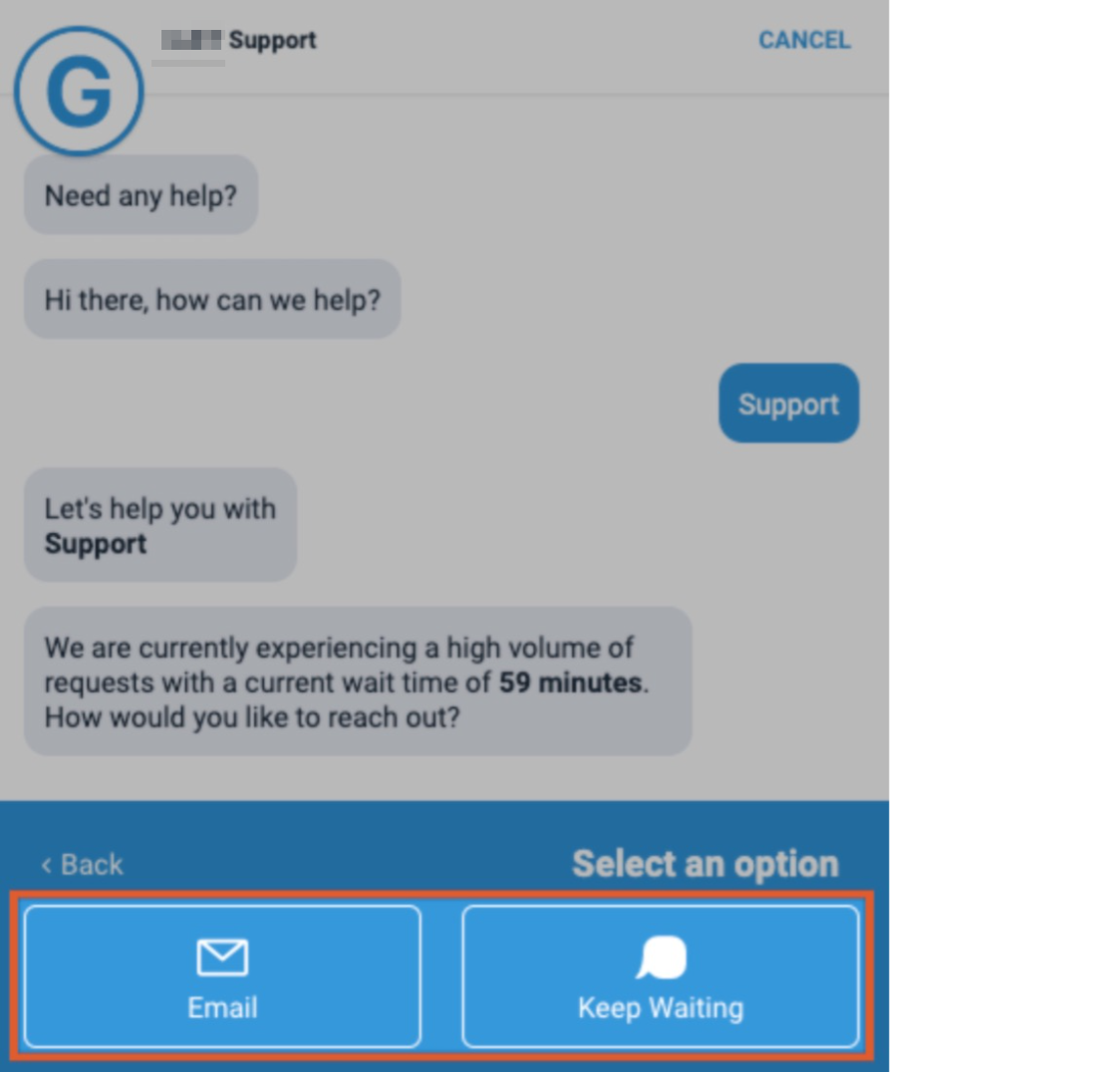
Keep Waiting (Web only): Allows the consumer to click an option to keep waiting.
Example Web SDK with Email and Keep Waiting options enabled:
Click Set Deflection to save the settings.