

Agents can spend more spend time on active chats, with the option to dismiss inactive chats automatically or manually after a set threshold. When a chat is dismissed, the chat will be removed from the agent's Adapter but the chat session won't end. The chat session will be placed back in the queue and if the consumer responds, the chat will be assigned to an agent again with the previous chat content included. Agents no longer need to manually review the chats and remove inactive discussions, which is can be time-consuming.
This means that when consumers are ready to respond after a long pause, they won't have to go through the queue structure again.
Enabling dismissal: presents agents with the new option to dismiss a chat in addition to end the chat.
Auto-dismissal: agents will not have to take manual action to dismiss an inactive chat. It will be automatically sent back to the queue while waiting for the consumer to respond.
Dismissed chat details
Dismissal settings can be set globally or per-queue
When chats have been dismissed, they don't accrue wait time
For a chat to be dismissed, both the consumer and agent have to have sent at least one message
The dismiss eligibility timer starts from the latest message from an agent
Only inbound chats can be dismissed
When chats are dismissed and later reactivated, a consumer has to send at least one message afterward before the chat is eligible to be dismissed again
Dismissed chats are ultimately ended when the chat timeout duration is met
When chats are dismissed, activities are added to the chat transcript
Chat Flow
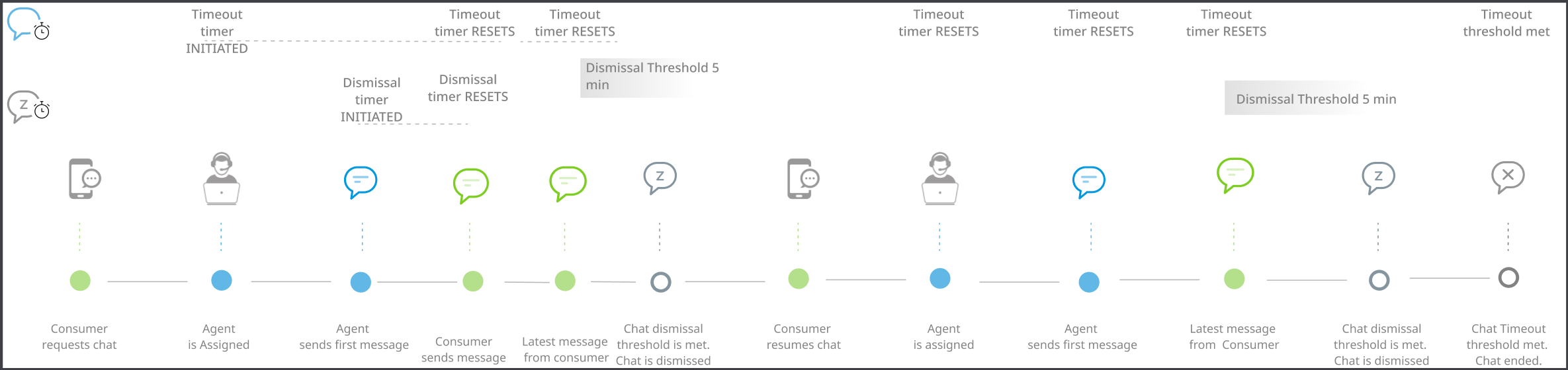
Dismissing chats (global setting)
A global configuration for all chat channels can be configured in Chat Settings. To customize this setting per queue.
Go to Settings > Chat.
In the Dismiss Inactive Chat section, check the box to allow chats to be dismissed and set the minute value for inactivity.
Mark the checkbox to auto-dismiss chats that are inactive.
To send a message to the consumer before the chat is dismissed, mark the checkbox Notify consumer [x] minutes prior to dismissal.
- If enabled, see the duration, in minutes, for the system to wait before sending the message. The default notification timer will be set to 5 min and this default timer can be overridden in the queue-level settings described. To set the message for this notification, see Mobile and Web SDK Messages.
Click Set Global Chat Settings to save.
Per-queue settings
The setting to dismiss chats must first be enabled in Chat Settings, but then can be specifically configured per queue. This provides the ability to increase or decrease dismissal threshold times or disableh or enable auto-dismissal per queue.
Go to Settings > Chat.
In the Dismiss Inactive Chat section, check the box to allow chats to be dismissed and set the minute value for inactivity.
Mark the box to auto-dismiss chats that are inactive.
Click Set Global Chat Settings.
Navigate to Settings > Queue > Mobile OR Web, depending on where you are using chat.
Click a queue that has chat enabled.
Inactive Chats
Enable Inactive Chats to define the maximum end time an end user can be unresponsive before a chat is dismissed.
Set the Dismissal Timing value in minutes. This value must be less than or equal to the Chat Timeout duration. An error will appear if you try to enter this value as longer than the Chat Timeout. For details on how to set chat timeout see Chat Settings.
If chats should be auto-dismissed based on the duration, enable Auto Dismissal for Chats.
(Web Only) Click to enable the consumer notification message which warns the consumer when the chat will be dismissed soon.
Set the duration for when the message is to be displayed to the consumer.
The notification message from the global setting will be used. To configure this message see Customizing mobile and web SDK channel messages.
Click Set Custom Chat Configuration to save.
Agent Experience
Based on the configuration in chat settings, an Agent can manually dismiss a chat or a chat is automatically dismissed without an Agent taking action. When a chat is ready to be dismissed the chat session will become unavailable.
Auto dismiss
When a consumer is unresponsive for the set inactivity threshold, the chat will be dismissed automatically. As long as the chat is not the active chat on the Adapter, the chat session will become unavailable, then be removed from the agent's Adapter.
Manually dismissing chats
When a consumer is unresponsive for the set inactivity threshold, the chat is eligible to be dismissed and will become unavailable but not fade away. The Dismiss chat button (a down arrow within a bubble) becomes available in the agent chat adapter.
Consumer experience
The following sections outline the customer experience for chat sessions.
Example timeline
Outlined is a high-level timeline of an example chat session:
Chat starts and both the Agent and the consumer send at least one message.
The consumer is inactive.
(Web only) When the consumer notification timer is reached, a message is sent to the consumer warning that the chat will be dismissed soon.
When the inactive chat dismissal timer is reached, a message is displayed in the chat UI to the consumer letting them know the Agent has left the chat and offers them ways to restart the chat.
When the Chat Timeout timer is reached, the chat is ended.
Consumer notification message (web only)
Enabled in Chat Settings.
Can be configured at the queue level.
Inactive chat dismissed message
When the consumer doesn't reply within the set dismissal threshold, but within the chat timeout threshold, the UI will prompt a choice to continue with the same issue or start a new conversation.
- Default text displayed:
We have not heard from you in a while. This chat session is closed, Reply back to this message to begin a new chat.
[agent name] just left the conversation
Welcome back!
Do you have the same issue or a new issue?
Consumer UI examples after chat is dismissed but not timed-out
Web:
Mobile:
When Same is selected, the consumer is placed back in the same chat window waiting for the chat to be re-assigned to the next available agent:
If the consumer selects New, they are brought back to the start of the queue menu selection screen.
Real-time and Standard Reporting
Reports are available for both historical and real time data.
Real-time reports
Dismissed chats are moved from Chats > Ongoing to Chats > Previous
- The status for dismissed chats on the Previous Chats page is Dismissed - Inactive End user
If that chat is restarted by the consumer sending a response, the chat is placed back in queue and will show in Chats > Future
When an agent picks up a restarted chat, that chat will be moved to the Ongoing chat page
Reporting
The chat duration timer stops as soon as a chat has been placed into dismissed status.
When a chat changes from Active to Dismissed:
The chat handle time is paused
The chat's handle time is based on only the active chat time
The chat ID remains the same
In the chat transcript, 2 activities are logged
Timestamp when the User or Agent left the chat
- Ex. "[13:30:39 System] Admin U. left the chat."
Chat dismissed
- Ex. "[13:30:39 System] Chat dismissed"
When a chat changes from Dismissed to Active:
The chat's handle time timer starts from where it left off
The chat's handle time is based on the total active chat time
The chat ID remains the same
Customizing strings and prompts
String and prompts have default values but maybe customized.
Web SDK
To update messaging for your consumers, strings for the Web SDK can be customized by your web developers installing and configuring the Web SDK.
The string file names for customizing this UI are broken down:
"ujet_chat_dismissed": "We have not heard from you in a while. This chat session is closed. Reply back to this message to begin a new chat."
OR
"ujet_message_chat_dismissed": "Welcome Back!<br>Do you have the same issue or a new issue?"
"ujet_chat_new": "New"
"ujet_chat_same": "Same"
Mobile SDKs
The string file names for customizing this UI are broken down:
ujet_chat_footer_view_message_dismissed: "Welcome back!\nWe have not heard from you in a while.\nDo you have the same issue or a new issue?"
OR
ujet_chat_footer_view_message_timeout: "Your previous chat has ended, click to start a new chat."
ujet_common_same: "Same"
ujet_common_new: "New"