

Overcapacity deflection is triggered when a session is initiated, but the estimated wait time is larger than the set threshold in Settings > Call or Settings > Chat. The global overcapacity selection will be used as the default, but this setting can also be set at the queue level. For more details on the default overcapacity option, refer to Call Settings: Overcapacity deflection and caller announcements.
When there's a need to force a selection for overcapacity for a particular call flow, setting the overcapacity deflection per-queue will direct callers where they need to go. This setting allows for only one option, so the caller is not prompted to choose an option like they are when using the default overcapacity option.
Overcapacity per-queue setup
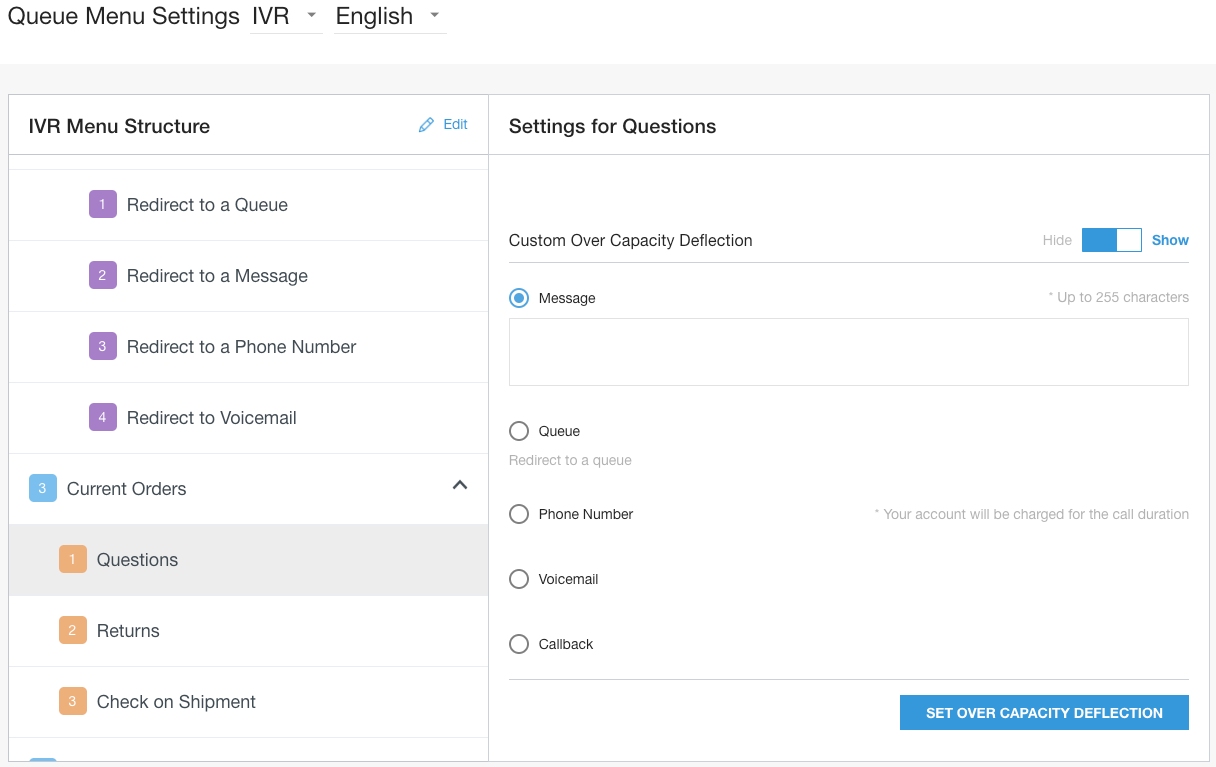
Go to Settings > Queue.
Click Edit / View to go to the editing section for queue menus within that channel.
Select the menu you want to enable overcapacity deflection for.
Toggle Custom Over Capacity deflection to Show to enable and view overcapacity options.
Message: Plays the message typed (i.e. "We are experiencing high volume") and then ends the call.
Queue: Select from available queue menu options to redirect the call to.
Phone Number: Redirects to the number entered.
Voicemail: Redirects caller to leave a voicemail.
Callback: Keeps the callers place in queue and ends the call. The caller will receive a callback when they are at the top of the queue. Refer to Call Settings: Overcapacity deflection and caller announcements and also Custom Callback Number for more information.
This setting uses the Over Capacity Deflection Callback Option" message will play. This should be configured in Settings > Languages & Messages. For more information, see Configure IVR messages.
Click Set Overcapacity Deflection to save.