


Gemini Robotics ER 2 dapat menunjuk ke objek, melacaknya dalam video, mendeteksinya dengan
kotak pembatas, dan menghasilkan lintasan gerakan. Semua contoh di halaman ini menggunakan
perintah bahasa alami dengan generate_content.
Untuk mengetahui kode lengkap yang dapat dijalankan, lihat Cookbook robotika.
Menunjuk ke objek
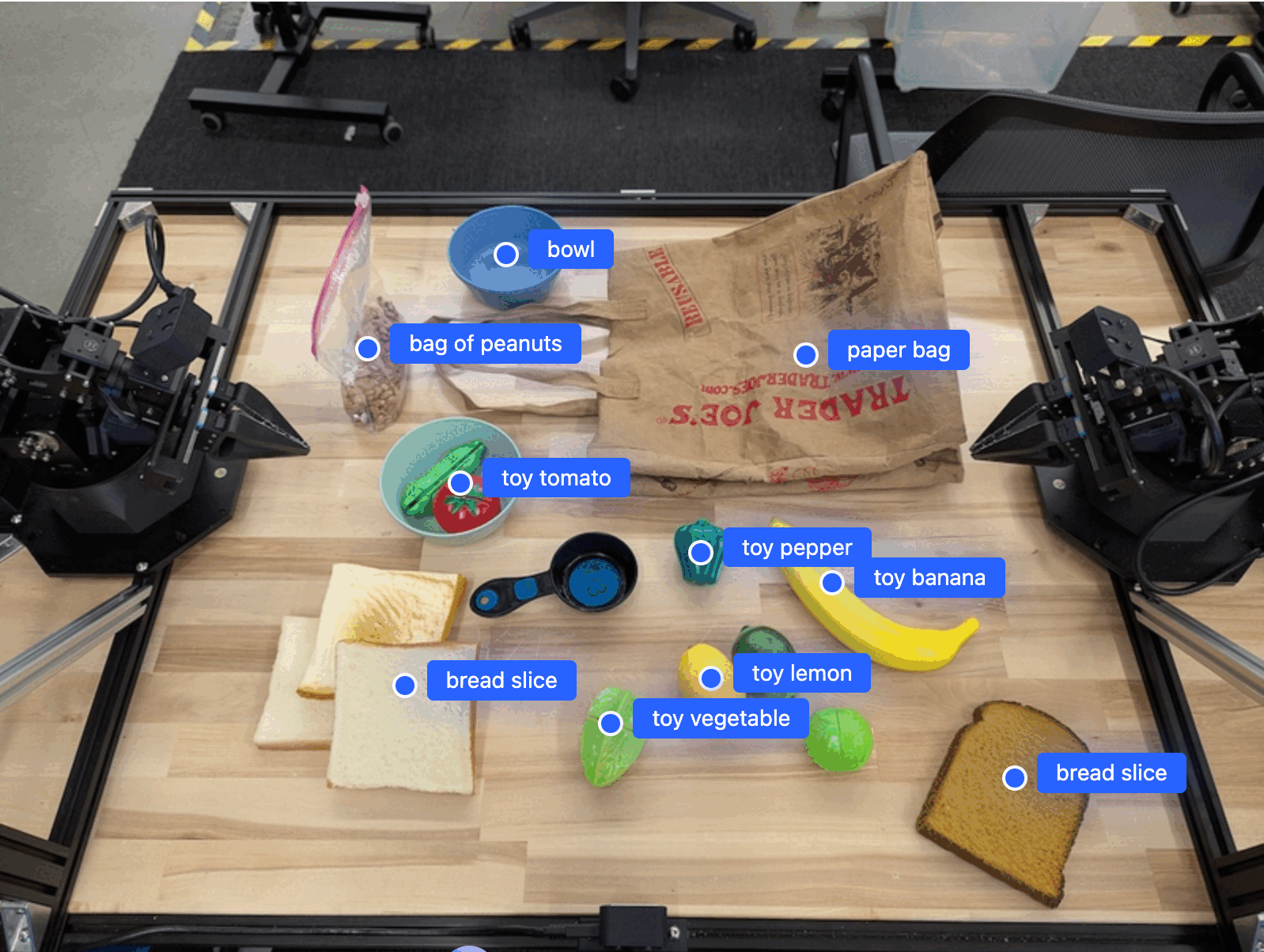
Contoh berikut menemukan objek tertentu dalam gambar dan menampilkan koordinat [y, x] yang dinormalisasi:
Python
from google import genai
from google.genai import types

PROMPT = """
          Point to no more than 10 items in the image. The label returned
          should be an identifying name for the object detected.
          The answer should follow the json format: [{"point": <point>,
          "label": <label1>}, ...]. The points are in [y, x] format
          normalized to 0-1000.
        """
client = genai.Client(
    enterprise=True,
    project="your-project-id",
    location="global",
)

# Load your image
with open("my-image.png", 'rb') as f:
    image_bytes = f.read()

image_response = client.models.generate_content(
    model="gemini-robotics-er-2-preview",
    contents=[
        types.Part.from_bytes(
            data=image_bytes,
            mime_type='image/png',
        ),
        PROMPT
    ],
    config = types.GenerateContentConfig(
        thinking_config=types.ThinkingConfig(
            thinking_level=types.ThinkingLevel.HIGH
        )
    )
)

print(image_response.text)
REST
# First, ensure you have the image file locally.
# Encode the image to base64
IMAGE_BASE64=$(base64 -w 0 my-image.png)

# Set your Google Cloud project and location.
export PROJECT_ID="your-project-id"
export LOCATION="global"
export MODEL="gemini-robotics-er-2-preview"

curl -X POST \
  "https://aiplatform.googleapis.com/v1/projects/${PROJECT_ID}/locations/${LOCATION}/publishers/google/models/${MODEL}:generateContent" \
  -H "Authorization: Bearer $(gcloud auth application-default print-access-token)" \
  -H "Content-Type: application/json" \
  -d '{
    "contents": [
      {
        "parts": [
          {
            "inlineData": {
              "mimeType": "image/png",
              "data": "'"${IMAGE_BASE64}"'"
            }
          },
          {
            "text": "Point to no more than 10 items in the image. The label returned should be an identifying name for the object detected. The answer should follow the json format: [{\"point\": [y, x], \"label\": <label1>}, ...]. The points are in [y, x] format normalized to 0-1000."
          }
        ]
      }
    ],
    "generationConfig": {
      "thinkingConfig": {
        "thinkingLevel": "HIGH"
      }
    }
  }'
Outputnya akan berupa array JSON yang berisi objek, masing-masing dengan point
(koordinat [y, x] yang dinormalisasi) dan label yang mengidentifikasi objek.
JSON
[
  {"point": [376, 508], "label": "small banana"},
  {"point": [287, 609], "label": "larger banana"},
  {"point": [223, 303], "label": "pink starfruit"},
  {"point": [435, 172], "label": "paper bag"},
  {"point": [270, 786], "label": "green plastic bowl"},
  {"point": [488, 775], "label": "metal measuring cup"},
  {"point": [673, 580], "label": "dark blue bowl"},
  {"point": [471, 353], "label": "light blue bowl"},
  {"point": [492, 497], "label": "bread"},
  {"point": [525, 429], "label": "lime"}
]
Gambar berikut adalah contoh cara menampilkan titik-titik ini:
Melacak objek dalam video
Gemini Robotics ER 2 juga dapat menganalisis frame video untuk melacak objek dari waktu ke waktu.
Python
from google import genai
from google.genai import types

client = genai.Client(
    enterprise=True,
    project="your-project-id",
    location="global",
)

# Load your video
with open("my-video.mp4", 'rb') as f:
    video_bytes = f.read()

prompt = """
          Point to the red ball in every frame where it appears.
          The answer should follow the json format: [{"point": [y, x],
          "label": <label>}, ...]. The points are in [y, x] format
          normalized to 0-1000. Return one entry per frame that contains
          the object.
        """

image_response = client.models.generate_content(
  model="gemini-robotics-er-2-preview",
  contents=[
    types.Part.from_bytes(
      data=video_bytes,
      mime_type='video/mp4',
    ),
    prompt
  ],
  config = types.GenerateContentConfig(
      thinking_config=types.ThinkingConfig(
          thinking_level=types.ThinkingLevel.HIGH
      )
  )
)

print(image_response.text)
Deteksi objek dan kotak pembatas
Selain titik, Anda dapat meminta model untuk menampilkan kotak pembatas 2D, yang memberikan detail spasial lebih lanjut untuk objek yang terdeteksi.
Python
from google import genai
from google.genai import types

client = genai.Client(
    enterprise=True,
    project="your-project-id",
    location="global",
)

with open("my-image.png", 'rb') as f:
    image_bytes = f.read()

prompt = """
          Detect all objects in this image and return bounding boxes.
          The answer should follow the JSON format:
          [{"label": <label>, "y": <y_min>, "x": <x_min>,
            "y2": <y_max>, "x2": <x_max>}, ...]
          where coordinates are normalized to 0-1000.
        """

image_response = client.models.generate_content(
  model="gemini-robotics-er-2-preview",
  contents=[
    types.Part.from_bytes(
      data=image_bytes,
      mime_type='image/png',
    ),
    prompt
  ],
  config = types.GenerateContentConfig(
      thinking_config=types.ThinkingConfig(
          thinking_level=types.ThinkingLevel.LOW
      )
  )
)

print(image_response.text)
Lintasan
Gemini Robotics ER 2 dapat menghasilkan urutan titik yang menentukan lintasan, yang berguna untuk memandu gerakan robot.
Contoh ini meminta lintasan untuk memindahkan pena merah ke organizer, termasuk perkiraan titik jalan perantara. Kode telah dikurangi untuk hanya menampilkan perintah.
Python
prompt = """
          Generate a trajectory for the robotic arm to pick up the red pen
          and place it in the organizer. Return a list of waypoints as JSON:
          [{"step": <int>, "point": [y, x], "action": <description>}, ...]
          where coordinates are normalized to 0-1000.
        """
Sediakan ruang untuk laptop
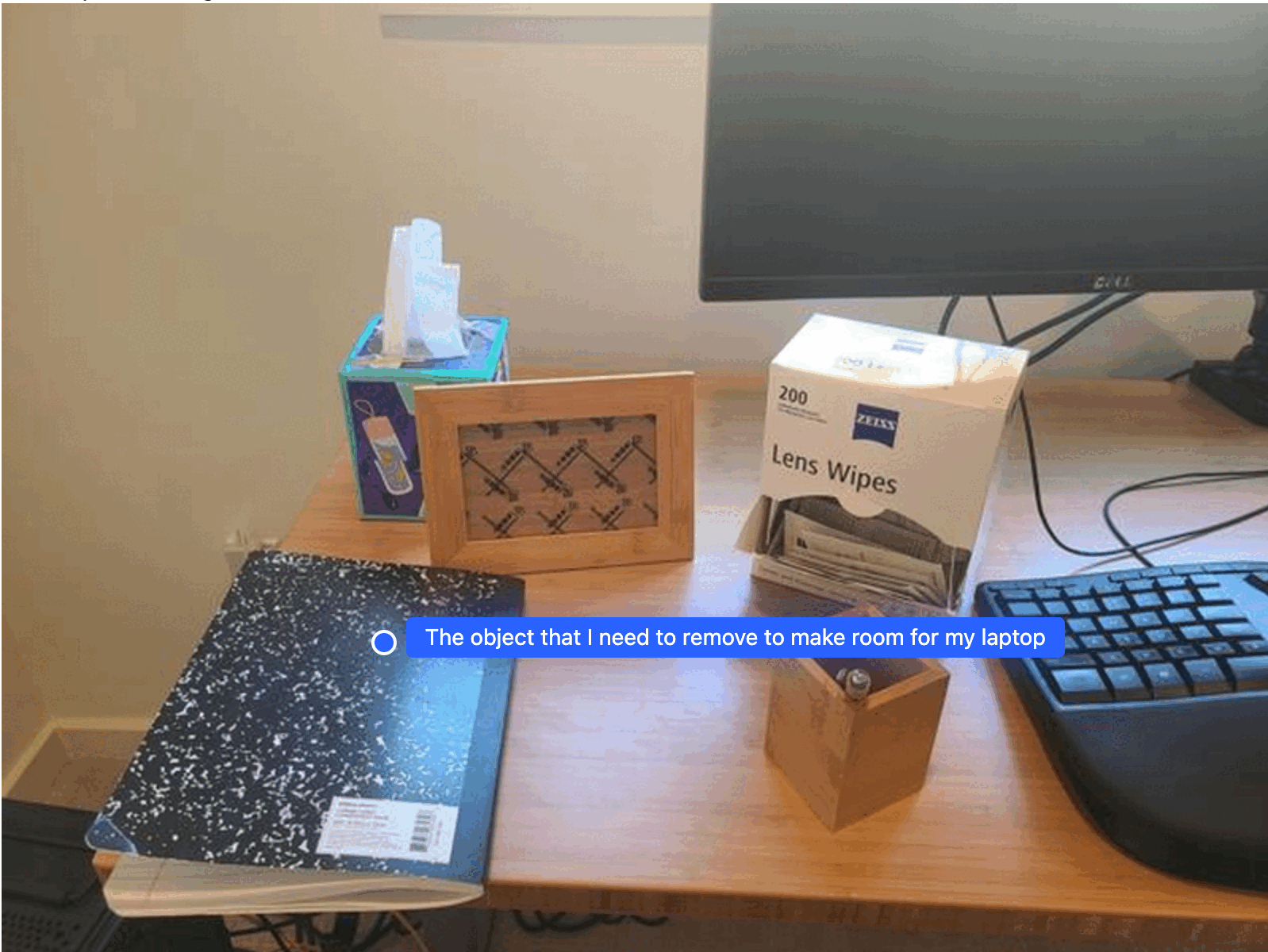
Contoh ini menunjukkan cara Gemini Robotics ER 2 dapat melakukan penalaran tentang suatu ruang. Perintah ini meminta model untuk mengidentifikasi objek mana yang perlu dipindahkan untuk memberi ruang bagi item lain.
Python
from google import genai
from google.genai import types

client = genai.Client(
    enterprise=True,
    project="your-project-id",
    location="global",
)

# Load your image
with open('path/to/image-with-objects.jpg', 'rb') as f:
    image_bytes = f.read()

prompt = """
          Point to the object that I need to remove to make room for my laptop
          The answer should follow the JSON format: [{"point": <point>,
          "label": <label1>}, ...]. The points are in [y, x] format normalized to 0-1000.
        """

image_response = client.models.generate_content(
  model="gemini-robotics-er-2-preview",
  contents=[
    types.Part.from_bytes(
      data=image_bytes,
      mime_type='image/jpeg',
    ),
    prompt
  ],
  config = types.GenerateContentConfig(
      thinking_config=types.ThinkingConfig(
          thinking_level=types.ThinkingLevel.HIGH
      )
  )
)

print(image_response.text)
Respons berisi koordinat 2D objek yang menjawab pertanyaan pengguna, dalam hal ini, objek yang harus dipindahkan untuk memberi ruang bagi laptop.
[
  {"point": [672, 301], "label": "The object that I need to remove to make room for my laptop"}
]
Siapkan makan siang
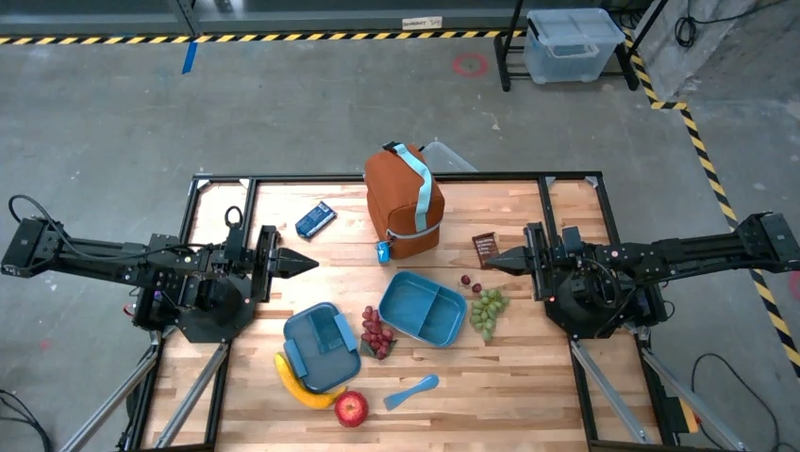
Model ini juga dapat memberikan petunjuk untuk tugas multilangkah dan mengarahkan ke objek yang relevan untuk setiap langkah. Contoh ini menunjukkan cara model merencanakan serangkaian langkah untuk mengemas tas makan siang.
Python
from google import genai
from google.genai import types

client = genai.Client(
    enterprise=True,
    project="your-project-id",
    location="global",
)

# Load your image and set up your prompt
with open('path/to/image-of-lunch.jpg', 'rb') as f:
    image_bytes = f.read()

prompt = """
          Explain how to pack the lunch box and lunch bag. Point to each
          object that you refer to. Each point should be in the format:
          [{"point": [y, x], "label": }], where the coordinates are
          normalized between 0-1000.
        """

image_response = client.models.generate_content(
  model="gemini-robotics-er-2-preview",
  contents=[
    types.Part.from_bytes(
      data=image_bytes,
      mime_type='image/jpeg',
    ),
    prompt
  ],
  config = types.GenerateContentConfig(
      thinking_config=types.ThinkingConfig(
          thinking_level=types.ThinkingLevel.HIGH
      )
  )
)

print(image_response.text)
Respons perintah ini adalah serangkaian petunjuk langkah demi langkah tentang cara mengemas tas makan siang dari input gambar.
Gambar input
Output model
Based on the image, here is a plan to pack the lunch box and lunch bag:

1.  **Pack the fruit into the lunch box.** Place the apple, banana, red grapes, and green grapes into the blue lunch box.
2.  **Add the spoon to the lunch box.** Put the blue spoon inside the lunch box as well.
3.  **Close the lunch box.** Secure the lid on the blue lunch box.
4.  **Place the lunch box inside the lunch bag.** Put the closed blue lunch box into the brown lunch bag.
5.  **Pack the remaining items into the lunch bag.** Place the blue snack bar and the brown snack bar into the brown lunch bag.

Here is the list of objects and their locations:
*   [{"point": [899, 440], "label": "apple"}]
*   [{"point": [814, 363], "label": "banana"}]
*   [{"point": [727, 470], "label": "red grapes"}]
*   [{"point": [675, 608], "label": "green grapes"}]
*   [{"point": [706, 529], "label": "blue lunch box"}]
*   [{"point": [864, 517], "label": "blue spoon"}]
*   [{"point": [499, 401], "label": "blue snack bar"}]
*   [{"point": [614, 705], "label": "brown snack bar"}]
*   [{"point": [448, 501], "label": "brown lunch bag"}]
Langkah berikutnya
Untuk mempelajari lebih lanjut Gemini Robotics ER 2, lihat referensi berikut:
- Kemampuan agentic: eksekusi kode, pembacaan instrumen, dan anotasi gambar.
- Orkestrasi tugas: tugas jangka panjang dengan API robot kustom.
- Pemahaman video: penemuan momen dan klasifikasi progres.
- Ringkasan Gemini Robotics ER 2: kemampuan dan panduan memulai.
- Informasi model Gemini Robotics ER 2: spesifikasi teknis, batas token, dan kemampuan yang didukung.