


Gemini Robotics ER 2 può indicare gli oggetti, monitorarli nei video, rilevarli con
riquadri di delimitazione e generare traiettorie di movimento. Tutti gli esempi in questa pagina utilizzano prompt in linguaggio naturale con generate_content.
Per il codice eseguibile completo, consulta il cookbook di robotica.
Inquadra gli oggetti
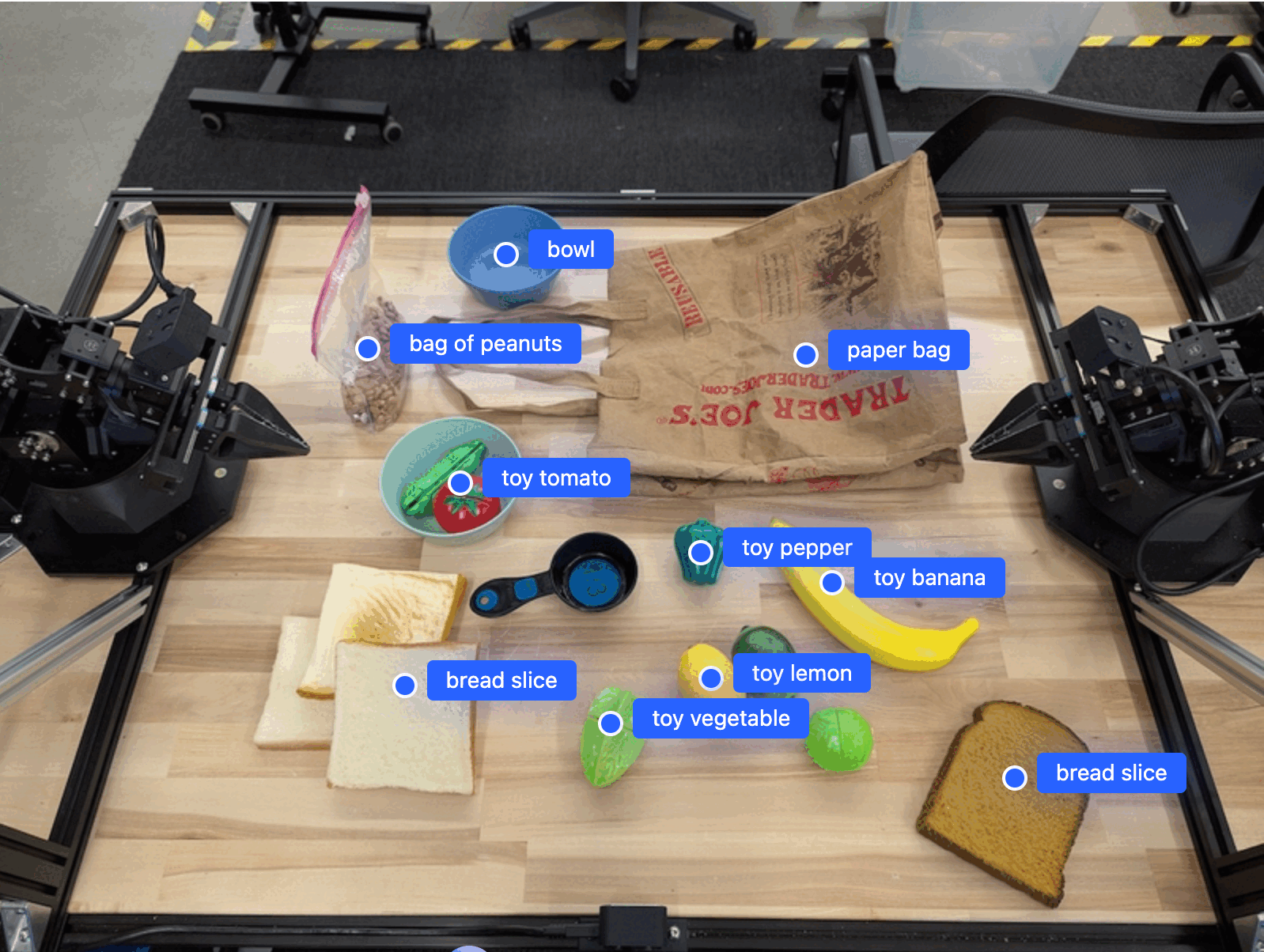
L'esempio seguente trova oggetti specifici in un'immagine e restituisce le relative coordinate [y, x] normalizzate:
Python
from google import genai
from google.genai import types

PROMPT = """
          Point to no more than 10 items in the image. The label returned
          should be an identifying name for the object detected.
          The answer should follow the json format: [{"point": <point>,
          "label": <label1>}, ...]. The points are in [y, x] format
          normalized to 0-1000.
        """
client = genai.Client(
    enterprise=True,
    project="your-project-id",
    location="global",
)

# Load your image
with open("my-image.png", 'rb') as f:
    image_bytes = f.read()

image_response = client.models.generate_content(
    model="gemini-robotics-er-2-preview",
    contents=[
        types.Part.from_bytes(
            data=image_bytes,
            mime_type='image/png',
        ),
        PROMPT
    ],
    config = types.GenerateContentConfig(
        thinking_config=types.ThinkingConfig(
            thinking_level=types.ThinkingLevel.HIGH
        )
    )
)

print(image_response.text)
REST
# First, ensure you have the image file locally.
# Encode the image to base64
IMAGE_BASE64=$(base64 -w 0 my-image.png)

# Set your Google Cloud project and location.
export PROJECT_ID="your-project-id"
export LOCATION="global"
export MODEL="gemini-robotics-er-2-preview"

curl -X POST \
  "https://aiplatform.googleapis.com/v1/projects/${PROJECT_ID}/locations/${LOCATION}/publishers/google/models/${MODEL}:generateContent" \
  -H "Authorization: Bearer $(gcloud auth application-default print-access-token)" \
  -H "Content-Type: application/json" \
  -d '{
    "contents": [
      {
        "parts": [
          {
            "inlineData": {
              "mimeType": "image/png",
              "data": "'"${IMAGE_BASE64}"'"
            }
          },
          {
            "text": "Point to no more than 10 items in the image. The label returned should be an identifying name for the object detected. The answer should follow the json format: [{\"point\": [y, x], \"label\": <label1>}, ...]. The points are in [y, x] format normalized to 0-1000."
          }
        ]
      }
    ],
    "generationConfig": {
      "thinkingConfig": {
        "thinkingLevel": "HIGH"
      }
    }
  }'
L'output sarà un array JSON contenente oggetti, ciascuno con un point (coordinate [y, x] normalizzate) e un label che identifica l'oggetto.
JSON
[
  {"point": [376, 508], "label": "small banana"},
  {"point": [287, 609], "label": "larger banana"},
  {"point": [223, 303], "label": "pink starfruit"},
  {"point": [435, 172], "label": "paper bag"},
  {"point": [270, 786], "label": "green plastic bowl"},
  {"point": [488, 775], "label": "metal measuring cup"},
  {"point": [673, 580], "label": "dark blue bowl"},
  {"point": [471, 353], "label": "light blue bowl"},
  {"point": [492, 497], "label": "bread"},
  {"point": [525, 429], "label": "lime"}
]
L'immagine seguente è un esempio di come possono essere visualizzati questi punti:
Traccia gli oggetti in un video
Gemini Robotics ER 2 può anche analizzare i fotogrammi video per monitorare gli oggetti nel tempo.
Python
from google import genai
from google.genai import types

client = genai.Client(
    enterprise=True,
    project="your-project-id",
    location="global",
)

# Load your video
with open("my-video.mp4", 'rb') as f:
    video_bytes = f.read()

prompt = """
          Point to the red ball in every frame where it appears.
          The answer should follow the json format: [{"point": [y, x],
          "label": <label>}, ...]. The points are in [y, x] format
          normalized to 0-1000. Return one entry per frame that contains
          the object.
        """

image_response = client.models.generate_content(
  model="gemini-robotics-er-2-preview",
  contents=[
    types.Part.from_bytes(
      data=video_bytes,
      mime_type='video/mp4',
    ),
    prompt
  ],
  config = types.GenerateContentConfig(
      thinking_config=types.ThinkingConfig(
          thinking_level=types.ThinkingLevel.HIGH
      )
  )
)

print(image_response.text)
Rilevamento di oggetti e riquadri di delimitazione
Oltre ai punti, puoi chiedere al modello di restituire riquadri di delimitazione 2D, che forniscono maggiori dettagli spaziali per gli oggetti rilevati.
Python
from google import genai
from google.genai import types

client = genai.Client(
    enterprise=True,
    project="your-project-id",
    location="global",
)

with open("my-image.png", 'rb') as f:
    image_bytes = f.read()

prompt = """
          Detect all objects in this image and return bounding boxes.
          The answer should follow the JSON format:
          [{"label": <label>, "y": <y_min>, "x": <x_min>,
            "y2": <y_max>, "x2": <x_max>}, ...]
          where coordinates are normalized to 0-1000.
        """

image_response = client.models.generate_content(
  model="gemini-robotics-er-2-preview",
  contents=[
    types.Part.from_bytes(
      data=image_bytes,
      mime_type='image/png',
    ),
    prompt
  ],
  config = types.GenerateContentConfig(
      thinking_config=types.ThinkingConfig(
          thinking_level=types.ThinkingLevel.LOW
      )
  )
)

print(image_response.text)
Traiettorie
Gemini Robotics ER 2 può generare sequenze di punti che definiscono una traiettoria, utile per guidare il movimento del robot.
Questo esempio richiede una traiettoria per spostare una penna rossa in un organizer, inclusa una stima dei waypoint intermedi. Il codice è stato ridotto per mostrare solo il prompt.
Python
prompt = """
          Generate a trajectory for the robotic arm to pick up the red pen
          and place it in the organizer. Return a list of waypoints as JSON:
          [{"step": <int>, "point": [y, x], "action": <description>}, ...]
          where coordinates are normalized to 0-1000.
        """
Fai spazio per un laptop
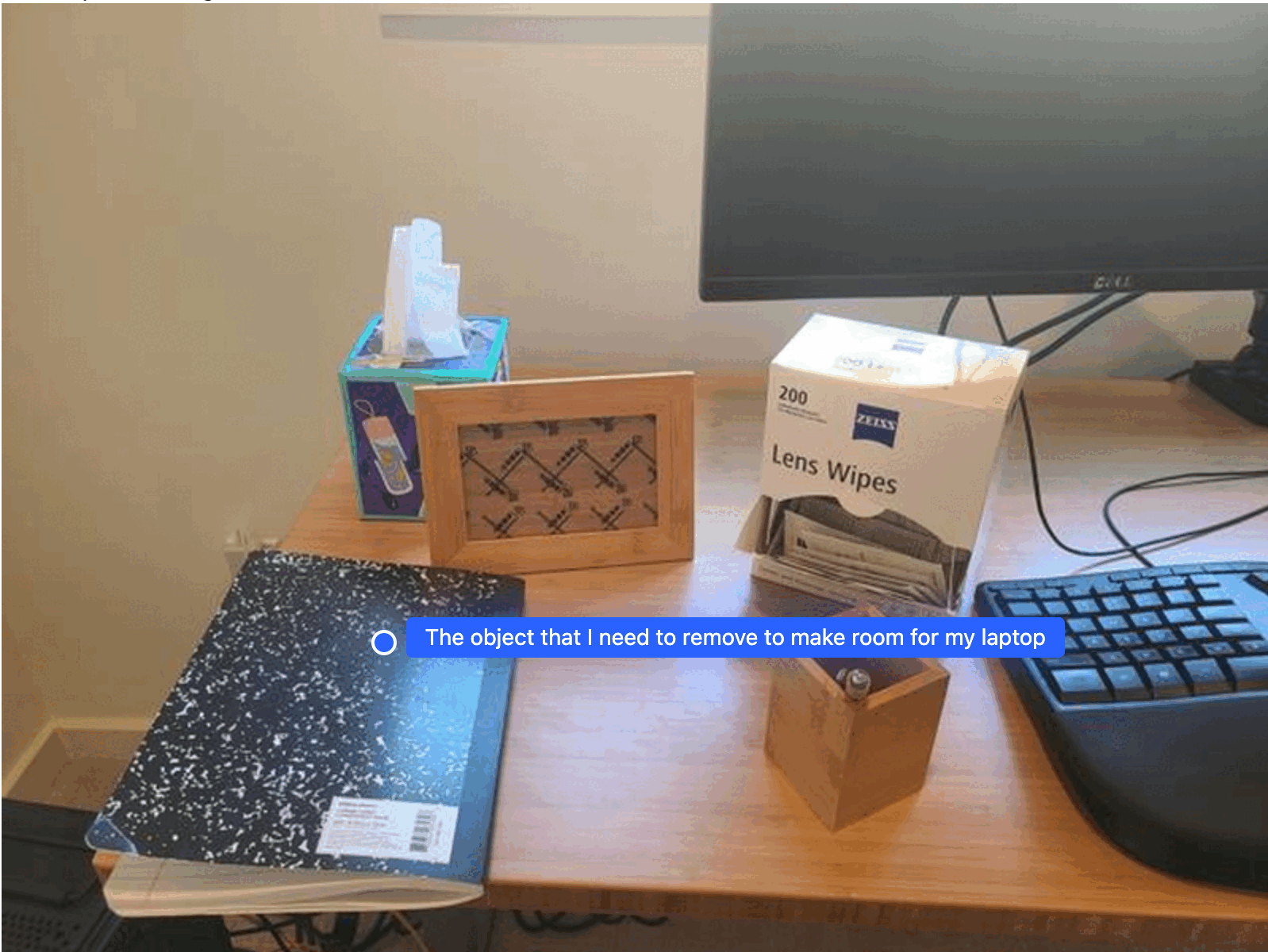
Questo esempio mostra come Gemini Robotics ER 2 può ragionare su uno spazio. Il prompt chiede al modello di identificare quale oggetto deve essere spostato per creare spazio per un altro elemento.
Python
from google import genai
from google.genai import types

client = genai.Client(
    enterprise=True,
    project="your-project-id",
    location="global",
)

# Load your image
with open('path/to/image-with-objects.jpg', 'rb') as f:
    image_bytes = f.read()

prompt = """
          Point to the object that I need to remove to make room for my laptop
          The answer should follow the JSON format: [{"point": <point>,
          "label": <label1>}, ...]. The points are in [y, x] format normalized to 0-1000.
        """

image_response = client.models.generate_content(
  model="gemini-robotics-er-2-preview",
  contents=[
    types.Part.from_bytes(
      data=image_bytes,
      mime_type='image/jpeg',
    ),
    prompt
  ],
  config = types.GenerateContentConfig(
      thinking_config=types.ThinkingConfig(
          thinking_level=types.ThinkingLevel.HIGH
      )
  )
)

print(image_response.text)
La risposta contiene una coordinata 2D dell'oggetto che risponde alla domanda dell'utente, in questo caso l'oggetto che deve essere spostato per fare spazio a un laptop.
[
  {"point": [672, 301], "label": "The object that I need to remove to make room for my laptop"}
]
Prepara il pranzo
Il modello può anche fornire istruzioni per attività in più passaggi e indicare gli oggetti pertinenti per ogni passaggio. Questo esempio mostra come il modello pianifica una serie di passaggi per preparare un pranzo al sacco.
Python
from google import genai
from google.genai import types

client = genai.Client(
    enterprise=True,
    project="your-project-id",
    location="global",
)

# Load your image and set up your prompt
with open('path/to/image-of-lunch.jpg', 'rb') as f:
    image_bytes = f.read()

prompt = """
          Explain how to pack the lunch box and lunch bag. Point to each
          object that you refer to. Each point should be in the format:
          [{"point": [y, x], "label": }], where the coordinates are
          normalized between 0-1000.
        """

image_response = client.models.generate_content(
  model="gemini-robotics-er-2-preview",
  contents=[
    types.Part.from_bytes(
      data=image_bytes,
      mime_type='image/jpeg',
    ),
    prompt
  ],
  config = types.GenerateContentConfig(
      thinking_config=types.ThinkingConfig(
          thinking_level=types.ThinkingLevel.HIGH
      )
  )
)

print(image_response.text)
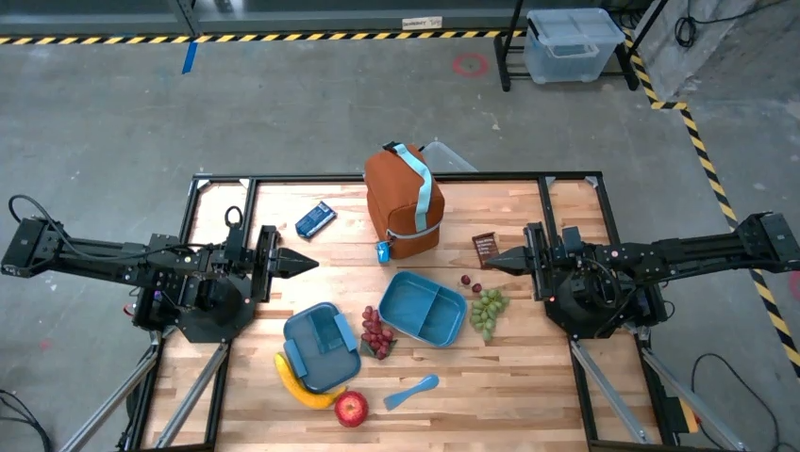
La risposta a questo prompt è un insieme di istruzioni passo passo su come preparare un pranzo al sacco a partire dall'immagine di input.
Immagine di input
Output del modello
Based on the image, here is a plan to pack the lunch box and lunch bag:

1.  **Pack the fruit into the lunch box.** Place the apple, banana, red grapes, and green grapes into the blue lunch box.
2.  **Add the spoon to the lunch box.** Put the blue spoon inside the lunch box as well.
3.  **Close the lunch box.** Secure the lid on the blue lunch box.
4.  **Place the lunch box inside the lunch bag.** Put the closed blue lunch box into the brown lunch bag.
5.  **Pack the remaining items into the lunch bag.** Place the blue snack bar and the brown snack bar into the brown lunch bag.

Here is the list of objects and their locations:
*   [{"point": [899, 440], "label": "apple"}]
*   [{"point": [814, 363], "label": "banana"}]
*   [{"point": [727, 470], "label": "red grapes"}]
*   [{"point": [675, 608], "label": "green grapes"}]
*   [{"point": [706, 529], "label": "blue lunch box"}]
*   [{"point": [864, 517], "label": "blue spoon"}]
*   [{"point": [499, 401], "label": "blue snack bar"}]
*   [{"point": [614, 705], "label": "brown snack bar"}]
*   [{"point": [448, 501], "label": "brown lunch bag"}]
Passaggi successivi
Per scoprire di più su Gemini Robotics ER 2, consulta le seguenti risorse:
- Capacità agentiche: esecuzione di codice, lettura degli strumenti e annotazione delle immagini.
- Orchestrazione delle attività: attività a lungo termine con API robot personalizzate.
- Comprensione dei video: individuazione dei momenti e classificazione dei progressi.
- Panoramica di Gemini Robotics ER 2: funzionalità e guida rapida.
- Informazioni sul modello Gemini Robotics ER 2: specifiche tecniche, limiti di token e funzionalità supportate.