


Gemini Robotics ER 2 può scrivere ed eseguire codice Python per manipolare le immagini e applicare la logica prima di rispondere. Questa pagina illustra esempi di esecuzione di codice: rilevamento di oggetti con zoom e ritaglio, lettura di strumenti, misurazione di fluidi, lettura di circuiti stampati e annotazione di immagini.
Per il codice eseguibile completo, consulta il cookbook di robotica.
Livello di pensiero
Puoi controllare il livello di ragionamento per bilanciare latenza e accuratezza. Le attività spaziali, come il rilevamento di oggetti, funzionano bene con un livello di pensiero basso. Le attività complesse come il conteggio o la stima del peso traggono vantaggio da un valore più elevato.
L'esempio seguente imposta il livello di ragionamento su alto per un'attività di conteggio complessa:
Python
from google import genai
from google.genai import types

client = genai.Client(
    enterprise=True,
    project="your-project-id",
    location="global",
)

# Load your image
with open('scene.jpeg', 'rb') as f:
    image_bytes = f.read()

response = client.models.generate_content(
    model="gemini-robotics-er-2-preview",
    contents=[
        types.Part.from_bytes(
            data=image_bytes,
            mime_type='image/jpeg',
        ),
        "Identify and count all objects on the table."
    ],
    config = types.GenerateContentConfig(
        thinking_config=types.ThinkingConfig(
            # Use MINIMAL or LOW for faster spatial tasks.
            thinking_level=types.ThinkingLevel.HIGH
        ),
    )
)

print(response.text)
Per i dettagli, consulta Thinking.
Rilevamento di oggetti (zoom e ritaglio)
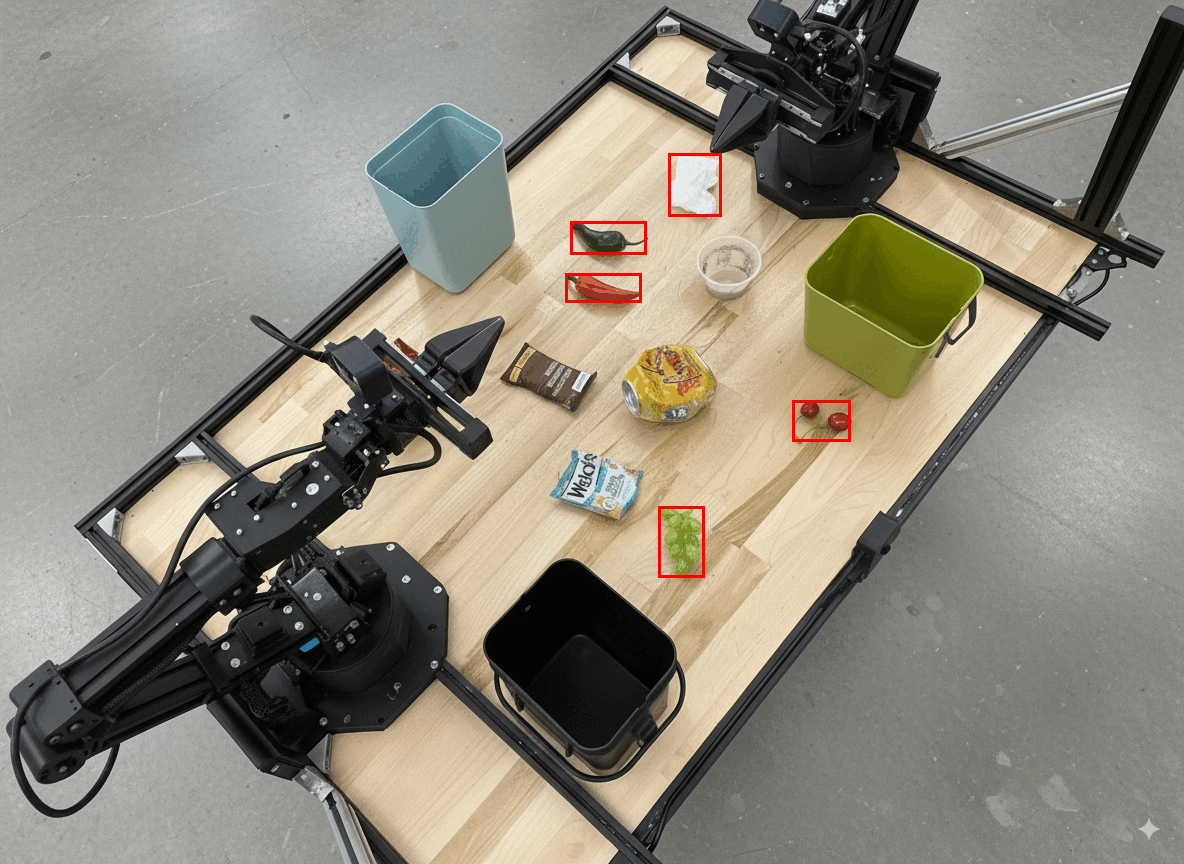
L'esempio seguente mostra come utilizzare l'esecuzione di codice per aumentare lo zoom e ritagliare un'immagine per una visualizzazione più chiara durante il rilevamento di oggetti e la restituzione di riquadri di delimitazione.
Python
from google import genai
from google.genai import types

client = genai.Client(
    enterprise=True,
    project="your-project-id",
    location="global",
)

# Load your image
with open('sorting.jpeg', 'rb') as f:
    image_bytes = f.read()

prompt = """
Return JSON in the format {label: val, y: val, x: val, y2: val, x2: val} for
the compostable objects in this scene. Please Zoom and crop the image for a
clearer view. Return an annotated image of the final result with the bounding
boxes drawn on it to the API caller as a part of your process.
"""

response = client.models.generate_content(
    model="gemini-robotics-er-2-preview",
    contents=[
        types.Part.from_bytes(
            data=image_bytes,
            mime_type='image/jpeg',
        ),
        prompt
    ],
    config = types.GenerateContentConfig(
        tools=[types.Tool(code_execution=types.ToolCodeExecution)],
    )
)

print(response.text)
L'output del modello sarà simile al seguente:
[
  {"label": "compostable", "y": 256, "x": 482, "y2": 295, "x2": 546},
  {"label": "compostable", "y": 317, "x": 478, "y2": 350, "x2": 542},
  {"label": "compostable", "y": 586, "x": 556, "y2": 668, "x2": 595},
  {"label": "compostable", "y": 463, "x": 669, "y2": 511, "x2": 718},
  {"label": "compostable", "y": 178, "x": 565, "y2": 250, "x2": 609}
]
Di seguito sono riportate le caselle restituite dal modello.
Leggere un indicatore analogico e applicare la logica
L'esempio seguente mostra come utilizzare il modello per leggere un indicatore analogico ed eseguire calcoli temporali. Utilizza un'istruzione di sistema per applicare un output JSON.
Python
from google import genai
from google.genai import types

client = genai.Client(
    enterprise=True,
    project="your-project-id",
    location="global",
)

with open('gauge.jpeg', 'rb') as f:
    image_bytes = f.read()

system_instruction = "Be precise. When JSON is requested, reply with ONLY that JSON (no preface, no code block)."

response = client.models.generate_content(
    model="gemini-robotics-er-2-preview",
    contents=[
        types.Part.from_bytes(
            data=image_bytes,
            mime_type='image/jpeg',
        ),
        """Read the current value from this gauge. Then, calculate how long
        it will take at the current rate for the value to reach maximum.
        Reply in JSON: {"current_value": val, "max_value": val,
        "time_to_max_minutes": val}"""
    ],
    config = types.GenerateContentConfig(
        system_instruction=system_instruction,
        tools=[types.Tool(code_execution=types.ToolCodeExecution)],
    )
)

print(response.text)
Misurare il fluido in un contenitore
L'esempio seguente mostra come utilizzare l'esecuzione di codice per misurare il livello di liquido in un contenitore.
Python
from google import genai
from google.genai import types

client = genai.Client(
    enterprise=True,
    project="your-project-id",
    location="global",
)

with open('fluid.jpeg', 'rb') as f:
    image_bytes = f.read()

system_instruction = "Be precise. When JSON is requested, reply with ONLY that JSON (no preface, no code block)."

response = client.models.generate_content(
    model="gemini-robotics-er-2-preview",
    contents=[
        types.Part.from_bytes(
            data=image_bytes,
            mime_type='image/jpeg',
        ),
        """Measure the amount of fluid in the container. Reply in JSON:
        {"fluid_level_ml": val, "container_capacity_ml": val,
        "percentage_full": val}"""
    ],
    config = types.GenerateContentConfig(
        system_instruction=system_instruction,
        tools=[types.Tool(code_execution=types.ToolCodeExecution)],
    )
)

print(response.text)
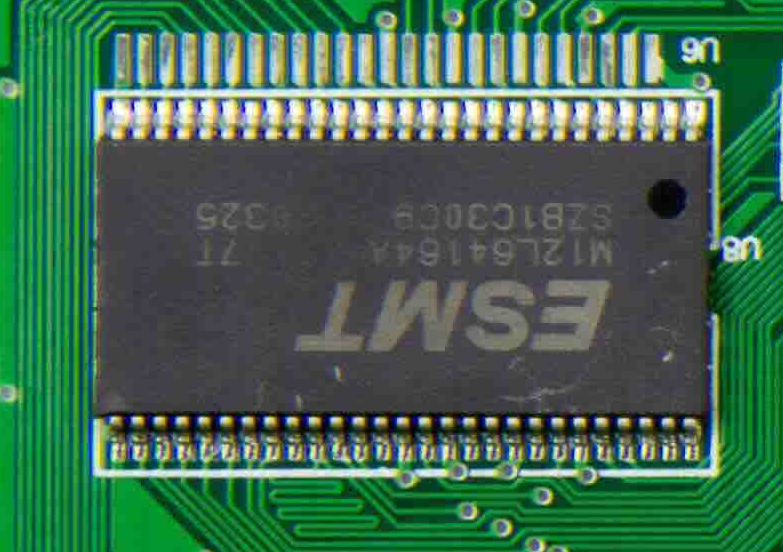
Leggere i contrassegni su un circuito stampato
L'esempio seguente mostra come utilizzare l'esecuzione di codice per leggere i contrassegni su un circuito stampato.
Python
from google import genai
from google.genai import types

client = genai.Client(
    enterprise=True,
    project="your-project-id",
    location="global",
)

with open('circuit_board.jpeg', 'rb') as f:
    image_bytes = f.read()

system_instruction = "Be precise. When JSON is requested, reply with ONLY that JSON (no preface, no code block)."

response = client.models.generate_content(
    model="gemini-robotics-er-2-preview",
    contents=[
        types.Part.from_bytes(
            data=image_bytes,
            mime_type='image/jpeg',
        ),
        """Read all visible component labels and markings on this circuit
        board. Reply in JSON: {"components": [{"label": val,
        "location": [y, x]}]}"""
    ],
    config = types.GenerateContentConfig(
        system_instruction=system_instruction,
        tools=[types.Tool(code_execution=types.ToolCodeExecution)],
    )
)

print(response.text)
Annotazione di immagini
L'esempio seguente mostra come utilizzare l'esecuzione di codice per annotare un'immagine (ad esempio disegnando frecce per le istruzioni di smaltimento) e restituire l'immagine modificata.
Python
from google import genai
from google.genai import types

client = genai.Client(
    enterprise=True,
    project="your-project-id",
    location="global",
)

# Load your image
with open('sorting.jpeg', 'rb') as f:
    image_bytes = f.read()

prompt = """
Look at this image and return it as an annotated version using arrows of
different colors to represent which items should go in which bins for
disposal. You must return the final image to the API caller.
"""

response = client.models.generate_content(
    model="gemini-robotics-er-2-preview",
    contents=[
        types.Part.from_bytes(
            data=image_bytes,
            mime_type='image/jpeg',
        ),
        prompt
    ],
    config = types.GenerateContentConfig(
        tools=[types.Tool(code_execution=types.ToolCodeExecution)],
    )
)

print(response.text)
Di seguito è riportato un esempio di input di immagine.
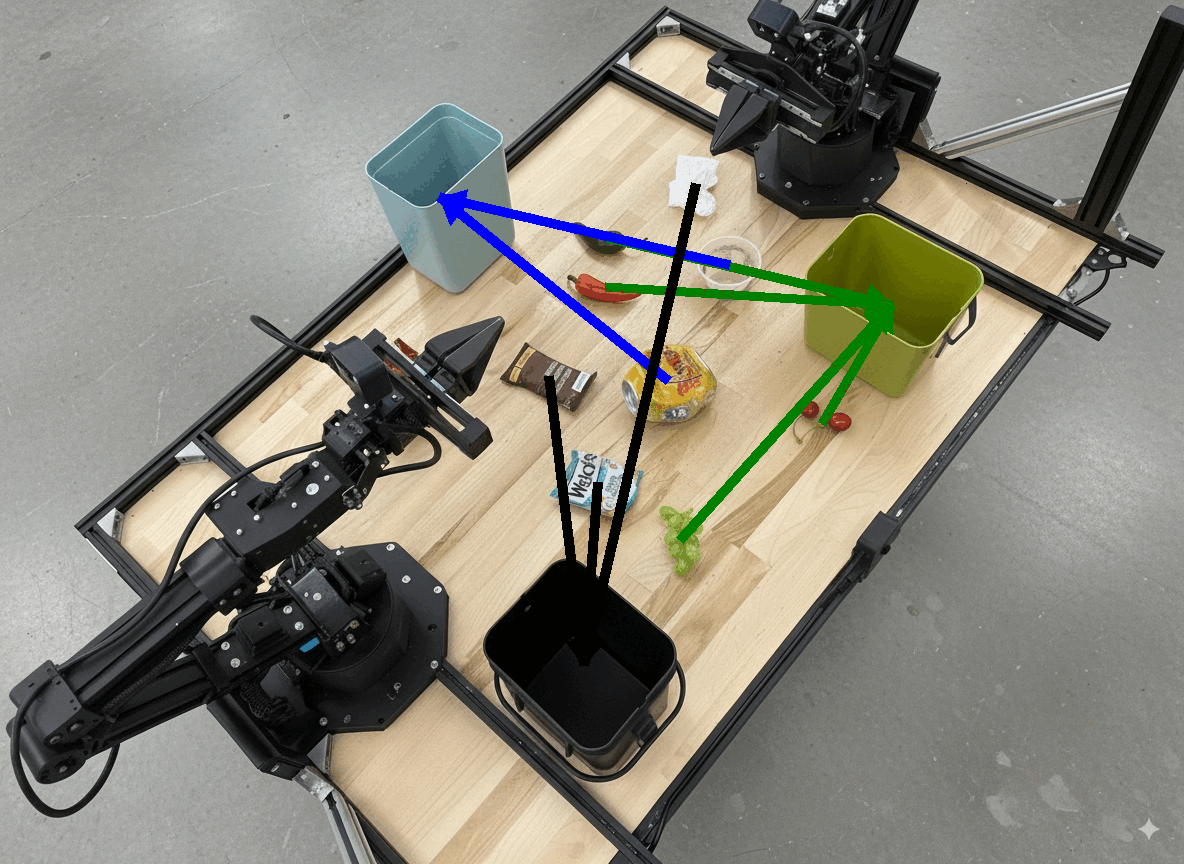
L'output del modello sarà simile al seguente:
  The annotated image shows the suggested disposal locations for the items on the table:
  - **Green bin (Compost/Organic)**: Green chili, red chili, grapes, and cherries.
  - **Blue bin (Recycling)**: Yellow crushed can and plastic container.
  - **Black bin (Trash)**: Chocolate bar wrapper, Welch's packet, and white tissue.
Passaggi successivi
Per scoprire di più su Gemini Robotics ER 2, consulta le seguenti risorse:
- Orchestrazione delle attività: attività a lungo termine con API robot personalizzate.
- Ragionamento spaziale: puntamento, monitoraggio, riquadri di delimitazione e traiettorie.
- Comprensione dei video: individuazione dei momenti e classificazione dei progressi.
- Panoramica di Gemini Robotics ER 2: funzionalità e guida rapida.
- Informazioni sul modello Gemini Robotics ER 2: specifiche tecniche, limiti di token e funzionalità supportate.