

Chat check-in ensures that end-users are present and ready to engage before the system connects them to a human agent. This decreases the average agent handle time by eliminating the time lost when agents wait for end-users who have abandoned a chat.
With chat check-in, end-users are required to check in before connecting with an agent. A check-in dialog displays to the end-user based on criteria you configure, such as wait time and queue position. If the end-user doesn't check in within the time period that you specify, the system removes them from the queue.
Chat check-in can be applied to end-users when they:
Enter a chat queue.
Are cold-transferred to another human agent.
Are escalated from a virtual agent to a human agent.
Chat check-in is available for the web and mobile channels.
Configure chat check-in at the global level
To configure chat check-in for web or mobile at the global level, follow these steps:
In the CCAI Platform portal, click Settings > Chat. If you don't see the Settings menu, click Menu.
Go to the Web & Mobile Chat Settings pane.
In the Check In section, do one (or both) of the following:
To turn on check in for web, click the Web toggle to the on position.
To turn on check in for mobile, click the Mobile toggle to the on position.
Configure the following settings for the channels that you turned on check-in for:
In the Require consumers to check in after waiting
INTEGERseconds field, enter the number of seconds after which the check-in dialog appears. The check-in dialog requires an end-user to confirm that they're ready to chat.In the Check In modal appears once consumer reaches queue position
INTEGERfield, enter the queue position that an end-user must reach before the check-in dialog appears. The check-in dialog requires an end-user to confirm that they're ready to chat.In the Check In modal will time out after
INTEGERseconds field, enter the number of seconds after which the check-in dialog times out, the time-out dialog appears, and the end-user is removed from the queue.Select one of the following. For more information, see Rejoin queue placement.
Reconnect timed out consumers at the beginning of the queue
Reconnect timed out consumers at the end of the queue
Click Save Chat Settings.
Configure chat check-in at the queue level
To configure chat check-in for web or mobile at the queue level, follow these steps:
In the CCAI Platform portal, click Settings > Queue. If you don't see the Settings menu, click Menu.
In the Mobile or Web pane, click Edit / View.
Click the queue that you want to edit.
Go to the Custom Chat Configuration section, and then click Configure. The Custom Chat Configuration pane appears.
In the Check In section, click the toggle to the on position.
Configure the following settings:
In the Require consumers to check in after waiting
INTEGERseconds field, enter the number of seconds after which the check-in dialog appears. The check-in dialog requires an end-user to confirm that they're ready to chat.In the Check In modal appears once consumer reaches queue position
INTEGERfield, enter the queue position that an end-user must reach before the check-in dialog appears. The check-in dialog requires an end-user to confirm that they're ready to chat.In the Check In modal will time out after
INTEGERseconds field, enter the number of seconds after which the check-in dialog times out, the time-out dialog appears, and the end-user is removed from the queue.Select one of the following. For more information, see Rejoin queue placement.
Reconnect timed out consumers at the beginning of the queue
Reconnect timed out consumers at the end of the queue
Click Save.
Send push notifications
If your mobile or web app is running in the background when check-in is required, the system can send a push notification prompting the end-user to return to the app and confirm that they're ready.
Here's an example push notification: It's almost your turn. Confirm that
you're ready to connect with an agent.
When the end-user clicks the notification, the app opens the chat and displays the check-in dialog.
Push notification delivery depends on your app's push notification setup and the end-user's notification permissions. If the end-user hasn't enabled push notifications, the notification won't be delivered. In that case, the end-user sees the check-in dialog when they return to the app. To configure push notifications for your mobile or web app, see Set up push notifications (Android) and Set up push notifications (iOS).
End-user experience
The following describes the end-user experience after you configure chat check in. For more information, see Configure chat check-in at the global level and Configure chat check-in at the queue level.
The check-in dialog
When the check-in criteria are met, the system displays the check-in dialog to the end-user before connecting with an agent.
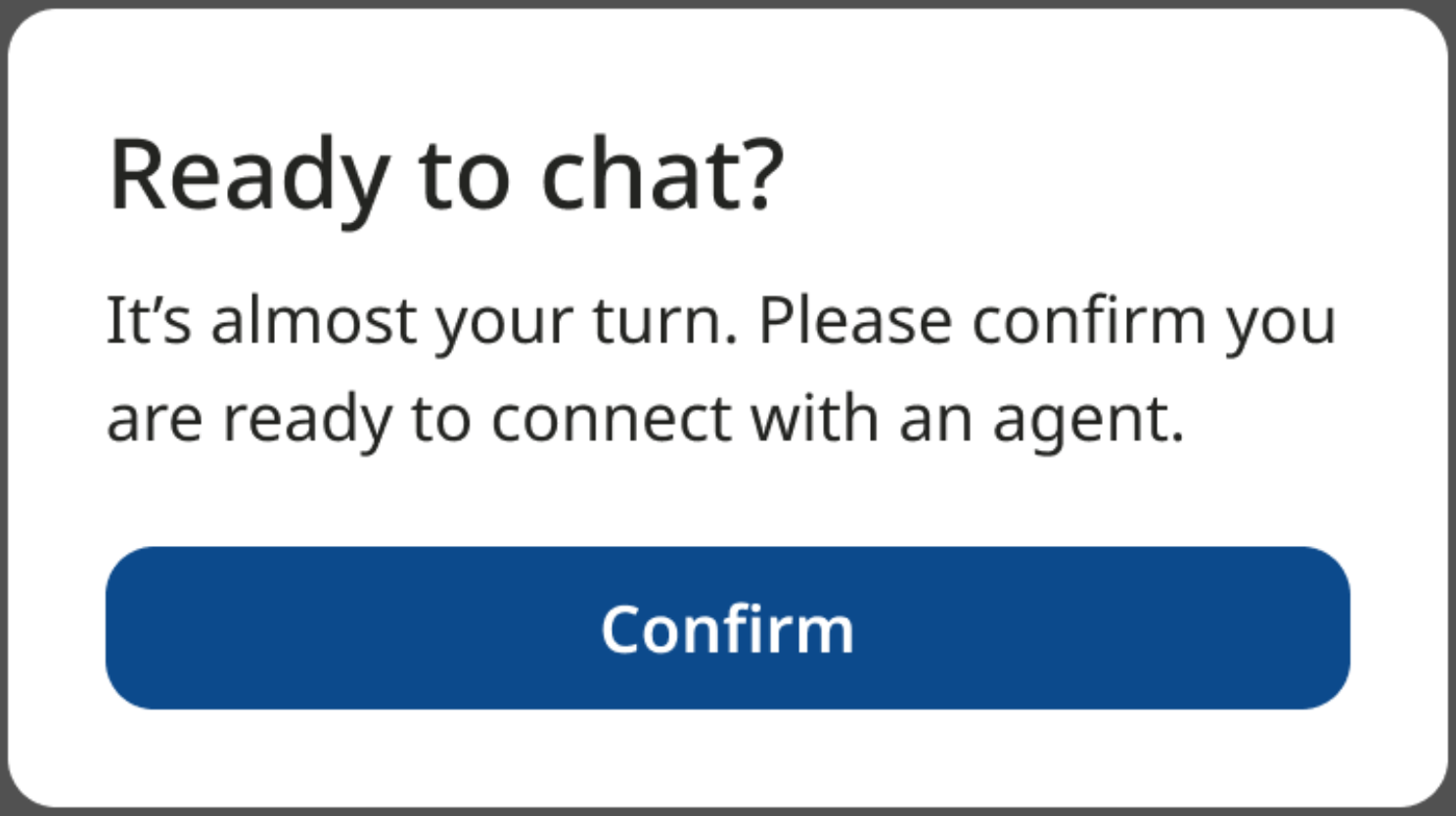
The check-in dialog
Check-in criteria are based on a combination of the end-user's current wait time and queue position. A notification sound plays every 10 seconds until the end-user clicks Confirm or the check-in dialog times out.
If the end-user clicks Confirm within the timeout period that you specify, the system connects them to an agent when one is available.
If the end-user doesn't click Confirm within the timeout period that you specify, the system removes them from the queue and displays the timeout dialog.
The timeout dialog
If an end-user times out, the system displays the timeout dialog.
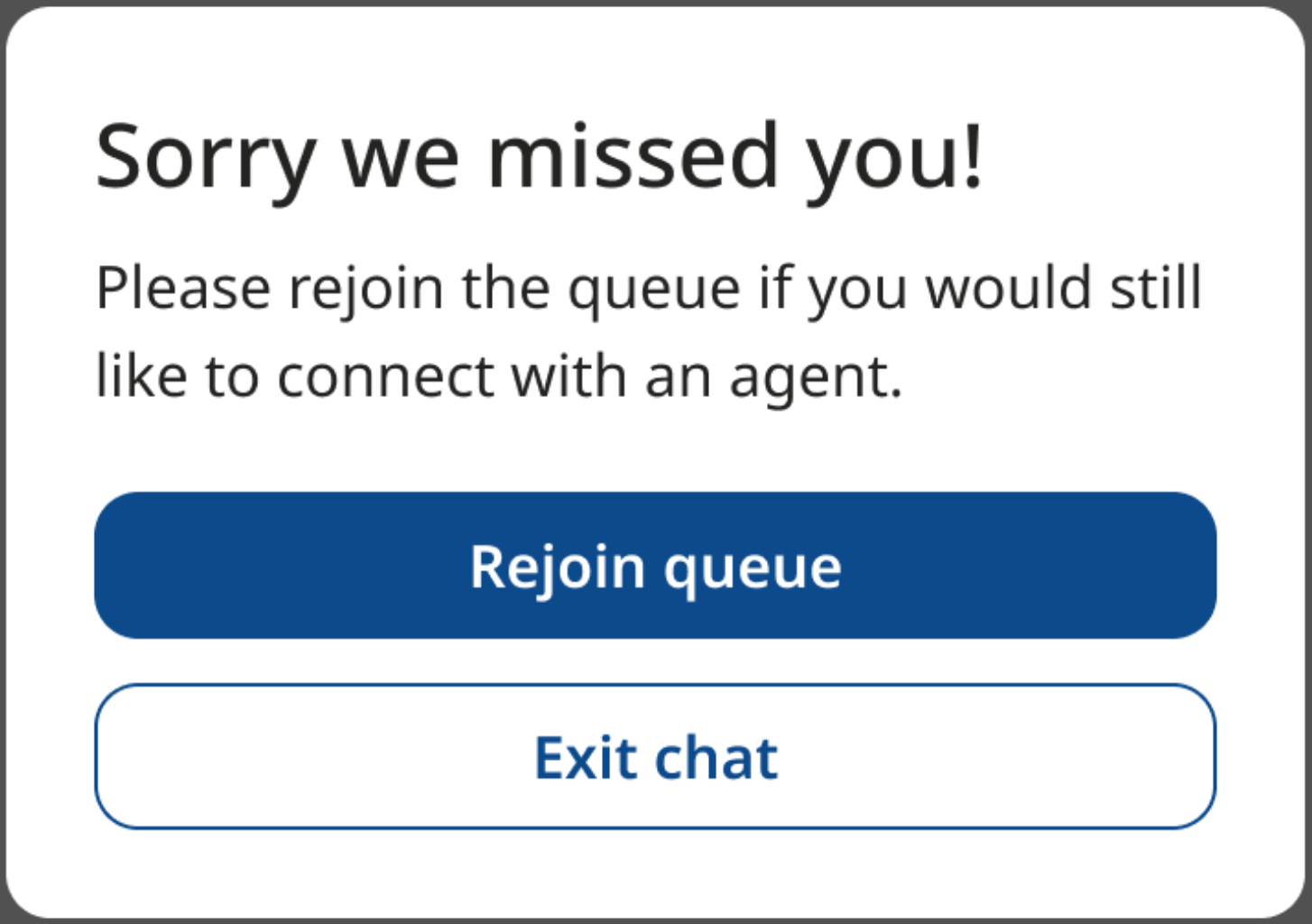
The timeout dialog
In the timeout dialog, the end-user can click one of the following:
Rejoin queue. The end-user rejoins the queue. For more information, see Rejoin queue placement.
Exit chat. The end-user exits the chat.
The after-hours dialog
If the end-user attempts to rejoin the queue after hours, the after-hours dialog displays.
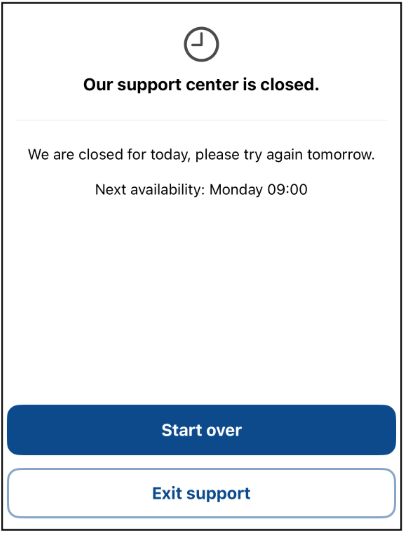
The after-hours dialog
Configure the after-hours dialog
You can configure the after-hours dialog to hide the following:
Next availability message
Start over button
For more information, see:
SDK configuration (for Android)
Chat check-in after-hours options (for iOS)
Rejoin queue placement
End-users rejoining a queue are placed in the queue according to which of the following "buckets" they're in:
Priority users. End-users who are marked as priority users are placed in the queue ahead of all others.
Transferred end-users. Transferred end-users (who aren't priority users) are placed behind all priority users.
All others. All other end-users are placed behind priority users and transferred end-users.
Placement within buckets
End-users are placed in the queue relative to other end-users in their bucket according to which of the following options you selected when you configured check-in:
Reconnect timed out consumers at the beginning of the queue. An end-user who rejoins the queue is placed ahead of others in their bucket who entered the queue after they originally entered. For example:
User A joins the queue at 07:30.
User B joins the queue at 07:35.
User C joins the queue at 07:40
User B times out and is removed from the queue.
User B rejoins the queue.
User B is placed in the queue ahead of user C and behind user A.
Reconnect timed out consumers at the end of the queue. A rejoining end-user is placed in the queue behind all others in their bucket.
For more information, see Configure chat check-in at the global level and Configure chat check-in at the queue level.
Troubleshoot
If chat check-in is not configured correctly, support bottlenecks can occur due to agents being idle while waiting to be connected with an end-user. This can occur for the following reasons.
End-users check in too slowly
Solution: Decrease the time that an end-user has to check in after the check-
in dialog appears. When the check-in dialog times out, the system removes the
end-user from the queue. If feasible, Google recommends this as a first step.
See step 4 of Configure chat check-in at the global
level and step 6 of Configure chat check-
in at the queue level to edit the Check
In modal will time out after INTEGER seconds field.
End-users aren't prompted to check in soon enough
Solution: Increase the queue position threshold. This displays the check-in
dialog to more end-users at once. Google recommends this as a second step
because it increases the likelihood of abandoned chats connecting to an agent.
If this value is too high, end-users might experience extended wait times after
checking in. See step 4 of Configure chat check-in at the global
level and step 6 of Configure chat
check-in at the queue level to edit the
Check In modal appears once consumer reaches queue position
INTEGER field.
The percentage of abandoned chats is too high
This is often caused by excessive wait times.
Solution: Turn on or reconfigure overcapacity deflection to reduce wait times. Do one or both of the following:
- Deflect end-users to a different queue or channel.
- Decrease the threshold for overcapacity deflection.
For more information, see Overcapacity Deflection.
Chat check-in events
For information about configuring the web SDK to listen for chat check-in events, see Chat check-in.