

Auto answer connects calls and chats to agents without agents needing to click to pick up. This feature applies to inbound sessions and transfers.
If enabled, auto answer uses deltacast to route the session to the longest idle agent in the first group. The auto answer feature must be enabled at the global level in order to use the feature at the queue level.
Auto answer for calls
To turn on auto answer for calls globally, follow these steps:
In the CCAI Platform portal, click Settings, > Operation Management. If you don't see the Settings menu, click Menu. The Operation Management page displays.
Go to the Routing pane.
Under Call Routing, click Deltacast.
Click the Auto Answer toggle to the on position
Optional: Set up voice detection. To do this, follow these steps:
Click the Agent's voice detection for unattended auto-answer toggle to the on position.
In the number field, select the amount of time, in seconds, after which the system declares the call to be a missed call if no voice is detected.
Optional: Configure a message to the end-user for missed calls. To do this, follow these steps:
Click Configure the message for no agent's voice detected. The Languages & Messages page appears. You can also go to this page by clicking Settings > Languages & Messages.
In the Audible Messages pane, go to the IVR-specific Messages section.
Under Agent Voice Not Detected Message For Auto Answer, either enter a text-to-speech message or upload an audio file containing your message.
Click Save.
Click Settings > Operation Management, and then return to the Routing pane.
Click the Agent's voice detection for unattended auto-answer toggle back to the on position.
Configure your deltacast settings if you have not done this previously. For more information, see Turn on deltacast for calls globally.
Click Save Routing.
After you turn on auto answer for calls, any call queues that you subsequently create are enabled for auto answer. To enable pre-existing call queues for auto answer, see Turn on auto answer for calls at the queue level.
If you use auto answer, Google recommends turning on whisper for calls and countdown for calls to alert agents to incoming calls. For more information, see Agent messages & notifications.
Turn on auto answer for calls at the queue level
To turn on auto answer for calls at the queue level, follow these steps:
In the CCAI Platform portal, click Settings > Queue. If you don't see the Settings menu, click Menu. The Queue Menu Settings page appears.
Depending on the type of queue that you want to edit, click Edit / View in either the IVR (Interactive Voice Response), Mobile, or Web pane.
Click the queue that you want to edit.
In the Settings pane, go to the Routing section. Under Routing, each routing capability is marked with either a Global or a Queue label. These labels indicate whether this capability is configured globally or at the queue level.
Click Configure.
In the Routing pane, go to the Call Routing section, and then click Deltacast.
Click the Auto Answer toggle to the on position
Optional: Set up voice detection. To do this, follow these steps:
Click the Agent's voice detection for unattended auto-answer toggle to the on position.
In the number field, select the amount of time, in seconds, after which the system declares the call to be a missed call if no voice is detected.
Optional: Configure a message to the end-user for missed calls. To do this, follow these steps:
Click Configure the message for no agent's voice detected. The Routing Messages section appears.
Under Agent Voice Not Detected Message For Auto Answer, either enter a text-to-speech message or upload an audio file containing your message.
Click Save, and then click Back to Settings. The Settings pane appears.
In the Routing section, click Configure, and then go to the Call Routing section.
Configure your deltacast settings if you have not done this previously. For more information, see Turn on deltacast for calls globally.
Click Save.
If you use auto answer, Google recommends turning on whisper for calls and countdown for calls to alert agents to incoming calls. For more information, see Agent messages & notifications.
Caller messages and announcement settings
Call whisper and call countdown alert the agent to the connecting call and are recommended when you use auto answer for calls. See Agent Call Messages & Notifications for details and recommendations.
Agent experience
When the call is assigned to an agent and is about three seconds from being connected, a browser notification displays *Call Auto Answered as well as the call type and queue name of the call. When clicked, the notification brings the agent to the appropriate screen, and the call is auto-answered regardless of whether the agent is on the screen with the call adapter. A tab will load with the agent widget and the ticket loaded in the background.
Optionally, the agent hears an audio message with the call information "{Call Type} from {Queue Name} starting in 3, 2, 1...".
Turn on auto answer for chat
To turn on auto answer for chat globally, follow these steps:
In the CCAI Platform portal, click Settings > Operation Management. If you don't see the Settings menu, click Menu, and then click Settings > Operation Management.
Go to the Routing pane.
Under Chat Routing, click Deltacast.
Click the Auto Answer toggle to the on position, and then click Save Routing.
After you turn on auto answer for chat globally, any chat queues that you subsequently create are enabled for auto answer. To enable pre-existing chat queues for auto answer, see Turn on auto answer for chat at the queue level.
Turn on auto answer for chat at the queue level
To turn on auto answer for chat at the queue level, follow these steps:
In the CCAI Platform portal, click Settings > Queue. If you don't see the Settings menu, click Menu, and then click Settings > Queue. The Queue Menu Settings page displays.
Depending on the type of queue you are editing, click either Mobile or Web.
Click to the queue that you want to edit.
In the Settings pane for your queue, go to the Routing section, and then click Configure.
In the Routing pane, under Chat Routing, click Deltacast.
Click the Auto Answer toggle to the on position, and then click Save.
Agent experience
When the chat is assigned to an agent and is approximately three seconds from being connected, the agent receives a browser notification: New Chat Picked Up.
When the agent clicks the notification, they're taken to the Chat Adapter. Newest chats are always at the top of the chat list, marked by a red indicator.
Auto answer behavior with additional features and settings
Deltacast: Auto answers for the agent receiving the Deltacast session.
Deltacast for cascade groups and percent allocation: Auto answers for the assigned agent according to routing logic.
Transferred sessions: If a session is transferred to a queue, it will follow the queue's auto answer settings.
Set default agent status
To prevent agents from getting auto answer sessions before they're ready, you can preset a default status for agents who have just logged in.
Go to Settings > Operation Management > Agent Status.
Under Agent Status on Login, choose whether to use the last agent status before sign-out or set a default status.
Calls only
Scheduled calls (Mobile and Web channels): When the call is auto answered and whisper is enabled, an audio message will announce that the call is a scheduled call.
Calls with user segmentation applied: When the call is auto answered and whisper is enabled, an audio message will announce that the call is a high-priority user segment call.
Due to the call whisper and call countdown, the minimum wait duration for auto answered is 12 seconds, unless the whisper read-out speed is reduced.
Monitoring and reporting
Reporting and real time monitoring of auto answer and manual answer is available.
Calls
You can monitor auto answered and manually picked up calls in real-time on the Call Monitoring page. To view reporting data:
Go to Reports > Agents & Teams.
Specify all agents or enter individual agents or teams, then choose call data.
Under Aggregate Metrics, select Total Auto Answered Calls to view this information in the downloaded report.
Chats
Auto Answer can be monitored on the chat page, where admins see in real-time which chats are:
Auto Answered
Manually picked up
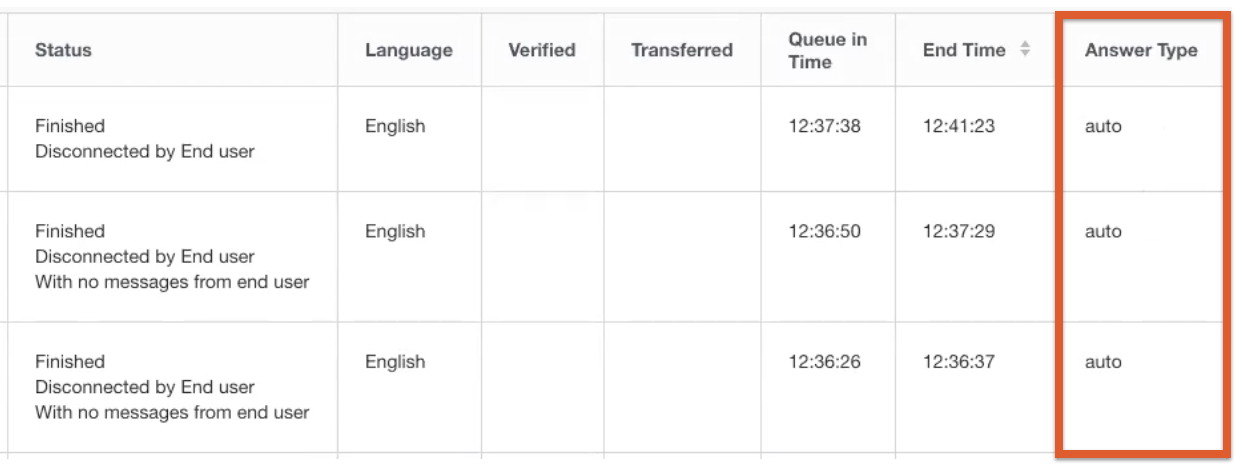
The following reports identify which chats were Auto Answered and which chats were manually picked up:
Agent Performance Report
Agent Timeline Report
Agent Summary Report
Individual Chat History Report
To view reporting data:
Go to Reports > Agents & Teams.
Specify all agents or enter individual agents or teams, then choose chat data.
Under Aggregate Metrics, select Total Auto Answered Chats to view this information in the downloaded report.
API
You can use the CCAI Platform API to retrieve the session answer type
(auto or manual) from the /chats or /calls endpoint.
- Field:
answer_type - Type:
string - Required:
Yes - Values:
automanual
Agent status and availability
To prevent agents from receiving Auto Answer chats before they're ready, Admins can set an unavailable default status for agents who have just logged in. The setting is found in Settings > Operation Management > Agent Statuses.
Multiple chats can be routed to agents based on Settings > Chat > Chat Details | Maximum number of chats.
Routing Details
A chat is routed and assigned Deltacast to the longest idle agent in the assigned group for the queue.
See Chat Routing: Multicast and Deltacast for all routing logic details
Agent experience
When the chat is assigned to an agent, and is approximately three seconds from being connected, the agent receives a browser notification, New Chat Picked Up.
When the agent clicks on the notification, they are taken to the Chat Adapter.
The newest chat is always at the top of the chat list.
CCAI Platform portal configuration
To configure auto answer refer to the following sections.
Enable Deltacast
From the CCAI Platform portal, go to Settings > Operation Management > Deltacast > Chat.
Set Deltacast to On.
Click Set Deltacast to save.
Enable Auto Answer
From the CCAI Platform portal, go to Settings > Chat.
Set Auto Answer to On. The setting is auto-saved and all chat queues will now use Auto Answer.
Setting the default Agent Status
To prevent agents from being assigned chats before they're ready, Admins can set an unavailable default status for agents who have just logged in. All default and custom statuses other than "Available" are considered unavailable, allowing the agent to self-select when they are ready to take chats by changing their status to Available.
From the CCAI Platform portal, go to Settings > Operation Management > Agent Status.
Select to use the status the agent was in before log out or set a specific default status.
For more information, see Agent Statuses.
Auto Answer behavior combined with other features
Deltacast
Deltacast for Cascade / % Allocation
Multicast
Transferred chats
API
Developers can use the CCAI Platform portal API to retrieve the chat answer type (auto or manual) from the /chats endpoint.
Field: answer_type
Type: string
Required: Yes
Values:
auto
manual