


使用包含 Ray 客户端功能的 Agent Platform SDK for Python 版本,通过 Ray 客户端连接到 Gemini Enterprise Agent Platform 上的 Ray 集群。如果您偏好交互式 Python 开发环境,请使用此选项。
在 Google Cloud 控制台的 Colab Enterprise 笔记本中使用 Agent Platform SDK for Python。
在 Python 会话、shell 或 Jupyter 笔记本中使用 Agent Platform SDK for Python。
编写 Python 脚本,并使用 Ray Jobs API 将脚本提交到 Gemini Enterprise Agent Platform 上的 Ray 集群。如果您希望以编程方式提交作业,请使用此选项。
通过 Ray 客户端连接到 Ray 集群
如需使用互动式 Ray 客户端,请连接到 Gemini Enterprise Agent Platform 上的 Ray 集群。连接环境的网络取决于集群的网络配置。只要集群具有公共互联网访问权限,连接环境便没有任何限制。也就是说,您在创建集群期间未指定 VPC 网络。不过,如果集群位于与 Gemini Enterprise Agent Platform 对等互连的专用 VPC 网络中,则连接环境必须与集群位于同一 VPC 网络中。
客户端的 Ray 版本必须与集群的 Ray 版本一致。pip install "google-cloud-aiplatform[ray]" 默认会在客户端安装 Ray 2.47 版。如果集群的 Ray 版本较旧,例如 2.42,则使用 pip install ray==2.42.0 将客户端的 Ray 版本与集群的 Ray 版本进行匹配。
控制台
根据 OSS Ray 最佳实践建议,强制在 Ray 头节点上将逻辑 CPU 数量设置为 0,以便避免在头节点上运行任何工作负载。
在 Google Cloud 控制台中,前往“Ray on Agent Platform”页面。
在您创建的集群对应的行中,点击在 Colab Enterprise 中打开。
Colab Enterprise 笔记本随即打开。按照有关如何使用 Agent Platform SDK for Python 连接到 Gemini Enterprise Agent Platform 上的 Ray 集群的说明操作。
如果对话框屏幕要求您启用 API,请点击启用。
如果您是首次连接到集群,请点击连接。如果您要重新连接到集群,请点击重新连接。 笔记本需要几分钟时间才能连接到运行时。
点击 +创建以创建新笔记本。
点击
 以打开 Ray on Agent Platform 面板。
系统会显示现有集群。选择一个集群,然后点击连接。
代码会显示在您打开的笔记本中,该笔记本会连接到所选集群。其他操作(可选):如需打开 Ray on Agent Platform 集群列表页面,请在 Ray on Agent Platform 面板中点击管理集群。
- 选择一个集群,然后点击 更多操作菜单。
更多选项随即会出现:
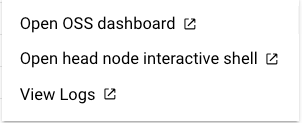
- 选择一个集群,然后点击 更多操作菜单。
运行使用入门代码单元以导入 Agent Platform SDK for Python 并连接到 Gemini Enterprise Agent Platform 上的 Ray 集群。
Python
根据 OSS Ray 最佳实践建议,强制在 Ray 头节点上将逻辑 CPU 数量设置为 0,以便避免在头节点上运行任何工作负载。
在交互式 Python 环境中:
import ray

# Necessary even if aiplatform.* symbol is not directly used in your program.
from google.cloud import aiplatform
import vertex_ray

import vertexai
vertexai.init()
# The CLUSTER_RESOURCE_NAME is the one returned from vertex_ray.create_ray_cluster.
CLUSTER_RESOURCE_NAME='projects/{}/locations/{}/persistentResources/{}'.format(PROJECT_ID, LOCATION, CLUSTER_NAME)

ray.init('vertex_ray://{}'.format(CLUSTER_RESOURCE_NAME))
其中:
LOCATION:您为 Gemini Enterprise Agent Platform 上的 Ray 集群指定的位置。
PROJECT_ID:您的 Google Cloud 项目 ID。在 Google Cloud 控制台的欢迎页面中找到项目 ID。
CLUSTER_NAME:Gemini Enterprise Agent Platform 上的 Ray 集群的名称(在创建集群时指定)。前往 Google Cloud 控制台,以查看项目的集群名称列表。
您将获得类似如下所示的输出:
Python version:  3.10.12
Ray version: 2.47
Vertex SDK version: 1.46.0
Dashboard: yyyy-dot-us-central1.aiplatform-training.googleusercontent.com
使用 Dashboard 网址从浏览器访问 Ray 信息中心。URI 的格式为 https://yyyy-dot-us-central1.aiplatform-training.googleusercontent.com/。信息中心会显示已提交的作业、GPU 或 CPU 的数量以及集群中每台机器的磁盘空间。
连接到 Gemini Enterprise Agent Platform 上的 Ray 集群后,您便可以按照为常规 OSS Ray 后端开发 Ray 程序的相同方式来开发 Ray 程序。
@ray.remote
def square(x):
  print(x)
  return x * x

# Launch four parallel square tasks.
futures = [square.remote(i) for i in range(4)]

print(ray.get(futures))
# Returns [0, 1, 4, 9]
使用 Ray Jobs API 开发应用
本部分介绍如何使用 Ray Jobs API 将 Python 程序提交到 Gemini Enterprise Agent Platform 上的 Ray 集群。
编写 Python 脚本
在任意文本编辑器中以 Python 脚本的形式开发应用。例如,将以下脚本放到 my_script.py 文件中:
import ray
import time

@ray.remote
def hello_world():
    return "hello world"

@ray.remote
def square(x):
    print(x)
    time.sleep(100)
    return x * x

ray.init()  # No need to specify address="vertex_ray://...."
print(ray.get(hello_world.remote()))
print(ray.get([square.remote(i) for i in range(4)]))
使用 Ray Jobs API 提交 Ray 作业
使用 Python、Ray Jobs CLI 或公开的 Ray 信息中心地址提交 Ray 作业。
Python - 集群资源名称
使用 Python 环境提交 Ray 作业:
import ray
import vertex_ray
from ray.job_submission import JobSubmissionClient
from google.cloud import aiplatform  # Necessary even if aiplatform.* symbol is not directly used in your program.

CLUSTER_RESOURCE_NAME='projects/{}/locations/REGION/persistentResources/{}'.format(PROJECT_ID, CLUSTER_NAME)

client = JobSubmissionClient("vertex_ray://{}".format(CLUSTER_RESOURCE_NAME))

job_id = client.submit_job(
  # Entrypoint shell command to execute
  entrypoint="python my_script.py",
  # Path to the local directory that contains the my_script.py file.
  runtime_env={
    "working_dir": "./directory-containing-my-script",
    "pip": ["numpy",
            "setuptools<70.0.0",
            "xgboost",
            "ray==CLUSTER_RAY_VERSION", # pin the Ray version to the same version as the cluster
           ]
  }
)

# Ensure that the Ray job has been created.
print(job_id)
其中:
REGION:您为 Gemini Enterprise Agent Platform 上的 Ray 集群指定的区域。
PROJECT_ID:您的 Google Cloud 项目编号。在 Google Cloud 控制台的欢迎页面中找到项目 ID。
CLUSTER_NAME:Gemini Enterprise Agent Platform 上的 Ray 集群的名称,在创建集群时指定。前往 Google Cloud 控制台,以查看项目的集群名称列表。
CLUSTER_RAY_VERSION:将 Ray 版本固定为与集群相同的版本。例如,2.47.1。
Python - Ray 信息中心
您可以从 VPC 外部(包括公共互联网)访问 Ray 信息中心地址。请注意,vertex_ray 是自动获取身份验证所必需的。
from ray.job_submission import JobSubmissionClient
import vertex_ray

DASHBOARD_ADDRESS=DASHBOARD_ADDRESS

client = JobSubmissionClient(
  "vertex_ray://{}".format(DASHBOARD_ADDRESS),
)

job_id = client.submit_job(
  # Entrypoint shell command to execute
  entrypoint="python my_script.py",
  # Path to the local directory that contains the my_script.py file
  runtime_env={
    "working_dir": "./directory-containing-my-script",
    "pip": ["numpy",
            "setuptools<70.0.0",
            "xgboost",
            "ray==CLUSTER_RAY_VERSION", # pin the Ray version to the same version as the cluster
           ]
  }
)
print(job_id)
其中:
DASHBOARD_ADDRESS:集群的 Ray 信息中心地址。使用 Agent Platform SDK for Python 查找信息中心地址。
Ray Jobs CLI
只能在对等互连的 VPC 网络中使用 Ray Jobs CLI 命令。
$ ray job submit --working-dir ./ --address vertex_ray://{CLUSTER_RESOURCE_NAME} -- python my_script.py
提交长时间运行的 Ray 作业后,如果您想使用 client.get_job_status(job_id) 监控作业状态,请重新实例化 JobSubmissionClient(client = JobSubmissionClient("vertex_ray://{}".format(CLUSTER_RESOURCE_NAME))
) 以刷新身份验证令牌。
支持 VPC 对等互连和自定义服务账号
对于默认服务代理和自定义服务账号,Ray on Agent Platform 在公共网络中支持 Ray 客户端和 Ray Jobs API (JobSubmissionClient)。
使用 VPC 网络创建 Ray 集群时,Ray on Agent Platform 对 VPC 对等互连的支持如下表所示:
| VPC 对等互连 | 默认服务代理 | 自定义服务账号 |
|---|---|---|
| Ray 客户端(交互模式) | 是 | 否 |
| Ray JobSubmissionClient | 是 | 是 |
VPC Service Controls (VPC-SC) 需要其他配置。 如需了解详情,请参阅专用连接和公共连接。
在 Ray 代码中使用网络文件系统 (NFS)
如果您在创建 Ray 集群时设置了 NFS 装载,则可以在应用代码中读取和写入这些 NFS 卷。
RayClient
本部分介绍如何在 Ray 代码中使用网络文件系统 (NFS)。
在 Python 环境中初始化 RayClient
import ray
from google.cloud import aiplatform
import vertex_ray
aiplatform.init(project=PROJECT_ID, location=REGION)
ray.init(address='vertex_ray://projects/{}/locations/us-central1/persistentResources/{}'.format(PROJECT_NUMBER, PERSISTENT_RESOURCE_ID))
运行作业脚本
import ray
import logging
import os
import sys

@ray.remote
def main():
logging.info("list all files in mounted folder")
return os.listdir("/mnt/nfs/test")

print(''.join(ray.get(main.remote())))
使用 Python、Ray Jobs CLI 或公开的 Ray 信息中心地址提交 Ray 作业。如需了解详情,请参阅在 Gemini Enterprise Agent Platform 上的 Ray 集群中开发应用。