

This document describes how to save and share prompts in Agent Studio. Sharing prompts lets you collaborate with team members, ensure consistency, and build a library of effective prompts for various tasks.
Sharing works as follows:
By default, all Gemini Enterprise Agent Platform users (
roles/aiplatform.user) have full access to all saved prompts in the project. There is no need to share saved prompts with other users in the project unless organizational or project restrictions have been placed on them or specific resources like datasets.Agent Platform administrators (
roles/aiplatform.admin) can share any prompt and Agent Platform users can share the prompts that they created.Only Agent Platform users can share prompts. If an outside user is invited to collaborate on a prompt, they cannot share the prompt with another user.
Prompt sharing is per prompt, not per project. Invited users can access only the prompts that they have been invited to collaborate on. They don't have access to the other prompts in the project.
Save a prompt
To save a prompt for later use or sharing:
Go to Agent Studio.
Write a new prompt or open an existing prompt and then click send Submit.
Click the Save button.
Share a saved prompt
To share a saved prompt:
In Agent Studio, go to either Prompt management or Chat playground
Open a saved prompt and click the Share button.
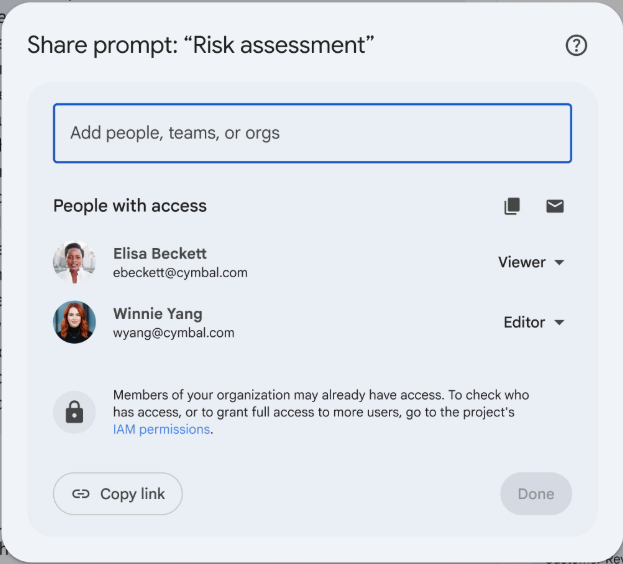
If prompt sharing was enabled successfully, you will see a window similar to the following:
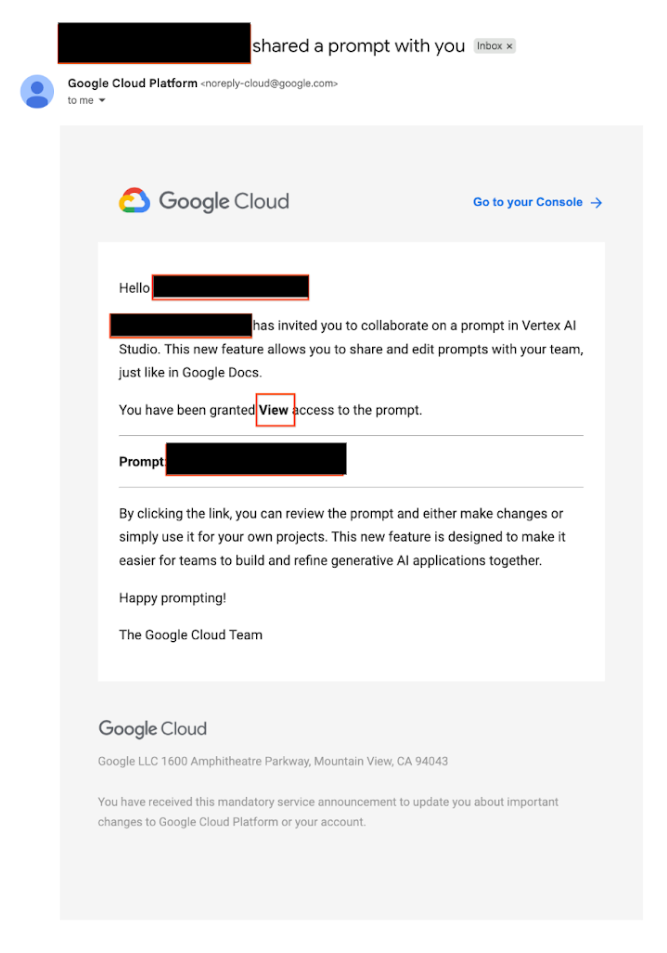
When a prompt is shared, the recipient(s) of the shared prompt receive an email notification similar to the following:
Stop sharing a prompt
To revoke access to a prompt:
Open a saved prompt and click the Share button.
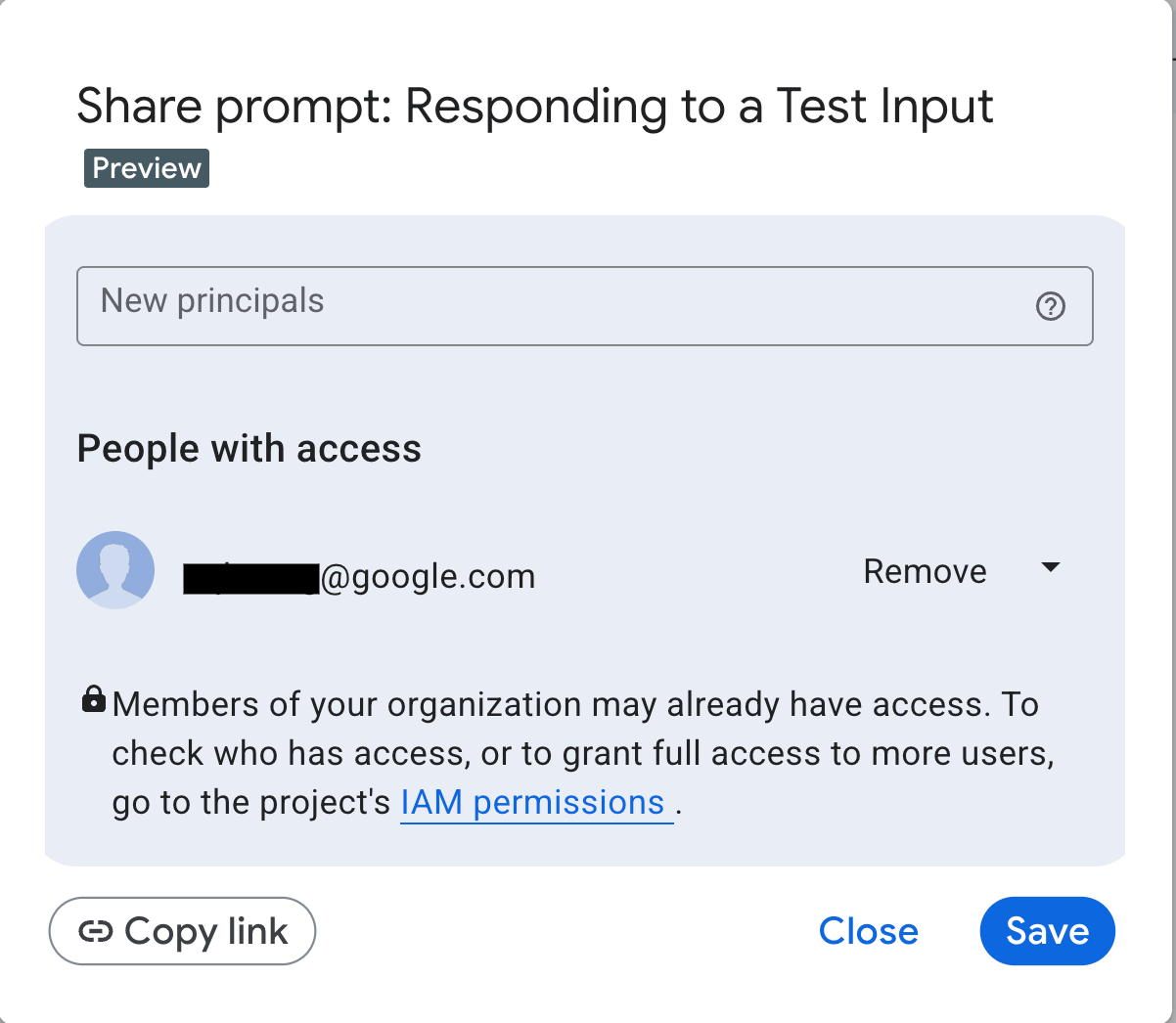
Next to the principals, select Remove and then click Save.
Note that deleting a saved prompt automatically removes access for anyone it was shared with.
What's next
Agent Platform Studio capabilities
Key features implemented within Agent Platform Studio that facilitate transforming innovative ideas into generative AI solutions.
Migrate from Google AI Studio to Agent Platform
Information on how to migrate your Google AI Studio projects to Agent Platform Studio.
Deploy your Agent Platform Studio prompt as a web application
Learn how to use Agent Platform Studio to create a prompt with prompt variables; deploy your prompt as a web application; and deploy, monitor, and test your application.