


הכלי לשימוש במחשב ב-Gemini מאפשר לכם להפעיל את האפליקציות כדי ליצור אינטראקציה עם הדפדפן ולבצע אוטומטית משימות. כשהשימוש במחשב מופעל, המודל משתמש בצילומי מסך כדי לקבל מידע על מסך המחשב, ומבצע פעולות על ידי יצירת פעולות ספציפיות בממשק המשתמש, כמו קליקים בעכבר וקלט מהמקלדת.
אתם יכולים להשתמש במחשב כדי ליצור סוכנים שיכולים:
- להפוך לאוטומטיות משימות חוזרות של הזנת נתונים או מילוי טפסים באתרים.
- לגלוש באתרים כדי לאסוף מידע.
- עזרה למשתמשים על ידי ביצוע רצפים של פעולות באפליקציות אינטרנט.
הנושאים במדריך:
- איך עובד מעקב השימוש במחשב
- איך מאפשרים שימוש במחשב
- איך שולחים בקשות, מקבלים תשובות ויוצרים לולאות של סוכנים
- אילו פעולות במחשב נתמכות
- תמיכה בנושאי בטיחות ואבטחה
- תצוגה מקדימה של המחירים
בדומה לקריאה לפונקציה, צריך לכתוב את קוד האפליקציה בצד הלקוח כדי לקבל את הקריאה לפונקציה של שימוש במחשב ולהפעיל את הפעולות המתאימות.
המדריך הזה מבוסס על ההנחה שאתם משתמשים ב-Google Gen AI SDK ל-Python ומכירים את Playwright API. השימוש במחשב נמצא בגרסת טרום-השקה ולא נתמך בשפות אחרות של SDK או במסוף Google Cloud במהלך התקופה הזו.
הטמעה לדוגמה לשימוש במחשב זמינה ב-GitHub.
מודלים נתמכים
השימוש במחשב נתמך בדגמים הבאים:
כדי להרחיב את רשימת המודלים הנתמכים, לוחצים כאן
איך עובד מעקב השימוש במחשב
במקום ליצור תשובות טקסטואליות, השימוש במחשב קובע מתי לבצע פעולות ספציפיות בממשק המשתמש, כמו קליקים בעכבר, ומחזיר את הפרמטרים הדרושים לביצוע הפעולות האלה. צריך לכתוב את קוד האפליקציה בצד הלקוח כדי לקבל את נתוני השימוש במחשב function_call ולבצע את הפעולות המתאימות.
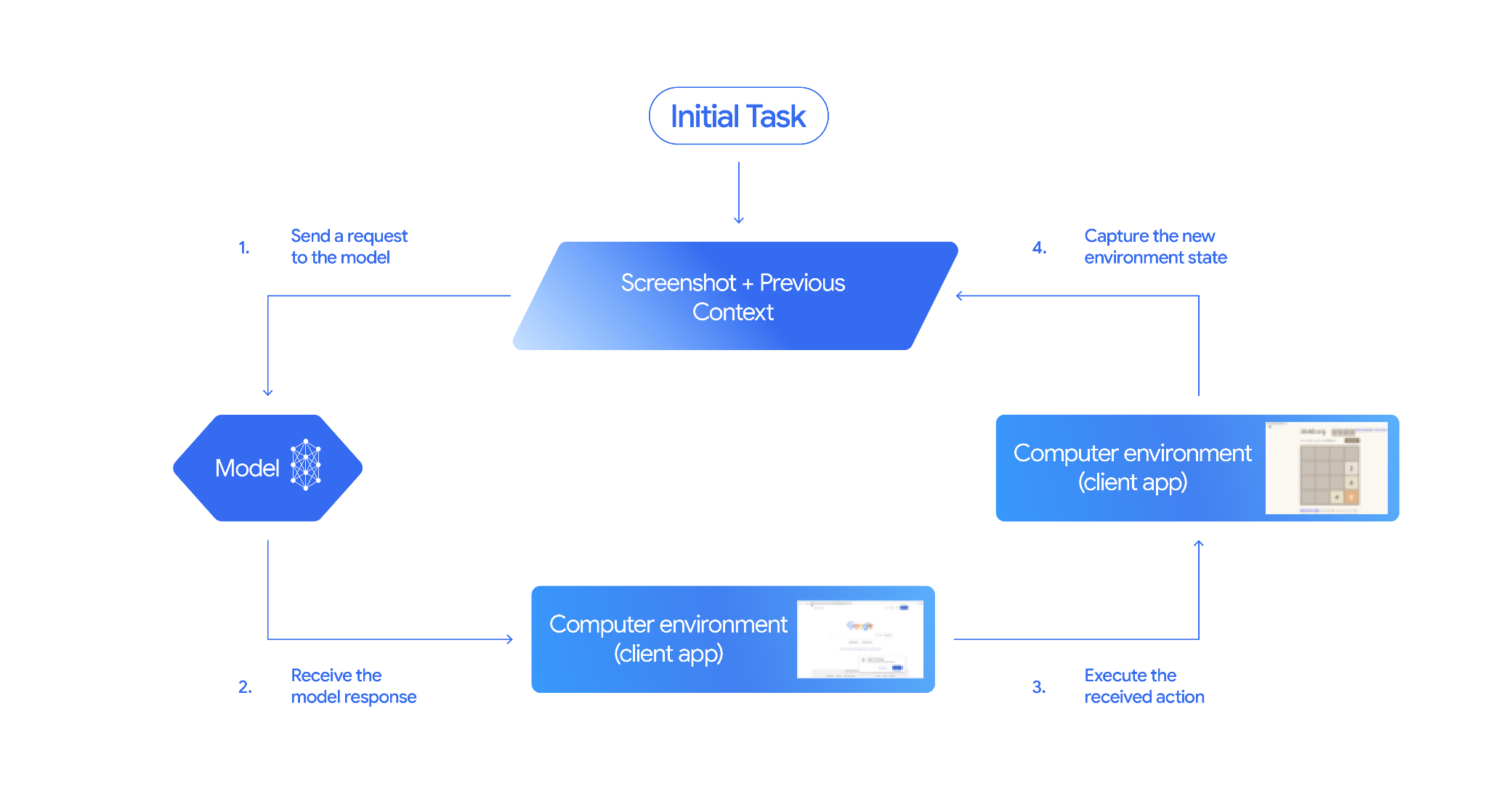
אינטראקציות עם מחשב מתבצעות בתהליך של לולאה עם סוכן:
שליחת בקשה למודל
- מוסיפים את השימוש במחשב (ואם רוצים, גם כלים נוספים) לבקשת ה-API.
- שולחים הנחיה למודל עם הבקשה של המשתמש וצילום מסך שמייצג את המצב הנוכחי של ממשק המשתמש הגרפי.
קבלת התשובה של המודל
- המודל מנתח את בקשת המשתמש ואת צילום המסך, ומפיק תגובה שכוללת הצעה ל
function_callשמייצגת פעולה בממשק המשתמש (לדוגמה, 'לחיצה על קואורדינטה (x,y)' או 'הקלדת הטקסט'). רשימה של כל הפעולות שאפשר להשתמש בהן עם המודל מופיעה במאמר בנושא פעולות נתמכות. - תשובת ה-API עשויה לכלול גם
safety_responseממערכת בטיחות פנימית שבדקה את הפעולה המוצעת של המודל. התג הזהsafety_responseמסווג את הפעולה כ:- רגילה או מותרת: הפעולה נחשבת בטוחה. יכול להיות גם שלא יופיע
safety_response. - נדרש אישור: המודל עומד לבצע פעולה שעשויה להיות מסוכנת (לדוגמה, לחיצה על באנר של 'אישור קובצי Cookie').
- רגילה או מותרת: הפעולה נחשבת בטוחה. יכול להיות גם שלא יופיע
- המודל מנתח את בקשת המשתמש ואת צילום המסך, ומפיק תגובה שכוללת הצעה ל
הפעלת הפעולה שהתקבלה
- הקוד בצד הלקוח מקבל את הערך
function_callואת כל הערכים הנלוויםsafety_response. - אם הערך
safety_responseמציין שהפעולה רגילה או מותרת (או אם לא מופיעsafety_response), קוד הצד של הלקוח יכול להפעיל אתfunction_callשצוין בסביבת היעד (למשל, דפדפן אינטרנט). - אם
safety_responseמציין שנדרש אישור, האפליקציה צריכה לבקש מהמשתמש אישור לפני הפעלתfunction_call. אם המשתמש מאשר, ממשיכים להפעלת הפעולה. אם המשתמש דוחה את הפעולה, היא לא תתבצע.
- הקוד בצד הלקוח מקבל את הערך
תיעוד המצב החדש של הסביבה
- אם הפעולה בוצעה, הלקוח מצלם צילום מסך חדש של ממשק המשתמש ושל כתובת ה-URL הנוכחית כדי לשלוח אותו בחזרה למודל כחלק מ-
function_response. - אם פעולה נחסמה על ידי מערכת הבטיחות או שהמשתמש סירב לאשר אותה, יכול להיות שהאפליקציה תשלח למודל סוג אחר של משוב או תסיים את האינטראקציה.
- אם הפעולה בוצעה, הלקוח מצלם צילום מסך חדש של ממשק המשתמש ושל כתובת ה-URL הנוכחית כדי לשלוח אותו בחזרה למודל כחלק מ-
בקשה חדשה נשלחת למודל עם המצב המעודכן. התהליך חוזר על עצמו משלב 2, והמודל משתמש בצילום המסך החדש (אם הוא סופק) וביעד המתמשך כדי להציע את הפעולה הבאה. הלולאה נמשכת עד שהמשימה מסתיימת, מתרחשת שגיאה או שהתהליך מסתיים (לדוגמה, אם התגובה נחסמת על ידי מסנני בטיחות או החלטת משתמש).
התרשים הבא ממחיש איך השימוש במחשב פועל:
הפעלת השימוש במחשב
כדי להפעיל את השימוש במחשב, מוודאים שהאפליקציה משתמשת באחד מהמודלים הנתמכים, ומוסיפים את השימוש במחשב לרשימת הכלים המופעלים:
Python
from google import genai
from google.genai import types
from google.genai.types import Content, Part, FunctionResponse

client = genai.Client()

# Add computer use to the list of tools
generate_content_config = genai.types.GenerateContentConfig(
    tools=[
        types.Tool(
            computer_use=types.ComputerUse(
                environment=types.Environment.ENVIRONMENT_BROWSER,
                )
              ),
            ]
          )

# Example request using computer use
contents = [
    Content(
        role="user",
        parts=[
            Part(text="Go to google.com and search for 'weather in New York'"),
          ],
        )
      ]

response = client.models.generate_content(
    model="gemini-3-flash-preview",
    contents=contents,
    config=generate_content_config,
  )
שליחת בקשה
אחרי שמגדירים את הכלי לשימוש במחשב, שולחים הנחיה למודל שכוללת את המטרה של המשתמש וצילום מסך ראשוני של ממשק המשתמש הגרפי.
אפשר גם להוסיף את הפרטים הבאים:
- פעולות מוחרגות: אם יש פעולות מתוך רשימת פעולות הממשק הנתמכות שאתם לא רוצים שהמודל יבצע, צריך לציין את הפעולות האלה ב-
excluded_predefined_functions. - פונקציות שמוגדרות על ידי המשתמש: יכול להיות שתרצו לכלול פונקציות מותאמות אישית שמוגדרות על ידי המשתמש בנוסף לשימוש במחשב.
בדוגמת הקוד הבאה מפעילים את השימוש במחשב ושולחים את הבקשה למודל:
Python
from google import genai
from google.genai import types
from google.genai.types import Content, Part

client = genai.Client()

# Specify predefined functions to exclude (optional)
excluded_functions = ["drag_and_drop"]

# Configuration for computer use with browser environment
generate_content_config = genai.types.GenerateContentConfig(
    tools=[
        # 1. Computer Use tool with browser environment
        types.Tool(
            computer_use=types.ComputerUse(
                environment=types.Environment.ENVIRONMENT_BROWSER,
                # Optional: Exclude specific predefined functions
                excluded_predefined_functions=excluded_functions
                )
              ),
        # 2. Optional: Custom user-defined functions (need to defined above)
        # types.Tool(
           # function_declarations=custom_functions
           #   )
    ],
)

# Create the content with user message
contents: list[Content] = [
    Content(
        role="user",
        parts=[
            Part(text="Search for highly rated smart fridges with touchscreen, 2 doors, around 25 cu ft, priced below 4000 dollars on Google Shopping. Create a bulleted list of the 3 cheapest options in the format of name, description, price in an easy-to-read layout."),
            # Optional: include a screenshot of the initial state
            # Part.from_bytes(
                 # data=screenshot_image_bytes,
                 # mime_type='image/png',
            # ),
        ],
    )
]

# Generate content with the configured settings
response = client.models.generate_content(
    model='gemini-3-flash-preview',
    contents=contents,
    config=generate_content_config,
)

# Print the response output
print(response.text)
אפשר גם לכלול פונקציות מותאמות אישית בהגדרת המשתמש כדי להרחיב את הפונקציונליות של המודל. במאמר שימוש במחשב לתרחישי שימוש בנייד מוסבר איך להגדיר שימוש במחשב לתרחישי שימוש בנייד על ידי הוספת פעולות כמו open_app, long_press_at ו-go_home, תוך החרגת פעולות ספציפיות לדפדפן.
קבלת תשובות
המודל מגיב עם FunctionCalls אחד או יותר אם הוא קובע שצריך לבצע פעולות בממשק המשתמש או להשתמש בפונקציות שהוגדרו על ידי המשתמש כדי להשלים את המשימה. קוד האפליקציה צריך לנתח את הפעולות האלה, לבצע אותן ולאסוף את התוצאות.
השימוש במחשב תומך בקריאה להפעלת פונקציות במקביל, כלומר המודל יכול להחזיר כמה פעולות עצמאיות בתור אחד.
{
  "content": {
    "parts": [
      {
        "text": "I will type the search query into the search bar. The search bar is in the center of the page."
      },
      {
        "function_call": {
          "name": "type_text_at",
          "args": {
            "x": 371,
            "y": 470,
            "text": "highly rated smart fridges with touchscreen, 2 doors, around 25 cu ft, priced below 4000 dollars on Google Shopping",
            "press_enter": true
          }
        }
      }
    ]
  }
}
בהתאם לפעולה, יכול להיות שבתגובת ה-API יוחזר גם safety_response:
{
  "content": {
    "parts": [
      {
        "text": "I have evaluated step 2. It seems Google detected unusual traffic and is asking me to verify I'm not a robot. I need to click the 'I'm not a robot' checkbox located near the top left (y=98, x=95)."
      },
      {
        "function_call": {
          "name": "click_at",
          "args": {
            "x": 60,
            "y": 100,
            "safety_decision": {
              "explanation": "I have encountered a CAPTCHA challenge that requires interaction. I need you to complete the challenge by clicking the 'I'm not a robot' checkbox and any subsequent verification steps.",
              "decision": "require_confirmation"
            }
          }
        }
      }
    ]
  }
}
ביצוע פעולות שהתקבלו
אחרי שמקבלים תשובה, המודל צריך לבצע את הפעולות שקיבל.
הקוד הבא מחלץ קריאות לפונקציות מתשובה של Gemini, ממיר קואורדינטות מטווח של 0-1000 לפיקסלים בפועל, מבצע פעולות בדפדפן באמצעות Playwright ומחזיר את סטטוס ההצלחה או הכישלון של כל פעולה:
import time
from typing import Any, List, Tuple


def normalize_x(x: int, screen_width: int) -> int:
    """Convert normalized x coordinate (0-1000) to actual pixel coordinate."""
    return int(x / 1000 * screen_width)


def normalize_y(y: int, screen_height: int) -> int:
    """Convert normalized y coordinate (0-1000) to actual pixel coordinate."""
    return int(y / 1000 * screen_height)


def execute_function_calls(response, page, screen_width: int, screen_height: int) -> List[Tuple[str, Any]]:
    """
    Extract and execute function calls from Gemini response.

    Args:
        response: Gemini API response object
        page: Playwright page object
        screen_width: Screen width in pixels
        screen_height: Screen height in pixels

    Returns:
        List of tuples: [(function_name, result), ...]
    """
    # Extract function calls and thoughts from the model's response
    candidate = response.candidates[0]
    function_calls = []
    thoughts = []

    for part in candidate.content.parts:
        if hasattr(part, 'function_call') and part.function_call:
            function_calls.append(part.function_call)
        elif hasattr(part, 'text') and part.text:
            thoughts.append(part.text)

    if thoughts:
        print(f"Model Reasoning: {' '.join(thoughts)}")

    # Execute each function call
    results = []
    for function_call in function_calls:
        result = None

        try:
            if function_call.name == "open_web_browser":
                print("Executing open_web_browser")
                # Browser is already open via Playwright, so this is a no-op
                result = "success"

            elif function_call.name == "click_at":
                actual_x = normalize_x(function_call.args["x"], screen_width)
                actual_y = normalize_y(function_call.args["y"], screen_height)

                print(f"Executing click_at: ({actual_x}, {actual_y})")
                page.mouse.click(actual_x, actual_y)
                result = "success"

            elif function_call.name == "type_text_at":
                actual_x = normalize_x(function_call.args["x"], screen_width)
                actual_y = normalize_y(function_call.args["y"], screen_height)
                text = function_call.args["text"]
                press_enter = function_call.args.get("press_enter", False)
                clear_before_typing = function_call.args.get("clear_before_typing", True)

                print(f"Executing type_text_at: ({actual_x}, {actual_y}) text='{text}'")

                # Click at the specified location
                page.mouse.click(actual_x, actual_y)
                time.sleep(0.1)

                # Clear existing text if requested
                if clear_before_typing:
                    page.keyboard.press("Control+A")
                    page.keyboard.press("Backspace")

                # Type the text
                page.keyboard.type(text)

                # Press enter if requested
                if press_enter:
                    page.keyboard.press("Enter")

                result = "success"

            else:
                # For any functions not parsed above
                print(f"Unrecognized function: {function_call.name}")
                result = "unknown_function"

        except Exception as e:
            print(f"Error executing {function_call.name}: {e}")
            result = f"error: {str(e)}"

        results.append((function_call.name, result))

    return results
אם הערך שמוחזר safety_decision הוא require_confirmation, צריך לבקש מהמשתמש לאשר לפני שממשיכים בביצוע הפעולה. בהתאם לתנאים ולהגבלות, אסור לך לעקוף בקשות לאישור אנושי.
הקוד הבא מוסיף לוגיקה של בטיחות לקוד הקודם:
import termcolor


def get_safety_confirmation(safety_decision):
    """Prompt user for confirmation when safety check is triggered."""
    termcolor.cprint("Safety service requires explicit confirmation!", color="red")
    print(safety_decision["explanation"])

    decision = ""
    while decision.lower() not in ("y", "n", "ye", "yes", "no"):
        decision = input("Do you wish to proceed? [Y]es/[N]o\n")

    if decision.lower() in ("n", "no"):
        return "TERMINATE"
    return "CONTINUE"


def execute_function_calls(response, page, screen_width: int, screen_height: int):
    # ... Extract function calls from response ...

    for function_call in function_calls:
        extra_fr_fields = {}

        # Check for safety decision
        if 'safety_decision' in function_call.args:
            decision = get_safety_confirmation(function_call.args['safety_decision'])
            if decision == "TERMINATE":
                print("Terminating agent loop")
                break
            extra_fr_fields["safety_acknowledgement"] = "true"

        # ... Execute function call and append to results ...
תיעוד המצב החדש
אחרי שמבצעים את הפעולות, שולחים את התוצאה של הפעלת הפונקציה בחזרה למודל, כדי שהוא יוכל להשתמש במידע הזה כדי ליצור את הפעולה הבאה. אם בוצעו כמה פעולות (קריאות מקבילות), צריך לשלוח FunctionResponse לכל אחת מהן בתור הבא של המשתמש. בפונקציות שהוגדרו על ידי המשתמש, FunctionResponse צריך להכיל את ערך ההחזרה של הפונקציה שהופעלה.
function_response_parts = []

for name, result in results:
    # Take screenshot after each action
    screenshot = page.screenshot()
    current_url = page.url

    function_response_parts.append(
        FunctionResponse(
            name=name,
            response={"url": current_url},  # Include safety acknowledgement
            parts=[
                types.FunctionResponsePart(
                    inline_data=types.FunctionResponseBlob(
                       mime_type="image/png", data=screenshot
                    )
                )
            ]
        )
    )

# Create the user feedback content with all responses
user_feedback_content = Content(
    role="user",
    parts=function_response_parts
)

# Append this feedback to the 'contents' history list for the next API call
contents.append(user_feedback_content)
יצירת לולאת סוכן
משלבים את השלבים הקודמים בלולאה כדי לאפשר אינטראקציות עם כמה שלבים. הלולאה צריכה לטפל בקריאות להפעלת פונקציות במקביל. חשוב לזכור לנהל את היסטוריית השיחות (מערך התוכן) בצורה נכונה על ידי הוספה של תשובות המודל ותשובות הפונקציה.
Python
from google import genai
from google.genai.types import Content, Part
from playwright.sync_api import sync_playwright


def has_function_calls(response):
    """Check if response contains any function calls."""
    candidate = response.candidates[0]
    return any(hasattr(part, 'function_call') and part.function_call
               for part in candidate.content.parts)


def main():
    client = genai.Client()

    # ... (config setup from "Send a request to model" section) ...

    with sync_playwright() as p:
        browser = p.chromium.launch(headless=False)
        page = browser.new_page()
        page.goto("https://www.google.com")

        screen_width, screen_height = 1920, 1080

        # ... (initial contents setup from "Send a request to model" section) ...

        # Agent loop: iterate until model provides final answer
        for iteration in range(10):
            print(f"\nIteration {iteration + 1}\n")

            # 1. Send request to model (see "Send a request to model" section)
            response = client.models.generate_content(
                model='gemini-3-flash-preview',
                contents=contents,
                config=generate_content_config,
            )

            contents.append(response.candidates[0].content)

            # 2. Check if done - no function calls means final answer
            if not has_function_calls(response):
                print(f"FINAL RESPONSE:\n{response.text}")
                break

            # 3. Execute actions (see "Execute the received actions" section)
            results = execute_function_calls(response, page, screen_width, screen_height)
            time.sleep(1)

            # 4. Capture state and create feedback (see "Capture the New State" section)
            contents.append(create_feedback(results, page))

        input("\nPress Enter to close browser...")
        browser.close()


if __name__ == "__main__":
    main()
Gemini 3.5 Flash או גרסה מתקדמת יותר, ותרחישי שימוש בנייד או במחשב
במחשב, אפשר להגדיר סביבות לנייד (ENVIRONMENT_MOBILE), למחשב (ENVIRONMENT_DESKTOP) או לדפדפן (ENVIRONMENT_BROWSER). ערך ברירת המחדל הוא ENVIRONMENT_BROWSER.
בדוגמאות הבאות מוסבר איך להגדיר את סביבת ההפעלה לשימוש במחשב עם Gemini 3.5 Flash או גרסה מתקדמת יותר:
API בארכיטקטורת REST
לפני שמשתמשים בנתוני הבקשה, צריך להחליף את הנתונים הבאים:
- PROJECT_ID: מזהה הפרויקט.
ה-method של ה-HTTP וכתובת ה-URL:
POST https://aiplatform.googleapis.com/v1/projects/PROJECT_ID/locations/global/publishers/google/models/gemini-3.5-flash:generateContent
תוכן בקשת JSON:
{
  "contents": [
    {
      "role": "user",
      "parts": {
        "text": "find me a flight from SF to Hawaii on Jun 30th, coming back on Jul 6th. start by navigating directly to flights.google.com"
      }
    }
  ],
  "generation_config": {
    "candidateCount": 1
  },
  "tools": [
    {
      "computer_use": {
        "environment": "ENVIRONMENT_BROWSER"
      }
    }
  ]
}
כדי לשלוח את הבקשה צריך להרחיב אחת מהאפשרויות הבאות:
אמורים לקבל קוד סטטוס של הצלחה (2xx) ותגובה ריקה.
Python
בדוגמה הבאה נדרשת גרסה 2.7.0 או גרסה מתקדמת יותר של python-genai.
from google import genai
from google.genai.types import (
    Part,
    GenerateContentConfig,
    Content,
    Tool,
    ComputerUse,
    Environment,
    ThinkingConfig,
)
client = genai.Client()

response = client.models.generate_content(
    model="gemini-3.6-flash",
    contents=[
        Content(
            role="user",
            parts=[
                Part(text="find me a flight from SF to Hawaii on Jun 30th, coming back on Jul 6th"),
            ],
        )
    ],
    config=GenerateContentConfig(
        temperature=1,
        top_p=0.95,
        top_k=40,
        max_output_tokens=8192,
        tools=[
            Tool(
                computer_use=ComputerUse(
                    environment=Environment.ENVIRONMENT_MOBILE
                ),
            ),
        ],
        thinking_config=ThinkingConfig(
            include_thoughts=True
        ),
    )
)
Gemini 3 Flash ושימוש בנייד
בדוגמה הבאה ל-Gemini 3 Flash מוסבר איך להגדיר פונקציות מותאמות אישית (כמו open_app, long_press_at ו-go_home), לשלב אותן עם שימוש במחשב ולהחריג פונקציות ספציפיות לדפדפן שלא צריך. רישום הפונקציות המותאמות אישית מאפשר למודל להפעיל אותן בצורה חכמה לצד פעולות רגילות בממשק המשתמש, כדי להשלים משימות בסביבות שאינן דפדפן.
from typing import Optional, Dict, Any

from google import genai
from google.genai import types
from google.genai.types import Content, Part


client = genai.Client()

def open_app(app_name: str, intent: Optional[str] = None) -> Dict[str, Any]:
    """Opens an app by name.

    Args:
        app_name: Name of the app to open (any string).
        intent: Optional deep-link or action to pass when launching, if the app supports it.

    Returns:
        JSON payload acknowledging the request (app name and optional intent).
    """
    return {"status": "requested_open", "app_name": app_name, "intent": intent}


def long_press_at(x: int, y: int, duration_ms: int = 500) -> Dict[str, int]:
    """Long-press at a specific screen coordinate.

    Args:
        x: X coordinate (absolute), scaled to the device screen width (pixels).
        y: Y coordinate (absolute), scaled to the device screen height (pixels).
        duration_ms: Press duration in milliseconds. Defaults to 500.

    Returns:
        Object with the coordinates pressed and the duration used.
    """
    return {"x": x, "y": y, "duration_ms": duration_ms}


def go_home() -> Dict[str, str]:
    """Navigates to the device home screen.

    Returns:
        A small acknowledgment payload.
    """
    return {"status": "home_requested"}


#  Build function declarations
CUSTOM_FUNCTION_DECLARATIONS = [
    types.FunctionDeclaration.from_callable(client=client, callable=open_app),
    types.FunctionDeclaration.from_callable(client=client, callable=long_press_at),
    types.FunctionDeclaration.from_callable(client=client, callable=go_home),
]

# Exclude browser functions

EXCLUDED_PREDEFINED_FUNCTIONS = [
    "open_web_browser",
    "search",
    "navigate",
    "hover_at",
    "scroll_document",
    "go_forward",
    "key_combination",
    "drag_and_drop",
]

# Utility function to construct a GenerateContentConfig

def make_generate_content_config() -> genai.types.GenerateContentConfig:
    """Return a fixed GenerateContentConfig with Computer Use + custom functions."""
    return genai.types.GenerateContentConfig(
        tools=[
            types.Tool(
                computer_use=types.ComputerUse(
                    environment=types.Environment.ENVIRONMENT_BROWSER,
                    excluded_predefined_functions=EXCLUDED_PREDEFINED_FUNCTIONS,
                )
            ),
            types.Tool(function_declarations=CUSTOM_FUNCTION_DECLARATIONS),
        ]
    )


# Create the content with user message
contents: list[Content] = [
    Content(
        role="user",
        parts=[
            # text instruction
            Part(text="Open Chrome, then long-press at 200,400."),
            # optional screenshot attachment
            Part.from_bytes(
                data=screenshot_image_bytes,
                mime_type="image/png",
            ),
        ],
    )
]

# Build your fixed config (from helper)
config = make_generate_content_config()

# Generate content with the configured settings
response = client.models.generate_content(
        model="gemini-3-flash-preview",
        contents=contents,
        config=generate_content_config,
    )

    print(response)
פעולות נתמכות
הכלי לשימוש במחשב מאפשר למודל לבקש את הפעולות הבאות באמצעות FunctionCall. הקוד מצד הלקוח צריך להטמיע את לוגיקת הביצוע של הפעולות האלה. אפשר לעיין בדוגמאות בהטמעה לדוגמה של בטבלה הבאה מפורטות הפעולות הנתמכות בסביבת הדפדפן.
ל-Gemini 3 Flash ול-Gemini 3.5 Flash יש קבוצות שמות שונות.FunctionCall
Gemini 3.5 Flash
Gemini 3.5 Flash: יש לכם גישה לקבוצות שונות של קריאות לפונקציות, בהתאם לסביבה שאתם בוחרים:סביבה לנייד
| שם הפקודה | תיאור | ארגומנטים (בבקשה להפעלת פונקציה) |
|---|---|---|
open_app |
פותח אפליקציה לפי השם שלה. | intent: str |
click |
לחיצות שמאליות בקואורדינטה. |
y: int (0-999)x: int (0-999)intent: str
|
list_apps |
מציג רשימה של האפליקציות שזמינות במכשיר, ומחזיר את השמות שלהן ואת שמות החבילות. | intent: str |
wait |
ממתינים למספר השניות שצוין. |
intent: strseconds: int(אופציונלי, ברירת מחדל 1)
|
go_back |
חזרה לדף האינטרנט הקודם בהיסטוריית הדפדפן. | intent: str |
type |
הקלדת טקסט. |
text: strintent: strpress_enter: bool(אופציונלי, ברירת מחדל היא false)
|
drag_and_drop |
גורר פריט מ-start_y ומ-start_x אל end_y ואל end_x |
start_y: int (0-999)start_x: int (0-999)end_y: int (0-999)end_x: int (0-999)intent: str
|
long_press |
מבצע לחיצה ארוכה בקואורדינטה ספציפית y (0-999), x (0-999) במסך. |
y: int (0-999) x: int (0-999) intent: str seconds: int (אופציונלי, ברירת מחדל 2)
|
press_key |
לחיצה על המקש שצוין ושחרור שלו. |
key: strintent: str
|
take_screenshot |
מחזירה צילום מסך של המסך הנוכחי. | intent: str |
סביבת מחשב
| שם הפקודה | תיאור | ארגומנטים (בבקשה להפעלת פונקציה) |
|---|---|---|
click |
לחיצות שמאליות בקואורדינטה. |
y: int (0-999) x: int (0-999) intent: str
|
double_click |
לחיצות כפולות על הקואורדינטה. |
y: int (0-999) x: int (0-999) intent: str
|
triple_click |
לחיצה משולשת על הקואורדינטה. |
y: int (0-999)x: int (0-999)intent: str
|
middle_click |
לחיצה אמצעית על הקואורדינטה. |
y: int (0-999)x: int (0-999)intent: str
|
right_click |
לחיצות ימניות בקואורדינטה. |
y: int (0-999)x: int (0-999)intent: str
|
mouse_down |
לחיצה ארוכה על כפתור העכבר בקואורדינטה. |
y: int (0-999) x: int (0-999) intent: str
|
mouse_up |
משחרר את כפתור העכבר בקואורדינטה. |
y: int (0-999)x: int (0-999)intent: str
|
move |
מעבירים את הסמן למיקום שצוין. |
y: int (0-999) x: int (0-999) intent: str
|
type |
הקלדת טקסט. |
text: strintent: strpress_enter: bool(Optional, default false)
|
drag_and_drop |
גורר פריט מ-start_y ומ-start_x אל end_y ואל end_x. |
start_y: int (0-999)start_x: int (0-999)end_y: int (0-999)end_x: int (0-999)intent: str
|
wait |
המתנה למספר השניות שצוין. |
intent: str seconds: int(אופציונלי, ברירת מחדל 1)
|
press_key |
לחיצה על המקש שצוין ושחרור שלו. |
key: strintent: str
|
key_down |
לחיצה ארוכה על המקש שצוין. |
key: strintent: str
|
key_up |
משחרר את המקש שצוין. |
key: strintent: str
|
hotkey |
לחיצה על שילוב המקשים שצוין. |
keys: List[str] intent: str
|
take_screenshot |
מחזירה צילום מסך של המסך הנוכחי. | intent: str |
scroll |
גלילה למעלה, למטה, שמאלה או ימינה בנקודה מסוימת בפיקסל מרחק. |
y: int (0-999)x: int (0-999)direction: str ("up", "down", "left", "right")intent: strmagnitude_in_pixels: int (0-999, Optional, default 300)
|
Gemini 3 Flash
| שם הפקודה | תיאור | ארגומנטים (בבקשה להפעלת פונקציה) | דוגמה לבקשה להפעלת פונקציה |
|---|---|---|---|
| open_web_browser | הפעולה הזו תפתח את דפדפן האינטרנט. | ללא | {"name": "open_web_browser", "args": {}} |
| wait_5_seconds | ההפעלה מושהית למשך 5 שניות כדי לאפשר לתוכן דינמי להיטען או לאנימציות להסתיים. | ללא | {"name": "wait_5_seconds", "args": {}} |
| go_back | מעבר לדף הקודם בהיסטוריית הדפדפן. | ללא | {"name": "go_back", "args": {}} |
| go_forward | מעבר לדף הבא בהיסטוריה של הדפדפן. | ללא | {"name": "go_forward", "args": {}} |
| search | מעבר לדף הבית של מנוע החיפוש שמוגדר כברירת מחדל (לדוגמה, Google). שימושי להתחלת משימת חיפוש חדשה. | ללא | {"name": "search", "args": {}} |
| navigate | הדפדפן עובר ישירות לכתובת ה-URL שצוינה. | url: str |
{"name": "navigate", "args": {"url": "https://www.wikipedia.org"}}
|
| click_at | קליקים בנקודה ספציפית בדף האינטרנט. הערכים x ו-y מבוססים על רשת של 1000x1000 ומוגדרים בהתאם למידות המסך. | y: int (0-999), x: int (0-999) |
{"name": "click_at", "args": {"y": 300, "x": 500}}
|
| hover_at | 521963309 Hovers the mouse at a specific coordinate on the webpage. שימושי להצגת תפריטי משנה. הערכים x ו-y מבוססים על רשת של 1000x1000. | y: int (0-999) x: int (0-999) |
{"name": "hover_at", "args": {"y": 150, "x": 250}}
|
| type_text_at | מקליד טקסט בקואורדינטה ספציפית. כברירת מחדל, הפקודה מוחקת קודם את השדה ואז מקישה על ENTER אחרי ההקלדה, אבל אפשר להשבית את הפעולות האלה. הערכים x ו-y מבוססים על רשת של 1000x1000. |
y: int (0-999), x: int (0-999),
text: str, press_enter: bool (Optional,
default True), clear_before_typing: bool (Optional,
default True)
|
{"name": "type_text_at", "args": {"y": 250, "x": 400,
              "text": "search query", "press_enter": false}}
|
| key_combination | לחיצה על מקשים או על שילובים של מקשים במקלדת, כמו Control+C או Enter. שימושי להפעלת פעולות (כמו שליחת טופס באמצעות Enter) או פעולות בלוח העריכה. |
keys: str (לדוגמה, 'enter', 'control+c'. רשימה מלאה של המפתחות המותרים מופיעה במאמר בנושא API reference.
|
{"name": "key_combination", "args": {"keys":
              "Control+A"}}
|
| scroll_document | גלילה של כל דף האינטרנט למעלה, למטה, שמאלה או ימינה. | direction: str ("up", "down", "left", or "right") |
{"name": "scroll_document", "args": {"direction": "down"}}
|
| scroll_at | מגללים רכיב או אזור ספציפיים בקואורדינטה (x, y) בכיוון שצוין, במידה מסוימת. הקואורדינטות והגודל (ברירת מחדל 800) מבוססים על רשת של 1,000x1,000. |
y: int (0-999), x: int (0-999),
direction: str ("up", "down", "left", "right"),
magnitude: int (0-999, Optional, default 800)
|
{"name": "scroll_at", "args": {"y": 500, "x": 500,
              "direction": "down", "magnitude": 400}}
|
| drag_and_drop | גורר רכיב מקואורדינטת התחלה (x, y) ומשחרר אותו בקואורדינטת יעד (destination_x, destination_y). כל הקואורדינטות מבוססות על רשת של 1000x1000. |
y: int (0-999), x: int (0-999),
destination_y: int (0-999),
destination_x: int (0-999)
|
{"name": "drag_and_drop", "args": {"y": 100, "x": 100,
              "destination_y": 500, "destination_x": 500}}
|
בטיחות ואבטחה
בקטע הזה מתוארים אמצעי ההגנה שקיימים בכלי לשימוש במחשב כדי לשפר את השליטה של המשתמשים ואת הבטיחות. בנוסף, מפורטות בו שיטות מומלצות לצמצום סיכונים חדשים פוטנציאליים שעלולים להתעורר בעקבות השימוש בכלי.
אישור החלטה בנושא בטיחות
בהתאם לפעולה, התשובה מהמודל עשויה לכלול safety_decision ממערכת בטיחות פנימית. ההחלטה הזו מאמתת את הפעולה שהכלי מציע לביצוע כדי לשמור על הבטיחות.
{
  "content": {
    "parts": [
      {
        "text": "I have evaluated step 2. It seems Google detected unusual traffic and is asking me to verify I'm not a robot. I need to click the 'I'm not a robot' checkbox located near the top left (y=98, x=95)."
      },
      {
        "function_call": {
          "name": "click_at",
          "args": {
            "x": 60,
            "y": 100,
            "safety_decision": {
              "explanation": "I have encountered a CAPTCHA challenge that requires interaction. I need you to complete the challenge by clicking the 'I'm not a robot' checkbox and any subsequent verification steps.",
              "decision": "require_confirmation"
            }
          }
        }
      }
    ]
  }
}
אם הערך של safety_decision הוא require_confirmation, חובה לבקש מהמשתמש לאשר לפני שממשיכים בביצוע הפעולה.
בדוגמת הקוד הבאה, המשתמש מתבקש לאשר לפני ביצוע הפעולה. אם המשתמש לא מאשר את הפעולה, הלולאה מסתיימת. אם המשתמש מאשר את הפעולה, הפעולה מבוצעת והשדה safety_acknowledgement מסומן כ-True.
import termcolor

def get_safety_confirmation(safety_decision):
    """Prompt user for confirmation when safety check is triggered."""
    termcolor.cprint("Safety service requires explicit confirmation!", color="red")
    print(safety_decision["explanation"])

    decision = ""
    while decision.lower() not in ("y", "n", "ye", "yes", "no"):
        decision = input("Do you wish to proceed? [Y]es/[N]o\n")

    if decision.lower() in ("n", "no"):
        return "TERMINATE"
    return "CONTINUE"

def execute_function_calls(response, page, screen_width: int, screen_height: int):

    # ... Extract function calls from response ...

    for function_call in function_calls:
        extra_fr_fields = {}

        # Check for safety decision
        if 'safety_decision' in function_call.args:
            decision = get_safety_confirmation(function_call.args['safety_decision'])
            if decision == "TERMINATE":
                print("Terminating agent loop")
                break
            extra_fr_fields["safety_acknowledgement"] = "true" # Safety acknowledgement

        # ... Execute function call and append to results ...
אם המשתמש מאשר, אתם צריכים לכלול את אישור הבטיחות בקובץ FunctionResponse.
function_response_parts.append(
    FunctionResponse(
        name=name,
        response={"url": current_url,
                  **extra_fr_fields},  # Include safety acknowledgement
        parts=[
            types.FunctionResponsePart(
                inline_data=types.FunctionResponseBlob(
                    mime_type="image/png", data=screenshot
                )
             )
           ]
         )
       )
גלאי החדרת פרומפטים
השימוש במחשב ב-Gemini 3.5 Flash ואילך תומך במנגנון בטיחות מתקדם לזיהוי מתקפות של הזרקת פרומפטים. כשהתכונה הזו מופעלת, היא בודקת אם צילום מסך שצורף עלול להוביל להחדרת פרומפטים. אפשר להגדיר את התכונה הזו בהגדרות השימוש במחשב. ערך ברירת המחדל הוא false.
בדוגמאות הבאות אפשר לראות איך מפעילים את ההגדרה 'שימוש במחשב' כדי להפעיל גלאי החדרת פרומפטים:
API בארכיטקטורת REST
לפני שמשתמשים בנתוני הבקשה, צריך להחליף את הנתונים הבאים:
- PROJECT_ID: מזהה הפרויקט.
ה-method של ה-HTTP וכתובת ה-URL:
POST https://aiplatform.googleapis.com/v1/projects/PROJECT_ID/locations/global/publishers/google/models/gemini-3.5-flash:generateContent
תוכן בקשת JSON:
{
  "contents": [
    {
      "role": "user",
      "parts": {
        "text": "find me a flight from SF to Hawaii on Jun 30th, coming back on Jul 6th. start by navigating directly to flights.google.com"
      }
    }
  ],
  "generation_config": {
    "candidateCount": 1
  },
  "tools": [
    {
      "computer_use": {
        "environment": "ENVIRONMENT_BROWSER",
        "enable_prompt_injection_detection": true
      }
    }
  ]
}
כדי לשלוח את הבקשה צריך להרחיב אחת מהאפשרויות הבאות:
אמורים לקבל קוד סטטוס של הצלחה (2xx) ותגובה ריקה.
Python
בדוגמה הבאה נדרשת גרסה 2.7.0 או גרסה מתקדמת יותר של python-genai.
from google import genai
from google.genai.types import (
    Part,
    GenerateContentConfig,
    Content,
    Tool,
    ComputerUse,
    Environment,
    ThinkingConfig,
)
client = genai.Client()

response = client.models.generate_content(
    model="gemini-3.6-flash",
    contents=[
        Content(
            role="user",
            parts=[
                Part(text="find me a flight from SF to Hawaii on Jun 30th, coming back on Jul 6th"),
            ],
        )
    ],
    config=GenerateContentConfig(
        temperature=1,
        top_p=0.95,
        top_k=40,
        max_output_tokens=8192,
        tools=[
            Tool(
                computer_use=ComputerUse(
                    environment=Environment.ENVIRONMENT_MOBILE,
                    enable_prompt_injection_detection=True
                ),
            ),
        ],
        thinking_config=ThinkingConfig(
            include_thoughts=True
        ),
    )
)
שיטות מומלצות לשמירה על האבטחה
השימוש במחשב כרוך בסיכונים שהמפתחים צריכים להיות מודעים להם:
- תוכן לא מהימן ותרמיות: כדי להשיג את המטרה של המשתמש, המודל עשוי להסתמך על מקורות מידע לא מהימנים ועל הוראות מהמסך. לדוגמה, אם המטרה של המשתמש היא לרכוש טלפון Pixel והמודל נתקל בתרמית 'קבלת Pixel בחינם אם משלימים סקר', יש סיכוי שהמודל ישלים את הסקר.
- פעולות לא מכוונות מדי פעם: המודל עלול לפרש לא נכון את המטרה של המשתמש או את התוכן של דף האינטרנט, ולבצע פעולות שגויות כמו לחיצה על הלחצן הלא נכון או מילוי הטופס הלא נכון. זה עלול לגרום לכשל במשימות או לזליגת מידע.
- הפרות מדיניות: יכול להיות שהיכולות של ה-API יופנו, בכוונה או שלא בכוונה, לפעילויות שמפירות את התנאים והמדיניות של Google. האיסור הזה כולל פעולות שעלולות לשבש את תקינות המערכת, לפגוע באבטחה, לעקוף אמצעי אבטחה כמו CAPTCHA, לשלוט במכשירים רפואיים וכו'.
כדי לטפל בסיכונים האלה, מומלץ להטמיע את אמצעי הבטיחות והשיטות המומלצות הבאים:
- Human-in-the-loop (HITL):
- הטמעת אישור משתמש: אם התשובה בנושא בטיחות מציינת את הערך require_confirmation, צריך להטמיע אישור משתמש לפני ההפעלה.
- הוספת הוראות בטיחות בהתאמה אישית: בנוסף לבדיקות האישור המובנות של המשתמשים, מפתחים יכולים להוסיף הוראת מערכת בהתאמה אישית כדי לאכוף את מדיניות הבטיחות שלהם. ההוראה יכולה לחסום פעולות מסוימות של המודל או לדרוש אישור מהמשתמש לפני שהמודל מבצע פעולות מסוימות עם השלכות משמעותיות ובלתי הפיכות. הנה דוגמה להוראה מותאמת אישית למערכת הבטיחות שאפשר לכלול כשמבצעים אינטראקציה עם המודל.
כדי לראות דוגמה ליצירת חיבור, לחצו כאן
## **RULE 1: Seek User Confirmation (USER_CONFIRMATION)**

This is your first and most important check. If the next required action falls
into any of the following categories, you MUST stop immediately, and seek the
user's explicit permission.

**Procedure for Seeking Confirmation:**  * **For Consequential Actions:**
Perform all preparatory steps (e.g., navigating, filling out forms, typing a
message). You will ask for confirmation **AFTER** all necessary information is
entered on the screen, but **BEFORE** you perform the final, irreversible action
(e.g., before clicking "Send", "Submit", "Confirm Purchase", "Share").  * **For
Prohibited Actions:** If the action is strictly forbidden (e.g., accepting legal
terms, solving a CAPTCHA), you must first inform the user about the required
action and ask for their confirmation to proceed.

**USER_CONFIRMATION Categories:**

*   **Consent and Agreements:** You are FORBIDDEN from accepting, selecting, or
    agreeing to any of the following on the user's behalf. You must ask th e
    user to confirm before performing these actions.
    *   Terms of Service
    *   Privacy Policies
    *   Cookie consent banners
    *   End User License Agreements (EULAs)
    *   Any other legally significant contracts or agreements.
*   **Robot Detection:** You MUST NEVER attempt to solve or bypass the
    following. You must ask the user to confirm before performing these actions.
*   CAPTCHAs (of any kind)
    *   Any other anti-robot or human-verification mechanisms, even if you are
        capable.
*   **Financial Transactions:**
    *   Completing any purchase.
    *   Managing or moving money (e.g., transfers, payments).
    *   Purchasing regulated goods or participating in gambling.
*   **Sending Communications:**
    *   Sending emails.
    *   Sending messages on any platform (e.g., social media, chat apps).
    *   Posting content on social media or forums.
*   **Accessing or Modifying Sensitive Information:**
    *   Health, financial, or government records (e.g., medical history, tax
        forms, passport status).
    *   Revealing or modifying sensitive personal identifiers (e.g., SSN, bank
        account number, credit card number).
*   **User Data Management:**
    *   Accessing, downloading, or saving files from the web.
    *   Sharing or sending files/data to any third party.
    *   Transferring user data between systems.
*   **Browser Data Usage:**
    *   Accessing or managing Chrome browsing history, bookmarks, autofill data,
        or saved passwords.
*   **Security and Identity:**
    *   Logging into any user account.
    *   Any action that involves misrepresentation or impersonation (e.g.,
        creating a fan account, posting as someone else).
*   **Insurmountable Obstacles:** If you are technically unable to interact with
    a user interface element or are stuck in a loop you cannot resolve, ask the
    user to take over.
---

## **RULE 2: Default Behavior (ACTUATE)**

If an action does **NOT** fall under the conditions for `USER_CONFIRMATION`,
your default behavior is to **Actuate**.

**Actuation Means:**  You MUST proactively perform all necessary steps to move
the user's request forward. Continue to actuate until you either complete the
non-consequential task or encounter a condition defined in Rule 1.

*   **Example 1:** If asked to send money, you will navigate to the payment
    portal, enter the recipient's details, and enter the amount. You will then
    **STOP** as per Rule 1 and ask for confirmation before clicking the final
    "Send" button.
*   **Example 2:** If asked to post a message, you will navigate to the site,
    open the post composition window, and write the full message. You will then
    **STOP** as per Rule 1 and ask for confirmation before clicking the final
    "Post" button.

    After the user has confirmed, remember to get the user's latest screen
    before continuing to perform actions.

# Final Response Guidelines:
Write final response to the user in these cases:
- User confirmation
- When the task is complete or you have enough information to respond to the user
- סביבת ביצוע מאובטחת: מריצים את הסוכן בסביבה מאובטחת של ארגז חול כדי להגביל את ההשפעה הפוטנציאלית שלו (לדוגמה, מכונה וירטואלית (VM) של ארגז חול, קונטיינר (כמו Docker) או פרופיל דפדפן ייעודי עם הרשאות מוגבלות).
- ניקוי קלט: ניקוי של כל הטקסט שנוצר על ידי משתמשים בפרומפטים, כדי לצמצם את הסיכון להוראות לא מכוונות או להחדרת פרומפטים. זו שכבת אבטחה מועילה, אבל היא לא תחליף לסביבת הפעלה מאובטחת.
- רשימות היתרים ורשימות החסימה: כדאי להטמיע מנגנוני סינון כדי לשלוט במקומות שבהם המודל יכול לנווט ובפעולות שהוא יכול לבצע. רשימת חסימה של אתרים אסורים היא נקודת התחלה טובה, אבל רשימת היתרים מגבילה יותר ומספקת אבטחה טובה יותר.
- יכולת מעקב ורישום ביומן: שמירה של יומנים מפורטים לצורך ניפוי באגים, ביקורת ותגובה לאירועים. הלקוח צריך לתעד את ההנחיות, צילומי המסך, הפעולות שהמודל מציע (
function_call), התגובות שקשורות לבטיחות וכל הפעולות שהלקוח מבצע בסופו של דבר.
תמחור
השימוש במחשב מתומחר באותם תעריפים כמו Gemini, ומשתמש באותם מק"טים. כדי לפצל את עלויות השימוש במחשב, משתמשים בתוויות מטא-נתונים בהתאמה אישית. למידע נוסף על שימוש בתוויות מטא-נתונים מותאמות אישית למעקב אחר עלויות, אפשר לעיין במאמר תוויות מטא-נתונים מותאמות אישית.