


El modelo y la herramienta de Gemini Computer Use te permiten habilitar tus aplicaciones para que interactúen con el navegador y automaticen tareas en él. Con capturas de pantalla, el modelo y la herramienta de Uso de la computadora pueden inferir información sobre la pantalla de una computadora y realizar acciones generando acciones específicas de la IU, como clics del mouse y entradas del teclado. Al igual que con la llamada a función, debes escribir el código de la aplicación del cliente para recibir el modelo de uso de la computadora y la llamada a función de la herramienta, y ejecutar las acciones correspondientes.
Con el modelo y la herramienta de uso de la computadora, puedes crear agentes que pueden hacer lo siguiente:
- Automatiza el ingreso de datos repetitivos o el llenado de formularios en sitios web.
- Navegar por sitios web para recopilar información
- Ayuda a los usuarios realizando secuencias de acciones en aplicaciones web.
En esta guía, se abordan los siguientes temas:
- Cómo funcionan el modelo y la herramienta de uso de la computadora
- Cómo habilitar el modelo y la herramienta de uso de la computadora
- Cómo enviar solicitudes, recibir respuestas y crear bucles de agentes
- Qué acciones de la computadora se admiten
- Asistencia de seguridad y protección
- Vista previa de los precios
En esta guía, se supone que usas el SDK de IA generativa para Python y que conoces la API de Playwright.
El modelo y la herramienta de uso de la computadora no son compatibles con los otros lenguajes del SDK ni con la consola de Google Cloud durante esta versión preliminar.
Además, puedes ver la implementación de referencia del modelo y la herramienta de uso de la computadora en GitHub.
Modelos compatibles
El modelo y la herramienta de uso de la computadora son compatibles con los siguientes modelos:
Haz clic para expandir los modelos compatibles
Cómo funcionan el modelo y la herramienta de uso de la computadora
En lugar de generar respuestas de texto, el modelo y la herramienta de uso de la computadora determinan cuándo realizar acciones específicas de la IU, como clics del mouse, y devuelven los parámetros necesarios para ejecutar estas acciones. Debes escribir el código de la aplicación del cliente para recibir el modelo y la herramienta de uso de la computadora function_call y ejecutar las acciones correspondientes.
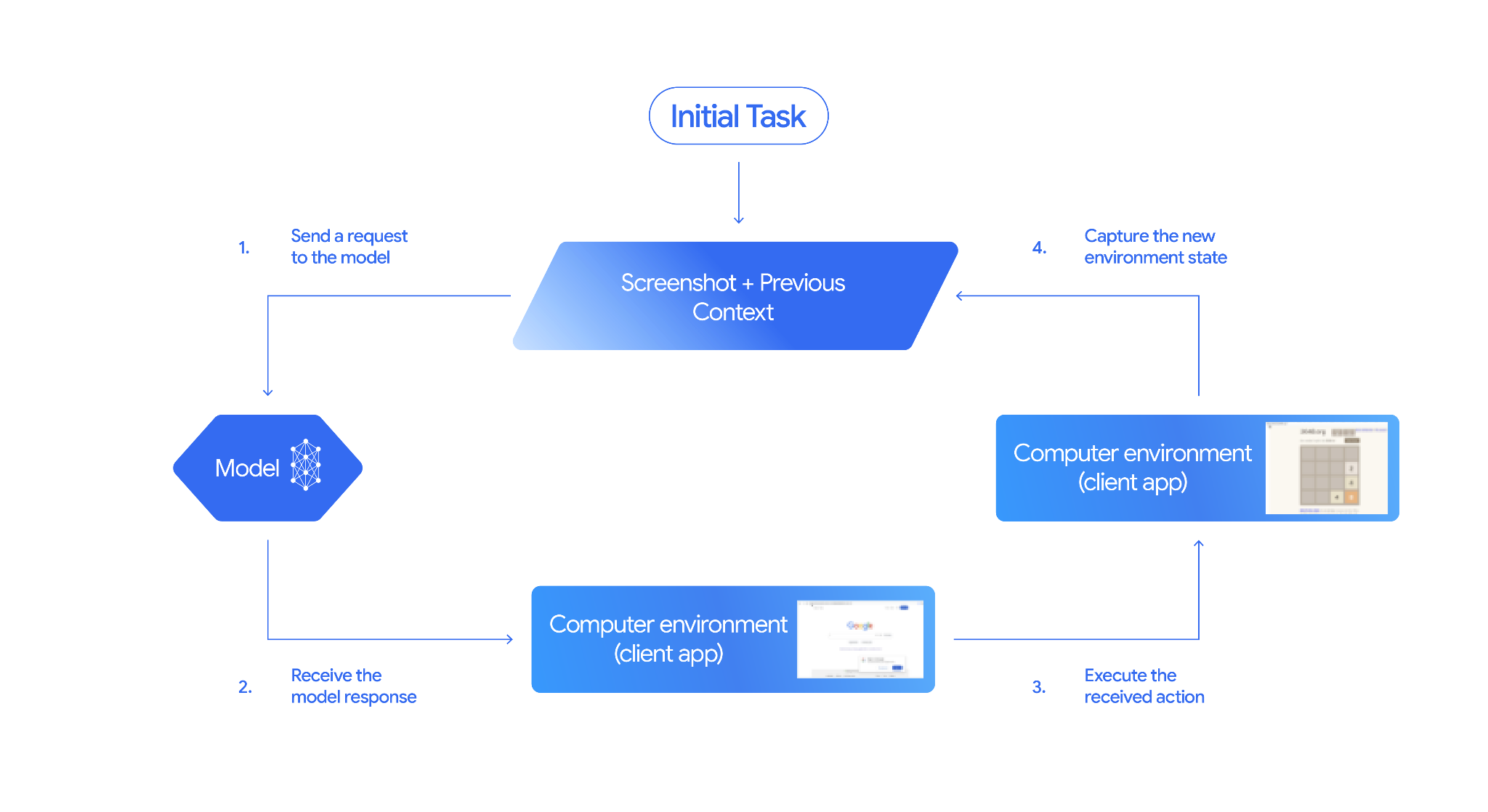
Las interacciones de modelos y herramientas de Computer Use siguen un proceso de bucle de agente:
Envía una solicitud al modelo
- Agrega el modelo y la herramienta de uso de la computadora, y, de forma opcional, cualquier herramienta adicional a tu solicitud a la API.
- Indica al modelo y la herramienta de Computer Use la solicitud del usuario y una captura de pantalla que represente el estado actual de la GUI.
Recibe la respuesta del modelo
- El modelo analiza la solicitud del usuario y la captura de pantalla, y genera una respuesta que incluye un
function_callsugerido que representa una acción de la IU (por ejemplo, "hacer clic en la coordenada (x,y)" o "escribir "texto""). Consulta Acciones admitidas para obtener la lista de todas las acciones que puedes usar con el modelo. - La respuesta de la API también puede incluir un
safety_responsede un sistema de seguridad interno que verificó la acción propuesta del modelo. Estesafety_responseclasifica la acción de la siguiente manera:- Normal o permitida: La acción se considera segura. Esto también puede representarse con la ausencia de
safety_response. - Requiere confirmación: El modelo está a punto de realizar una acción que puede ser riesgosa (por ejemplo, hacer clic en un "banner de aceptación de cookies").
- Normal o permitida: La acción se considera segura. Esto también puede representarse con la ausencia de
- El modelo analiza la solicitud del usuario y la captura de pantalla, y genera una respuesta que incluye un
Ejecuta la acción recibida
- Tu código del cliente recibe el
function_cally cualquiersafety_responseque lo acompañe. - Si el
safety_responseindica que es normal o permitido (o si no hay ningúnsafety_response), tu código del cliente puede ejecutar elfunction_callespecificado en tu entorno de destino (como un navegador web). - Si el
safety_responseindica que se requiere confirmación, tu aplicación debe solicitarle al usuario final que confirme antes de ejecutar elfunction_call. Si el usuario confirma, continúa con la ejecución de la acción. Si el usuario rechaza la acción, no la ejecutes.
- Tu código del cliente recibe el
Captura el nuevo estado del entorno
- Si se ejecutó la acción, tu cliente captura una nueva captura de pantalla de la GUI y la URL actual para enviarla al modelo y la herramienta de Computer Use como parte de un
function_response. - Si el sistema de seguridad bloqueó una acción o el usuario rechazó la confirmación, es posible que tu aplicación envíe otro tipo de comentarios al modelo o finalice la interacción.
- Si se ejecutó la acción, tu cliente captura una nueva captura de pantalla de la GUI y la URL actual para enviarla al modelo y la herramienta de Computer Use como parte de un
Se envía una nueva solicitud al modelo con el estado actualizado. El proceso se repite desde el paso 2, con el modelo y la herramienta de uso de la computadora que utilizan la nueva captura de pantalla (si se proporciona) y el objetivo en curso para sugerir la siguiente acción. El bucle continúa hasta que se completa la tarea, se produce un error o se finaliza el proceso (por ejemplo, si los filtros de seguridad o la decisión del usuario bloquean una respuesta).
En el siguiente diagrama, se ilustra cómo funcionan el modelo y la herramienta de uso de la computadora:
Habilita el modelo y la herramienta de uso de la computadora
Para habilitar el modelo y la herramienta de uso de la computadora, usa gemini-3-flash-preview o gemini-3.5-flash como tu modelo, y agrega el modelo y la herramienta de uso de la computadora a tu lista de herramientas habilitadas:
Python
from google import genai
from google.genai import types
from google.genai.types import Content, Part, FunctionResponse

client = genai.Client()

# Add Computer Use model and tool to the list of tools
generate_content_config = genai.types.GenerateContentConfig(
    tools=[
        types.Tool(
            computer_use=types.ComputerUse(
                environment=types.Environment.ENVIRONMENT_BROWSER,
                )
              ),
            ]
          )

# Example request using the Computer Use model and tool
contents = [
    Content(
        role="user",
        parts=[
            Part(text="Go to google.com and search for 'weather in New York'"),
          ],
        )
      ]

response = client.models.generate_content(
    model="gemini-3-flash-preview",
    contents=contents,
    config=generate_content_config,
  )
Envía una solicitud
Después de configurar el modelo y la herramienta de uso de la computadora, envía una instrucción al modelo que incluya el objetivo del usuario y una captura de pantalla inicial de la GUI.
También puedes agregar los siguientes elementos de forma opcional:
- Acciones excluidas: Si hay acciones de la lista de acciones de IU admitidas que no quieres que realice el modelo, especifícalas en
excluded_predefined_functions. - Funciones definidas por el usuario: Además del modelo y la herramienta de uso de la computadora, es posible que desees incluir funciones personalizadas definidas por el usuario.
El siguiente código de muestra habilita el modelo y la herramienta de Computer Use, y envía la solicitud al modelo:
Python
from google import genai
from google.genai import types
from google.genai.types import Content, Part

client = genai.Client()

# Specify predefined functions to exclude (optional)
excluded_functions = ["drag_and_drop"]

# Configuration for the Computer Use model and tool with browser environment
generate_content_config = genai.types.GenerateContentConfig(
    tools=[
        # 1. Computer Use tool with browser environment
        types.Tool(
            computer_use=types.ComputerUse(
                environment=types.Environment.ENVIRONMENT_BROWSER,
                # Optional: Exclude specific predefined functions
                excluded_predefined_functions=excluded_functions
                )
              ),
        # 2. Optional: Custom user-defined functions (need to defined above)
        # types.Tool(
           # function_declarations=custom_functions
           #   )
    ],
)

# Create the content with user message
contents: list[Content] = [
    Content(
        role="user",
        parts=[
            Part(text="Search for highly rated smart fridges with touchscreen, 2 doors, around 25 cu ft, priced below 4000 dollars on Google Shopping. Create a bulleted list of the 3 cheapest options in the format of name, description, price in an easy-to-read layout."),
            # Optional: include a screenshot of the initial state
            # Part.from_bytes(
                 # data=screenshot_image_bytes,
                 # mime_type='image/png',
            # ),
        ],
    )
]

# Generate content with the configured settings
response = client.models.generate_content(
    model='gemini-3-flash-preview',
    contents=contents,
    config=generate_content_config,
)

# Print the response output
print(response.text)
También puedes incluir funciones personalizadas definidas por el usuario para extender la funcionalidad del modelo. Consulta Cómo usar el modelo y la herramienta de uso de la computadora para casos de uso en dispositivos móviles para obtener información sobre cómo configurar el uso de la computadora para casos de uso en dispositivos móviles agregando acciones como open_app, long_press_at y go_home, y excluyendo acciones específicas del navegador.
Recibe respuestas
El modelo responde con uno o más FunctionCalls si determina que se necesitan acciones de la IU o funciones definidas por el usuario para completar la tarea. El código de tu aplicación debe analizar estas acciones, ejecutarlas y recopilar los resultados. El modelo y la herramienta de uso de la computadora admiten llamadas a funciones paralelas, lo que significa que el modelo puede devolver varias acciones independientes en un solo turno.
{
  "content": {
    "parts": [
      {
        "text": "I will type the search query into the search bar. The search bar is in the center of the page."
      },
      {
        "function_call": {
          "name": "type_text_at",
          "args": {
            "x": 371,
            "y": 470,
            "text": "highly rated smart fridges with touchscreen, 2 doors, around 25 cu ft, priced below 4000 dollars on Google Shopping",
            "press_enter": true
          }
        }
      }
    ]
  }
}
Según la acción, la respuesta de la API también puede devolver un safety_response:
{
  "content": {
    "parts": [
      {
        "text": "I have evaluated step 2. It seems Google detected unusual traffic and is asking me to verify I'm not a robot. I need to click the 'I'm not a robot' checkbox located near the top left (y=98, x=95)."
      },
      {
        "function_call": {
          "name": "click_at",
          "args": {
            "x": 60,
            "y": 100,
            "safety_decision": {
              "explanation": "I have encountered a CAPTCHA challenge that requires interaction. I need you to complete the challenge by clicking the 'I'm not a robot' checkbox and any subsequent verification steps.",
              "decision": "require_confirmation"
            }
          }
        }
      }
    ]
  }
}
Ejecuta las acciones recibidas
Después de recibir una respuesta, el modelo debe ejecutar las acciones recibidas.
El siguiente código extrae llamadas a funciones de una respuesta de Gemini, convierte las coordenadas del rango de 0 a 1, 000 a píxeles reales, ejecuta acciones del navegador con Playwright y devuelve el estado de éxito o error de cada acción:
import time
from typing import Any, List, Tuple


def normalize_x(x: int, screen_width: int) -> int:
    """Convert normalized x coordinate (0-1000) to actual pixel coordinate."""
    return int(x / 1000 * screen_width)


def normalize_y(y: int, screen_height: int) -> int:
    """Convert normalized y coordinate (0-1000) to actual pixel coordinate."""
    return int(y / 1000 * screen_height)


def execute_function_calls(response, page, screen_width: int, screen_height: int) -> List[Tuple[str, Any]]:
    """
    Extract and execute function calls from Gemini response.

    Args:
        response: Gemini API response object
        page: Playwright page object
        screen_width: Screen width in pixels
        screen_height: Screen height in pixels

    Returns:
        List of tuples: [(function_name, result), ...]
    """
    # Extract function calls and thoughts from the model's response
    candidate = response.candidates[0]
    function_calls = []
    thoughts = []

    for part in candidate.content.parts:
        if hasattr(part, 'function_call') and part.function_call:
            function_calls.append(part.function_call)
        elif hasattr(part, 'text') and part.text:
            thoughts.append(part.text)

    if thoughts:
        print(f"Model Reasoning: {' '.join(thoughts)}")

    # Execute each function call
    results = []
    for function_call in function_calls:
        result = None

        try:
            if function_call.name == "open_web_browser":
                print("Executing open_web_browser")
                # Browser is already open via Playwright, so this is a no-op
                result = "success"

            elif function_call.name == "click_at":
                actual_x = normalize_x(function_call.args["x"], screen_width)
                actual_y = normalize_y(function_call.args["y"], screen_height)

                print(f"Executing click_at: ({actual_x}, {actual_y})")
                page.mouse.click(actual_x, actual_y)
                result = "success"

            elif function_call.name == "type_text_at":
                actual_x = normalize_x(function_call.args["x"], screen_width)
                actual_y = normalize_y(function_call.args["y"], screen_height)
                text = function_call.args["text"]
                press_enter = function_call.args.get("press_enter", False)
                clear_before_typing = function_call.args.get("clear_before_typing", True)

                print(f"Executing type_text_at: ({actual_x}, {actual_y}) text='{text}'")

                # Click at the specified location
                page.mouse.click(actual_x, actual_y)
                time.sleep(0.1)

                # Clear existing text if requested
                if clear_before_typing:
                    page.keyboard.press("Control+A")
                    page.keyboard.press("Backspace")

                # Type the text
                page.keyboard.type(text)

                # Press enter if requested
                if press_enter:
                    page.keyboard.press("Enter")

                result = "success"

            else:
                # For any functions not parsed above
                print(f"Unrecognized function: {function_call.name}")
                result = "unknown_function"

        except Exception as e:
            print(f"Error executing {function_call.name}: {e}")
            result = f"error: {str(e)}"

        results.append((function_call.name, result))

    return results
Si el safety_decision devuelto es require_confirmation, debes pedirle al usuario que confirme antes de continuar con la ejecución de la acción. Según las condiciones del servicio, no se permite omitir las solicitudes de confirmación humana.
El siguiente código agrega lógica de seguridad al código anterior:
import termcolor


def get_safety_confirmation(safety_decision):
    """Prompt user for confirmation when safety check is triggered."""
    termcolor.cprint("Safety service requires explicit confirmation!", color="red")
    print(safety_decision["explanation"])

    decision = ""
    while decision.lower() not in ("y", "n", "ye", "yes", "no"):
        decision = input("Do you wish to proceed? [Y]es/[N]o\n")

    if decision.lower() in ("n", "no"):
        return "TERMINATE"
    return "CONTINUE"


def execute_function_calls(response, page, screen_width: int, screen_height: int):
    # ... Extract function calls from response ...

    for function_call in function_calls:
        extra_fr_fields = {}

        # Check for safety decision
        if 'safety_decision' in function_call.args:
            decision = get_safety_confirmation(function_call.args['safety_decision'])
            if decision == "TERMINATE":
                print("Terminating agent loop")
                break
            extra_fr_fields["safety_acknowledgement"] = "true"

        # ... Execute function call and append to results ...
Captura el estado nuevo
Después de ejecutar las acciones, envía el resultado de la ejecución de la función al modelo para que pueda usar esta información para generar la siguiente acción. Si se ejecutaron varias acciones (llamadas paralelas), debes enviar un FunctionResponse para cada una en el turno del usuario subsiguiente. En el caso de las funciones definidas por el usuario, FunctionResponse debe contener el valor que devuelve la función ejecutada.
function_response_parts = []

for name, result in results:
    # Take screenshot after each action
    screenshot = page.screenshot()
    current_url = page.url

    function_response_parts.append(
        FunctionResponse(
            name=name,
            response={"url": current_url},  # Include safety acknowledgement
            parts=[
                types.FunctionResponsePart(
                    inline_data=types.FunctionResponseBlob(
                       mime_type="image/png", data=screenshot
                    )
                )
            ]
        )
    )

# Create the user feedback content with all responses
user_feedback_content = Content(
    role="user",
    parts=function_response_parts
)

# Append this feedback to the 'contents' history list for the next API call
contents.append(user_feedback_content)
Crea un bucle de agente
Combina los pasos anteriores en un bucle para habilitar interacciones de varios pasos. El bucle debe controlar las llamadas a funciones paralelas. Recuerda administrar el historial de conversación (matriz de contenido) correctamente agregando las respuestas del modelo y las respuestas de tu función.
Python
from google import genai
from google.genai.types import Content, Part
from playwright.sync_api import sync_playwright


def has_function_calls(response):
    """Check if response contains any function calls."""
    candidate = response.candidates[0]
    return any(hasattr(part, 'function_call') and part.function_call
               for part in candidate.content.parts)


def main():
    client = genai.Client()

    # ... (config setup from "Send a request to model" section) ...

    with sync_playwright() as p:
        browser = p.chromium.launch(headless=False)
        page = browser.new_page()
        page.goto("https://www.google.com")

        screen_width, screen_height = 1920, 1080

        # ... (initial contents setup from "Send a request to model" section) ...

        # Agent loop: iterate until model provides final answer
        for iteration in range(10):
            print(f"\nIteration {iteration + 1}\n")

            # 1. Send request to model (see "Send a request to model" section)
            response = client.models.generate_content(
                model='gemini-3-flash-preview',
                contents=contents,
                config=generate_content_config,
            )

            contents.append(response.candidates[0].content)

            # 2. Check if done - no function calls means final answer
            if not has_function_calls(response):
                print(f"FINAL RESPONSE:\n{response.text}")
                break

            # 3. Execute actions (see "Execute the received actions" section)
            results = execute_function_calls(response, page, screen_width, screen_height)
            time.sleep(1)

            # 4. Capture state and create feedback (see "Capture the New State" section)
            contents.append(create_feedback(results, page))

        input("\nPress Enter to close browser...")
        browser.close()


if __name__ == "__main__":
    main()
Casos de uso de Gemini 3.5 Flash o versiones posteriores, y de dispositivos móviles o computadoras
El modelo y la herramienta de uso de la computadora admiten la configuración de entornos para dispositivos móviles (ENVIRONMENT_MOBILE), computadoras (ENVIRONMENT_DESKTOP) o navegadores (ENVIRONMENT_BROWSER). El valor predeterminado es ENVIRONMENT_BROWSER.
En los siguientes ejemplos, se muestra cómo configurar el entorno de ejecución para el modelo y la herramienta de uso de la computadora con Gemini 3.5 Flash o versiones posteriores.
API de REST
Antes de usar cualquiera de los datos de solicitud a continuación, realiza los siguientes reemplazos:
- PROJECT_ID: ID del proyecto
HTTP method and URL:
POST https://aiplatform.googleapis.com/v1/projects/PROJECT_ID/locations/global/publishers/google/models/gemini-3.5-flash:generateContent
Cuerpo JSON de la solicitud:
{
  "contents": [
    {
      "role": "user",
      "parts": {
        "text": "find me a flight from SF to Hawaii on Jun 30th, coming back on Jul 6th. start by navigating directly to flights.google.com"
      }
    }
  ],
  "generation_config": {
    "candidateCount": 1
  },
  "tools": [
    {
      "computer_use": {
        "environment": "ENVIRONMENT_BROWSER"
      }
    }
  ]
}
Para enviar tu solicitud, expande una de estas opciones:
Deberías recibir un código de estado exitoso (2xx) y una respuesta vacía.
Python
En el siguiente ejemplo, se requiere la versión 2.7.0 o posterior de python-genai.
from google import genai
from google.genai.types import (
    Part,
    GenerateContentConfig,
    Content,
    Tool,
    ComputerUse,
    Environment,
    ThinkingConfig,
)
client = genai.Client()

response = client.models.generate_content(
    model="gemini-3.5-flash",
    contents=[
        Content(
            role="user",
            parts=[
                Part(text="find me a flight from SF to Hawaii on Jun 30th, coming back on Jul 6th"),
            ],
        )
    ],
    config=GenerateContentConfig(
        temperature=1,
        top_p=0.95,
        top_k=40,
        max_output_tokens=8192,
        tools=[
            Tool(
                computer_use=ComputerUse(
                    environment=Environment.ENVIRONMENT_MOBILE
                ),
            ),
        ],
        thinking_config=ThinkingConfig(
            include_thoughts=True
        ),
    )
)
Gemini 3 Flash y uso en dispositivos móviles
En el siguiente ejemplo de Gemini 3 Flash, se muestra cómo definir funciones personalizadas (como open_app, long_press_at y go_home), combinarlas con la herramienta integrada de uso de la computadora de Gemini y excluir funciones innecesarias específicas del navegador. Al registrar estas funciones personalizadas, el modelo puede llamarlas de forma inteligente junto con las acciones estándar de la IU para completar tareas en entornos que no son navegadores.
from typing import Optional, Dict, Any

from google import genai
from google.genai import types
from google.genai.types import Content, Part


client = genai.Client()

def open_app(app_name: str, intent: Optional[str] = None) -> Dict[str, Any]:
    """Opens an app by name.

    Args:
        app_name: Name of the app to open (any string).
        intent: Optional deep-link or action to pass when launching, if the app supports it.

    Returns:
        JSON payload acknowledging the request (app name and optional intent).
    """
    return {"status": "requested_open", "app_name": app_name, "intent": intent}


def long_press_at(x: int, y: int, duration_ms: int = 500) -> Dict[str, int]:
    """Long-press at a specific screen coordinate.

    Args:
        x: X coordinate (absolute), scaled to the device screen width (pixels).
        y: Y coordinate (absolute), scaled to the device screen height (pixels).
        duration_ms: Press duration in milliseconds. Defaults to 500.

    Returns:
        Object with the coordinates pressed and the duration used.
    """
    return {"x": x, "y": y, "duration_ms": duration_ms}


def go_home() -> Dict[str, str]:
    """Navigates to the device home screen.

    Returns:
        A small acknowledgment payload.
    """
    return {"status": "home_requested"}


#  Build function declarations
CUSTOM_FUNCTION_DECLARATIONS = [
    types.FunctionDeclaration.from_callable(client=client, callable=open_app),
    types.FunctionDeclaration.from_callable(client=client, callable=long_press_at),
    types.FunctionDeclaration.from_callable(client=client, callable=go_home),
]

# Exclude browser functions

EXCLUDED_PREDEFINED_FUNCTIONS = [
    "open_web_browser",
    "search",
    "navigate",
    "hover_at",
    "scroll_document",
    "go_forward",
    "key_combination",
    "drag_and_drop",
]

# Utility function to construct a GenerateContentConfig

def make_generate_content_config() -> genai.types.GenerateContentConfig:
    """Return a fixed GenerateContentConfig with Computer Use + custom functions."""
    return genai.types.GenerateContentConfig(
        tools=[
            types.Tool(
                computer_use=types.ComputerUse(
                    environment=types.Environment.ENVIRONMENT_BROWSER,
                    excluded_predefined_functions=EXCLUDED_PREDEFINED_FUNCTIONS,
                )
            ),
            types.Tool(function_declarations=CUSTOM_FUNCTION_DECLARATIONS),
        ]
    )


# Create the content with user message
contents: list[Content] = [
    Content(
        role="user",
        parts=[
            # text instruction
            Part(text="Open Chrome, then long-press at 200,400."),
            # optional screenshot attachment
            Part.from_bytes(
                data=screenshot_image_bytes,
                mime_type="image/png",
            ),
        ],
    )
]

# Build your fixed config (from helper)
config = make_generate_content_config()

# Generate content with the configured settings
response = client.models.generate_content(
        model="gemini-3-flash-preview",
        contents=contents,
        config=generate_content_config,
    )

    print(response)
Acciones admitidas
El modelo y la herramienta de uso de la computadora permiten que el modelo solicite las siguientes acciones con un FunctionCall. Tu código del cliente debe implementar la lógica de ejecución para estas acciones. Consulta la implementación de referencia para ver ejemplos. En la siguiente tabla, se indican las acciones admitidas para el entorno del navegador.
Gemini 3 Flash y Gemini 3.5 Flash tienen diferentes conjuntos de nombres de FunctionCall.
Gemini 3.5 Flash
| Nombre del comando | Descripción | Argumentos (en la llamada a la función) |
|---|---|---|
| click | Hace clic con el botón izquierdo en la coordenada. |
y: int (0-999)x: int
(0-999)intent: str
|
| double_click | Hace doble clic en la coordenada. |
y: int (0-999)x: int
(0-999)intent: str
|
| triple_click | Hace tres clics en la coordenada. |
y: int (0-999)x: int
(0-999)intent: str
|
| middle_click | Se hace clic con el botón central en la coordenada. |
y: int (0-999)x: int
(0-999)intent: str
|
| right_click | Haz clic con el botón derecho en la coordenada. |
y: int (0-999)x: int
(0-999)intent: str
|
| mouse_down | Presiona y mantiene presionado el botón del mouse en la coordenada. |
y: int (0-999)x: int
(0-999)intent: str
|
| mouse_up | Suelta el botón del mouse en la coordenada. |
y: int (0-999)x: int
(0-999)intent: str
|
| move | Mueve el cursor a la posición especificada. |
y: int (0-999)x: int
(0-999)intent: str
|
| type | Escribe texto. |
text: strintent:
strpress_enter: bool (opcional, el valor predeterminado es falso)
|
| drag_and_drop | Arrastra el elemento desde start_y y start_x hasta end_y y end_x. |
start_y: int (0-999)start_x: int
(0-999)end_y: int (0-999)end_x:
int (0-999)intent: str
|
| wait | Espera la cantidad de segundos especificada. |
intent: strseconds: int (opcional, valor predeterminado 1)
|
| press_key | Presiona la tecla especificada y la suelta. | key: strintent: str |
| key_down | Presiona y mantiene presionada la tecla especificada. | key: strintent: str |
| key_up | Suelta la tecla especificada. | key: strintent: str |
| Tecla de acceso rápido | Presiona la combinación de teclas especificada. | keys: List[str]intent: str |
| take_screenshot | Devuelve una captura de pantalla de la pantalla actual. | intent: str |
| scroll | Se desplaza hacia arriba, abajo, izquierda o derecha en una coordenada por una distancia de píxeles. |
y: int (0-999)x: int
(0-999)direction: str ("up", "down", "left",
"right")intent:
strmagnitude_in_pixels: int (0-999, Optional,
default 300)
|
| go_back | Navega a la página web anterior en el historial del navegador. | intent: str |
| navegar | Navega directamente a una URL especificada. | url: strintent: str |
| go_forward | Navega hacia adelante a la siguiente página web en el historial del navegador. | intent: str |
Gemini 3 Flash
| Nombre del comando | Descripción | Argumentos (en la llamada a la función) | Ejemplo de llamada a función |
|---|---|---|---|
| open_web_browser | Abre el navegador web. | Ninguno | {"name": "open_web_browser", "args": {}} |
| wait_5_seconds | Detiene la ejecución durante 5 segundos para permitir que se cargue el contenido dinámico o que se completen las animaciones. | Ninguno | {"name": "wait_5_seconds", "args": {}} |
| go_back | Navega a la página anterior en el historial del navegador. | Ninguno | {"name": "go_back", "args": {}} |
| go_forward | Navega a la página siguiente en el historial del navegador. | Ninguno | {"name": "go_forward", "args": {}} |
| search | Navega a la página principal del motor de búsqueda predeterminado (por ejemplo, Google). Es útil para iniciar una nueva tarea de búsqueda. | Ninguno | {"name": "search", "args": {}} |
| navegar | Navega el navegador directamente a la URL especificada. | url: str |
{"name": "navigate", "args": {"url": "https://www.wikipedia.org"}}
|
| click_at | Hace clic en una coordenada específica de la página web. Los valores X e Y se basan en una cuadrícula de 1,000 x 1,000 y se ajustan a las dimensiones de la pantalla. | y: int (0-999), x: int (0-999) |
{"name": "click_at", "args": {"y": 300, "x": 500}}
|
| hover_at | 521963309 Coloca el cursor del mouse en una coordenada específica de la página web. Útil para revelar submenús. Las coordenadas X e Y se basan en una cuadrícula de 1,000 x 1,000. | y: int (0-999) x: int (0-999) |
{"name": "hover_at", "args": {"y": 150, "x": 250}}
|
| type_text_at | Escribe texto en una coordenada específica. De forma predeterminada, primero borra el campo y, luego, presiona INTRO después de escribir, pero estas acciones se pueden inhabilitar. Las coordenadas X e Y se basan en una cuadrícula de 1,000 x 1,000. |
y: int (0 a 999), x: int (0 a 999),
text: str, press_enter: bool (opcional, valor predeterminado es True), clear_before_typing: bool (opcional, valor predeterminado es True)
|
{"name": "type_text_at", "args": {"y": 250, "x": 400,
              "text": "search query", "press_enter": false}}
|
| key_combination | Presiona teclas o combinaciones de teclas, como "Control+C" o "Intro". Es útil para activar acciones (como enviar un formulario con "Intro") o realizar operaciones en el portapapeles. |
keys: str (por ejemplo, "enter", "control+c"). Consulta la referencia de la API para obtener la lista completa de claves permitidas.
|
{"name": "key_combination", "args": {"keys":
              "Control+A"}}
|
| scroll_document | Desplaza toda la página web hacia "arriba", "abajo", "izquierda" o "derecha". | direction: str ("up", "down", "left" o "right") |
{"name": "scroll_document", "args": {"direction": "down"}}
|
| scroll_at | Desplaza un elemento o área específicos en la coordenada (x, y) en la dirección especificada por una magnitud determinada. Las coordenadas y la magnitud (predeterminada en 800) se basan en una cuadrícula de 1,000 x 1,000. |
y: int (0-999), x: int (0-999),
direction: str ("up", "down", "left", "right"),
magnitude: int (0-999, opcional, valor predeterminado 800)
|
{"name": "scroll_at", "args": {"y": 500, "x": 500,
              "direction": "down", "magnitude": 400}}
|
| drag_and_drop | Arrastra un elemento desde una coordenada inicial (x, y) y lo suelta en una coordenada de destino (destination_x, destination_y). Todas las coordenadas se basan en una cuadrícula de 1,000 x 1,000. |
y: int (0-999), x: int (0-999),
destination_y: int (0-999),
destination_x: int (0-999)
|
{"name": "drag_and_drop", "args": {"y": 100, "x": 100,
              "destination_y": 500, "destination_x": 500}}
|
Gemini 3.5 Flash: Tienes acceso a diferentes conjuntos de llamadas a funciones según el entorno que selecciones:
Entorno para dispositivos móviles
| Nombre del comando | Descripción | Argumentos (en la llamada a la función) |
|---|---|---|
| open_app | Abre una aplicación por su nombre. | intent: str |
| clic | Hace clic con el botón izquierdo en la coordenada. |
y: int (0-999) x: int (0-999) intent: str |
| list_apps | Enumera las aplicaciones disponibles en el dispositivo y devuelve sus nombres y nombres de paquete. | intent: str |
| wait | Espera la cantidad de segundos especificada. |
intent: str seconds: int(opcional, valor predeterminado 1) |
| go_back | Navega a la página web anterior en el historial del navegador. | intent: str |
| tipo | Escribe texto. |
texto: str intención: str press_enter: bool(opcional, el valor predeterminado es falso) |
| drag_and_drop | Arrastra el elemento desde start_y y start_x hasta end_y y end_x. |
start_y: int (0-999) start_x: int (0-999) end_y: int (0-999) end_x: int (0-999) intent: str |
| long_press | Realiza una presión prolongada en una coordenada específica Y (0-999), X (0-999) de la pantalla. |
y: int (0-999) x: int (0-999) intent: str seconds: int (opcional, el valor predeterminado es 2) |
| press_key | Presiona la tecla especificada y la suelta. |
key: str intent: str |
| take_screenshot | Devuelve una captura de pantalla de la pantalla actual. | intent: str |
Entorno de escritorio
| Nombre del comando | Descripción | Argumentos (en la llamada a la función) |
|---|---|---|
| clic | Hace clic con el botón izquierdo en la coordenada. |
y: int (0-999) x: int (0-999) intent: str |
| double_click | Hace doble clic en la coordenada. |
y: int (0-999) x: int (0-999) intent: str |
| triple_click | Hace tres clics en la coordenada. |
y: int (0-999) x: int (0-999) intent: str |
| middle_click | Se hace clic con el botón central en la coordenada. |
y: int (0-999) x: int (0-999) intent: str |
| right_click | Haz clic con el botón derecho en la coordenada. |
y: int (0-999) x: int (0-999) intent: str |
| mouse_down | Presiona y mantiene presionado el botón del mouse en la coordenada. |
y: int (0-999) x: int (0-999) intent: str |
| mouse_up | Suelta el botón del mouse en la coordenada. |
y: int (0-999) x: int (0-999) intent: str |
| move | Mueve el cursor a la posición especificada. |
y: int (0-999) x: int (0-999) intent: str |
| tipo | Escribe texto. |
texto: str intención: str press_enter: bool(opcional, valor predeterminado es falso) |
| drag_and_drop | Arrastra el elemento desde start_y y start_x hasta end_y y end_x. |
start_y: int (0-999) start_x: int (0-999) end_y: int (0-999) end_x: int (0-999) intent: str |
| wait | Espera la cantidad de segundos especificada. |
intent: str seconds: int(opcional, valor predeterminado 1) |
| press_key | Presiona la tecla especificada y la suelta. |
key: str intent: str |
| key_down | Presiona y mantiene presionada la tecla especificada. |
key: str intent: str |
| key_up | Suelta la tecla especificada. |
key: str intent: str |
| tecla de acceso rápido | Presiona la combinación de teclas especificada. |
keys: List[str] intent: str |
| take_screenshot | Devuelve una captura de pantalla de la pantalla actual. | intent: str |
| desplazamiento | Se desplaza hacia arriba, abajo, izquierda o derecha en una coordenada por una distancia de píxeles. |
y: int (0-999) x: int (0-999) direction: str ("up", "down", "left", "right") intent: str magnitude_in_pixels: int (0-999, Optional, default 300) |
Seguridad y protección
En esta sección, se describen las medidas de protección que el modelo y la herramienta de Uso de la computadora tienen implementadas para mejorar el control del usuario y la seguridad. También se describen las prácticas recomendadas para mitigar los posibles riesgos nuevos que la herramienta podría presentar.
Confirma la decisión de seguridad
Según la acción, la respuesta del modelo y la herramienta de Computer Use puede incluir un safety_decision de un sistema de seguridad interno. Esta decisión verifica la acción que propuso la herramienta para garantizar la seguridad.
{
  "content": {
    "parts": [
      {
        "text": "I have evaluated step 2. It seems Google detected unusual traffic and is asking me to verify I'm not a robot. I need to click the 'I'm not a robot' checkbox located near the top left (y=98, x=95)."
      },
      {
        "function_call": {
          "name": "click_at",
          "args": {
            "x": 60,
            "y": 100,
            "safety_decision": {
              "explanation": "I have encountered a CAPTCHA challenge that requires interaction. I need you to complete the challenge by clicking the 'I'm not a robot' checkbox and any subsequent verification steps.",
              "decision": "require_confirmation"
            }
          }
        }
      }
    ]
  }
}
Si safety_decision es require_confirmation, debes pedirle al usuario final que confirme antes de ejecutar la acción.
En la siguiente muestra de código, se le solicita al usuario final que confirme la acción antes de ejecutarla. Si el usuario no confirma la acción, el bucle finaliza. Si el usuario confirma la acción, esta se ejecuta y el campo safety_acknowledgement se marca como True.
import termcolor

def get_safety_confirmation(safety_decision):
    """Prompt user for confirmation when safety check is triggered."""
    termcolor.cprint("Safety service requires explicit confirmation!", color="red")
    print(safety_decision["explanation"])

    decision = ""
    while decision.lower() not in ("y", "n", "ye", "yes", "no"):
        decision = input("Do you wish to proceed? [Y]es/[N]o\n")

    if decision.lower() in ("n", "no"):
        return "TERMINATE"
    return "CONTINUE"

def execute_function_calls(response, page, screen_width: int, screen_height: int):

    # ... Extract function calls from response ...

    for function_call in function_calls:
        extra_fr_fields = {}

        # Check for safety decision
        if 'safety_decision' in function_call.args:
            decision = get_safety_confirmation(function_call.args['safety_decision'])
            if decision == "TERMINATE":
                print("Terminating agent loop")
                break
            extra_fr_fields["safety_acknowledgement"] = "true" # Safety acknowledgement

        # ... Execute function call and append to results ...
Si el usuario confirma, debes incluir la confirmación de seguridad en tu FunctionResponse.
function_response_parts.append(
    FunctionResponse(
        name=name,
        response={"url": current_url,
                  **extra_fr_fields},  # Include safety acknowledgement
        parts=[
            types.FunctionResponsePart(
                inline_data=types.FunctionResponseBlob(
                    mime_type="image/png", data=screenshot
                )
             )
           ]
         )
       )
Detección de inyección de instrucciones
El modelo y la herramienta de Uso en computadoras para Gemini 3.5 Flash o versiones posteriores admiten un mecanismo de seguridad avanzado para detectar ataques de inyección de instrucciones. Cuando está habilitada, esta función verifica si una captura de pantalla incluida tiene el potencial de introducir un ataque de inyección de instrucciones. Puedes configurar esta función en el modelo y la configuración de la herramienta de uso de la computadora. El valor predeterminado es false.
En los siguientes ejemplos, se muestra cómo habilitar el modelo y la herramienta de uso de la computadora para habilitar la detección de inyección de instrucciones:
API de REST
Antes de usar cualquiera de los datos de solicitud a continuación, realiza los siguientes reemplazos:
- PROJECT_ID: ID del proyecto
HTTP method and URL:
POST https://aiplatform.googleapis.com/v1/projects/PROJECT_ID/locations/global/publishers/google/models/gemini-3.5-flash:generateContent
Cuerpo JSON de la solicitud:
{
  "contents": [
    {
      "role": "user",
      "parts": {
        "text": "find me a flight from SF to Hawaii on Jun 30th, coming back on Jul 6th. start by navigating directly to flights.google.com"
      }
    }
  ],
  "generation_config": {
    "candidateCount": 1
  },
  "tools": [
    {
      "computer_use": {
        "environment": "ENVIRONMENT_BROWSER",
        "enable_prompt_injection_detection": true
      }
    }
  ]
}
Para enviar tu solicitud, expande una de estas opciones:
Deberías recibir un código de estado exitoso (2xx) y una respuesta vacía.
Python
En el siguiente ejemplo, se requiere la versión 2.7.0 o posterior de python-genai.
from google import genai
from google.genai.types import (
    Part,
    GenerateContentConfig,
    Content,
    Tool,
    ComputerUse,
    Environment,
    ThinkingConfig,
)
client = genai.Client()

response = client.models.generate_content(
    model="gemini-3.5-flash",
    contents=[
        Content(
            role="user",
            parts=[
                Part(text="find me a flight from SF to Hawaii on Jun 30th, coming back on Jul 6th"),
            ],
        )
    ],
    config=GenerateContentConfig(
        temperature=1,
        top_p=0.95,
        top_k=40,
        max_output_tokens=8192,
        tools=[
            Tool(
                computer_use=ComputerUse(
                    environment=Environment.ENVIRONMENT_MOBILE,
                    enable_prompt_injection_detection=True
                ),
            ),
        ],
        thinking_config=ThinkingConfig(
            include_thoughts=True
        ),
    )
)
Prácticas recomendadas de seguridad
El modelo y la herramienta de uso de la computadora son novedosos y presentan nuevos riesgos que los desarrolladores deben tener en cuenta:
- Contenido no confiable y estafas: A medida que el modelo intenta alcanzar el objetivo del usuario, es posible que se base en fuentes de información y en instrucciones de la pantalla que no sean confiables. Por ejemplo, si el objetivo del usuario es comprar un teléfono Pixel y el modelo se encuentra con una estafa de "Pixel gratis si completas una encuesta", existe la posibilidad de que el modelo complete la encuesta.
- Acciones no deseadas ocasionales: El modelo puede malinterpretar el objetivo del usuario o el contenido de la página web, lo que hace que realice acciones incorrectas, como hacer clic en el botón equivocado o completar el formulario incorrecto. Esto puede provocar errores en las tareas o la robo de datos.
- Incumplimientos de políticas: Las capacidades de la API podrían dirigirse, ya sea de forma intencional o no intencional, a actividades que incumplan las condiciones y políticas de Google. Esto incluye acciones que podrían interferir en la integridad de un sistema, comprometer la seguridad, eludir medidas de seguridad como CAPTCHAs, controlar dispositivos médicos, etcétera.
Para abordar estos riesgos, debes implementar las siguientes medidas de seguridad y prácticas recomendadas:
- Interacción humana (HITL):
- Implementa la confirmación del usuario: Cuando la respuesta de seguridad indique require_confirmation, debes implementar la confirmación del usuario antes de la ejecución.
- Proporciona instrucciones de seguridad personalizadas: Además de las verificaciones de confirmación del usuario integradas, los desarrolladores pueden agregar de forma opcional una instrucción del sistema personalizada que aplique sus propias políticas de seguridad, ya sea para bloquear ciertas acciones del modelo o para requerir la confirmación del usuario antes de que el modelo realice ciertas acciones irreversibles de alto riesgo. A continuación, se muestra un ejemplo de una instrucción personalizada del sistema de seguridad que puedes incluir cuando interactúas con el modelo.
Haz clic para ver un ejemplo de cómo crear una conexión
## **RULE 1: Seek User Confirmation (USER_CONFIRMATION)**

This is your first and most important check. If the next required action falls
into any of the following categories, you MUST stop immediately, and seek the
user's explicit permission.

**Procedure for Seeking Confirmation:**  * **For Consequential Actions:**
Perform all preparatory steps (e.g., navigating, filling out forms, typing a
message). You will ask for confirmation **AFTER** all necessary information is
entered on the screen, but **BEFORE** you perform the final, irreversible action
(e.g., before clicking "Send", "Submit", "Confirm Purchase", "Share").  * **For
Prohibited Actions:** If the action is strictly forbidden (e.g., accepting legal
terms, solving a CAPTCHA), you must first inform the user about the required
action and ask for their confirmation to proceed.

**USER_CONFIRMATION Categories:**

*   **Consent and Agreements:** You are FORBIDDEN from accepting, selecting, or
    agreeing to any of the following on the user's behalf. You must ask th e
    user to confirm before performing these actions.
    *   Terms of Service
    *   Privacy Policies
    *   Cookie consent banners
    *   End User License Agreements (EULAs)
    *   Any other legally significant contracts or agreements.
*   **Robot Detection:** You MUST NEVER attempt to solve or bypass the
    following. You must ask the user to confirm before performing these actions.
*   CAPTCHAs (of any kind)
    *   Any other anti-robot or human-verification mechanisms, even if you are
        capable.
*   **Financial Transactions:**
    *   Completing any purchase.
    *   Managing or moving money (e.g., transfers, payments).
    *   Purchasing regulated goods or participating in gambling.
*   **Sending Communications:**
    *   Sending emails.
    *   Sending messages on any platform (e.g., social media, chat apps).
    *   Posting content on social media or forums.
*   **Accessing or Modifying Sensitive Information:**
    *   Health, financial, or government records (e.g., medical history, tax
        forms, passport status).
    *   Revealing or modifying sensitive personal identifiers (e.g., SSN, bank
        account number, credit card number).
*   **User Data Management:**
    *   Accessing, downloading, or saving files from the web.
    *   Sharing or sending files/data to any third party.
    *   Transferring user data between systems.
*   **Browser Data Usage:**
    *   Accessing or managing Chrome browsing history, bookmarks, autofill data,
        or saved passwords.
*   **Security and Identity:**
    *   Logging into any user account.
    *   Any action that involves misrepresentation or impersonation (e.g.,
        creating a fan account, posting as someone else).
*   **Insurmountable Obstacles:** If you are technically unable to interact with
    a user interface element or are stuck in a loop you cannot resolve, ask the
    user to take over.
---

## **RULE 2: Default Behavior (ACTUATE)**

If an action does **NOT** fall under the conditions for `USER_CONFIRMATION`,
your default behavior is to **Actuate**.

**Actuation Means:**  You MUST proactively perform all necessary steps to move
the user's request forward. Continue to actuate until you either complete the
non-consequential task or encounter a condition defined in Rule 1.

*   **Example 1:** If asked to send money, you will navigate to the payment
    portal, enter the recipient's details, and enter the amount. You will then
    **STOP** as per Rule 1 and ask for confirmation before clicking the final
    "Send" button.
*   **Example 2:** If asked to post a message, you will navigate to the site,
    open the post composition window, and write the full message. You will then
    **STOP** as per Rule 1 and ask for confirmation before clicking the final
    "Post" button.

    After the user has confirmed, remember to get the user's latest screen
    before continuing to perform actions.

# Final Response Guidelines:
Write final response to the user in these cases:
- User confirmation
- When the task is complete or you have enough information to respond to the user
- Entorno de ejecución seguro: Ejecuta tu agente en un entorno seguro y aislado para limitar su impacto potencial (por ejemplo, una máquina virtual (VM) aislada, un contenedor (como Docker) o un perfil de navegador dedicado con permisos limitados).
- Limpieza de entradas: Limpia todo el texto generado por el usuario en las instrucciones para mitigar el riesgo de instrucciones no deseadas o inyección de instrucciones. Esta es una capa de seguridad útil, pero no reemplaza un entorno de ejecución seguro.
- Listas de bloqueo y listas de entidades permitidas: Implementa mecanismos de filtrado para controlar dónde puede navegar el modelo y qué puede hacer. Una lista de bloqueo de sitios web prohibidos es un buen punto de partida, mientras que una lista de entidades permitidas más restrictiva es aún más segura.
- Observabilidad y registro: Mantén registros detallados para la depuración, la auditoría y la respuesta ante incidentes. Tu cliente debe registrar las instrucciones, las capturas de pantalla, las acciones sugeridas por el modelo (
function_call), las respuestas de seguridad y todas las acciones que, en última instancia, ejecute el cliente.
Precios
El modelo y la herramienta de uso de la computadora tienen los mismos precios que Gemini y usan los mismos SKU. Para dividir los costos del modelo y la herramienta de uso de la computadora, usa etiquetas de metadatos personalizadas. Para obtener más información sobre el uso de etiquetas de metadatos personalizadas para la supervisión de costos, consulta Etiquetas de metadatos personalizadas.