


在 Python 中使用 user-defined function
Python user-defined function (UDF) 可讓您在 Python 中實作純量函式,並在 SQL 查詢中使用。Python UDF 與 SQL 和 JavaScript UDF 類似,但功能更多。Python UDF 可讓您從 Python Package Index (PyPI) 安裝第三方函式庫,並使用 Cloud 資源連結存取外部服務。
Python UDF 是在 BigQuery 代管資源上建構及執行。
限制
python-3.11是唯一支援的執行階段。- 您無法建立暫時性 Python UDF。
- Python UDF 無法與 materialized view 搭配使用。
- 呼叫 Python UDF 的查詢結果不會快取,因為 Python UDF 的傳回值一律假設為不具決定性。
- 不支援 Assured Workloads。
- 不支援以下資料類型:
JSON、RANGE、INTERVAL和GEOGRAPHY。 - 執行 Python UDF 的容器最多只能設定 4 個 vCPU 和 16 GiB。
- 不支援使用客戶自行管理的加密金鑰 (CMEK) 加密 Python UDF 程式碼。
- Python UDF 支援 VPC Service Controls,但不支援虛擬私有雲網路。
必要的角色
所需的 IAM 角色取決於您是 Python UDF 擁有者還是 Python UDF 使用者。
UDF 擁有者
Python UDF 擁有者通常會建立或更新 UDF。如果您建立的 Python UDF 參照 Cloud 資源連結,則還需要其他角色。只有在 UDF 使用 WITH CONNECTION 子句存取外部服務時,才需要建立這項連線。
如要取得建立或更新 Python UDF 所需的權限,請要求管理員授予您下列 IAM 角色:
- 資料集的 BigQuery 資料編輯者 (
roles/bigquery.dataEditor) - 專案的 BigQuery 工作使用者 (
roles/bigquery.jobUser) - 專案的 BigQuery 連線管理員 (
roles/bigquery.connectionAdmin)
如要進一步瞭解如何授予角色,請參閱「管理專案、資料夾和組織的存取權」。
這些預先定義的角色具備建立或更新 Python UDF 所需的權限。如要查看確切的必要權限,請展開「Required permissions」(必要權限) 部分:
所需權限
您必須具備下列權限,才能建立或更新 Python UDF:
-
使用
CREATE FUNCTION陳述式建立 Python UDF:bigquery.routines.create,位於資料集 -
使用
CREATE FUNCTION陳述式更新 Python UDF:bigquery.routines.update資料集 -
對專案
bigquery.jobs.create執行CREATE FUNCTION陳述式查詢工作 -
建立新的 Cloud 資源連線:
bigquery.connections.create專案 -
在
CREATE FUNCTION陳述式中使用連線:bigquery.connections.delegate連線
如要進一步瞭解 BigQuery 中的角色,請參閱「預先定義的身分與存取權管理角色」。
UDF 使用者
Python UDF 使用者叫用他人建立的 UDF。如果叫用參照 Cloud 資源連結的 Python UDF,也需要其他角色。
如要取得叫用他人建立的 Python UDF 所需權限,請要求管理員授予您下列 IAM 角色:
- 專案的 BigQuery 使用者 (
roles/bigquery.user) - 資料集的 BigQuery 資料檢視者 (
roles/bigquery.dataViewer) - 連線的 BigQuery 連線使用者 (
roles/bigquery.connectionUser)
如要進一步瞭解如何授予角色,請參閱「管理專案、資料夾和組織的存取權」。
這些預先定義的角色具備叫用他人建立的 Python UDF 所需的權限。如要查看確切的必要權限,請展開「Required permissions」(必要權限) 部分:
所需權限
必須具備下列權限,才能叫用他人建立的 Python UDF:
-
如要執行參照 Python UDF 的查詢工作:
bigquery.jobs.create在專案 -
如要叫用他人建立的 Python UDF,您必須具備資料集的
bigquery.routines.get -
如要執行參照 Cloud 資源連結的 Python UDF,請在連結上執行下列操作:
bigquery.connections.use
如要進一步瞭解 BigQuery 中的角色,請參閱「預先定義的身分與存取權管理角色」。
建立永久 Python UDF
建立 Python UDF 時,請遵守下列規則:
Python UDF 的主體必須是以引號括住的字串文字,代表 Python 程式碼。如要進一步瞭解引號字串文字,請參閱「引號文字格式」。
Python UDF 的主體必須包含 Python 函式,用於 Python UDF 選項清單中的
entry_point引數。您必須在
runtime_version選項中指定 Python 執行階段版本。唯一支援的 Python 執行階段版本為python-3.11。如需可用選項的完整清單,請參閱CREATE FUNCTION陳述式的函式選項清單。
如要建立永久 Python UDF,請使用 CREATE FUNCTION 陳述式,但不使用 TEMP 或 TEMPORARY 關鍵字。如要刪除永久 Python UDF,請使用 DROP FUNCTION 陳述式。
範例
如要查看建立永久 Python UDF 的範例,請選擇下列其中一個選項:
控制台
以下範例會建立名為 multiplyInputs 的永久 Python UDF,並從 SELECT 陳述式中呼叫 UDF:
前往「BigQuery」頁面
在查詢編輯器中,輸入下列
CREATE FUNCTION陳述式:CREATE FUNCTION `PROJECT_ID.DATASET_ID`.multiplyInputs(x FLOAT64, y FLOAT64) RETURNS FLOAT64 LANGUAGE python OPTIONS(runtime_version="python-3.11", entry_point="multiply") AS r''' def multiply(x, y): return x * y '''; -- Call the Python UDF. WITH numbers AS (SELECT 1 AS x, 5 as y UNION ALL SELECT 2 AS x, 10 as y UNION ALL SELECT 3 as x, 15 as y) SELECT x, y, `PROJECT_ID.DATASET_ID`.multiplyInputs(x, y) AS product FROM numbers;
取代 PROJECT_ID。將 DATASET_ID 替換為您的專案 ID 和資料集 ID。
按一下「 執行」。
這個範例會產生下列輸出內容:
+-----+-----+--------------+
| x   | y   | product      |
+-----+-----+--------------+
| 1   | 5   |  5.0         |
| 2   | 10  | 20.0         |
| 3   | 15  | 45.0         |
+-----+-----+--------------+
BigQuery DataFrames
下列範例使用 BigQuery DataFrames,將自訂函式轉換為 Python UDF:
容器建構狀態
使用 CREATE FUNCTION 陳述式建立 Python UDF 時,BigQuery 會根據基礎映像檔建立或更新容器映像檔。容器會使用您的程式碼和任何指定的套件依附元件,在基本映像檔上建構。
建立容器是長時間執行的程序。執行 CREATE FUNCTION 陳述式後,第一個查詢會等待映像檔建構完成。如果沒有外部依附元件,容器映像檔通常會在 1 分鐘內建立完成。
每個專案和區域的所有 Python UDF 容器大小總和限制為 10 GiB。詳情請參閱「persistent UDF 的 user-defined function 限制」。如果專案已達配額,容器建構作業就會失敗。
如要查看容器建構作業的狀態,請選擇下列其中一項:
控制台
前往 BigQuery Studio 頁面。
在左側窗格中展開專案,然後點選「資料集」。
點選連結,開啟含有 Python UDF 的資料集。
在資料集頁面中,按一下「Routines」(常式) 分頁標籤。
在「Routine ID」(常式 ID) 欄中,點選 Python UDF。
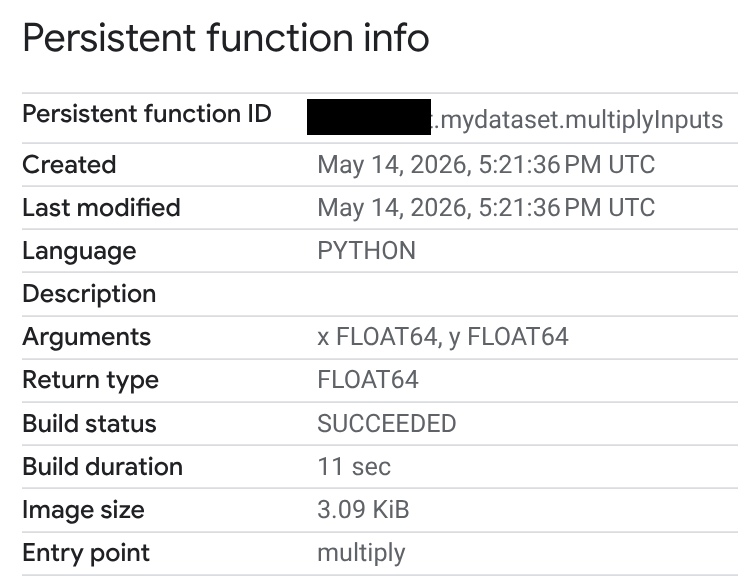
在「Persistent function info」(永久函式資訊) 頁面中,您可以查看建構狀態、建構時間長度和映像檔大小。建構狀態為下列其中一種:
- 進行中
- 成功
- 失敗
如果建構失敗,函式資訊頁面會提供詳細的錯誤訊息,方便您排解語法錯誤或安裝外部套件等問題。
SQL
如要查詢 INFORMATION_SCHEMA.ROUTINES 檢視畫面中的建構狀態欄位,請按照下列步驟操作:
前往 BigQuery 的「Studio」頁面。
切換至查詢編輯器,或點選 「SQL query」(SQL 查詢)。
輸入下列查詢,從
INFORMATION_SCHEMA.ROUTINES檢視表擷取BUILD_STATUS欄位。BUILD_STATUS欄是 GoogleSQL 中的STRUCT類型:SELECT build_status.* FROM `PROJECT_ID.DATASET_ID`.INFORMATION_SCHEMA.ROUTINES;取代 PROJECT_ID。DATASET_ID 以及您的專案 ID 和資料集 ID。
輸出內容應如下所示。省略錯誤欄位:
+---------------+--------------------------------+------------------------+------------------+
| build_state   | build_state_update_time        | build_duration_seconds | image_size_bytes |
+---------------+--------------------------------+------------------------+------------------+
| SUCCEEDED     | 2026-05-14 17:21:49.736000 UTC |                     11 |             3167 |
+---------------+--------------------------------+------------------------+------------------+
API
在 API 中使用 RoutineBuildStatus 查看容器建構狀態。
建立向量化 Python UDF
您可以實作 Python UDF,使用向量化處理一批資料列,而非單一資料列。向量化可提高查詢效能。您可以使用 Pandas 或 Apache Arrow 建立向量化 UDF。
如要控管批次處理行為,請使用 CREATE OR REPLACE FUNCTION 選項清單中的 max_batching_rows 選項,指定每個批次中的資料列數量上限。如果指定 max_batching_rows,BigQuery 會決定批次中的資料列數量,最多不超過 max_batching_rows 限制。如未指定 max_batching_rows,系統會自動決定要批次處理的資料列數量。
使用 Pandas
向量化 Python UDF 具有單一 pandas.DataFrame 引數,必須加上註解。pandas.DataFrame 引數的資料欄數量,與 CREATE FUNCTION 陳述式中定義的 Python UDF 參數數量相同。pandas.DataFrame 引數中的資料欄名稱與 UDF 的參數名稱相同。
函式必須傳回 pandas.Series 或單欄 pandas.DataFrame,且資料列數量與輸入內容相同。
下列範例會建立名為 multiplyInputs 的向量化 Python UDF,並包含 x 和 y 兩個參數:
前往「BigQuery」頁面
在查詢編輯器中,輸入下列
CREATE FUNCTION陳述式:CREATE FUNCTION `PROJECT_ID.DATASET_ID`.multiplyVectorized(x FLOAT64, y FLOAT64) RETURNS FLOAT64 LANGUAGE python OPTIONS(runtime_version="python-3.11", entry_point="vectorized_multiply") AS r''' import pandas as pd def vectorized_multiply(df: pd.DataFrame): return df['x'] * df['y'] ''';
取代 PROJECT_ID。DATASET_ID 以及您的專案 ID 和資料集 ID。
呼叫 UDF 的方式與前一個範例相同。
按一下 「Run」(執行)。
使用 Apache Arrow
以下範例使用 Apache Arrow RecordBatch 介面。使用 RecordBatch 介面時,函式會將長度相同的資料欄資料列批次傳遞至進入點。以下範例使用 Apache Arrow 建立名為 multiplyVectorizedArrow 的向量化 Python UDF。
前往「BigQuery」頁面
在查詢編輯器中,輸入下列
CREATE FUNCTION陳述式:CREATE FUNCTION `PROJECT_ID.DATASET_ID`.multiplyVectorizedArrow(x FLOAT64, y FLOAT64) RETURNS FLOAT64 LANGUAGE python OPTIONS( runtime_version="python-3.11", entry_point="vectorized_multiply_arrow" ) AS r''' import pyarrow as pa import pyarrow.compute as pc def vectorized_multiply_arrow(batch: pa.RecordBatch): # Access columns directly from the Arrow RecordBatch x = batch.column('x') y = batch.column('y') # Use pyarrow.compute for vectorized operations return pc.multiply(x, y) ''';
取代 PROJECT_ID。DATASET_ID 以及您的專案 ID 和資料集 ID。
呼叫 UDF 的方式與先前範例相同。
按一下 「Run」(執行)。
呼叫 Python UDF
如果您有權叫用 Python UDF,則可像呼叫其他函式一樣呼叫該 UDF。如要使用在其他專案中定義的函式,請使用函式的完整名稱。舉例來說,如要呼叫其他專案中名為 cw_xml_extract 的 XML 擷取函式,請完成下列步驟。
控制台
前往「BigQuery」頁面。
在查詢編輯器中輸入下列範例:
SELECT
  `PROJECT_ID.DATASET_ID`.`cw_xml_extract`(xml, '//title/text()') AS `title`
FROM UNNEST([
  STRUCT('''<book id="1">
    <title>The Great Gatsby</title>
    <author>F. Scott Fitzgerald</author>
  </book>''' AS xml),
  STRUCT('''<book id="2">
    <title>1984</title>
    <author>George Orwell</author>
  </book>''' AS xml),
  STRUCT('''<book id="3">
    <title>Brave New World</title>
    <author>Aldous Huxley</author>
  </book>''' AS xml)
])
按一下 「Run」(執行)。
這個範例會產生下列輸出內容:
+--------------------------+
| title                    |
+--------------------------+
| The Great Gatsby         |
| 1984                     |
| Brave New World          |
+--------------------------+
BigQuery DataFrames
下列範例使用 BigQuery DataFrames
sql_scalar、read_gbq_function 和 apply 方法呼叫 Python UDF:
支援的 Python UDF 資料類型
下表定義 BigQuery 資料類型、Python 資料類型和 Pandas 資料類型之間的對應關係:
| BigQuery 資料類型 | 標準 UDF 使用的 Python 內建資料類型 | 向量化 UDF 使用的 Pandas 資料類型 | 向量化 UDF 中用於 ARRAY 和 STRUCT 的 PyArrow 資料類型 |
|---|---|---|---|
BOOL |
bool |
BooleanDtype |
DataType(bool) |
INT64 |
int |
Int64Dtype |
DataType(int64) |
FLOAT64 |
float |
FloatDtype |
DataType(double) |
STRING |
str |
StringDtype |
DataType(string) |
BYTES |
bytes |
binary[pyarrow] |
DataType(binary) |
TIMESTAMP |
函式參數: 函式傳回值: |
函式參數: 函式傳回值: |
TimestampType(timestamp[us]),包含時區 |
DATE |
datetime.date |
date32[pyarrow] |
DataType(date32[day]) |
TIME |
datetime.time |
time64[pyarrow] |
Time64Type(time64[us]) |
DATETIME |
datetime.datetime (不含時區) |
timestamp[us][pyarrow] |
TimestampType(timestamp[us]),不含時區 |
ARRAY |
list |
list<...>[pyarrow],其中元素資料類型為 pandas.ArrowDtype |
ListType |
STRUCT |
dict |
struct<...>[pyarrow],其中欄位資料類型為 pandas.ArrowDtype |
StructType |
支援的執行階段版本
BigQuery Python UDF 支援 python-3.11 執行階段。這個 Python 版本包含一些額外的預先安裝套件。如果是系統程式庫,請檢查執行階段基本映像檔。
| 執行階段版本 | Python 版本 | 收錄 |
|---|---|---|
| python-3.11 | Python 3.11 | numpy 1.26.3 pyarrow 14.0.2 pandas 2.1.4 python-dateutil 2.8.2 absl-py 2.0.0 pytz 2023.3.post1 tzdata 2023.4 six 1.16.0 |
使用第三方套件
您可以使用 CREATE FUNCTION 選項清單,使用 Python 標準程式庫和預先安裝套件以外的模組。您可以從 Python Package Index (PyPI) 安裝套件,也可以從 Cloud Storage 匯入 Python 檔案。
從 Python 套件索引安裝套件
安裝套件時,您必須提供套件名稱,並可選擇使用 Python 套件版本指定碼提供套件版本。
如果套件位於執行階段,系統會使用該套件,除非 CREATE FUNCTION 選項清單中指定了特定版本。如果未指定套件版本,且套件不在執行階段中,則會使用最新可用版本。僅支援輪式二進位格式的套件。
以下範例說明如何建立 Python UDF,並使用 CREATE OR REPLACE FUNCTION 選項清單安裝 scipy 套件:
前往「BigQuery」頁面
在查詢編輯器中,輸入下列
CREATE FUNCTION陳述式:CREATE FUNCTION `PROJECT_ID.DATASET_ID`.area(radius FLOAT64) RETURNS FLOAT64 LANGUAGE python OPTIONS (entry_point='area_handler', runtime_version='python-3.11', packages=['scipy==1.15.3']) AS r""" import scipy def area_handler(radius): return scipy.constants.pi*radius*radius """; SELECT `PROJECT_ID.DATASET_ID`.area(4.5);
取代 PROJECT_ID。DATASET_ID 以及您的專案 ID 和資料集 ID。
按一下 「Run」(執行)。
將其他 Python 檔案匯入為程式庫
您可以使用「Function option list」(函式選項清單),從 Cloud Storage 匯入 Python 檔案,擴充 Python UDF。
在 UDF 的 Python 程式碼中,您可以使用 import 陳述式,後接 Cloud Storage 物件的路徑,將 Cloud Storage 中的 Python 檔案匯入為模組。舉例來說,如果您要匯入 gs://BUCKET_NAME/path/to/lib1.py,匯入陳述式會是 import
path.to.lib1。
Python 檔案名稱必須是 Python 識別碼。物件名稱 (/ 後方) 中的每個 folder 名稱都必須是有效的 Python ID。在 ASCII 範圍 (U+0001..U+007F) 內,下列字元可用於 ID:
- 大小寫英文字母 A 到 Z。
- 底線。
- 數字 0 到 9,但數字不得做為 ID 的第一個字元。
以下範例說明如何建立 Python UDF,從名為 my_bucket 的 Cloud Storage bucket 匯入 lib1.py 用戶端程式庫套件:
前往「BigQuery」頁面
在查詢編輯器中,輸入下列
CREATE FUNCTION陳述式:CREATE FUNCTION `PROJECT_ID.DATASET_ID`.myFunc(a FLOAT64, b STRING) RETURNS STRING LANGUAGE python OPTIONS ( entry_point='compute', runtime_version='python-3.11', library=['gs://BUCKET_NAME/PATH/lib1.py']) AS r""" import path.to.lib1 as lib1 def compute(a, b): # doInterestingStuff is a function defined in # gs://BUCKET_NAME/PATH/lib1.py return lib1.doInterestingStuff(a, b); """;
更改下列內容:
- PROJECT_ID:您的專案 ID。
- DATASET_ID:資料集 ID。
- BUCKET_NAME:包含
lib1.py的 Cloud Storage bucket 名稱。 - PATH:Cloud Storage bucket 的路徑。
按一下 「Run」(執行)。
設定 Python UDF 的容器限制
您可以使用 CREATE FUNCTION 選項清單,為執行 Python UDF 的容器指定 CPU、記憶體和容器要求並行限制。
根據預設,容器會分配到下列資源:
- 分配的記憶體為
512Mi。 - 分配的 CPU 為
1.0個 vCPU。 - 並行容器要求數量上限為
80。
下列範例使用 CREATE FUNCTION 選項清單建立 Python UDF,指定容器限制:
前往「BigQuery」頁面
在查詢編輯器中,輸入下列
CREATE FUNCTION陳述式:CREATE FUNCTION `PROJECT_ID.DATASET_ID`.square_area(length FLOAT64) RETURNS FLOAT64 LANGUAGE python OPTIONS (entry_point='square_area', runtime_version='python-3.11', container_memory='CONTAINER_MEMORY', container_cpu=CONTAINER_CPU, container_request_concurrency=CONTAINER_REQUEST_CONCURRENCY) AS r""" def square_area(length): return length*length """; SELECT `PROJECT_ID.DATASET_ID`.square_area(4.5);
更改下列內容:
- PROJECT_ID.DATASET_ID:您的專案 ID 和資料集 ID。
- CONTAINER_MEMORY:記憶體值,格式如下:
<integer_number><unit>。單位必須是下列其中一個值:Mi(MiB)、M(MB)、Gi(GiB) 或G(GB)。例如:2Gi。 - CONTAINER_CPU:CPU 值。Python UDF 支援介於
0.33和1.0之間的小數 CPU 值,以及1、2和4的非小數 CPU 值。 - CONTAINER_REQUEST_CONCURRENCY:每個 Python UDF 容器執行個體的並行要求數量上限。值必須是介於
1到1000之間的整數。
按一下 「Run」(執行)。
支援的 CPU 值
Python UDF 支援介於 0.33 和 1.0 之間的小數 CPU 值,以及 1、2 和 4 的非小數 CPU 值。執行 Python UDF 的容器最多可設定 4 個 vCPU。預設值為 1.0。小數輸入值會四捨五入至小數點後兩位,再套用至容器。
支援的記憶體值
Python UDF 容器支援下列格式的記憶體值:<integer_number><unit>。單位必須是下列其中一個值:Mi、M、Gi、G。可設定的記憶體容量下限為 256Mi。可設定的記憶體容量上限為 16Gi。
根據您選擇的記憶體值,您也必須指定適當的 CPU 數量。下表列出每個記憶體值的 CPU 最小值和最大值:
| 記憶體 | 最低 CPU | CPU 上限 |
|---|---|---|
256Mi 至 512Mi |
0.33 |
2 |
大於 512Mi 且小於或等於 1Gi |
0.5 |
2 |
大於 1Gi 且小於 2Gi |
1 |
2 |
2Gi 至 4Gi |
1 |
4 |
大於 4Gi且不超過 8Gi |
2 |
4 |
大於 8Gi,最多 16Gi |
4 |
4 |
或者,如果您已決定要分配的 CPU 數量,可以使用下表判斷適當的記憶體範圍:
| CPU | 記憶體下限 | 記憶體上限 |
|---|---|---|
小於 0.5 |
256Mi |
512Mi |
0.5 至 1 |
256Mi |
1Gi |
1 |
256Mi |
4Gi |
2 |
256Mi |
8Gi |
4 |
2Gi |
16Gi |
在 Python 程式碼中呼叫 Google Cloud 或線上服務
Python UDF 會使用 Cloud 資源連結服務帳戶,存取 Google Cloud 服務或外部服務。必須授予連線的服務帳戶存取服務的權限。所需權限取決於存取的服務,以及從 Python 程式碼呼叫的 API。
如果您在建立 Python UDF 時未使用 Cloud 資源連結,函式會在封鎖網路存取的環境中執行。如果 UDF 會存取線上服務,您必須使用 Cloud 資源連線建立 UDF。否則,在內部連線逾時之前,UDF 將無法存取網路。使用 Cloud 資源連結時,請執行下列操作:
禁言。在 Python UDF 中發出網路呼叫時,請務必加入合理的逾時時間。如果外部服務回應緩慢或無法連線,這項設定可防止 UDF 無限期停止運作。
使用錯誤處理機制。請將網路呼叫程式碼包裝在
try...except區塊中,妥善處理連線錯誤、逾時或 HTTP 失敗狀態碼等潛在錯誤。這樣一來,UDF 就能傳回有意義的錯誤或備用值,而不會導致查詢失敗或停止回應。
以下範例說明如何透過 Python UDF 存取 Cloud Translation 服務。這個範例有兩個專案:一個名為 my_query_project,用於建立 UDF 和 Cloud 資源連結;另一個名為 my_translate_project,用於執行 Cloud Translation。
建立 Cloud 資源連結
首先,在 my_query_project 建立 Cloud 資源連結。如要建立 Cloud 資源連結,請按照下列步驟操作。
控制台
前往「BigQuery」頁面。
點選左側窗格中的 「Explorer」。

如果沒有看到左側窗格,請按一下 「Expand left pane」(展開左側窗格),開啟窗格。
在「Explorer」窗格中展開專案名稱,然後點選「Connections」(連線)。
在「Connections」(連線) 頁面,按一下「Create connection」(建立連線)。
在「連線類型」部分,選擇「Vertex AI 遠端模型、遠端函式、BigLake 和 Spanner (Cloud 資源)」。
在「連線 ID」欄位輸入連線名稱。
在「位置類型」部分,選取連線位置。連線應與資料集等其他資源位於相同位置。
點選「建立連線」。
點選「前往連線」。
在「連線資訊」窗格中,複製服務帳戶 ID,以便在後續步驟中使用。
SQL
前往 Google Cloud 控制台的「BigQuery」頁面。
在查詢編輯器中輸入下列陳述式:
CREATE CONNECTION [IF NOT EXISTS] `CONNECTION_NAME`
OPTIONS (
  connection_type = "CLOUD_RESOURCE",
  friendly_name = "FRIENDLY_NAME",
  description = "DESCRIPTION"
  );
替換下列內容:
-
CONNECTION_NAME:連線名稱,格式為PROJECT_ID.LOCATION.CONNECTION_ID、LOCATION.CONNECTION_ID或CONNECTION_ID。如果省略專案或位置,系統會根據執行陳述式的專案和位置推論。 -
FRIENDLY_NAME(選用):連線的描述性名稱。 -
DESCRIPTION(選用):連線說明。
-
按一下「 執行」。
如要進一步瞭解如何執行查詢,請參閱「執行互動式查詢」。
bq
在指令列環境中建立連線:
bq mk --connection --location=REGION --project_id=PROJECT_ID \
    --connection_type=CLOUD_RESOURCE CONNECTION_ID
--project_id參數會覆寫預設專案。更改下列內容:
REGION:連線區域PROJECT_ID:您的 Google Cloud 專案 IDCONNECTION_ID:連線 ID
建立連線資源時,BigQuery 會建立專屬的系統服務帳戶,並與連線建立關聯。
疑難排解:如果收到下列連線錯誤,請更新 Google Cloud SDK:
Flags parsing error: flag --connection_type=CLOUD_RESOURCE: value should be one of...
擷取並複製服務帳戶 ID,以便在後續步驟中使用:
bq show --connection PROJECT_ID.REGION.CONNECTION_ID
輸出結果會與下列內容相似:
name                          properties
1234.REGION.CONNECTION_ID     {"serviceAccountId": "connection-1234-9u56h9@gcp-sa-bigquery-condel.iam.gserviceaccount.com"}
Python
在試用這個範例之前,請先按照「使用用戶端程式庫的 BigQuery 快速入門導覽課程」中的 Python 設定操作說明進行操作。詳情請參閱 BigQuery Python API 參考文件。
如要向 BigQuery 進行驗證,請設定應用程式預設憑證。詳情請參閱「設定用戶端程式庫的驗證機制」。
Node.js
在試用這個範例之前,請先按照「使用用戶端程式庫的 BigQuery 快速入門導覽課程」中的 Node.js 設定操作說明進行操作。詳情請參閱 BigQuery Node.js API 參考文件。
如要向 BigQuery 進行驗證,請設定應用程式預設憑證。詳情請參閱「設定用戶端程式庫的驗證機制」。
Java
在試用這個範例之前,請先按照「使用用戶端程式庫的 BigQuery 快速入門導覽課程」中的 Java 設定操作說明進行操作。詳情請參閱 BigQuery Java API 參考文件。
如要向 BigQuery 進行驗證,請設定應用程式預設憑證。詳情請參閱「設定用戶端程式庫的驗證機制」。
Terraform
使用 google_bigquery_connection 資源。
如要向 BigQuery 進行驗證,請設定應用程式預設憑證。詳情請參閱「設定用戶端程式庫的驗證機制」。
下列範例會在 US 區域建立名為 my_cloud_resource_connection 的 Cloud 資源連結:
如要在 Google Cloud 專案中套用 Terraform 設定,請完成下列各節的步驟。
準備 Cloud Shell
- 啟動 Cloud Shell。
-
設定要套用 Terraform 設定的預設 Google Cloud 專案。
每個專案只需執行這個指令一次,而且可以在任何目錄中執行。
export GOOGLE_CLOUD_PROJECT=PROJECT_ID
如果您在 Terraform 設定檔中設定明確的值,環境變數就會遭到覆寫。
準備目錄
每個 Terraform 設定檔都必須有自己的目錄 (也稱為根模組)。
-
在 Cloud Shell 中建立目錄,並在該目錄中建立新檔案。檔案名稱必須有
.tf副檔名,例如main.tf。在本教學課程中,這個檔案稱為main.tf。mkdir DIRECTORY && cd DIRECTORY && touch main.tf
-
如果您正在進行教學課程,可以複製每個章節或步驟中的程式碼範例。
將程式碼範例複製到新建立的
main.tf。您也可以從 GitHub 複製程式碼。如果 Terraform 程式碼片段是端對端解決方案的一部分,建議您採用這種做法。
- 請查看並修改範例參數,以便套用至您的環境。
- 儲存變更。
-
初始化 Terraform。每個目錄只需執行一次這項操作。
terraform init
如要使用最新版 Google 供應商,請視需要加入
-upgrade選項:terraform init -upgrade
套用變更
-
查看設定,確認 Terraform 要建立或更新的資源符合預期:
terraform plan
視需要修正設定。
-
執行下列指令,並在提示中輸入
yes,套用 Terraform 設定:terraform apply
等待 Terraform 顯示「Apply complete!」訊息。
- 開啟 Google Cloud 專案即可查看結果。在 Google Cloud 控制台的使用者介面中,前往資源頁面,確認 Terraform 已建立或更新資源。
將存取權授予連線的服務帳戶
設定連線權限時,您需要先前複製的服務帳戶 ID。建立連線資源時,BigQuery 會建立專屬的系統服務帳戶,並與連線建立關聯。
如要授予 Cloud 資源連結服務帳戶專案存取權,請在 my_query_project 中授予服務帳戶服務使用情形消費者角色 (roles/serviceusage.serviceUsageConsumer),並在 my_translate_project 中授予 Cloud Translation API 使用者角色 (roles/cloudtranslate.user)。
控制台
前往身分與存取權管理頁面。
確認已選取
my_query_project。按一下 「Grant Access」(授予存取權)。
在「New principals」(新增主體) 欄位中,輸入先前複製的 Cloud 資源連結服務帳戶 ID。
在「Select a role」(請選擇角色) 欄位中,依序選擇「Service usage」(服務使用情形) 和「Service usage consumer」(服務使用情形消費者)。
按一下 [儲存]。
在專案選取器中,選擇
my_translate_project。前往身分與存取權管理頁面。
按一下 「Grant Access」(授予存取權)。
在「New principals」(新增主體) 欄位中,輸入先前複製的 Cloud 資源連結服務帳戶 ID。
在「Select a role」(請選擇角色) 欄位中,依序選取「Cloud translation」和「Cloud Translation API user」(Cloud Translation API 使用者)。
按一下 [儲存]。
SQL
使用 GRANT 陳述式,將服務使用情形消費者角色 (roles/serviceusage.serviceUsageConsumer) 授予 my_query_project 中的服務帳戶:
前往 Google Cloud 控制台的「BigQuery」頁面。
在查詢編輯器中輸入下列陳述式:
  GRANT `roles/serviceusage.serviceUsageConsumer`
  ON PROJECT `my_query_project`
  TO "connection:SERVICE_ACCOUNT_ID";
將
SERVICE_ACCOUNT_ID替換成先前複製的服務帳戶 ID。按一下「 執行」。
如要進一步瞭解如何執行查詢,請參閱「執行互動式查詢」。
使用 GRANT 陳述式,在 my_translate_project 中授予 Cloud Translation API 使用者角色 (roles/cloudtranslate.user):
前往 Google Cloud 控制台的「BigQuery」頁面。
在查詢編輯器中輸入下列陳述式:
  GRANT `roles/cloudtranslate.user`
  ON PROJECT `my_translate_project`
  TO "connection:SERVICE_ACCOUNT_ID";
將
SERVICE_ACCOUNT_ID替換成先前複製的服務帳戶 ID。按一下「 執行」。
如要進一步瞭解如何執行查詢,請參閱「執行互動式查詢」。
建立呼叫 Cloud Translation 服務的 Python UDF
在 my_query_project 中,建立 Python UDF,使用 Cloud 資源連結呼叫 Cloud Translation 服務。
前往 Google Cloud 控制台的「BigQuery」頁面。
在查詢編輯器中輸入下列
CREATE FUNCTION陳述式:CREATE FUNCTION `PROJECT_ID.DATASET_ID`.translate_to_es(x STRING) RETURNS STRING LANGUAGE python WITH CONNECTION `PROJECT_ID.REGION.CONNECTION_ID` OPTIONS (entry_point='do_translate', runtime_version='python-3.11', packages=['google-cloud-translate>=3.11', 'google-api-core']) AS r""" from google.api_core.retry import Retry from google.cloud import translate project = "my_translate_project" translate_client = translate.TranslationServiceClient() def do_translate(x : str) -> str: response = translate_client.translate_text( request={ "parent": f"projects/PROJECT_ID/locations/us-central1", "contents": [x], "target_language_code": "es", "mime_type": "text/plain", }, retry=Retry(), ) return response.translations[0].translated_text """; -- Call the UDF. WITH text_table AS (SELECT "Hello" AS text UNION ALL SELECT "Good morning" AS text UNION ALL SELECT "Goodbye" AS text) SELECT text, `PROJECT_ID.DATASET_ID`.translate_to_es(text) AS translated_text FROM text_table;
更改下列內容:
PROJECT_ID:專案 ID。DATASET_ID:資料集 ID。REGION:連線所在的區域。CONNECTION_ID:連線 ID。
按一下 「Run」(執行)。
輸出內容應如下所示:
+--------------------------+-------------------------------+
| text                     | translated_text               |
+--------------------------+-------------------------------+
| Hello                    | Hola                          |
| Good morning             | Buen dia                      |
| Goodbye                  | Adios                         |
+--------------------------+-------------------------------+
使用 VPC Service Controls
Python UDF 會繼承執行查詢工作的專案 VPC Service Controls perimeter。這個 perimeter 可保護工作免於資料竊取,並確保服務互動安全無虞。
在 VPC Service Controls perimeter 內叫用 Python UDF 時,網路連線如下:
- 不使用 Cloud 資源連結的 Python UDF 會完全隔離。所有傳出流量都會遭到封鎖。
- 使用 Cloud 資源連結的 Python UDF 無法存取公開網路連線能力。Python UDF 只能存取支援 VPC Service Controls 的 Google Cloud 服務。傳送至
restricted.googleapis.com以外目的地的傳出流量會遭到封鎖。
設定 Python UDF,在 VPC Service Controls 內安全存取 Google Cloud 服務
如要從 Python UDF 存取 Google Cloud 服務,同時強制執行 VPC Service Controls,請按照下列步驟操作:
- 使用 CREATE FUNCTION 陳述式的
WITH CONNECTION子句建立 Python UDF。 - 將執行查詢工作的 BigQuery 專案和目標服務專案納入 service perimeter。或者,您也可以設定邊界橋接。
- 將目標服務 API 新增至 perimeter 設定。舉例來說,如果您要連線至 Cloud Translation API,請使用
translate.googleapis.com。
如要進一步瞭解如何設定 VPC Service Controls perimeter,請參閱:
使用記錄功能
啟用記錄功能後,您可以在 Cloud Logging 中查看 Python UDF 即時產生的記錄,找出並解決程式碼中的問題。為避免資料不慎外洩,Python UDF 記錄功能預設為關閉。
啟用記錄功能
如要啟用工作階段記錄功能,請在執行查詢前執行下列陳述式:
SET @@udf.properties = JSON '{"enableDebugOutput": true}';
如要記錄資訊,請使用 Python logging 程式庫中的函式,例如 logging.info 或 logging.error。不支援 print() 函式。
記錄會寫入 Logging 中的 bigquery.googleapis.com/ManagedRoutineInvocation 資源,並提供下列標籤供篩選:
resource_container:執行查詢工作的專案 ID。location:查詢工作的執行位置。query_job_id:叫用 Python UDF 的查詢工作 ID。routine_project_id:叫用的常式儲存所在的專案 ID。routine_dataset_id:叫用的常式儲存所在的資料集 ID。routine_id:叫用的常式 ID。
記錄到 Cloud Logging 的資料須依 Google Cloud Observability 定價計費。
範例
以下範例說明如何使用記錄功能,對 Python UDF 中的錯誤進行偵錯,而不會導致查詢失敗。
Python UDF extract_user_email 會從 JSON 字串擷取電子郵件地址。由於 UDF 中未處理的例外狀況可能會導致整個查詢失敗,因此函式會擷取例外狀況並傳回 None,這會成為 BigQuery 中的 NULL 值。為協助您找出無法剖析的無效輸入內容,函式會選擇性地將有問題的酬載記錄到 Cloud Logging:
CREATE OR REPLACE FUNCTION `PROJECT_ID.DATASET_ID`.extract_user_email(payload STRING)
RETURNS STRING
LANGUAGE python
OPTIONS (entry_point='parse_email', runtime_version='python-3.11')
AS
r"""
import json
import logging
def parse_email(payload):
  try:
    # Attempt to parse the JSON and extract the email
    data = json.loads(payload)
    return data.get('email')
  except Exception as e:
    # Log the exact bad data and the error to Cloud Logging
    logging.info(f"Failed to parse payload: '{payload}'. Error: {e}")
    # Return None (NULL in BigQuery) to prevent the query from failing.
    return None
""";

-- The query completes successfully, returning NULL for the invalid row.
-- The info log for 'corrupted_payload_string' is sent to Cloud Logging.
SET @@udf.properties = JSON '{"enableDebugOutput": true}';
SELECT `PROJECT_ID.DATASET_ID`.extract_user_email(raw_data) AS email
FROM UNNEST([
    '{"email": "cloudysanfrancisco@gmail.com", "event": "click"}',
    'corrupted_payload_string',
    '{"email": "baklavainthebalkans@gmail.com", "event": "view"}'
]) AS raw_data;
您可以在 Logging 中存取含有 corrupted_payload_string 輸入內容的記錄。
查看記錄
如要查看 Python UDF 的記錄,請選擇下列其中一個選項。
工作資訊
如要從「Job information」(工作資訊) 分頁查看查詢工作的 Python UDF 記錄,請按照下列步驟操作:
在「Query results」(查詢結果) 窗格中,按一下「Job information」(工作資訊) 分頁標籤。
在「Log」(記錄) 欄位中,按一下「Log」(記錄)。Logs Explorer 隨即開啟,並預先填入查詢,顯示 Python UDF 呼叫的記錄。
記錄檔探索工具
您也可以直接前往 Logs Explorer,自行建構查詢來查看 Python UDF 記錄:
前往 Cloud Logging 的「Logs Explorer」頁面。
在查詢編輯器中,使用
bigquery.googleapis.com/ManagedRoutineInvocation資源類型和任何相關資源標籤建構查詢。舉例來說,您可以使用下列查詢,查看來自查詢工作的 Python UDF 記錄:resource.type="bigquery.googleapis.com/ManagedRoutineInvocation" resource.labels.query_job_id="QUERY_JOB_ID"將
QUERY_JOB_ID替換為叫用 Python UDF 的查詢工作 ID。
查看 Python UDF 指標
Python UDF 會將指標匯出至 Cloud Monitoring。這些指標可協助您監控 UDF 運作健康狀態和資源消耗情形的各個層面,深入瞭解 UDF 執行個體的效能和行為。
監控資源類型
Python UDF 的指標會回報至下列 Cloud Monitoring 資源類型:
- 類型:
bigquery.googleapis.com/ManagedRoutineInvocation - 顯示名稱:BigQuery 代管處理常式叫用
- 標籤:
resource_container:執行查詢工作的專案 ID。location:查詢工作的執行位置。query_job_id:叫用 Python UDF 的查詢工作 ID。routine_project_id:叫用的常式儲存所在的專案 ID。routine_dataset_id:叫用的常式儲存所在的資料集 ID。routine_id:叫用的常式 ID。
指標
bigquery.googleapis.com/ManagedRoutineInvocation 資源類型可用的指標如下:
| 指標 | 說明 | 單位 | 值類型 |
|---|---|---|---|
bigquery.googleapis.com/managed_routine/python/cpu_utilizations |
叫用 Python UDF 時,這項指標會顯示查詢工作的所有 Python UDF 執行個體 CPU 使用率分布情形。 | 百分比值 | DISTRIBUTION |
bigquery.googleapis.com/managed_routine/python/memory_utilizations |
叫用 Python UDF 時,這項指標會顯示查詢工作的所有 Python UDF 執行個體記憶體使用率分布情形。 | 百分比值 | DISTRIBUTION |
bigquery.googleapis.com/managed_routine/python/max_request_concurrencies |
這項指標會顯示每個 Python UDF 執行個體處理的並行要求數量上限分布情形。 | 數量 | DISTRIBUTION |
查看指標
如要查看 Python UDF 的指標,請選擇下列其中一個選項。
工作詳細資料
如要查看特定查詢工作的 Python UDF 指標,請按照下列步驟操作:
前往「BigQuery」頁面
按一下「Job history」(工作記錄)。
在「Job ID」(工作 ID) 欄中,點選查詢工作 ID。
在「Query job details」(查詢工作詳細資料) 頁面中,按一下「Cloud Monitoring dashboard」(Cloud Monitoring 資訊主頁)。這個連結會顯示資訊主頁,其中篩選出工作的 Python UDF 指標。
Metrics Explorer
如要在 Metrics Explorer 中查看 Python UDF 指標,請按照下列步驟操作:
前往 Cloud Monitoring 的「Metrics Explorer」頁面。
按一下「Select a metric」(選取指標),然後在「Filter」(篩選器) 欄位中輸入
BigQuery Managed Routine Invocation或bigquery.googleapis.com/ManagedRoutineInvocation。依序選擇「BigQuery 代管常式」>「Managed_routine」。
點選任何可用的指標,例如:
- 執行個體 CPU 使用率
- 執行個體記憶體使用率
- 並行要求數量上限
按一下「套用」。
根據預設,指標會以圖表顯示。
您可以使用監控的資源類型中定義的標籤,篩選指標並分組。如要篩選指標,請按照下列步驟操作:
在「Filter」(篩選器) 欄位中,選擇資源類型,例如
query_job_id或routine_id。在「Value」(值) 欄位中,輸入工作 ID 或常式 ID,或從清單中選擇一個。
Cloud Monitoring 資訊主頁
如要使用監控資訊主頁查看 Python UDF 指標,請按照下列步驟操作:
前往 Cloud Monitoring 的「Dashboards」(資訊主頁) 頁面。
點選「BigQuery Managed Routine Query Monitoring」(BigQuery 代管常式查詢監控) 資訊主頁。
這個資訊主頁會顯示 UDF 的主要指標總覽。
如要篩選這個資訊主頁,請按照下列步驟操作:
按一下「篩選器」。
在「Filter by resource」(依資源篩選) 清單中,選擇專案 ID、位置、常式 ID 或工作 ID 等選項。
最佳做法
建立 Python UDF 時,請遵循下列最佳做法:
- 最佳化查詢邏輯,以便進行批次處理。複雜的查詢結構可能會停用批次處理。這會迫使系統逐列處理,速度緩慢,大幅增加大型資料集的延遲時間。
- 最佳化資料酬載。個別資料列的大小可能會影響批次處理功能的效率。盡可能縮小每個資料列,盡量提高單一批次可處理的資料列數量。
- 有效率地設定容器限制。擴充性取決於 CPU、記憶體和要求並行數量。查看監控指標,調整容器設定。如果 CPU 使用率偏高,請使用
container_cpu限制提高 CPU 分配量,或使用container_request_concurrency限制降低容器要求並行數量。 - 使用疊代調整時,請從預設值開始。如果效能不佳,請分析監控指標,找出具體瓶頸。
- 實作 API 逾時。當 Python UDF 存取網際網路時,請為 API 呼叫設定逾時,以免發生非預期的行為。從 Cloud Storage bucket 讀取資料,就是網際網路存取權的例子。
- 為降低成本並提高可讀性,請將記錄限制在例外狀況、資料異常或特定偵錯視窗。
支援的地區
所有 BigQuery 多區域和區域位置都支援 Python UDF。
定價
Python UDF 費用會透過 BigQuery 服務 SKU 計費。
費用包括:
建構或重建 UDF 容器映像檔。這項費用會根據使用客戶程式碼和依附元件建構對應映像檔所需的時間,按比例計算。
- 如果您使用的是 Routines API,最新的建構作業時間長度會顯示在
BuildStatus欄位中。您也可以在「INFORMATION_SCHEMA.ROUTINES」檢視畫面的「BuildStatus」欄中查看建構作業時間長度。 - 如要查看各項專案的建構作業總費用,請使用下列篩選條件篩選帳單報表:
- Key:
goog-bq-feature-type - 值:
MANAGED_ROUTINE_BUILD
- Key:
- 如果您使用的是 Routines API,最新的建構作業時間長度會顯示在
Python UDF 客戶也須支付叫用 Python UDF 的費用。這項費用會依叫用 Python UDF 時消耗的運算和記憶體資源量,按比例計算。
- 如要查看每項查詢的 Python UDF 費用,可以使用 Job API 查詢
ExternalServiceCosts欄位。您也可以查看INFORMATION_SCHEMA.JOBS檢視中的external_service_costs欄,並套用下列篩選器,查看每項查詢的費用:'external_service_costs.external_service="MANAGED_ROUTINE_EXECUTION"'。 - 如要查看各專案執行 Python UDF 的總費用,請使用下列篩選條件篩選帳單報表:
- Key:
goog-bq-feature-type - 值:
MANAGED_ROUTINE_EXECUTION
- Key:
- 如要查看每項查詢的 Python UDF 費用,可以使用 Job API 查詢
如果 Python UDF 導致外部或網際網路輸出,您也會看到根據 BigQuery 輸出 SKU 計算的進階級網際網路輸出費用。
配額
請參閱「UDF 配額與限制」。