

Visualize graphs
To request support or provide feedback for this feature, send an email to bq-graph-preview-support@google.com.
BigQuery Graph visualizations show the results returned by a query of a graph schema. You can visualize graphs in BigQuery Studio, or a notebook environment, such as Google Colab, or Jupyter Notebook.
A visualization helps you understand how data points (nodes) are connected (edges). While a table of hundreds of data points can be difficult to interpret, its graph visualization can reveal patterns, dependencies, and anomalies.
Visualize BigQuery Graph query results
You can use the Google Cloud console to visualize BigQuery Graph query
results in BigQuery Studio. To visualize a query with
BigQuery Graph, the query must return graph elements in JSON format
using the
TO_JSON
function. We recommend that you return graph paths instead of returning nodes
and edges individually. Returning paths offers the following benefits:
Paths contain complete data of nodes and edges. Some intermediate nodes and edges in a visualization of a complex query might not be available if you return individual nodes and edges.
If you return paths, your
RETURNstatement can be less complex than if you return nodes and edges individually.
The following sample query returns the paths of account transfers, which you can visualize:
GRAPH graph_db.FinGraph
MATCH
  p = (person:Person {name: "Dana"})-[own:Owns]->
  (account:Account)-[transfer:Transfers]->(account2:Account)<-[own2:Owns]-(person2:Person)
RETURN
  TO_JSON(p) AS path;
To visualize your results, in the Query results pane click Graph. The detail panel shows a summary of node and edge labels with counts for each. Click a node or an edge to navigate the graph and view properties, neighbors, and connections. Alternatively, you can view the query results as a table or toggle to a visualization of the underlying graph schema.
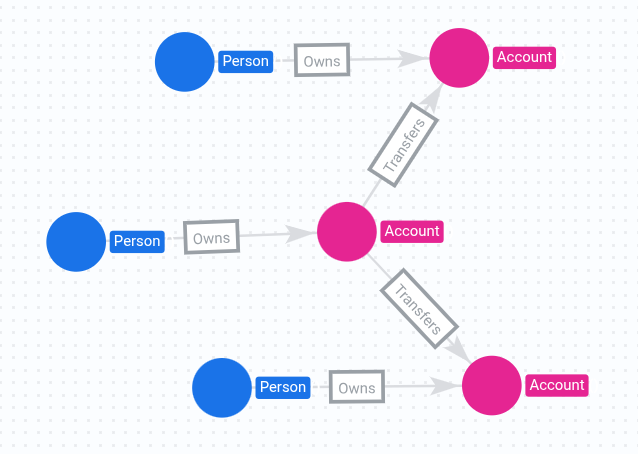
For more information, see Return graph elements as JSON.
Choose query result visualization options
You can update how your nodes appear in a query visualization. For example, you can specify the layout of your query visualization, the color of your nodes, and which property appears on each node.
Query result display updates are for your current query result visualization session. The updates to your visualization options don't persist if you run the same query again.
Choose a layout for a BigQuery Graph visualization
The menu on the visualization panel provides the following layout options:
Force layout (default): Presents nodes as points that repel each other, while connected nodes pull together, simulating physical forces to create a visually intuitive layout.
Hierarchical: Positions nodes to create a visual hierarchy based on connectivity.
Sequential: Positions nodes to create a visual sequence based on connectivity.
Show labels: Displays all node and edge labels on the graph at all zoom levels.
Choose the node or edge property to display
By default, a node or edge displays its first property. If you want a node or edge to display a different property, do the following:
When you view a visualization of the results of a BigQuery Graph query, click Switch to schema view on the Results tab of the query results panel.
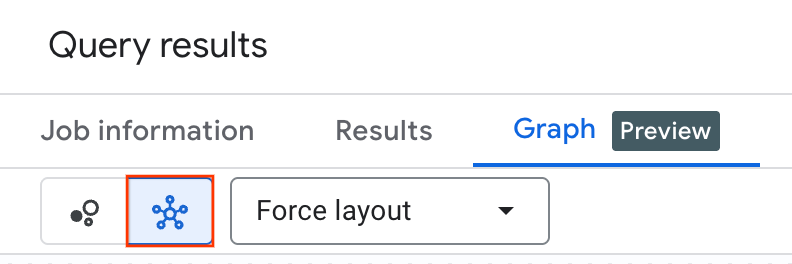
In the schema visualization, click a node or edge of the type you want to update.
In the detail panel that appears for the selected node or edge, click the property you want to display. All nodes or edge in your query results that are of the type of node or edge you selected show the property you selected.
Choose the color of your nodes
When you're viewing a visualization of the results of a BigQuery Graph query, click Switch to schema view on the Results tab of the query results panel.
In the schema visualization, click a node of the type you want to update.
In the detail panel that appears for the selected node, click Node display options.
Click a color. All nodes in your query results that are of the type of node you selected display with the color you choose.
Choose which nodes display
To choose which nodes display in a visualization, do the following:
In the query visualization, right-click a node.
Click one of the following menu options to modify the visible graph state:
Expand renders adjacent nodes by traversing all incoming edges, outgoing edges, or filtering by a specific edge type.
Collapse prunes the current view by hiding all nodes connected to the target node using incoming edges, outgoing edges, or a specific edge type.
Hide node removes the target node from the current view.
Show only neighbors hides all nodes in the graph except for the target node and those directly connected to it.
Highlight node highlights the target node.
Visualize a BigQuery Graph schema
A graph's structure, including its nodes, edges, labels, and properties, is defined by its schema, which maps graph elements to data in BigQuery tables. The graph definition is stored in a schema that you create using input tables.
You can visualize graphs that you create with a schema. Visualizing the schema helps you understand your graph's structure, including the types of nodes and edges it contains and how they connect. This can be useful for complex graphs, providing a clear view of relationships that might be hard to infer from DDL statements alone.
To visualize a graph schema, follow these steps:
- In BigQuery Studio, go to the Explorer panel.
- Expand the dataset that contains your graph, expand Graphs, and then select your graph.
- Click the Graph tab.
Visualize query results and schemas in a notebook environment
You can visualize graph query results and graph schemas in notebook environments such as BigQuery Studio, Google Colab, and Jupyter Notebook. The visualization is implemented as an IPython Magics.
Visualize graph query results
To visualize query results in a notebook, follow these steps:
In a notebook cell, run the following command to install the latest BigQuery magics library:
!pip install bigquery_magics==0.12.1In your notebook environment, ensure you have the BigQuery Graph client library installed.
In a notebook cell, use the
%%bigquery --graphmagic command followed by your GQL query. The query must return graph elements in JSON format using theTO_JSONfunction. We recommend returning graph paths instead of individual nodes and edges. Returning paths provides the following benefits:Paths contain complete data of nodes and edges. If you return individual nodes and edges, some intermediate nodes and edges in a complex query's visualization might not be available.
If you return paths, your
RETURNstatement is less complex than if you return individual nodes and edges.
Run the cell. The visualization is displayed in the output area of the cell.
The following sample query finds a person, their accounts, and transfers between accounts, and then returns the results in a notebook:
%%bigquery --graph
GRAPH graph_db.FinGraph
MATCH
  p = ((person:Person {name: "Dana"})-[own:Owns]->
  (account:Account)-[transfer:Transfers]->(account2:Account)<-[own2:Owns]-(person2:Person))
RETURN
  TO_JSON(p) AS path;
After you run a query, the output area displays the visualization. The detail panel shows a summary of node and edge labels with counts for each. Click a node or an edge to navigate the graph and view properties, neighbors, and connections. The following image shows properties, neighbors, and connections.
Visualize a BigQuery Graph schema
A graph's structure, including its nodes, edges, labels, and properties, is defined by its schema, which maps data in BigQuery tables to graph elements. The graph definition is stored in a schema that you create using input tables.
You can visualize graphs that you create with a schema. Visualizing the schema helps you understand your graph's structure, including the types of nodes and edges it contains and their connections. This can be useful for complex graphs because it provides a clear view of relationships that might be hard to infer from the DDL statements that you used to create the graph. The following image shows an example of a graph schema visualization.
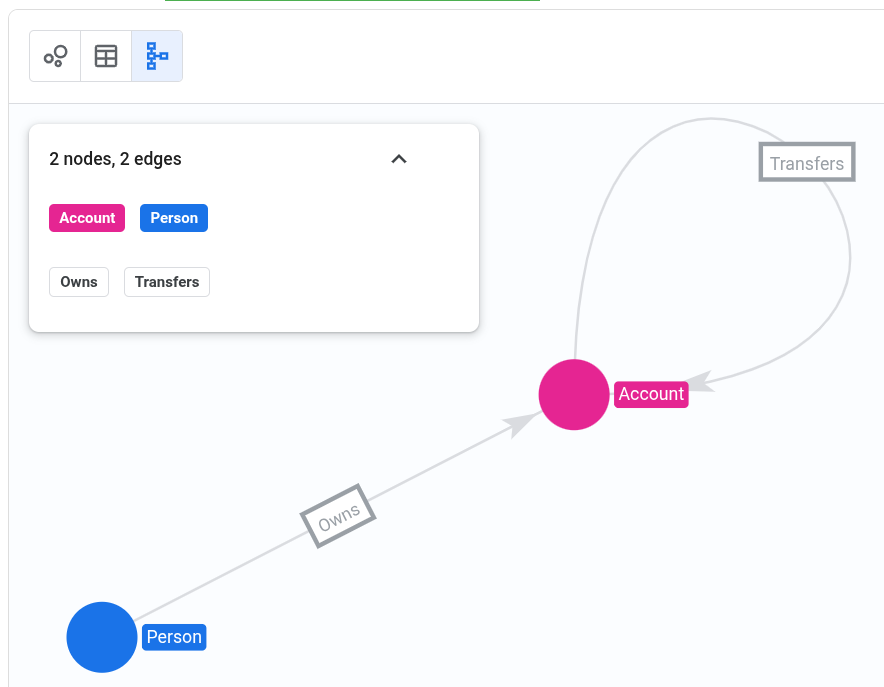
To see a visualization of a BigQuery Graph schema in a notebook, follow these steps:
In a notebook cell, run the following command to install the BigQuery magics library:
!pip install bigquery_magics==0.12.1In your notebook environment, ensure that you have the BigQuery Graph client library installed.
In a notebook cell, use the
%%bigquery --graphmagic command followed by your GQL query. The query must return graph elements in JSON format using theTO_JSONfunction.Run the cell. The visualization is displayed in the output area of the cell.
In the visualization output, click schema Schema view.
Troubleshoot BigQuery Graph visualizations
The following information can help you troubleshoot and understand BigQuery Graph visualization issues and behavior.
A visualization doesn't appear for a BigQuery Graph query
Issue: You run a BigQuery Graph query, but it appears only in table format.
Possible cause: The query doesn't return graph elements in JSON format.
For example, the following query can't be visualized because it returns property values instead of graph elements in JSON format:
GRAPH graph_db.FinGraph
MATCH (person:Person {name: "Dana"})-[owns:Owns]->(account:Account)
RETURN owns.create_time, account.nick_name;
Solution:
Return graph elements in JSON format using
TO_JSON. For
more information, see
Visualize BigQuery Graph query results.
BigQuery Graph query results are partially visualized
Issue: A query result visualization shows only part of the query results.
Possible cause: If you are using a notebook visualization, the query returns more than 2 MB of data. A notebook visualization has a limit of 2 MB, while the Google Cloud console visualization doesn't have a hard limit.
Solution: If you are using a notebook, simplify the query to return less than 2 MB of data, or use the Google Cloud console to visualize the results.
Some graph elements aren't displayed in a BigQuery Graph visualization
Issue: A visualization includes all returned nodes and edges, but some graph elements aren't displayed.
Possible cause: The query used to create the BigQuery Graph visualization returns individual nodes and edges instead of a graph path.
Solution: Update the query to return a graph path.
What's next
- Learn more about BigQuery Graph.
- Learn how to create and query a graph.
- Learn about graph visualization tools and integrations.