

This tutorial teaches you how to use the
AI.DETECT_ANOMALIES function
with BigQuery ML's built-in
TimesFM model to detect anomalies in time series data.
This tutorial uses data from the public
bigquery-public-data.san_francisco_bikeshare.bikeshare_trips
table.
Objectives
This tutorial guides you through using the AI.DETECT_ANOMALIES function with the built-in TimesFM model to detect anomalies in bike share trips. The first section covers how to detect anomalies and visualize results for a single time series. The second section covers how to detect anomalies for multiple time series.
Costs
This tutorial uses billable components of Google Cloud, including the following:
- BigQuery
- BigQuery ML
For more information about BigQuery costs, see the BigQuery pricing page.
For more information about BigQuery ML costs, see BigQuery ML pricing.
Before you begin
- Sign in to your Google Cloud account. If you're new to Google Cloud, create an account to evaluate how our products perform in real-world scenarios. New customers also get $300 in free credits to run, test, and deploy workloads.
-
In the Google Cloud console, on the project selector page, select or create a Google Cloud project.
Roles required to select or create a project
- Select a project: Selecting a project doesn't require a specific IAM role—you can select any project that you've been granted a role on.
-
Create a project: To create a project, you need the Project Creator role
(
roles/resourcemanager.projectCreator), which contains theresourcemanager.projects.createpermission. Learn how to grant roles.
-
Verify that billing is enabled for your Google Cloud project.
-
In the Google Cloud console, on the project selector page, select or create a Google Cloud project.
Roles required to select or create a project
- Select a project: Selecting a project doesn't require a specific IAM role—you can select any project that you've been granted a role on.
-
Create a project: To create a project, you need the Project Creator role
(
roles/resourcemanager.projectCreator), which contains theresourcemanager.projects.createpermission. Learn how to grant roles.
-
Verify that billing is enabled for your Google Cloud project.
- BigQuery is automatically enabled in new projects.
To activate BigQuery in a pre-existing project,
Enable the BigQuery API.
Roles required to enable APIs
To enable APIs, you need the
serviceusage.services.enablepermission. If you created the project, then you likely already have this permission through the Owner role (roles/owner). Otherwise, you can get this permission through the Service Usage Admin role (roles/serviceusage.serviceUsageAdmin). Learn how to grant roles.
Detect anomalies in a single bike share trips time series
Detect anomalies in time series data by using the AI.DETECT_ANOMALIES
function.
The following query detects anomalies in the number of bike share trips per
hour for the month of August 2017, based on the historical data from the previous month. The anomaly_prob_threshold argument indicates the threshold for identifying an anomaly.
Follow these steps to detect anomalies with the TimesFM model:
In the Google Cloud console, go to the BigQuery page.
In the query editor, paste in the following query and click Run, the query takes 1-2 minutes to complete:
WITH
  bike_share_trips AS (
    SELECT
      TIMESTAMP_TRUNC(start_date, HOUR) AS trip_hour, COUNT(*) AS num_trips
    FROM `bigquery-public-data.san_francisco_bikeshare.bikeshare_trips`
    GROUP BY TIMESTAMP_TRUNC(start_date, HOUR)
  )
SELECT *
FROM
  AI.DETECT_ANOMALIES(
    (
      SELECT *
      FROM bike_share_trips
      WHERE trip_hour >= TIMESTAMP('2017-07-01') AND trip_hour < TIMESTAMP('2017-08-01')
    ),
    (
      SELECT *
      FROM bike_share_trips
      WHERE trip_hour >= TIMESTAMP('2017-08-01') AND trip_hour < TIMESTAMP('2017-09-01')
    ),
    anomaly_prob_threshold => 0.95,
    timestamp_col => 'trip_hour',
    data_col => 'num_trips');
The results look similar to the following:
+-------------------------+------------------+------------+--------------------+---------------------+---------------------+---------------------------+
| time_series_timestamp   | time_series_data | is_anomaly | lower_bound        | upper_bound         | anomaly_probability | ai_detect_anomalies_status|
+-------------------------+------------------+------------+--------------------+---------------------+---------------------+---------------------------+
| 2017-08-01 00:00:00 UTC | 13.0             | false      | -1.97939332204...  | 27.604928623830...  | 0.38048622012138... |                           |
+-------------------------+------------------+------------+--------------------+---------------------+---------------------+---------------------------+
| 2017-08-01 01:00:00 UTC | 6.0              | false      | -9.42939322810...  | 20.154928628380...  | 0.38048622012138... |                           |
+-------------------------+------------------+------------+--------------------+---------------------+---------------------+---------------------------+
| ...                     | ...              | ...        | ...                | ...                 | ...                 | ...                       |
+-------------------------+------------------+------------+--------------------+---------------------+---------------------+---------------------------+
When the query is finished running, click the Visualization tab. The resulting chart looks similar to the following:
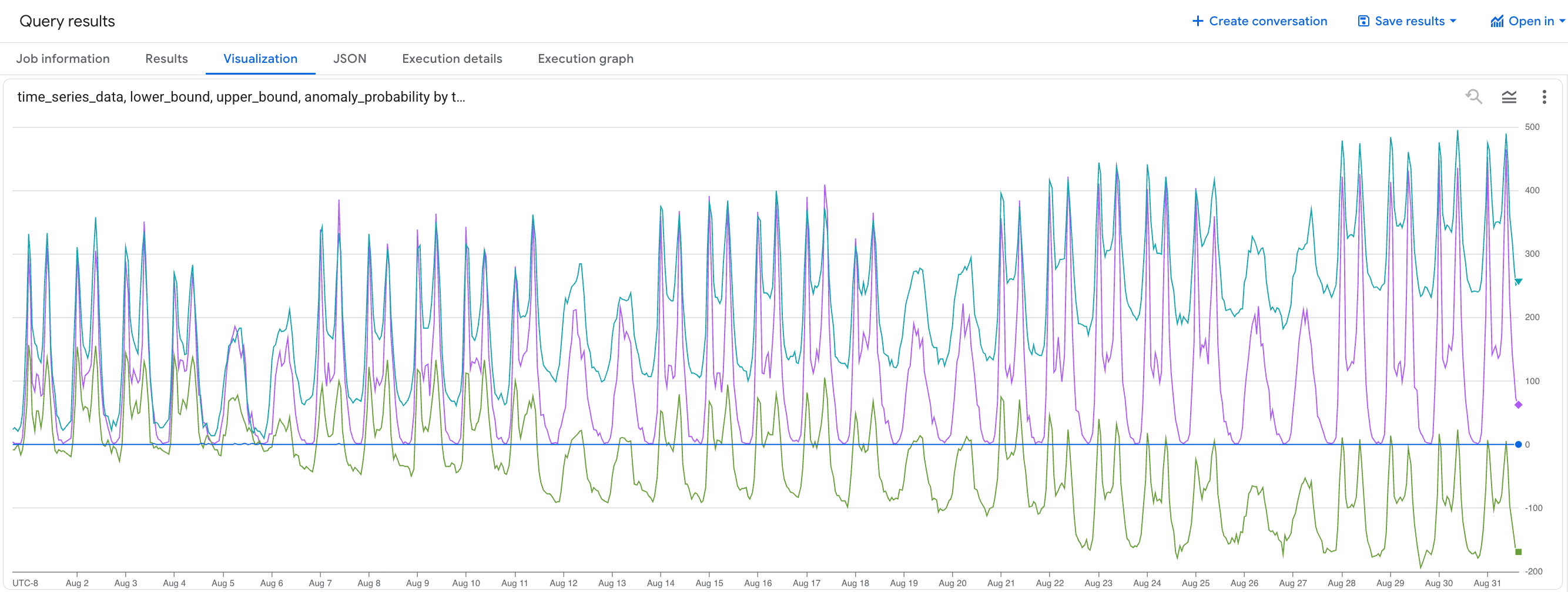
You can identify the anomalies where the
time_series_datavalue falls outside thelower_boundandupper_boundrange.
Detect anomalies in multiple bike share trips time series
The following query detects anomalies in the number of bike share trips per subscriber type and per hour for the month of August 2017, based on the historical data from the previous month.
Follow these steps to detect anomalies with the TimesFM model:
In the Google Cloud console, go to the BigQuery page.
In the query editor, paste in the following query and click Run:
WITH
  bike_share_trips AS (
    SELECT
      TIMESTAMP_TRUNC(start_date, HOUR) AS trip_hour, COUNT(*) AS num_trips, subscriber_type
    FROM `bigquery-public-data.san_francisco_bikeshare.bikeshare_trips`
    GROUP BY TIMESTAMP_TRUNC(start_date, HOUR), subscriber_type
  )
SELECT *
FROM
  AI.DETECT_ANOMALIES(
    (
      SELECT *
      FROM bike_share_trips
      WHERE trip_hour >= TIMESTAMP('2017-07-01') AND trip_hour < TIMESTAMP('2017-08-01')
    ),
    (
      SELECT *
      FROM bike_share_trips
      WHERE trip_hour >= TIMESTAMP('2017-08-01') AND trip_hour < TIMESTAMP('2017-09-01')
    ),
    anomaly_prob_threshold => 0.95,
    timestamp_col => 'trip_hour',
    data_col => 'num_trips',
    id_cols => ['subscriber_type']);
The results look similar to the following:
+-----------------+-------------------------+------------------+------------+--------------------+---------------------+---------------------+---------------------------+
| subscriber_type | time_series_timestamp   | time_series_data | is_anomaly | lower_bound        | upper_bound         | anomaly_probability | ai_detect_anomalies_status|
+-----------------+-------------------------+------------------+------------+--------------------+---------------------+---------------------+---------------------------+
| Customer        | 2017-08-01 00:00:00 UTC | 13.0             | false      | -1.97939332204...  | 27.604928623830...  | 0.38048622012138... |                           |
+-----------------+-------------------------+------------------+------------+--------------------+---------------------+---------------------+---------------------------+
| Customer        | 2017-08-01 01:00:00 UTC | 3.0              | false      | -5.12345678901...  | 10.123456789012...  | 0.12345678901234... |                           |
+-----------------+-------------------------+------------------+------------+--------------------+---------------------+---------------------+---------------------------+
| ...             | ...                     | ...              | ...        | ...                | ...                 | ...                 | ...                       |
+-----------------+-------------------------+------------------+------------+--------------------+---------------------+---------------------+---------------------------+
| Subscriber      | 2017-08-01 00:00:00 UTC | 13.0             | false      | -1.97939332204...  | 27.604928623830...  | 0.38048622012138... |                           |
+-----------------+-------------------------+------------------+------------+--------------------+---------------------+---------------------+---------------------------+
| Subscriber      | 2017-08-01 01:00:00 UTC | 3.0              | false      | -5.12345678901...  | 10.123456789012...  | 0.12345678901234... |                           |
+-----------------+-------------------------+------------------+------------+--------------------+---------------------+---------------------+---------------------------+
| ...             | ...                     | ...              | ...        | ...                | ...                 | ...                 | ...                       |
+-----------------+-------------------------+------------------+------------+--------------------+---------------------+---------------------+---------------------------+
Clean up
To avoid incurring charges to your Google Cloud account for the resources used in this tutorial, either delete the project that contains the resources, or keep the project and delete the individual resources.
Delete your project
To delete the project:
- In the Google Cloud console, go to the Manage resources page.
- In the project list, select the project that you want to delete, and then click Delete.
- In the dialog, type the project ID, and then click Shut down to delete the project.
What's next
- For an overview of BigQuery ML, see Introduction to AI and ML in BigQuery.