


載入及查詢資料
如要開始使用 BigQuery,請建立資料集、將資料載入資料表,並查詢資料表。
如要直接在 Google Cloud 控制台中,按照這項工作的逐步指南操作,請按一下「Guide me」(逐步引導):
事前準備
- 登入 Google Cloud 帳戶。如果您是 Google Cloud新手,歡迎 建立帳戶,親自評估產品在實際工作環境中的成效。新客戶還能獲得價值 $300 美元的免費抵免額,可用於執行、測試及部署工作負載。
-
In the Google Cloud console, on the project selector page, select or create a Google Cloud project.
Roles required to select or create a project
- Select a project: Selecting a project doesn't require a specific IAM role—you can select any project that you've been granted a role on.
-
Create a project: To create a project, you need the Project Creator role
(
roles/resourcemanager.projectCreator), which contains theresourcemanager.projects.createpermission. Learn how to grant roles.
-
If you're using an existing project for this guide, verify that you have the permissions required to complete this guide. If you created a new project, then you already have the required permissions.
-
In the Google Cloud console, on the project selector page, select or create a Google Cloud project.
Roles required to select or create a project
- Select a project: Selecting a project doesn't require a specific IAM role—you can select any project that you've been granted a role on.
-
Create a project: To create a project, you need the Project Creator role
(
roles/resourcemanager.projectCreator), which contains theresourcemanager.projects.createpermission. Learn how to grant roles.
-
If you're using an existing project for this guide, verify that you have the permissions required to complete this guide. If you created a new project, then you already have the required permissions.
-
啟用 BigQuery API。
啟用 API 時所需的角色
您必須具備
serviceusage.services.enable權限,才能啟用 API。如果您建立了專案,可能已透過「擁有者」角色 (roles/owner) 取得這項權限。否則,您可以透過「服務使用情形管理員」角色 (roles/serviceusage.serviceUsageAdmin) 取得這項權限。瞭解如何授予角色。新專案會自動啟用 BigQuery API。
- 選用: 啟用專案的計費功能。即使不想啟用帳單或提供信用卡,本文的步驟仍適用。BigQuery 提供沙箱,方便您執行這些步驟。詳情請參閱「啟用 BigQuery 沙箱」一文。
必要的角色
如要取得建立資料集、資料表、載入資料及查詢資料所需的權限,請要求管理員授予您專案的下列 IAM 角色:
-
執行載入工作和查詢工作:
BigQuery 工作使用者 (
roles/bigquery.jobUser) -
建立資料集、建立資料表、將資料載入資料表,以及查詢資料表:
BigQuery 資料編輯器 (
roles/bigquery.dataEditor)
如要進一步瞭解如何授予角色,請參閱「管理專案、資料夾和組織的存取權」。
建立 BigQuery 資料集
透過 Google Cloud 控制台在美國多區域位置建立資料集來儲存資料。如要瞭解 BigQuery 單一地區與多地區,請參閱位置的相關說明。
- 在 Google Cloud 控制台開啟 BigQuery 頁面。 前往 BigQuery
- 點選左側窗格中的 「Explorer」。
- 在
「Explorer」 窗格,點按專案名稱。 - 按一下 「查看動作」。
- 選取「Create dataset」(建立資料集)。
- 在「建立資料集」頁面中,執行下列操作:
- 在「Dataset ID」(資料集 ID) 中輸入
babynames。 - 針對「Location type」(位置類型) 選取「Multi-region」(多區域),然後選擇「US (multiple regions in United States)」(us (多個美國區域))。公開資料集儲存在
us多區域位置。為簡單起見,請將資料集儲存在相同位置。 - 其餘設定請保留預設狀態,然後按一下
「Create dataset」(建立資料集) 。
下載含有來源資料的檔案
您下載的檔案包含約 7 MB 的熱門新生兒命名資料,這項資料是由美國社會安全局提供。如要進一步瞭解資料,請參閱美國社會安全局的熱門名字的背景資訊。
在新的瀏覽器分頁中開啟下列網址,下載美國社會安全局的資料:
https://www.ssa.gov/OACT/babynames/names.zip將檔案解壓縮。
如要進一步瞭解資料集結構定義,請參閱 ZIP 檔案中的
NationalReadMe.pdf檔案。如要查看資料樣貌,請開啟
yob2024.txt檔案。這個逗號分隔值檔案內含名字、出生時判定的性別,以及同名的新生兒人數,這個檔案沒有標題列。請記下
yob2024.txt檔的位置,以便稍後尋找。
將資料載入資料表
接著,將資料載入新資料表。
- 點選左側窗格中的 「Explorer」。
- 在
「Explorer」 窗格,展開專案名稱。 - 按一下「資料集」,然後在「babynames」資料集旁邊,依序點按 「查看動作」和「開啟」。
- 按一下「建立資料表」。
除非另有指示,否則請保留所有設定的預設值。
- 在「建立資料表」頁面中,執行下列操作:
- 在「Source」(來源) 專區中,從
「Create table from」(建立資料表來源) 的清單中選擇「Upload」(上傳)。 - 在「Select file」(選取檔案) 欄位,點按「Browse」(瀏覽)。
- 找到並開啟本機中的
yob2024.txt檔案,然後點按「Open」(開啟)。 - 從
「File format」(檔案格式) 清單選擇「CSV」。 - 在「Destination」(目的地) 專區的
「Table」(資料表) 欄位,輸入names_2024。 - 在「Schema」(結構定義) 專區,點按
「Edit as text」(以文字形式編輯) 切換按鈕,然後將下列結構定義貼入文字欄位: - 點按
「Create table」(建立資料表) 。等待 BigQuery 建立資料表及載入資料。
name:string,assigned_sex_at_birth:string,count:integer預覽資料表資料
如要預覽資料表資料,請按照下列步驟操作:
- 點選左側窗格中的 「Explorer」。
- 在
「Explorer」 窗格中展開專案,然後按一下「Datasets」(資料集)。 - 按一下「
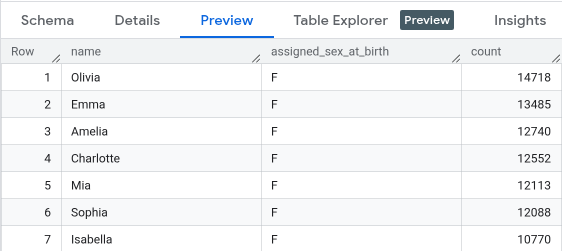
babynames」資料集,然後選取「names_2024」資料表。 - 點按
「Preview」(預覽) 分頁標籤,BigQuery 會顯示資料表的前幾個資料列。
查詢資料表資料
接著是查詢資料表。
- 在「names_2024」分頁旁邊,按一下「SQL 查詢」選項 。系統會開啟新的編輯器分頁。
- 將下列查詢貼入查詢編輯器,這項查詢會擷取 2024 年在美國出生,且當判定為男性的前五名熱門男嬰名字。
SELECT name, count FROM `babynames.names_2024` WHERE assigned_sex_at_birth = 'M' ORDER BY count DESC LIMIT 5; - 按一下
「Run」(執行) 。 查詢結果會顯示在「Query results」(查詢結果) 部分中。
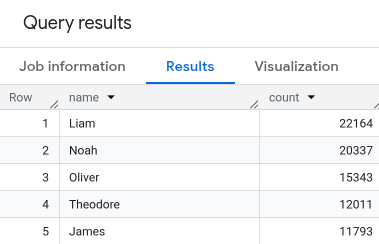
您已成功使用 Google Cloud 控制台查詢公開資料集內的資料表,並將範例資料載入 BigQuery。
清除所用資源
為了避免系統向您的 Google Cloud 帳戶收取本頁面所用資源的費用,請按照下列步驟操作。
- 在 Google Cloud 控制台開啟「BigQuery」頁面。 前往 BigQuery
- 點選左側窗格中的 「Explorer」。
- 在「Explorer」窗格中,按一下「Datasets」(資料集),然後點選您建立的
babynames資料集。 - 展開 「查看動作」選項,然後點按「刪除」。
- 在「Delete dataset」(刪除資料集) 對話方塊中,確認刪除指令:輸入字詞
delete,然後按一下「Delete」(刪除)。
後續步驟
- 如要進一步瞭解如何將資料載入至 BigQuery,請參閱「載入資料簡介」一文。
- 如要進一步瞭解如何查詢資料,請參閱「BigQuery 數據分析總覽」一文。
- 如要瞭解如何使用巢狀和重複的資料載入 JSON 檔案,請參閱載入巢狀和重複的 JSON 資料。
- 如要進一步瞭解如何透過程式存取 BigQuery,請參閱 REST API 參考資料,或前往 BigQuery 用戶端程式庫頁面。