

This page applies to Apigee, but not to Apigee hybrid.
View
Apigee Edge documentation.

Overview
The LLMTokenQuota policy is designed to manage and control token consumption for AI/LLM workloads. As Large Language Model (LLM) interactions are token-based, effective management is crucial for cost control, performance optimization, and platform stability.
A quota is an allotment of LLM tokens (Input or Output) that an API proxy is allowed to consume over a time period, such as minute, hour, day, week, or month. The LLMTokenQuota policy maintains counters that tally the number of tokens consumed by the API proxy. This capability enables API providers to enforce limits on token consumption by apps over an interval of time.
This policy uses the <LLMTokenUsageSource> and <LLMModelSource> elements to extract the token count from the LLM's response, and the model name from either the request or response, allowing for precise, real-time quota enforcement.
This policy is an Extensible policy and use of this policy might have cost or utilization implications, depending on your Apigee license. For information on policy types and usage implications, see Policy types.
How LLMTokenQuota enforcement works
The following describes the functionality of the LLMTokenQuota policy:
-
Token Counting (
<CountOnly>): The LLMTokenQuota policy maintains counters that track the number of tokens consumed by LLM responses that pass through the API proxy. -
Enforcing Limits (
<EnforceOnly>): This capability empowers API providers to set strict limits on the number of tokens consumed by applications over a defined interval. For instance, you could limit applications to 1,000 tokens per minute or 10,000,000 tokens per month. - Quota Exceedance: When an API proxy reaches its defined token quota limit, Apigee rejects subsequent token-consuming requests. An error message is returned until the LLMTokenQuota counter automatically resets at the end of the specified time interval. For example, if a quota is set for 10,000 tokens per month, token limiting begins once the 10,000th token is counted, regardless of when within the month that limit is reached.
How LLMTokenQuota works with API products
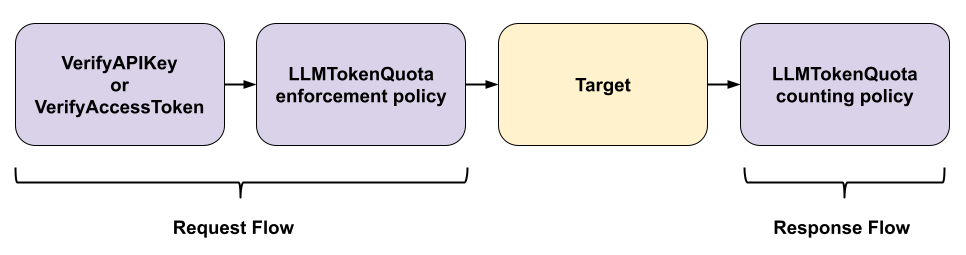
The following describes how the LLMTokenQuota policy works with API products:
-
Apply the
VerifyAPIKeyorVerifyAccessTokenpolicy along with theLLMTokenQuotaenforcement policy in the request of the API Proxy (Proxy or Target does not matter). -
Apply the
LLMTokenQuotacounting policy in response to the API Proxy (Proxy or Target does not matter). - The VerifyAPIKey or VerifyAccessToken policy matches the key or token with API product, operation set, developer, and app. It exposes the flow variables for LLM quota for all the models from the matched LLM operation sets.
- Inside the quota enforcement policy, we extract out the model according to the provided message template.
- Then the LLM quota variables are matched for the model. If the match is found, then the references are injected.
- Once the references are injected, those values are used to carry out the quota operations.
How LLMTokenQuota works with SSE responses
In order to make LLMTokenQuota work with SSE responses, add the policy as part of event flow as shown below:
<EventFlow content-type="text/event-stream">
    <Response>
      <Step>
        <Name>LLM_TOKEN_QUOTA_COUNT_POLICY_NAME</Name>
      </Step>
    </Response>
  </EventFlow>
While processing the event stream, token counting is executed only when the token usage metadata from the LLM response is found in the event. When the token usage metadata is discovered it is extracted and the policy is executed. For all other events, the policy results in NO-OP.
LLMTokenQuota policy types
The LLMTokenQuota policy supports several different ways in which the quota
counter starts and resets. You can define which to use with the
type attribute on the <LLMTokenQuota> element, as the following
example shows:
<LLMTokenQuota name="LLMTokenQuotaPolicy" type="calendar">
  ...
</LLMTokenQuota>
Valid values of type include:
calendar: Configures a quota based on an explicit start time. The LLMTokenQuota counter for each app is refreshed based on the<StartTime>,<Interval>, and<TimeUnit>values that you set.rollingwindow: Configures a quota that uses a rolling window to determine quota usage. Withrollingwindow, you determine the size of the window with the<Interval>and<TimeUnit>elements; for example, 1 day. When a request comes in, Apigee looks at the exact time of the request (say 5:01pm), counts the number of tokens consumed between then and 5:01pm the previous day (1 day), and determines whether or not quota has been exceeded during that window.flexi: Configures a quota that causes the counter to begin when the first request message is received from an app, and resets based on the<Interval>and<TimeUnit>values.
The following table describes when the quota resets for each type:
| Time Unit | Type | ||
|---|---|---|---|
default (or null) |
calendar |
flexi |
|
| minute | Start of next minute | One minute after <StartTime> |
One minute after first request |
| hour | Top of next hour | One hour after <StartTime> |
One hour after first request |
| day | Midnight GMT of the current day | 24 hours after <StartTime> |
24 hours after first request |
| week | Midnight GMT Sunday at the end of the week | One week after <StartTime> |
One week after first request |
| month | Midnight GMT of the last day of the month | One month (28 days) after <StartTime> |
One month (28 days) after first request |
For type="calendar", you must specify the value of
<StartTime>.
The table does not describe when the count resets for the rollingwindow type.
That's because rolling window quotas work a little differently, based on a lookback window,
such as a one hour or one day. For the rollingwindow type, the counter never resets, but is
recalculated on each request. When a new request comes in, the policy determines if the quota
has been exceeded in the past window of time.
For example, you define a two hour window that allows 1,000 tokens. A new request comes in at 4:45 PM.The policy calculates the quota count for the past two hour window, meaning the number of tokens consumed since 2:45 PM. If the quota limit has not been exceeded in that two-hour window, then the request is allowed.
One minute later, at 4:46 PM, another request comes in. Now the policy calculates the quota count since 2:46 PM to determine if the limit has been exceeded.
Understanding quota counters
When an LLMTokenQuota policy executes in an API proxy flow, a quota counter is incremented. When the counter reaches its limit, no further API calls associated with that counter are permitted. Depending on the configuration you use for your API Product, the LLMTokenQuota policy may employ a single counter, or multiple independent counters. It's important to understand the scenarios under which multiple counters will be used, and how they behave.
Configuring quota settings for API products
An API product can specify quota settings at
the product level
or at the individual operation level,
or both. If your API proxy is included in an API product, you can configure the LLMTokenQuota policy to use the quota
settings (allow count, time unit, and interval) that are defined in that product. The easiest way to do this
is via the useQuotaConfigInAPIProduct element.
Alternatively, you can reference these settings in the LLMTokenQuota policy via individual variable references.
How Quotas are Counted
By default, Apigee maintains a separate quota counter for each operation defined in an API product, and the following rules are observed:
- If an operation has a quota defined for it, then the operation's quota settings take precedence over the quota settings defined at the product level.
- If an operation does not have a quota defined for it, then the product-level quota settings apply.
- If the API product does not include any quota settings — neither at the product nor operation level — quota settings for allow count, time unit, and interval as specified in the LLMTokenQuota policy apply.
In all cases, Apigee maintains a separate quota counter for each operation defined in an API product. Any API calls that match an operation will increment its counter.
Configuring API proxy-level counters
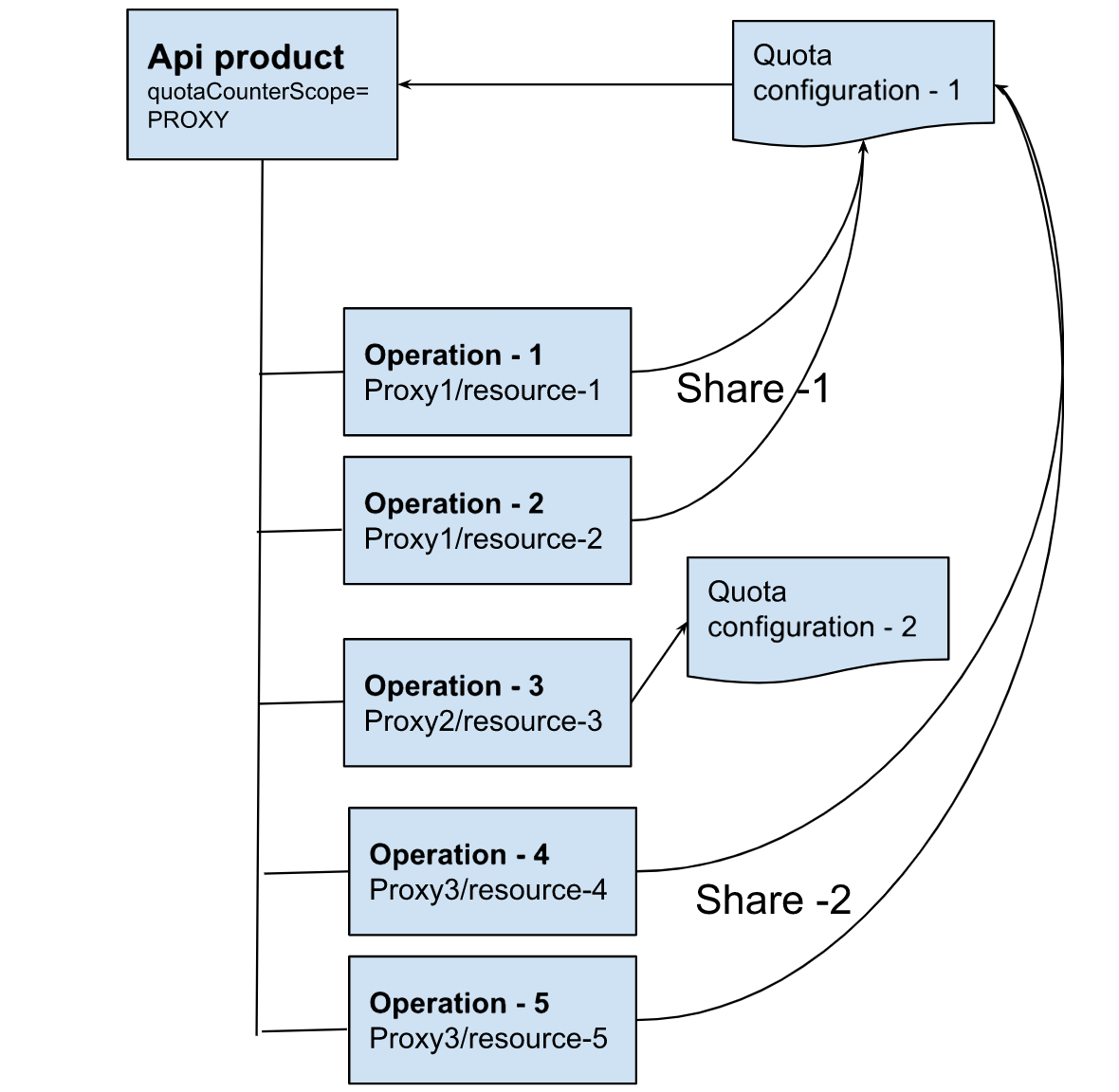
It is possible to configure an API product to maintain a quota count at the API proxy scope. In this case, the quota configuration specified at the API product level is shared by all operations that do not have their own quota specified. The effect of this configuration is to create a counter at the API proxy level for this API product.
To achieve this configuration, you must use the
/apiproducts Apigee API
to create or update the product and set the
quotaCounterScope attribute to PROXY in the create or update request.
With the PROXY configuration, requests matching any of the operations defined for the API product
that are associated with the same proxy, and do not have their own quota settings, will share
a common quota counter for that proxy.
In Figure 1, Operation 1 and 2
are associated with Proxy1 and Operation 4 and 5 are associated with Proxy3. Because
quotaCounterScope=PROXY is set in the API product, each of these operations
uses the API product-level quota setting. Operation 1 and 2, associated with Proxy1, use
a shared counter, and Operation 4 and 5, associated with Proxy3, use a separate shared counter.
Operation 3 has its own quota configuration setting, and because of that uses its own counter,
irrespective of the value of the quotaCounterScope attribute.
Figure 1: Use of the quotaCounterScope flag
How quotas are counted if no API products are in use
If there is no API product associated with an API proxy, an LLMTokenQuota policy maintains a single
counter, regardless of how many times you reference it in an API proxy. The name of the quota
counter is based on the name attribute of the policy.
For example, you create an LLMTokenQuota policy named MyLLMTokenQuotaPolicy with a limit of 5
tokens and place it on multiple flows (Flow A, B, and C) in the API proxy. Even though it is
used in multiple flows, it maintains a single counter that is updated by all instances of the
policy. Assuming the LLM response used 1 token each time:
- Flow A is executed -> MyLLMTokenQuotaPolicy is executed and its counter = 1
- Flow B is executed -> MyLLMTokenQuotaPolicy is executed and its counter = 2
- Flow A is executed -> MyLLMTokenQuotaPolicy is executed and its counter = 3
- Flow C is executed -> MyLLMTokenQuotaPolicy is executed and its counter = 4
- Flow A is executed -> MyLLMTokenQuotaPolicy is executed and its counter = 5
The next request to any of the three flows is rejected because the quota counter has reached its limit.
Using the same LLMTokenQuota policy in more than one place in an API proxy flow, which can unintentionally cause LLMTokenQuota to run out faster than you expected, is an anti-pattern described in Introduction to antipatterns.
Alternatively, you can define multiple LLMTokenQuota policies in your API proxy and use a different
policy in each flow. Each LLMTokenQuota policy maintains its own counter, based on
the name attribute of the policy.
Creating multiple counters through policy configuration
You can use the
<Class> or <Identifier> elements in
the LLMTokenQuota policy to define multiple, unique counters in a single policy. By using these
elements, a single policy can maintain different counters based on the app making the request,
the app developer making the request, a client ID or other client identifier, and more. See the
examples above for more information on using the
<Class> or <Identifier> elements.
Time notation
All LLMTokenQuota times are set to the Coordinated Universal Time (UTC) time zone.
LLMTokenQuota time notation follows the international standard date notation defined in International Standard ISO 8601.
Dates are defined as year, month, and day, in the following format: YYYY-MM-DD.
For example, 2025-02-04 represents February 4, 2025.
Time of day is defined as hours, minutes, and seconds in the following format:
hours:minutes:seconds. For example, 23:59:59 represents the time one
second before midnight.
Note that two notations, 00:00:00 and 24:00:00, are available to
distinguish the two midnights that can be associated with one date. Therefore 2025-02-04
24:00:00 is the same date and time as 2025-02-05 00:00:00. The latter is
usually the preferred notation.
Getting quota settings from the API product configuration
You can set quota limits in API product configurations. Those limits don't automatically enforce quota. Instead, you can reference product quota settings in an LLMTokenQuota policy. Here are some advantages of setting a quota on the product for LLMTokenQuota policies to reference:
- LLMTokenQuota policies can use a uniform setting across all API proxies in the API product.
- You can make runtime changes to the quota setting on an API product, and LLMTokenQuota policies that reference the value automatically have updated quota values.
For more information on using quota settings from an API product, see the Dynamic Quota example.
For info on configuring API products with quota limits, see Managing API products.
Configuring shared quota counters
In the simple case, the LLMTokenQuota policy increments its counter once for each token sent to an API proxy, during initial request processing. In some cases, you may want to check if the quota is exceeded on initial handling of the incoming request, but increment the counter only during response handling.
Three LLMTokenQuota policy elements—<SharedName>,
<CountOnly>, and
<EnforceOnly>—when used together, allow you to
customize the LLMTokenQuota policy to enforce the quota on incoming requests, but only
increment the counter in the response flow.
For example, suppose you have an API proxy that uses an LLM as a target, and you wish to
enforce a quota of 100,000 tokens per hour. The LLM responses provide a
totalTokenCount value. To achieve this, do the following:
- Attach an LLMTokenQuota policy to the ProxyEndpoint Request flow with the
<SharedName>element set with a name value and the<EnforceOnly>element set totrue. - Use the
<LLMTokenUsageSource>element in the LLMTokenQuota policy to fetch the token count
For an example showing how to use shared counters, see Shared counters in the Samples section.
Samples
These policy code samples illustrate how to start and end quota periods by:
More Dynamic LLMTokenQuota
<LLMTokenQuota name="CheckLLMTokenQuota">
  <Interval ref="verifyapikey.verify-api-key.apiproduct.developer.llmQuota.interval">1</Interval>
  <TimeUnit ref="verifyapikey.verify-api-key.apiproduct.developer.llmQuota.timeunit">hour</TimeUnit>
  <Allow count="200" countRef="verifyapikey.verify-api-key.apiproduct.developer.llmQuota.limit"/>
</LLMTokenQuota>
Dynamic quotas enable you to configure a single LLMTokenQuota policy that enforces different quota settings based on information passed to the LLMTokenQuota policy. Another term for LLMTokenQuota settings in this context is service plan. The dynamic LLMTokenQuota checks the apps' service plan and then enforces those settings.
For example, when you create an API product, you can optionally set the allowed quota limit, time unit, and interval. However, setting these value on the API product does not enforce their use in an API proxy. You must also add an LLMTokenQuota policy to the API proxy that reads these values. See Create API products for more.
In the example above, the API proxy containing the LLMTokenQuota policy uses a
VerifyAPIKey policy, named verify-api-key, to validate the API key passed
in a request. The
LLMTokenQuota policy then accesses the flow variables from the VerifyAPIKey policy to read the quota
values set on the API product.
Another option is to set custom attributes on individual developers or apps, and then read those values in the LLMTokenQuota policy. For example, to set different quota values per developer, you set custom attributes on the developer containing the limit, time unit, and interval. You then reference these values in the LLMTokenQuota policy as shown below:
<LLMTokenQuota name="DeveloperLLMTokenQuota">
  <Identifier ref="verifyapikey.verify-api-key.client_id"/>
  <Interval ref="verifyapikey.verify-api-key.developer.timeInterval"/>
  <TimeUnit ref="verifyapikey.verify-api-key.developer.timeUnit"/>
  <Allow countRef="verifyapikey.verify-api-key.developer.limit"/>
</LLMTokenQuota>
This example also uses the VerifyAPIKey flow variables to reference the custom attributes set on the developer.
You can use any variable to set the parameters of the LLMTokenQuota policy. Those variables can come from:
- Flow variables
- Properties on the API product, app, or developer
- A key value map (KVM)
- A header, query parameter, form parameter, and others
For each API proxy, you can add an LLMTokenQuota policy that either references the same variable as all the other LLMTokenQuota policies in all the other proxies, or the LLMTokenQuota policy can reference variables unique for that policy and proxy.
Start time
<LLMTokenQuota name="LLMTokenQuotaPolicy" type="calendar">
  <StartTime>2025-02-18 10:30:00</StartTime>
  <Interval>5</Interval>
  <TimeUnit>hour</TimeUnit>
  <Allow count="99"/>
</LLMTokenQuota>
For an LLMTokenQuota with type set to calendar, you must define an
explicit <StartTime> value. The time value is the GMT time, not local
time. If you do not provide a <StartTime> value for a policy of type
calendar, Apigee issues an error.
The LLMTokenQuota counter for each app is refreshed based on the <StartTime>,
<Interval>, and <TimeUnit> values. For this
example, the LLMTokenQuota begins counting at 10:30 am GMT on February 18, 2025, and refreshes every
5 hours. Therefore, the next refresh is at 3:30 pm GMT on February 18, 2025.
Access Counter
<LLMTokenQuota name="LLMTokenQuotaPolicy">
  <Interval>5</Interval>
  <TimeUnit>hour</TimeUnit>
  <Allow count="99"/>
</LLMTokenQuota>
An API proxy has access to the flow variables set by the LLMTokenQuota policy. You can access these flow variables in the API proxy to perform conditional processing, monitor the policy as it gets close to the quota limit, return the current quota counter to an app, or for other reasons.
Because access the flow variables for the policy is based on the policies
name attribute, for the policy above named <LLMTokenQuota> you
access its flow variables in the form:
ratelimit.LLMTokenQuotaPolicy.allowed.count: Allowed count.ratelimit.LLMTokenQuotaPolicy.used.count: Current counter value.ratelimit.LLMTokenQuotaPolicy.expiry.time: UTC time when the counter resets.
There are many other flow variables that you can access, as described below.
For example, you can use the following AssignMessage policy to return the values of LLMTokenQuota flow variables as response headers:
<AssignMessage continueOnError="false" enabled="true" name="ReturnQuotaVars">
  <AssignTo createNew="false" type="response"/>
  <Set>
    <Headers>
      <Header name="LLMTokenQuotaLimit">{ratelimit.LLMTokenQuotaPolicy.allowed.count}</Header>
      <Header name="LLMTokenQuotaUsed">{ratelimit.LLMTokenQuotaPolicy.used.count}</Header>
      <Header name="LLMTokenQuotaResetUTC">{ratelimit.LLMTokenQuotaPolicy.expiry.time}</Header>
    </Headers>
  </Set>
  <IgnoreUnresolvedVariables>false</IgnoreUnresolvedVariables>
</AssignMessage>
Shared counters
The following example illustrates how to configure a shared counter for an API proxy, where the
quota counter is also incremented when
the target response is HTTP status 200.
Because both the LLMTokenQuota policies use the same <SharedName> value, both of the
LLMTokenQuota policies will share the same quota counter. For more information, see Configuring shared quota counters.
ProxyEndpoint configuration example:
<ProxyEndpoint name="default">
  <PreFlow name="PreFlow">
    <Request>
      <Step>
        <Name>LLMTokenQuota-Enforce-Only</Name>
      </Step>
    </Request>
    <Response>
      <Step>
        <Name>LLMTokenQuota-Count-Only</Name>
      </Step>
    </Response>
    <Response/>
  </PreFlow>
  <Flows/>
  <PostFlow name="PostFlow">
    <Request/>
    <Response/>
  </PostFlow>
  <HTTPProxyConnection>
    <BasePath>/quota-shared-name</BasePath>
  </HTTPProxyConnection>
  <RouteRule name="noroute"/>
</ProxyEndpoint>
First LLMTokenQuota policy example:
<LLMTokenQuota name="LLMTokenQuota-Enforce-Only" type="rollingwindow">
  <SharedName>common-counter</SharedName>
  <EnforceOnly>true</EnforceOnly>
  <Allow count="15000"/>
  <Interval>30</Interval>
  <TimeUnit>minute</TimeUnit>
  <Distributed>true</Distributed>
</LLMTokenQuota>
Second LLMTokenQuota policy example:
<LLMTokenQuota name="LLMTokenQuota-Count-Only" type="rollingwindow">
  <SharedName>common-counter</SharedName>  <!-- Same name as the first LLMTokenQuota policy -->
  <CountOnly>true</CountOnly>
  <Allow count="15000"/>
  <Interval>30</Interval>
  <TimeUnit>minute</TimeUnit>
  <Distributed>true</Distributed>
  <LLMTokenUsageSource>
    {jsonPath('$.usageMetadata.candidatesTokenCount',response.content,true)}
  </LLMTokenUsageSource>
  <LLMModelSource>{jsonPath('$.model',response.content,true)}</LLMModelSource>
</LLMTokenQuota>
First Request
<LLMTokenQuota name="MyLLMTokenQuota">
  <Interval>1</Interval>
  <TimeUnit>hour</TimeUnit>
  <Allow count="10000"/>
</LLMTokenQuota>
Use this sample code to enforce a quota of 10,000 tokens per one hour. The policy resets the quota counter at the top of each hour. If the counter reaches the 10,000-token quota before the end of the hour, API calls consuming tokens beyond 10,000 are rejected.
For example, if the counter starts at 2025-07-08 07:00:00, then it resets to
0 at 2025-07-08 08:00:00 (1 hour from the start time). If the first request is
received at 2025-07-08 07:35:28 and the token count reaches 10,000
before 2025-07-08 08:00:00, requests consuming tokens beyond that count are rejected until the
count resets at the top of the hour.
The counter reset time is based on the combination of <Interval> and
<TimeUnit>. For example, if you set <Interval> to
12 for a <TimeUnit> of hour, then the counter resets every twelve hours.
You can set <TimeUnit> to minute, hour, day, week, or month.
You can reference this policy in multiple places in your API proxy. For example, you could place it on the Proxy PreFlow so it is executed on every request. Or, you could place it on multiple flows in the API proxy. If you use this policy in multiple places in the proxy, it maintains a single counter that is updated by all instances of the policy.
Alternatively, you can define multiple LLMTokenQuota policies in your API proxy. Each LLMTokenQuota policy
maintains its own counter, based on the name attribute of the policy.
Set identifier
<LLMTokenQuota name="LLMTokenQuotaPolicy" type="calendar">
  <Identifier ref="request.header.clientId"/>
  <StartTime>2025-02-18 10:00:00</StartTime>
  <Interval>5</Interval>
  <TimeUnit>hour</TimeUnit>
  <Allow count="99"/>
</LLMTokenQuota>
By default, an LLMTokenQuota policy defines a single counter for the API proxy, regardless of the
origin of a request. Alternatively, you can use the <Identifier> attribute
with an LLMTokenQuota policy to maintain separate counters based on the value of the
<Identifier> attribute.
For example, use the <Identifier> tag to define separate counters for
every client ID. On a request to your proxy, the client app then passes a header containing
the clientID, as shown in the example above.
You can specify any flow variable to the <Identifier> attribute. For
example, you could specify that a query param named id contains the unique
identifier:
<Identifier ref="request.queryparam.id"/>
If you use the VerifyAPIKey policy to validate the API key, or the OAuthV2 policies
with OAuth tokens, you can use information in the API key or token to define individual
counters for the same LLMTokenQuota policy. For example, the following
<Identifier> element uses the client_id flow variable of a
VerifyAPIKey policy named verify-api-key:
<Identifier ref="verifyapikey.verify-api-key.client_id"></Identifier>
Each unique client_id value now defines its own counter in the LLMTokenQuota
policy.
Class
<LLMTokenQuota name="LLMTokenQuotaPolicy">
  <Interval>1</Interval>
  <TimeUnit>day</TimeUnit>
  <Allow>
    <Class ref="request.header.developer_segment">
      <Allow class="platinum" count="10000"/>
      <Allow class="silver" count="1000" />
    </Class>
  </Allow>
</LLMTokenQuota>
You can set LLMTokenQuota limits dynamically by using a class-based LLMTokenQuota count. In this example,
the quota limit is determined by the value of the developer_segment
header passed with each request. That variable can have a value of platinum
or silver. If the header has an invalid value, the policy returns a quota
violation error.
The following examples illustrate various configurations of the LLMTokenQuota policy.
Calculate Tokens
This example shows how to calculate tokens.
<LLMTokenQuota name="LTQ-Count-Only" type="rollingwindow">
  <SharedName>common-counter</SharedName>
  <CountOnly>true</CountOnly>
  <Allow count="15000"/>
  <Interval>30</Interval>
  <TimeUnit>minute</TimeUnit>
  <Distributed>true</Distributed>
  <LLMTokenUsageSource>
    {jsonPath('$.usageMetadata.candidatesTokenCount',response.content,true)}
  </LLMTokenUsageSource>
  <LLMModelSource>{jsonPath('$.model',response.content,true)}</LLMModelSource>
</LLMTokenQuota>
Count Quota Dynamic Variables using API Product, Developer, and App
This example shows how to count quota dynamic variables using API Product, Developer, and App.
<LLMTokenQuota name="LTQ-Count-Only" type="rollingwindow">
  <SharedName>common-counter</SharedName>
  <CountOnly>true</CountOnly>
<Interval ref="verifyapikey.verify-api-key.apiproduct.developer.llmQuota.interval">1</Interval>
  <TimeUnit ref="verifyapikey.verify-api-key.apiproduct.developer.llmQuota.timeunit">hour</TimeUnit>
  <Allow count="200" countRef="verifyapikey.verify-api-key.apiproduct.developer.llmQuota.limit"/>
  <Distributed>true</Distributed>
  <LLMTokenUsageSource>
    {jsonPath('$.usageMetadata.candidatesTokenCount',response.content,true)}
  </LLMTokenUsageSource>
  <LLMModelSource>{jsonPath('$.model',response.content,true)}</LLMModelSource>
</LLMTokenQuota>
Enforce Quota without API Product
This example shows how to enforce quota without API Product.
<LLMTokenQuota name="Quota-Enforce-Only" type="rollingwindow">
  <SharedName>common-counter</SharedName>
  <EnforceOnly>true</EnforceOnly>
  <Allow count="15000"/>
  <Interval>30</Interval>
  <TimeUnit>minute</TimeUnit>
  <Distributed>true</Distributed>
</LLMTokenQuota>
Enforce Quota with API Product, Developer, and App
This example shows how to enforce quota with API Product, Developer, and App.
<LLMTokenQuota name="Quota-Enforce-Only" type="rollingwindow">
  <SharedName>common-counter</SharedName>
  <EnforceOnly>true</EnforceOnly>
<Interval ref="verifyapikey.verify-api-key.apiproduct.developer.llmQuota.interval">1</Interval>
  <TimeUnit ref="verifyapikey.verify-api-key.apiproduct.developer.llmQuota.timeunit">hour</TimeUnit>
  <Allow count="200" countRef="verifyapikey.verify-api-key.apiproduct.developer.llmQuota.limit"/>
  <Distributed>true</Distributed>
</LLMTokenQuota>
With SSE stream
This example shows how to use LLMTokenQuota with an SSE stream.
Token Quota count policy:
<LLMTokenQuota name="LTQ-Count-Only" type="rollingwindow">
  <SharedName>common-counter</SharedName>
  <CountOnly>true</CountOnly>
  <Allow count="15000"/>
  <Interval>30</Interval>
  <TimeUnit>minute</TimeUnit>
  <Distributed>true</Distributed>
  <LLMTokenUsageSource>
    {jsonPath('$.usageMetadata.candidatesTokenCount',response.event.current.data,false)}
  </LLMTokenUsageSource>
  <LLMModelSource>{jsonPath('$.modelVersion',response.event.current.data,false)}</LLMModelSource>
</LLMTokenQuota>
Event Flow:
<EventFlow content-type="text/event-stream">
    <Response>
      <Step>
        <Name>LTQ-Count-Only</Name>
      </Step>
    </Response>
  </EventFlow>
<LLMTokenQuota> element
Following are attributes and child elements of <LLMTokenQuota>. Note that
some element combinations are mutually exclusive or not required. See the
samples for specific usage.
The verifyapikey.my-verify-key-policy.apiproduct.* variables
below are available by default when a VerifyAPIKey policy called
my-verify-key-policy is used to check the app's API key in the
request. The variable values come from the quota settings on the API product
that the key is associated with, as described in Getting
quota settings from the API product configuration.
<LLMTokenQuota continueOnError="false" enabled="true" name="LTQ-TokenQuota-1" type="calendar">
  <DisplayName>Quota 3</DisplayName>
  <LLMTokenUsageSource>{jsonPath('$.usageMetadata.candidatesTokenCount',response.content,true)}</LLMTokenUsageSource>
  <LLMModelSource>{jsonPath('$.model',request.content,true)}</LLMModelSource>
  <Allow count="UPPER_REQUEST_LIMIT"
      countRef="verifyapikey.my-verify-key-policy.apiproduct.developer.llmQuota.limit"/>
  <Allow>
    <Class ref="request.queryparam.time_variable">
      <Allow class="peak_time" count="UPPER_LIMIT_DURING_PEAK"/>
      <Allow class="off_peak_time" count="UPPER_LIMIT_DURING_OFFPEAK"/>
    </Class>
  </Allow>
  <Interval ref="verifyapikey.my-verify-key-policy.apiproduct.developer.llmQuota.interval">
    1
  </Interval>
  <TimeUnit ref="verifyapikey.my-verify-key-policy.apiproduct.developer.llmQuota.timeunit">
    month
  </TimeUnit>
  <StartTime>2025-7-16 12:00:00</StartTime>
  <Distributed>false</Distributed>
  <Synchronous>false</Synchronous>
  <AsynchronousConfiguration>
    <SyncIntervalInSeconds>20</SyncIntervalInSeconds>
    <SyncMessageCount>5</SyncMessageCount>
  </AsynchronousConfiguration>
  <Identifier/>
  <IgnoreUnresolvedVariables>false</IgnoreUnresolvedVariables>
  <UseQuotaConfigInAPIProduct>
    <DefaultConfig>
      <Allow>
        <Class ref="request.queryparam.time_variable">
          <Allow class="peak_time" count="5000"/>
          <Allow class="off_peak_time" count="1000"/>
        </Class>
      </Allow>
      <Interval ref="verifyapikey.my-verify-key-policy.apiproduct.developer.llmQuota.interval">
        1
      </Interval>
      <TimeUnit ref="verifyapikey.my-verify-key-policy.apiproduct.developer.llmQuota.timeunit">
        month
      </TimeUnit>
    </DefaultConfig>
  </UseQuotaConfigInAPIProduct>
  <SharedName/>
  <EnforceOnly>true</EnforceOnly>
</LLMTokenQuota>
The following attributes are specific to this policy:
| Attribute | Description | Default | Presence |
|---|---|---|---|
type |
Sets the LLMTokenQuota policy type, which determines when and how the quota counter checks quota usage as well as how it resets. If you don't set Valid values include:
For a complete description of each type, see LLMTokenQuota policy types. |
N/A | Optional |
The following table describes attributes that are common to all policy parent elements:
| Attribute | Description | Default | Presence |
|---|---|---|---|
name |
The internal name of the policy. The value of the Optionally, use the |
N/A | Required |
continueOnError |
Set to Set to |
false | Optional |
enabled |
Set to Set to |
true | Optional |
async |
This attribute is deprecated. |
false | Deprecated |
<DisplayName> element
Use in addition to the name attribute to label the policy in the
management UI proxy editor with a different, natural-language name.
<DisplayName>Policy Display Name</DisplayName>
| Default |
N/A If you omit this element, the value of the policy's |
|---|---|
| Presence | Optional |
| Type | String |
<Allow>
Specifies the total number of tokens allowed for the specified time interval. If the counter for the policy reaches this limit value, subsequent API calls are rejected until the counter resets.
Can also contain a <Class> element that conditionalizes the <Allow>
element based on a flow variable.
| Default Value | N/A |
| Required? | Optional |
| Type | Integer or Complex type |
| Parent Element |
<LLMTokenQuota>
|
| Child Elements |
<Class> |
Shown below are three ways to set the <Allow> element:
<Allow count="2000"/>
<Allow countRef="verifyapikey.VerifyAPIKey.apiproduct.developer.llmQuota.limit"/>
<Allow count="2000" countRef="verifyapikey.VerifyAPIKey.apiproduct.developer.llmQuota.limit"/>
If you specify both count and countRef, then countRef
gets the priority. If countRef does not resolve at runtime, then the value of
count is used.
You can also specify a <Class> element as a child of <Allow> to determine the allowed
count of the policy based on a flow variable. Apigee matches the value of the flow variable to the
class
attribute of the <Allow> element, as shown below:
<Allow>
  <Class ref="request.queryparam.time_variable">
    <Allow class="peak_time" count="5000"/>
    <Allow class="off_peak_time" count="1000"/>
  </Class>
</Allow>
The following table lists attributes of <Allow>:
| Attribute | Description | Default | Presence |
|---|---|---|---|
count |
Use to specify a token count for the quota. For example, a |
2000 | Optional |
countRef |
Use to specify a flow variable containing the token count for a quota.
|
none | Optional |
<Class>
Lets you conditionalize the value
of the <Allow> element based on the value of a flow variable. For
each different <Allow> child tag of <Class>,
the policy maintains a different counter.
| Default Value | N/A |
| Required? | Optional |
| Type | Complex type |
| Parent Element |
<Allow>
|
| Child Elements |
<Allow> (child of <Class>) |
To use the <Class> element, specify a flow variable using the
ref attribute to the <Class> element. Apigee then uses the value of the
flow variable to select one of the <Allow> child elements to determine the allowed
count of the policy. Apigee matches the value of the flow variable to the class
attribute of the <Allow> element, as shown below:
<Allow>
  <Class ref="request.queryparam.time_variable">
    <Allow class="peak_time" count="5000"/>
    <Allow class="off_peak_time" count="1000"/>
  </Class>
</Allow>
In this example, the current quota counter is determined by the value of the
time_variable query param passed with each request. That variable can have a value
of peak_time or off_peak_time. If the query param contains an invalid
value, the policy returns a quota violation error.
The following table lists attributes of <Class>:
| Attribute | Description | Default | Presence |
|---|---|---|---|
ref |
Use to specify a flow variable containing the quota class for a quota. | none | Required |
<Allow> (child of <Class>)
Specifies the limit for a quota counter
defined by the <Class> element. For each
different <Allow> child tag of <Class>, the
policy maintains a different counter.
| Default Value | N/A |
| Required? | Optional |
| Type | Complex type |
| Parent Element |
<Class>
|
| Child Elements |
None |
For example:
    <Allow>
      <Class ref="request.queryparam.time_variable">
        <Allow class="peak_time" count="5000"/>
        <Allow class="off_peak_time" count="1000"/>
      </Class>
    </Allow>
In this example, the LLMTokenQuota policy maintains two quota counters named
peak_time and off_peak_time. Which of these is used depends on the
query parameter passed in, as shown in <Class> example.
The following table lists attributes of <Allow>:
| Attribute | Description | Default | Presence |
|---|---|---|---|
class |
Defines the name of the quota counter. | none | Required |
count |
Specifies the quota limit for the counter. | none | Required |
<IgnoreUnresolvedVariables>
Determines whether processing of the LLMTokenQuota policy stops if Apigee cannot resolve a variable
referenced by the ref attribute in the policy.
| Default Value | false |
| Required? | Optional |
| Type | Boolean |
| Parent Element |
<LLMTokenQuota>
|
| Child Elements |
None |
Set to true to ignore unresolved variables and continue processing;
otherwise false. The default value is false.
If <IgnoreUnresolvedVariables> is set to true, and the variable
specified in a ref attribute cannot be resolved, then Apigee ignores
the ref attribute. If the element containing the ref
attribute also contains a value, such as <Allow count="2000"/>,
then Apigee uses that value. If there is no value, Apigee treats the value of
the element as null and substitutes the default value, if there is one, or an
empty string.
If <IgnoreUnresolvedVariables> is false, and the variable
specified in a ref attribute cannot be resolved, then Apigee returns
an error.
<Interval>
Specifies the number of time periods in which quotas are calculated.
| Default Value | N/A |
| Required? | Required |
| Type | Integer |
| Parent Element |
<LLMTokenQuota>
|
| Child Elements |
None |
Use to specify an integer (for example, 1, 2, 5, 60, and so on) that will be paired with the
<TimeUnit> element you specify (minute, hour, day, week, or month) to determine a time
period during which Apigee calculates quota use.
For example, an interval of 24 with a <TimeUnit> of hour
means that the quota will be calculated over the course of 24 hours.
<Interval ref="verifyapikey.VerifyAPIKey.apiproduct.developer.llmQuota.interval">1</Interval>
The following table lists attributes of <Interval>:
| Attribute | Description | Default | Presence |
|---|---|---|---|
ref |
Use to specify a flow variable containing the interval for a
quota. |
none | Optional |
<TimeUnit>
Specifies the unit of time applicable to the quota.
| Default Value | N/A |
| Required? | Required |
| Type | String |
| Parent Element |
<LLMTokenQuota>
|
| Child Elements |
None |
Select from minute, hour, day,
week, month, or year.
For example, an Interval of 24 with
a TimeUnit of hour means that the quota will be
calculated over the course of 24 hours.
<TimeUnit ref="verifyapikey.VerifyAPIKey.apiproduct.developer.llmQuota.timeunit">month</TimeUnit>
The following table lists attributes of <TimeUnit>:
| Attribute | Description | Default | Presence |
|---|---|---|---|
ref |
Specifies a flow variable containing the time unit for a quota. ref
takes precedence over an explicit interval value. If ref does
not resolve at runtime, then the interval value is used. |
none | Optional |
<StartTime>
When type is set to calendar, specifies the date
and time when the quota counter begins counting, regardless of whether any requests have been
received from any apps.
| Default Value | N/A |
| Required? | Optional (Required when type is set to calendar) |
| Type | String in ISO 8601 date and time format |
| Parent Element |
<LLMTokenQuota>
|
| Child Elements |
None |
For example:
<StartTime>2025-7-16 12:00:00</StartTime>
<Distributed>
Determines whether Apigee uses one or more nodes to process requests.
| Default Value | false |
| Required? | Optional |
| Type | Boolean |
| Parent Element |
<LLMTokenQuota>
|
| Child Elements |
None |
Set to true to specify that the policy should maintain a central
counter and continuously synchronize it across all nodes. The nodes
can be across availability zones and/or regions.
If you use the default value of false, then you might exceed your quota because
the count for each node is not shared:
<Distributed>false</Distributed>
To guarantee that the counters are synchronized, and updated on every request, set
<Distributed> and <Synchronous> to true:
<Distributed>true</Distributed>
<Synchronous>true</Synchronous>
<Synchronous>
Determines whether to update a distributed quota counter synchronously.
| Default Value | false |
| Required? | Optional |
| Type | Boolean |
| Parent Element |
<LLMTokenQuota>
|
| Child Elements |
None |
Set to true to update a distributed quota counter synchronously. This
means that the updates to the counters are made at the same time the quota is checked on a request
to the API. Set to true if it is essential that you not allow any API
calls over the quota.
Set to false to update the quota counter asynchronously. This means
that it is possible that some API calls exceeding the quota will go through, depending on when
the quota counter in the central repository is asynchronously updated. However, you will not face
the potential performance impacts associated with synchronous updates.
The default asynchronous update interval is 10 seconds. Use the
<AsynchronousConfiguration> element to configure this asynchronous behavior.
<Synchronous>false</Synchronous>
<AsynchronousConfiguration>
Configures the synchronization interval among distributed quota counters when the policy
configuration element <Synchronous> is either not present or present and set
to false. Apigee ignores this element when <Synchronous> is set to
true.
| Default Value | N/A |
| Required? | Optional |
| Type | Complex type |
| Parent Element |
<LLMTokenQuota>
|
| Child Elements |
<SyncIntervalInSeconds><SyncMessageCount> |
You can specify the synchronization behavior using the
<SyncIntervalInSeconds> or <SyncMessageCount> child elements. Use either or
both elements. For example,
<AsynchronousConfiguration>
   <SyncIntervalInSeconds>20</SyncIntervalInSeconds>
</AsynchronousConfiguration>
or
<AsynchronousConfiguration>
   <SyncIntervalInSeconds>20</SyncIntervalInSeconds>
   <SyncMessageCount>5</SyncMessageCount>
</AsynchronousConfiguration>
- When only
<SyncIntervalInSeconds>is present, the quota synchronizes every N seconds, where N is the value specified in the element, irrespective of how many messages have been handled. - When only
<SyncMessageCount>is present, the quota synchronizes every M messages, where M is the value specified in the element, or every 10 seconds, whichever comes first. - When both elements are present, the quota synchronizes every M messages or every N seconds, whichever comes first.
- When
<AsynchronousConfiguration>is not present or neither child element is present, the quota synchronizes every 10 seconds, irrespective of how many messages have been handled.
<SyncIntervalInSeconds>
Overrides the default behavior in which asynchronous updates are performed after an interval of 10 seconds.
| Default Value | 10 seconds |
| Required? | Optional |
| Type | Integer |
| Parent Element |
<AsynchronousConfiguration>
|
| Child Elements |
None |
<AsynchronousConfiguration>
   <SyncIntervalInSeconds>20</SyncIntervalInSeconds>
</AsynchronousConfiguration>
The sync interval must be >= 10 seconds, as described in Limits.
<SyncMessageCount>
Specifies the number of requests to process before synchronizing the quota counter.
| Default Value | N/A |
| Required? | Optional |
| Type | Integer |
| Parent Element |
<AsynchronousConfiguration>
|
| Child Elements |
None |
<AsynchronousConfiguration>
   <SyncMessageCount>5</SyncMessageCount>
</AsynchronousConfiguration>
Using the configuration in this example, on each node, the quota count will synchronize after every 5 requests, or every 10 seconds, whichever comes first.
<LLMTokenUsageSource>
Provides the source of the token usage from the LLM response. This must be a message template that resolves to a single token usage value. If the policy is not part of an event flow and cannot extract the token count from
the source specified, it throws a policies.ratelimit.FailedToResolveTokenUsageCount
runtime error.
| Default Value | {jsonPath('$.usageMetadata.candidatesTokenCount',response.content,true)} |
| Required? | Optional |
| Type | String |
| Parent Element |
<LLMTokenQuota>
|
| Child Elements |
None |
The following example shows how to specify the token usage source:
<LLMTokenUsageSource>{jsonPath('$.usageMetadata.candidatesTokenCount', response.content, true)}</LLMTokenUsageSource>When the policy is part of an event flow processing a Server-Sent Events
(SSE) stream, the token usage is extracted from the current event's data
instead of the full response content. Use response.event.current.data
as the source and set the jsonPath function's third argument
(want-array) to false so that the single token usage
value is returned rather than an array. For details on this argument, see the
JSON
Path function. The following example shows the SSE configuration:
<LLMTokenUsageSource>{jsonPath('$.usageMetadata.candidatesTokenCount',response.event.current.data,false)}</LLMTokenUsageSource><LLMModelSource>
Provides the source of the model name from the LLM response or LLM request. This must be a message template that provides a single model name value.
| Default Value | {jsonPath('$.model',request.content,true)} |
| Required? | Optional |
| Type | String |
| Parent Element |
<LLMTokenQuota>
|
| Child Elements |
None |
The following example shows how to specify the model source from the request:
<LLMModelSource>{jsonPath('$.model', request.content, true)}</LLMModelSource>When the policy is part of an event flow processing a Server-Sent Events
(SSE) stream, the model name is extracted from the current event's data
instead of the full response content. Use response.event.current.data
as the source and set the jsonPath function's third argument
(want-array) to false so that the single model name
value is returned rather than an array. For details on this argument, see the
JSON
Path function. The following example shows the SSE configuration:
<LLMModelSource>{jsonPath('$.modelVersion',response.event.current.data,false)}</LLMModelSource><Identifier>
Configures the policy to create unique counters based on a flow variable.
| Default Value | N/A |
| Required? | Optional |
| Type | String |
| Parent Element |
<LLMTokenQuota>
|
| Child Elements |
None |
Via the Identifier element, you can allot token counts to distinct buckets defined by the value in a flow
variable. For example, you can use the developer.id variable, which is populated after a
VerifyAPIKey policy, to enforce one quota limit to
all instances of all apps created by each specific developer, or you can use the client_id
to enforce a quota limit for each particular app. The configuration for the latter looks like this:
<Identifier ref="client_id"/>
You can refer to either a custom variable that you might set with the AssignMessage policy or the JavaScript policy, or a variable that is implicitly set, such as those set by the VerifyAPIKey policy or the VerifyJWT policy. For more on variables, see Using Flow Variables, and for a list of well-known variables defined by Apigee, see the Flow variables reference.
If you don't use this element, the policy allots all token counts into a single counter for the particular LLMTokenQuota policy.
The following table describes the attributes of <Identifier>:
| Attribute | Description | Default | Presence |
|---|---|---|---|
ref |
Specifies a flow variable that identifies the counter to use for the request. The variable can refer to an HTTP header, a query parameter, a form parameter, or an element of the message content, or, some other value to identify how to allot token counts. The |
N/A | Optional |
<UseQuotaConfigInAPIProduct>
Defines quota settings for an API product, such as the time units, interval, and allowed maximum.
| Default Value | N/A |
| Required? | Optional |
| Type | Complex type |
| Parent Element |
<LLMTokenQuota>
|
| Child Elements |
<DefaultConfig> |
If you add the <UseQuotaConfigInAPIProduct> element to the LLMTokenQuota policy, then
Apigee ignores any
<Allow>, <Interval>, and <TimeUnit> child elements of LLMTokenQuotaPolicy.
The <UseQuotaConfigInAPIProduct> element is simply a container for the default settings that you
define using the <DefaultConfig> element, as the following example shows:
<UseQuotaConfigInAPIProduct stepName="POLICY_NAME">
  <DefaultConfig>...</DefaultConfig>
</UseQuotaConfigInAPIProduct>
You can use the stepName attribute to reference either a VerifyAPIKey policy
or a ValidateToken policy operation of the OAuthv2 policy in the flow.
The following table describes the attributes of <UseQuotaConfigInAPIProduct>:
| Attribute | Description | Default | Presence |
|---|---|---|---|
stepName |
Identifies the name of the authentication policy in the flow. The target can be either a VerifyAPIKey policy or an OAuthv2 policy. | N/A | Required |
For more information, see the following:
<DefaultConfig>
Contains default values for an API product's quota. When you define a <DefaultConfig>,
all three child elements are required.
| Default Value | N/A |
| Required? | Optional |
| Type | Complex type |
| Parent Element |
<UseQuotaConfigInAPIProduct>
|
| Child Elements |
<Allow><Interval><TimeUnit> |
It's possible to define these values on both the API product's operation (either with the UI or the API products API) and in the LLMTokenQuota policy. If you do that, however, the settings on the API product take precedence and the settings on the LLMTokenQuota policy are ignored.
The syntax for this element is as follows:
<UseQuotaConfigInAPIProduct stepName="POLICY_NAME">
  <DefaultConfig>
    <Allow>allow_count</Allow>
    <Interval>interval</Interval>
    <TimeUnit>[minute|hour|day|week|month]</TimeUnit>
  </DefaultConfig>
</UseQuotaConfigInAPIProduct>
The following example specifies a quota of 10,000 every week:
<DefaultConfig>
  <Allow>10000</Allow>
  <Interval>1</Interval>
  <TimeUnit>week</TimeUnit>
</DefaultConfig>
For more information, see the following:
<SharedName>
Identifies this LLMTokenQuota policy as shared. All LLMTokenQuota policies in an API proxy with
the same <SharedName> value share the same underlying quota counter.
For more information and examples, see Configuring shared quota counters.
| Default Value | N/A |
| Required? | Optional |
| Type | String |
| Parent Element |
<LLMTokenQuota>
|
| Child Elements |
None |
<CountOnly>
Place an LLMTokenQuota policy with this element set to true in
a step in the ProxyEndpoint response flow to track the number of tokens
without sending an error back to the client when the token quota limit is
exceeded. If this element is present, the <SharedName>
element must also be present and the <EnforceOnly>
element must not be present.
For more information and examples, see Configuring shared quota counters.
| Default Value | false |
| Required? | Optional |
| Type | Boolean |
| Parent Element |
<LLMTokenQuota>
|
| Child Elements |
None |
<EnforceOnly>
Place an LLMTokenQuota policy with this element set to true in
the request flow of an API proxy to enforce a token limit without
incrementing the quota counter. If this element is present, the
<SharedName> must also be present and the
<CountOnly> element must not be present.
For more information and examples, see Configuring shared quota counters.
| Default Value | false |
| Required? | Optional |
| Type | Boolean |
| Parent Element |
<LLMTokenQuota>
|
| Child Elements |
None |
Flow variables
The following predefined Flow variables are automatically populated when an LLMTokenQuota policy executes. For more information, see Flow variables reference.
| Variables | Type | Permissions | Description |
|---|---|---|---|
| ratelimit.{policy_name}.allowed.count | Long | Read-Only | Returns the allowed quota count. |
| ratelimit.{policy_name}.used.count | Long | Read-Only | Returns the current quota used within a quota interval. |
| ratelimit.{policy_name}.available.count | Long | Read-Only | Returns the available quota count in the quota interval. |
| ratelimit.{policy_name}.exceed.count | Long | Read-Only | Returns 1 after the quota is exceeded. |
| ratelimit.{policy_name}.total.exceed.count | Long | Read-Only | Returns 1 after the quota is exceeded. |
| ratelimit.{policy_name}.expiry.time | Long | Read-Only |
Returns the UTC time (in milliseconds), which determines when the quota expires and when the new quota interval starts.
When the LLMTokenQuota policy's type is |
| ratelimit.{policy_name}.identifier | String | Read-Only | Returns the (client) identifier reference attached to the policy |
| ratelimit.{policy_name}.class | String | Read-Only | Returns the class associated with the client identifier |
| ratelimit.{policy_name}.class.allowed.count | Long | Read-Only | Returns the allowed quota count defined in the class |
| ratelimit.{policy_name}.class.used.count | Long | Read-Only | Returns the used quota within a class |
| ratelimit.{policy_name}.class.available.count | Long | Read-Only | Returns the available quota count in the class |
| ratelimit.{policy_name}.class.exceed.count | Long | Read-Only | Returns the count of tokens that exceeds the limit in the class in the current quota interval |
| ratelimit.{policy_name}.class.total.exceed.count | Long | Read-Only | Returns the total count of tokens that exceeds the limit in the class across all
quota intervals, so it is the sum of class.exceed.count for all
quota intervals. |
| ratelimit.{policy_name}.failed | Boolean | Read-Only |
Indicates whether or not the policy failed (true or false). |
| llmtokenquota.{policy_name}.model | String | Read-Only | Returns the model extracted. |
Error reference
This section describes the fault codes and error messages that are returned and fault variables that are set by Apigee when this policy triggers an error. This information is important to know if you are developing fault rules to handle faults. To learn more, see What you need to know about policy errors and Handling faults.
Runtime errors
These errors can occur when the policy executes.
| Fault code | HTTP status | Cause | Fix |
|---|---|---|---|
policies.llmtokenquota.FailedToResolveModelName |
400 |
The model name could not be resolved. | N/A |
policies.llmtokenquota.FailedToResolveTokenUsageCount |
500 |
The token usage count could not be resolved. | N/A |
policies.llmtokenquota.MessageTemplateExtractionFailed |
400 |
The message template extraction failed. | N/A |
policies.llmtokenquota.LLMTokenQuotaViolation |
429 |
The LLM token quota limit was exceeded. | N/A |
policies.ratelimit.FailedToResolveQuotaIntervalReference |
500 |
Occurs if the <Interval> element is not defined
within the LLMTokenQuota policy. This element is
mandatory and used to specify the interval of time applicable to the
LLM token quota. The time interval can be minutes, hours, days, weeks,
or months as defined with the <TimeUnit> element.
|
build |
policies.ratelimit.FailedToResolveQuotaIntervalTimeUnitReference |
500 |
Occurs if the <TimeUnit> element is not defined
within the LLMTokenQuota policy. This element is
mandatory and used to specify the unit of time applicable to the LLM
token quota. The time interval can be in minutes, hours, days, weeks,
or months.
|
build |
Deployment errors
| Error name | Cause | Fix |
|---|---|---|
policies.llmtokenquota.MessageWeightNotSupported |
Error when the 'MessageWeight' element is used, as it is not supported. | N/A |
policies.llmtokenquota.InvalidConfiguration |
Exactly one of <CountOnly> or <EnforceOnly> must be set to true. | N/A |
InvalidQuotaInterval |
If the LLM token quota interval specified in the <Interval> element is not
an integer, then the deployment of the API proxy fails. For example, if the quota interval
specified is 0.1 in the <Interval> element, then the deployment of the
API proxy fails.
|
build |
InvalidQuotaTimeUnit |
If the time unit specified in the <TimeUnit> element is unsupported,
then the deployment of the API proxy fails. The supported time units are minute,
hour, day, week, and month.
|
build |
InvalidQuotaType |
If the type of the LLM token quota specified by the type attribute in the <LLMTokenQuota>
element is invalid, then the deployment of the API proxy fails. The
supported quota types are default, calendar, flexi, and rollingwindow.
|
build |
InvalidStartTime |
If the format of the time specified in the <StartTime> element is
invalid, then the deployment of the API proxy fails. The valid format is yyyy-MM-dd HH:mm:ss,
which is the ISO 8601 date and time format. For
example, if the time specified in the <StartTime> element is
7-16-2017 12:00:00 then the deployment of the API proxy fails.
|
build |
StartTimeNotSupported |
If the <StartTime> element is specified whose quota type is not
calendar type, then the deployment of the API proxy fails. The <StartTime> element is
supported only for the calendar quota type. For example, if the type attribute is set
to flexi or rolling window in the <LLMTokenQuota> element, then the
deployment of the API proxy fails.
|
build |
InvalidSynchronizeIntervalForAsyncConfiguration |
If the value specified for the <SyncIntervalInSeconds> element within the
<AsynchronousConfiguration> element in a LLMTokenQuota policy is less than zero, then the
deployment of the API proxy fails. |
build |
InvalidAsynchronizeConfigurationForSynchronousQuota |
If the value of the <AsynchronousConfiguration> element is set to true in a LLMTokenQuota policy, which also
has asynchronous configuration defined using the <AsynchronousConfiguration> element, then
the deployment of the API proxy fails. |
build |
Fault variables
These variables are set when this policy triggers an error. For more information, see What you need to know about policy errors.
| Variables | Where | Example |
|---|---|---|
fault.name="fault_name" |
fault_name is the name of the fault, as listed in the Runtime errors table above. The fault name is the last part of the fault code. | fault.name Matches "LLMTokenQuotaViolation" |
ratelimit.policy_name.failed |
policy_name is the user-specified name of the policy that threw the fault. | ratelimit.QT-LLMTokenQuotaPolicy.failed = true |
Example error response
{
   "fault":{
      "detail":{
         "errorcode":"policies.llmtokenquota.LLMTokenQuotaViolation"
      },
      "faultstring":"Rate limit LLM Token quota violation. Quota limit exceeded.

 Identifier : _default"
   }
}
Example fault rule
<FaultRules>
    <FaultRule name="LLMTokenQuota Errors">
        <Step>
            <Name>JavaScript-1</Name>
            <Condition>(fault.name Matches "LLMTokenQuotaViolation") </Condition>
        </Step>
        <Condition>ratelimit.LLMTokenQuota-1.failed=true</Condition>
    </FaultRule>
</FaultRules>