


使用光柵資料分析溫度
對光柵資料執行地理空間分析,即可計算及視覺化呈現實際氣候指標,例如不同國家/地區的平均溫度。您可以搭配 Google Earth Engine 資料集使用 ST_REGIONSTATS 函式,擷取這些區域洞察資料,並使用 BigQuery Geo Viz 繪製結果。
目標
- 在 BigQuery sharing (舊稱 Analytics Hub) 中,尋找公開的 Google Earth Engine 資料。
- 使用
ST_REGIONSTATS函式計算各國家/地區在某個時間點的平均溫度。 - 在 BigQuery Geo Viz 中以圖表呈現結果,這項網頁工具可使用 Google Maps API,在 BigQuery 中以圖表呈現地理空間資料。
費用
在本教學課程中,您會使用下列 Google Cloud計費元件:
事前準備
建議您為本教學課程建立 Google Cloud 專案。請確認您具備完成本教學課程所需的角色。
設定 Google Cloud 專案
- 登入 Google Cloud 帳戶。如果您未曾使用過 Google Cloud,歡迎 建立帳戶,親自體驗實際使用我們產品的成效。新客戶還能獲得價值 $300 美元的免費抵免額,用於執行、測試及部署工作負載。
-
In the Google Cloud console, on the project selector page, select or create a Google Cloud project.
Roles required to select or create a project
- Select a project: Selecting a project doesn't require a specific IAM role—you can select any project that you've been granted a role on.
-
Create a project: To create a project, you need the Project Creator role
(
roles/resourcemanager.projectCreator), which contains theresourcemanager.projects.createpermission. Learn how to grant roles.
-
Verify that billing is enabled for your Google Cloud project.
Enable the BigQuery, BigQuery sharing, and Google Earth Engine APIs, if any are not already enabled.
Roles required to enable APIs
To enable APIs, you need the
serviceusage.services.enablepermission. If you created the project, then you likely already have this permission through the Owner role (roles/owner). Otherwise, you can get this permission through the Service Usage Admin role (roles/serviceusage.serviceUsageAdmin). Learn how to grant roles.-
In the Google Cloud console, on the project selector page, select or create a Google Cloud project.
Roles required to select or create a project
- Select a project: Selecting a project doesn't require a specific IAM role—you can select any project that you've been granted a role on.
-
Create a project: To create a project, you need the Project Creator role
(
roles/resourcemanager.projectCreator), which contains theresourcemanager.projects.createpermission. Learn how to grant roles.
-
Verify that billing is enabled for your Google Cloud project.
Enable the BigQuery, BigQuery sharing, and Google Earth Engine APIs, if any are not already enabled.
Roles required to enable APIs
To enable APIs, you need the
serviceusage.services.enablepermission. If you created the project, then you likely already have this permission through the Owner role (roles/owner). Otherwise, you can get this permission through the Service Usage Admin role (roles/serviceusage.serviceUsageAdmin). Learn how to grant roles.
必要的角色
如要取得執行本教學課程工作所需的權限,請要求管理員在專案中授予您下列 IAM 角色:
- Earth Engine 資源檢視者 (
roles/earthengine.viewer) - 服務使用情形消費者 (
roles/serviceusage.serviceUsageConsumer) - BigQuery 資料編輯者 (
roles/bigquery.dataEditor)
如要進一步瞭解如何授予角色,請參閱「管理專案、資料夾和組織的存取權」。
這些預先定義的角色具備執行本教學課程中各項工作所需的權限。如要查看確切的必要權限,請展開「Required permissions」(必要權限) 部分:
所需權限
您必須具備下列權限,才能執行本教學課程中的工作:
-
earthengine.computations.create -
serviceusage.services.use -
bigquery.datasets.create
訂閱資料集
如要找出本教學課程使用的資料集,請按照下列步驟操作:
前往「Sharing (Analytics Hub)」頁面。
按一下「 搜尋產品資訊」。
在「Search for listings」(搜尋產品) 欄位中輸入
"ERA5-Land Daily Aggregated"。按一下結果。詳細資料窗格隨即開啟,顯示 ERA5-Land 氣候再分析資料集的相關資訊,包括說明、波段資訊連結、可用性、像素大小和使用條款。
點選「訂閱」。
選用:更新「Project」(專案)。
將「連結的資料集名稱」更新為
era5_climate_tutorial。按一下 [儲存]。連結的資料集會新增至專案,其中包含名為
climate的單一資料表。
找出光柵 ID
era5_climate_tutorial.climate 資料表中的每一列都包含光柵圖片的中繼資料,其中含有特定日期的氣候資料。執行下列查詢,擷取 2025 年 1 月 1 日光柵圖片的光柵 ID:
SELECT
  assets.image.href
FROM
  `era5_climate_tutorial.climate`
WHERE
  properties.start_datetime = '2025-01-01';
結果為 ee://ECMWF/ERA5_LAND/DAILY_AGGR/20250101。在下一節中,您會將這個值用於 ST_REGIONSTATS 函式的 raster_id 引數。
計算平均溫度
執行下列查詢,使用 ST_REGIONSTATS 函式計算各國在 2025 年 1 月 1 日的平均氣溫:
WITH SimplifiedCountries AS (
  SELECT
    ST_SIMPLIFY(geometry, 10000) AS simplified_geometry,
    names.primary AS name
  FROM
    `bigquery-public-data.overture_maps.division_area`
  WHERE
    subtype = 'country'
)
SELECT
  sc.simplified_geometry AS geometry,
  sc.name,
  ST_REGIONSTATS(
    sc.simplified_geometry,
    'ee://ECMWF/ERA5_LAND/DAILY_AGGR/20250101',
    'temperature_2m'
  ).mean - 273.15 AS mean_temperature
FROM
  SimplifiedCountries AS sc
ORDER BY
  mean_temperature DESC;
這項查詢會在公開提供的 division_area 資料表上執行,其中包含代表地球上各個區域 (包括國家/地區) 邊界的 GEOGRAPHY 值。ST_REGIONSTATS 函式會使用光柵圖片的 temperature_2m 波段,其中包含指定像素地表上方 2 公尺處的氣溫。
在 BigQuery 中以圖表呈現查詢結果
如要在 BigQuery 中以圖表呈現結果,請按照下列步驟操作:
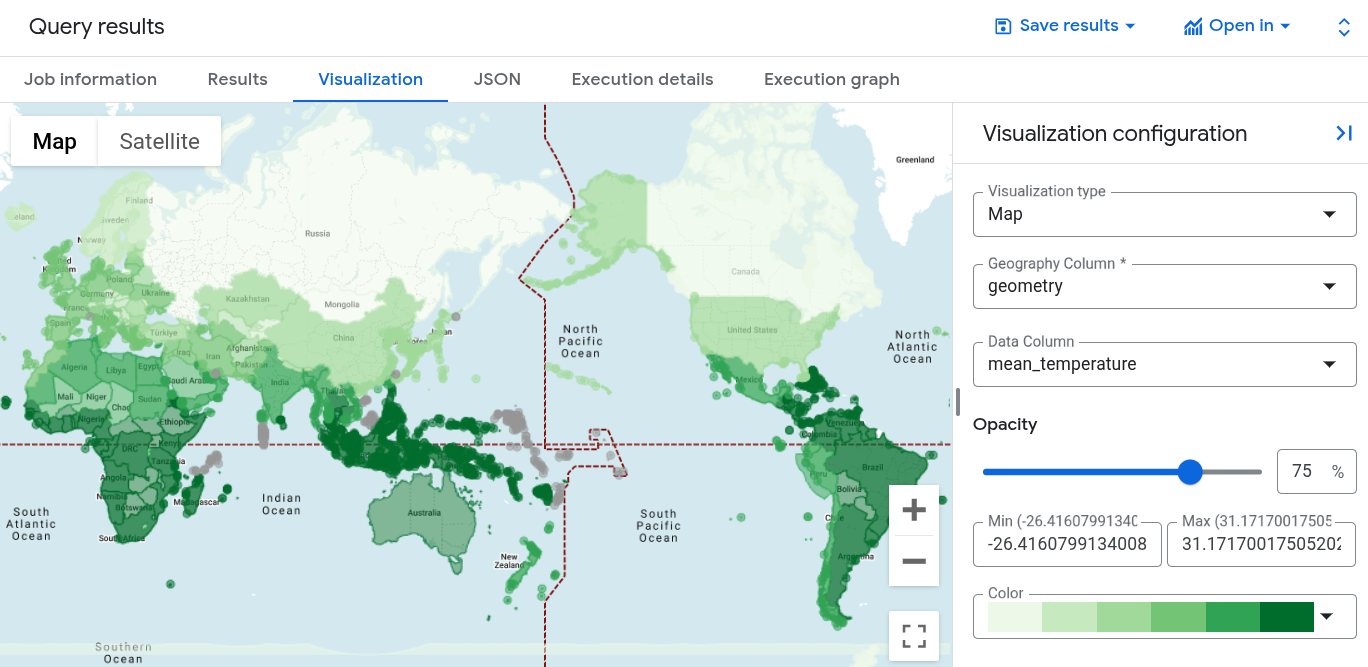
在「查詢結果」窗格中,點選「圖表」分頁標籤。
在「資料欄」部分,選取「
mean_temperature」。世界地圖隨即顯示,並根據各國的平均溫度,以顏色漸層呈現。
在 Geo Viz 中將查詢結果視覺化
您也可以使用 BigQuery Geo Viz 以圖表呈現結果。
啟用 Geo Viz 並進行身分驗證
在您使用 Geo Viz 之前,您必須在 BigQuery 中對資料進行身分驗證並授予存取權。
如要設定 Geo Viz,請按照下列步驟操作:
開啟 Geo Viz 網頁版工具。
或者,在「Query results」(查詢結果) 窗格中,依序點選 「Open in」(開啟方式) >「GeoViz」。
在步驟一「查詢」中,點選「授權」。
在「Choose an account」(選擇帳戶) 對話方塊中,按一下您的 Google 帳戶。
在存取對話方塊中,按一下 [Allow] (允許) 以取得您 BigQuery 資料的 Geo Viz 存取權。
在 Geo Viz 中執行查詢
在您進行身分驗證並授予權限後,下一步是在 Geo Viz 中執行查詢。
如要執行查詢,請按照下列步驟操作:
在第一步「Select data」(選取資料) 中,於「Project ID」(專案 ID) 欄位中輸入您的專案 ID。
在查詢視窗中,輸入下列 GoogleSQL 查詢。如果您是從查詢結果開啟 Geo Viz,這個欄位會自動填入查詢。
WITH SimplifiedCountries AS ( SELECT ST_SIMPLIFY(geometry, 10000) AS simplified_geometry, names.primary AS name FROM `bigquery-public-data.overture_maps.division_area` WHERE subtype = 'country' ) SELECT sc.simplified_geometry AS geometry, sc.name, ST_REGIONSTATS( sc.simplified_geometry, 'ee://ECMWF/ERA5_LAND/DAILY_AGGR/20250101', 'temperature_2m' ).mean - 273.15 AS mean_temperature FROM SimplifiedCountries AS sc ORDER BY mean_temperature DESC;按一下「執行」。
套用樣式
「樣式」部分會列出可自訂的視覺樣式。如要進一步瞭解各個樣式,請參閱「設定圖表格式」。
如要設定地圖格式,請按照下列步驟操作:
如要開啟 fillColor 面板,請按一下步驟 3 的「Style」。
將「以數據為準」切換鈕設為開啟。
在「Function」中選擇 [linear]。
在「Field」(欄位) 部分,選擇
mean_temperature。在「網域」部分,在第一個方塊中輸入
-20,在第二個方塊中輸入32。在「Range」(範圍) 部分,按一下第一個方塊,在「Hex」(十六進位) 方塊中輸入
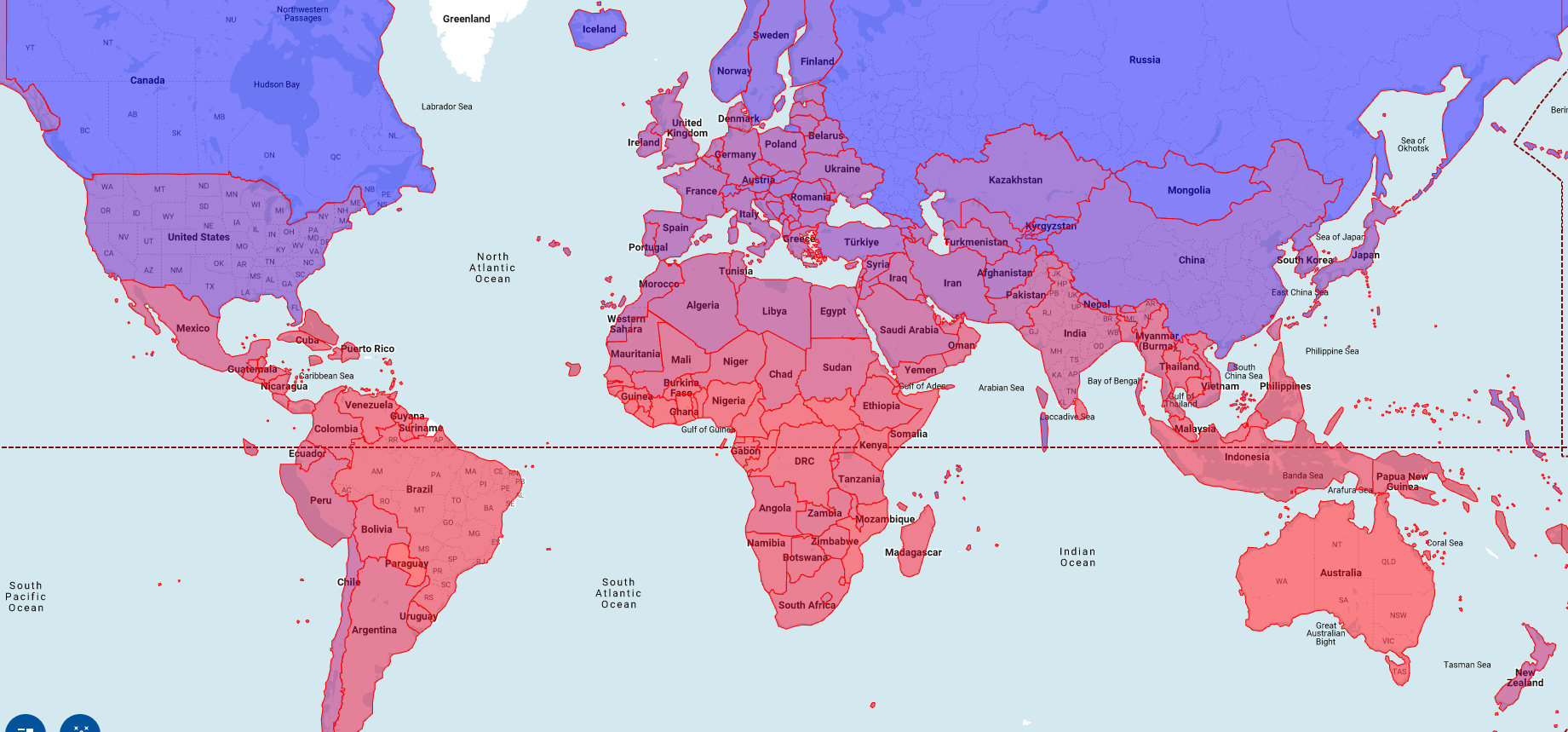
#0006ff,然後按一下第二個方塊並輸入#ff0000。這會根據 2025 年 1 月 1 日的平均溫度,變更每個國家/地區的顏色。藍色代表溫度較低,紅色代表溫度較高。按一下 [fillOpacity]。
在「Value」(值) 欄位中輸入
.5。按一下「套用樣式」。
查看您的地圖。如果點選某個國家/地區,系統會顯示該國家/地區的名稱、平均溫度和簡化幾何圖形。
清除所用資源
- 前往 Google Cloud 控制台的「Manage resources」(管理資源) 頁面。
- 在專案清單中選取要刪除的專案,然後點選「Delete」(刪除)。
- 在對話方塊中輸入專案 ID,然後按一下 [Shut down] (關閉) 以刪除專案。
後續步驟
- 如要進一步瞭解如何以圖表呈現地理空間分析選項,請參閱「以圖表呈現地理空間資料」。
- 如要使用光柵資料,請參閱「使用光柵資料」。
- 如要進一步瞭解可在地理空間分析中使用的地理函式,請參閱「GoogleSQL 中的地理函式」。