

By default, Gemini Enterprise Agent Platform encrypts customer content at rest. Agent Platform handles encryption for you without any additional actions on your part. This option is called Google default encryption.
If you want to control your encryption keys, then you can use customer-managed encryption keys (CMEKs) in Cloud KMS with CMEK-integrated services including Agent Platform. Using Cloud KMS keys gives you control over their protection level, location, rotation schedule, usage and access permissions, and cryptographic boundaries. Using Cloud KMS also lets you track key usage, view audit logs, and control key lifecycles. Instead of Google owning and managing the symmetric key encryption keys (KEKs) that protect your data, you control and manage these keys in Cloud KMS.
After you set up your resources with CMEKs, the experience of accessing your Agent Platform resources is similar to using Google default encryption. For more information about your encryption options, see Customer-managed encryption keys (CMEK).
This guide describes some benefits of using CMEK for Gemini Enterprise Agent Platform resources and walks through how to configure a training job to use CMEK.
For more information about how to use CMEK for Colab Enterprise, see the Colab Enterprise CMEK page. For more information about how to use CMEK for Gemini Enterprise Agent Platform Workbench instances, see the Agent Platform Workbench instances CMEK page.
CMEK for Gemini Enterprise Agent Platform resources
The following sections describe basic information about CMEK for Gemini Enterprise Agent Platform resources that you must understand before configuring CMEK for your jobs.
Benefits of CMEK
In general, CMEK is most useful if you need full control over the keys used to encrypt your data. With CMEK, you can manage your keys within Cloud KMS. For example, you can rotate or disable a key or you can set up a rotation schedule using the Cloud KMS API. For more information about CMEK in general, including when and why to enable it, see the Cloud KMS documentation.
When you run an AutoML or custom training job, your code runs on one or more virtual machine (VM) instances managed by Gemini Enterprise Agent Platform. When you enable CMEK for Gemini Enterprise Agent Platform resources, the key that you designate, rather than a key managed by Google, is used to encrypt data on the boot disks of these VMs. The CMEK key encrypts the following kinds of data:
- The copy of your code on the VMs.
- Any data that gets loaded by your code.
- Any temporary data that gets saved to the local disk by your code.
- Automl-trained models.
- Media files (data) uploaded into media datasets.
In general, the CMEK key does not encrypt metadata associated with your operation, like the job's name and region, or a dataset's display name. Metadata associated with operations is always encrypted using Google's default encryption mechanism.
For datasets, when a user imports data into dataset, the data items and annotations are CMEK-encrypted. The dataset display name is not CMEK-encrypted.
For models, the models stored in the storage system (for example, disk) are CMEK-encrypted. All the model evaluation results are CMEK-encrypted.
For endpoints, all model files used for the model deployment under the endpoint are CMEK-encrypted. This does not include any in-memory data.
For batch prediction, any temporary files (such as model files, logs, VM disks) used to execute the batch prediction job are CMEK-encrypted. Batch prediction results are stored in the user provided destination. Consequently, Agent Platform respects the default value of the destination's encryption config. Otherwise, results will also be encrypted with CMEK.
For data labeling, any input files (image, text, tabular), temporary discussion (for example, questions, feedback) and output (labeling result) are CMEK-encrypted. The annotation spec display names are not CMEK-encrypted.
For agents, CMEK encrypts all source files used for agent development. Additionally, container images and deployed instances for the agent are also CMEK-encrypted.
External keys
You can use Cloud External Key Manager (Cloud EKM) to create external keys, that you manage, to encrypt data within Google Cloud.
When you use a Cloud EKM key, Google has no control over the availability of your externally-managed key. If you request access to a resource encrypted with an externally-managed key, and the key is unavailable, then Gemini Enterprise Agent Platform will reject the request. There can be a delay of up to 10 minutes before you can access the resource once the key becomes available.
For more considerations when using external keys, see Cloud External Key Manager.
Use CMEK with other Google Cloud products
Configuring CMEK for Gemini Enterprise Agent Platform resources does not automatically configure CMEK for other Google Cloud products that you use together with Gemini Enterprise Agent Platform. To use CMEK to encrypt data in other Google Cloud products, additional configuration is required. For example:
Cloud Storage: When you perform custom training, Agent Platform usually loads your data from Cloud Storage. When you use a Python training application and a prebuilt container for training, Gemini Enterprise Agent Platform also loads your code from a Cloud Storage bucket. In addition, some training jobs export trained model artifacts (for example, a TensorFlow SaveModel directory) to a Cloud Storage bucket as part of their output.
To ensure that your data in Cloud Storage is encrypted with CMEK, read the Cloud Storage guide to using customer-managed encryption keys. You can set your encryption key as the default key for the Cloud Storage bucket(s) that you use with Gemini Enterprise Agent Platform, or you can use it to encrypt specific objects.
Artifact Registry: When you use a custom container for training, you can configure Agent Platform to load your container image from Artifact Registry.
To ensure that your container image is encrypted with CMEK, read the Artifact Registry guide to CMEK.
Cloud Logging: When you run a training job, Gemini Enterprise Agent Platform training saves logs to Logging. To encrypt these logs by using CMEK, see Configure CMEK for Cloud Logging.
Current CMEK-supported resources
The current Gemini Enterprise Agent Platform resources covered by CMEK are as follows. CMEK support for Preview features is in Preview status as well.
| Resource | Material encrypted | Documentation links |
|---|---|---|
| Dataset |
|
|
| Model |
|
|
| Endpoint |
|
|
| CustomJob |
|
|
| HyperparameterTuningJob |
|
|
| TrainingPipeline |
|
|
| BatchPredictionJob (excludes AutoML image batchPrediction) |
|
|
| ModelDeploymentMonitoringJob |
|
|
| PipelineJob |
|
|
| MetadataStore |
|
|
| TensorBoard |
|
|
| Featurestore |
|
|
| Index |
|
|
| IndexEndpoint |
|
|
| Colab Enterprise runtime |
|
|
| Colab Enterprise notebook |
|
|
| Agent Runtime |
|
CMEK support for Generative AI tuning pipelines
CMEK support is provided in the tuning pipeline of the following models:
BERTT5image-generation (GPU)
Limitations
CMEK support isn't provided in the following:
- AutoML image model batch prediction (
BatchPredictionJob) - TPU tuning
- Agent Platform Memory Bank or Agent Platform Sessions configured to use the global endpoint. Cloud KMS requires encryption keys to reside within a fixed geographic data residency boundary. Because the global region lacks a physical geographic boundary, it is barred from encrypting localized regional or multi-regional resources.
Configure CMEK for your resources
The following sections describe how to create a key ring and key in Cloud Key Management Service, grant Agent Platform encrypter and decrypter permissions for your key, and create resources that use CMEK.
Before you begin
This guide assumes that you use two separate Google Cloud projects to configure CMEK for Agent Platform data:
- A project for managing your encryption key (referred to as the "Cloud KMS project").
- A project for accessing Agent Platform data or output in Cloud Storage, and interacting with any other Google Cloud products that you need for your use case (referred to as the "AI Platform project").
This recommended setup supports a separation of duties.
Alternatively, you can use a single Google Cloud project for the whole guide. To do so, use the same project for all of the following tasks that refer to the Cloud KMS project and the tasks that refer to the AI Platform project.
Set up the Cloud KMS project
- Sign in to your Google Cloud account. If you're new to Google Cloud, create an account to evaluate how our products perform in real-world scenarios. New customers also get $300 in free credits to run, test, and deploy workloads.
-
In the Google Cloud console, on the project selector page, select or create a Google Cloud project.
Roles required to select or create a project
- Select a project: Selecting a project doesn't require a specific IAM role—you can select any project that you've been granted a role on.
-
Create a project: To create a project, you need the Project Creator role
(
roles/resourcemanager.projectCreator), which contains theresourcemanager.projects.createpermission. Learn how to grant roles.
-
Verify that billing is enabled for your Google Cloud project.
Enable the Cloud KMS API.
Roles required to enable APIs
To enable APIs, you need the
serviceusage.services.enablepermission. If you created the project, then you likely already have this permission through the Owner role (roles/owner). Otherwise, you can get this permission through the Service Usage Admin role (roles/serviceusage.serviceUsageAdmin). Learn how to grant roles.-
In the Google Cloud console, on the project selector page, select or create a Google Cloud project.
Roles required to select or create a project
- Select a project: Selecting a project doesn't require a specific IAM role—you can select any project that you've been granted a role on.
-
Create a project: To create a project, you need the Project Creator role
(
roles/resourcemanager.projectCreator), which contains theresourcemanager.projects.createpermission. Learn how to grant roles.
-
Verify that billing is enabled for your Google Cloud project.
Enable the Cloud KMS API.
Roles required to enable APIs
To enable APIs, you need the
serviceusage.services.enablepermission. If you created the project, then you likely already have this permission through the Owner role (roles/owner). Otherwise, you can get this permission through the Service Usage Admin role (roles/serviceusage.serviceUsageAdmin). Learn how to grant roles.
Set up the AI Platform project
- Sign in to your Google Cloud account. If you're new to Google Cloud, create an account to evaluate how our products perform in real-world scenarios. New customers also get $300 in free credits to run, test, and deploy workloads.
-
In the Google Cloud console, on the project selector page, select or create a Google Cloud project.
Roles required to select or create a project
- Select a project: Selecting a project doesn't require a specific IAM role—you can select any project that you've been granted a role on.
-
Create a project: To create a project, you need the Project Creator role
(
roles/resourcemanager.projectCreator), which contains theresourcemanager.projects.createpermission. Learn how to grant roles.
-
Verify that billing is enabled for your Google Cloud project.
Enable the Agent Platform API.
Roles required to enable APIs
To enable APIs, you need the
serviceusage.services.enablepermission. If you created the project, then you likely already have this permission through the Owner role (roles/owner). Otherwise, you can get this permission through the Service Usage Admin role (roles/serviceusage.serviceUsageAdmin). Learn how to grant roles.-
In the Google Cloud console, on the project selector page, select or create a Google Cloud project.
Roles required to select or create a project
- Select a project: Selecting a project doesn't require a specific IAM role—you can select any project that you've been granted a role on.
-
Create a project: To create a project, you need the Project Creator role
(
roles/resourcemanager.projectCreator), which contains theresourcemanager.projects.createpermission. Learn how to grant roles.
-
Verify that billing is enabled for your Google Cloud project.
Enable the Agent Platform API.
Roles required to enable APIs
To enable APIs, you need the
serviceusage.services.enablepermission. If you created the project, then you likely already have this permission through the Owner role (roles/owner). Otherwise, you can get this permission through the Service Usage Admin role (roles/serviceusage.serviceUsageAdmin). Learn how to grant roles.
Set up the Google Cloud CLI
The gcloud CLI is required for some steps in this guide and optional for others.Install the Google Cloud CLI. After installation, initialize the Google Cloud CLI by running the following command:
gcloud initIf you're using an external identity provider (IdP), you must first sign in to the gcloud CLI with your federated identity.
Create a key ring and key
Follow the Cloud KMS guide to creating symmetric keys to create a key ring and a key. When you create your key ring, specify a region that supports Agent Platform operations as the key ring's location. Agent Platform training only supports CMEK when your resource and key use the same region. You must not specify a dual-regional, multi-regional, or global location for your key ring.
Make sure to create your key ring and key in your Cloud KMS project.
Grant Agent Platform permissions
To use CMEK for your resources, you must grant Agent Platform permission to encrypt and decrypt data using your key. Agent Platform uses a Google-managed service agent to run operations using your resources. This service account is identified by an email address with the following format:
service-PROJECT_NUMBER@gcp-sa-aiplatform.iam.gserviceaccount.com
To find the appropriate service account for your AI Platform project, go
to the IAM page in the Google Cloud console and find the member that matches
this email address format, with the project
number for
your AI Platform project replacing the
AI_PLATFORM_PROJECT_NUMBER variable. The service account also has the
name Agent Platform Service Agent.
Make note of the email address for this service account, and use it in the following steps to grant it permission to encrypt and decrypt data using your key. You can grant permission by using the Google Cloud console or by using the Google Cloud CLI:
Google Cloud console
In the Google Cloud console, Click Security and select Key Management. This will take you to Cryptographic Keys page and select your Cloud KMS project.
Click on the name of the key ring that you created in a preceding section of this guide to go to the Key ring details page.
Select the checkbox for the key that you created in a preceding section of this guide. If an info panel labeled with the name of your key is not already open, click Show info panel.
In the info panel, click Add member to open the Add members to "KEY_NAME" dialog. In this dialog, do the following:
- In the New members box, enter the service account email address that
you made a note of in the preceding section:
service-AI_PLATFORM_PROJECT_NUMBER@gcp-sa-aiplatform.iam.gserviceaccount.com In the Select a role drop-down list, click Cloud KMS and then select the Cloud KMS CryptoKey Encrypter/Decrypter role.
Click Save.
- In the New members box, enter the service account email address that
you made a note of in the preceding section:
gcloud
Run the following command:
gcloud kms keys add-iam-policy-binding KEY_NAME \
  --keyring=KEY_RING_NAME \
  --location=REGION \
  --project=KMS_PROJECT_ID \
  --member=serviceAccount:service-AI_PLATFORM_PROJECT_NUMBER@gcp-sa-aiplatform.iam.gserviceaccount.com \
  --role=roles/cloudkms.cryptoKeyEncrypterDecrypter
In this command, replace the following placeholders:
- KEY_NAME: The name of the key that you created in a preceding section of this guide.
- KEY_RING_NAME: The key ring that you created in a preceding section of this guide.
- REGION: The region where you created your key ring.
- KMS_PROJECT_ID: The ID of your Cloud KMS project.
- AI_PLATFORM_PROJECT_NUMBER: The project number of your AI Platform project, which you noted in the preceding section as part of a service account email address.
Create resources with the KMS key
When you create a new CMEK-supported resource you can specify your key as one of the create parameters.
Console
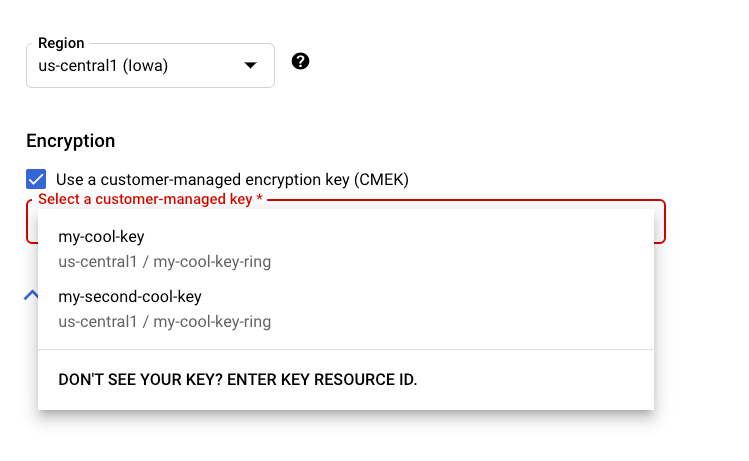
When you create a new CMEK-supported resource in the Agent Platform section of the Google Cloud console, you can select your key in the general or advanced option section:
REST & CMD Line
When you create a supported resource, add an
encryptionSpec object to your request and set the
encryptionSpec.kmsKeyName field to point to your key
resource.
For example, when creating a dataset resource you would
specify your key in the request body:
 {
   "displayName": DATASET_NAME,
   "metadataSchemaUri": METADATA_URI,
   "encryptionSpec": {
     "kmsKeyName": "projects/PROJECT_ID/locations/LOCATION_ID/keyRings/KEY_RING_NAME/cryptoKeys/KEY_NAME"
   }
 }
Java
When you create a supported resource, set the EncryptionSpec to
point to your key resource. See the
Agent Platform client library for Java
documentation for more information.
Node.js
When you create a supported resource, set the encryptionSpec parameter to
point to your key resource. See the
Agent Platform client library for Node.js
documentation for more information.
Python
When you create a supported resource, set the encryption_spec parameter to
point to your key resource. See the
Python Client for Cloud AI Platform
documentation for more information.
What's next
- Learn more about CMEK on Google Cloud.
- Learn how to use CMEK with other Google Cloud products.