

Overview
This document provides step-by-step instructions for deploying open weight Large Language Models (LLMs) like Gemma, Llama, and DeepSeek on Google Distributed Cloud (GDC) air-gapped environments. It covers using both vLLM for high-throughput serving and Ollama for ease of use, leveraging the GDC platform's capabilities, including Kubernetes, Harbor, and GPU resources.
Architecture
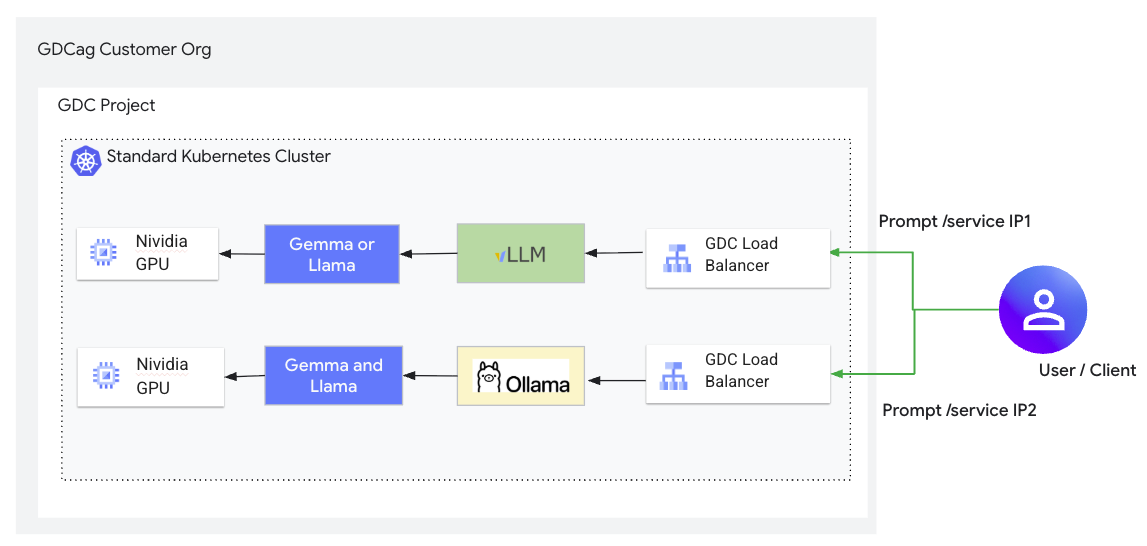
The solution involves deploying containerized LLM serving backends (vLLM, Ollama) as Deployments within a user cluster. Model weights are stored on Persistent Volumes, populated from images in the Harbor registry. Kubernetes Services of type LoadBalancer expose the backends' APIs. Project network policies secure access to these services.
Before you begin
Ensure the following prerequisites are met:
- GDC air-gapped version 1.15.1 or higher.
- User cluster created with sufficient resources (CPU, Memory, GPU).
- A minimum of 1 NVIDIA A100 GPU is required.
- Harbor instance available and accessible.
kubectlandgdcloudCLIs configured to access the user cluster.- Docker client installed and configured to push to Harbor.
- Necessary IAM permissions granted (for example, Namespace Admin, Cluster Developer**).
- Hugging Face account and authentication configured if using gated models.
Section 1: Common setup
1.1 Create image pull secret
To configure an image pull secret for a container workload in GDC air-gapped, you need to create a Kubernetes docker-registry secret containing credentials to access your private Harbor project. This secret is then referenced in your deployment specification.
You should use a Harbor robot account for programmatic access to images in private Harbor projects.
Follow these steps to configure the image pull secret:
Create a Harbor robot account:
- Navigate to your Harbor instance UI.
- Go to your Harbor project.
- Select the Robot Accounts tab.
- Click New Robot Account.
- Give it a name (for example,
oss-llm-puller) and grant it the necessary permissions (at least pull access) until an expiration time. - Securely store the robot account name (for example,
robot$oss-llm-puller) and the secret token provided.
Authenticate Docker to Harbor:
On your machine with Docker installed and network access to the Harbor registry, sign in using the robot account credentials:
export INSTANCE_URL="HARBOR_INSTANCE_URL"
# for example, harbor1-project1.org1.zone1.google.gdc.com

export ROBOT_NAME="ROBOT_ACCOUNT_NAME"
# for example, robot\$oss-llm-puller (note how we escape the $ character)

export ROBOT_SECRET="ROBOT_ACCOUNT_SECRET"

docker login ${INSTANCE_URL} --username ${ROBOT_NAME} --password ${ROBOT_SECRET}
Create the Kubernetes image pull secret:
Use kubectl to create a secret of type docker-registry in your project namespace, using the Docker configuration file updated in the previous step:
# Log in into GDC environment using the next commands
gdcloud auth login --login-config-cert WEB_TLS_CERT_PATH
gdcloud clusters get-credentials KUBERNETES_CLUSTER
kubectl config set-context --current --namespace=NAMESPACE

export SECRET_NAME="OSS_LLM_PULL_SECRET"
export NAMESPACE="PROJECT_NAMESPACE"
# Assuming default Docker config path. Adjust if necessary.
export DOCKER_CONFIG_PATH="$HOME/.docker/config.json"

kubectl create secret docker-registry ${SECRET_NAME} \
      --from-file=.dockerconfigjson=${DOCKER_CONFIG_PATH} \
      -n ${NAMESPACE}
Section 2: Deploying with vLLM
2.1 Get the vLLM Docker image
On a machine with internet access, pull the vLLM Docker image and then transfer it to your Harbor project:
# Pull and Tag vLLM (v0.13.0 recommended for stability)
docker pull vllm/vllm-openai:v0.13.0
docker tag vllm/vllm-openai:v0.13.0 HARBOR_URL/PROJECT/vllm-openai:v0.13.0
docker push HARBOR_URL/PROJECT/vllm-openai:v0.13.0
Replace HARBOR_URL and PROJECT
with your Harbor instance URL and project name.
2.2 Prepare model weights in PVC
Create a YAML file (for example, model-pvc.yaml):
apiVersion: v1
kind: PersistentVolumeClaim
metadata:
  name: model-pvc
spec:
  accessModes:
  - ReadWriteOnce
  resources:
    requests:
      storage: 500Gi
  storageClassName: standard-rwo
  volumeMode: Filesystem
Apply the PVC: kubectl apply -f model-pvc.yaml
Download weights from Hugging Face:
hf auth login
hf download google/gemma-3-4b-it
Use a helper pod (for example, helper-pod.yaml) to transfer weights to the PVC.
Ensure you have a busybox image in Harbor.
# Push busybox if not present
docker pull busybox:latest
docker tag busybox HARBOR_URL/PROJECT/busybox:latest
docker push HARBOR_URL/PROJECT/busybox:latest

# Contents of helper-pod.yaml
apiVersion: v1
kind: Pod
metadata:
  name: model-uploader
spec:
  containers:
  - name: uploader
    image: HARBOR_URL/PROJECT/busybox:latest
    command: ["sleep", "3600"]
    volumeMounts:
    - name: model-data
      mountPath: /data
  imagePullSecrets:
  - name: oss-llm-pull-secret
  volumes:
  - name: model-data
    persistentVolumeClaim:
      claimName: model-pvc
Apply pod and copy files:
kubectl apply -f helper-pod.yaml
# Wait for pod to be Running
kubectl cp ~/.cache/huggingface/hub/ NAMESPACE/model-uploader:/data/
kubectl delete pod model-uploader
2.3 Deploy vLLM backend
Create the deployment file vllm-gemma-3-4b-it-deployment.yaml:
apiVersion: apps/v1
kind: Deployment
metadata:
  name: gemma-3-4b-it
  labels:
    app: gemma-3-4b-it
spec:
  replicas: 1
  selector:
    matchLabels:
      app: gemma-3-4b-it
  template:
    metadata:
      labels:
        app: gemma-3-4b-it
    spec:
      volumes:
      - name: cache-volume
        persistentVolumeClaim:
          claimName: model-pvc
      - name: shm
        emptyDir:
          medium: Memory
          sizeLimit: "16Gi"
      containers:
      - name: gemma-3-4b-it
        image: HARBOR_URL/PROJECT/vllm-openai:v0.13.0
        command: ["python3"]
        args: [
          "-m",
          "vllm.entrypoints.openai.api_server",
          "--model",
          "google/gemma-3-4b-it",
          "--max-model-len",
          "32768",
          "--enforce-eager"
        ]
        env:
        - name: HF_HUB_OFFLINE
          value: "1"
        - name: HF_HOME
          value: "/model"
        - name: NCCL_P2P_DISABLE
          value: "1"
        - name: NCCL_IB_DISABLE
          value: "1"
        - name: BORINGSSL_FIPS
          value: "0"
        - name: OPENSSL_FIPS
          value: "0"
        - name: OPENSSL_CONF
          value: "/dev/null"
        - name: FIPS_SIG
          value: "off"
        ports:
        - containerPort: 8000
        securityContext:
          privileged: true
          runAsUser: 0
        resources:
          limits:
            nvidia.com/gpu-pod-NVIDIA_A100_80GB_PCIE: 1
            cpu: "8"
            memory: "64Gi"
          requests:
            nvidia.com/gpu-pod-NVIDIA_A100_80GB_PCIE: 1
            cpu: "8"
            memory: "32Gi"
        volumeMounts:
        - name: cache-volume
          mountPath: /model
        - name: shm
          mountPath: /dev/shm
      imagePullSecrets:
      - name: oss-llm-pull-secret
Create the service file vllm-gemma-3-4b-it-service.yaml:
apiVersion: v1
kind: Service
metadata:
  name: gemma-3-4b-it
  namespace: NAMESPACE
spec:
  ports:
  - name: http-gemma-3-4b-it
    port: 80
    protocol: TCP
    targetPort: 8000
  selector:
    app: gemma-3-4b-it
  sessionAffinity: None
  type: LoadBalancer
Apply the configurations:
kubectl apply -f vllm-gemma-3-4b-it-deployment.yaml
kubectl apply -f vllm-gemma-3-4b-it-service.yaml
2.4 Configure network policy
Apply a ProjectNetworkPolicy resource to allow ingress traffic to the vLLM
service port (8000). Create vllm-netpol.yaml:
apiVersion: networking.gdc.goog/v1
kind: ProjectNetworkPolicy
metadata:
  name: allow-vllm-ingress
  namespace: NAMESPACE
spec:
  subject:
    subjectType: UserWorkload
  policyType: Ingress
  ingress:
  - from:
    - ipBlock:
        cidr: 0.0.0.0/0 # Restrict this in production
    ports:
    - protocol: TCP
      port: 8000
Apply the policy: kubectl apply -f vllm-netpol.yaml
Section 3: Deploying with Ollama
3.1 Prepare Dockerfile
Create a Dockerfile to build the Ollama image with the your model(s)
pre-loaded:
FROM ubuntu

RUN apt-get update && apt-get install -y --no-install-recommends curl ca-certificates zstd
RUN curl -fsSL https://ollama.com/install.sh -o install.sh
RUN chmod +x install.sh
RUN ./install.sh && \
    rm -rf /var/lib/apt/lists/*

# Pre-pull gemma3 model
RUN ollama serve & \
    sleep 5 && \
    curl --retry 10 --retry-connrefused -s http://localhost:11434 || true && \
    ollama pull gemma3:latest && \
    pkill ollama || true

EXPOSE 11434
CMD ["ollama", "serve"]
3.2 Build and push image
Build and push the image:
docker build -t ollama-gemma3 .
docker tag ollama-gemma3 HARBOR_URL/PROJECT/ollama-gemma3:latest
docker push HARBOR_URL/PROJECT/ollama-gemma3:latest
3.3 Deploy Ollama backend
Create ollama-gemma3.yaml:
apiVersion: apps/v1
kind: Deployment
metadata:
  name: ollama-gemma3
  namespace: NAMESPACE
  labels:
    app: ollama-gemma3
spec:
  replicas: 1
  selector:
    matchLabels:
      app: ollama-gemma3
  template:
    metadata:
      labels:
        app: ollama-gemma3
    spec:
      containers:
      - name: ollama-gemma3
        image: HARBOR_URL/PROJECT/ollama-gemma3:latest
        env:
        - name: OLLAMA_HOST
          value: "0.0.0.0"
        imagePullPolicy: Always
        ports:
        - containerPort: 11434
        securityContext:
          privileged: true
          runAsUser: 0
        resources:
          limits:
            nvidia.com/gpu-pod-NVIDIA_A100_80GB_PCIE: 1
          requests:
            nvidia.com/gpu-pod-NVIDIA_A100_80GB_PCIE: 1
      imagePullSecrets:
      - name: oss-llm-pull-secret
---
apiVersion: v1
kind: Service
metadata:
  name: ollama-gemma3
  namespace: NAMESPACE
spec:
  type: LoadBalancer
  selector:
    app: ollama-gemma3
  ports:
  - name: ollama-gemma3-port
    port: 11434
    protocol: TCP
    targetPort: 11434
Apply the manifest: kubectl apply -f ollama-gemma3.yaml
3.4 Configure network policy
Create ollama-netpol.yaml:
apiVersion: networking.gdc.goog/v1
kind: ProjectNetworkPolicy
metadata:
  name: allow-ollama-ingress
  namespace: NAMESPACE
spec:
  subject:
    subjectType: UserWorkload
  policyType: Ingress
  ingress:
  - from:
    - ipBlock:
        cidr: 0.0.0.0/0 # Restrict this for production.
    ports:
    - protocol: TCP
      port: 11434
Apply the policy: kubectl apply -f ollama-netpol.yaml
Section 4: Validation
Verify the deployments by checking pod statuses, service IP addresses, and
sending test inference requests using curl to the LoadBalancer IP addresses
for both vLLM and Ollama.
Check that all containers and services are Running:
# Login into GDC air-gapped using the next commands
gdcloud auth login --login-config-cert WEB_TLS_CERT_PATH
gdcloud clusters get-credentials KUBERNETES_CLUSTER
kubectl config set-context --current --namespace=NAMESPACE

# Pods
kubectl get pods

# Services
kubectl get services
Test vLLM:
export VLLM_IP=$(kubectl get service gemma-3-4b-it -n NAMESPACE -o jsonpath='{.status.loadBalancer.ingress[*].ip}')
curl http://${VLLM_IP}/v1/chat/completion \
  -H "Content-Type: application/json" \
  -d '{
    "model": "google/gemma-3-4b-it",
    "messages": [
      {"role": "user", "content": "What is Google Distributed Cloud air-gapped?"}
    ],
    "max_tokens": 100
  }'
Test Ollama:
export OLLAMA_IP=$(kubectl get service ollama-gemma3 -n NAMESPACE -o jsonpath='{.status.loadBalancer.ingress[*].ip}')
# Check if Ollama is running
curl http://${OLLAMA_IP}:11434
# Send a completion request
curl -X POST http://${OLLAMA_IP}:11434/v1/completions \
-H "Content-Type: application/json" \
-d '{
  "model": "gemma3:latest",
  "prompt": "Google Distributed Cloud air-gapped is a",
  "max_tokens": 128,
  "temperature": 0.90,
  "stream": false
}'
Section 5: Operations and troubleshooting
5.1 vLLM operations
Check Logs: kubectl logs -f -n NAMESPACE
Query Internal Status (from a debug pod):
wget -qO- http://gemma-3-4b-it/v1/models
wget -qO- http://gemma-3-4b-it/health
5.2 Ollama operations
Access CLI: kubectl exec -it -n NAMESPACE -- sh
Inside pod: ollama list, ollama ps
5.3 Scaling
Scale the solution with an Ollama backend
Vertically
- Allocate a larger GPU slice for your LLM that has become a bottleneck until you use a full GPU.
- If you want to use a larger LLM for better response accuracy, for example, a 405B parameter LLM instead of a 7B one, you may need more than one GPU to run it smoothly.
- Models that fit into more than one GPU experience some latency related to inter-GPU communication.
Horizontally
- Deploy as many Ollama pods as you need to achieve your target throughput on a
given LLM.
- To achieve this, increase the replica number in the corresponding Ollama deployment YAML file.
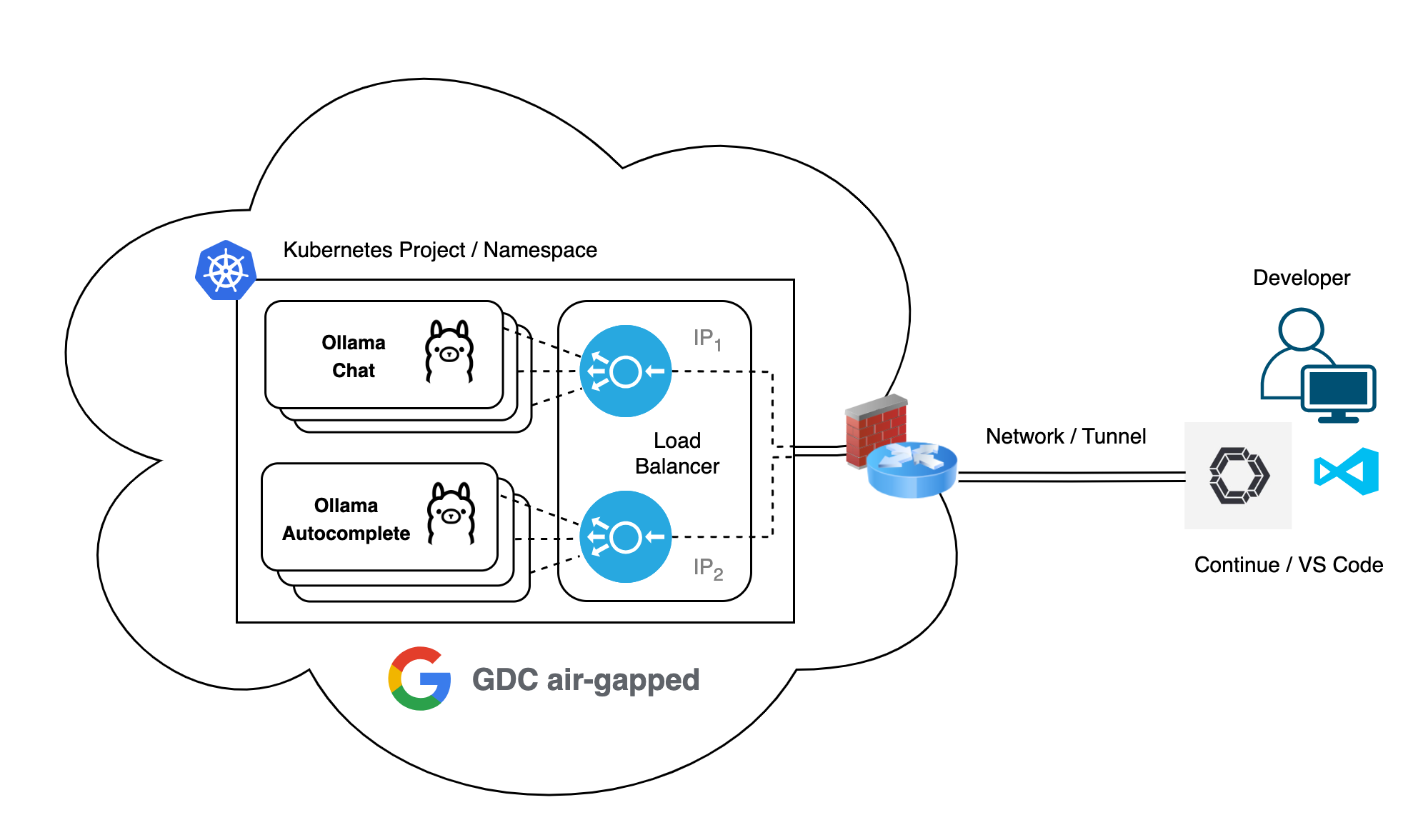
- The Kubernetes service, which is of LoadBalancer type, will distribute code assistance requests between endpoints (i.e. pods) and return their respective responses through the exposed external IP.
- Remember, the Continue plugin points to only one IP address per functionality.
To scale the vLLM backend within your GDC air-gapped environment, you can follow a strategy similar to the one used for Ollama, focusing on both hardware resource allocation and pod replication.
Scale the solution with a vLLM backend
Vertically
- Upgrade GPU Allocation: If the inference throughput (tokens/sec) becomes a bottleneck, allocate a larger GPU slice until you use a full NVIDIA A100 GPU.
- Multi-GPU Configurations: For massive models (for example, 70B to 405B parameters) that don't fit in the memory of a single 80GB A100, you must scale to multiple GPUs using tensor parallelism.
- Latency Consideration: Note that models spanning more than one GPU may experience slight overhead related to inter-GPU communication (for example, NCCL sync).
Horizontally
- Increase Throughput via Replicas: To handle a higher volume of concurrent user requests for the same model, increase the replicas count in your vLLM deployment YAML.
- Dedicated Model Instances: Since vLLM is designed as a single-model serving engine and pins its KV cache memory upon initialization, you must deploy a separate set of pods for each different LLM you want to host.
- Load Balancing: The GDC Kubernetes service (type LoadBalancer) will automatically distribute incoming inference requests among all healthy vLLM pod endpoints associated with that service.
5.4 Troubleshooting
Common errors and mitigations.
| Error | Mitigation |
|---|---|
| FIPS SELFTEST FAILURE | Occurs when libraries like BoringSSL lack integrity signatures. Fix by setting BORINGSSL_FIPS=0 and utilizing official vLLM images |
| Stalled Weight Loading | Check for IOPS throttling on small PVCs. A 500GiB volume is required for performance model initialization. |
| Connection Refused | Confirm the PNP explicitly allows the targetPort (8000/8080). GDC firewalls don't automatically grant access to backend ports for Load Balancer VIPs. |