

Google Distributed Cloud (GDC) air-gapped lets you manage your Kubernetes clusters after creation using GKE on GDC. This service lets you adapt to your evolving container workload requirements and maintain your existing cluster nodes with the following workflows:
Attach and detach shared clusters to projects: Attach and detach you shared cluster to multiple projects after cluster creation to change the scope of your shared cluster's workloads.
View clusters in your organization: List the clusters in your organization to track what is available for your container workloads.
List Kubernetes versions: View the Kubernetes version of your cluster for awareness of the cluster's capabilities corresponding to the latest Kubernetes releases.
View updateable cluster properties: View the properties available to change within the
Clustercustom resource definition.
This document is for IT administrators within the platform administrator group who manage container workloads that are hosted in clusters spanning multiple projects, and developers within the application operator group who are responsible for creating application workloads within a single project. For more information, see Audiences for GDC air-gapped documentation.
Before you begin
To complete the tasks in this document, you must request the necessary permissions and prepare your environment.
Request IAM roles
You must have specific roles to get the permissions you need to maintain your Kubernetes cluster. The roles you require depend on whether you are working within an organization-scoped shared cluster or project-scoped standard cluster. For more information, see Kubernetes cluster configurations.
Shared cluster roles
To view and maintain your shared Kubernetes cluster and its resources, ask your IAM Org Admin to grant you the following roles based on the task to perform:
Project Creator (
project-creator): create or view project resources. This role is required to attach a shared cluster to a project.Project Editor (
project-editor): delete, update, or view project resources. This role is required to detach a shared cluster from a project.User Cluster Viewer (
user-cluster-viewer): view the shared cluster and its resources. This role provides access to the management plane APIs for the shared cluster hosted in the management API server.
These roles aren't bound to a project namespace.
Standard cluster roles
To view your standard Kubernetes cluster and its resources, ask your IAM Project
Admin to grant you the Standard Cluster Viewer (standard-cluster-viewer)
role. This role provides access to the management plane APIs for the standard
cluster hosted in the management API server.
This role is bound to your project namespace.
Prepare your environment
To run commands against a Kubernetes cluster using the API, make sure you have the following resources:
Locate the Kubernetes cluster name, or ask a member of the platform administrator group what the cluster name is.
Use the Kubernetes cluster name to replace
CLUSTER_NAMEin these instructions.Sign in and generate the kubeconfig file for the management API server.
Use the kubeconfig path of the management API server to replace
MANAGEMENT_API_SERVERin these instructions.
Move clusters in project hierarchy
Projects provide logical grouping of service instances. You can add and remove shared Kubernetes clusters from the GDC project hierarchy to group your services appropriately. You can't move standard clusters in the project hierarchy since they are scoped to a single project only.
Attach project to a shared cluster
When creating a shared cluster from the GDC console, you must attach at least one project before you can successfully deploy container workloads to it. If you must add additional projects to an existing cluster, complete the following steps:
Console
- In the navigation menu, select Kubernetes Engine > Clusters.
- In the list of clusters, click the cluster name to open the Cluster details page.
- Select Attach Project.
- In the list of available projects, click the project name to attach to the cluster.
- Click Save.
API
Create a new
ProjectBindingcustom resource for your cluster:kubectl --kubeconfig MANAGEMENT_API_SERVER apply -f - <<EOF apiVersion: resourcemanager.gdc.goog/v1 kind: ProjectBinding metadata: name: CLUSTER_NAME-PROJECT_NAME namespace: platform labels: resourcemanager.gdc.goog/projectbinding-for-user-project: "true" spec: clusterRef: name: CLUSTER_NAME selector: nameSelector: matchNames: - PROJECT_NAME EOFReplace the following:
MANAGEMENT_API_SERVER: the zonal API server's kubeconfig path.CLUSTER_NAME: the name of the cluster.PROJECT_NAME: the name of the project to bind the cluster to. EachProjectBindingresource can only map to one cluster. If a project requires access to multiple clusters, a uniqueProjectBindingmust be created for each cluster.
Terraform
In a Terraform configuration file, insert the following code snippet to create the
ProjectBindingcustom resource:provider "kubernetes" { config_path = "MANAGEMENT_API_SERVER" } resource "kubernetes_manifest" "PROJECT_BINDING_RESOURCE_NAME" { manifest = { "apiVersion" = "resourcemanager.gdc.goog/v1" "kind" = "ProjectBinding" "metadata" = { "name" = "CLUSTER_NAME-PROJECT_NAME" "namespace" = "platform" "labels" = { "resourcemanager.gdc.goog/projectbinding-for-user-project" = "true" } } "spec" = { "clusterRef" = { "name" = "CLUSTER_NAME" } "selector" = { "nameSelector" = { "matchNames" = [ "PROJECT_NAME", ] } } } } }Replace the following:
MANAGEMENT_API_SERVER: the zonal API server's kubeconfig path.PROJECT_BINDING_RESOURCE_NAME: the Terraform resource name of the project binding, such asCLUSTER_NAME-PROJECT_NAME-binding. This name is used by Terraform to identify your project binding, and is not used by GDC.CLUSTER_NAME: the name of the cluster. EachProjectBindingresource can only map to one cluster. If a project requires access to multiple clusters, a uniqueProjectBindingmust be created for each cluster.PROJECT_NAME: the name of the project to bind to. EachProjectBindingresource can only map to one cluster. If a project requires access to multiple clusters, a uniqueProjectBindingmust be created for each cluster.
Apply the new project binding:
terraform apply
Detach project from a shared cluster
Detaching a project from a shared cluster can introduce significant changes, such as deleting workloads running in the cluster. Be sure you understand the consequences before detaching a project from a shared cluster.
To detach a project from an existing shared cluster, complete the following steps:
Console
- In the navigation menu, select Kubernetes Engine > Clusters.
- Click the cluster from the cluster list to open the Cluster details page.
- Click delete Detach for the project to detach from the cluster.
API
Delete the
ProjectBindingresource that links the project and cluster:kubectl --kubeconfig MANAGEMENT_API_SERVER delete projectbinding \ CLUSTER_NAME-PROJECT_NAME -n platformReplace the following:
MANAGEMENT_API_SERVER: the zonal API server's kubeconfig path.CLUSTER_NAME: the name of the cluster.PROJECT_NAME: the name of the project to detach from the cluster.
Terraform
Delete the project binding resource:
terraform destroy -target kubernetes_manifest.PROJECT_BINDING_RESOURCE_NAMEReplace
PROJECT_BINDING_RESOURCE_NAMEwith the Terraform resource name of the project binding to delete, such asCLUSTER_NAME-PROJECT_NAME-binding. This name is used by Terraform to identify your project binding, and is not used by GDC.
View all clusters in a project or organization
You can view all available Kubernetes clusters in a project or organization, including their statuses, Kubernetes versions, and other details.
Since Kubernetes clusters are a zonal resource, you can only list clusters per zone.
Console
In the project picker, select your project or organization.
Standard clusters are project-scoped and shared clusters are organization-scoped. Select the correct scope to view the appropriate Kubernetes cluster type.
In the navigation menu, select Kubernetes Engine > Clusters.
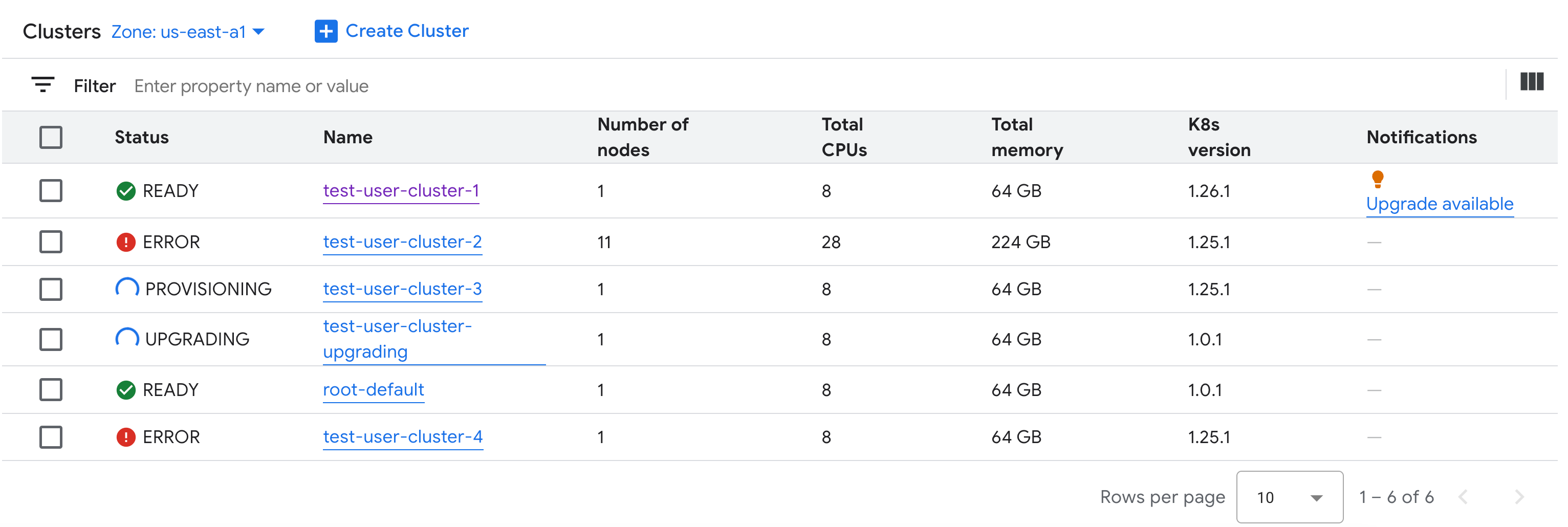
All available shared clusters in the organization with their statuses and other information are displayed:
gdcloud
List the zone's available Kubernetes clusters:
gdcloud clusters listThe output is similar to the following:
CLUSTERREF.NAME   READINESS.STATE   TYPE   CURRENTVERSION.USERCLUSTERVERSION     CURRENTVERSION.SUPPORT.STATUS
user-vm-1         Ready             user   1.15.0-gdch.394225-1.28.15-gke.1200   In Support
user-vm-2         Ready             user   1.15.0-gdch.394225-1.29.12-gke.800    In Support
API
List the zone's available Kubernetes clusters:
kubectl get clusters.cluster.gdc.goog -n KUBERNETES_CLUSTER_NAMESPACE \
    --kubeconfig MANAGEMENT_API_SERVER
Replace the following:
MANAGEMENT_API_SERVER: the zonal API server's kubeconfig path.KUBERNETES_CLUSTER_NAMESPACE: the namespace of the cluster. For shared clusters, use theplatformnamespace. For standard clusters, use the project namespace of the cluster.
The output is similar to the following:
NAME        STATE     K8S VERSION
user-vm-1   Running   1.25.10-gke.2100
user-test   Running   1.26.5-gke.2100
List available Kubernetes versions for a cluster
You can list the available Kubernetes versions in your GDC zone to verify the Kubernetes features you can access in the cluster.
List the available Kubernetes versions in your zone:
kubectl get userclustermetadata.upgrade.private.gdc.goog \
    -o=custom-columns=K8S-VERSION:.spec.kubernetesVersion \
    --kubeconfig MANAGEMENT_API_SERVER
Replace
MANAGEMENT_API_SERVERwith the kubeconfig file of your cluster's zonal API server.The output looks similar to the following:
K8S-VERSION
1.25.10-gke.2100
1.26.5-gke.2100
1.27.4-gke.500
View updatable properties
For each Kubernetes cluster, a set of properties are available to change after it is
created. You can only change the mutable properties that are in the spec of
the Cluster custom resource. Not all properties in the spec are eligible to
update after the cluster is provisioned. To view these updatable properties,
complete the following steps:
Console
In the navigation menu, select Kubernetes Engine > Clusters.
In the list of Kubernetes clusters, click a cluster name to view its properties.
Editable properties have an edit Edit icon.
API
View the list of properties for the
Clusterspec and the valid values corresponding to each property:kubectl explain clusters.cluster.gdc.goog.spec \ --kubeconfig MANAGEMENT_API_SERVERReplace
MANAGEMENT_API_SERVERwith the zonal API server's kubeconfig path.The output is similar to the following:
KIND:     Cluster
VERSION:  cluster.gdc.goog/v1

RESOURCE: spec <Object>

DESCRIPTION:
    <empty>

FIELDS:
  clusterNetwork    <Object>
    The cluster network configuration. If unset, the default configurations
    with pod and service CIDR sizes are used. Optional. Mutable.

  initialVersion    <Object>
    The GDC air-gapped version information of the user cluster during cluster creation.
    Optional. Default to use the latest applicable version. Immutable.

  loadBalancer  <Object>
    The load balancer configuration. If unset, the default configuration with
    the ingress service IP address size is used. Optional. Mutable.

  nodePools <[]Object>
    The list of node pools for the cluster worker nodes. Optional. Mutable.

  releaseChannel    <Object>
    The release channel a cluster is subscribed to. When a cluster is
    subscribed to a release channel, GDC maintains the cluster versions for
    users. Optional. Mutable.
Update these settings by using the GDC console or kubectl CLI. For example, you can resize a node pool.