

Control access with tags
This document describes how to use tags with BigQuery resources for access control.
A tag is a key-value pair you can attach to a Google Cloud resource. You can use tags with BigQuery in the following ways:
- Conditionally grant or deny policies: You can attach tags to BigQuery tables, views, and datasets and use Identity and Access Management (IAM) to conditionally grant roles or deny access (Preview) to those resources based on their tags. For more information about deny policies, see Deny policies.
- Column-level access control: You can attach data governance tags (Preview) to table columns and use them with data policies to restrict access to column data.
You can attach tags directly to a resource, or tags can be inherited from parent resources in the Google Cloud resource hierarchy.
This document focuses on using tags with IAM to conditionally grant or deny access to BigQuery tables, views, and datasets.
For more information about using tags across the Google Cloud resource hierarchy, see Tags overview.
To grant permissions to many related BigQuery resources at the same time, including resources that don't exist yet, consider using IAM Conditions.
Limitations
Table tags aren't supported on BigQuery Omni tables, tables in hidden datasets, or temporary tables. Dataset tags aren't supported on BigQuery Omni datasets. Additionally, cross-region queries in BigQuery Omni don't use tags during access control checks of tables in other regions.
You can attach a maximum of 50 tags to a table or dataset.
All tables referenced in a wildcard query must have exactly the same set of tag keys and values.
Users with conditional access to a dataset or table cannot modify permissions for that resource through the Google Cloud console. Permission modifications are only supported through the bq tool and the BigQuery API.
Some services outside of BigQuery cannot properly verify IAM tag conditions. If the tag condition is positive, meaning that a user is granted a role on a resource only if that resource has a particular tag, then access is denied to the resource regardless of what tags are attached to it. If the tag condition is negative, meaning that a user is granted a role on a resource only if that resource doesn't have a particular tag, then the tag condition is not checked.
Required roles
You need to grant IAM roles that give users the necessary permissions to perform each task in this document.
Both of the following predefined IAM roles include all of the necessary BigQuery permissions:
- BigQuery Data Owner (
roles/bigquery.dataOwner) - BigQuery Admin (
roles/bigquery.admin)
The Resource Manager permissions for adding and removing tags are included in the
Tag User role
(roles/resourcemanager.tagUser).
Required permissions
To use tags in BigQuery, you need the following permissions:
| Operation | BigQuery interfaces (API, CLI, console) and Terraform | Cloud Resource Manager API or gcloud |
|---|---|---|
| Attach a tag to a table or view |
|
|
| Remove a tag from a table or view |
|
|
| Attach a tag to a dataset |
|
|
| Remove a tag from a dataset |
|
|
To list tag keys and key values in the Google Cloud console, you need the following permissions:
To list the tag keys that are associated with a parent organization or project, you need the
resourcemanager.tagKeys.listpermission at the tag key's parent level and theresourcemanager.tagKeys.getpermission for each tag key. To view the list of tag keys in the BigQuery console, click the dataset name and then click Edit details, or click the table or view name and then click Details > Edit details.To list the tag values of keys that are associated with a parent organization or project, you need the
resourcemanager.tagValues.listpermission at the tag value parent level and theresourcemanager.tagValues.getpermission for each tag value. To view the list of tag key values in the BigQuery console, click the dataset name and then click Edit details, or click the table or view name and then click Details > Edit details.
To use tags in Cloud Resource Manager API or gcloud, you need the following permissions:
- To list the tags attached to a
table or view with the Cloud Resource Manager API or the gcloud CLI, you
need the
bigquery.tables.listTagBindingsIAM permission. - To list the effective tags for
a table or view, you need the
bigquery.tables.listEffectiveTagsIAM permission. - To list the tags attached to a
dataset with the Cloud Resource Manager API or the gcloud CLI,
you need the
bigquery.datasets.listTagBindingsIAM permission. - To list the effective tags for
a dataset, you need the
bigquery.datasets.listEffectiveTagsIAM permission.
Create tag keys and values
You can create a tag before you attach it to a BigQuery resource, or you can create a tag manually when you create the resource using the Google Cloud console.
For information about creating tag keys and tag values, see Creating a tag and Adding tag values in the Resource Manager documentation.
Tag datasets
The following sections describe how to attach tags to new and existing datasets, list tags attached to a dataset, and detach tags from a dataset.
Attach tags when you create a new dataset
After you create a tag, you can attach it to a new BigQuery dataset. You can attach only one tag value to a dataset for any given tag key. You can attach a maximum of 50 tags to a dataset.
Console
In the Google Cloud console, go to the BigQuery page.
In the left pane, click Explorer:

If you don't see the left pane, click Expand left pane to open the pane.
In the Explorer pane, select the project where you want to create your dataset.
Click View actions > Create dataset.
Enter the information for your new dataset. For more details, see Create datasets.
Expand the Tags section.
To apply an existing tag, do the following:
Click the drop-down arrow beside Select scope and choose Current scope—Select current organization or Select current project.
Alternatively, click Select scope to search for a resource or to see a list of current resources.
For Key 1 and Value 1, choose the appropriate values from the lists.
To manually enter a new tag, do the following:
Click the drop-down arrow beside Select a scope and choose Manually enter IDs > Organization, Project, or Tags.
If you're creating a tag for your project or organization, in the dialog, enter the
PROJECT_IDor theORGANIZATION_ID, and then click Save.For Key 1 and Value 1, choose the appropriate values from the lists.
Optional: To add additional tags to the table, click Add tag and follow the previous steps.
Click Create dataset.
SQL
Use the
CREATE SCHEMA statement.
In the Google Cloud console, go to the BigQuery page.
In the query editor, enter the following statement:
CREATE SCHEMA PROJECT_ID.DATASET_ID
OPTIONS (
  tags = [('TAG_KEY_1', 'TAG_VALUE_1'), ('TAG_KEY_2', 'TAG_VALUE_2')];)
Replace the following:
PROJECT_ID: your project ID.DATASET_ID: the ID of the dataset that you're creating.TAG_KEY_1: the namespaced key name that you want to set as the first tag on the dataset, for example,'my-project/env'or'556741164180/department'.TAG_VALUE_1: the short name for the tag's value, for example,'prod'or'sales'.TAG_KEY_2: the namespaced key name for the second tag.TAG_VALUE_2: the short name for the second tag's value.
Click Run.
For more information about how to run queries, see Run an interactive query.
bq
Use the
bq mk --dataset command
with the --add_tags flag:
bq mk --dataset \
    --add_tags=TAG \
    PROJECT_ID:DATASET_ID
Replace the following:
TAG: the tag that you are attaching to the new dataset. Multiple tags are separated by commas. For example,556741164180/env:prod,myProject/department:sales. Each tag must have the namespaced key name and value short name.PROJECT_ID: the ID of the project where you are creating a dataset.DATASET_ID: the ID of the new dataset.
Terraform
Use the
google_bigquery_dataset resource.
To authenticate to BigQuery, set up Application Default Credentials. For more information, see Set up authentication for client libraries.
The following example creates a dataset named my_dataset, then attaches
tags to it by populating the resource_tags field:
To apply your Terraform configuration in a Google Cloud project, complete the steps in the following sections.
Prepare Cloud Shell
- Launch Cloud Shell.
-
Set the default Google Cloud project where you want to apply your Terraform configurations.
You only need to run this command once per project, and you can run it in any directory.
export GOOGLE_CLOUD_PROJECT=PROJECT_ID
Environment variables are overridden if you set explicit values in the Terraform configuration file.
Prepare the directory
Each Terraform configuration file must have its own directory (also called a root module).
-
In Cloud Shell, create a directory and a new
file within that directory. The filename must have the
.tfextension—for examplemain.tf. In this tutorial, the file is referred to asmain.tf.mkdir DIRECTORY && cd DIRECTORY && touch main.tf
-
If you are following a tutorial, you can copy the sample code in each section or step.
Copy the sample code into the newly created
main.tf.Optionally, copy the code from GitHub. This is recommended when the Terraform snippet is part of an end-to-end solution.
- Review and modify the sample parameters to apply to your environment.
- Save your changes.
-
Initialize Terraform. You only need to do this once per directory.
terraform init
Optionally, to use the latest Google provider version, include the
-upgradeoption:terraform init -upgrade
Apply the changes
-
Review the configuration and verify that the resources that Terraform is going to create or
update match your expectations:
terraform plan
Make corrections to the configuration as necessary.
-
Apply the Terraform configuration by running the following command and entering
yesat the prompt:terraform apply
Wait until Terraform displays the "Apply complete!" message.
- Open your Google Cloud project to view the results. In the Google Cloud console, navigate to your resources in the UI to make sure that Terraform has created or updated them.
API
Call the
datasets.insert method
and add your tags to the resource_tags field.
Attach tags to an existing dataset
After you create a tag, you can attach it to an existing dataset. You can attach only one tag value to a dataset for any given tag key.
Console
In the Google Cloud console, go to the BigQuery page.
In the left pane, click Explorer:
In the Explorer pane, expand your project, click Datasets, and then select a dataset.
In the Dataset info section, click Edit details.
Expand the Tags section.
To apply an existing tag, do the following:
Click the drop-down arrow beside Select scope and choose Current scope—Select current organization or Select current project.
Alternatively, click Select scope to search for a resource or to see a list of current resources.
For Key 1 and Value 1, choose the appropriate values from the lists.
To manually enter a new tag, do the following:
Click the drop-down arrow beside Select a scope and choose Manually enter IDs > Organization, Project, or Tags.
If you're creating a tag for your project or organization, in the dialog, enter the
PROJECT_IDor theORGANIZATION_ID, and then click Save.For Key 1 and Value 1, choose the appropriate values from the lists.
Optional: To add additional tags to the table, click Add tag and follow the previous steps.
Click Save.
SQL
Use the
ALTER SCHEMA SET OPTIONS statement.
The following example overwrites all tags for an existing dataset.
In the Google Cloud console, go to the BigQuery page.
In the query editor, enter the following statement:
ALTER SCHEMA PROJECT_ID.DATASET_ID
SET OPTIONS (
  tags = [('TAG_KEY_1', 'TAG_VALUE_1'), ('TAG_KEY_2', 'TAG_VALUE_2')];)
Replace the following:
PROJECT_ID: your project ID.DATASET_ID: the ID of the dataset that contains the table.TABLE_ID: the name of the table you're tagging.TAG_KEY_1: the namespaced key name that you want to set as the first tag on the table, for example,'my-project/env'or'556741164180/department'.TAG_VALUE_1: the short name for the tag's value, for example,'prod'or'sales'.TAG_KEY_2: the namespaced key name for the second tag.TAG_VALUE_2: the short name for the second tag's value.
Click Run.
For more information about how to run queries, see Run an interactive query.
The following example uses the += operator to attach tags to a dataset
without overwriting existing tags. If an existing tag has the same key, that
tag is overwritten.
In the Google Cloud console, go to the BigQuery page.
In the query editor, enter the following statement:
ALTER SCHEMA PROJECT_ID.DATASET_ID
SET OPTIONS (
  tags += [('TAG_KEY_1', 'TAG_VALUE_1'), ('TAG_KEY_2', 'TAG_VALUE_2')];)
Replace the following:
PROJECT_ID: your project ID.DATASET_ID: the ID of the dataset that contains the table.TABLE_ID: the name of the table you're tagging.TAG_KEY_1: the namespaced key name that you want to set as the first tag on the table, for example,'my-project/env'or'556741164180/department'.TAG_VALUE_1: the short name for the tag's value, for example,'prod'or'sales'.TAG_KEY_2: the namespaced key name for the second tag.TAG_VALUE_2: the short name for the second tag's value.
Click Run.
For more information about how to run queries, see Run an interactive query.
bq
Use the
bq update command
with the --add_tags flag:
bq update \
    --add_tags=TAG \
    PROJECT_ID:DATASET_ID
Replace the following:
TAG: the tag that you are attaching to the dataset. Multiple tags are separated by commas. For example,556741164180/env:prod,myProject/department:sales. Each tag must have the namespaced key name and value short name.PROJECT_ID: the ID of the project where the existing dataset is located.DATASET_ID: the ID of the existing dataset.
gcloud
To attach a tag to a dataset using the command line, create a
tag binding resource by using the
gcloud resource-manager tags bindings create command:
gcloud resource-manager tags bindings create \
    --tag-value=TAG_VALUE_NAME \
    --parent=RESOURCE_ID \
    --location=LOCATION
Replace the following:
TAG_VALUE_NAME: the permanent ID or namespaced name of the tag value to be attached, such astagValues/4567890123or1234567/my_tag_key/my_tag_value.RESOURCE_ID: the full ID of the dataset, including the API domain name (//bigquery.googleapis.com/) to identify the type of resource. For example,//bigquery.googleapis.com/projects/my_project/datasets/my_dataset.LOCATION: the location of your dataset.
Terraform
Add tags to the dataset's resource_tags field, and then apply the
updated configuration using the google_bigquery_dataset resource. For
more information, see the Terraform example in
Attach tags when you create a new dataset.
API
Call the
datasets.get method
to get the dataset resource, including the resource_tags field. Add your
tags to the resource_tags field and pass the updated dataset resource
back using the
datasets.update method.
List tags attached to a dataset
The following steps provide a list of tag bindings attached directly to a dataset. These methods don't return tags that are inherited from parent resources.
Console
In the Google Cloud console, go to the BigQuery page.
In the left pane, click Explorer:
In the Explorer pane, expand your project, click Datasets, and then select a dataset.
The tags appear in the Dataset info section.
bq
To list tags attached to a dataset, use the
bq show command.
bq show PROJECT_ID:DATASET_ID
Replace the following:
PROJECT_ID: the ID of the project containing your dataset.DATASET_ID: the ID of the dataset for which you want to list the tags.
gcloud
To get a list of tag bindings attached to a resource, use the gcloud resource-manager tags bindings list command:
gcloud resource-manager tags bindings list \
    --parent=RESOURCE_ID \
    --location=LOCATION
Replace the following:
RESOURCE_ID: the full ID of the dataset, including the API domain name (//bigquery.googleapis.com/) to identify the type of resource. For example,//bigquery.googleapis.com/projects/my_project/datasets/my_dataset.LOCATION: the location of your dataset.
The output is similar to the following:
name: tagBindings/%2F%2Fbigquery.googleapis.com%2Fprojects%2Fmy_project%2Fdatasets%2Fmy_dataset/tagValues/4567890123
parent: //bigquery.googleapis.com/projects/my_project/datasets/my_dataset
tagValue: tagValues/4567890123
You can list the inherited tags by BigQuery datasets using
the gcloud resource-manager tags bindings list. You can also use the --filter
option on the namespacedTagValue attribute to filter tags according to
project ID, tag value, or tag key.
gcloud resource-manager tags bindings list \
    --parent=//bigquery.googleapis.com/projects/PROJECT_ID/datasets/DATASET_ID \
    --effective \
    --filter=namespacedTagValue:TAG_FILTER
Replace the following :
PROJECT_ID: the ID of the project containing your dataset.DATASET_ID: the ID of the dataset.TAG_FILTER: specify a value to filter for inherited tags based on one of the following:Filter for tags by project ID. For example,
myproject.Filter for tag values by specifying the permanent ID or namespaced name of the tag value. For example,
tagValues/4567890123or1234567/my_tag_key/my_tag_value.Filter for tag keys by specifying the display name for the tag key. For example
tagkey.
Terraform
Use the terraform state show command to list the attributes of the
dataset, including the resource_tags field. Run this command
in the directory where the dataset's Terraform configuration file has been
run.
terraform state show google_bigquery_dataset.default
API
Call the
datasets.get method
to get the dataset resource. The dataset resource includes tags attached to
the dataset in the resource_tags field.
Views
Use the
INFORMATION_SCHEMA.SCHEMATA_OPTIONS view.
For example, the following query shows all tags attached to all datasets
in a region. This query returns a table with columns including schema_name
(the dataset names), option_name (always 'tags'),
object_type (always ARRAY<STRUCT<STRING, STRING>>), and option_value,
which contains arrays of STRUCT objects representing tags associated with
each dataset. For datasets without assigned tags, the option_value column
returns an empty array.
SELECT * from region-REGION.INFORMATION_SCHEMA.SCHEMATA_OPTIONS
WHERE option_name='tags'
Replace the following:
REGION: the region where your datasets are located.
Detach tags from a dataset
You can detach a tag from a resource by deleting the tag binding resource. If you're deleting a tag, you must detach it from the dataset before you delete it. For more information, see Deleting tags.
Console
In the Google Cloud console, go to the BigQuery page.
In the left pane, click Explorer:
In the Explorer pane, expand your project, click Datasets, and then select a dataset.
In the Dataset info section, click Edit details.
In the Tags section, click Delete item next to the tag you want to delete.
Click Save.
SQL
Use the
ALTER SCHEMA SET OPTIONS statement.
The following example detaches tags from a dataset using the -= operator. To
detach all tags from a dataset, you can specify tags=NULL or tags=[].
In the Google Cloud console, go to the BigQuery page.
In the query editor, enter the following statement:
ALTER TABLE PROJECT_ID.DATASET_ID.TABLE_ID
SET OPTIONS (
  tags -= [('TAG_KEY_1', 'TAG_VALUE_1'), ('TAG_KEY_2', 'TAG_VALUE_2')];)
Replace the following:
PROJECT_ID: your project ID.DATASET_ID: the ID of the dataset that contains the table.TABLE_ID: the name of the table that you're detaching the tags from.TAG_KEY_1: the namespaced key name of the first tag you want to detach, for example,'my-project/env'or'556741164180/department'.TAG_VALUE_1: the short name of the value for the tag you want to detach, for example,'prod'or'sales'.TAG_KEY_2: the namespaced key name for the second tag you're detaching.TAG_VALUE_2: the short name for the value of the second tag you're detaching.
Click Run.
For more information about how to run queries, see Run an interactive query.
bq
Use the
bq update command
with the --remove_tags flag:
bq update \
    --remove_tags=REMOVED_TAG \
    PROJECT_ID:DATASET_ID
Replace the following:
REMOVED_TAG: the tag that you are removing from the dataset. Multiple tags are separated by commas. Only accepts keys without value pairs. For example,556741164180/env,myProject/department. Each tag must have the namespaced key name.PROJECT_ID: the ID of the project that contains your dataset.DATASET_ID: the ID of the dataset to detach tags from.
Alternatively, if you want to remove all tags from a dataset, use the
bq update command
with the --clear_all_tags flag:
bq update \
    --clear_all_tags
    PROJECT_ID:DATASET_ID
gcloud
To detach a tag from a dataset using the command line, delete the tag
binding by using the
gcloud resource-manager tags bindings delete command:
gcloud resource-manager tags bindings delete \
    --tag-value=TAG_VALUE_NAME \
    --parent=RESOURCE_ID \
    --location=LOCATION
Replace the following:
TAG_VALUE_NAME: the permanent ID or namespaced name of the tag value to be detached, such astagValues/4567890123or1234567/my_tag_key/my_tag_value.RESOURCE_ID: the full ID of the dataset, including the API domain name (//bigquery.googleapis.com/) to identify the type of resource. For example,//bigquery.googleapis.com/projects/my_project/datasets/my_dataset.LOCATION: the location of your dataset.
Terraform
Remove your tags from the dataset's resource_tags field, and then apply
the updated configuration using the google_bigquery_dataset resource.
API
Call the
datasets.get method
to get the dataset resource, including the resource_tags field. Remove
your tags from the resource_tags field and pass the updated dataset
resource back using the
datasets.update method.
Tag tables
The following sections describe how to attach tags to new and existing tables, list tags attached to a table, and detach tags from a table.
Attach tags when you create a new table
After you create a tag, you can attach it to a new table. You can attach only one tag value to a table for any given tag key. You can attach a maximum of 50 tags to a table.
Console
In the Google Cloud console, go to the BigQuery page.
In the left pane, click Explorer:
In the Explorer pane, expand your project, click Datasets, and then select a dataset.
In the Dataset info section, click Create table.
Enter the information for your new table. For more details, see Create and use tables.
Expand the Tags section.
To apply an existing tag, do the following:
Click the drop-down arrow beside Select scope and choose Current scope—Select current organization or Select current project.
Alternatively, click Select scope to search for a resource or to see a list of current resources.
For Key 1 and Value 1, choose the appropriate values from the lists.
To manually enter a new tag, do the following:
Click the drop-down arrow beside Select a scope and choose Manually enter IDs > Organization, Project, or Tags.
If you're creating a tag for your project or organization, in the dialog, enter the
PROJECT_IDor theORGANIZATION_ID, and then click Save.For Key 1 and Value 1, choose the appropriate values from the lists.
Optional: To add additional tags to the table, click Add tag and follow the previous steps.
Click Create table.
SQL
Use the
CREATE TABLE statement.
In the Google Cloud console, go to the BigQuery page.
In the query editor, enter the following statement:
CREATE TABLE PROJECT_ID.DATASET_ID.TABLE_ID
OPTIONS (
  tags = [('TAG_KEY_1', 'TAG_VALUE_1'), ('TAG_KEY_2', 'TAG_VALUE_2')];)
Replace the following:
PROJECT_ID: your project ID.DATASET_ID: the ID of the dataset where you're creating the table.TABLE_ID: the name of the new table.TAG_KEY_1: the namespaced key name that you want to set as the first tag on the table, for example,'my-project/env'or'556741164180/department'.TAG_VALUE_1: the short name for the tag's value, for example,'prod'or'sales'.TAG_KEY_2: the namespaced key name for the second tag.TAG_VALUE_2: the short name for the second tag's value.
Click Run.
For more information about how to run queries, see Run an interactive query.
bq
Use the
bq mk --table command
with the --add_tags flag:
bq mk --table \
    --schema=SCHEMA \
    --add_tags=TAG \
    PROJECT_ID:DATASET_ID.TABLE_ID
Replace the following:
SCHEMA: the inline schema definition.TAG: the tag that you are attaching to the new table. Multiple tags are separated by commas. For example,556741164180/env:prod,myProject/department:sales. Each tag must have the namespaced key name and value short name.PROJECT_ID: the ID of the project where you are creating a table.DATASET_ID: the ID of the dataset where you are creating a table.TABLE_ID: the ID of the new table.
Terraform
Use the
google_bigquery_table
resource.
To authenticate to BigQuery, set up Application Default Credentials. For more information, see Set up authentication for client libraries.
The following example creates a table named mytable, then attaches
tags to it by populating the resource_tags field:
To apply your Terraform configuration in a Google Cloud project, complete the steps in the following sections.
Prepare Cloud Shell
- Launch Cloud Shell.
-
Set the default Google Cloud project where you want to apply your Terraform configurations.
You only need to run this command once per project, and you can run it in any directory.
export GOOGLE_CLOUD_PROJECT=PROJECT_ID
Environment variables are overridden if you set explicit values in the Terraform configuration file.
Prepare the directory
Each Terraform configuration file must have its own directory (also called a root module).
-
In Cloud Shell, create a directory and a new
file within that directory. The filename must have the
.tfextension—for examplemain.tf. In this tutorial, the file is referred to asmain.tf.mkdir DIRECTORY && cd DIRECTORY && touch main.tf
-
If you are following a tutorial, you can copy the sample code in each section or step.
Copy the sample code into the newly created
main.tf.Optionally, copy the code from GitHub. This is recommended when the Terraform snippet is part of an end-to-end solution.
- Review and modify the sample parameters to apply to your environment.
- Save your changes.
-
Initialize Terraform. You only need to do this once per directory.
terraform init
Optionally, to use the latest Google provider version, include the
-upgradeoption:terraform init -upgrade
Apply the changes
-
Review the configuration and verify that the resources that Terraform is going to create or
update match your expectations:
terraform plan
Make corrections to the configuration as necessary.
-
Apply the Terraform configuration by running the following command and entering
yesat the prompt:terraform apply
Wait until Terraform displays the "Apply complete!" message.
- Open your Google Cloud project to view the results. In the Google Cloud console, navigate to your resources in the UI to make sure that Terraform has created or updated them.
API
Call the
tables.insert method
with a defined table resource.
Include the tags in the resource_tags field.
Attach tags to an existing table
After you create a tag, you can attach it to an existing table. You can attach only one tag value to a table for any given tag key.
Console
In the Google Cloud console, go to the BigQuery page.
In the left pane, click Explorer:
In the Explorer pane, expand your project, and then click Datasets.
Click Overview > Tables, and then select a table.
Click the Details tab, and then click Edit details.
Expand the Tags section.
To apply an existing tag, do the following:
Click the drop-down arrow beside Select scope and choose Current scope—Select current organization or Select current project.
Alternatively, click Select scope to search for a resource or to see a list of current resources.
For Key 1 and Value 1, choose the appropriate values from the lists.
To manually enter a new tag, do the following:
Click the drop-down arrow beside Select a scope and choose Manually enter IDs > Organization, Project, or Tags.
If you're creating a tag for your project or organization, in the dialog, enter the
PROJECT_IDor theORGANIZATION_ID, and then click Save.For Key 1 and Value 1, choose the appropriate values from the lists.
Optional: To add additional tags to the table, click Add tag and follow the previous steps.
Click Save.
SQL
Use the
ALTER TABLE SET OPTIONS statement.
The following example overwrites all tags for an existing table.
In the Google Cloud console, go to the BigQuery page.
In the query editor, enter the following statement:
ALTER TABLE PROJECT_ID.DATASET_ID.TABLE_ID
SET OPTIONS (
  tags = [('TAG_KEY_1', 'TAG_VALUE_1'), ('TAG_KEY_2', 'TAG_VALUE_2')];)
Replace the following:
PROJECT_ID: your project ID.DATASET_ID: the ID of the dataset that contains the table.TABLE_ID: the name of the table you're tagging.TAG_KEY_1: the namespaced key name that you want to set as the first tag on the table, for example,'my-project/env'or'556741164180/department'.TAG_VALUE_1: the short name for the tag's value, for example,'prod'or'sales'.TAG_KEY_2: the namespaced key name for the second tag.TAG_VALUE_2: the short name for the second tag's value.
Click Run.
For more information about how to run queries, see Run an interactive query.
The following example uses the += operator to attach a tag to a table
without overwriting existing tags. If an existing tag has the same key, that
tag is overwritten.
In the Google Cloud console, go to the BigQuery page.
In the query editor, enter the following statement:
ALTER TABLE PROJECT_ID.DATASET_ID.TABLE_ID
SET OPTIONS (
  tags += [('TAG_KEY_1', 'TAG_VALUE_1'), ('TAG_KEY_2', 'TAG_VALUE_2')];)
Replace the following:
PROJECT_ID: your project ID.DATASET_ID: the ID of the dataset that contains the table.TABLE_ID: the name of the table you're tagging.TAG_KEY_1: the namespaced key name that you want to set as the first tag on the table, for example,'my-project/env'or'556741164180/department'.TAG_VALUE_1: the short name for the tag's value, for example,'prod'or'sales'.TAG_KEY_2: the namespaced key name for the second tag.TAG_VALUE_2: the short name for the second tag's value.
Click Run.
For more information about how to run queries, see Run an interactive query.
bq
Use the
bq update command
with the --add_tags flag:
bq update \
    --add_tags=TAG \
    PROJECT_ID:DATASET_ID.TABLE_ID
Replace the following:
TAG: the tag that you are attaching to the table. Multiple tags are separated by commas. For example,556741164180/env:prod,myProject/department:sales. Each tag must have the namespaced key name and value short name.PROJECT_ID: the ID of the project that contains your table.DATASET_ID: the ID of the dataset that contains your table.TABLE_ID: the ID of the table that you are updating.
gcloud
To attach a tag to a table using the command line, create a
tag binding resource by using the
gcloud resource-manager tags bindings create command:
gcloud resource-manager tags bindings create \
    --tag-value=TAG_VALUE_NAME \
    --parent=RESOURCE_ID \
    --location=LOCATION
Replace the following:
TAG_VALUE_NAME: the permanent ID or namespaced name of the tag value to be attached, such astagValues/4567890123or1234567/my_tag_key/my_tag_value.RESOURCE_ID: the full ID of the table, including the API domain name (//bigquery.googleapis.com/) to identify the type of resource. For example,//bigquery.googleapis.com/projects/my_project/datasets/my_dataset/tables/my_tableLOCATION: the location of your table.
Terraform
Add tags to the table's resource_tags field, and then apply the
updated configuration using the google_bigquery_table resource. For
more information, see the Terraform example in
Attach tags when you create a new table.
API
Call the
tables.update method
with a defined table resource.
Include the tags in the resource_tags field.
List tags attached to a table
You can list tags that are attached directly to a table. This process doesn't list tags that are inherited from parent resources.
Console
In the Google Cloud console, go to the BigQuery page.
In the left pane, click Explorer:
In the Explorer pane, expand your project, and then click Datasets.
Click Overview > Tables, and then select a table.
The tags are visible in the Details tab.
bq
Use the
bq show command
and look for the tags column. If there are no tags on the table, the
tags column isn't displayed.
bq show \
    PROJECT_ID:DATASET_ID.TABLE_ID
Replace the following:
PROJECT_ID: the ID of the project that contains your table.DATASET_ID: the ID of the dataset that contains your table.TABLE_ID: the ID of your table.
gcloud
To get a list of tag bindings attached to a resource, use the
gcloud resource-manager tags bindings list command:
gcloud resource-manager tags bindings list \
    --parent=RESOURCE_ID \
    --location=LOCATION
Replace the following:
RESOURCE_ID: the full ID of the table, including the API domain name (//bigquery.googleapis.com/) to identify the type of resource. For example,//bigquery.googleapis.com/projects/my_project/datasets/my_dataset/tables/my_table.LOCATION: the location of your dataset.
The output is similar to the following:
name: tagBindings/%2F%2Fbigquery.googleapis.com%2Fprojects%2Fmy_project%2Fdatasets%2Fmy_dataset/tagValues/4567890123
parent: //bigquery.googleapis.com/projects/my_project/datasets/my_dataset
tagValue: tagValues/4567890123
You can list the inherited tags by BigQuery tables using
the gcloud resource-manager tags bindings list. You can also use the --filter
option on the namespacedTagValue attribute to filter tags according to
project ID, tag value, or tag key.
gcloud resource-manager tags bindings list \
    --parent=//bigquery.googleapis.com/projects/PROJECT_ID/datasets/DATASET_ID/tables/TABLE_ID \
    --effective \
    --filter=namespacedTagValue:TAG_FILTER
Replace the following :
PROJECT_ID: the ID of the project containing your dataset.DATASET_ID: the ID of the dataset.TAG_FILTER: specify a value to filter for inherited tags based on one of the following:Filter for tags by project ID. For example,
myproject.Filter for tag values by specifying the permanent ID or namespaced name of the tag value. For example,
tagValues/4567890123or1234567/my_tag_key/my_tag_value.Filter for tag keys by specifying the display name for the tag key. For example
tagkey.
Terraform
Use the terraform state show command to list the attributes of the
table, including the resource_tags field. Run this command
in the directory where the table's Terraform configuration file has been
run.
terraform state show google_bigquery_table.default
API
Call the
tables.get method
with a defined table resource,
and look for the resource_tags field.
Views
Use the
INFORMATION_SCHEMA.TABLE_OPTIONS view.
For example, the following query shows all tags attached to all tables in a
dataset. This query returns a table with columns including schema_name
(the dataset name), option_name (always 'tags'),
object_type (always ARRAY<STRUCT<STRING, STRING>>), and option_value,
which contains arrays of STRUCT objects representing tags associated with
each dataset. For tables without assigned tags, the option_value column
returns an empty array.
SELECT * from DATASET_ID.INFORMATION_SCHEMA.TABLE_OPTIONS
WHERE option_name='tags'
Replace DATASET_ID with the ID of the dataset
that contains your table.
Detach tags from a table
You can remove a tag association from a table by deleting the tag binding. If you're deleting a tag, you must detach it from the table before you delete it. For more information, see Deleting tags.
Console
In the Google Cloud console, go to the BigQuery page.
In the left pane, click Explorer:
In the Explorer pane, expand your project, and then click Datasets.
Click Overview > Tables, and then select a table.
Click the Details tab, and then click Edit details.
In the Tags section, click Delete item next to the tag you want to delete.
Click Save.
SQL
Use the
ALTER TABLE SET OPTIONS statement.
The following example detaches tags from a table using the -= operator. To
detach all tags from a table, you can specify tags=NULL or tags=[].
In the Google Cloud console, go to the BigQuery page.
In the query editor, enter the following statement:
ALTER TABLE PROJECT_ID.DATASET_ID.TABLE_ID
SET OPTIONS (
  tags -= [('TAG_KEY_1', 'TAG_VALUE_1'), ('TAG_KEY_2', 'TAG_VALUE_2')];)
Replace the following:
PROJECT_ID: your project ID.DATASET_ID: the ID of the dataset that contains the table.TABLE_ID: the name of the table that you're detaching the tags from.TAG_KEY_1: the namespaced key name of the first tag you want to detach, for example,'my-project/env'or'556741164180/department'.TAG_VALUE_1: the short name of the value for the tag you want to detach, for example,'prod'or'sales'.TAG_KEY_2: the namespaced key name for the second tag you're detaching.TAG_VALUE_2: the short name for the value of the second tag you're detaching.
Click Run.
For more information about how to run queries, see Run an interactive query.
bq
To remove some tags from a table, use the
bq update command
with the --remove_tags flag:
bq update \
    --remove_tags=TAG_KEYS \
    PROJECT_ID:DATASET_ID.TABLE_ID
Replace the following:
TAG_KEYS: the tag keys that you are detaching from the table, separated by commas. For example,556741164180/env,myProject/department. Each tag key must have the namespaced key name.PROJECT_ID: the ID of the project that contains your table.DATASET_ID: the ID of the dataset that contains your table.TABLE_ID: the ID of the table that you are updating.
To remove all tags from a table, use the
bq update command
with the --clear_all_tags flag:
bq update \
    --clear_all_tags \
    PROJECT_ID:DATASET_ID.TABLE_ID
gcloud
To remove a tag association from a table using the command line, delete the
tag binding by using the
gcloud resource-manager tags bindings delete command:
gcloud resource-manager tags bindings delete \
    --tag-value=TAG_VALUE_NAME \
    --parent=RESOURCE_ID \
    --location=LOCATION
Replace the following:
TAG_VALUE_NAME: the permanent ID or namespaced name of the tag value to be deleted, such astagValues/4567890123or1234567/my_tag_key/my_tag_value.RESOURCE_ID: the full ID of the table, including the API domain name (//bigquery.googleapis.com/) to identify the type of resource. For example,//bigquery.googleapis.com/projects/my_project/datasets/my_dataset/tables/my_table.LOCATION: the location of your dataset.
Terraform
Remove your tags from the table's resource_tags field, and then apply
the updated configuration using the google_bigquery_table resource.
API
Call the
tables.update method
with a defined table resource,
and remove the tags in the resource_tags field. To remove all tags, remove
the resource_tags field.
Tag other table-like resources
You can similarly tag BigQuery views, materialized views, clones, and snapshots.
Tag columns
You can tag table columns with data governance tags for column-level access control and data masking.
Delete tags
You can't delete a tag if it's referenced by a table, view, or dataset. You should detach all existing tag binding resources before deleting the tag key or value itself. To delete tag keys and tag values, see Deleting tags.
Example
Suppose you are an administrator of an organization. Your
data analysts are all members of the group analysts@example.com, which has the
BigQuery Data Viewer IAM role on the project userData. A data
analyst intern is hired, and according to the company policy they should only
have permission to view the anonymousData dataset in the userData project.
You can control their access using tags.
Create a tag with the key
employee_typeand the valueintern: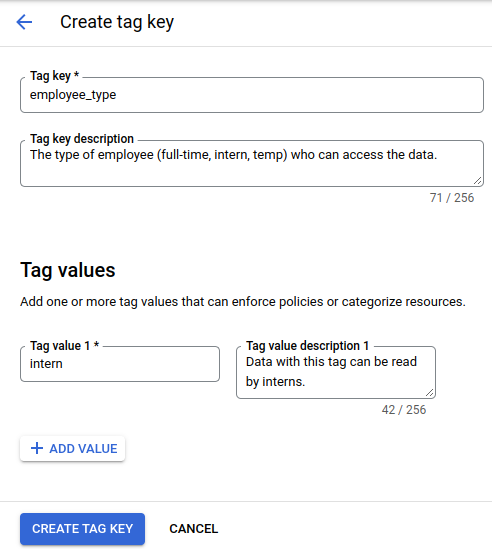
In the Google Cloud console, go to the IAM page.
Locate the row that contains the intern whose dataset access you want to restrict, and click Edit principal in that row.
From the Role menu, select BigQuery Data Viewer.
Click Add condition.
In the Title and Description fields, enter values that describe the IAM tag condition that you want to create.
On the Condition builder tab, click Add.
In the Condition type menu, select Resource, then select Tag.
In the Operator menu, select has value.
In the Value path field, enter the tag value path in the form
ORGANIZATION/TAG_KEY/TAG_VALUE. For example,example.org/employee_type/intern.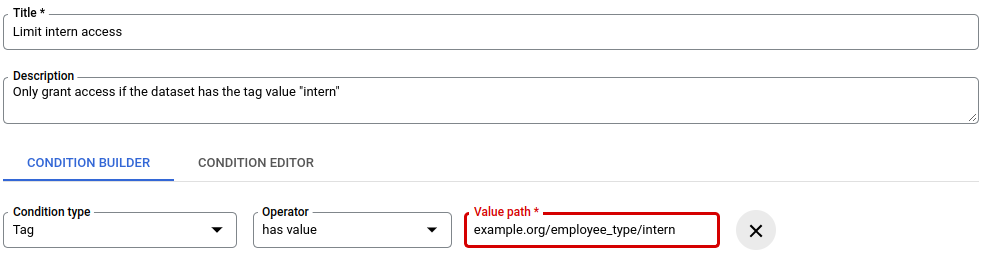
This IAM tag condition restricts the intern's access to datasets that have the
interntag.To save the tag condition, click Save.
To save any changes that you made in the Edit permissions pane, click Save.
To attach the
interntag value to theanonymousDatadataset, use the command line to run thegcloud resource-manager tags bindings createcommand. For example:gcloud resource-manager tags bindings create \ --tag-value=tagValues/4567890123 \ --parent=//bigquery.googleapis.com/projects/userData/datasets/anonymousData \ --location=US
Control access to columns with data governance tags
You can enforce column-level security and data masking in BigQuery using data governance tags. Data governance tags are a type of Resource Manager tag that you can attach to sensitive columns and use in BigQuery data policies to grant conditional access to your users.
Configure column-level security by creating data governance tags and attaching them to BigQuery columns. Then, create BigQuery Data Policy data policies that reference these tags. These policies apply data masking rules or grant raw data access to specific users, ensuring only authorized principals view sensitive data.
For more information, see Introduction to column-level access control and Introduction to data masking.
To create and manage data governance tags in the Google Cloud console, you can use the BigQuery Security center.
Before you begin with governance tags
-
Install the Google Cloud CLI.
-
If you're using an external identity provider (IdP), you must first sign in to the gcloud CLI with your federated identity.
-
To initialize the gcloud CLI, run the following command:
gcloud init - To create and manage data governance tags, you must use the BigQuery Enterprise edition.
Required roles for data governance tags
To get the permissions that you need to control column access with data governance tags, ask your administrator to grant you the following IAM roles:
-
Create data governance tags:
- Tag Administrator (
roles/resourcemanager.tagAdmin) on the project or organization - Organization Viewer (
roles/resourcemanager.organizationViewer) on the organization
- Tag Administrator (
-
Attach tags to or remove tags from columns:
- BigQuery Data Owner (
roles/bigquery.dataOwner) on the table - Tag User (
roles/resourcemanager.tagUser) on the organization, project, or tag value
- BigQuery Data Owner (
-
Create and manage data policies:
BigQuery Data Policy Admin (
roles/bigquerydatapolicy.admin) on the project
For more information about granting roles, see Manage access to projects, folders, and organizations.
You might also be able to get the required permissions through custom roles or other predefined roles.
Create data governance tags
Create the data governance tag key and its values.
Create a tag key
To create a key for a data governance tag, set the purpose field to
DATA_GOVERNANCE when you create the tag key. Setting this purpose categorizes
the tag for column-level security or data masking and distinguishes it from general resource tags in BigQuery.
Console
In the Google Cloud console, go to the BigQuery page.
In the BigQuery navigation menu, click Governance, and then click Security center.
Click the Data governance tags tab.
Click Create.
In the Create tag key pane, specify the tag key details:
- In the Data governance tags name field, enter a name for the tag key.
- Optional: In the Description field, enter a description for the tag key.
Click Create.
gcloud
Run the
gcloud resource-manager tags keys createcommand:gcloud resource-manager tags keys create TAG_KEY \ --parent=projects/PROJECT_ID \ --purpose=DATA_GOVERNANCEReplace the following:
TAG_KEY: the short name for the tag key.PROJECT_ID: the ID of your Google Cloud project. To supply an organization instead of a project, useorganizations/ORGANIZATION_IDinstead ofprojects/PROJECT_ID.
Terraform
To create a tag key for data governance, use the
google_tags_tag_key
resource in the google-beta provider and set the purpose argument to
DATA_GOVERNANCE:
resource "google_tags_tag_key" "dg_key" {
  provider   = google-beta
  parent     = "projects/PROJECT_ID"
  short_name = "TAG_KEY"
  purpose    = "DATA_GOVERNANCE"
}
Replace the following:
TAG_KEY: the short name for the tag key.PROJECT_ID: the ID of your Google Cloud project. To supply an organization instead of a project, useorganizations/ORGANIZATION_IDinstead ofprojects/PROJECT_ID.
To apply your Terraform configuration in a Google Cloud project, complete the steps in the following sections.
Prepare Cloud Shell
- Launch Cloud Shell.
-
Set the default Google Cloud project where you want to apply your Terraform configurations.
You only need to run this command once per project, and you can run it in any directory.
export GOOGLE_CLOUD_PROJECT=PROJECT_ID
Environment variables are overridden if you set explicit values in the Terraform configuration file.
Prepare the directory
Each Terraform configuration file must have its own directory (also called a root module).
-
In Cloud Shell, create a directory and a new
file within that directory. The filename must have the
.tfextension—for examplemain.tf. In this tutorial, the file is referred to asmain.tf.mkdir DIRECTORY && cd DIRECTORY && touch main.tf
-
If you are following a tutorial, you can copy the sample code in each section or step.
Copy the sample code into the newly created
main.tf.Optionally, copy the code from GitHub. This is recommended when the Terraform snippet is part of an end-to-end solution.
- Review and modify the sample parameters to apply to your environment.
- Save your changes.
-
Initialize Terraform. You only need to do this once per directory.
terraform init
Optionally, to use the latest Google provider version, include the
-upgradeoption:terraform init -upgrade
Apply the changes
-
Review the configuration and verify that the resources that Terraform is going to create or
update match your expectations:
terraform plan
Make corrections to the configuration as necessary.
-
Apply the Terraform configuration by running the following command and entering
yesat the prompt:terraform apply
Wait until Terraform displays the "Apply complete!" message.
- Open your Google Cloud project to view the results. In the Google Cloud console, navigate to your resources in the UI to make sure that Terraform has created or updated them.
API
Send a
POSTrequest to thetagKeysendpoint:curl --request POST \ "https://cloudresourcemanager.googleapis.com/v3/tagKeys" \ --header "Authorization: Bearer $(gcloud auth print-access-token)" \ --header 'Accept: application/json' \ --header 'Content-Type: application/json' \ --data '{"shortName":"TAG_KEY","parent":"projects/PROJECT_ID","purpose":"DATA_GOVERNANCE"}' \ --compressedReplace the following:
TAG_KEY: the short name for the tag key.PROJECT_ID: the ID of your Google Cloud project. To supply an organization instead of a project, useorganizations/ORGANIZATION_IDinstead ofprojects/PROJECT_ID.
Create a tag value
To add one or more values to a tag key, follow these steps.
Console
In the Google Cloud console, go to the BigQuery page.
In the BigQuery navigation menu, click Governance, and then click Security center.
Click the Data governance tags tab.
In the list of tag keys, locate the tag key that you want to add a value to, click more_vert Actions, and then click Add tag values.
In the Add tag values pane, enter a short name for the tag value.
Optional: In the Description field, enter a description.
Click Save.
gcloud
Get the namespaced name for the tag key by running the
gcloud resource-manager tags keys listcommand:gcloud resource-manager tags keys list --parent=projects/PROJECT_IDCreate a new value by running the
gcloud resource-manager tags values createcommand:gcloud resource-manager tags values create TAG_VALUE \ --parent=PROJECT_ID/TAG_KEYReplace the following:
TAG_VALUE: a user-specified short name of the tag value.PROJECT_ID: the ID of your Google Cloud project. To supply an organization instead of a project, use yourORGANIZATION_IDinstead.
Terraform
To create a tag value, use the
google_tags_tag_value
resource in the google-beta provider:
resource "google_tags_tag_value" "dg_value" {
  provider   = google-beta
  parent     = "tagKeys/${google_tags_tag_key.dg_key.name}"
  short_name = "TAG_VALUE"
}
Replace the following:
TAG_VALUE: a user-specified short name of the tag value.
To apply your Terraform configuration in a Google Cloud project, complete the steps in the following sections.
Prepare Cloud Shell
- Launch Cloud Shell.
-
Set the default Google Cloud project where you want to apply your Terraform configurations.
You only need to run this command once per project, and you can run it in any directory.
export GOOGLE_CLOUD_PROJECT=PROJECT_ID
Environment variables are overridden if you set explicit values in the Terraform configuration file.
Prepare the directory
Each Terraform configuration file must have its own directory (also called a root module).
-
In Cloud Shell, create a directory and a new
file within that directory. The filename must have the
.tfextension—for examplemain.tf. In this tutorial, the file is referred to asmain.tf.mkdir DIRECTORY && cd DIRECTORY && touch main.tf
-
If you are following a tutorial, you can copy the sample code in each section or step.
Copy the sample code into the newly created
main.tf.Optionally, copy the code from GitHub. This is recommended when the Terraform snippet is part of an end-to-end solution.
- Review and modify the sample parameters to apply to your environment.
- Save your changes.
-
Initialize Terraform. You only need to do this once per directory.
terraform init
Optionally, to use the latest Google provider version, include the
-upgradeoption:terraform init -upgrade
Apply the changes
-
Review the configuration and verify that the resources that Terraform is going to create or
update match your expectations:
terraform plan
Make corrections to the configuration as necessary.
-
Apply the Terraform configuration by running the following command and entering
yesat the prompt:terraform apply
Wait until Terraform displays the "Apply complete!" message.
- Open your Google Cloud project to view the results. In the Google Cloud console, navigate to your resources in the UI to make sure that Terraform has created or updated them.
API
Get the namespaced name for the tag key:
curl --request GET \
    "https://cloudresourcemanager.googleapis.com/v3/tagKeys/namespaced?name=PROJECT_ID/TAG_KEY" \
    --header "Authorization: Bearer $(gcloud auth print-access-token)" \
    --header 'Accept: application/json'
The response contains the
namefield, for exampletagKeys/4567890123.Send a
POSTrequest to thetagValuesendpoint with the tag key name:curl --request POST \ "https://cloudresourcemanager.googleapis.com/v3/tagValues" \ --header "Authorization: Bearer $(gcloud auth print-access-token)" \ --header 'Accept: application/json' \ --header 'Content-Type: application/json' \ --data '{"shortName":"TAG_VALUE","parent":"tagKeys/TAG_KEY_ID"}' \ --compressedReplace the following:
TAG_VALUE: a user-specified short name of the tag value.PROJECT_ID: the ID of your Google Cloud project. To supply an organization instead of a project, use yourORGANIZATION_IDinstead.TAG_KEY_ID: the namespaced name for the tag key from step 1—for example, if tag key name istagKeys/4567890123, then the tag key ID is4567890123.
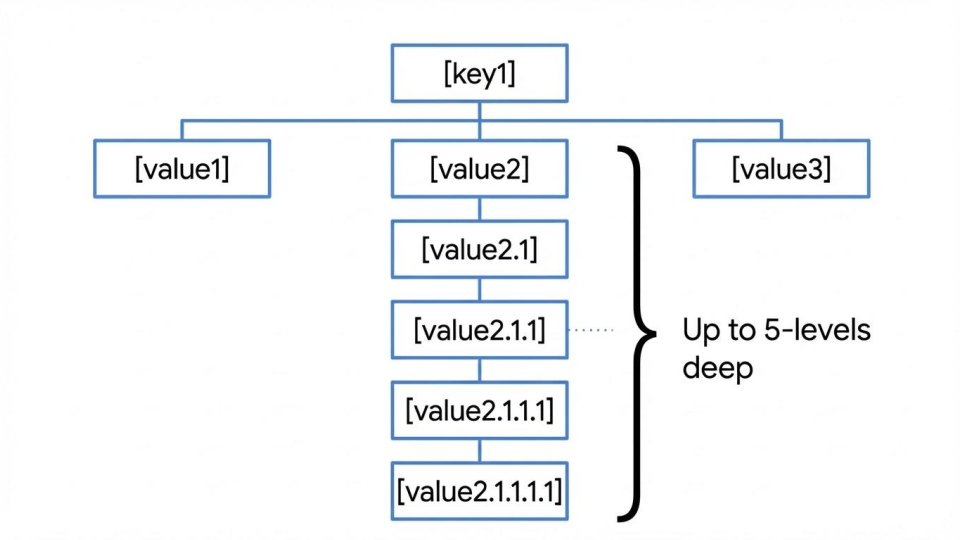
Create hierarchical tag values
Optionally, you can create a child tag value that is parented by a tag value and build a hierarchical tree of data governance tag values. The hierarchy can be 5-levels deep, as shown in the following diagram:
gcloud
To create a child tag value, run the
gcloud resource-manager tags values create
command and specify a parent tag value in the --parent flag:
gcloud resource-manager tags values create CHILD_TAG_VALUE \
--parent=PROJECT_ID/TAG_KEY/PARENT_TAG_VALUE
Replace the following:
CHILD_TAG_VALUE: the short name for the child tag value you are creating.PROJECT_ID: the ID of your Google Cloud project. To supply an organization instead of a project, use yourORGANIZATION_IDinstead.TAG_KEY: the short name of the tag key that is the parent of the tag value.PARENT_TAG_VALUE: the short name of the parent tag value.
API
To create a child tag value, use the tag value resource name of the
parent (for example, tagValues/123456789012) in the parent field:
curl --request POST \
  "https://cloudresourcemanager.googleapis.com/v3/tagValues" \
  --header "Authorization: Bearer $(gcloud auth print-access-token)" \
  --header 'Accept: application/json' \
  --header 'Content-Type: application/json' \
  --data '{"shortName":"CHILD_TAG_VALUE","parent":"tagValues/PARENT_TAG_VALUE_ID"}' \
  --compressed
Replace the following:
CHILD_TAG_VALUE: the short name for the child tag value you are creating.PARENT_TAG_VALUE_ID: the numeric ID of the parent tag value.
Attach data governance tags to BigQuery columns
Attach the data governance tags that you created to the BigQuery columns that you want to protect.
SQL
Create a new table with a tagged column
To attach data governance tags when creating a table, use the
CREATE TABLE
statement. Specify the tag by setting the data_governance_tags option on
the column.
CREATE TABLE PROJECT_ID.DATASET_ID.TABLE_ID (
  COLUMN_NAME INT64 OPTIONS (data_governance_tags=[("PROJECT_ID/TAG_KEY", "TAG_VALUE")])
);
Replace the following:
PROJECT_ID: the ID of your Google Cloud project. To supply an organization instead of a project as the parent of your tag, use yourORGANIZATION_IDinstead for the tag key format (ORGANIZATION_ID/TAG_KEY).DATASET_ID: the ID of the dataset where the table resides.TABLE_ID: the ID of the table you are creating.COLUMN_NAME: the name of the column you want to tag.TAG_KEY: the tag key that you want to apply.TAG_VALUE: the tag value that you want to apply.
Add a tag to an existing table
To attach data governance tags to a column in an existing table, use the
ALTER TABLE
statement to set the data_governance_tags option on the column.
ALTER TABLE PROJECT_ID.DATASET_ID.TABLE_ID
ALTER COLUMN COLUMN_NAME SET OPTIONS (data_governance_tags=[("PROJECT_ID/TAG_KEY", "TAG_VALUE")]);
bq CLI
Create a new table with a tagged column
To create a local JSON schema file that defines the tag, run the
bq mkcommand:bq mk \ --table \ --project_id=PROJECT_ID \ --description="description of my table" \ --schema=SCHEMA_FILE.json \ DATASET_ID.TABLE_IDReplace the following:
PROJECT_ID: the ID of your Google Cloud project. To supply an organization instead of a project as the parent of your tag, use yourORGANIZATION_IDinstead for the tag key format (ORGANIZATION_ID/TAG_KEY).DATASET_ID: the ID of the dataset where the table resides.TABLE_ID: the ID of the table you are creating.
Add a tag to an existing table
To add a tag to an existing table, first export its schema to a local file:
bq show \
    --project_id=PROJECT_ID \
    --schema \
    --format=prettyjson \
    DATASET_ID.TABLE_ID > SCHEMA_FILE.json
Edit the schema file to add the
dataGovernanceTagsInfoobject to the column. For example:[ { "description": "my sensitive column", "mode": "NULLABLE", "name": "Column_X", "type": "INT64", "dataGovernanceTagsInfo": { "dataGovernanceTags": { "PROJECT_ID/TAG_KEY": "TAG_VALUE" } } }, { "mode": "REQUIRED", "name": "column2", "type": "FLOAT" } ]Update the table to attach tags to the sensitive column with the
bq updatecommand:bq update \ --project_id=PROJECT_ID \ --schema=SCHEMA_FILE.json \ DATASET_ID.TABLE_IDYou can also use the
bq updatecommand to remove existing tags and attach new tags.
Terraform
Create a new table with a tagged column
To attach data governance tags to a column when creating a table, use the
google_bigquery_table
resource in the google-beta provider. Set the dataGovernanceTagsInfo
object inside the column's schema definition.
The following example creates a table and attaches a data governance tag to a column:
resource "google_bigquery_table" "table" {
  provider   = google-beta
  dataset_id = "DATASET_ID"
  table_id   = "TABLE_ID"
  schema     = <<EOF
[
{
"name": "COLUMN_NAME",
"type": "STRING",
"mode": "NULLABLE",
"dataGovernanceTagsInfo": {
  "dataGovernanceTags": {
    "PROJECT_ID/TAG_KEY": "TAG_VALUE"
  }
}
}
]
EOF
  deletion_protection = false
}
Replace the following:
DATASET_ID: the ID of the dataset where the table resides.TABLE_ID: the ID of the table you're creating.COLUMN_NAME: the name of the column you want to tag.PROJECT_ID: the ID of your Google Cloud project. To supply an organization instead of a project as the parent of your tag, use yourORGANIZATION_IDinstead for the tag key format (ORGANIZATION_ID/TAG_KEY).TAG_KEY: the short name for the tag key.TAG_VALUE: the short name of the tag value you want to attach.
Add a tag to an existing table
To attach or update data governance tags on a column in an existing table,
update the column's schema in the google_bigquery_table resource to
include or modify the dataGovernanceTagsInfo object, and then apply the
updated configuration.
To apply your Terraform configuration in a Google Cloud project, complete the steps in the following sections.
Prepare Cloud Shell
- Launch Cloud Shell.
-
Set the default Google Cloud project where you want to apply your Terraform configurations.
You only need to run this command once per project, and you can run it in any directory.
export GOOGLE_CLOUD_PROJECT=PROJECT_ID
Environment variables are overridden if you set explicit values in the Terraform configuration file.
Prepare the directory
Each Terraform configuration file must have its own directory (also called a root module).
-
In Cloud Shell, create a directory and a new
file within that directory. The filename must have the
.tfextension—for examplemain.tf. In this tutorial, the file is referred to asmain.tf.mkdir DIRECTORY && cd DIRECTORY && touch main.tf
-
If you are following a tutorial, you can copy the sample code in each section or step.
Copy the sample code into the newly created
main.tf.Optionally, copy the code from GitHub. This is recommended when the Terraform snippet is part of an end-to-end solution.
- Review and modify the sample parameters to apply to your environment.
- Save your changes.
-
Initialize Terraform. You only need to do this once per directory.
terraform init
Optionally, to use the latest Google provider version, include the
-upgradeoption:terraform init -upgrade
Apply the changes
-
Review the configuration and verify that the resources that Terraform is going to create or
update match your expectations:
terraform plan
Make corrections to the configuration as necessary.
-
Apply the Terraform configuration by running the following command and entering
yesat the prompt:terraform apply
Wait until Terraform displays the "Apply complete!" message.
- Open your Google Cloud project to view the results. In the Google Cloud console, navigate to your resources in the UI to make sure that Terraform has created or updated them.
API
Create a new table with a tagged column
Use the tables.insert
method. Include the dataGovernanceTagsInfo field in the request body.
```json
{
  "schema": {
    "fields": [
      {
        "name": "Column_X",
        "type": "INT64",
        "description": "sensitive column",
        "dataGovernanceTagsInfo": {
          "dataGovernanceTags": {
            "PROJECT_ID/TAG_KEY": "TAG_VALUE"
          }
        }
      }
    ]
  }
}
```
Add a tag to an existing table
Retrieve the current table resource with the
tables.getmethod.Modify the table resource to include the
dataGovernanceTagsInfofield for the target column.Call the
tables.updateortables.patchmethod with the updated table resource.
Create and manage data policies
Create and manage BigQuery data policies that reference data governance tags to apply masking rules or raw data access policies.
After a data policy is created for a tagged column, only users specified in that policy can access the column, provided they also have access to the table. All other users are denied access.
Create data policies
Terraform
To create a data policy that references a data governance tag, use the
google_bigquery_datapolicyv2_data_policy
resource in the google-beta provider. Specify the data_governance_tag
block to bind the policy to a data governance tag key and value.
Create a data policy with a predefined SHA256 masking rule
The following example creates a data masking policy that uses a predefined
SHA256 masking routine:
resource "google_bigquery_datapolicyv2_data_policy" "mask_policy" {
  provider         = google-beta
  location         = "LOCATION"
  data_policy_type = "DATA_MASKING_POLICY"
  data_policy_id   = "POLICY_ID"
  data_masking_policy {
    predefined_expression = "SHA256"
  }
  data_governance_tag {
    key   = "PROJECT_ID/TAG_KEY"
    value = "TAG_VALUE"
  }
  grantees = [
    "principal://goog/subject/EMAIL_ADDRESS"
  ]
}
Replace the following:
LOCATION: the region where you are creating the data policy. For more information, see Locations.POLICY_ID: the ID for the data policy.PROJECT_ID: the ID of your Google Cloud project. To supply an organization instead of a project as the parent of your tag, use yourORGANIZATION_IDinstead for thekeyformat (ORGANIZATION_ID/TAG_KEY).TAG_KEY: the short name for the tag key.TAG_VALUE: the short name of the tag value.EMAIL_ADDRESS: the email address of the user or service account to grant access to.
Create a raw data access policy
To create a raw data access policy, set data_policy_type to
RAW_DATA_ACCESS_POLICY:
resource "google_bigquery_datapolicyv2_data_policy" "raw_policy" {
  provider         = google-beta
  location         = "LOCATION"
  data_policy_type = "RAW_DATA_ACCESS_POLICY"
  data_policy_id   = "POLICY_ID"
  data_governance_tag {
    key   = "PROJECT_ID/TAG_KEY"
    value = "TAG_VALUE"
  }
  grantees = [
    "principal://goog/subject/EMAIL_ADDRESS"
  ]
}
To apply your Terraform configuration in a Google Cloud project, complete the steps in the following sections.
Prepare Cloud Shell
- Launch Cloud Shell.
-
Set the default Google Cloud project where you want to apply your Terraform configurations.
You only need to run this command once per project, and you can run it in any directory.
export GOOGLE_CLOUD_PROJECT=PROJECT_ID
Environment variables are overridden if you set explicit values in the Terraform configuration file.
Prepare the directory
Each Terraform configuration file must have its own directory (also called a root module).
-
In Cloud Shell, create a directory and a new
file within that directory. The filename must have the
.tfextension—for examplemain.tf. In this tutorial, the file is referred to asmain.tf.mkdir DIRECTORY && cd DIRECTORY && touch main.tf
-
If you are following a tutorial, you can copy the sample code in each section or step.
Copy the sample code into the newly created
main.tf.Optionally, copy the code from GitHub. This is recommended when the Terraform snippet is part of an end-to-end solution.
- Review and modify the sample parameters to apply to your environment.
- Save your changes.
-
Initialize Terraform. You only need to do this once per directory.
terraform init
Optionally, to use the latest Google provider version, include the
-upgradeoption:terraform init -upgrade
Apply the changes
-
Review the configuration and verify that the resources that Terraform is going to create or
update match your expectations:
terraform plan
Make corrections to the configuration as necessary.
-
Apply the Terraform configuration by running the following command and entering
yesat the prompt:terraform apply
Wait until Terraform displays the "Apply complete!" message.
- Open your Google Cloud project to view the results. In the Google Cloud console, navigate to your resources in the UI to make sure that Terraform has created or updated them.
API
Create a data policy that uses a predefined SHA256 masking rule, or create
a raw data access policy.
Create a data policy with a predefined SHA256 masking rule
To create a data policy with a predefined SHA256 masking rule, send a
POST request to the dataPolicies endpoint:
curl --request POST \
    "https://bigquerydatapolicy.googleapis.com/v2/projects/PROJECT_ID/locations/LOCATION/dataPolicies" \
    --header "Authorization: Bearer $(gcloud auth print-access-token)" \
    --header 'Accept: application/json' \
    --header 'Content-Type: application/json' \
    --data '{"dataPolicy":{"dataPolicyType":"DATA_MASKING_POLICY","dataMaskingPolicy":{"predefinedExpression":"SHA256"},"grantees": ["principal://goog/subject/EMAIL_ADDRESS"],"dataGovernanceTag":{"key":"PROJECT_ID/TAG_KEY","value":"TAG_VALUE"}},"dataPolicyId":"POLICY_ID"}' \
    --compressed
Replace the following:
PROJECT_ID: the ID of your Google Cloud project. To supply an organization instead of a project as the parent of your tag, use yourORGANIZATION_IDinstead for thedataGovernanceTag.keyformat (ORGANIZATION_ID/TAG_KEY).LOCATION: the region where you are creating data policy. For more information, see locations.EMAIL_ADDRESS: the email address of user to grant access.TAG_KEY: the short name for the tag key.TAG_VALUE: a user-specified short name of the tag value.POLICY_ID: the ID for data policy.
Create a raw data access policy
To create a raw data access policy, set the dataPolicyType to
RAW_DATA_ACCESS_POLICY:
curl --request POST \
    "https://bigquerydatapolicy.googleapis.com/v2/projects/PROJECT_ID/locations/LOCATION/dataPolicies" \
    --header "Authorization: Bearer $(gcloud auth print-access-token)" \
    --header 'Accept: application/json' \
    --header 'Content-Type: application/json' \
    --data '{"dataPolicy":{"dataPolicyType":"RAW_DATA_ACCESS_POLICY","grantees": ["principal://goog/subject/EMAIL_ADDRESS"],"dataGovernanceTag":{"key":"PROJECT_ID/TAG_KEY","value":"TAG_VALUE"}},"dataPolicyId":"POLICY_ID"}' \
    --compressed
Update data policies
Update an existing data policy to grant access to additional users.
API
To add users by directly updating a policy, first get the current policy and its
etag:curl --request GET \ "https://bigquerydatapolicy.googleapis.com/v2/projects/PROJECT_ID/locations/LOCATION/dataPolicies/POLICY_ID" \ --header "Authorization: Bearer $(gcloud auth print-access-token)" \ --header 'Accept: application/json' \ --header 'Content-Type: application/json' \ --compressedSend a
PATCHrequest with the updated list of grantees and theetagfrom the previous step:curl -X PATCH \ -H "Authorization: Bearer $(gcloud auth print-access-token)" \ -H "Content-Type: application/json" \ -d '{ "grantees": ["principal://goog/subject/user1@example.com","principal://iam.googleapis.com/projects/-/serviceAccounts/SA_EMAIL_ADDRESS"], "etag": "ETAG" }' \ "https://bigquerydatapolicy.googleapis.com/v2/projects/PROJECT_ID/locations/LOCATION/dataPolicies/POLICY_ID?updateMask=grantees"Replace
ETAGwith theetagvalue returned by theGETrequest in the previous step.Alternatively, use the
addGranteesmethod to add users to a policy:curl -X POST \ -H "Authorization: Bearer $(gcloud auth print-access-token)" \ -H "Content-Type: application/json" \ -d '{ "grantees": ["principal://goog/subject/user1@example.com","principal://iam.googleapis.com/projects/-/serviceAccounts/SA_EMAIL_ADDRESS"] }' \ "https://bigquerydatapolicy.googleapis.com/v2/projects/PROJECT_ID/locations/LOCATION/dataPolicies/POLICY_ID:addGrantees"To remove users from a policy, use the
removeGranteesmethod:curl -X POST \ -H "Authorization: Bearer $(gcloud auth print-access-token)" \ -H "Content-Type: application/json" \ -d '{ "grantees": ["principal://goog/subject/user1@example.com","principal://iam.googleapis.com/projects/-/serviceAccounts/SA_EMAIL_ADDRESS"] }' \ "https://bigquerydatapolicy.googleapis.com/v2/projects/PROJECT_ID/locations/LOCATION/dataPolicies/POLICY_ID:removeGrantees"
Delete data policies
API
To delete a data policy, send a DELETE request to the dataPolicies
endpoint:
curl --request DELETE \
"https://bigquerydatapolicy.googleapis.com/v2/projects/PROJECT_ID/locations/LOCATION/dataPolicies/POLICY_ID" \
--header "Authorization: Bearer $(gcloud auth print-access-token)" \
--header 'Accept: application/json' \
--header 'Content-Type: application/json' \
--compressed
List data policies
API
To list data policies that reference a tag key, send a GET request to the
dataPolicies endpoint with a filter parameter:
curl --request GET \
"https://bigquerydatapolicy.googleapis.com/v2/projects/PROJECT_ID/locations/LOCATION/dataPolicies?filter=dataGovernanceTag:PROJECT_ID/TAG_KEY" \
--header "Authorization: Bearer $(gcloud auth print-access-token)" \
--header 'Accept: application/json' \
--header 'Content-Type: application/json' \
--compressed
Interactions with other features
This section describes how data governance tags interact with other BigQuery features.
| Feature | Interaction |
|---|---|
| Information Schema | Data governance tags attached to columns are included in the
INFORMATION_SCHEMA.COLUMNS
and INFORMATION_SCHEMA.COLUMN_FIELD_PATHS
views. |
| Table copy | Cross-region table copies are disabled for tables that have column-level security features, including tables with data governance tags. |
| Time travel | Access to historical table data is governed by the access policies and tags that are attached to the table. |
Configure a default data policy project
When you access columns protected by data governance tags, BigQuery by default evaluates only the data policies in the project where the table is located. Data policies defined in other projects don't apply, unless an administrator configures a default data policy project at the organization level.
If a default data policy project is configured for your organization, BigQuery evaluates both the data policies of the table's project and those of the default data policy project when determining column access.
If a user is subject to conflicting data policies in both the table's project and the default data policy project, the data policies in the table's project take precedence.
To set or view the default_data_policy_projects option at the organization level using DDL or INFORMATION_SCHEMA views, see Data management settings in the default configuration documentation.
Limitations of data governance tags
- BigQuery Omni tables don't support data governance tags on columns.
- You can use the Google Cloud console to view data governance tags on columns, but not to bind or unbind them.
- You can bind one tag per column and up to 1000 unique tags per table.
- If you query a tagged column using the BigQuery Storage Read API,
tabledata.listcalls, or wildcard tables, you receive an access denied error unless a data policy grants you access. - For
STRUCTfields, you can apply data governance tags only to the leaf fields. - You can delete tag values that are attached to columns. If you delete a tag value, the tag binding persists on the column, but because the tag value no longer exists, access to the column might be lost.
Troubleshoot data governance tags
This section describes how to troubleshoot common issues when controlling access to columns with data governance tags.
Incorrectly formatted tag names
When you create tags, you define a short name (for example, ssn). However,
when you attach tags to columns in your schema or use them in conditions, the tag
key must use the namespaced format (PROJECT_ID/TAG_KEY or
ORGANIZATION_ID/TAG_KEY), while the tag value still uses the short name. Supplying
only the short name for the tag key produces an Invalid tagKey or Invalid
tagValue error.
Cross-project policy application
By default, only the data policies of the table's project are evaluated. Policies from other projects don't apply unless a default data policy project is configured at the organization level. For more information about configuring and evaluating cross-project policies, see Configure a default data policy project.
What's next
- For an overview of tags in Google Cloud, see Tags overview.
- For more information about how to use tags, see Creating and managing tags.
- Learn more about applying policies on columns.
- For information about how to control access to BigQuery resources with IAM Conditions, see Control access with IAM Conditions.