客戶自行管理的 Cloud KMS 金鑰

根據預設,BigQuery 會加密靜態儲存的內容。BigQuery 會為您處理並管理這個預設加密作業,您不必採取任何其他動作。首先,系統會使用「資料加密金鑰」對 BigQuery 資料表中的資料進行加密,然後使用「金鑰加密金鑰」為資料加密金鑰進行加密,這個方法稱為信封式加密。 金鑰加密金鑰不會直接加密資料,而是用來加密 Google 用於加密資料的資料加密金鑰。

如果您想自行控管加密作業,可以針對 BigQuery 使用客戶代管的加密金鑰 (CMEK)。您可以在 Cloud KMS 中控管及管理金鑰加密金鑰,而非由 Google 擁有及管理用於保護資料的金鑰加密金鑰。本文詳細說明如何手動建立 BigQuery 適用的 Cloud KMS 金鑰。

進一步瞭解 Google Cloud加密選項。如要瞭解 CMEK 的具體資訊,包括優點和限制,請參閱「客戶自行管理的加密金鑰」一文。

事前準備

  • BigQuery 管理的儲存空間中的所有資料資產都支援 CMEK。不過,如果您也查詢儲存在外部資料來源 (例如 Cloud Storage) 的資料,且這些資料已透過 CMEK 加密,則資料加密作業會由 Cloud Storage 管理。舉例來說,BigLake 資料表支援 Cloud Storage 中以 CMEK 加密的資料。

    BigQuery 和 BigLake 資料表不支援客戶提供的加密金鑰 (CSEK)。

  • 決定要在同一個 Google Cloud 專案中執行 BigQuery 和 Cloud KMS,還是要在不同專案中執行。為了方便說明,本文的範例將採用下列慣例:

    • PROJECT_ID:執行 BigQuery 的專案 ID
    • PROJECT_NUMBER:執行 BigQuery 的專案專案編號
    • KMS_PROJECT_ID:執行 Cloud KMS 的專案 ID (即使與執行 BigQuery 的專案相同)
    如要瞭解專案 ID 和專案編號 Google Cloud ,請參閱「找出專案名稱、編號和 ID」。

  • 新專案會自動啟用 BigQuery。如果您是使用現有專案來執行 BigQuery,請啟用 BigQuery API。

  • 針對執行 Cloud KMS 的 Google Cloud 專案,啟用 Cloud Key Management Service API。

針對 CMEK 加密資料表,系統會在每次查詢時使用 Cloud KMS 執行一次解密呼叫。詳情請參閱 Cloud KMS 定價。

加密規格

BigQuery 中用來保護您資料的 Cloud KMS 金鑰是 AES-256 金鑰。這類金鑰的用途是對加密您資料的資料加密金鑰進行加密,因此才會在 BigQuery 中當做金鑰加密金鑰使用。

手動或自動建立金鑰

您可以手動建立 CMEK 金鑰,也可以使用 Cloud KMS Autokey。 Autokey 會自動佈建及指派 CMEK 金鑰,簡化金鑰的建立和管理作業。使用 Autokey 時,您不需要事先佈建金鑰環、金鑰和服務帳戶。而是會在建立 BigQuery 資源時,視需要產生。詳情請參閱「Autokey 總覽」。

手動建立金鑰環和金鑰

針對執行 Cloud KMS 的 Google Cloud 專案,按照「建立金鑰環和金鑰」一文所述,建立金鑰環和金鑰。在與 BigQuery 資料集位置相符的位置建立金鑰環:

  • 任何多區域資料集都應使用來自相符位置的多區域金鑰環。舉例來說,區域 US 中的資料集應使用區域 us 的金鑰環保護,區域 EU 中的資料集則應使用區域 europe 的金鑰環保護。

  • 區域資料集應使用相符的區域鍵。舉例來說,區域 asia-northeast1 中的資料集應使用區域 asia-northeast1 的金鑰環保護。

  • 在 Google Cloud 控制台中為 BigQuery 設定 CMEK 時,無法使用 global 區域。不過,使用 bq 指令列工具或 GoogleSQL 為 BigQuery 設定 CMEK 時,可以使用 global 區域。

如要進一步瞭解 BigQuery 和 Cloud KMS 支援的位置,請參閱雲端位置。

授予加密和解密權限

如要使用 CMEK 金鑰保護 BigQuery 資料,請授予 BigQuery 服務帳戶使用該金鑰加密及解密的權限。Cloud KMS CryptoKey Encrypter/Decrypter 角色會授予這項權限。

請確認服務帳戶已建立,然後使用 Google Cloud 控制台 判斷 BigQuery 服務帳戶 ID。接著,為服務帳戶提供適當角色,以便使用 Cloud KMS 進行加密和解密。

觸發服務帳戶建立作業

建立專案時,系統不會一併建立 BigQuery 服務帳戶。如要觸發服務帳戶建立作業,請輸入使用該帳戶的指令,例如 bq show --encryption_service_account 指令,或呼叫 projects.getServiceAccount API 方法。例如:

bq show --encryption_service_account --project_id=PROJECT_ID

取得服務帳戶 ID

BigQuery 服務帳戶 ID 的格式如下:

bq-PROJECT_NUMBER@bigquery-encryption.iam.gserviceaccount.com

以下技巧說明如何判斷專案的 BigQuery 服務帳戶 ID。

控制台

  1. 前往 Google Cloud 控制台的「資訊主頁」頁面。

    前往「資訊主頁」頁面

  2. 點選頁面頂端的「Select from」下拉式清單,在隨即顯示的「Select From」視窗中,選取所需專案。

  3. 專案資訊主頁的「Project info」(專案資訊) 卡片會顯示專案 ID 和專案編號。
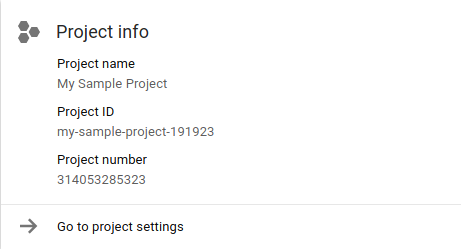
    專案資訊卡

  4. 在下列字串中,將 PROJECT_NUMBER 替換為您的專案編號。這個新字串會識別您的 BigQuery 服務帳戶 ID。

    bq-PROJECT_NUMBER@bigquery-encryption.iam.gserviceaccount.com
    

bq

使用 bq show 指令搭配 --encryption_service_account 旗標,判斷服務帳戶 ID:

bq show --encryption_service_account

該指令會顯示服務帳戶 ID:

                  ServiceAccountID
-------------------------------------------------------------
bq-PROJECT_NUMBER@bigquery-encryption.iam.gserviceaccount.com

指派加密者/解密者角色

將 Cloud KMS CryptoKey Encrypter/Decrypter角色指派給您複製到剪貼簿的 BigQuery 系統服務帳戶。這個帳戶的格式如下:

bq-PROJECT_NUMBER@bigquery-encryption.iam.gserviceaccount.com

控制台

  1. 在 Google Cloud 控制台中開啟「Cryptographic Keys」(加密金鑰) 頁面。

    開啟「Cryptographic Keys」(加密編譯金鑰) 頁面

  2. 按一下包含金鑰的金鑰環名稱。

  3. 找出要新增角色的加密金鑰,然後勾選旁邊的核取方塊。系統會開啟「權限」分頁。

  4. 按一下「新增成員」。

  5. 輸入服務帳戶的電子郵件地址,bq-PROJECT_NUMBER@bigquery-encryption.iam.gserviceaccount.com。

    • 如果服務帳戶已在成員清單中,表示已獲指派角色。按一下 bq-PROJECT_NUMBER@bigquery-encryption.iam.gserviceaccount.com 服務帳戶的目前角色下拉式選單。
  6. 點按「Select a role」(選取角色) 下拉式清單,然後依序點按「Cloud KMS」和「Cloud KMS CryptoKey Encrypter/Decrypter」(Cloud KMS CryptoKey 加密者/解密者) 角色。

  7. 按一下「儲存」,將角色指派給 bq-PROJECT_NUMBER@bigquery-encryption.iam.gserviceaccount.com 服務帳戶。

gcloud

您可以使用 Google Cloud CLI 指派角色:

gcloud kms keys add-iam-policy-binding \
--project=KMS_PROJECT_ID \
--member serviceAccount:bq-PROJECT_NUMBER@bigquery-encryption.iam.gserviceaccount.com \
--role roles/cloudkms.cryptoKeyEncrypterDecrypter \
--location=KMS_KEY_LOCATION \
--keyring=KMS_KEY_RING \
KMS_KEY

更改下列內容:

  • KMS_PROJECT_ID:執行 Cloud KMS 的 Google Cloud專案 ID
  • PROJECT_NUMBER:執行 BigQuery 的 Google Cloud 專案的專案編號 (而非專案 ID)
  • KMS_KEY_LOCATION:Cloud KMS 金鑰的位置名稱
  • KMS_KEY_RING:Cloud KMS 金鑰的金鑰環名稱
  • KMS_KEY:Cloud KMS 金鑰的金鑰名稱

金鑰資源 ID

如要使用 CMEK,必須提供 Cloud KMS 金鑰的資源 ID,如範例所示。這組金鑰會區分大小寫,格式如下:

projects/KMS_PROJECT_ID/locations/LOCATION/keyRings/KEY_RING/cryptoKeys/KEY

擷取金鑰資源 ID

  1. 在 Google Cloud 控制台中開啟「Cryptographic Keys」(加密金鑰) 頁面。

    開啟「Cryptographic Keys」(加密編譯金鑰) 頁面

  2. 按一下包含金鑰的金鑰環名稱。

  3. 找出要擷取資源 ID 的金鑰,然後按一下「更多」圖示 。

  4. 按一下「複製資源名稱」。金鑰的資源 ID 會複製到剪貼簿。資源 ID 也稱為資源名稱。

建立受 Cloud KMS 保護的資料表

如何建立受 Cloud KMS 保護的資料表:

控制台

  1. 在 Google Cloud 控制台開啟「BigQuery」BigQuery頁面。

    前往「BigQuery」

  2. 點選左側窗格中的 「Explorer」。

    特別標出的「Explorer」窗格按鈕。

    如果沒有看到左側窗格,請按一下 「Expand left pane」(展開左側窗格),開啟窗格。

  3. 在「Explorer」窗格中展開專案,按一下「Datasets」,然後按一下資料集。資料集會在分頁中開啟。

  4. 在詳細資料窗格中,按一下 「建立資料表」。

  5. 在「Create table」(建立資料表) 頁面中填寫建立包含結構定義的空白資料表的必要資訊。按一下「建立資料表」前,請設定加密類型,並指定要用於資料表的 Cloud KMS 金鑰:

    1. 點選「進階選項」。
    2. 按一下「客戶管理的金鑰」。
    3. 選取金鑰。如果清單中未顯示你要使用的金鑰,請輸入金鑰的資源 ID。
  6. 點選「建立資料表」。

SQL

搭配 kms_key_name 選項使用 CREATE TABLE 陳述式:

  1. 前往 Google Cloud 控制台的「BigQuery」頁面。

    前往「BigQuery」

  2. 在查詢編輯器中輸入下列陳述式:

    CREATE TABLE DATASET_ID.TABLE_ID (
      name STRING, value INT64
    ) OPTIONS (
        kms_key_name
          = 'projects/KMS_PROJECT_ID/locations/LOCATION/keyRings/KEY_RING/cryptoKeys/KEY');

  3. 按一下「執行」。

如要進一步瞭解如何執行查詢,請參閱「執行互動式查詢」。

bq

您可以使用 bq 指令列工具搭配 --destination_kms_key 旗標建立資料表。--destination_kms_key 旗標會指定要搭配資料表使用的金鑰資源 ID。

如何建立包含結構定義的空白資料表:

bq mk --schema name:string,value:integer -t \
--destination_kms_key projects/KMS_PROJECT_ID/locations/LOCATION/keyRings/KEY_RING/cryptoKeys/KEY \
DATASET_ID.TABLE_ID

如何從查詢建立資料表:

bq query --destination_table=DATASET_ID.TABLE_ID \
--destination_kms_key projects/KMS_PROJECT_ID/locations/LOCATION/keyRings/KEY_RING/cryptoKeys/KEY \
"SELECT name,count FROM DATASET_ID.TABLE_ID WHERE gender = 'M' ORDER BY count DESC LIMIT 6"

如要進一步瞭解 bq 指令列工具,請參閱「使用 bq 指令列工具」。

Terraform

使用 google_bigquery_table 資源。

如要向 BigQuery 進行驗證,請設定應用程式預設憑證。詳情請參閱「設定用戶端程式庫的驗證機制」。

下列範例會建立名為 mytable 的資料表,並使用 google_kms_crypto_key 和 google_kms_key_ring 資源,為資料表指定 Cloud Key Management Service 金鑰。

如要執行這個範例,您必須啟用 Cloud Resource Manager API 和 Cloud Key Management Service API。

resource "google_bigquery_dataset" "default" {
  dataset_id                      = "mydataset"
  default_partition_expiration_ms = 2592000000  # 30 days
  default_table_expiration_ms     = 31536000000 # 365 days
  description                     = "dataset description"
  location                        = "US"
  max_time_travel_hours           = 96 # 4 days

  labels = {
    billing_group = "accounting",
    pii           = "sensitive"
  }
}

resource "google_bigquery_table" "default" {
  dataset_id = google_bigquery_dataset.default.dataset_id
  table_id   = "mytable"

  schema = <<EOF
[
  {
    "name": "ID",
    "type": "INT64",
    "mode": "NULLABLE",
    "description": "Item ID"
  },
  {
    "name": "Item",
    "type": "STRING",
    "mode": "NULLABLE"
  }
]
EOF

  encryption_configuration {
    kms_key_name = google_kms_crypto_key.crypto_key.id
  }

  depends_on = [google_project_iam_member.service_account_access]
}

resource "google_kms_crypto_key" "crypto_key" {
  name     = "example-key"
  key_ring = google_kms_key_ring.key_ring.id
}

resource "random_id" "default" {
  byte_length = 8
}

resource "google_kms_key_ring" "key_ring" {
  name     = "${random_id.default.hex}-example-keyring"
  location = "us"
}

# Enable the BigQuery service account to encrypt/decrypt Cloud KMS keys
data "google_project" "project" {
}

resource "google_project_iam_member" "service_account_access" {
  project = data.google_project.project.project_id
  role    = "roles/cloudkms.cryptoKeyEncrypterDecrypter"
  member  = "serviceAccount:bq-${data.google_project.project.number}@bigquery-encryption.iam.gserviceaccount.com"
}

如要在 Google Cloud 專案中套用 Terraform 設定,請完成下列各節的步驟。

準備 Cloud Shell

  1. 啟動 Cloud Shell。
  2. 設定要套用 Terraform 設定的預設 Google Cloud 專案 。

    每個專案只需執行一次這個指令,且可以在任何目錄中執行。

    export GOOGLE_CLOUD_PROJECT=PROJECT_ID

    如果您在 Terraform 設定檔中設定明確值,環境變數就會遭到覆寫。

準備目錄

每個 Terraform 設定檔都必須有自己的目錄 (也稱為根模組)。

  1. 在 Cloud Shell 中建立目錄,並在該目錄中建立新檔案。檔案名稱的副檔名必須為 .tf,例如 main.tf。在本教學課程中,這個檔案稱為 main.tf。
    mkdir DIRECTORY && cd DIRECTORY && touch main.tf
  2. 如果您正在按照教學課程操作,可以複製每個章節或步驟中的程式碼範例。

    將程式碼範例複製到新建立的 main.tf 中。

    (選用) 從 GitHub 複製程式碼。如果 Terraform 程式碼片段是端對端解決方案的一部分,建議使用這個方法。

  3. 請檢查並修改範例參數,然後套用至您的環境。
  4. 儲存變更。
  5. 初始化 Terraform。每個目錄只需執行一次。
    terraform init

    如要使用最新版 Google 供應商,請視需要加入 -upgrade 選項:

    terraform init -upgrade

套用變更

  1. 查看設定,並確認 Terraform 即將建立或更新的資源符合您的預期:
    terraform plan

    視需要修正設定。

  2. 執行下列指令,並在提示中輸入 yes,套用 Terraform 設定:
    terraform apply

    等待 Terraform 顯示「Apply complete!」訊息。

  3. 開啟 Google Cloud 專案即可查看結果。在 Google Cloud 控制台中,前往 UI 中的資源,確認 Terraform 已建立或更新這些資源。

Go

在試用這個範例之前,請先按照「使用用戶端程式庫的 BigQuery 快速入門導覽課程」中的 Go 設定說明操作。詳情請參閱 BigQuery Go API 參考文件。

如要向 BigQuery 進行驗證,請設定應用程式預設憑證。詳情請參閱「設定用戶端程式庫的驗證機制」。

import (
	"context"
	"fmt"

	"cloud.google.com/go/bigquery"
)

// createTableWithCMEK demonstrates creating a table protected with a customer managed encryption key.
func createTableWithCMEK(projectID, datasetID, tableID string) error {
	// projectID := "my-project-id"
	// datasetID := "mydatasetid"
	// tableID := "mytableid"
	ctx := context.Background()

	client, err := bigquery.NewClient(ctx, projectID)
	if err != nil {
		return fmt.Errorf("bigquery.NewClient: %v", err)
	}
	defer client.Close()

	tableRef := client.Dataset(datasetID).Table(tableID)
	meta := &bigquery.TableMetadata{
		EncryptionConfig: &bigquery.EncryptionConfig{
			// TODO: Replace this key with a key you have created in Cloud KMS.
			KMSKeyName: "projects/cloud-samples-tests/locations/us/keyRings/test/cryptoKeys/test",
		},
	}
	if err := tableRef.Create(ctx, meta); err != nil {
		return err
	}
	return nil
}

Java

在試用這個範例之前,請先按照「使用用戶端程式庫的 BigQuery 快速入門導覽課程」中的 Java 設定說明操作。詳情請參閱 BigQuery Java API 參考文件。

如要向 BigQuery 進行驗證,請設定應用程式預設憑證。詳情請參閱「設定用戶端程式庫的驗證機制」。

import com.google.cloud.bigquery.BigQuery;
import com.google.cloud.bigquery.BigQueryException;
import com.google.cloud.bigquery.BigQueryOptions;
import com.google.cloud.bigquery.EncryptionConfiguration;
import com.google.cloud.bigquery.Field;
import com.google.cloud.bigquery.Schema;
import com.google.cloud.bigquery.StandardSQLTypeName;
import com.google.cloud.bigquery.StandardTableDefinition;
import com.google.cloud.bigquery.TableDefinition;
import com.google.cloud.bigquery.TableId;
import com.google.cloud.bigquery.TableInfo;

// Sample to create a cmek table
public class CreateTableCMEK {

  public static void runCreateTableCMEK() {
    // TODO(developer): Replace these variables before running the sample.
    String datasetName = "MY_DATASET_NAME";
    String tableName = "MY_TABLE_NAME";
    String kmsKeyName = "MY_KEY_NAME";
    Schema schema =
        Schema.of(
            Field.of("stringField", StandardSQLTypeName.STRING),
            Field.of("booleanField", StandardSQLTypeName.BOOL));
    // i.e. projects/{project}/locations/{location}/keyRings/{key_ring}/cryptoKeys/{cryptoKey}
    EncryptionConfiguration encryption =
        EncryptionConfiguration.newBuilder().setKmsKeyName(kmsKeyName).build();
    createTableCMEK(datasetName, tableName, schema, encryption);
  }

  public static void createTableCMEK(
      String datasetName, String tableName, Schema schema, EncryptionConfiguration configuration) {
    try {
      // Initialize client that will be used to send requests. This client only needs to be created
      // once, and can be reused for multiple requests.
      BigQuery bigquery = BigQueryOptions.getDefaultInstance().getService();

      TableId tableId = TableId.of(datasetName, tableName);
      TableDefinition tableDefinition = StandardTableDefinition.of(schema);
      TableInfo tableInfo =
          TableInfo.newBuilder(tableId, tableDefinition)
              .setEncryptionConfiguration(configuration)
              .build();

      bigquery.create(tableInfo);
      System.out.println("Table cmek created successfully");
    } catch (BigQueryException e) {
      System.out.println("Table cmek was not created. \n" + e.toString());
    }
  }
}

Python

在試用這個範例之前,請先按照「使用用戶端程式庫的 BigQuery 快速入門導覽課程」中的 Python 設定說明操作。詳情請參閱 BigQuery Python API 參考文件。

如要向 BigQuery 進行驗證,請設定應用程式預設憑證。詳情請參閱「設定用戶端程式庫的驗證機制」。

如要使用客戶管理的加密金鑰保護新資料表,請在建立資料表前,將 Table.encryption_configuration 屬性設為 EncryptionConfiguration 物件。
from google.cloud import bigquery

client = bigquery.Client()

# TODO(dev): Change table_id to the full name of the table you want to create.
table_id = "your-project.your_dataset.your_table_name"

# Set the encryption key to use for the table.
# TODO: Replace this key with a key you have created in Cloud KMS.
kms_key_name = "projects/your-project/locations/us/keyRings/test/cryptoKeys/test"

table = bigquery.Table(table_id)
table.encryption_configuration = bigquery.EncryptionConfiguration(
    kms_key_name=kms_key_name
)
table = client.create_table(table)  # API request

print(f"Created {table_id}.")
print(f"Key: {table.encryption_configuration.kms_key_name}.")

查詢受 Cloud KMS 金鑰保護的資料表

如要查詢受 Cloud KMS 保護的資料表,不需要進行特殊安排。BigQuery 會儲存用於加密資料表內容的金鑰名稱,並在查詢受 Cloud KMS 保護的資料表時使用該金鑰。

只要 BigQuery 有權存取用於加密資料表內容的 Cloud KMS 金鑰,現有工具、BigQuery 控制台和 bq 指令列工具的運作方式,就與預設加密資料表相同。

使用 Cloud KMS 金鑰保護查詢結果

根據預設,查詢結果會儲存在以Google-owned and Google-managed encryption key加密的暫存資料表中。如果專案已有預設金鑰,系統會將金鑰套用至臨時 (預設) 查詢結果資料表。如要改用 Cloud KMS 金鑰加密查詢結果,請選取下列其中一個選項:

控制台

  1. 在 Google Cloud 控制台開啟「BigQuery」BigQuery頁面。

    前往「BigQuery」

  2. 按一下 [Compose new query] (撰寫新查詢)。

  3. 在查詢文字區域中輸入有效的 GoogleSQL 查詢。

  4. 依序點選「編輯」>「查詢設定」,然後點選「進階選項」。

  5. 選取「客戶自行管理的加密金鑰」。

  6. 選取金鑰。如果清單中未顯示你要使用的金鑰,請輸入金鑰的資源 ID。

  7. 按一下 [儲存]。

  8. 按一下「執行」。

bq

指定 --destination_kms_key 旗標,使用 Cloud KMS 金鑰保護目的地資料表或查詢結果 (如果使用暫時性資料表)。--destination_kms_key 旗標會指定與目的地或結果資料表搭配使用的金鑰資源 ID。

(選用) 使用 --destination_table 旗標來指定查詢結果的目的地。如果未使用 --destination_table,查詢結果會寫入暫時資料表。

如何查詢資料表:

bq query \
--destination_table=DATASET_ID.TABLE_ID \
--destination_kms_key projects/KMS_PROJECT_ID/locations/LOCATION/keyRings/KEY_RING/cryptoKeys/KEY \
"SELECT name,count FROM DATASET_ID.TABLE_ID WHERE gender = 'M' ORDER BY count DESC LIMIT 6"

如要進一步瞭解 bq 指令列工具,請參閱「使用 bq 指令列工具」。

Go

在試用這個範例之前,請先按照「使用用戶端程式庫的 BigQuery 快速入門導覽課程」中的 Go 設定說明操作。詳情請參閱 BigQuery Go API 參考文件。

如要向 BigQuery 進行驗證,請設定應用程式預設憑證。詳情請參閱「設定用戶端程式庫的驗證機制」。

如要使用客戶管理的加密金鑰保護新資料表,請在建立資料表前,將 Table.encryption_configuration 屬性設為 EncryptionConfiguration 物件。
import (
	"context"
	"fmt"
	"io"

	"cloud.google.com/go/bigquery"
	"google.golang.org/api/iterator"
)

// queryWithDestinationCMEK demonstrates saving query results to a destination table and protecting those results
// by specifying a customer managed encryption key.
func queryWithDestinationCMEK(w io.Writer, projectID, dstDatasetID, dstTableID string) error {
	// projectID := "my-project-id"
	// datasetID := "mydataset"
	// tableID := "mytable"
	ctx := context.Background()
	client, err := bigquery.NewClient(ctx, projectID)
	if err != nil {
		return fmt.Errorf("bigquery.NewClient: %v", err)
	}
	defer client.Close()

	q := client.Query("SELECT 17 as my_col")
	q.Location = "US" // Location must match the dataset(s) referenced in query.
	q.QueryConfig.Dst = client.Dataset(dstDatasetID).Table(dstTableID)
	q.DestinationEncryptionConfig = &bigquery.EncryptionConfig{
		// TODO: Replace this key with a key you have created in Cloud KMS.
		KMSKeyName: "projects/cloud-samples-tests/locations/us-central1/keyRings/test/cryptoKeys/test",
	}
	// Run the query and print results when the query job is completed.
	job, err := q.Run(ctx)
	if err != nil {
		return err
	}
	status, err := job.Wait(ctx)
	if err != nil {
		return err
	}
	if err := status.Err(); err != nil {
		return err
	}
	it, err := job.Read(ctx)
	for {
		var row []bigquery.Value
		err := it.Next(&row)
		if err == iterator.Done {
			break
		}
		if err != nil {
			return err
		}
		fmt.Fprintln(w, row)
	}
	return nil
}

Java

在試用這個範例之前,請先按照「使用用戶端程式庫的 BigQuery 快速入門導覽課程」中的 Java 設定說明操作。詳情請參閱 BigQuery Java API 參考文件。

如要向 BigQuery 進行驗證,請設定應用程式預設憑證。詳情請參閱「設定用戶端程式庫的驗證機制」。

如要使用客戶管理的加密金鑰保護新資料表,請在建立資料表前,將 Table.encryption_configuration 屬性設為 EncryptionConfiguration 物件。
import com.google.cloud.bigquery.BigQuery;
import com.google.cloud.bigquery.BigQueryException;
import com.google.cloud.bigquery.BigQueryOptions;
import com.google.cloud.bigquery.EncryptionConfiguration;
import com.google.cloud.bigquery.QueryJobConfiguration;
import com.google.cloud.bigquery.TableResult;

// Sample to query on destination table with encryption key
public class QueryDestinationTableCMEK {

  public static void runQueryDestinationTableCMEK() {
    // TODO(developer): Replace these variables before running the sample.
    String datasetName = "MY_DATASET_NAME";
    String tableName = "MY_TABLE_NAME";
    String kmsKeyName = "MY_KMS_KEY_NAME";
    String query =
        String.format("SELECT stringField, booleanField FROM %s.%s", datasetName, tableName);
    EncryptionConfiguration encryption =
        EncryptionConfiguration.newBuilder().setKmsKeyName(kmsKeyName).build();
    queryDestinationTableCMEK(query, encryption);
  }

  public static void queryDestinationTableCMEK(String query, EncryptionConfiguration encryption) {
    try {
      // Initialize client that will be used to send requests. This client only needs to be created
      // once, and can be reused for multiple requests.
      BigQuery bigquery = BigQueryOptions.getDefaultInstance().getService();

      QueryJobConfiguration config =
          QueryJobConfiguration.newBuilder(query)
              // Set the encryption key to use for the destination.
              .setDestinationEncryptionConfiguration(encryption)
              .build();

      TableResult results = bigquery.query(config);

      results
          .iterateAll()
          .forEach(row -> row.forEach(val -> System.out.printf("%s,", val.toString())));
      System.out.println("Query performed successfully with encryption key.");
    } catch (BigQueryException | InterruptedException e) {
      System.out.println("Query not performed \n" + e.toString());
    }
  }
}

Python

在試用這個範例之前,請先按照「使用用戶端程式庫的 BigQuery 快速入門導覽課程」中的 Python 設定說明操作。詳情請參閱 BigQuery Python API 參考文件。

如要向 BigQuery 進行驗證,請設定應用程式預設憑證。詳情請參閱「設定用戶端程式庫的驗證機制」。

如要使用客戶自行管理的加密金鑰保護查詢目的地資料表,請將 QueryJobConfig.destination_encryption_configuration 屬性設為 EncryptionConfiguration,然後執行查詢。

from google.cloud import bigquery

# Construct a BigQuery client object.
client = bigquery.Client()

# TODO(developer): Set table_id to the ID of the destination table.
# table_id = "your-project.your_dataset.your_table_name"

# Set the encryption key to use for the destination.
# TODO(developer): Replace this key with a key you have created in KMS.
# kms_key_name = "projects/{}/locations/{}/keyRings/{}/cryptoKeys/{}".format(
#     your-project, location, your-ring, your-key
# )

job_config = bigquery.QueryJobConfig(
    destination=table_id,
    destination_encryption_configuration=bigquery.EncryptionConfiguration(
        kms_key_name=kms_key_name
    ),
)

# Start the query, passing in the extra configuration.
query_job = client.query(
    "SELECT 17 AS my_col;", job_config=job_config
)  # Make an API request.
query_job.result()  # Wait for the job to complete.

table = client.get_table(table_id)  # Make an API request.
if table.encryption_configuration.kms_key_name == kms_key_name:
    print("The destination table is written using the encryption configuration")

載入受 Cloud KMS 保護的資料表

如何在受 Cloud KMS 保護的資料表中載入資料檔案:

主控台

載入資料表時指定金鑰,即可使用客戶自行管理的加密金鑰保護載入工作的目的地資料表。

  1. 在 Google Cloud 控制台開啟「BigQuery」BigQuery頁面。

    前往「BigQuery」

  2. 點選左側窗格中的 「Explorer」。

    特別標出的「Explorer」窗格按鈕。

  3. 在「Explorer」窗格中展開專案,按一下「Datasets」,然後按一下資料集。資料集會在分頁中開啟。

  4. 在詳細資料窗格,點按「建立資料表」。

  5. 輸入載入資料表時要使用的選項,但請先按一下 [Advanced options] (進階選項),再點選 [Create table] (建立資料表)。

  6. 在「Encryption」(加密) 底下,選取 [Customer-managed key] (客戶管理的金鑰)。

  7. 按一下「選取客戶管理的金鑰」下拉式清單,然後選取要使用的金鑰。如果找不到任何可用的金鑰,請輸入金鑰資源 ID。
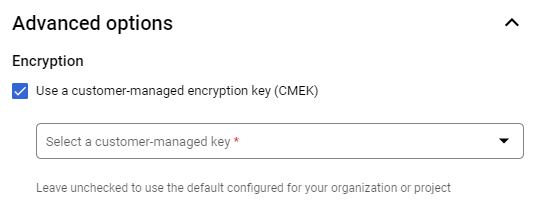
    進階選項。

  8. 點選「建立資料表」。

bq

設定 --destination_kms_key 旗標,透過客戶代管的加密金鑰來保護載入工作目的地資料表。

bq --location=LOCATION load \
--autodetect \
--source_format=FORMAT \
--destination_kms_key projects/KMS_PROJECT_ID/locations/LOCATION/keyRings/KEY_RING/cryptoKeys/KEY \
DATASET.TABLE \
path_to_source
例如:
bq load \
--autodetect \
--source_format=NEWLINE_DELIMITED_JSON \
--destination_kms_key projects/KMS_PROJECT_ID/locations/LOCATION/keyRings/KEY_RING/cryptoKeys/KEY \
test2.table4 \
gs://cloud-samples-data/bigquery/us-states/us-states.json

Go

在試用這個範例之前,請先按照「使用用戶端程式庫的 BigQuery 快速入門導覽課程」中的 Go 設定說明操作。詳情請參閱 BigQuery Go API 參考文件。

如要向 BigQuery 進行驗證,請設定應用程式預設憑證。詳情請參閱「設定用戶端程式庫的驗證機制」。

import (
	"context"
	"fmt"

	"cloud.google.com/go/bigquery"
)

// importJSONWithCMEK demonstrates loading newline-delimited JSON from Cloud Storage,
// and protecting the data with a customer-managed encryption key.
func importJSONWithCMEK(projectID, datasetID, tableID string) error {
	// projectID := "my-project-id"
	// datasetID := "mydataset"
	// tableID := "mytable"
	ctx := context.Background()
	client, err := bigquery.NewClient(ctx, projectID)
	if err != nil {
		return fmt.Errorf("bigquery.NewClient: %v", err)
	}
	defer client.Close()

	gcsRef := bigquery.NewGCSReference("gs://cloud-samples-data/bigquery/us-states/us-states.json")
	gcsRef.SourceFormat = bigquery.JSON
	gcsRef.AutoDetect = true
	loader := client.Dataset(datasetID).Table(tableID).LoaderFrom(gcsRef)
	loader.WriteDisposition = bigquery.WriteEmpty
	loader.DestinationEncryptionConfig = &bigquery.EncryptionConfig{
		// TODO: Replace this key with a key you have created in KMS.
		KMSKeyName: "projects/cloud-samples-tests/locations/us-central1/keyRings/test/cryptoKeys/test",
	}

	job, err := loader.Run(ctx)
	if err != nil {
		return err
	}
	status, err := job.Wait(ctx)
	if err != nil {
		return err
	}

	if status.Err() != nil {
		return fmt.Errorf("job completed with error: %v", status.Err())
	}

	return nil
}

Java

在試用這個範例之前,請先按照「使用用戶端程式庫的 BigQuery 快速入門導覽課程」中的 Java 設定說明操作。詳情請參閱 BigQuery Java API 參考文件。

如要向 BigQuery 進行驗證,請設定應用程式預設憑證。詳情請參閱「設定用戶端程式庫的驗證機制」。

import com.google.cloud.bigquery.BigQuery;
import com.google.cloud.bigquery.BigQueryException;
import com.google.cloud.bigquery.BigQueryOptions;
import com.google.cloud.bigquery.EncryptionConfiguration;
import com.google.cloud.bigquery.FormatOptions;
import com.google.cloud.bigquery.Job;
import com.google.cloud.bigquery.JobInfo;
import com.google.cloud.bigquery.LoadJobConfiguration;
import com.google.cloud.bigquery.TableId;

// Sample to load JSON data with configuration key from Cloud Storage into a new BigQuery table
public class LoadJsonFromGCSCMEK {

  public static void runLoadJsonFromGCSCMEK() {
    // TODO(developer): Replace these variables before running the sample.
    String datasetName = "MY_DATASET_NAME";
    String tableName = "MY_TABLE_NAME";
    String kmsKeyName = "MY_KMS_KEY_NAME";
    String sourceUri = "gs://cloud-samples-data/bigquery/us-states/us-states.json";
    // i.e. projects/{project}/locations/{location}/keyRings/{key_ring}/cryptoKeys/{cryptoKey}
    EncryptionConfiguration encryption =
        EncryptionConfiguration.newBuilder().setKmsKeyName(kmsKeyName).build();
    loadJsonFromGCSCMEK(datasetName, tableName, sourceUri, encryption);
  }

  public static void loadJsonFromGCSCMEK(
      String datasetName, String tableName, String sourceUri, EncryptionConfiguration encryption) {
    try {
      // Initialize client that will be used to send requests. This client only needs to be created
      // once, and can be reused for multiple requests.
      BigQuery bigquery = BigQueryOptions.getDefaultInstance().getService();

      TableId tableId = TableId.of(datasetName, tableName);
      LoadJobConfiguration loadConfig =
          LoadJobConfiguration.newBuilder(tableId, sourceUri)
              // Set the encryption key to use for the destination.
              .setDestinationEncryptionConfiguration(encryption)
              .setFormatOptions(FormatOptions.json())
              .setAutodetect(true)
              .build();

      // Load data from a GCS JSON file into the table
      Job job = bigquery.create(JobInfo.of(loadConfig));
      // Blocks until this load table job completes its execution, either failing or succeeding.
      job = job.waitFor();
      if (job.isDone()) {
        System.out.println("Table loaded succesfully from GCS with configuration key");
      } else {
        System.out.println(
            "BigQuery was unable to load into the table due to an error:"
                + job.getStatus().getError());
      }
    } catch (BigQueryException | InterruptedException e) {
      System.out.println("Column not added during load append \n" + e.toString());
    }
  }
}

Python

在試用這個範例之前,請先按照「使用用戶端程式庫的 BigQuery 快速入門導覽課程」中的 Python 設定說明操作。詳情請參閱 BigQuery Python API 參考文件。

如要向 BigQuery 進行驗證,請設定應用程式預設憑證。詳情請參閱「設定用戶端程式庫的驗證機制」。

如要使用客戶管理的加密金鑰保護載入工作目的地資料表,請將 LoadJobConfig.destination_encryption_configuration 屬性設為 EncryptionConfiguration,然後載入資料表。

from google.cloud import bigquery

# Construct a BigQuery client object.
client = bigquery.Client()

# TODO(developer): Set table_id to the ID of the table to create.
# table_id = "your-project.your_dataset.your_table_name

# Set the encryption key to use for the destination.
# TODO: Replace this key with a key you have created in KMS.
# kms_key_name = "projects/{}/locations/{}/keyRings/{}/cryptoKeys/{}".format(
#     "cloud-samples-tests", "us", "test", "test"
# )

job_config = bigquery.LoadJobConfig(
    autodetect=True,
    source_format=bigquery.SourceFormat.NEWLINE_DELIMITED_JSON,
    destination_encryption_configuration=bigquery.EncryptionConfiguration(
        kms_key_name=kms_key_name
    ),
)

uri = "gs://cloud-samples-data/bigquery/us-states/us-states.json"

load_job = client.load_table_from_uri(
    uri,
    table_id,
    location="US",  # Must match the destination dataset location.
    job_config=job_config,
)  # Make an API request.

assert load_job.job_type == "load"

load_job.result()  # Waits for the job to complete.

assert load_job.state == "DONE"
table = client.get_table(table_id)

if table.encryption_configuration.kms_key_name == kms_key_name:
    print("A table loaded with encryption configuration key")

以串流方式將資料傳入受 Cloud KMS 保護的資料表

您可以直接以串流方式將資料傳入受 CMEK 保護的 BigQuery 資料表,而不必指定任何其他參數。請注意,系統會在緩衝區和最終位置中,使用您的 Cloud KMS 金鑰對這些資料進行加密。在搭配 CMEK 資料表使用串流功能前,請先瞭解要符合哪些條件才能確保金鑰可供使用及存取。

如要進一步瞭解串流,請參閱「使用 BigQuery Storage Write API (gRPC) 串流資料」。

將資料表的保護機制從預設加密改成 Cloud KMS 防護

bq

您可以使用 bq cp 指令搭配 --destination_kms_key 旗標,將受預設加密保護的資料表複製到新資料表,或複製到受 Cloud KMS 保護的原始資料表。--destination_kms_key 旗標會指定要與目的地資料表搭配使用的金鑰資源 ID。

如何將採預設加密機制的資料表複製到受 Cloud KMS 保護的新資料表:

bq cp \
--destination_kms_key projects/KMS_PROJECT_ID/locations/LOCATION/keyRings/KEY_RING/cryptoKeys/KEY \
SOURCE_DATASET_ID.SOURCE_TABLE_ID DESTINATION_DATASET_ID.DESTINATION_TABLE_ID

如要將採用預設加密機制的資料表複製到受 Cloud KMS 保護的相同資料表,請按照下列步驟操作:

bq cp -f \
--destination_kms_key projects/KMS_PROJECT_ID/locations/LOCATION/keyRings/KEY_RING/cryptoKeys/KEY \
DATASET_ID.TABLE_ID DATASET_ID.TABLE_ID

如要將資料表的保護機制從 Cloud KMS 改為預設加密方式,請執行 bq cp,但不使用 --destination_kms_key 旗標,將檔案複製到本身。

如要進一步瞭解 bq 指令列工具,請參閱「使用 bq 指令列工具」。

Go

在試用這個範例之前,請先按照「使用用戶端程式庫的 BigQuery 快速入門導覽課程」中的 Go 設定說明操作。詳情請參閱 BigQuery Go API 參考文件。

如要向 BigQuery 進行驗證,請設定應用程式預設憑證。詳情請參閱「設定用戶端程式庫的驗證機制」。

import (
	"context"
	"fmt"

	"cloud.google.com/go/bigquery"
)

// copyTableWithCMEK demonstrates creating a copy of a table and ensuring the copied data is
// protected with a customer managed encryption key.
func copyTableWithCMEK(projectID, datasetID, tableID string) error {
	// projectID := "my-project-id"
	// datasetID := "mydataset"
	// tableID := "mytable"
	ctx := context.Background()
	client, err := bigquery.NewClient(ctx, projectID)
	if err != nil {
		return fmt.Errorf("bigquery.NewClient: %v", err)
	}
	defer client.Close()

	srcTable := client.DatasetInProject("bigquery-public-data", "samples").Table("shakespeare")
	copier := client.Dataset(datasetID).Table(tableID).CopierFrom(srcTable)
	copier.DestinationEncryptionConfig = &bigquery.EncryptionConfig{
		// TODO: Replace this key with a key you have created in Cloud KMS.
		KMSKeyName: "projects/cloud-samples-tests/locations/us-central1/keyRings/test/cryptoKeys/test",
	}
	job, err := copier.Run(ctx)
	if err != nil {
		return err
	}
	status, err := job.Wait(ctx)
	if err != nil {
		return err
	}
	if err := status.Err(); err != nil {
		return err
	}
	return nil
}

Java

在試用這個範例之前,請先按照「使用用戶端程式庫的 BigQuery 快速入門導覽課程」中的 Java 設定說明操作。詳情請參閱 BigQuery Java API 參考文件。

如要向 BigQuery 進行驗證,請設定應用程式預設憑證。詳情請參閱「設定用戶端程式庫的驗證機制」。

import com.google.cloud.bigquery.BigQuery;
import com.google.cloud.bigquery.BigQueryException;
import com.google.cloud.bigquery.BigQueryOptions;
import com.google.cloud.bigquery.CopyJobConfiguration;
import com.google.cloud.bigquery.EncryptionConfiguration;
import com.google.cloud.bigquery.Job;
import com.google.cloud.bigquery.JobInfo;
import com.google.cloud.bigquery.TableId;

// Sample to copy a cmek table
public class CopyTableCMEK {

  public static void runCopyTableCMEK() {
    // TODO(developer): Replace these variables before running the sample.
    String destinationDatasetName = "MY_DESTINATION_DATASET_NAME";
    String destinationTableId = "MY_DESTINATION_TABLE_NAME";
    String sourceDatasetName = "MY_SOURCE_DATASET_NAME";
    String sourceTableId = "MY_SOURCE_TABLE_NAME";
    String kmsKeyName = "MY_KMS_KEY_NAME";
    EncryptionConfiguration encryption =
        EncryptionConfiguration.newBuilder().setKmsKeyName(kmsKeyName).build();
    copyTableCMEK(
        sourceDatasetName, sourceTableId, destinationDatasetName, destinationTableId, encryption);
  }

  public static void copyTableCMEK(
      String sourceDatasetName,
      String sourceTableId,
      String destinationDatasetName,
      String destinationTableId,
      EncryptionConfiguration encryption) {
    try {
      // Initialize client that will be used to send requests. This client only needs to be created
      // once, and can be reused for multiple requests.
      BigQuery bigquery = BigQueryOptions.getDefaultInstance().getService();

      TableId sourceTable = TableId.of(sourceDatasetName, sourceTableId);
      TableId destinationTable = TableId.of(destinationDatasetName, destinationTableId);

      // For more information on CopyJobConfiguration see:
      // https://googleapis.dev/java/google-cloud-clients/latest/com/google/cloud/bigquery/JobConfiguration.html
      CopyJobConfiguration configuration =
          CopyJobConfiguration.newBuilder(destinationTable, sourceTable)
              .setDestinationEncryptionConfiguration(encryption)
              .build();

      // For more information on Job see:
      // https://googleapis.dev/java/google-cloud-clients/latest/index.html?com/google/cloud/bigquery/package-summary.html
      Job job = bigquery.create(JobInfo.of(configuration));

      // Blocks until this job completes its execution, either failing or succeeding.
      Job completedJob = job.waitFor();
      if (completedJob == null) {
        System.out.println("Job not executed since it no longer exists.");
        return;
      } else if (completedJob.getStatus().getError() != null) {
        System.out.println(
            "BigQuery was unable to copy table due to an error: \n" + job.getStatus().getError());
        return;
      }
      System.out.println("Table cmek copied successfully.");
    } catch (BigQueryException | InterruptedException e) {
      System.out.println("Table cmek copying job was interrupted. \n" + e.toString());
    }
  }
}

Python

在試用這個範例之前,請先按照「使用用戶端程式庫的 BigQuery 快速入門導覽課程」中的 Python 設定說明操作。詳情請參閱 BigQuery Python API 參考文件。

如要向 BigQuery 進行驗證,請設定應用程式預設憑證。詳情請參閱「設定用戶端程式庫的驗證機制」。

如要使用客戶自行管理的加密金鑰保護資料表副本的目的地,請將 QueryJobConfig.destination_encryption_configuration 屬性設為 EncryptionConfiguration,然後複製資料表。

from google.cloud import bigquery

# Construct a BigQuery client object.
client = bigquery.Client()

# TODO(developer): Set dest_table_id to the ID of the destination table.
# dest_table_id = "your-project.your_dataset.your_table_name"

# TODO(developer): Set orig_table_id to the ID of the original table.
# orig_table_id = "your-project.your_dataset.your_table_name"

# Set the encryption key to use for the destination.
# TODO(developer): Replace this key with a key you have created in KMS.
# kms_key_name = "projects/{}/locations/{}/keyRings/{}/cryptoKeys/{}".format(
#     your-project, location, your-ring, your-key
# )

job_config = bigquery.CopyJobConfig(
    destination_encryption_configuration=bigquery.EncryptionConfiguration(
        kms_key_name=kms_key_name
    )
)
job = client.copy_table(orig_table_id, dest_table_id, job_config=job_config)
job.result()  # Wait for the job to complete.

dest_table = client.get_table(dest_table_id)  # Make an API request.
if dest_table.encryption_configuration.kms_key_name == kms_key_name:
    print("A copy of the table created")

判斷資料表是否受 Cloud KMS 保護

  1. 在 Google Cloud 控制台中,按一下資料集左側的藍色箭頭展開資料集,或按兩下資料集名稱。畫面會隨即顯示資料集中的資料表和檢視表。

  2. 按一下資料表名稱。

  3. 按一下 [Details] (詳細資料)。「Table Details」(資料表詳細資料) 頁面會顯示資料表的說明和相關資訊。

  4. 如果資料表受到 Cloud KMS 保護,「客戶自行管理的加密金鑰」欄位會顯示金鑰資源 ID。
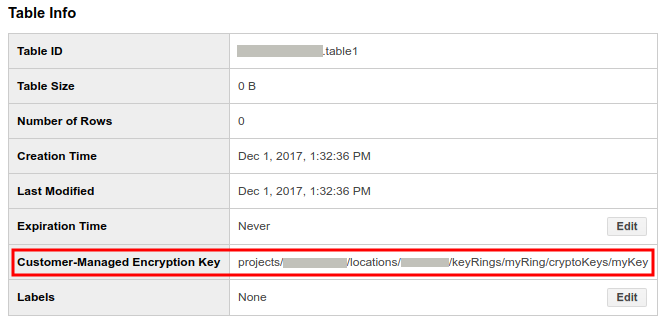
    受保護的表格。

針對您建立或用來保護資料表的每個金鑰,您可以透過金鑰使用情形追蹤功能,查看該金鑰保護的資源。詳情請參閱「查看金鑰用量」。

變更 BigQuery 資料表的 Cloud KMS 金鑰

如要變更現有受 CMEK 保護資料表的 Cloud KMS 金鑰,您可以執行 ALTER TABLE 查詢、使用 API 或 bq 指令列工具。您可以使用 API 和 bq 指令列工具,透過 update 或 cp 兩種方式修改 Cloud KMS 金鑰。

如果您使用 update,可以變更受 CMEK 保護的資料表所用的 Cloud KMS 金鑰。

如果您使用 cp,可以變更用於受 CMEK 保護資料表的 Cloud KMS 金鑰、將資料表的預設加密機制改為 CMEK 保護機制,或是將資料表的 CMEK 保護機制改為預設加密機制。

update 的優點是比 cp 更快,而且可使用表格裝飾器。

SQL

使用 ALTER TABLE SET OPTIONS 陳述式更新資料表的 kms_key_name 欄位:

  1. 前往 Google Cloud 控制台的「BigQuery」頁面。

    前往「BigQuery」

  2. 在查詢編輯器中輸入下列陳述式:

    ALTER TABLE DATASET_ID.mytable
    SET OPTIONS (
      kms_key_name
        = 'projects/KMS_PROJECT_ID/locations/LOCATION/keyRings/KEY_RING/cryptoKeys/KEY');

  3. 按一下「執行」。

如要進一步瞭解如何執行查詢,請參閱「執行互動式查詢」。

bq

您可以使用 bq cp 指令搭配 --destination_kms_key 旗標,變更受 Cloud KMS 保護的資料表金鑰。--destination_kms_key 旗標會指定要與資料表搭配使用的金鑰資源 ID。

bq update \
--destination_kms_key projects/KMS_PROJECT_ID/locations/LOCATION/keyRings/KEY_RING/cryptoKeys/KEY \
-t DATASET_ID.TABLE_ID

Go

在試用這個範例之前,請先按照「使用用戶端程式庫的 BigQuery 快速入門導覽課程」中的 Go 設定說明操作。詳情請參閱 BigQuery Go API 參考文件。

如要向 BigQuery 進行驗證,請設定應用程式預設憑證。詳情請參閱「設定用戶端程式庫的驗證機制」。

import (
	"context"
	"fmt"

	"cloud.google.com/go/bigquery"
)

// updateTableChangeCMEK demonstrates how to change the customer managed encryption key that protects a table.
func updateTableChangeCMEK(projectID, datasetID, tableID string) error {
	// projectID := "my-project-id"
	// datasetID := "mydatasetid"
	// tableID := "mytableid"
	ctx := context.Background()

	client, err := bigquery.NewClient(ctx, projectID)
	if err != nil {
		return fmt.Errorf("bigquery.NewClient: %v", err)
	}
	defer client.Close()

	tableRef := client.Dataset(datasetID).Table(tableID)
	meta, err := tableRef.Metadata(ctx)
	if err != nil {
		return err
	}
	update := bigquery.TableMetadataToUpdate{
		EncryptionConfig: &bigquery.EncryptionConfig{
			// TODO: Replace this key with a key you have created in Cloud KMS.
			KMSKeyName: "projects/cloud-samples-tests/locations/us-central1/keyRings/test/cryptoKeys/otherkey",
		},
	}
	if _, err := tableRef.Update(ctx, update, meta.ETag); err != nil {
		return err
	}
	return nil
}

Java

在試用這個範例之前,請先按照「使用用戶端程式庫的 BigQuery 快速入門導覽課程」中的 Java 設定說明操作。詳情請參閱 BigQuery Java API 參考文件。

如要向 BigQuery 進行驗證,請設定應用程式預設憑證。詳情請參閱「設定用戶端程式庫的驗證機制」。

import com.google.cloud.bigquery.BigQuery;
import com.google.cloud.bigquery.BigQueryException;
import com.google.cloud.bigquery.BigQueryOptions;
import com.google.cloud.bigquery.EncryptionConfiguration;
import com.google.cloud.bigquery.Table;
import com.google.cloud.bigquery.TableId;

// Sample to update a cmek table
public class UpdateTableCMEK {

  public static void runUpdateTableCMEK() {
    // TODO(developer): Replace these variables before running the sample.
    String datasetName = "MY_DATASET_NAME";
    String tableName = "MY_TABLE_NAME";
    String kmsKeyName = "MY_KEY_NAME";
    // Set a new encryption key to use for the destination.
    // i.e. projects/{project}/locations/{location}/keyRings/{key_ring}/cryptoKeys/{cryptoKey}
    EncryptionConfiguration encryption =
        EncryptionConfiguration.newBuilder().setKmsKeyName(kmsKeyName).build();
    updateTableCMEK(datasetName, tableName, encryption);
  }

  public static void updateTableCMEK(
      String datasetName, String tableName, EncryptionConfiguration encryption) {
    try {
      // Initialize client that will be used to send requests. This client only needs to be created
      // once, and can be reused for multiple requests.
      BigQuery bigquery = BigQueryOptions.getDefaultInstance().getService();

      Table table = bigquery.getTable(TableId.of(datasetName, tableName));
      bigquery.update(table.toBuilder().setEncryptionConfiguration(encryption).build());
      System.out.println("Table cmek updated successfully");
    } catch (BigQueryException e) {
      System.out.println("Table cmek was not updated. \n" + e.toString());
    }
  }
}

Python

如要變更資料表的客戶管理加密金鑰,請將 Table.encryption_configuration 屬性變更為新的 EncryptionConfiguration 物件,然後更新資料表。

在試用這個範例之前,請先按照「使用用戶端程式庫的 BigQuery 快速入門導覽課程」中的 Python 設定說明操作。詳情請參閱 BigQuery Python API 參考文件。

如要向 BigQuery 進行驗證,請設定應用程式預設憑證。詳情請參閱「設定用戶端程式庫的驗證機制」。

# from google.cloud import bigquery
# client = bigquery.Client()

assert table.encryption_configuration.kms_key_name == original_kms_key_name

# Set a new encryption key to use for the destination.
# TODO: Replace this key with a key you have created in KMS.
updated_kms_key_name = (
    "projects/cloud-samples-tests/locations/us/keyRings/test/cryptoKeys/otherkey"
)
table.encryption_configuration = bigquery.EncryptionConfiguration(
    kms_key_name=updated_kms_key_name
)

table = client.update_table(table, ["encryption_configuration"])  # API request

assert table.encryption_configuration.kms_key_name == updated_kms_key_name
assert original_kms_key_name != updated_kms_key_name

設定資料集預設金鑰

您可以設定資料集適用的預設 Cloud KMS 金鑰,除非您在建立資料表時指定其他 Cloud KMS 金鑰,否則資料集內所有新建立的資料表都會套用這項設定。不過預設金鑰不適用於現有的資料表。變更預設金鑰並不會修改任何現有資料表,只會套用至在變更後建立的新資料表。

如要套用、變更或移除資料集預設金鑰,請選取下列任一選項:

SQL

  1. 前往 Google Cloud 控制台的「BigQuery」頁面。

    前往 BigQuery

  2. 在查詢編輯器中,輸入下列其中一個陳述式:

    • 如要在建立資料集時設定預設鍵,請使用 CREATE SCHEMA 陳述式搭配 default_kms_key_name 選項:
      CREATE SCHEMA PROJECT_ID.DATASET_ID
      OPTIONS (
        default_kms_key_name = 'projects/KMS_PROJECT_ID/locations/LOCATION/keyRings/KEY_RING/cryptoKeys/KEY',
        location = 'LOCATION');
    • 如要變更資料集的預設鍵,請使用 ALTER SCHEMA SET OPTIONS 陳述式:
      ALTER SCHEMA PROJECT_ID.DATASET_ID
      SET OPTIONS (
        default_kms_key_name = 'projects/KMS_PROJECT_ID/locations/LOCATION/keyRings/KEY_RING/cryptoKeys/KEY');
    • 如要從資料集移除預設鍵,請將 default_kms_key_name 設為 NULL:
      ALTER SCHEMA PROJECT_ID.DATASET_ID
      SET OPTIONS (
        default_kms_key_name = NULL);
  3. 按一下「執行」。

bq

如要在建立資料集時設定預設金鑰,請使用 bq mk 指令搭配 --dataset 和 --default_kms_key 旗標:

bq mk --dataset 
--default_kms_key projects/KMS_PROJECT_ID/locations/LOCATION/keyRings/KEY_RING/cryptoKeys/KEY
PROJECT_ID:DATASET_ID

如要為現有資料集設定或變更預設金鑰,請使用 bq update 指令,並加上 --dataset 和 --default_kms_key 旗標:

bq update --dataset 
--default_kms_key projects/KMS_PROJECT_ID/locations/LOCATION/keyRings/KEY_RING/cryptoKeys/KEY
PROJECT_ID:DATASET_ID

如要從資料集移除預設金鑰,請使用 bq update 指令搭配 --dataset 旗標,並將 --default_kms_key 設為 "":

bq update --dataset --default_kms_key="" PROJECT_ID:DATASET_ID

API

如要設定或變更預設金鑰,請在呼叫 datasets.insert 或 datasets.patch 方法時,於 EncryptionConfiguration.kmsKeyName 欄位中指定預設金鑰。

如要移除預設車鑰,請在呼叫 datasets.patch 方法時,將 EncryptionConfiguration.kmsKeyName 設為空值。

設定專案預設金鑰

您可以設定專案預設 Cloud KMS 金鑰,除非您指定其他 Cloud KMS 金鑰,否則該金鑰會套用至專案中該位置的所有查詢結果和新建立的資料表。預設金鑰也適用於儲存在匿名資料集中的新建立快取結果資料表。

預設鍵不適用於現有資料表。變更預設鍵不會修改任何現有資料表,只會套用至變更後建立的新資料表。

SQL

使用 ALTER PROJECT SET OPTIONS 陳述式更新專案的 default_kms_key_name 欄位。您可以在 Cloud KMS 頁面中找到金鑰的資源名稱。

  1. 前往 Google Cloud 控制台的「BigQuery」頁面。

    前往「BigQuery」

  2. 在查詢編輯器中輸入下列陳述式:

    ALTER PROJECT PROJECT_ID
    SET OPTIONS (
      `region-LOCATION.default_kms_key_name`
        = 'projects/KMS_PROJECT_ID/locations/LOCATION/keyRings/KEY_RING/cryptoKeys/KEY');

  3. 按一下「執行」。

如要進一步瞭解如何執行查詢,請參閱「執行互動式查詢」。

bq

您可以使用 bq 指令執行 ALTER PROJECT SET OPTIONS 陳述式,更新專案的 default_kms_key_name 欄位:

bq query --nouse_legacy_sql \
  'ALTER PROJECT PROJECT_ID
  SET OPTIONS (
  `region-LOCATION.default_kms_key_name`
    ="projects/KMS_PROJECT_ID/locations/LOCATION/keyRings/KEY_RING/cryptoKeys/KEY");'

使用 CMEK 保護 BigQuery ML 模型

BigQuery ML 支援 CMEK。除了 BigQuery 提供的預設加密機制外,您也可以使用自己的 Cloud Key Management Service 金鑰加密機器學習模型,包括匯入的 TensorFlow 模型。

使用 Cloud KMS 金鑰建立加密模型

如要建立加密模型,請使用 CREATE MODEL 陳述式,並在訓練選項中指定 KMS_KEY_NAME:

    CREATE MODEL my_dataset.my_model
    OPTIONS(
      model_type='linear_reg',
      input_label_cols=['your_label'],
      kms_key_name='projects/my_project/locations/my_location/keyRings/my_ring/cryptoKeys/my_key')
    AS SELECT * FROM my_dataset.my_data

匯入的 TensorFlow 模型也適用相同語法:

    CREATE MODEL my_dataset.my_model
    OPTIONS(
      model_type='tensorflow',
      path='gs://bucket/path/to/saved_model/*',
      kms_key_name='projects/my_project/locations/my_location/keyRings/my_ring/cryptoKeys/my_key')
    AS SELECT * FROM my_dataset.my_data

限制

使用客戶管理的加密金鑰加密機器學習模型時,有以下限制:

將模型的保護機制從預設加密方式改為 Cloud KMS 防護機制

您可以搭配 --destination_kms_key 旗標使用 bq cp 指令,將受預設加密保護的模型複製到受 Cloud KMS 保護的新模型。或者,您也可以使用 bq cp 指令搭配 -f 旗標,覆寫受預設加密保護的模型,並更新為改用 Cloud KMS 保護。--destination_kms_key 標記會指定要搭配目的地模型使用的金鑰資源 ID。

如要將採用預設加密機制的模型複製到採用 Cloud KMS 保護機制的新模型,請按照下列步驟操作:

bq cp \
--destination_kms_key projects/KMS_PROJECT_ID/locations/LOCATION/keyRings/KEY_RING/cryptoKeys/KEY \
SOURCE_DATASET_ID.SOURCE_MODEL_ID DESTINATION_DATASET_ID.DESTINATION_MODEL_ID

如要將預設加密的模型覆寫為受 Cloud KMS 保護的相同模型,請按照下列步驟操作:

bq cp -f \
--destination_kms_key projects/KMS_PROJECT_ID/locations/LOCATION/keyRings/KEY_RING/cryptoKeys/KEY \
DATASET_ID.MODEL_ID DATASET_ID.MODEL_ID

如要將模型從 Cloud KMS 保護改為預設加密,請按照下列步驟操作:

bq cp -f \
DATASET_ID.MODEL_ID DATASET_ID.MODEL_ID

如要進一步瞭解 bq 指令列工具,請參閱「使用 bq 指令列工具」。

判斷模型是否受 Cloud KMS 保護

使用 bq show 指令,查看模型是否受到 Cloud KMS 金鑰保護。加密金鑰位於 kmsKeyName 欄位。

bq show -m my_dataset.my_model

您也可以使用 Google Cloud 控制台,找出加密模型的 Cloud KMS 金鑰。CMEK 資訊位於模型「詳細資料」窗格的「模型詳細資料」部分,也就是「客戶管理的金鑰」欄位。

變更加密模型的 Cloud KMS 金鑰

如要變更受 Cloud KMS 保護的模型金鑰,請使用 bq update 指令並加上 --destination_kms_key 旗標:

bq update --destination_kms_key \
projects/my_project/locations/my_location/keyRings/my_ring/cryptoKeys/my_key \
-t my_dataset.my_model

使用預設專案或資料集金鑰

如果您在專案或資料集層級設定了預設 Cloud KMS 金鑰,BigQuery ML 會在建立模型時自動使用這項金鑰。如不想使用預設金鑰,請使用 CREATE MODEL 陳述式指定其他金鑰來加密模型。

搭配加密模型使用 BigQuery ML 函式

您可以使用所有 BigQuery ML 函式處理加密模型,不必指定加密金鑰。

使用 CMEK 保護 BigQuery Connection API

如果是 Cloud SQL 連線,您可以使用 CMEK 保護 BigQuery Connection API 憑證。

如要進一步瞭解如何建立受 CMEK 保護的連線,請參閱「建立 Cloud SQL 連線」。

使用 CMEK 保護 BigQuery Studio 程式碼資產

如要使用 CMEK 保護 BigQuery Studio 程式碼資產,您必須為包含程式碼資產的 Google Cloud 專案設定預設 Dataform CMEK 金鑰。程式碼資產包括:

設定預設 Dataform CMEK 金鑰後,Dataform 會預設將金鑰套用至 Google Cloud 專案中建立的所有新資源,包括為儲存程式碼資產而建立的任何隱藏資源。

預設 Dataform CMEK 金鑰不會套用至現有資源。如果該專案中已有程式碼資產,系統不會使用預設的 Dataform CMEK 金鑰加密。如要搭配使用 CMEK 與在設定專案的預設 Dataform CMEK 金鑰前建立的程式碼資產,您可以將該資產儲存為新的 BigQuery Studio 程式碼資產。

透過 Terraform 為 BigQuery 程式碼資產設定 Dataform 預設 CMEK 設定,目前不支援這項操作。請改用 Dataform API。這項設定必須逐一套用至專案,而非機構層級。如需操作說明,請參閱「設定預設的 Dataform CMEK 金鑰」。

移除 BigQuery 對 Cloud KMS 金鑰的存取權

您隨時可以撤銷該金鑰的 Identity and Access Management (IAM) 權限,移除 BigQuery 對 Cloud KMS 金鑰的存取權。

如果 BigQuery 無法存取 Cloud KMS 金鑰,使用者體驗可能會大幅受損,甚至發生資料遺失:

  • 您將無法再存取這些受 CMEK 保護的資料表中的資料:query、cp、extract 和 tabledata.list 都會失敗。

  • 您將無法在這些受 CMEK 保護的資料表中新增任何資料。

  • 存取權恢復後,對這些資料表的查詢效能可能會在多天內降低。

透過組織政策控管 CMEK 使用情形

BigQuery 會整合 CMEK 機構政策限制 ,讓您為機構中的 BigQuery 資源指定加密法規遵循需求。

這項整合功能可讓您執行下列操作:

  • 為專案中的所有 BigQuery 資源啟用 CMEK。

  • 限制可用於保護專案中資源的 Cloud KMS 金鑰。

為所有資源要求使用 CMEK

常見的政策是要求使用 CMEK 保護特定專案集中的所有資源。您可以使用 constraints/gcp.restrictNonCmekServices 限制,在 BigQuery 中強制執行這項政策。

如果設定這項機構政策,所有未指定 Cloud KMS 金鑰的資源建立要求都會失敗。

設定這項政策後,只會套用至專案中的新資源。如果現有資源未設定 Cloud KMS 金鑰,仍可繼續存在並正常存取。

控制台

  1. 開啟「組織政策」頁面。

    前往「Organization policies」(組織政策)

  2. 在「Filter」(篩選器) 欄位中輸入 constraints/gcp.restrictNonCmekServices,然後按一下「Restrict which services may create resources without CMEK」(限制哪些服務可以在沒有 CMEK 的情況下建立資源)。

  3. 按一下「Edit」(編輯)。

  4. 選取「自訂」,然後選取「取代」,再按一下「新增規則」。

  5. 選取「自訂」,然後按一下「拒絕」。

  6. 在「Custom Value」(自訂值) 欄位中輸入 is:bigquery.googleapis.com。

  7. 依序按一下 [完成] 及 [儲存]。

gcloud

  gcloud resource-manager org-policies --project=PROJECT_ID \
    deny gcp.restrictNonCmekServices is:bigquery.googleapis.com

如要確認政策是否成功套用,請嘗試在專案中建立資料表。除非您指定 Cloud KMS 金鑰,否則程序會失敗。

這項政策也適用於專案中的查詢結果表格。您可以指定專案預設金鑰,這樣使用者每次在專案中執行查詢時,就不必手動指定金鑰。

限制 BigQuery 專案的 Cloud KMS 金鑰

您可以使用 constraints/gcp.restrictCmekCryptoKeyProjects 限制條件,限制可用於保護 BigQuery 專案中資源的 Cloud KMS 金鑰。

舉例來說,您可以指定規則:「對於 projects/my-company-data-project 中的所有 BigQuery 資源,此專案中使用的 Cloud KMS 金鑰必須來自 projects/my-company-central-keys 或 projects/team-specific-keys。」

控制台

  1. 開啟「組織政策」頁面。

    前往「Organization policies」(組織政策)

  2. 在「Filter」欄位中輸入 constraints/gcp.restrictCmekCryptoKeyProjects,然後按一下「Restrict which projects may supply KMS CryptoKeys for CMEK」(限制哪些專案可提供 CMEK 的 KMS CryptoKey)。

  3. 按一下「Edit」(編輯)。

  4. 選取「自訂」,然後選取「取代」,再按一下「新增規則」。

  5. 選取「自訂」,然後按一下「允許」。

  6. 在「Custom Value」(自訂值) 欄位中輸入 under:projects/<var>KMS_PROJECT_ID</var>。

  7. 依序按一下 [完成] 及 [儲存]。

gcloud

  gcloud resource-manager org-policies --project=PROJECT_ID \
    allow gcp.restrictCmekCryptoKeyProjects under:projects/KMS_PROJECT_ID

如要確認政策是否已順利套用,您可以嘗試使用其他專案的 Cloud KMS 金鑰建立資料表。程序會失敗。

組織政策的限制

設定機構政策時,請注意以下限制。

傳播延遲

設定或更新組織政策後,新政策最多可能需要 15 分鐘才會生效。BigQuery 會快取政策,以免對查詢和資料表建立作業的延遲時間造成負面影響。

設定機構政策所需的權限

為測試目的取得設定或更新組織政策的權限可能很困難。您必須取得組織政策管理員角色,這個角色只能在組織層級授予 (而非專案或資料夾層級)。

雖然必須在機構層級授予角色,但您仍可指定僅適用於特定專案或資料夾的政策。

Cloud KMS 金鑰輪替的影響

與資料表相關聯的 Cloud KMS 金鑰輪替時,BigQuery 不會自動輪替資料表加密金鑰。現有資料表中的所有資料,都會繼續受到當初建立時採用的金鑰版本保護。

如要更新表格以使用最新金鑰版本,請使用相同的 Cloud KMS 金鑰更新表格。本次更新不會檢查任何組織政策。 只有更新金鑰時,系統才會檢查機構政策。

如果資料集有預設金鑰,且您輪替金鑰,則金鑰輪替後在資料集中建立的任何新資料表,都會使用最新金鑰版本。

對 Cloud KMS 帳單的影響

建立或截斷受 CMEK 保護的資料表時,BigQuery 會產生中繼金鑰加密金鑰,然後使用指定的 Cloud KMS 金鑰加密。

就計費而言,這表示對 Cloud KMS 的呼叫和相關費用都不會隨表格大小而調整。如果是受 CMEK 保護的資料表,每次建立或截斷資料表時,系統會呼叫一次 Cloud KMS cryptoKeys.encrypt,而每次查詢涉及資料表時,系統會呼叫一次 Cloud KMS cryptoKeys.decrypt。這兩種方法都屬於 Cloud KMS 定價中列出的「金鑰作業:密碼編譯」類別。

讀取或寫入現有受 CMEK 保護的資料表時,系統會叫用 Cloud KMS cryptoKeys.decrypt,因為必須解密中繼金鑰。

限制

BigQuery 對 Cloud KMS 金鑰的存取權

在下列情況下,BigQuery 會將 Cloud KMS 金鑰視為可用且可存取:

  • 該金鑰已啟用
  • BigQuery 服務帳戶對金鑰具有加密和解密權限

以下各節說明金鑰無法存取時,對串流插入和長期無法存取資料的影響。

對串流插入廣告的影響

在串流插入要求後 48 小時內,Cloud KMS 金鑰必須至少連續 24 小時可用且可存取。如果無法使用及存取金鑰,串流資料可能無法完整保存,甚至會遺失。如要進一步瞭解串流插入作業,請參閱「將資料串流至 BigQuery」。

對長期無法存取的資料造成的影響

由於 BigQuery 提供受管理的儲存空間,因此長期無法存取的資料與 BigQuery 的架構並不相容。如果特定 BigQuery 資料表的 Cloud KMS 金鑰連續 60 天無法使用,BigQuery 可能會選擇刪除該資料表及其相關聯的資料。BigQuery 會在刪除資料前至少 7 天,傳送電子郵件至與帳單帳戶相關聯的電子郵件地址。

使用外部資料來源

如果您要查詢儲存在外部資料來源 (例如 Cloud Storage) 的資料,且這些資料已透過 CMEK 加密,則資料加密作業會由 Cloud Storage 管理。 舉例來說,BigLake 資料表支援 Cloud Storage 中以 CMEK 加密的資料。

BigQuery 和 BigLake 資料表不支援客戶提供的加密金鑰 (CSEK)。

在受 CMEK 保護的加密方式與預設加密方式之間切換

您無法在預設加密和 CMEK 加密之間切換表格。如要切換加密方式,請複製資料表並設定目的地加密資訊,或使用 SELECT * 查詢,以 WRITE_TRUNCATE 處置將資料表選取至自身。

使用資料表裝飾器

如果您使用 Cloud KMS 保護資料表,然後透過 WRITE_TRUNCATE、load、cp 或 query 作業的值取代資料表中的資料,則範圍裝飾符無法跨加密變更界線運作。您仍可使用資料表裝飾器 (包括範圍裝飾器) 查詢邊界前後的資料,或查詢特定時間點的快照。

Wildcard 資料表查詢

無法使用萬用字元後置字串查詢受 CMEK 保護的資料表。

指令碼支援

指令碼無法為 CMEK 作業定義目的地資料表。

支援的版本

BigQuery 的 CMEK 支援功能僅適用於 BigQuery Enterprise、BigQuery Enterprise Plus 和 BigQuery On-Demand。

BigQuery Studio 支援

BigQuery Studio 程式碼資產支援 CMEK。程式碼資產包括:

詳情請參閱「使用 CMEK 保護 BigQuery Studio 程式碼資產」。

常見問題

誰需要 Cloud KMS 金鑰的存取權?

使用客戶自行管理的加密金鑰時,不需要重複指定權限。只要 BigQuery 服務帳戶有權使用 Cloud KMS 金鑰加密及解密,即使使用者無法直接存取 Cloud KMS 金鑰,只要有權存取 BigQuery 資料表,就能存取資料。

要使用哪個服務帳戶?

與資料表Google Cloud 專案相關聯的 BigQuery 服務帳戶,會用於解密該資料表的資料。每個專案的 BigQuery 服務帳戶都不相同。如果工作是在受 Cloud KMS 保護的匿名資料表中寫入資料,系統就會使用該工作所屬專案的服務帳戶。

舉例來說,假設有三個受 CMEK 保護的資料表:table1、table2 和 table3。如何使用目的地資料表 {project3.table3} 來查詢 {project1.table1, project2.table2} 中的資料:

  • 針對 project1.table1 使用 project1 服務帳戶
  • 針對 project2.table2 使用 project2 服務帳戶
  • 針對 project3.table3 使用 project3 服務帳戶

BigQuery 可透過哪些方式使用我的 Cloud KMS 金鑰?

BigQuery 會使用 Cloud KMS 金鑰解密資料,以回應使用者查詢,例如 tabledata.list 或 jobs.insert。

BigQuery 還可將該金鑰用於資料維護和儲存空間最佳化作業,例如將資料轉換成最適合讀取的格式。

使用哪些密碼學程式庫?

BigQuery 依賴 Cloud KMS 提供 CMEK 功能。 Cloud KMS 使用 Tink 進行加密。

如何取得其他協助?

如果這裡未回答您的問題,請參閱 BigQuery 支援。

排解錯誤

下表說明使用 Cloud Key Management Service 時,如果搭配客戶自行管理的加密金鑰 (CMEK),可能會出現的常見錯誤和建議解決方式:

錯誤:Please grant Cloud KMS CryptoKey Encrypter/Decrypter role
解決方法:與專案相關聯的 BigQuery 服務帳戶,沒有足夠的 IAM 權限可對指定的 Cloud KMS 金鑰執行作業。如要授予必要的 IAM 權限,請按照錯誤訊息中的指示操作,或參閱「授予加密和解密權限」一文。
錯誤:Existing table encryption settings don't match encryption settings specified in the request
解決方法:如果目的地資料表的加密設定與要求中的加密設定不符,就可能發生這個錯誤。如要解決這個問題,請使用 TRUNCATE 寫入處置來取代資料表,或指定其他目的地資料表。
錯誤:This region is not supported
解決方法:Cloud KMS 金鑰的區域與目的地資料表的 BigQuery 資料集區域不符。如要解決這個問題,請選取與資料集相符區域中的金鑰,或將資料載入與金鑰區域相符的資料集。
錯誤:Your administrator requires that you specify an encryption key for queries in project PROJECT_ID.
解決方法:組織政策禁止建立資源或執行查詢。如要進一步瞭解這項政策,請參閱「為所有資源啟用 CMEK」一文。
錯誤:Your administrator prevents using KMS keys from project KMS_PROJECT_ID to protect resources in project PROJECT_ID.
解決方法:組織政策禁止建立資源或執行查詢。如要進一步瞭解這項政策,請參閱「限制 BigQuery 專案的 Cloud KMS 金鑰」。
