

Stream sharing with Pub/Sub
BigQuery sharing (formerly Analytics Hub) lets you share Pub/Sub topics to curate and distribute real-time streaming data across internal and external organizations. Using data exchanges and listings, you can categorize and group large sets of Pub/Sub topics and provision access at scale.
Use cases
You can share streaming data to support use cases across the following industries:
- Financial services:
- Share rapidly changing instrument prices, quotes, and orders in real time.
- Detect money laundering and payment fraud.
- Support trading risk computations.
- Retail and consumer packaged goods (CPG):
- Manage store inventory in real time.
- Personalize marketing and customer support.
- Adjust prices dynamically.
- Monitor social media channels.
- Optimize physical store layouts.
- Healthcare:
- Power predictive algorithms to monitor patients and analyze risk in real time.
- Monitor vitals with wearable medical devices.
- Automatically acquire, structure, store, and process data from patients, healthcare professionals, and facility administration.
- Telecommunications:
- Monitor network health and predict failures.
- Discover user behavior patterns to better locate devices and antennas.
Stream sharing roles
The Identity and Access Management (IAM) roles for sharing Pub/Sub topics are analogous to the roles for sharing BigQuery datasets:
- Administrator: manages permissions, visibility, and membership of
exchanges and listings. This role is analogous to the
Analytics Hub Admin
(
roles/analyticshub.admin) IAM role. - Shared topic publisher: creates, manages, and grants access to listings
of the shared Pub/Sub topics. This role is analogous to the
Analytics Hub Publisher
(
roles/analyticshub.publisher) or Analytics Hub Listing Admin (roles/analyticshub.listingAdmin) IAM role. The publisher is a user, not the publisher application that creates and sends messages to the topic. - Shared topic subscriber: subscribes to the shared topic listing and
configures how Pub/Sub delivers topic messages. This role is
analogous to the
Analytics Hub Subscriber
(
roles/analyticshub.subscriber) or Analytics Hub Subscription Owner (roles/analyticshub.subscriptionOwner) IAM role. Depending on how Pub/Sub delivers the message data, you might need additional permissions, such as Pub/Sub service account permissions for writing messages to BigQuery.
Architecture
The following diagram shows how publishers and subscribers of Pub/Sub resources interact with BigQuery sharing:
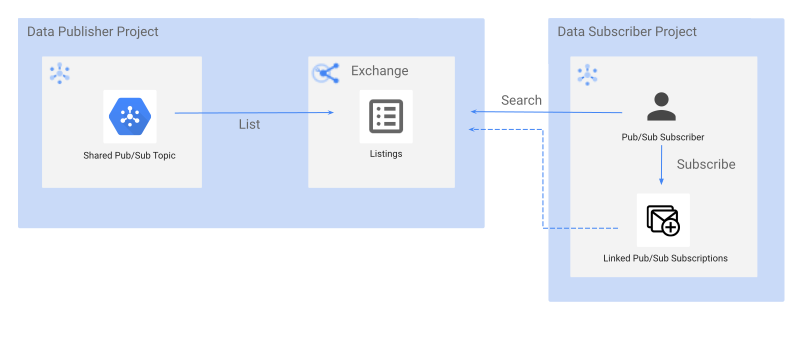
Stream sharing with Pub/Sub uses the following components:
- Shared topics
- A shared topic is the unit for sharing a Pub/Sub topic in BigQuery sharing. As a shared topic publisher, you create or use an existing Pub/Sub topic to distribute message data to subscribers. BigQuery sharing doesn't replicate the source Pub/Sub topic.
- Listings
- When a publisher adds a shared topic to an exchange, BigQuery sharing creates a listing that references the shared topic.
- Exchanges
- An exchange is a logical grouping of listings that reference shared topics.
- Linked Pub/Sub subscriptions
- When a subscriber subscribes to a listing with a shared topic, BigQuery sharing creates a linked Pub/Sub subscription in the subscriber's project. In the shared topic publisher's project, the subscription appears as both a Pub/Sub subscription and a BigQuery sharing listing subscription.
Limitations
Stream sharing with Pub/Sub has the following limitations:
- A shared topic supports a maximum of 10,000 Pub/Sub subscriptions. This limit includes linked Pub/Sub subscriptions and Pub/Sub subscriptions created outside of BigQuery sharing, such as subscriptions created directly in Pub/Sub.
Shared topics are indexed in Knowledge Catalog, but you can't filter specifically for their resource type.
Usage metrics are captured and displayed in the metrics dashboard for shared Pub/Sub topics and subscriptions, but they aren't available in the
INFORMATION_SCHEMA.SHARED_DATASET_USAGEview.These metrics can include the following:
- Publish message count
- Publish requests
- Publish throughput in bytes
- Top 5 subscriptions
- Ingested bytes
To monitor metrics, see Monitor Pub/Sub in Cloud Monitoring.
Before you begin
Before you share or subscribe to Pub/Sub topics in BigQuery sharing, enable the required APIs.
Enable the Analytics Hub API
To enable the Analytics Hub API, select one of the following options:
Console
In the Google Cloud console, go to the API Library page and enable the Analytics Hub API for your Google Cloud project.
gcloud
Enable the Analytics Hub API by using the
gcloud services enable command:
gcloud services enable analyticshub.googleapis.com
Enable the Pub/Sub API
To enable the Pub/Sub API, select one of the following options:
Console
In the Google Cloud console, go to the API Library page and enable the Pub/Sub API for your Google Cloud project.
gcloud
Enable the Pub/Sub API by using the
gcloud services enable command:
gcloud services enable pubsub.googleapis.com
Shared topic publisher workflows
As a shared topic publisher, you can do the following:
- Add shared topics to an exchange by creating a listing.
- Update a listing.
- Delete a listing.
- Share a listing.
- Manage subscriptions to your listing.
- Remove subscribers from your listing.
Additional publisher permissions
To perform shared topic publisher tasks, you must have the
Analytics Hub Publisher role
(roles/analyticshub.publisher) on an exchange or listing. To view all the
data exchanges
that you have access to across projects in an organization, you must have the
resourcemanager.organizations.get permission.
In addition, you need the pubsub.topics.setIamPolicy permission on the
Pub/Sub topic that you want to list. To share topics with a schema
attached, you must grant BigQuery sharing subscribers the
pubsub.schemas.get permission on the schema attached to the topic. This
permission lets BigQuery sharing subscribers parse messages from the
Pub/Sub subscription.
Create a shared topic listing
To add a shared topic to an exchange by creating a listing, select one of the following options:
Console
In the Google Cloud console, go to the Sharing (Analytics Hub) page.
The page lists all the data exchanges that you can view.
Click the name of the data exchange where you want to create the listing.
Click Create listing.
On the Create listing page, in the Resource type list, select Pub/Sub Topic.
In the Shared topic list, select an existing Pub/Sub topic, or click Create a topic.
On the Listing details page, in the Display name field, enter the listing name.
Optional: Enter the following details:
Category: select up to five categories that best represent your listing. Shared topic subscribers can filter listings based on these categories.
Data affinity: specify the region or regions where you publish data to the shared topic. This information helps shared topic subscribers minimize or avoid Pub/Sub network egress costs by reading data from the same region. For more information about egress costs, see Data transfer costs.
Icon: upload a PNG or JPEG icon for your listing. Icons must be smaller than 512 KiB and have dimensions of no more than 512 x 512 pixels.
Description: enter a brief description of your listing. Shared topic subscribers can search for listings based on the description.
Public Discoverability: enable public discoverability for your listing in the BigQuery sharing catalog. After you create the listing, you must also grant
allUsersorallAuthenticatedUsersthe Analytics Hub Viewer role (roles/analyticshub.viewer) on the listing. If the data exchange is already public, the listing inherits those permissions and requires no further action.Documentation > Markdown: enter additional information, such as links to relevant documentation and other details that help shared topic subscribers use your topic.
Optional: On the Listing contact information page, enter the following details:
Primary contact: enter an email address or URL for the listing's primary contact.
Request access contact: enter an email address or URL for the intake form that shared topic subscribers can use to contact you.
Provider: expand the Provider section and specify details in the following fields:
- Provider name: enter the name of the topic provider.
- Provider primary contact: enter an email address or URL for the topic provider's primary contact.
Shared topic subscribers can filter listings based on the data providers.
Publisher: expand the Publisher section and specify details in the following fields:
- Publisher name: enter your name or your organization's name as the shared topic publisher.
- Publisher primary contact: enter an email address or URL for your primary contact as the shared topic publisher.
Review the Listing preview page.
To publish the listing, click Publish.
API
Use the
projects.locations.dataExchanges.listings.create method:
POST https://analyticshub.googleapis.com/v1/projects/PROJECT_ID/locations/LOCATION/dataExchanges/DATAEXCHANGE_ID/listings?listingId=LISTING_ID
Replace the following:
PROJECT_ID: the ID of the project that contains the data exchange.LOCATION: the location for your data exchange. For more information about locations that support BigQuery sharing, see Supported regions.DATAEXCHANGE_ID: the data exchange ID.LISTING_ID: the listing ID.
In the body of the request, provide the listing details. If the request is successful, the response body contains the listing details.
For more information about the tasks that you can perform on listings using
APIs, see projects.locations.dataExchanges.listings methods.
Update a listing
To update a listing, select one of the following options:
Console
In the Google Cloud console, go to the Sharing (Analytics Hub) page.
Click the name of the data exchange that contains the listing.
Click the listing that you want to update.
Click Edit listing.
Modify the field values. You can modify all values except the listing's shared topic.
To save changes, click Save.
API
Use the
projects.locations.dataExchanges.listings.patch method:
PATCH https://analyticshub.googleapis.com/v1/projects/PROJECT_ID/locations/LOCATION/dataExchanges/DATAEXCHANGE_ID/listings/LISTING_ID?updateMask=UPDATEMASK
Replace the following:
PROJECT_ID: the ID of the project that contains the data exchange.LOCATION: the location for your data exchange. For more information about locations that support BigQuery sharing, see Supported regions.DATAEXCHANGE_ID: the data exchange ID.LISTING_ID: the listing ID.UPDATEMASK: the list of fields that you want to update. To update multiple values, use a comma-separated list.
In the body of the request, specify the updated values.
For more information about the tasks that you can perform on listings using
APIs, see projects.locations.dataExchanges.listings methods.
Delete a listing
You can't delete listings with shared Pub/Sub topics that have active subscriptions. Before you delete a shared topic listing, revoke all active subscriptions. You can't undo a listing deletion.
To delete a listing, select one of the following options:
Console
In the Google Cloud console, go to the Sharing (Analytics Hub) page.
Click the name of the data exchange that contains the listing.
Click the listing that you want to delete.
Click Delete.
In the Delete listing? dialog, enter
deleteto confirm deletion.Click Delete.
API
Use the
projects.locations.dataExchanges.listings.delete method:
DELETE https://analyticshub.googleapis.com/v1/projects/PROJECT_ID/locations/LOCATION/dataExchanges/DATAEXCHANGE_ID/listings/LISTING_ID
Replace the following:
PROJECT_ID: the ID of the project that contains the data exchange.LOCATION: the location for your data exchange. For more information about locations that support BigQuery sharing, see Supported regions.DATAEXCHANGE_ID: the data exchange ID.LISTING_ID: the listing ID.
For more information about the tasks that you can perform on listings using
APIs, see projects.locations.dataExchanges.listings methods.
Share a listing
To give users access to a private listing, set an IAM policy for
an individual or a group for that listing. For a commercial listing, your
data exchange must be public.
Listings in a public data exchange appear in BigQuery sharing for all
Google Cloud users (allAuthenticatedUsers).
To let users request access for commercial listings, grant them the Analytics
Hub Viewer role (roles/analyticshub.viewer).
To give users access to view or subscribe to your listing, do the following:
In the Google Cloud console, go to the Sharing (Analytics Hub) page.
Click the name of the data exchange that contains the listing.
Click the listing that you want to share.
Click Set permissions.
To add principals, click Add principal.
In the New principals field, enter details based on the listing type:
- For a private listing, enter the email addresses of the principals that you want to grant access to.
- For a public listing, enter
allAuthenticatedUsers.
In the Select a role menu, select Analytics Hub, and then select one of the following roles based on the listing type:
- For a commercial listing, select Analytics Hub Viewer. This role lets users view the listing and request access.
- For a private or non-commercial public listing, select Analytics Hub Subscriber. This role lets users subscribe to your listing.
To save your changes, click Save.
Manage subscriptions
To let a user subscribe to a listing with a shared topic, you must grant them
the
Analytics Hub Subscriber
(roles/analyticshub.subscriber) and
Analytics Hub Subscription Owner
(roles/analyticshub.subscriptionOwner) roles on the listing.
To grant these roles on a listing, do the following:
In the Google Cloud console, go to the Sharing (Analytics Hub) page.
Click the name of the data exchange that contains the listing.
Click the listing that you want to manage subscriptions for.
Click Set permissions.
To add principals, click Add principal.
In the New principals field, enter the usernames or email addresses of the subscribers that you want to add.
In the Select a role menu, select Analytics Hub > Analytics Hub Subscriber.
Click Add another role.
In the Select a role menu, select Analytics Hub > Analytics Hub Subscription Owner.
To save your changes, click Save.
You can update or delete subscribers at any time by clicking Set permissions.
Revoke a subscription
To remove a subscription to a shared topic listing from BigQuery sharing, select one of the following options:
Console
To list shared topic subscribers for a listing, follow the Google Cloud console instructions in View all subscriptions.
To view all subscriptions to the data exchange, click the Subscriptions tab.
Select the checkbox next to the subscriptions that you want to remove, or select all subscriptions, and then click Revoke.
In the Revoke subscription? dialog, enter
revoketo confirm revocation.Click Revoke.
API
Use the
projects.locations.subscriptions.revoke method:
POST https://analyticshub.googleapis.com/v1/projects/PROJECT_ID/locations/LOCATION/subscriptions/SUBSCRIPTION_ID:revoke
Replace the following:
PROJECT_ID: the ID of the project that contains the subscription that you want to remove.LOCATION: the location of the subscription.SUBSCRIPTION_ID: the ID of the subscription that you want to remove.
When you revoke a subscription from BigQuery sharing, a shared topic subscriber no longer receives message data from the shared topic. The Pub/Sub subscription is detached from the shared topic. If you delete a subscription directly from Pub/Sub, the BigQuery sharing subscription persists and you must delete the subscription in BigQuery sharing.
Subscriber workflows
As a BigQuery sharing subscriber, you can view and subscribe to a listing. Subscribing to a listing of a shared topic creates one linked Pub/Sub subscription in your project. The Pub/Sub subscription is visible in the shared topic publisher's project.
Additional subscriber permissions
To perform subscriber tasks, you must have the
Analytics Hub Subscriber role
(roles/analyticshub.subscriber) granted at the project, exchange, or listing
level.
Subscribe to a shared topic listing
To subscribe to a listing with a shared topic, select one of the following options:
Console
To view the listings that are available to you, follow the steps in View listings.
Browse the listings and click the listing that you want to subscribe to. A dialog with the listing details appears.
To open the Create subscription dialog, click Subscribe.
If you haven't enabled the Analytics Hub API in your project, an error message appears with a link to enable the API. Click Enable Analytics Hub API.
In the Create subscription dialog, specify the following details:
- Subscription ID: specify the name of the subscription that you're creating.
- Delivery type: select how the message data is delivered.
- Message retention duration: set the message retention duration.
- Expiration period: set when the subscription expires after inactivity, if ever.
- Acknowledgement deadline: set the acknowledgment deadline.
- Subscription filter: set filter syntax for messages.
- Exactly once delivery: enable exactly-once delivery.
- Message ordering: enable message ordering with an ordering key.
- Dead lettering: enable forwarding of undeliverable messages to a dead-letter topic.
- Retry policy: set a retry policy.
For more information about Pub/Sub subscription properties, see Subscription properties.
To save your changes, click Create. BigQuery sharing creates the linked Pub/Sub subscription in your project.
API
Use the
projects.locations.dataExchanges.listings.subscribe method:
POST https://analyticshub.googleapis.com/v1/projects/PROJECT_ID/locations/LOCATION/dataExchanges/DATAEXCHANGE_ID/listings/LISTING_ID:subscribe
Replace the following:
PROJECT_ID: the ID of the project that contains the listing that you want to subscribe to.LOCATION: the location for the listing that you want to subscribe to.DATAEXCHANGE_ID: the ID of the data exchange that contains the listing that you want to subscribe to.LISTING_ID: the ID of the listing that you want to subscribe to.
In the body of the request, specify the details for the linked Pub/Sub subscription that you want to create. If the request is successful, the response body contains the subscription details.
For more information about Pub/Sub subscriptions, see Subscription overview.
Pricing
Shared topic publishers incur no additional charge to list and share topics through BigQuery sharing. Shared topic publishers are charged for publish throughput, which is the total bytes written to the shared topic, and for any applicable network egress. Shared topic subscribers are charged for subscribe throughput, which is the total bytes read from the linked subscription, and for any applicable network egress. For more information, see Pub/Sub pricing.
VPC Service Controls
For shared topics from projects with VPC Service Controls perimeters, set the appropriate ingress and egress rules to grant access to shared topic publishers and subscribers.
What's next
- Learn about managing your listings.
- Learn about subscribing to listings.
- Learn about monitoring your Pub/Sub resources.
- Learn about configuring VPC Service Controls rules for BigQuery sharing.