

Manage listings
As a data publisher in BigQuery sharing (formerly Analytics Hub), you can create and manage listings to securely share datasets with subscribers across organizations without copying data.
When you manage listings, you can perform the following tasks:
- Create, update, share, and delete listings in any data exchange where you have publishing access.
- Manage access by assigning BigQuery sharing roles to administrators, subscribers, and viewers.
- View, monitor, and remove subscribers from your listings.
- Monitor subscription usage metrics.
A listing is a reference to a shared dataset that a publisher lists in a data exchange. Depending on the Identity and Access Management (IAM) policy that's set for the listing and the type of data exchange that contains the listing, a listing can be one of the following two types:
Public listing. A public listing can be discovered and subscribed to by Google Cloud users (
allAuthenticatedUsers). Listings in a public data exchange are public listings. These listings can be references to a free public dataset or a commercial dataset. If the listing references a commercial dataset, subscribers can request access to the listing directly from the data provider, or they can browse and purchase Google Cloud Marketplace-integrated commercial listings.Private listing. A private listing is shared directly with individuals or groups. For example, a private listing can reference a marketing metrics dataset that you share with internal teams in your organization. Even if you let all Google Cloud users (
allAuthenticatedUsers) subscribe to your private listing, the listing remains private. It doesn't show as a public listing on the BigQuery sharing page. To share a private listing with users, send those users the listing URL. To make a private listing publicly discoverable, make the data exchange public.
Before you begin
To get started with BigQuery sharing (formerly Analytics Hub), you need to enable the Analytics Hub API inside your Google Cloud project.
To enable the Analytics Hub API, you need the following Identity and Access Management (IAM) permissions:
serviceUsage.services.getserviceUsage.services.listserviceUsage.services.enable
The following predefined IAM role includes the permissions that you need to enable the Analytics Hub API:
- Service Usage Admin (
roles/serviceusage.serviceUsageAdmin)
To enable the Analytics Hub API, select one of the following options:
Console
Go to the Analytics Hub API page and enable the Analytics Hub API for your Google Cloud project.
gcloud
Run the gcloud services enable command:
gcloud services enable analyticshub.googleapis.com
Required roles
To manage listings and subscriptions, you must have one of the following BigQuery sharing Identity and Access Management (IAM) roles:
Analytics Hub Publisher role (
roles/analyticshub.publisher), which lets you create, update, delete, and set IAM policies on your listings.Analytics Hub Listing Admin role (
roles/analyticshub.listingAdmin), which lets you update, delete, and set IAM policies on your listings.Analytics Hub Admin role (
roles/analyticshub.admin), which lets you create, update, delete, and set IAM policies on all listings in your data exchange.
For more information, see BigQuery sharing IAM roles. To learn how to grant these roles to other users, see Create a listing administrator.
To create listings or update replica regions for a listing, you must have the
bigquery.datasets.get and bigquery.datasets.update permissions on the source
datasets. The following
BigQuery predefined roles
include the bigquery.datasets.update permission:
- BigQuery Data Owner
(
roles/bigquery.dataOwner) - BigQuery Admin
(
roles/bigquery.admin)
To view all data exchanges across projects in an organization that you have
access to, you must have the resourcemanager.organizations.get permission.
There are no BigQuery predefined roles that contain this
permission, so you must use an
IAM custom role.
View data exchanges
To view the list of data exchanges in your organization that you can access, see View data exchanges. If the data exchange is in another organization, then the BigQuery sharing administrator must share a data exchange link with you.
Create a listing
A listing is a reference to a shared dataset that a BigQuery sharing publisher lists in a data exchange.
To create a listing, follow these steps:
Console
Go to the Sharing (Analytics Hub) page.
A page appears that lists all data exchanges that you can access.
Click the data exchange name where you want to create the listing.
Click Create listing.
In the Configure data section, in the Resource type menu, select BigQuery dataset or Pub/Sub Topic.
If you select BigQuery dataset, then do the following:
- In the Shared dataset menu, select an existing dataset, or click Create a dataset to create a dataset. The dataset must be in the same region as the data exchange. You can't change the shared dataset after you create the listing. When subscribers view the metadata of their linked dataset, BigQuery sharing returns the source dataset name and the ID of the project that contains the dataset.
- Optional: To let subscribers share a SQL stored procedure across listings, select Allow stored procedure sharing (Preview).
- To make the shared dataset available in additional regions, expand the Region data availability menu. The menu displays regions that have existing dataset replicas labeled as Ready to use. Before you configure the listing for multiple regions, verify that you enabled cross-region dataset replication on the shared dataset. You can select only regions where cross-region dataset replication is turned on; all other regions are labeled as Unavailable. If you select no additional region, the listing defaults to the primary region of the shared dataset, which is labeled as Provider primary.
In Data Egress controls, select the appropriate data egress option:
- To restrict data copy and export on your shared dataset while allowing exports of query results, select Disable copy and export of shared data.
- To restrict data copy and export on both your shared dataset and query results, select Disable copy and export of query results. This option also selects Disable copy and export of shared data.
- To restrict table copy and export through APIs on your shared dataset, select Disable copy and export of tables through APIs. This option also selects Disable copy and export of shared data.
For more information about data egress controls, including restrictions, see Data egress options (BigQuery shared datasets only).
If you select Pub/Sub Topic, then in the Shared topic menu, select an existing Pub/Sub topic, or click Create a topic to create a topic.
In the Listing details section, in Display name, enter a name for the listing.
Enter the following optional details:
- Category: select up to two categories that best represent your listing. Subscribers can filter listings using your selected categories.
- Data affinity: specify the regions that you use for publishing data. This location setting helps subscribers minimize or avoid Pub/Sub network egress costs by reading data from the same region. For more information about egress costs, see Data transfer costs.
- Icon: upload an icon for your listing. PNG and JPEG file formats are supported. Icons must be smaller than 512 KiB with maximum dimensions of 512 x 512 pixels.
- Description: enter a brief description of your listing. Subscribers can search for listings by description text.
Public discoverability: turn this setting on to make your listing publicly discoverable in the BigQuery sharing catalog. If you enable this option, grant the Analytics Hub Viewer role (
roles/analyticshub.viewer) toallUsersorallAuthenticatedUsers. For more information, see Grant the role for a listing. If the exchange is already public, the listing inherits those permissions and requires no further action.Publicly discoverable exchanges can't have private listings due to permission inheritance, but private exchanges can have public listings. To create a public listing, the project that contains the listing must have an associated organization and billing account. If you create a Cloud Marketplace-integrated commercial listing, we recommend that you turn on public discoverability.
Subscriber Email Logging: turn this setting on to log the principal identifiers of all users running jobs and queries on linked datasets. If you turn on this option, all future subscriptions that are created from this listing enable subscriber email logging. The logged data is available in the
job_principal_subjectcolumn of theINFORMATION_SCHEMA.SHARED_DATASET_USAGEview.Documentation > Markdown: enter supporting documentation, links, or instructions in Markdown format to help subscribers use your dataset.
In the Listing contact information section, enter the following optional details:
- Primary contact: enter the email address or URL for the listing's primary contact.
- Request access contact: enter the email address or URL of your intake form so that subscribers can contact you to request access.
Provider: expand the Provider section and enter details in the following fields:
- Provider name: the name of the data provider.
- Provider primary contact: the email address or URL of the data provider's primary contact.
Subscribers can filter listings by data provider.
Publisher: expand the Publisher section and enter details in the following fields:
- Publisher name: the name of the publisher creating the listing.
- Publisher primary contact: the email address or URL of the publisher's primary contact.
Review the Listing preview section.
To publish the listing, click Publish.
API
Use the
projects.locations.dataExchanges.listings.create method:
POST https://analyticshub.googleapis.com/v1/projects/PROJECT_ID/location/LOCATION/dataExchanges/DATAEXCHANGE_ID/listings?listingId=LISTING_ID
Replace the following:
PROJECT_ID: the ID of the project that contains the data exchange where you want to create the listing.LOCATION: the location of your data exchange. For more information about locations that support BigQuery sharing, see Supported regions.DATAEXCHANGE_ID: the data exchange ID.LISTING_ID: the listing ID.
In the request body, provide the listing details.
To create a listing across multiple regions, specify those regions in the
bigqueryDataset.replicaLocations field of the request body. Before you
configure the listing for multiple regions, verify that you enabled
cross-region dataset replication
on the shared dataset. You can select only regions where cross-region dataset
replication is enabled. If you omit this optional field, the listing uses the
primary region of the shared dataset.
If the request succeeds, the response body returns the listing details. If
you turn on subscriber email logging by setting the
logLinkedDatasetQueryUserEmail field to true, the listing response
returns log_linked_dataset_query_user_email: true. The logged data
is available in the job_principal_subject column of the
INFORMATION_SCHEMA.SHARED_DATASET_USAGE view.
For more information about the tasks that you can perform on listings using
APIs, see projects.locations.dataExchanges.listings methods.
Create a listing from a dataset
To create a listing directly from an existing dataset, follow these steps:
In the Google Cloud console, go to the BigQuery page.
To view the dataset details, click a dataset name.
Click Sharing > Publish as listing.
The Create listing dialog opens.
Select a data exchange where you want to publish the listing. The data exchange must be in the same region as the dataset. For more information about creating a data exchange, see create an exchange and set permissions.
In the Shared dataset menu, select an existing dataset, or click Create a dataset to create a dataset. The dataset must be in the same region as the data exchange. You can't change this selection after you create the listing.
When subscribers view the metadata of their linked dataset, BigQuery sharing returns the source dataset name and the ID of the project that contains the dataset.
Optional: To let subscribers share a SQL stored procedure across listings, select Allow stored procedure sharing (Preview).
To make the shared dataset available in additional regions, expand the Region data availability menu. The menu displays regions with dataset replicas labeled as Ready to use. Before you configure the listing for multiple regions, verify that you enabled cross-region dataset replication on the shared dataset. You can select only regions where cross-region dataset replication is enabled; all other regions are labeled as Unavailable. If you select no additional region, the listing defaults to the primary region of the shared dataset, which is labeled as Provider primary.
In Data egress controls, select the appropriate data egress option:
- To restrict copy and export on your shared dataset while permitting exports of query results, select Disable copy and export of shared data.
- To restrict copy and export on both your shared dataset and query results, select Disable copy and export of query results. This option also selects Disable copy and export of shared data.
- To restrict table copy and export through APIs on your shared dataset, select Disable copy and export of tables through APIs. This option also selects Disable copy and export of shared data.
For information about data egress controls and restrictions, see Data egress options (BigQuery shared datasets only).
In the Listing details section, in Display name, enter a name for the listing.
Enter the following optional details:
Category: select up to two categories that best represent your listing. Subscribers can filter listings using your selected categories.
Data affinity: specify the regions that you use for publishing data. This location setting helps subscribers minimize or avoid Pub/Sub network egress costs by reading data from the same region. For more information about egress costs, see Data transfer costs.
Icon: upload an icon for your listing. PNG and JPEG file formats are supported. Icons must be smaller than 512 KiB with maximum dimensions of 512 x 512 pixels.
Description: enter a brief description of your listing. Subscribers can search for listings by description text.
Public discoverability: turn this setting on to make your listing publicly discoverable in the BigQuery sharing catalog. If you enable this option, grant
allUsersorallAuthenticatedUsersthe Analytics Hub Viewer role (roles/analyticshub.viewer). For more information, see Grant the role for a listing. If the exchange is already public, the listing inherits those permissions and requires no further action.Publicly discoverable exchanges can't have private listings due to permission inheritance, but private exchanges can have public listings. To create a public listing, the project that contains the listing must have an associated organization and billing account. If you create a Cloud Marketplace-integrated commercial listing, we recommend turning on public discoverability.
Subscriber email logging: turn on to log the principal identifiers of subscribers running jobs and queries on this listing's linked dataset for all future subscriptions. When you turn on this option, only newly created subscriptions log principal identifiers. The logged data is available in the
job_principal_subjectcolumn of theINFORMATION_SCHEMA.SHARED_DATASET_USAGEview.Documentation > Markdown: enter supporting documentation, links, or instructions to help subscribers use your dataset.
In the Listing contact information section, enter the following optional details:
Primary contact: enter the email address or URL for the listing's primary contact.
Request access contact: enter the email address or URL of your intake form so that subscribers can contact you to request access.
Provider: expand the Provider section and enter details in the following fields:
- Provider name: the name of the data provider.
- Provider primary contact: the email address or a URL of the data provider's primary contact.
Subscribers can filter listings by data provider.
Publisher: expand the Publisher section and enter details in the following fields:
- Publisher name: the name of the publisher creating the listing.
- Publisher primary contact: the email address or URL of the publisher's primary contact.
Review the Listing preview section.
To publish the listing, click Publish.
Share a SQL stored procedure across listings
You can share SQL stored procedures when creating listings with BigQuery datasets. Because stored procedures can create, drop, and manipulate tables, and invoke other stored procedures, sharing stored procedures requires additional authorization.
Subscriber authorization
After a subscriber subscribes to a listing, linked stored procedures might not execute right away. To ensure that linked stored procedures can run, the subscriber must send the linked dataset name to the provider so that the provider authorizes the linked stored procedure on the provider's resources. In addition, the subscriber must authorize the linked shared stored procedure and attach an IAM role to the subscriber's resources to allow reading from and writing to those resources.
Provider authorization
When a provider creates a listing with a stored procedure, the provider must let the subscriber read from and write to the provider's tables through the linked stored procedure. To ensure access, the provider must do the following:
For non-read operations, authorize the linked shared stored procedure and attach an IAM role to any provider resource accessed by the linked stored procedure.
For read operations, authorize either the linked shared stored procedure (in the subscriber's linked dataset) or the original shared stored procedure (in the provider's dataset), and attach an IAM role to any provider resource accessed by the procedure.
Give users access to a listing
To provide access to a private listing, you must set the IAM
policy for that listing to include specific individuals or groups. For a
commercial listing, your
data exchange must be public.
Listings in a public data exchange appear in BigQuery sharing for all
Google Cloud users (allAuthenticatedUsers).
To let users browse and request access to commercial listings, grant those users
the
Analytics Hub Viewer role
(roles/analyticshub.viewer). To let users subscribe to commercial listings,
grant those users the
Analytics Hub Subscriber role
(roles/analyticshub.subscriber). For
Cloud Marketplace-integrated commercial listings,
BigQuery sharing automatically grants the Analytics Hub Subscriber role
based on Cloud Marketplace orders.
To make your listing accessible to everyone—including people without a
Google Cloud account—grant allUsers the
Analytics Hub Viewer role (roles/analyticshub.viewer).
To give users access to view or subscribe to your listing, follow these steps:
Console
Go to the Sharing (Analytics Hub) page.
Click the data exchange name that contains the listing.
Click the listing that you want to share.
Click Set permissions.
To add principals, click Add principal.
In the New principals field, enter principals based on your listing type:
For a private listing, enter the email addresses of the identities you want to grant access to.
For a public listing, enter
allAuthenticatedUsers.For a public listing discoverable to everyone, including non-Google Cloud users, enter
allUsers.
In the Select a role menu, point to Analytics Hub, and then select a role based on your listing type:
For a commercial listing (including Cloud Marketplace-integrated listings), select Analytics Hub Viewer. This role lets users view the listing and request access.
For a private or non-commercial public listing, select Analytics Hub Subscriber. This role lets users subscribe to your listing.
For Cloud Marketplace-integrated listings, you don't need to grant the Analytics Hub Subscriber role (
roles/analyticshub.subscriber). Subscriptions are automatically managed based on the Cloud Marketplace order.
For more information, see Analytics Hub Subscriber and Viewer roles.
To save the permissions, click Save.
API
Read the existing policy by calling the
projects.locations.dataExchanges.listings.getIamPolicymethod:POST https://analyticshub.googleapis.com/v1/projects/PROJECT_ID/locations/LOCATION/dataExchanges/DATAEXCHANGE_ID/listings/LISTING_ID:getIamPolicy
Replace the following:
PROJECT_ID: the project ID—for example,my-project-1.LOCATION: the location of the data exchange that contains the listing.DATAEXCHANGE_ID: the data exchange ID.LISTING_ID: the listing ID.
Sharing returns the current policy in the response.
To add or remove members and their associated roles, edit the policy JSON using a text editor. Specify members using the following formats:
user:test-user@gmail.comgroup:admins@example.comserviceAccount:test123@example.domain.comdomain:example.domain.com
For example, to grant the
roles/analyticshub.subscriberrole togroup:subscribers@example.com, add the following binding to the policy:{ "members": [ "group:subscribers@example.com" ], "role":"roles/analyticshub.subscriber" }Update the policy by calling the
projects.locations.dataExchanges.listings.setIamPolicymethod. In the request body, pass the updated IAM policy from the previous step.POST https://analyticshub.googleapis.com/v1/projects/PROJECT_ID/location/LOCATION/dataExchanges/DATAEXCHANGE_ID/listings/LISTING_ID:setIamPolicy
In the request body, pass the listing details. If the request succeeds, the response body returns the listing details with the updated policy.
For more information about the tasks that you can perform on listings using
APIs, see projects.locations.dataExchanges.listings methods.
Create a non-authenticated URL for a public listing
To create an unauthenticated BigQuery sharing listing URL that users without a Google Cloud account can view, follow these steps:
Go to the Sharing (Analytics Hub) page.
A page appears that lists all data exchanges that you can access.
Click the data exchange name that contains the listing.
To view the listing details, click the listing display name. The listing must have public discoverability turned on.
Click Copy public link. To ensure that external users can view the listing, verify that the listing grants
allUsersthe Analytics Hub Viewer role (roles/analyticshub.viewer).
Create a listing administrator
To let users manage listings, you can create listing administrators by granting those users the Analytics Hub Publisher or Analytics Hub Listing Admin role on the listing. For instructions on granting roles on a listing, see Grant the role for a listing.
View all subscriptions
To view all the current subscriptions to your listing, select one of the following options:
Console
Go to the Sharing (Analytics Hub) page.
Click the data exchange name that contains the listing for which you want to manage the subscriptions.
Click the listing for which you want to list all subscribers.
To view all subscribers of your listing, click Manage subscriptions:
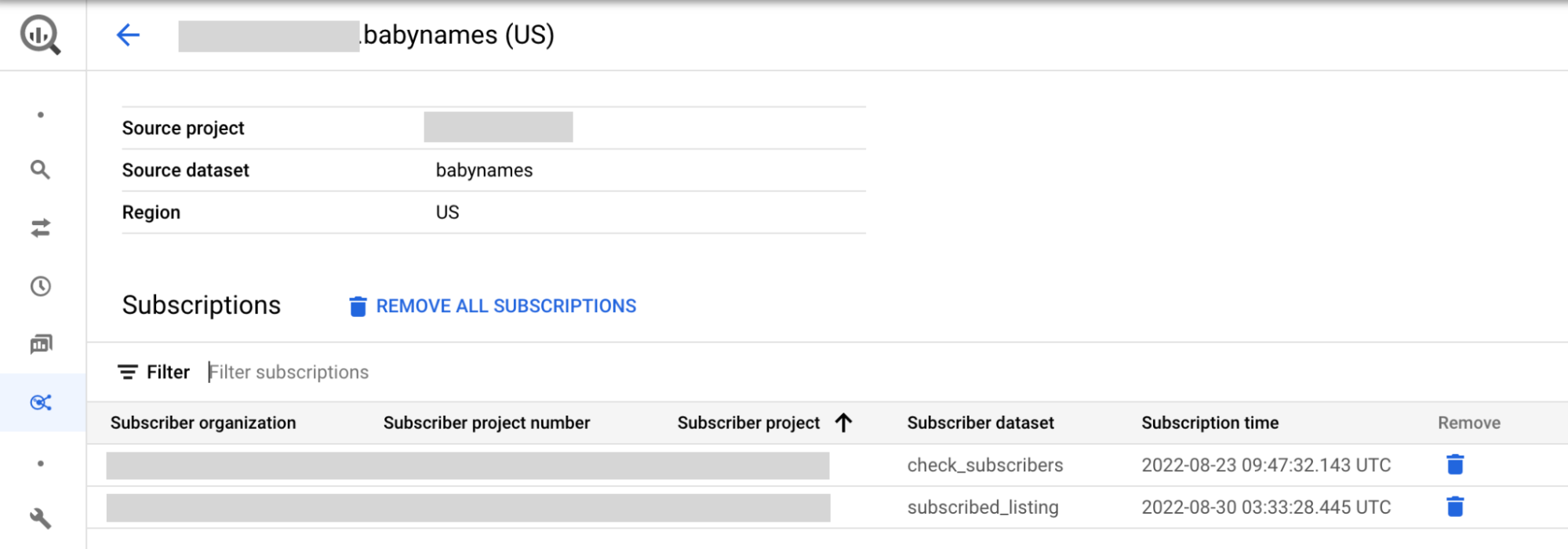
Optional: You can filter results by subscriber details.
Alternatively, if you have access to the shared dataset, you can follow these steps to list subscribers:
Go to the BigQuery page.
In the left pane, click Explorer:

If you don't see the left pane, click Expand left pane to open the pane.
In the Explorer pane, expand your project name, click Datasets, and then click the name of the shared dataset.
In the Sharing list, select Manage subscriptions.
SQL
The following example uses the
INFORMATION_SCHEMA.SCHEMATA_LINKS view
to list all the linked datasets linked to a shared dataset in myproject
that are in the us region:
SELECT * FROM `myproject`.`region-us`.INFORMATION_SCHEMA.SCHEMATA_LINKS;
The output is similar to the following. Some columns are omitted to simplify the output.
+----------------+-------------+----------------------------+------------------------------+--------------------+--------------------------------+
|  catalog_name  | schema_name | linked_schema_catalog_name | linked_schema_catalog_number | linked_schema_name | linked_schema_org_display_name |
+----------------+-------------+----------------------------+------------------------------+--------------------+--------------------------------+
| myproject      | myschema1   | subscriptionproject1       |                 974999999291 | subscriptionld1    | subscriptionorg                |
| myproject      | myschema2   | subscriptionproject2       |                 974999999292 | subscriptionld2    | subscriptionorg                |
| myproject      | myschema3   | subscriptionproject3       |                 974999999293 | subscriptionld3    | subscriptionorg                |
+----------------+-------------+----------------------------+------------------------------+--------------------+--------------------------------+
For a listing with multiple regions, you can view the subscriptions across
different regions by replacing the us region with the intended replica location. For example, to view the linked datasets linked to a shared dataset in myproject that are in the eu region, use the following query:
SELECT * FROM `myproject`.`region-eu`.INFORMATION_SCHEMA.SCHEMATA_LINKS;
API
Use the projects.locations.dataExchanges.listings.listSubscriptions method.
GET https://analyticshub.googleapis.com/v1/projects/PROJECT_ID/location/LOCATION/dataExchanges/DATAEXCHANGE_ID/listings/LISTING_ID:listSubscriptions
Replace the following:
PROJECT_ID: the project ID of the listing that you want to subscribe to.LOCATION: the location for the listing that you want to subscribe to.DATAEXCHANGE_ID: the data exchange ID that contains the listing that you want to subscribe to.LISTING_ID: the ID of the listing that you want to subscribe to.
Remove a subscription
When you remove a subscription created before July 25, 2023, from your listing, the linked dataset unlinks from the shared dataset. Subscribers can still view the dataset in their projects, but the dataset is no longer linked to your shared dataset.
To remove a subscription created before July 25, 2023, from your listing, follow these steps:
To list subscribers of a listing, follow the View all subscriptions instructions for the Google Cloud console.
To remove a subscriber from a listing, click Delete. To remove all subscriptions, click Remove all subscriptions.
In the Remove subscription? dialog, confirm deletion by typing
remove.Click Remove.
To remove a subscription created after July 25, 2023, follow these steps:
Console
To list subscribers of a listing, follow the View all subscriptions instructions for the Google Cloud console.
Click Subscriptions.
To select the subscriptions that you want to remove, select the checkboxes next to those subscriptions, and then click Remove Subscriptions.
In the Remove subscription? dialog, confirm removal by typing
remove.Click Remove.
API
Call the
projects.locations.subscriptions.revoke method:
POST https://analyticshub.googleapis.com/v1/projects/PROJECT_ID/location/LOCATION/subscriptions/SUBSCRIPTION_ID:revoke
Replace the following:
PROJECT_ID: the project ID of the subscription that you want to remove.LOCATION: the location of the subscription that you want to remove.SUBSCRIPTION: the ID of the subscription that you want to remove.
Update a listing
As your data exchange requirements evolve, you can update a listing's metadata, categories, discoverability settings, and region availability without modifying the underlying shared dataset.
To update a listing, follow these steps:
Console
Go to the Sharing (Analytics Hub) page.
Click the data exchange name that contains the listing.
Click the listing that you want to update.
Click Edit listing.
Modify values in the fields. You can modify all values except the listing's shared dataset.
Optional: Update listing settings and availability:
- To enable public discoverability, grant the
Analytics Hub Viewer role
(
roles/analyticshub.viewer) toallUsersorallAuthenticatedUsers. For instructions on granting roles on a listing, see Grant the role for a listing. - To disable public discoverability for a listing in a private exchange,
remove the Analytics Hub Viewer role (
roles/analyticshub.viewer) fromallUsersandallAuthenticatedUsers. If the exchange is already public, listing permissions are already inherited and no further action is required. - After you turn on and save subscriber email logging, you can't edit this setting. To turn off email logging, delete the listing, and then recreate the listing without selecting Subscriber email logging.
- To add or remove regions, update your region selection. Before you add multiple regions, verify that you enabled cross-region dataset replication on the shared dataset. Before you remove a region, delete the shared dataset replica in that region.
- To enable public discoverability, grant the
Analytics Hub Viewer role
(
Review the listing preview.
To save changes, click Save. If you update a Cloud Marketplace-integrated listing, a notification prompts you to update the Cloud Marketplace data product listing as well.
API
Call the projects.locations.dataExchanges.listings.patch method:
PATCH https://analyticshub.googleapis.com/v1/projects/PROJECT_ID/location/LOCATION/dataExchanges/DATAEXCHANGE_ID/listings/LISTING_ID?updateMask=UPDATEMASK
Replace the following:
PROJECT_ID: the ID of the project that contains the data exchange in which you want to create the listing.LOCATION: the location of the data exchange.DATAEXCHANGE_ID: the ID of the data exchange.LISTING_ID: the ID of the listing to update.UPDATEMASK: the list of fields that you want to update. To update multiple values, use a comma-separated list. For example, to update the display name and primary contact for a data exchange, enterdisplayName,primaryContact.
In the request body, specify updated values for the fields in your update mask:
displayNamedescriptionprimaryContactdocumentationiconcategories[]discoveryTypelogLinkedDatasetQueryUserEmailbigqueryDataset.replicaLocations
For details on these fields, see Resource: Listing.
When updating replica regions for your listing, specify all applicable regions. Before you update the listing, verify that you enabled cross-region dataset replication on the shared dataset. You can only add regions where the shared dataset has a replica. Before you remove a region from the listing, delete the shared dataset replica in that region. You can also convert single-region listings into multi-region listings.
For more information about the tasks that you can perform on listings using
APIs, see projects.locations.dataExchanges.listings methods.
Display a listing in the featured section
To increase visibility of your listing in the BigQuery sharing catalog, you can display your listing in the Featured section. Featured listings are governed by the Google Cloud Partner Program Agreement.
To request that your listing display in the Featured section, you must meet the following criteria:
The shared data must reside in BigQuery.
You must be enrolled in the Google Cloud Partner Network program within the Google Cloud Technology Partner Path.
Your listing must be created and have public discoverability turned on.
To request to add your listing to the Featured section, or to request to remove your listing from the section, submit the Featured listing intake form.
Delete a listing
When you delete a listing, subscribers can no longer view the listing. Deleting a listing also deletes all linked datasets and removes all subscriptions from subscriber projects. If a dataset remains linked, remove the dataset manually by clicking Sharing > Manage Subscription. On the Subscriptions page, remove specific subscriber datasets or all subscriber datasets at once.
You can't delete Cloud Marketplace-integrated listings that have active commercial subscriptions. You must revoke all commercial subscriptions before you delete the listing.
Deleting a multi-region listing doesn't delete the shared dataset replicas. After you delete a multi-region listing, subscribers can no longer view the listing or query the linked datasets. If no other listings reference the shared dataset replicas, you can delete those replicas.
Before you delete a multi-region listing, verify that the listing has no active
subscriptions. If active subscriptions exist, revoke them by calling the
projects.locations.subscriptions.revoke method.
After all active subscriptions are removed, delete the multi-region listing.
To delete a listing, follow these steps:
Console
Go to the Sharing (Analytics Hub) page.
Click the data exchange name that contains the listing.
Click the listing that you want to delete.
Click Delete.
In the Delete listing? dialog, confirm deletion by typing
delete.Click Delete.
API
Call the
projects.locations.dataExchanges.listings.delete method:
DELETE https://analyticshub.googleapis.com/v1/projects/PROJECT_ID/location/LOCATION/dataExchanges/DATAEXCHANGE_ID/listings/LISTING_ID
Replace the following:
PROJECT_ID: the ID of the project that contains the data exchange.LOCATION: the location of the data exchange.DATAEXCHANGE_ID: the ID of the data exchange.LISTING_ID: the ID of the listing to delete.
For more information about the tasks that you can perform on listings using
APIs, see projects.locations.dataExchanges.listings methods.
What's next
- Learn about BigQuery sharing architecture.
- Learn how to view and subscribe to listings.
- Learn about BigQuery sharing IAM roles.
- Learn about creating datasets.
- Learn about BigQuery sharing audit logging.
- Learn how to monitor listings.