

Commercialize listings on Google Cloud Marketplace
BigQuery sharing (formerly Analytics Hub) lets you offer and purchase data products through Google Cloud Marketplace. As a publisher, you can share BigQuery datasets on Cloud Marketplace at scale and configure paid, free, or trial subscription plans and durations without managing individual transactions.
As a subscriber, you can discover and consume Google and third-party commercial datasets through Cloud Marketplace. Before you continue, familiarize yourself with BigQuery sharing data exchanges.
Before you begin
- Grant Identity and Access Management (IAM) roles that give users the necessary permissions to perform each task in this document.
- Enable the Analytics Hub API.
Required roles
To get the permissions that you need to use Cloud Marketplace-integrated listings, ask your administrator to grant you the following IAM roles:
-
Create and manage BigQuery sharing listings:
- Analytics Hub Admin (
roles/analyticshub.admin) - BigQuery Data Owner (
roles/bigquery.dataOwner) - Service Management Administrator (
roles/servicemanagement.admin)
- Analytics Hub Admin (
-
Create and manage data product listings on Cloud Marketplace:
Commerce Producer Admin (
roles/commerceproducer.admin) -
Subscribe to paid BigQuery sharing listings on Cloud Marketplace:
- Billing Account Administrator (
roles/billing.admin) - Analytics Hub Viewer (
roles/analyticshub.viewer)
- Billing Account Administrator (
For more information about granting roles, see Manage access to projects, folders, and organizations.
You might also be able to get the required permissions through custom roles or other predefined roles.
Enable the Analytics Hub API
To enable the Analytics Hub API, select one of the following options:
Console
Go to the Analytics Hub API page and enable the Analytics Hub API for your Google Cloud project.
gcloud
Enable the Analytics Hub API by using the
gcloud services enable command:
gcloud services enable analyticshub.googleapis.com
After you enable the Analytics Hub API, you can view the Sharing (Analytics Hub) page in the Google Cloud console.
Limitations
Cloud Marketplace-integrated listings have the following limitations:
- All BigQuery sharing limitations apply.
- BigQuery sharing publishers and subscribers must be located in a supported Cloud Marketplace Agency Jurisdiction.
- Cloud Marketplace-integrated listings are indexed in Knowledge Catalog, but you can't specifically filter for their resource type.
- Billing usage metrics for Cloud Marketplace-integrated listings
aren't captured in provider usage metrics or in
INFORMATION_SCHEMAviews. - Data clean rooms and Pub/Sub topics aren't supported for Cloud Marketplace integration.
Architecture and terminology
The following diagram shows the interaction between Cloud Marketplace and BigQuery sharing for commercial listings:
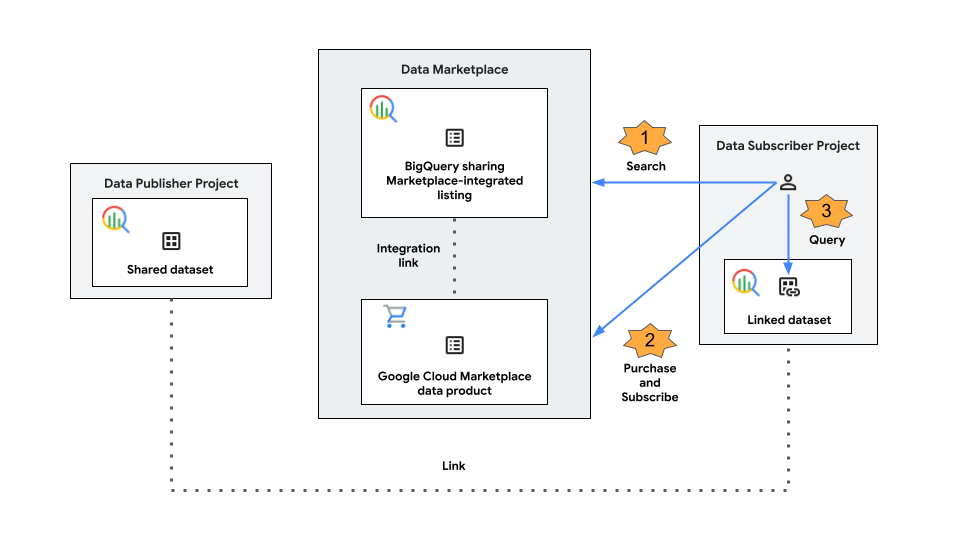
Data product on Cloud Marketplace
To create a Cloud Marketplace data product listing, you select a BigQuery sharing listing, choose a pricing model, and submit the product to Cloud Marketplace for review.
Cloud Marketplace-integrated listing on BigQuery sharing
When Cloud Marketplace approves and publishes the data product listing, your BigQuery sharing listing becomes a Cloud Marketplace-integrated listing. Approval creates an integration link between BigQuery sharing and Cloud Marketplace and makes the listing eligible for purchase. This type of BigQuery sharing listing supports shared datasets.
Linked resource
When you subscribe to a Cloud Marketplace-integrated listing, BigQuery sharing creates a linked resource in your subscriber project. Active Cloud Marketplace orders manage access to the linked resource. Cloud Marketplace-integrated listings support linked datasets.
Create a Cloud Marketplace-integrated listing
To create a BigQuery sharing listing and publish it on Cloud Marketplace, do the following:
In the Google Cloud console, go to the Sharing (Analytics Hub) page.
Create a BigQuery sharing data exchange. Alternatively, to retain existing subscriptions, select an existing data exchange.
Create listings in the data exchange. Alternatively, to retain existing subscriptions, select existing listings.
In the row of your listing, click More actions > List on Marketplace. You're redirected to the Cloud Marketplace Producer Portal.
To onboard your BigQuery sharing listing as a data product, follow the instructions in the Cloud Marketplace Producer Portal.
Return to the Sharing (Analytics Hub) page. In the row of your listing, Not Published appears in the Marketplace column, indicating that you created and submitted your data product for approval. To check the approval status in the Cloud Marketplace Producer Portal, click Not Published.
After your data product is approved, Published appears in the Marketplace column. To view the listing in Cloud Marketplace, click Published.
For additional requirements, see Offer software on Cloud Marketplace.
Update a Cloud Marketplace-integrated listing
Updating a Cloud Marketplace-integrated listing follows the same process as updating a standard listing in a data exchange. You might also need to update the data product listing in the Cloud Marketplace Producer Portal, which might require another review and approval.
Manage subscriptions for a Cloud Marketplace-integrated listing
Cloud Marketplace orders manage commercial subscriptions to Cloud Marketplace-integrated listings. You can still manually add and update BigQuery sharing subscribers by following the standard process for granting users access to a data exchange. However, the associated Cloud Marketplace transactions don't take place.
You can also manually revoke subscriptions by following the standard process for revoking a subscription and entering your Cloud Marketplace service ID to accept the warning notification. However, revoking commercial subscriptions might affect your customers and violate the Cloud Marketplace Terms of Service. Additionally, revoking subscriptions doesn't remove the listing from BigQuery sharing or Cloud Marketplace.
Offboard a Cloud Marketplace-integrated listing
To offboard a commercial Cloud Marketplace-integrated listing, you must manage the lifecycle of the associated product in the Cloud Marketplace Producer Portal.
Offboarding removes the commercial traits from a listing and converts it to a standard, non-commercial listing. This process helps ensure that you meet existing contractual obligations to subscribers before commercialization ends.
To offboard a Cloud Marketplace-integrated listing, do the following:
In the Producer Portal, request deprecation of your listing.
Wait for the deprecation date to pass. After the deprecation date passes, the Cloud Marketplace listing is permanently deleted.
Delete the product from the Producer Portal.
After a BigQuery sharing listing is fully offboarded, it functions as a standard, non-commercial listing. You can keep the listing for internal or free sharing, or delete the listing.
Delete a Cloud Marketplace-integrated listing
To delete a Cloud Marketplace-integrated listing from BigQuery sharing and Cloud Marketplace, do the following:
- Revoke all commercial subscriptions for your Cloud Marketplace-integrated listing by following the standard process for revoking a subscription. You can't delete Cloud Marketplace-integrated listings with active commercial subscriptions.
- Follow the standard process to delete a listing.
- When you're prompted with a warning notification, enter your Cloud Marketplace service ID to accept, and then click Confirm.
Subscribe to a Cloud Marketplace-integrated listing
To subscribe to a BigQuery sharing listing on Cloud Marketplace, do the following:
In the Google Cloud console, go to the Sharing (Analytics Hub) page.
Click Search listings.
Search for the listing that you want to subscribe to. To discover commercial listings on Cloud Marketplace, apply the Listings > Marketplace filter.
Click the listing.
If your organization has already purchased the listing, which means that the Subscribe button and purchase date are visible, do the following:
- Click Subscribe.
- Specify the project and linked dataset name.
- Click Save.
If you don't have permission to subscribe to listings, click Request access and submit the request form.
If your organization hasn't purchased the listing, which means that the Purchase via Marketplace button is visible, do the following:
- Click Purchase via Marketplace.
- Click Subscribe.
- On the Order summary page, specify your subscription plan and purchase details, and if you agree to the terms, accept them.
- Click Subscribe, and then click Go to product page.
- Wait a few minutes. After your order is activated, click Manage on BigQuery sharing (Analytics Hub). You're redirected back to the Sharing (Analytics Hub) page.
- On the BigQuery sharing listing page, click Subscribe.
- Specify the project and linked dataset name.
- Click Save.
To get a quote for some listings, you might have to contact the sales team by submitting a form.
Any project with the same billing account can also subscribe to the listing.
Pricing
Standard BigQuery sharing pricing applies. Additionally, the Cloud Marketplace revenue sharing requirement applies for Cloud Marketplace-integrated listings. For more information about how publishers charge BigQuery sharing subscribers for using data products, see Managing billing for Cloud Marketplace products.
What's next
- Learn more about Cloud Marketplace.
- If you're a VPC Service Controls user, see VPC Service Controls.