


適用於 Apple iOS 作業系統的 Contact Center AI 平台 (CCAI 平台) 行動版 SDK,可在 iOS 行動應用程式中嵌入 CCAI 平台行動版體驗。
需求條件
iOS 行動 SDK 必須符合下列條件:
- iOS 12.0 以上版本
擷取公司憑證
使用管理員憑證登入 Contact Center AI 平台 (CCAI 平台) 入口網站。
前往「設定」>「開發人員設定」。
在「公司金鑰」和「密碼」下方,記下公司金鑰和公司密碼。
開始使用
以下指南說明如何開始使用 CCAI Platform iOS 行動 SDK。
安裝
如要開始使用,請先安裝 iOS SDK。
下載範例應用程式
下載 iOS 範例應用程式。
前往資料夾,然後使用 CocoaPods 安裝依附元件:
$ pod install --project-directory=ExampleApp如要快速設定專案設定,請執行殼層指令碼:
$ ./setup.sh或者,您也可以按照下列步驟手動編輯專案設定:
開啟
ExampleApp.xcworkspace。將
Info.plist中的UJETCompanyKey和UJETCompanySecret值,替換為 CC AI Platform 入口網站「Settings」(設定) >「Developer Settings」(開發人員設定) 頁面中的「Company Key」(公司金鑰) 和「Company Secret Code」(公司密碼) 值。請將
Info.plist中的UJETSubdomain值,替換為 CCAI 平台入口網址中的子網域。子網域會直接出現在網址中的.ujet.com之前,例如https://your-subdomain.ujet.com/settings/developer-setting中的your-subdomain。
整合至專案
將 iOS SDK 整合至應用程式的方式,取決於您的開發環境。
Swift 套件管理工具
在建構設定中,將 -ObjC 放在 Other Linker Flags 上。
在最新版 Xcode (目前為 13.2) 中,使用 Swift Package Manager 發布二進位架構時,會發生已知問題。目前解決這個問題的方法,是在 Xcode 專案的建構階段新增「執行指令碼階段」。這個「Run Script」階段應在「Embed Frameworks」建構階段之後。這個新的「Run Script Phase」應包含下列程式碼:
find "${CODESIGNING_FOLDER_PATH}" -name '*.framework' -print0 | while read -d $'0' framework
do
codesign --force --deep --sign "${EXPANDED_CODE_SIGN_IDENTITY}" --preserve-metadata=identifier,entitlements --timestamp=none "${framework}"
done
CocoaPods
在 Podfile 中新增下列指令列:
pod 'UJET', :podspec =>
'https://sdk.ujet.co/ios/x.y.z/ujet.podspec' #specific version
x.y.z
執行 pod install。如果先前已整合 iOS SDK,請改為執行 pod update CCAI Platform。
迦太基
Google Cloud 建議使用依附元件管理工具或手動整合,因為 CCAI Platform 依附元件不支援 Carthage。
如要使用其他依附元件管理工具,請按照下列步驟操作:
新增以下幾行內容:
binary "https://sdk.ujet.co/ios/UJETKit.json"
binary "https://sdk.ujet.co/ios/UJETFoundationKit.json"
binary "https://sdk.ujet.co/ios/UJETCallRedKit.json"
binary "https://sdk.ujet.co/ios/UJETChatRedKit.json"
# optional
# binary "https://sdk.ujet.co/ios/UJETChatBlueKit.json"
binary "https://raw.githubusercontent.com/twilio/twilio-voice-ios/Releases/twilio-voice-ios.json"
# this is not supported: https://github.com/twilio/conversations-ios/issues/12
# binary "https://raw.githubusercontent.com/twilio/conversations-ios/master/twilio-convo-ios.json"
執行
carthage bootstrap --use-xcframeworks(或carthage update --use-xcframeworks,如果更新的是依附元件)。
手動整合
下載
UJETKit.xcframework、UJETFoundationKit.xcframework、UJETChatRedKit.xcframework、UJETChatBlueKit.xcframework、UJETTwilioCallKit.xcframework和所有依附元件TwilioVoice.xcframework和TwilioConversationsClient.xcframework。將 UJETKit.xcframework 拖曳至「Frameworks, Libraries, and Embedded Content」區段,即可新增至目標。
針對步驟 1 中的所有依附元件,重複執行步驟 2 和 3。
在「Build Settings」中,將
-ObjC放在Other Linker Flags上。在目標的
Linked Frameworks區段中,將libc++.tbd新增為依附元件。
如要使用範例專案手動建構 SDK,請按照下一節的步驟操作。
使用範例專案手動建構 SDK
請依序完成下列步驟:
下載所有架構,包括
UJETKit.xcframework和其他依附元件。在專案根目錄中建立 CCAI Platform 資料夾,並解壓縮所有架構。
選取
Objc-Manual或Swift-Manual目標並建構。
匯入架構
以下各節提供匯入架構的操作說明。
Objective-C 專案
@import UJETKit;
Swift 專案
swiftimport
UJETimport UJETKit
初始化 SDK
使用 UJET_COMPANY_KEY 和 UJET_SUBDOMAIN 初始化 CCAI 平台。
In application:didFinishLaunchingWithOptions: method:
- (BOOL)application:(UIApplication *)application didFinishLaunchingWithOptions:(NSDictionary *)launchOptions {

    // Initialize CCAI Platform
    [UJET.initialize:UJET_COMPANY_KEY subdomain:UJET_SUBDOMAIN delegate:self];

    // YOUR CODE

    return YES;
}
您可以將記錄層級從 verbose 變更為 error。預設記錄層級為 UjetLogLevelInfo。
[UJET.setLogLevel:UjetLogLevelVerbose];
使用者驗證
透過 iOS 應用程式存取 iOS SDK。
為確保使用者通過驗證,我們導入了 JWT 簽署機制。
需要驗證時,iOS SDK 會要求簽署酬載。如果簽署成功,應用程式會將已簽署的 JWT 換成使用者驗證權杖。成功或失敗區塊必須在委派項目傳回前呼叫。
如果是匿名使用者 (ID = nil),應用程式會為使用者建立 UUID。如果使用者稍後透過 ID 進行驗證,應用程式會嘗試根據 UUID 合併這兩位使用者。
在範例專案的 UJETObject.h 中:
@import UJETKit;

@interface UJETObject : NSObject <UJETDelegate>
實作 signPayload:payloadType:success:failure:委派方法。
- (void)signPayload:(NSDictionary *)payload payloadType:(UjetPayloadType)payloadType success:(void (^)(NSString *))success failure:(void (^)(NSError *))failure {
  if (payloadType == UjetPayloadAuthToken) {
    [self signAuthTokenInLocal:payload success:success failure:failure];
  }
}

- (void)signAuthTokenInLocal:(NSDictionary *)payload success:(void (^)(NSString *))success failure:(void (^)(NSError *))failure {
    NSMutableDictionary *payloadData = [payload mutableCopy];

    NSDictionary *userData = [[NSUserDefaults standardUserDefaults] objectForKey:@"user-data"];
    [payloadData addEntriesFromDictionary:userData];
    payloadData[@"iat"] = [NSNumber numberWithDouble:[[NSDate date] timeIntervalSince1970]]; // required
    payloadData[@"exp"] = [NSNumber numberWithDouble:([[NSDate date] timeIntervalSince1970] + 600)]; // required

    NSString *signedToken = [self encodeJWT:payloadData];

    if (signedToken.length > 0) {
        success(signedToken);

    } else {
        NSDictionary *userInfo = @{ NSLocalizedDescriptionKey: @"Failed to sign token" };
        NSError *error = [NSError errorWithDomain:@"ExampleApp" code:0 userInfo:userInfo];
        failure(error);
    }
}

- (NSString *)encodeJWT:(NSDictionary *)payload {
    id<JWTAlgorithm> algorithm = [JWTAlgorithmHSBase algorithm384];
    NSString *secret = NSBundle.mainBundle.infoDictionary[@"UJETCompanySecret"];
    return [JWTBuilder encodePayload:payload].secret().algorithm(algorithm).encode;
}
強烈建議您從應用程式伺服器簽署酬載,而非在用戶端簽署。
這個範例使用本機簽署進行測試。請參閱 UJETObject.m 檔案中的 signDataInRemote: success: failure:。
詳情請參閱「SDK 使用者驗證」。
設定推播通知
應用程式會傳送推播通知,要求執行智慧動作,例如驗證和相片,以及回報來電。應用程式需要兩種不同類型的憑證 (VoIP 和 APNs),才能儲存在管理入口網站中。
準備 VoIP 服務憑證
如需參考文件,請參閱 Apple 的 VoIP 推播通知。
從 Apple 開發人員網站建立並下載 VoIP 憑證。
按兩下憑證,將其新增至「鑰匙圈」。
在 Mac 上啟動「鑰匙圈存取」應用程式。
在左側邊欄中選取「我的認證」類別。
在「VoIP Services: your.app.id」憑證上按一下滑鼠右鍵。
在彈出式選單中選擇「匯出」。
將其儲存為 cert.p12,並將密碼留空,不要以密碼保護。
在終端機中執行下列指令。
openssl s_client -connect gateway.push.apple.com:2195 -cert cert.pem -debug -showcertcert.pem 的上半部是憑證,下半部則是私密金鑰。
確認憑證可與 Apple 的推播通知伺服器搭配運作。
openssl s_client -connect gateway.push.apple.com:2195 -cert cert.pem -debug -showcerts如果成功,應該會傳回:
---
New, TLSv1/SSLv3, Cipher is AES256-SHA
Server public key is 2048 bit
Secure Renegotiation IS supported
Compression: NONE
Expansion: NONE
SSL-Session:
    Protocol  : TLSv1
    Cipher    : AES256-SHA
    Session-ID:
    Session-ID-ctx:
    Master-Key: XXXXXXXXXXXXXXXXXXXXXXXXXXXXXXXXXXXXXXXXXXXXXXXXXXXXXXXXXXXXXXXXXXXXXXXXXXXXXXXXXXXXX
    Key-Arg   : None
    Start Time: 1475785489
    Timeout   : 300 (sec)
    Verify return code: 0 (ok)
---
使用管理員憑證登入 CCAI Platform 入口網站,然後依序前往 「Settings」 >「Developer Settings」 >「Mobile App」。
在「VoIP 服務憑證」部分填寫憑證,然後儲存。 請務必為憑證和私密金鑰加上界線 (
-----BEGIN-----和-----END-----)。如果您使用開發布建設定檔執行應用程式 (例如在 Xcode 中進行偵錯),請勾選「Sandbox」核取方塊。如果您的應用程式是為 Ad hoc 或 App Store 封存,且使用發布佈建設定檔,請取消勾選「Sandbox」核取方塊。
準備 Apple 推播通知服務 SSL
這項程序的做法與 VoIP 服務憑證類似。在本例中,使用的是 Apple 推播通知服務 SSL (沙箱和正式版) 憑證。如需建立憑證的指引,請參閱 Apple 遠端通知伺服器說明文件。
整合推播通知
在 AppDelegate.m 中:
@import PushKit;

@interface AppDelegate() <PKPushRegistryDelegate>
In application:didFinishLaunchingWithOptions: method:
// Initialize CCAI Platform
[UJET initialize:UJET_COMPANY_KEY subdomain:UJET_SUBDOMAIN delegate:self];

//  Register for VoIP notifications on launch.
PKPushRegistry *voipRegistry = [[PKPushRegistry alloc] initWithQueue: dispatch_get_main_queue()];
voipRegistry.delegate = self;
voipRegistry.desiredPushTypes = [NSSet setWithObject:PKPushTypeVoIP];
在實作 UIApplicationDelegate 通訊協定檔案中新增下列委派方法:
請列印裝置權杖,測試推播通知。
// PKPushRegistryDelegate

- (void)pushRegistry:(PKPushRegistry *)registry didUpdatePushCredentials:(PKPushCredentials *)credentials forType:(NSString *)type {
  [UJET updatePushToken:credentials.token type:UjetPushTypeVoIP];
}

- (void)pushRegistry:(PKPushRegistry *)registry didReceiveIncomingPushWithPayload:(PKPushPayload *)payload forType:(PKPushType)type withCompletionHandler:(void (^)(void))completion {
  if (payload.dictionaryPayload[@"ujet"]) {
    [UJET receivedNotification:payload.dictionaryPayload completion:completion];
  } else {
    completion();
  }
}

// UIApplicationDelegate

- (void)application:(UIApplication *)application didRegisterForRemoteNotificationsWithDeviceToken:(NSData *)deviceToken {
  [UJET updatePushToken:deviceToken type:UjetPushTypeAPN];
}

- (void)application:(UIApplication *)application didReceiveRemoteNotification:(NSDictionary *)userInfo fetchCompletionHandler:(void (^)(UIBackgroundFetchResult))completionHandler {
  if (userInfo[@"ujet"]) {
    [UJET receivedNotification:userInfo completion:nil];
  }
}

// UserNotificationsDelegate overrides [UIApplicationDelegate didReceiveRemoteNotification:]

- (void)userNotificationCenter:(UNUserNotificationCenter *)center willPresentNotification:(UNNotification *)notification withCompletionHandler:(void (^)(UNNotificationPresentationOptions))completionHandler {
    NSDictionary *userInfo = notification.request.content.userInfo;

    if (userInfo[@"ujet"] != nil) {
        [UJET receivedNotification:userInfo completion:nil];
    }
}

- (void)userNotificationCenter:(UNUserNotificationCenter *)center didReceiveNotificationResponse:(UNNotificationResponse *)response withCompletionHandler:(void (^)(void))completionHandler {
    NSDictionary *userInfo = response.notification.request.content.userInfo;

    if (userInfo[@"ujet"] != nil) {
        [UJET receivedNotification:userInfo completion:nil];
    }
}
啟用推播通知
選取目標,然後開啟「功能」分頁。
開啟「推播通知」的切換按鈕。
測試推播通知
以下各節提供如何測試推播通知的指南。
推播通知偵錯部分
在管理員入口網站中,依序前往「設定」>「開發人員設定」。在本頁面中,找到名為「Push Notification Debug」的部分:
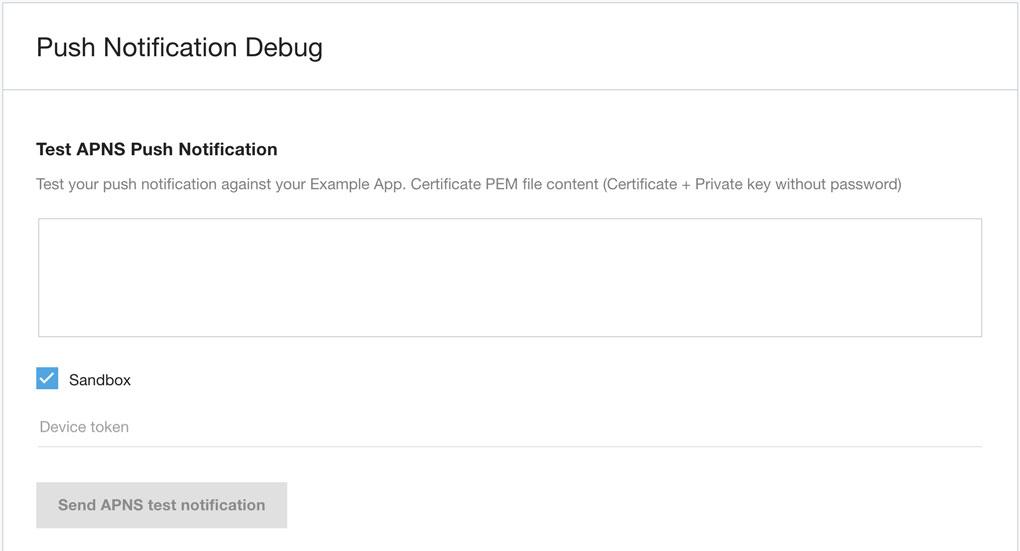
複製裝置權杖並貼到右側文字區域,然後選取正確的行動應用程式。
取得裝置權杖
裝置權杖字串範例如下:
7db0bc0044c8a203ed87cdab86a597a2c43bf16d82dae70e8d560e88253364b7
通常會在符合 UIApplicationDelegate 或 PKPushRegistryDelegate 通訊協定的類別中設定推播通知。裝置權杖會在某個時間點提供給您。您可以先列印出來,再傳遞至 iOS SDK。如要取得裝置權杖,請使用程式碼片段。
Swift
func tokenFromData(data: Data) -> String {
  return data.map { String(format: "%02x", $0) }.joined()
}

func application(_ application: UIApplication, didRegisterForRemoteNotificationsWithDeviceToken deviceToken: Data) {
  print("apns token: ", tokenFromData(data: deviceToken))
  ...
}

func pushRegistry(_ registry: PKPushRegistry, didUpdate credentials: PKPushCredentials, for type: PKPushType) {
  print("voip token: ", tokenFromData(data: credentials.token))
  ...
}
Obj-C
- (NSString *)tokenFromData:(NSData *)data {
  const char *d = data.bytes;
  NSMutableString *token = [NSMutableString string];

  for (NSUInteger i = 0; i < data.length; i++) {
    [token appendFormat:@"%02.2hhX", d[i]];
  }

  return [[token copy] lowercaseString];
}

- (void)pushRegistry:(PKPushRegistry *)registry didUpdatePushCredentials:(PKPushCredentials *)credentials forType:(PKPushType)type {
  NSLog(@"voip token: %@", [self tokenFromData:credentials.token]);
  ...
}

- (void)application:(UIApplication *)application didRegisterForRemoteNotificationsWithDeviceToken:(NSData *)deviceToken {
  NSLog(@"apns token: %@", [self tokenFromData:deviceToken]);
}
結果
輸入憑證 PEM 檔案和裝置權杖後,請按一下按鈕。
如果測試推播通知成功送達,結果會顯示「已成功設定推播通知」訊息。
視裝置的網路連線而定,我們無法保證 100% 會傳送推播通知。
專案設定
以下各節說明設定專案時需要進行的變更。
功能
在目標設定中,開啟下列功能:
推播通知
背景模式 (檢查這些項目)
音訊和 AirPlay
IP 網路語音傳遞技術
Info.plist
為保護使用者隱私權,凡是連結至 iOS 10.0 以上版本,且會存取裝置麥克風、相片圖庫和相機的 iOS 應用程式,都必須聲明存取意圖。請在應用程式的 Info.plist 檔案中加入下列鍵,並提供這個鍵的用途字串。如果應用程式嘗試存取裝置的任何麥克風、相片庫和相機,但沒有相應的用途字串,應用程式就會結束。
NSMicrophoneUsageDescription:允許存取麥克風,以便撥打電話及與支援或疑難排解團隊對話,並傳送與產品查詢相關的音訊影片。
NSCameraUsageDescription:允許存取相機,讓顧客拍攝及傳送與客戶服務查詢相關的相片。
NSPhotoLibraryUsageDescription:允許顧客傳送與客戶服務查詢相關的相片。
NSFaceIDUsageDescription:允許使用 Face ID 進行驗證。
啟動 iOS SDK
在要啟動 iOS SDK 的位置新增下列程式碼:
[UJET startWithOptions:nil];
您也可以使用直接存取點,透過這個鍵從選單中的特定位置啟動 iOS SDK:
UJETStartOptions *option = [[UJETStartOptions alloc] initWithMenuKey:@"MENU_KEY"];
[UJET startWithOptions:option];
建立直接存取點 (DAP) 即可建立 menuKey。下列步驟說明如何建立 DAP:
使用管理員憑證登入 CCAI Platform 入口網站。
依序前往「設定」>「佇列」。
從選單結構中選取任一佇列。
選取「建立直接存取點」
在文字表單中輸入金鑰。
按一下 [儲存]。
如果使用者資料已更新,請清除本機快取
我們會在 Keychain 中快取驗證權杖,以便重複使用,並減少從主機應用程式要求簽署酬載的次數。SDK 會使用該權杖,直到權杖過期或透過 clearUserData 呼叫遭撤銷為止。只要使用者相關資料有所變更或更新 (例如登出事件),主機應用程式就會負責撤銷這個快取。
[UJET clearUserData];
啟動 Contact Center AI 平台前,請先檢查現有工作階段
開始工作階段前,請先確認目前沒有進行中的工作階段。如果 userId 已變更,請務必這麼做。
[UJET getStatus];
如果已有現有工作階段,我們應提示使用者繼續工作階段或取消動作:
if ([UJET getStatus] != UjetStatusNone) {
  // Display alert to cancel login or resume existing session
}
自訂
UJETGlobalTheme.h 中列出了幾種 SDK 主題選項。
在 [UJET initialize] 後設定主題,例如:
UJETGlobalTheme *theme = [UJETGlobalTheme new];

theme.font = [UIFont fontWithName:@"OpenSans" size: 16.0f];
theme.lightFont = [UIFont fontWithName:@"OpenSans-Light" size: 16.0f];
theme.boldFont = [UIFont fontWithName:@"OpenSans-Bold" size: 16.0f];
theme.tintColor = [UIColor colorWithRed:0.243 green:0.663 blue:0.965 alpha:1.00];

[Ujet setGlobalTheme:theme];
公司名稱會從「管理入口」>「設定」 >「支援中心詳細資料」>「顯示名稱」擷取。
您可以設定標誌圖片,取代公司名稱,如下所示:
theme.companyImage = [UIImage imageNamed:@"logo"];
如果圖片過大,系統會調整大小,以符合區域大小。
字串
您也可以覆寫值來自訂字串。舉例來說,請在 Localizable.strings 中加入這個鍵值組:
"ujet_greeting_title" = "Title";

"ujet_greeting_description" = "Description";
如要查看可自訂的字串,請參閱 ujet.strings 檔案。
深色模式
您可以為深色模式指定所需顏色的色調,讓字型更容易閱讀。
@property (nonatomic, strong) UIColor \*tintColorForDarkMode;
如未設定屬性,系統會將 UJETGlobalTheme.tintColor 用於深色模式。如果應用程式支援深色模式,建議您設定這項屬性。 如要瞭解如何為深色模式選擇合適的色調,請參閱下列 Apple 文章:
即時通訊主題
如要自訂對話畫面,可以選擇使用 JSON 字串或各個主題類別。
如需參考,請參閱範例應用程式,並取消註解 customizeChatTheme 方法。
func customizeChatTheme() throws {
  guard let file = Bundle.main.path(forResource: "chat-theme-custom", ofType: "json") else { return }
  let json = try String.init(contentsOfFile: file, encoding: .utf8)

  let chatTheme = UJETChatTheme.init(jsonString: json)

  let quickReplyTheme = UJETChatQuickReplyButtonTheme()
  quickReplyTheme.style = .individual
  quickReplyTheme.alignment = .right
  quickReplyTheme.backgroundColor = UJETColorRef(assetName: "white_color")
  quickReplyTheme.backgroundColorForHighlightedState = UJETColorRef(assetName: "quick_reply_color")
  quickReplyTheme.textColor = UJETColorRef(assetName: "quick_reply_color")
  quickReplyTheme.textColorForHighlightedState = UJETColorRef(assetName: "white_color")

  let fontTheme = UJETFontTheme()
  fontTheme.family = "Arial Rounded MT Bold"
  fontTheme.size = 14
  quickReplyTheme.font = fontTheme

  chatTheme?.quickReplyButtonTheme = quickReplyTheme

  let globalTheme = UJETGlobalTheme()
  globalTheme.chatTheme = chatTheme
  globalTheme.defaultAgentImage = UIImage(named: "agent_avatar_image")
  globalTheme.font = UIFont(name: "Arial Rounded MT Bold", size: 14)

  UJET.setGlobalTheme(globalTheme)
}
內容資訊卡主題
您可以同時自訂內容資訊卡和對話。您可以使用 JSON 檔案 (請參閱 content_card 屬性),或使用 UJETChatContentCardTheme 類別執行這項操作。
func customizeChatTheme() throws {
  guard let file = Bundle.main.path(forResource: "chat-theme-custom", ofType: "json") else { return }
  let json = try String.init(contentsOfFile: file, encoding: .utf8)

  let chatTheme = UJETChatTheme.init(jsonString: json)

  let contentCardTheme = UJETChatContentCardTheme()
  contentCardTheme.backgroundColor = UJETColorRef(assetName: "agent_message_background_color")
  contentCardTheme.cornerRadius = 16

  let contentCardFontTheme = UJETFontTheme()
  contentCardFontTheme.family = "Arial Rounded MT Bold"
  contentCardFontTheme.size = 18
  contentCardTheme.font = contentCardFontTheme

  let contentCardBorder = UJETBorderTheme()
  contentCardBorder.width =  1
  contentCardBorder.color = UJETColorRef(assetName: "agent_message_border_color")
  contentCardTheme.border = contentCardBorder

  let contentCardFontTheme = UJETFontTheme()
  contentCardFontTheme.family = "Arial Rounded MT Bold"
  contentCardFontTheme.size = 18
  contentCardTheme.font = contentCardFontTheme

  // The font family is inherited from the contentCardFontTheme
  let subtitle = UJETFontTheme()
  subtitle.size = 12
  contentCardTheme.subtitle = subtitle

  // The font family is inherited from the contentCardFontTheme
  let bodyFont = UJETFontTheme()
  bodyFont.size = 10
  contentCardTheme.body = bodyFont

  theme.chatTheme?.contentCard = contentCardTheme

  let globalTheme = UJETGlobalTheme()
  globalTheme.chatTheme = chatTheme
  globalTheme.defaultAgentImage = UIImage(named: "agent_avatar_image")
  globalTheme.font = UIFont(name: "Arial Rounded MT Bold", size: 14)

  UJET.setGlobalTheme(globalTheme)
}
表單卡片主題
您可以同時自訂表單資訊卡和對話。您可以透過 JSON 檔案 (請參閱 form_card property) 或 UJETChatFormCardTheme 類別執行這項操作。
func customizeChatTheme() throws {
    guard let file = Bundle.main.path(forResource: "chat-theme-custom", ofType: "json") else { return }
    let json = try String.init(contentsOfFile: file, encoding: .utf8)

    let chatTheme = UJETChatTheme.init(jsonString: json)

    let formCardTheme = UJETChatFormCardTheme()
    formCardTheme.backgroundColor = UJETColorRef(assetName: "agent_message_background_color")
    formCardTheme.cornerRadius = 16

    let formCardFontTheme = UJETFontTheme()
    formCardFontTheme.family = "Arial Rounded MT Bold"
    formCardFontTheme.size = 18
    formCardTheme.font = formCardFontTheme

    let formCardBorder = UJETBorderTheme()
    formCardBorder.width =  1
    formCardBorder.color = UJETColorRef(assetName: "agent_message_border_color")
    formCardTheme.border = formCardBorder

    let titleFontTheme = UJETFontTheme()
    titleFontTheme.family = "Arial Rounded MT Bold"
    titleFontTheme.size = 18
    formCardTheme.title = titleFontTheme

    // The font family is inherited from the formCardFontTheme
    let subtitleFontTheme = UJETFontTheme()
    subtitleFontTheme.size = 12
    formCardTheme.subtitle = subtitleFontTheme

    chatTheme?.formCard = formCardTheme

    let globalTheme = UJETGlobalTheme()
    globalTheme.chatTheme = chatTheme
    globalTheme.defaultAgentImage = UIImage(named: "agent_avatar_image")
    globalTheme.font = UIFont(name: "Arial Rounded MT Bold", size: 14)

    UJET.setGlobalTheme(globalTheme)
}
設定網路表單
如要設定網頁表單功能,請實作 UJETDelegate 通訊協定的 ujetWebFormDidReceive 方法。這個方法會收到事件 (FormMessageReceivedEvent 字典) 做為參數,內含表單相關資訊。事件 (FormMessageReceivedEvent) 字典包含下列 JSON 結構:
  {
    "type": "form_message_received",
    "smart_action_id": 1,
    "external_form_id": "external_foobar"
    "signature": "4868a7e1dcb5..."
  }
如要處理事件,請按照下列步驟操作:
從事件字典 (
smart_action_id、external_form_id和signature) 中擷取相關資訊。產生表單 URI 和表單資料的簽章。
使用
completion closure將表單資料以FormDataEvent字典形式傳遞至 SDK。如果在 URI/簽章生成期間發生任何錯誤,請使用
callback.onError()搭配Error叫用回呼。
傳遞至 SDK 的字典 (FormDataEvent) 應具有下列結構:
 {
    "type": "form_data",
    "signature": "4868a7e1dcb5...",
    "data": {
       "smart_action_id":1,
       "external_form_id": "form_id",
       "uri":"foobar"
    }
  }
簽章 (HMAC-SHA:256) 必須使用 data 產生,並以共用密鑰簽署。產生簽章前,資料的物件鍵必須依字母順序排序,且應將相同的 data 傳送至 SDK。
會後轉移
您可以新增會後 VA 自訂項目,以及聊天自訂項目。
您可以使用 JSON 檔案 (請參閱 post_session
屬性),或使用 UJETChatPostSessionVaTheme 類別完成這項操作。框線寬度只能是 0 或 1,如果不想區分會後 VA 體驗,可以將 containerColor 設為白色,框線設為 0。
func customizeChatTheme() throws {
    guard let file = Bundle.main.path(forResource: "chat-theme-custom", ofType: "json") else { return }
    let json = try String.init(contentsOfFile: file, encoding: .utf8)

    let chatTheme = UJETChatTheme.init(jsonString: json)

    let postSessionVaTheme = UJETChatPostSessionVaTheme()
    postSessionVaTheme.containerColor = UJETColorRef(assetName: "white_color")

    let postSessionVaBorder = UJETBorderTheme()
    postSessionVaBorder.width =  0
    postSessionVaBorder.color = UJETColorRef(assetName: "white_color")
    containerColor.border = postSessionVaBorder

    chatTheme?.postSessionVaTheme = postSessionVaTheme

    let globalTheme = UJETGlobalTheme()
    globalTheme.chatTheme = chatTheme

    UJET.setGlobalTheme(globalTheme)
}
即時通訊動作選單
你可以新增對話動作選單的自訂項目,以及對話自訂項目。您可以透過 JSON 檔案 (請參閱 form_card 屬性) 或 UJETChatActionMenuTheme 類別完成這項操作。
func customizeChatTheme() throws {
    guard let file = Bundle.main.path(forResource: "chat-theme-custom", ofType: "json") else { return }
    let json = try String.init(contentsOfFile: file, encoding: .utf8)

    let chatTheme = UJETChatTheme.init(jsonString: json)

    let actionMenuTheme = UJETChatActionMenuTheme()

    let photoLibraryIcon = UJETChatUserInputIconTheme()
    photoLibraryIcon.visible = true
    photoLibraryIcon.image = UJETImageRef(assetName: "library_button_asset")

    let cameraIcon = UJETChatUserInputIconTheme()
    cameraIcon.visible = true
    cameraIcon.image = UJETImageRef(assetName: "camera_button_asset")

    let cobrowseIcon = UJETChatUserInputIconTheme()
    cobrowseIcon.visible = true
    cobrowseIcon.image = UJETImageRef(assetName: "cobrowse_button_asset")

    actionMenuTheme.libraryIcon = photoLibraryIcon
    actionMenuTheme.cameraIcon = cameraIcon
    actionMenuTheme.cobrowseIcon = cobrowseIcon

    chatTheme?.actionMenu = actionMenuTheme

    let globalTheme = UJETGlobalTheme()
    globalTheme.chatTheme = chatTheme

    UJET.setGlobalTheme(globalTheme)
}
其他登場節目
你也可以自訂其他外觀,例如字型大小和背景顏色。
theme.supportTitleLabelFontSize = 30;
theme.supportDescriptionLabelFontSize = 20;
theme.supportPickerViewFontSize = 30;
theme.staticFontSizeInSupportPickerView = YES;

theme.backgroundColor = UIColor.darkGrayColor;
theme.backgroundColorForDarkMode = UIColor.lightGrayColor;
CallKit
在 iOS 10.0 以上版本中,所有通話都會啟用 CallKit。
透過 CallKit,系統會顯示應用程式內來電的通話畫面,並將通話記錄顯示在手機的通話記錄中。
如要從通話記錄啟動新的 CCAI Platform 支援工作階段,請在 AppDelegate.m 中新增下列區塊:
AppDelegate.m:
- (BOOL)application:(UIApplication *)app continueUserActivity:(nonnull NSUserActivity *)userActivity restorationHandler:(nonnull void (^)(NSArray * _Nullable))restorationHandler {
    if ([userActivity.activityType isEqualToString:@"INStartAudioCallIntent"]) {
        // Open app from Call history
        [UJET startWithOptions:nil];
    }

    return YES;
}
如果裝置處於鎖定狀態,CallKit 會在收到來電時,於螢幕鎖定畫面顯示 40x40 的圖示。將圖片放在名為「icon-call-kit」的 Xcassets 中。
設定 SDK
您可以在啟動 SDK 前設定多個選項。
詳情請參閱 UJETGlobalOptions 類別。
UJETGlobalOptions *options = [UJETGlobalOptions new];
options.fallbackPhoneNumber = @"+18001112222";
options.preferredLanguage = @"en";

[UJET setGlobalOptions:options];
顯示或隱藏「下載轉錄稿」按鈕
您可以設定 SDK,在對話選項選單和對話後畫面中顯示或隱藏下載轉錄稿按鈕。
下列程式碼說明如何設定下載轉錄稿按鈕:
typedef NS_OPTIONS(NSUInteger, UJETChatDownloadTranscriptVisibilityOptions) {
    UJETChatDownloadTranscriptVisibilityOptionsShowAll = 0,
    UJETChatDownloadTranscriptVisibilityOptionsHideFromOptionsMenu = 1 << 0,
    UJETChatDownloadTranscriptVisibilityOptionsHideFromPostChatScreen = 1 << 1,
    UJETChatDownloadTranscriptVisibilityOptionsHideAll = UJETChatDownloadTranscriptVisibilityOptionsHideFromOptionsMenu | UJETChatDownloadTranscriptVisibilityOptionsHideFromPostChatScreen
};

@property (nonatomic, assign) UJETChatDownloadTranscriptVisibilityOptions transcriptVisibilityOptions;
PSTN 備援
我們在下列情況提供 PSTN 備援:
行動網路處於離線狀態。
無法連上應用程式後端。
無法使用 VoIP
網路狀況不佳,無法連線。詳情請參閱 UJETGlobalOptions.pstnFallbackSensitivity 屬性。
由於防火牆設定或供應商問題,連線時發生失敗。
建議您在 UJETGlobalOptions.fallbackPhoneNumber 中設定公司 IVR 號碼。建議格式為「+」加上國家/地區代碼和電話號碼,例如 +18001112222。
PSTN 備援敏感度
您可以調整檢查網路狀況的敏感度,以決定是否要改用 PSTN。
@property (nonatomic, assign) float pstnFallbackSensitivity;
值必須介於 0.0 至 1.0 之間。如果設為 1,系統一律會透過 PSTN 而非 VoIP 連線通話。如果值為 0,延遲時間上限和頻寬下限分別為 10000 毫秒和 10 KB/秒。舉例來說,如果值為 0.5,表示最低延遲和頻寬分別為 5000 毫秒和 15KB/s。
如要設定這個值,請按照下列步驟操作:
以管理員身分登入 CCAI Platform 入口網站。
依序前往「設定」>「開發人員設定」>「行動應用程式」。
找到「備用電話號碼門檻」部分。預設值為 0.85。
指定新的門檻值。
按一下「儲存」。
關閉全域推播通知
您可以在全域層級關閉推送通知。設定下列屬性會略過所有推播通知依附元件,並防止推播通知傳送給使用者:false
@property (nonatomic, assign) BOOL allowsPushNotifications;
忽略深色模式
您可以使用這項屬性,在 CCAI Platform SDK 中特別忽略深色模式:
@property (nonatomic, assign) BOOL ignoreDarkMode;
隱藏狀態列
您可以使用這個屬性控管狀態列的顯示設定:
@property (nonatomic, assign) BOOL hideStatusBar;
根據預設,hideStatusBar 會設為 false 和 visible。
略過顧客滿意度問卷調查
您可以新增按鈕,讓使用者略過顧客滿意度調查。下列程式碼範例說明如何新增按鈕:
let options = UJETGlobalOptions()
options.skipCsat = true
下班後的即時通訊簽到選項
如果聊天佇列使用聊天簽到,你可以控管非營業時間聊天簽到畫面顯示的內容。這兩個選項都是 UJETGlobalOptions 的屬性。
// YES to hide the "Next availability" message on the after-hours
// chat check-in screen. Default is NO.
@property (nonatomic, assign) BOOL hideNextAvailability;

// YES to hide the "Start over" button on the after-hours chat
// check-in screen. Default is NO.
@property (nonatomic, assign) BOOL hideStartOver;
自訂活動指標
您可以在 SDK 中加入自己的載入器動畫 (位於 UIView 內),並覆寫預設的 UIActivityIndicatorView。實作 UJETDelegate 中的 ujet_activityIndicator 方法,並傳回自訂檢視畫面。
public func ujet_activityIndicator() -> UIView! {
    let loader = UIView.init()
    let animation = CABasicAnimation()
    loader.backgroundColor = .blue
    loader.layer.cornerRadius = 15
    animation.timingFunction = CAMediaTimingFunction.init(name: CAMediaTimingFunctionName.easeOut)
    animation.keyPath = "transform.scale"
    animation.duration = 1.0
    animation.fromValue = 0.0
    animation.toValue = 1.0
    animation.repeatCount = Float.infinity
    animation.isRemovedOnCompletion = false
    loader.layer.add(animation, forKey: "Load")

    return loader
}
如果您已在應用程式的 Info.plist 中將 UIUserInterfaceStyle 設為 Light,完全停用深色模式,則可忽略這項屬性。
偏好語言
CCAI Platform SDK 會依下列優先順序決定偏好語言。
在應用程式的啟動畫面中選取的語言。
已從
UJETGlobalOptions選取預設語言。您可以使用preferredLanguage屬性設定預設語言。支援的語言代碼位於UJETGlobalOptions.h檔案中。如果應用程式支援,系統會使用你在裝置上選取的裝置語言 (依序前往「設定」>「一般」 >「語言與地區」)。
如果應用程式不支援裝置語言,但支援最接近的父方言,系統就會使用最接近的裝置語言方言。舉例來說,如果使用者在裝置中選取古巴西班牙文,但應用程式不支援古巴西班牙文,只支援母方言西班牙文,系統就會使用西班牙文。
如果應用程式不支援裝置語言,系統會使用英文。
設定外部轉向連結圖示
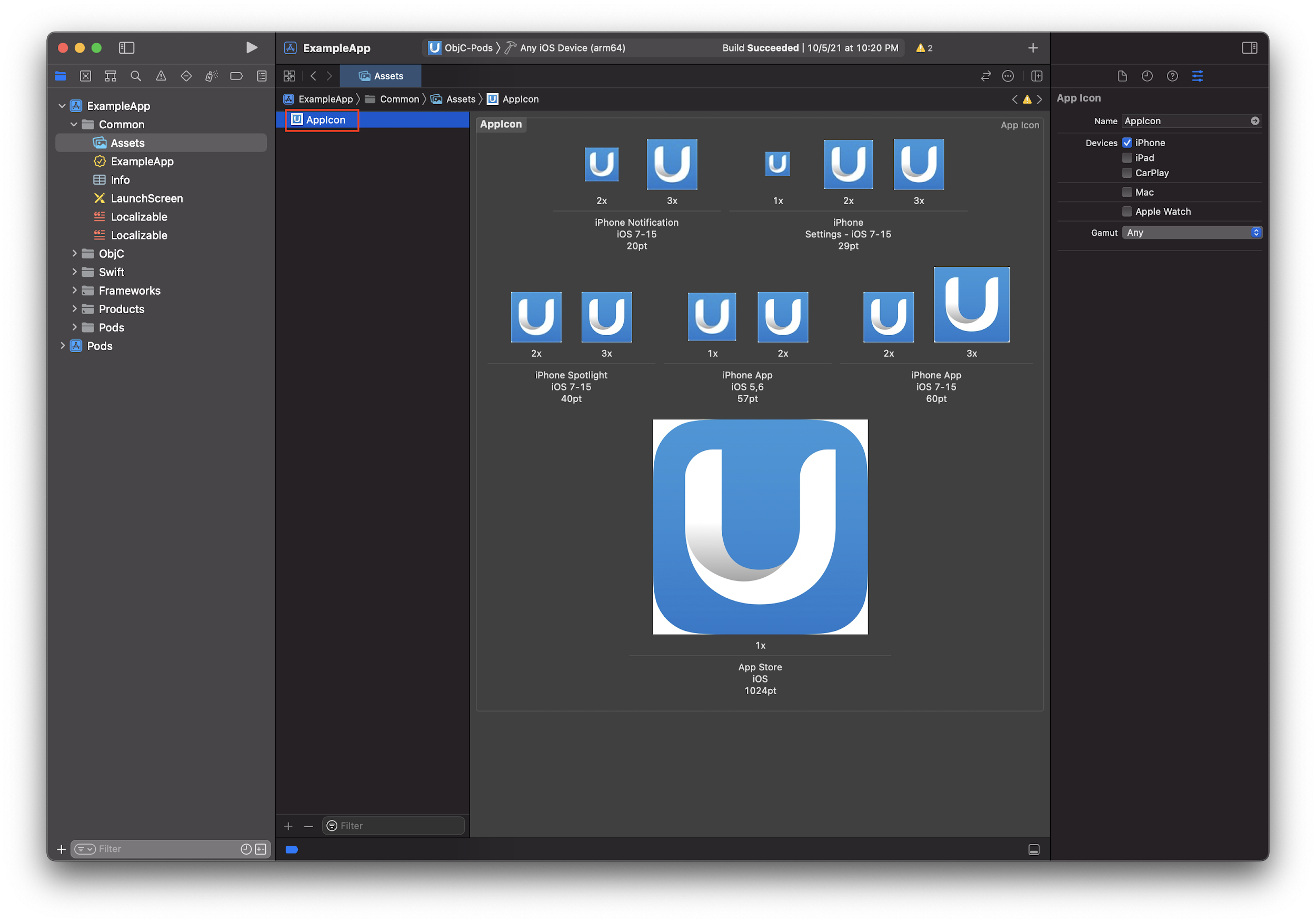
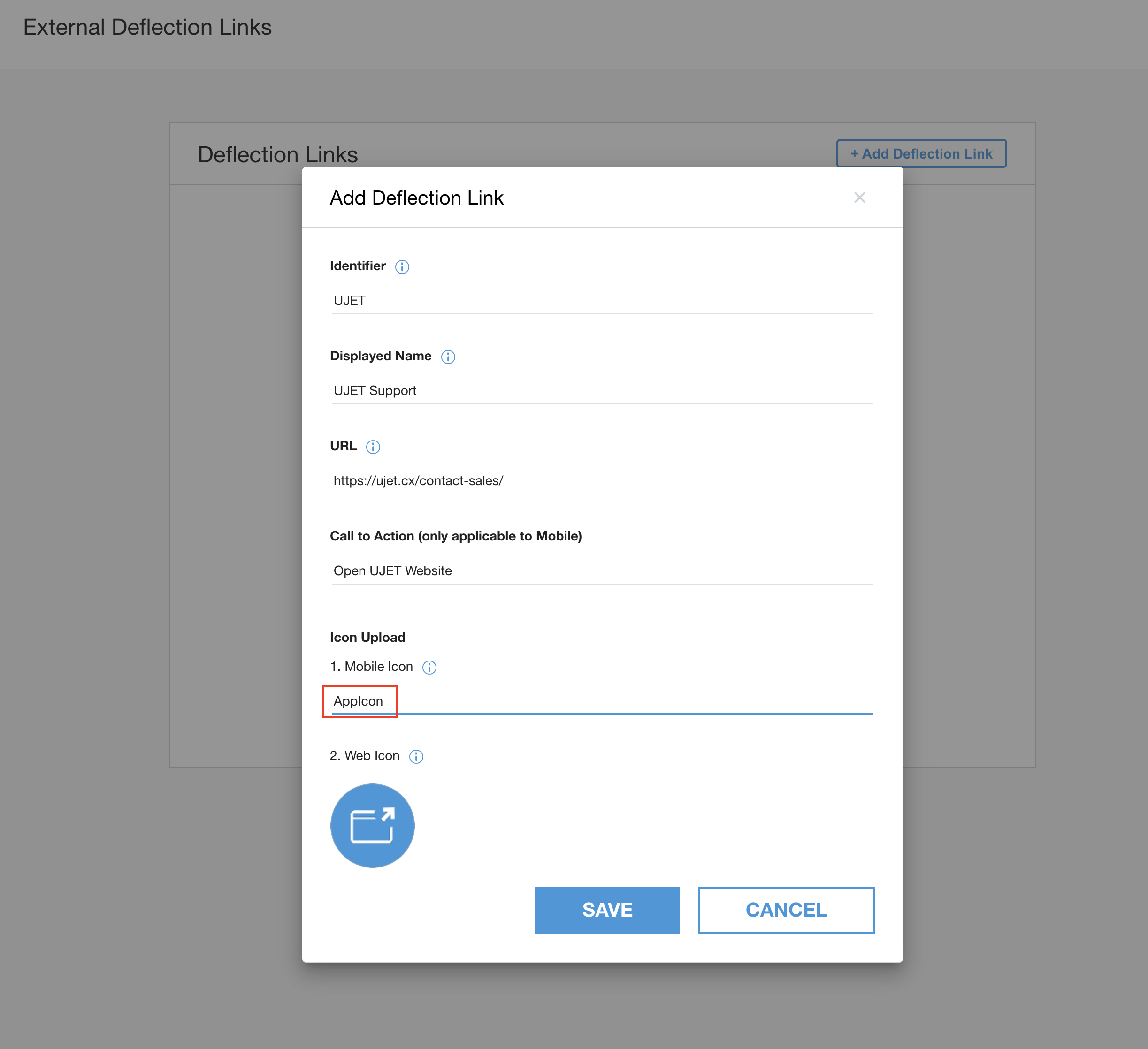
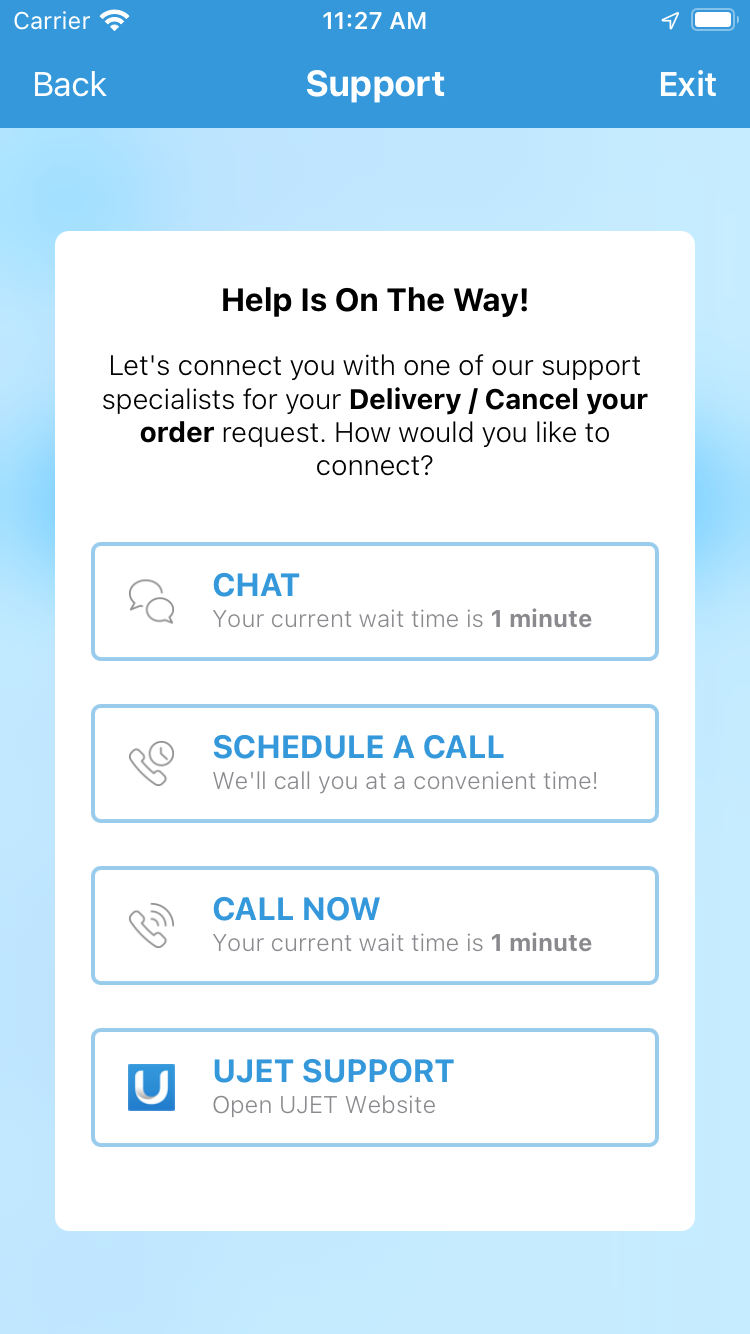
如要自訂外部轉導連結管道中的圖示,請將圖示上傳至應用程式的資產目錄,並確保在管理入口網站中依序前往「設定」>「即時通訊」>「外部轉導連結」>「查看連結」>「新增轉導連結」建立外部轉導連結時,使用相同的圖示名稱。如果管理入口網站中的圖示名稱與上傳至應用程式的圖示不符,SDK 會使用預設圖示。如要瞭解如何將圖片新增至資產目錄,請參閱這篇連結文章。
將自訂資料傳送至顧客關係管理系統
您可以將自訂資料傳送至 CRM 服務單。
傳送自訂資料的方法有兩種:
安全方法:使用 JWT 預先定義資料簽章。
不安全的方法:使用純 JSON 預先定義資料 (不建議)。
使用安全方法傳送自訂資料
您必須實作簽署方法。首先,您可以在用戶端放置自訂資料,然後傳送至伺服器進行簽署。您可以在伺服器上新增其他資料 (以定義的表單形式),並使用公司密碼簽署,然後以 JWT 形式傳回。
- (void)signPayload:(NSDictionary *)payload payloadType:(UjetPayloadType)payloadType success:(void (^)(NSString *))success failure:(void (^)(NSError *))failure
{
    if (payloadType == UjetPayloadCustomData) {
      // sign custom data using UJET_COMPANY_SECRET on your server.

      NSURLSessionConfiguration *sessionConfiguration = [NSURLSessionConfiguration defaultSessionConfiguration];
      NSURLSession *session = [NSURLSession sessionWithConfiguration:sessionConfiguration];

      NSMutableURLRequest *mutableRequest = [[NSMutableURLRequest alloc] init];
      mutableRequest.URL = [NSURL URLWithString:@"https://your.company.com/api/ujet/sign/custom_data"];
      mutableRequest.HTTPMethod = @"POST";
      NSError *error;

      // Make client's custom data
      UJETCustomData *customData = [[UJETCustomData alloc] init];
      [customData set:@"name" label:@"Name" stringValue:@"USER_NAME"];
      [customData set:@"os_version" label:@"OS Version" stringValue:[[UIDevice currentDevice] systemVersion]];
      [customData set:@"model" label:@"Model number" numberValue:[NSNumber numberWithInteger:1234]];
      [customData set:@"temperature" label:@"Temperature" numberValue:[NSNumber numberWithFloat:70.5]];
      [customData set:@"purchase_date" label:@"Purchase Date" dateValue:[NSDate date]];
      [customData set:@"dashboard_url" label:@"Dashboard" urlValue:[NSURL URLWithString:@"http://internal.dashboard.com/1234"]];

      NSDictionary *data = @{@"custom_data": [customData getData]};
      mutableRequest.HTTPBody = [NSJSONSerialization dataWithJSONObject:data options:0 error:&error];
      NSURLSessionDataTask *task = [session dataTaskWithRequest:mutableRequest completionHandler:^(NSData *data, NSURLResponse *response, NSError *error) {
          if(error) {
              failure(error);
          }
          else {
              NSDictionary *json = [NSJSONSerialization JSONObjectWithData:data options:0 error:nil];
              success(json[@"jwt"]);
          }
      }];

      [task resume];
    }
}
使用不安全的方法傳送自訂資料
這種方法會產生潛在的安全性漏洞,可能導致應用程式遭受中間人攻擊,因此不建議使用。如果您選擇使用這種方法,我們對可能發生的安全風險和潛在損害概不負責。建議您使用先前所述的安全方法,在應用程式中傳送自訂資料。或者,您也可以直接使用 UJETCustomData 執行個體啟動 iOS SDK。在這種情況下,signPayload UJETPayloadCustomData 的委派應只呼叫 success(nil);。
- (void)signPayload:(NSDictionary *)payload payloadType:(UjetPayloadType)payloadType success:(void (^)(NSString *))success failure:(void (^)(NSError *))failure {
    if (payloadType == UjetPayloadCustomData) {
      success(nil);
    }
}
UJETStartOptions *options = [UJETStartOptions new];
options.unsignedCustomData = customData;

[UJET startWithOptions:options];
使用未簽署的自訂資料傳送外部對話記錄
如果 SDK 是以未簽署的自訂資料啟動,您可以呼叫 setExternalChatTransfer: 或 setExternalChatTransferWithDictionary: 方法,分別使用 NSString 或 NSDictionary 設定 JSON 資料,將對話記錄傳送至 SDK。
UJETCustomData *customData = [UJETCustomData new];
[customData setExternalChatTransfer:jsonString];

UJETStartOptions *options = [UJETStartOptions new];
options.unsignedCustomData = customData;

[UJET startWithOptions:options];
JSON 格式:
greeting_override:字串agent:字典name:字串avatar:字串 [服務專員顯示圖片網址,選填]
transcript:陣列sender:字串 [end_user或agent]timestamp:字串 (例如2021-03-15 12:00:00Z)content:陣列type:字串 [text或media其中之一]text:字串 [文字類型為必填]media:字典 [媒體類型必填]type:字串 [image、video 其中之一]url:字串 [指向媒體檔案的公開網址]
JSON 範例:
{
  "greeting_override": "Please hold while we connect you with a human agent.",
  "agent": {
    "name": "Name",
    "avatar": "avatar url"
  },
  "transcript": [
    {
      "sender": "agent",
      "timestamp": "2021-03-15 12:00:15Z",
      "content": [
        {
          "type": "text",
          "text": "**Suggestions shown:**\n\n* Help with batch or delivery\n* Help with metrics or order feedback\n* Help with Instant Cashout"
        }
      ]
    },
    {
      "sender": "end_user",
      "timestamp": "2021-03-15 12:00:16Z",
      "content": [
        {
          "type": "text",
          "text": "Help with batch or delivery"
        }
      ]
    }
  ]
}
您可以在文字類型中使用 Markdown。支援的語法包括斜體、粗體、項目符號清單、超連結和底線 (--text--)。
自訂資料範例
以 JWT 編碼的 JSON
JSON 檔案應驗證 JWT。自訂資料的物件是 custom_data 鍵的值。
{
  "iat" : 1537399656,
  "exp" : 1537400256,
  "custom_data" : {
    "location" : {
      "label" : "Location",
      "value" : "1000 Stockton St, San Francisco, CA, United States",
      "type" : "string"
    },
    "dashboard_url" : {
      "label" : "Dashboard URL",
      "value" : "http://(company_name)/dashboard/device_user_ID",
      "type" : "url"
    },
    "contact_date" : {
      "label" : "Contact Date",
      "value" : 1537399655992,
      "type" : "date"
    },
    "membership_number" : {
      "label" : "Membership Number",
      "value" : 62303,
      "type" : "number"
    },
    "model" : {
      "label" : "Model",
      "value" : "iPhone",
      "type" : "string"
    },
    "os_version" : {
      "label" : "OS Version",
      "value" : "12.0",
      "type" : "string"
    },
    "last_transaction_id" : {
      "label" : "Last Transaction ID",
      "value" : "243324DE-01A1-4F71-BABC-3572B77AC487",
      "type" : "string"
    },
    "battery" : {
      "label" : "Battery",
      "value" : "-100%",
      "type" : "string"
    },
    "bluetooth" : {
      "label" : "Bluetooth",
      "value" : "Bluetooth not supported",
      "type" : "string"
    },
    "wifi" : {
      "label" : "Wi-Fi",
      "value" : "Wi-Fi not connected",
      "type" : "string"
    },
    "ssn" : {
      "invisible_to_agent" : true,
      "label" : "Social Security Number",
      "value" : "102-186-1837",
      "type" : "string"
    }
  }
}
每項資料都類似於 JSON 物件格式,且應包含鍵、值、類型和標籤。
鍵是資料的專屬 ID。標籤是 CRM 頁面上的顯示名稱。類型是值的類型。
字串
- JSON 字串
數字
- 整數、浮點數
日期
- 世界標準時間 Unix 時間戳記格式,長度為 13 位數。(包含毫秒)
網址
- HTTP 網址格式
客戶關係管理範例
以下是 CRM 範例。
位置
使用 CoreLocation 架構。詳情請參閱 AppDelegate.m。
裝置 OS 版本
[customData set:@"os_version" label:@"OS Version" stringValue:[[UIDevice currentDevice] systemVersion]];
禁止顯示自訂資料
您可以搭配自訂資料物件使用 invisible_to_agent 屬性,防止代理程式介面卡顯示已簽署或未簽署的自訂資料。在上一個範例中,由於 "invisible_to_agent" : true 包含在 ssn 物件中,因此代理程式介面卡不會顯示使用者的身分證字號。
如果您在自訂資料物件中加入 "invisible_to_agent" : true 屬性,可能會發生下列情況:
- 自訂資料會納入工作階段中繼資料檔案。
- 自訂資料不會納入 CRM 記錄。
詳情請參閱「在代理程式轉接程式中查看工作階段資料」。
保留資料屬性
工作階段開始時,您可以將保留的資料屬性以簽署的自訂資料形式,傳送至 Contact Center AI 平台 (CCAI 平台)。詳情請參閱傳送保留的資料屬性。
以下是自訂資料中保留的資料屬性範例:
  {
    "custom_data": {
      "reserved_verified_customer": {
        "label": "Verified Customer",
        "value": "VERIFIED_CUSTOMER_BOOLEAN": ,
        "type": "boolean"
      },
      "reserved_bad_actor": {
        "label": "Bad Actor",
        "value": "VERIFIED_BAD_ACTOR_BOOLEAN": ,
        "type": "boolean"
      },
      "reserved_repeat_customer": {
        "label": "Repeat Customer",
        "value": "REPEAT_CUSTOMER_BOOLEAN": ,
        "type": "boolean"
      }
    }
  }
更改下列內容:
VERIFIED_CUSTOMER_BOOLEAN:如果您認為這位使用者是正當顧客,則為 True。VERIFIED_BAD_ACTOR_BOOLEAN:如果認為這個使用者可能是惡意行為人,則為 True。REPEAT_CUSTOMER_BOOLEAN:如果您判斷這位使用者先前曾與聯絡中心聯絡,則為 True。
自訂 Flow
中斷 CCAI 平台連線,處理主機應用程式事件
// CCAI Platform is connected
...
// An event has come
[UJET disconnect:^{
  // Handle an event
}];
延後接聽 CCAI 平台來電或回覆訊息
實作委派方法來處理傳入的事件
- (BOOL)shouldConnectUjetIncoming:(NSString *)identifier forType:(UjetIncomingType)type {
  if (weDoingSomething) {
    // save identifier and type
    return NO; // postpone
  } else {
    return YES;
  }
}
連結延期活動
[UJET connect:identifier forType:UjetIncomingTypeCall];
設定深層連結
這樣一來,無論終端使用者是否安裝應用程式,PSTN 電話的服務專員都能透過簡訊使用智慧動作。
在 CCAI Platform 入口網站中,依序前往「設定」>「作業管理」>「啟用傳送簡訊下載應用程式」。
設定通用連結或自訂網址架構後,您可以使用網頁設定應用程式網址 (例如 https://your-company.com/support)。你可以選擇其中一種方式。
實作委派方法來處理深層連結
通用連結和自訂網址分別類似於 https://your-company.com/support?call_id=x&nonce=y 和 your-company://support?call_id=x&nonce=y。在管理入口網站的「應用程式網址」下方,輸入其中一個不含查詢參數的連結。舉例來說,如果使用自訂網址配置,請輸入
your-company://support。
在委派方法中,請務必只在通用連結或自訂網址中的網址路徑和參數專屬於 CCAI Platform 時呼叫 [UJET start]。
- (BOOL)application:(UIApplication *)app continueUserActivity:(nonnull NSUserActivity *)userActivity restorationHandler:(nonnull void (^)(NSArray * _Nullable))restorationHandler {
  ...
  if ([NSUserActivityTypeBrowsingWeb isEqualToString:userActivity.activityType]) {
    NSURL *url = userActivity.webpageURL;

    NSArray *availableSchema = @[
                                  @"your-company",   // custom URL scheme
                                  @"https"           // universal link
                                  ];

    NSArray *availableHostAndPath = @[
                                      @"ujet",                  // custom URL scheme
                                      @"your-comany.com/ujet"   // universal link
                                      ];

    if (![availableSchema containsObject:url.scheme]) {
      return NO;
    }

    NSString *hostAndPath = [NSString stringWithFormat:@"%@%@", url.host, url.path];
    if (![availableHostAndPath containsObject:hostAndPath]) {
      return NO;
    }

    // your-company://ujet?call_id={call_id}&nonce={nonce}
    // https://your-company.com/ujet?call_id={call_id}&nonce={nonce}
    NSURLComponents *urlComponents = [NSURLComponents componentsWithURL:url
                                                resolvingAgainstBaseURL:NO];
    NSArray *queryItems = urlComponents.queryItems;
    NSString *callId = [self valueForKey:@"call_id" fromQueryItems:queryItems];
    // validate call id
    if (![self isValidCallId:callId]) {
      return NO;
    }
    NSString *nonce = [self valueForKey:@"nonce" fromQueryItems:queryItems];

    UJETStartOptions *options = [[UJETStartOptions alloc] initWithCallId:callId nonce:nonce];

    [UJET startWithOptions:options];
  }
  ...
}
如果應用程式採用 UIWindowSceneDelegate,請新增下列程式碼片段:
class SceneDelegate: UIResponder, UIWindowSceneDelegate {

    var window: UIWindow?

    func scene(_ scene: UIScene, willConnectTo session: UISceneSession, options connectionOptions: UIScene.ConnectionOptions) {

        //if app is called with universal Link and started from cold
        if connectionOptions.urlContexts.first != nil  {
            self.scene(scene, openURLContexts: connectionOptions.urlContexts)
        }

        guard let _ = (scene as? UIWindowScene) else { return }
    }

    func scene(_ scene: UIScene, willContinueUserActivityWithType userActivityType: String) {
        guard let appDelegate = UIApplication.shared.delegate as? AppDelegate else { return }
        let _ = appDelegate.application(UIApplication.shared,
                                        continue: NSUserActivity(activityType: userActivityType)) { _ in

        }
    }

    func scene(_ scene: UIScene, openURLContexts URLContexts: Set<UIOpenURLContext>) {
        guard let url = URLContexts.first?.url else {
            return
        }

        guard let appDelegate = UIApplication.shared.delegate as? AppDelegate else { return }
        let _ = appDelegate.application(UIApplication.shared,
                                        open: url,
                                        options: [:])
    }
}
詳情請參閱 UJETObject+DeepLink 檔案中的程式碼範例。
觀察 CCAI 平台事件
我們會透過 NSNotificationCenter.defaultCenter 發布下列事件。您可以聆聽這些語音,並視用途自訂流程,例如自訂鍵盤配置。
UJETEventEmailDidClick
- 佇列選單資料
UJETEventEmailDidSubmit
佇列選單資料
has_attachment: (NSNumber) @YES, @NO
UJETEventSessionViewDidAppear
type: @"call", @"chat"
時間戳記:(NSString) ISO 8601
UJETEventSessionViewDidDisappear
type: @"call", @"chat"
時間戳記:(NSString) ISO 8601
UJETEventSessionDidCreate
- 工作階段資料
UJETEventSessionDidEnd
工作階段資料
agent_name:(NSString) 如果代理未加入,則為空值
duration:(NSNumber) 僅限通話
ended_by:(NSString)
type=call: @"agent", @"end_user"
type=chat: @"agent", @"end_user", @"timeout", @"dismissed"
UJETEventSdkDidTerminate
UJETEventPostSessionOptInDidSelected
- opt_in_selected: (NSString) @"Yes", @"No"
事件資料
中繼資料
application: @"iOS"
app_id:(NSString) 軟體包 ID
app_version:(NSString)
公司:(NSString) 子網域
device_model:(NSString)
device_version:(NSString)
sdk_version:(NSString)
時間戳記:(NSString) ISO 8601
佇列選單資料
中繼資料
menu_id:NSString
menu_key: NSString, nullable
menu_name:NSString
menu_path : NSString
工作階段資料
中繼資料
session_id:NSString
type: @"call", @"chat"
end_user_identifier: NSString
設定分享螢幕畫面
如要使用分享螢幕畫面功能,請整合 UJETCobrowseKit.xcframework。
CocoaPods:將下列子規格新增至應用程式目標。
    ruby
target 'MyApp' do
  pod 'UJET'
  pod 'UJET/Cobrowse'
end
Carthage:在 Cartfile 中新增下列程式碼:
binary "https://sdk.ujet.co/ios/UJETKit.json"
SwiftPM:選取 UJET 和 UJETCobrowse 產品,然後新增至應用程式目標。
並設定 UJETGlobalOptions.cobrowseKey 屬性。
swift
let options = UJETGlobalOptions()
options.cobrowseKey = cobrowseKey

UJET.setGlobalOptions(options)
分享整個裝置的畫面 (選用)
完整裝置畫面分享功能可讓支援服務專員查看您裝置上其他應用程式的畫面。如果支援服務專員需要檢查系統設定的狀態,或是查看使用者在多個應用程式之間切換,這項功能就非常實用。如不需要這項功能,可以略過本節。
自訂分享螢幕畫面同意聲明對話方塊
如要自訂「分享螢幕畫面」同意聲明對話方塊,您需要在供應商類別中實作 UJETCobrowseAlertProvider 通訊協定。在這個實作項目中,請透過相應的通訊協定方法,傳回自訂 UIViewController 或任何其他繼承 UIViewController 的物件。UIViewController
應有兩個按鈕,一個是接受,另一個是拒絕。
取得同意聲明後,請呼叫閉包 consentStatus,將同意聲明傳遞至 SDK。「cobrowseFullDeviceRequestAlert」的UIViewController。委派應包含附有標題的 RPSystemBroadcastPickerView (請參閱下方的程式碼範例),且應有另一個拒絕按鈕。在點選「拒絕」按鈕時,叫用已關閉的閉包。
class CobrowseAlertProvider: NSObject, UJETCobrowseAlertProvider {
    func cobrowseSessionInitializationAlert(consentStatus: @escaping (Bool) -> Void) -> UIViewController? {
        let customAlertViewController = CustomAlertViewController()
        customAlertViewController.consentStatus = consentStatus
        return customAlertViewController
    }

    func cobrowseSessionRequestAlert(consentStatus: @escaping (Bool) -> Void) -> UIViewController? {
        // Same as cobrowseSessionInitializationAlert
    }

    func cobrowseRemoteRequestAlert(consentStatus: @escaping (Bool) -> Void) -> UIViewController? {
        // Same as cobrowseSessionInitializationAlert
    }

    func cobrowseFullDeviceRequestAlert(dismissed: @escaping () -> Void) -> UIViewController? {
        let customAlertViewController = CustomFullDeviceAlertViewController()
        cobrowseSessionAlertViewController.dismissed = dismissed
        return customAlertViewController
    }

    func cobrowseSessionEndAlert(consentStatus: @escaping (Bool) -> Void) -> UIViewController? {
        // Same as cobrowseSessionInitializationAlert
    }
}
自訂檢視畫面控制器應有閉包,可將同意聲明狀態傳遞至 SDK。
class CustomAlertViewController: UIViewController {
    var consentStatus: ((Bool) -> Void)?

    @IBAction func allowButtonClicked(_ sender: Any) {
        dismiss(animated: true) {[weak self] in
            self?.consentStatus?(true)
        }
    }

    @IBAction func denyButtonClicked(_ sender: Any) {
        dismiss(animated: true) {[weak self] in
            self?.consentStatus?(false)
        }
    }
}
完整裝置要求快訊的自訂檢視畫面控制器應具有 RPSystemBroadcastPickerView 和閉包,可將 dismiss 狀態傳遞至 SDK。
class CustomFullDeviceAlertViewController: UIViewController {
    var broadcastPickerView: RPSystemBroadcastPickerView!
    var dismissed: (() -> Void)?

    override func viewDidLoad() {
        super.viewDidLoad()

        let frame = CGRect(x: x, y: y, width: 50, height: 50) // Set your own value
        broadcastPickerView = RPSystemBroadcastPickerView(frame: frame)
        broadcastPickerView.preferredExtension = Bundle.main.object(forInfoDictionaryKey: "CBIOBroadcastExtension") as? String // Should have this value as it is
        view.addSubview(broadcastPickerView)
    }

    @IBAction func denyButtonClicked(_ sender: Any) {
        dismiss(animated: true) {[weak self] in
            self?.dismissed?()
        }
    }
}
請務必透過下列 API 將這個供應商傳遞至 SDK:
let provider = CobrowseAlertProvider()
UJET.setCobrowseAlertProvider(provider)
廣播擴充功能
這項功能需要新增廣播擴充功能。
開啟 Xcode 專案。
依序前往「File」 > 「Target」。
選取「Broadcast Upload Extension」。
輸入目標的「名稱」。
取消勾選「Include UI Extension」(包含 UI 擴充功能)。
建立目標,並記下其軟體包 ID。
將 Broadcast Extension 的目標 SDK 變更為 iOS 12.0 以上版本。
整合 SDK
CocoaPods:在擴充功能目標中加入下列子規格:
target 'MyApp' do
  pod 'UJET'
  pod 'UJET/Cobrowse'
end
target 'MyAppExtension' do
  pod 'UJET/CobrowseExtension'
end
如果使用 SwiftPM,請選取 UJETCobrowseExtension 產品並新增至擴充功能目標。
設定鑰匙圈共享功能
您先前建立的應用程式和應用程式擴充功能必須透過 iOS 鑰匙圈共用某些密碼。他們會使用自己的鑰匙圈群組,與其他應用程式的鑰匙圈隔離。
在應用程式目標和擴充功能目標中,為 io.cobrowse 金鑰鏈群組新增金鑰鏈
共用授權。
將軟體包 ID 新增至 plist
取得先前建立的擴充功能套件 ID,並在應用程式的 Info.plist 中新增下列項目 (注意:不是在擴充功能的 Info.plist 中),將下列套件 ID 替換為您自己的:
xml
<key>CBIOBroadcastExtension</key>
<string>your.app.extension.bundle.ID.here</string>
實作擴充功能
Xcode 會將 SampleHandler.m 和 SampleHandler.h (或 SampleHander.swift) 檔案新增為您先前建立目標的一部分。將檔案內容替換為下列內容:
Swift:選取 UJETCobrowseExtension 產品並新增至擴充功能目標:
import CobrowseIOAppExtension
class SampleHandler: CobrowseIOReplayKitExtension {
}
ObjC
objc// SampleHandler.h
@import CobrowseIOAppExtension;
@interface SampleHandler : CobrowseIOReplayKitExtension
@end// SampleHandler.m
#import "SampleHandler.h"
@implementation SampleHandler
@end
打造並執行您的應用程式
現在可以建構及執行應用程式。完整裝置功能僅適用於實體裝置,無法在 iOS 模擬器中運作。
將 SDK 縮到最小
如果聊天工作階段或通話正在進行中,可以將 Contact Center AI 平台 SDK 縮到最小。收到 SDK 事件 (例如使用者點選內容資訊卡) 後,如果想將使用者帶回應用程式,這項功能就非常實用。如要縮小 SDK 並將使用者帶回應用程式,請使用:
UJET.minimize(nil)
 // Or if you want to take some action once the SDK has been minimized:

UJET.minimize {
  // Add the code you want to run once the SDK has been minimized here
}
備用
您可以使用 didHandleUjetError 函式,處理非預期的錯誤。如果您未使用這個函式或函式傳回 false,iOS 版 SDK 會處理錯誤。
下表列出 didHandleUjetError 函式會監聽的錯誤:
| 錯誤類型 | 錯誤代碼 | 說明 |
|---|---|---|
networkError |
1 | 無法連上網路。 注意:如果網路在即時通訊或通話工作階段或評分畫面中無法使用,系統不會觸發這項錯誤。 |
authenticationError |
100 | 驗證時發生未預期的錯誤。 |
authenticationJwtError |
101 | JWT 驗證期間發生未預期的錯誤,例如剖析錯誤。 |
voipConnectionError |
1000 | 無法與 VoIP 供應商建立連線。VoIP SDK 回呼會處理這項作業。 |
voipLibraryNotFound |
1001 | 系統預期透過 VoIP 供應商接通電話,但找不到供應商。如果整合的 SDK 有誤,或是未將 VoIP 供應商程式庫新增至依附元件,就可能發生這種情況。 |
chatLibraryNotFound |
1100 | 系統找不到即時通訊程式庫時,就會發生這種情況。如果整合的 SDK 錯誤,或是未將 Twilio 即時通訊程式庫新增至依附元件,就可能發生這種情況。 |
以下程式碼範例說明如何使用 didHandleUjetError 函式:
public func didHandleUjetError(_ errorCode: Int32) -> Bool {
    guard let ujetError = UjetErrorCode(rawValue: Int(errorCode)) else {
        return false // Let the SDK handle unknown integer codes.
    }

    switch ujetError {
    case .networkError:
        // Example for if you have a custom UI for network errors. You can
        // handle the error and prevent the SDK from showing its own alert.
        showCustomNetworkAlert() // Your custom UI for this type of error.
        return true

    case .authenticationError, .voipConnectionError:
        // For all other errors, use the default SDK behavior.
        return false

    @unknown default:
        // Let the SDK handle future errors.
        return false
    }
}
疑難排解
應用程式遭拒
由於您在中國境內提交的應用程式包含 CallKit 架構,因此遭到拒絕。
如果 Apple 因此拒絕您的應用程式,請直接留言,因為系統會在 VoIP 通話中停用中國地區的 CallKit 架構。這項異動自 SDK 0.31.1 版起生效。
SDK 過大
SDK 大小過大,難以在 GitHub 上追蹤
這篇文章提供兩種做法。建議使用 Git lfs。
如果未使用 Bitcode,可以選擇從二進位檔中移除 Bitcode。在 UJETKit.xcframework 資料夾下執行這項指令。
xcrun bitcode_strip -r UJET -o UJET
dyld:未載入程式庫錯誤
在「Target」>「Build Settings」>「Linking」 中,將 @executable_path/Frameworks 新增至 Runpath Search Paths。
在 iTunes Connect 上提交應用程式
由於啟用網際網路通訊協定語音 (VoIP) 背景模式,Apple 可能會在審查程序中提出下列問題:
使用者可以在您的應用程式中接聽 VoIP 電話嗎?
針對問題回答「是」。
啟動 SDK 時無法使用快訊通知
請確認下列事項:
使用實體裝置,而非模擬器。
啟用推播通知和「背景模式」>「網際網路通訊協定語音」功能。
如果上述方法無法解決問題,請嘗試使用發布佈建設定檔 (臨時或 Apple Store) 建構。
針對測試應用程式測試推播通知
準備 VoIP 憑證和裝置的裝置權杖。
在 CCAI Platform 入口網站中,參閱「設定」>「開發人員設定」選單中的「推播通知偵錯」部分。
如果您已設定 APNS 憑證,就不必再次輸入憑證。
輸入憑證 (選用) 並檢查是否為沙箱 (選用),然後輸入測試應用程式的推播通知裝置權杖。
發起新對話的時間超過 30 秒
檢查您是否正在回應自訂資料的委派方法。您應在要求時傳回有效的自訂資料,或在成功區塊中只傳回 nil。
請使用以下程式碼片段做為設定範例:
public func signPayload(_ payload: [AnyHashable: Any]?, payloadType: UjetPayloadType, success: (String?) -> Void, failure: (Error?) -> Void)
{
    if payloadType == .customData {
        success(nil)
    }
}