

Troubleshoot access control issues
This document shows you how to troubleshoot security issues with
Identity and Access Management (IAM) permissions, column-level access control, and
customer-managed encryption keys (CMEK) in BigQuery.
IAM permission issues typically result in Access Denied errors
like the following:
Access Denied: Project PROJECT_ID:
User does not have bigquery.jobs.create permission in project
PROJECT_ID.
Access Denied: Project PROJECT_ID: User does not have bigquery.datasets.get permission on dataset DATASET.User does not have permission to query table PROJECT_ID:DATASET.TABLE.Access Denied: Table PROJECT_ID:DATASET.TABLE: User does not have permission to query table PROJECT_ID:DATASET.TABLE, or perhaps it does not exist.Access Denied: User PRINCIPAL does not have permission to perform bigquery.tables.getData on resource 'projects/PROJECT_ID/datasets/DATASET/tables/TABLE'.
Before you begin
- To troubleshoot a principal's access to a BigQuery resource, ensure that you have the required IAM permissions.
Gather information about the issue
The first step in troubleshooting a resource access issue is to determine the permission that is missing, the IAM principal that was denied access, and the resource the principal was attempting to access.
Get information from the error or job history
To get information about the principal, the resource, and the permissions, examine the output from the bq command-line tool, the API response, or BigQuery in the Google Cloud console.
For example, if you attempt to run a query with insufficient permissions, you see an error like the following on the Job information tab in the Query results section of the Google Cloud console.
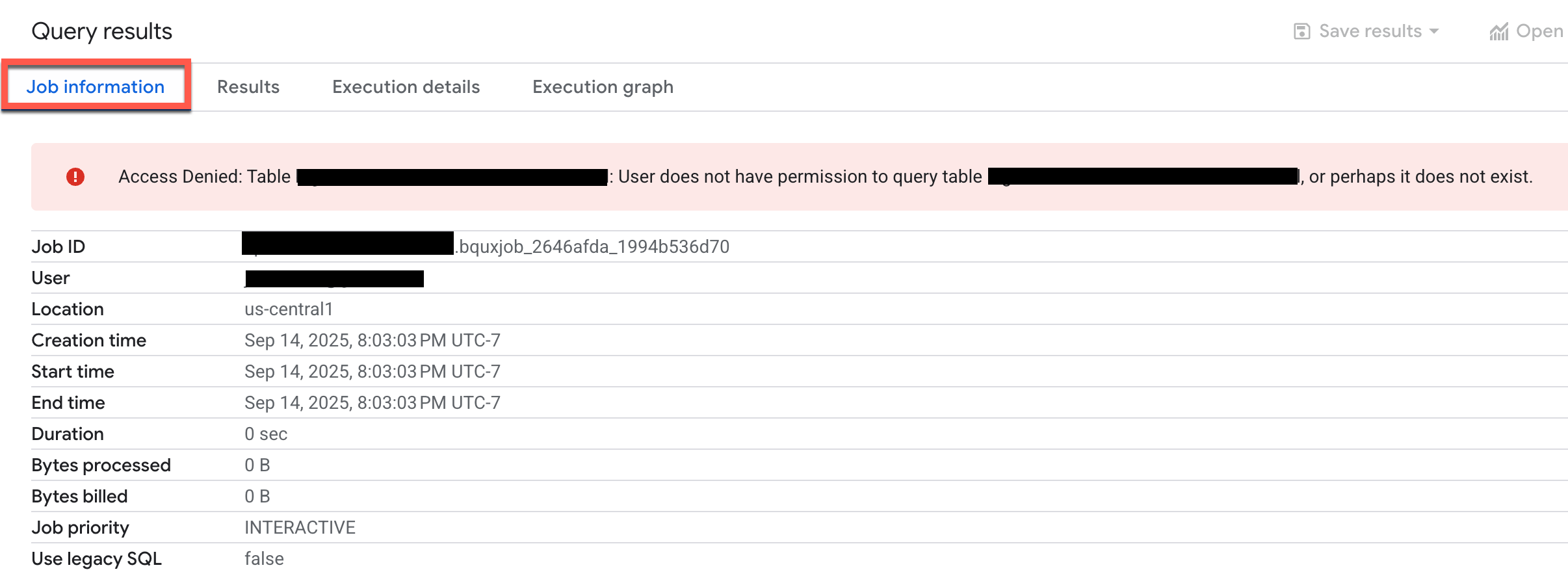
Examine the error to determine the principal, the resource, and the permissions.
In some cases, you may be able to request missing permissions directly from the error message. For more information, see Permission error messages in the IAM documentation.
Get information from the Cloud Audit Logs
If the error message is generic, missing information, or if the action failed in a background process, use the Cloud Audit Logs Logs Explorer to get information about the error.
In the Google Cloud console, go to the Logs Explorer page.
Alternatively, from the navigation menu, choose Monitoring > Logs Explorer.
In the Logs Explorer, for the logs scope, choose Project logs.
In the query window, enter the following query to get permission-related errors from the BigQuery data access logs:
resource.type="bigquery_resource" AND
logName="projects/PROJECT_ID/logs/cloudaudit.googleapis.com%2Fdata_access" AND
protoPayload.status.message:"Access Denied" OR
protoPayload.status.message:"Permission denied" OR
protoPayload.status.code=7
Replace PROJECT_ID with your project ID.
In the query results, expand the log entry that corresponds to your failed operation.
In the
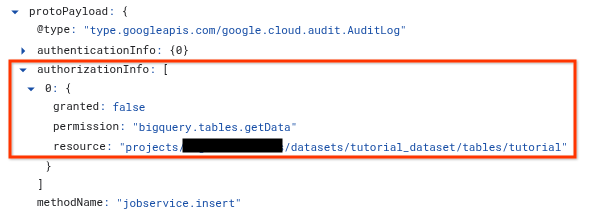
protoPayloadsection, expand theauthorizationInfoarray, and then expand each node in theauthorizationInfoarray.The
authorizationInfoarray shows every permission check performed during the API call.To see the cause of the error, look for the
granted: falseentry. Thegranted: falseentry shows the following information:permission: The IAM permission string that was checked. For example,bigquery.tables.getData.resource: The fully qualified name of the resource that the principal attempted to access. For example,projects/myproject/datasets/mydataset/tables/mytable.principalEmail(if available): Referenced inprotoPayload.authenticationInfo, this is the principal that attempted the action.
Use the Policy Analyzer for allow policies
Policy Analyzer for allow policies lets you find out which IAM principals have what access to which BigQuery resources based on your IAM allow policies.
After you gather information about the permissions error, you can use the Policy Analyzer to understand why the principal lacks the required access. This tool analyzes all relevant policies, memberships in Google Groups, and inheritance from parent resources such as a project, a folder, and your organization.
To use Policy Analyzer for allow policies, you create an analysis query, specify a scope for the analysis, and then run the query.
In the Google Cloud console, go to the Policy Analyzer page.
Alternatively, from the navigation menu, choose IAM & Admin > Policy Analyzer.
Click Create Custom Query.
On the Configure your query page, enter the information you gathered previously:
In the Select the scope section, in the Select query scope field, verify that your current project appears or click Browse to choose another resource.
In the Set the query parameters section, for Parameter 1, choose Principal, and in the Principal field, enter the email of the user, group, or service account.
Click Add parameter.
For Parameter 2, choose Permission, and in the Permission field, click Select, choose the BigQuery permission, and then click Add. For example, select
bigquery.tables.getData.Click Add parameter.
For Parameter 3, choose Resource, and in the Resource field, enter the fully qualified resource name. The resource name must include the service prefix as in the following examples:
- BigQuery project:
//cloudresourcemanager.googleapis.com/projects/PROJECT_ID - BigQuery dataset:
//bigquery.googleapis.com/projects/PROJECT_ID/datasets/DATASET - BigQuery table:
//bigquery.googleapis.com/projects/PROJECT/datasets/DATASET/tables/TABLE
- BigQuery project:
In the Custom query pane, click Analyze > Run query.
Examine the query results. The result can be one of the following:
- An empty list. No results confirm that the principal doesn't have the required permission. You'll need to grant the principal a role that provides the correct permissions.
- One or more results. If the analyzer finds an allow policy, some form of access exists. Click View Binding on each result to view the roles that provide access to the resource that the principal is a member of. The policy binding shows whether access is granted through group membership or inheritance, or whether access is denied by an IAM condition or an IAM deny policy.
Find the correct IAM role that grants the required permissions
After you confirm that the principal doesn't have sufficient access, the next step is to find the appropriate predefined or custom IAM role that grants the required permissions. The role you choose should adhere to the principle of least privilege.
If your organization uses custom roles, you can find the correct role by listing all custom roles created in your project or organization. For example, in the Google Cloud console, on the Roles page, you can filter the list by Type:Custom to see only custom roles.
To find the correct predefined IAM role, follow these steps.
Open the BigQuery permissions section of the BigQuery IAM roles and permissions page.
In the Enter a permission search bar, enter the permission you retrieved from the error message, job history, or audit logs. For example,
bigquery.tables.getData.The search results show all predefined BigQuery roles that grant the permission.
Apply the principle of least privilege: in the list of roles, choose the least permissive role that grants the required permissions. For example, if you searched for
bigquery.tables.getDatato grant the ability to query table data, BigQuery Data Viewer is the least permissive role that grants that permission.Grant the principal the appropriate role. For information about how to grant an IAM role to a BigQuery resource, see Control access to resources with IAM.
Troubleshoot column-level access control
The following sections explain how to troubleshoot issues with column-level access control and Data Catalog policy tags.
I can't see the Data Catalog roles
If you can't see roles such as Data Catalog Fine-Grained Reader, it's possible that you haven't enabled the Data Catalog API in your project. To learn how to enable the Data Catalog API, see Before you begin. The Data Catalog roles appear several minutes after you enable the Data Catalog API.
I can't view the Taxonomies page
You need additional permissions to view the Policy tag taxonomies page in the Google Cloud console. For example, the Data Catalog Policy Tag Admin role has access to the Taxonomies page.
I enforced policy tags, but it doesn't seem to work
If you're still receiving query results for an account that shouldn't have access, it's possible that the account is receiving cached results. Specifically, if you previously ran the query successfully and then enforced policy tags, you might be getting results from the query result cache. By default, query results are cached for 24 hours. The query fails immediately if you disable the result cache. For more details about caching, see Impact of column-level access control.
In general, IAM updates take about 30 seconds to propagate. Changes in the policy tag hierarchy can take up to 30 minutes to propagate.
I don't have the permission to read from a table with column-level security
You need either the Fine-Grained Reader role or the Masked Reader role at different levels, such as organization, folder, project, and policy tag. The Fine-Grained Reader role grants raw data access, while the Masked Reader role grants access to masked data. You can use the IAM Policy Troubleshooter to check this permission at the project level.
I set fine-grained access control in policy tag taxonomy, but users see protected data
To troubleshoot this issue, confirm the following details:
- On the Policy tag taxonomies page of the BigQuery Security center, confirm that the Enforce access control toggle is in the On position.
Ensure that your queries aren't using cached query results. If you use the bq command-line tool to test your queries, then use the
--nouse_cacheflag to disable the query cache. For example:bq query --nouse_cache --use_legacy_sql=false "SELECT * EXCEPT (customer_pii) FROM my_table;"
Project migration considerations
Policy tags and taxonomies are homed within a specific Google Cloud organization and aren't automatically re-associated when a project is migrated to a new organization. If you migrate a project that uses policy tags for column-level access control to a different organization, the following issues occur:
- The policy tags are no longer manageable in the Google Cloud console within the migrated project.
- You can't apply these policy tags to new columns in the migrated project.
- Existing column-level access controls might appear to still be in place, but the link to the source taxonomy in the original organization is broken for management purposes.
Resolving this issue requires manual intervention by Google Cloud Support to re-associate the taxonomy with the new organization. If you migrated a project with policy tags and encounter these issues, contact Cloud Customer Care.
Troubleshoot customer-managed encryption keys
The following list describes common errors and recommended resolutions when you use customer-managed encryption keys (CMEK) with Cloud Key Management Service:
- Error:
Please grant Cloud KMS CryptoKey Encrypter/Decrypter role - Resolution: The BigQuery service account associated with your project doesn't have sufficient IAM permission to operate on the specified Cloud KMS key. To grant the required IAM permission, follow the instructions in the error message or in Grant encryption and decryption permission.
- Error:
Existing table encryption settings don't match encryption settings specified in the request - Resolution: This error can occur when the destination table has encryption
settings that don't match the encryption settings in your request. To resolve
this issue, use the
TRUNCATEwrite disposition to replace the table, or specify a different destination table. - Error:
This region is not supported - Resolution: The region of the Cloud KMS key doesn't match the region of the BigQuery dataset for the destination table. To resolve this issue, select a key in a region that matches your dataset, or load data into a dataset that matches the key region.
- Error:
Your administrator requires that you specify an encryption key for queries in project PROJECT_ID. - Resolution: An organization policy prevented creating a resource or running a query. To learn more about this policy, see Require CMEKs for all resources.
- Error:
Your administrator prevents using KMS keys from project KMS_PROJECT_ID to protect resources in project PROJECT_ID. - Resolution: An organization policy prevented creating a resource or running a query. To learn more about this policy, see Restrict Cloud KMS keys for a BigQuery project.
What's next
- For a list of all BigQuery IAM roles and permissions, see BigQuery IAM roles and permissions.
- For more information about column-level security, see Restrict access with column-level access control.
- For more information about customer-managed encryption keys, see Protect data with Cloud KMS keys.
- For more information about troubleshooting allow and deny policies in IAM, see Troubleshoot policies.
- For more information about the Policy Intelligence Policy Analyzer, see Policy Analyzer for allow policies.
- For more information about the Policy Troubleshooter, see
Use Policy Troubleshooter.